How to fix
Corrupted Microsoft Store icons
on Windows
Resolve corrupted Microsoft Store icons on Windows 10 and 11 easily. Follow our expert-tested guide for a quick fix, with screenshots included!


What causes How to fix corrupted Microsoft Store icons?
- Corrupted thumbnails
- Incorrect display settings
- Issues with Ease of Access settings
- Icon cache corruption
Repairs Windows system files, removes malware, and restores a clean OS state — without reinstalling.
Hello. All applications that are from the Microsoft Store do not have icons. Did the thumbnails somehow get corrupted? Any tips would be appreciated.
Microsoft Store is a digital distribution platform for apps that offers users the convenience of being able to install and update programs in one place, as well as ensuring safety by letting users download apps through the built-in app for Windows rather than having to search through unsafe sources.[ref en-1]
However, some users are having trouble with Microsoft Store app icons. People report that the logos or thumbnails for applications from the Windows Store are missing. This can make opening apps more difficult and lengthy as users would have to check the names of the apps to know which one they want to open.
It is unknown why exactly this could be happening but there are some general reasons why the Windows Store app icons could be missing. You may have to check your Windows Display settings or rebuild icon cache. In this guide, you will find 5 steps that could help you fix corrupted Microsoft Store icons
Sometimes manual troubleshooting can be a lengthy process so you can also use a maintenance tool like [d1] to scan your machine. This powerful software can fix most system errors, BSODs,[ref en-2] corrupted files, and registry[ref en-3] issues. Otherwise, follow the step-by-step instructions below.

Method 1. Check Scale and Layout Settings
- Press the Windows key + I to open Settings
- Go to System, and then click on Display
- Under Scale and layout - if it was set to 100% (Recommended), change it to 125%
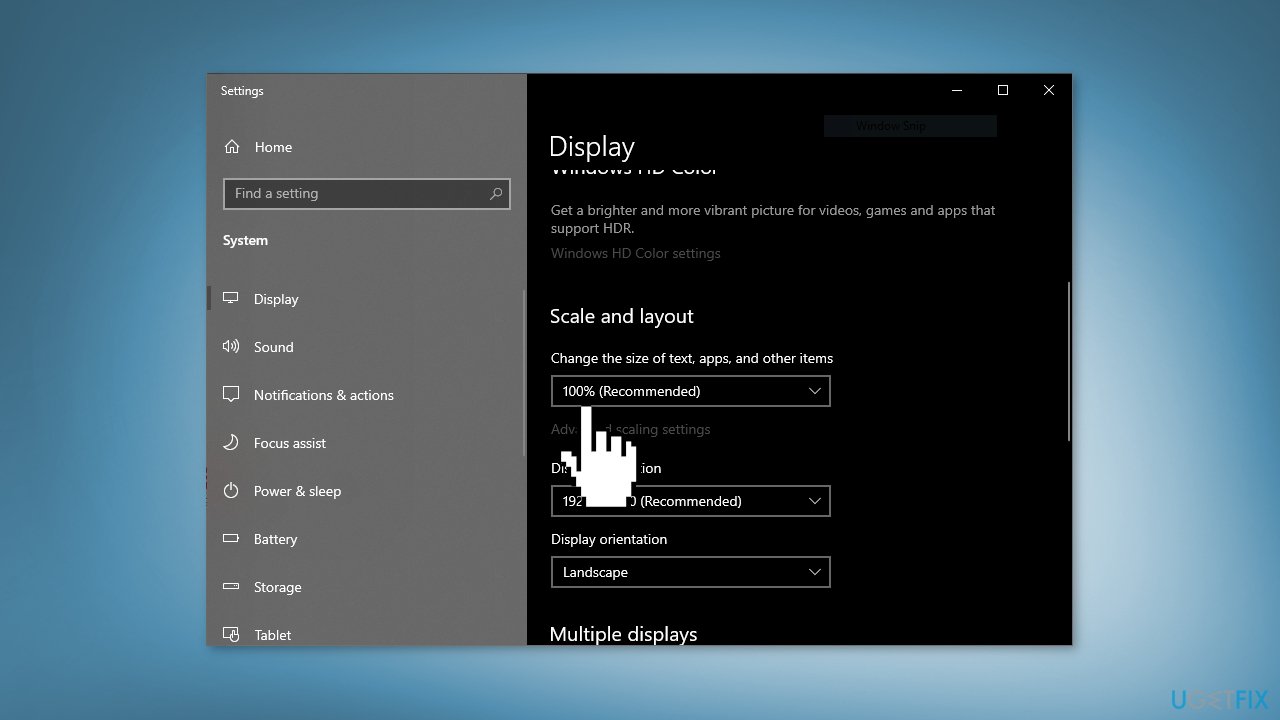
- Restart your computer
- Then change it back again to 100% and restart your device
Method 2. Check Ease of Access Settings
- Press the Windows key + I to open Settings
- Go to Ease of Access, and click on Display
- Under Make everything bigger - if it was set to 100% (Recommended), Change it to 125%
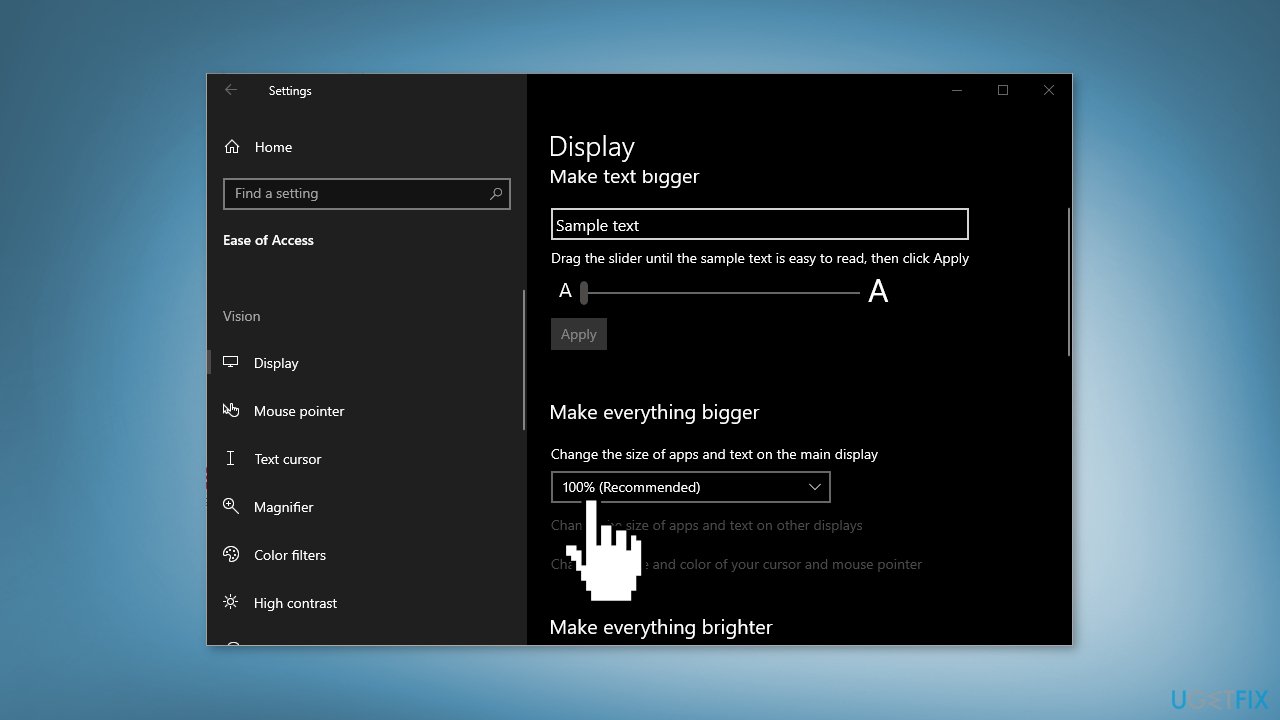
- Restart your computer
- Then change it back again to 100% and restart your computer
Method 3. Rebuild Icon Cache
- Open the Command Prompt as an Administrator
- Copy and paste each command below one at a time into the command prompt, and press Enter:
ie4uinit.exe -show
taskkill /IM explorer.exe /F
DEL /A /Q "%localappdata%\IconCache.db"
DEL /A /F /Q "%localappdata%\Microsoft\Windows\Explorer\iconcache*"
shutdown /r /f /t 00
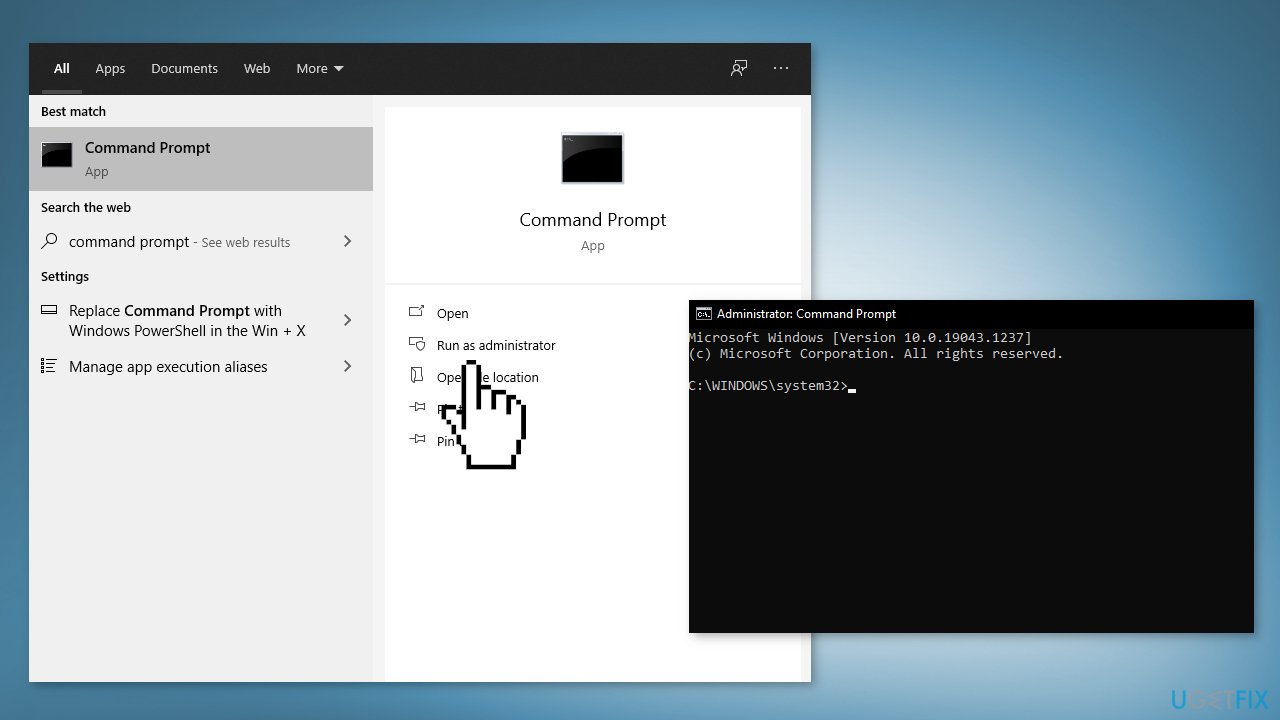
- Wait for the computer to restart and check if the issue is resolved
Method 4. Create a Local Administrator Account
- Select the Start menu and go to Settings
- Click on Accounts
- Under Family & other users select Add someone else to this PC
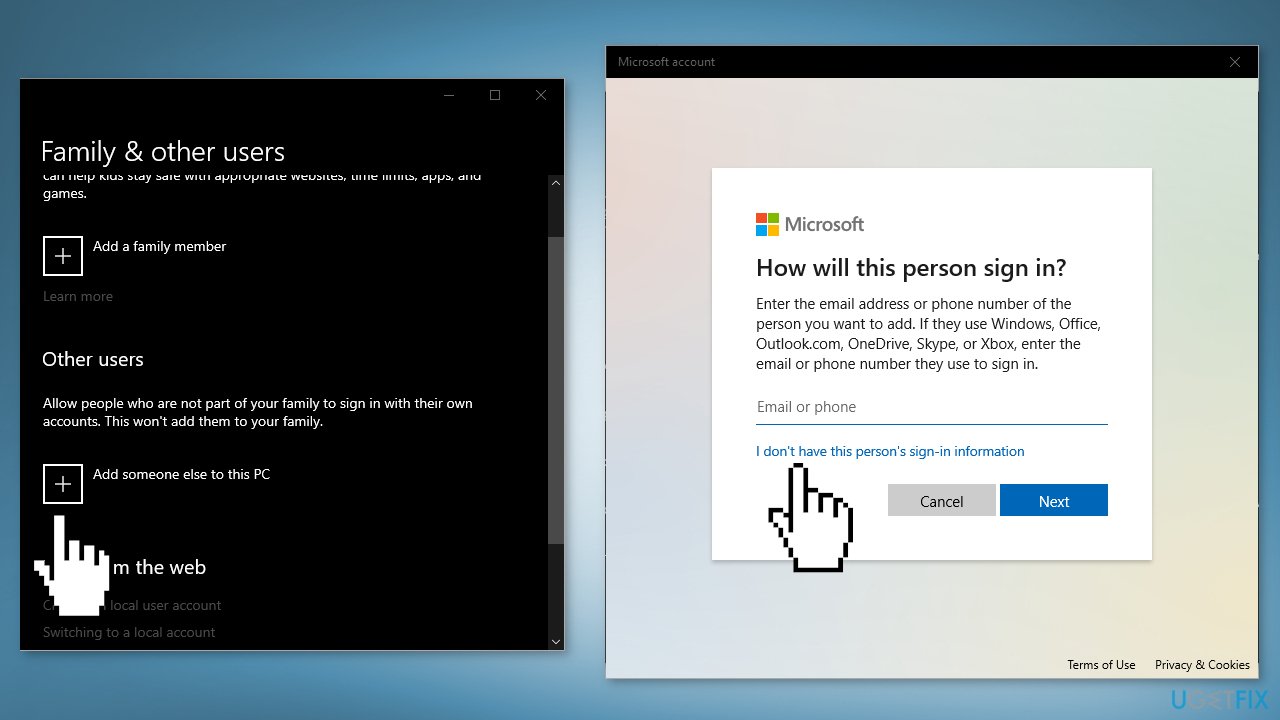
- Select I don't have this person's sign-in information, and on the next page, select Add a user without a Microsoft account
- Enter a user name, password, or password hint—or choose security questions—and then select Next to finish the process
- Now, select Change account type
- Under Account type, select Administrator, and then select OK
- Sign in with the new administrator account and check if the issue is resolved
Method 5. Re-register the Store App
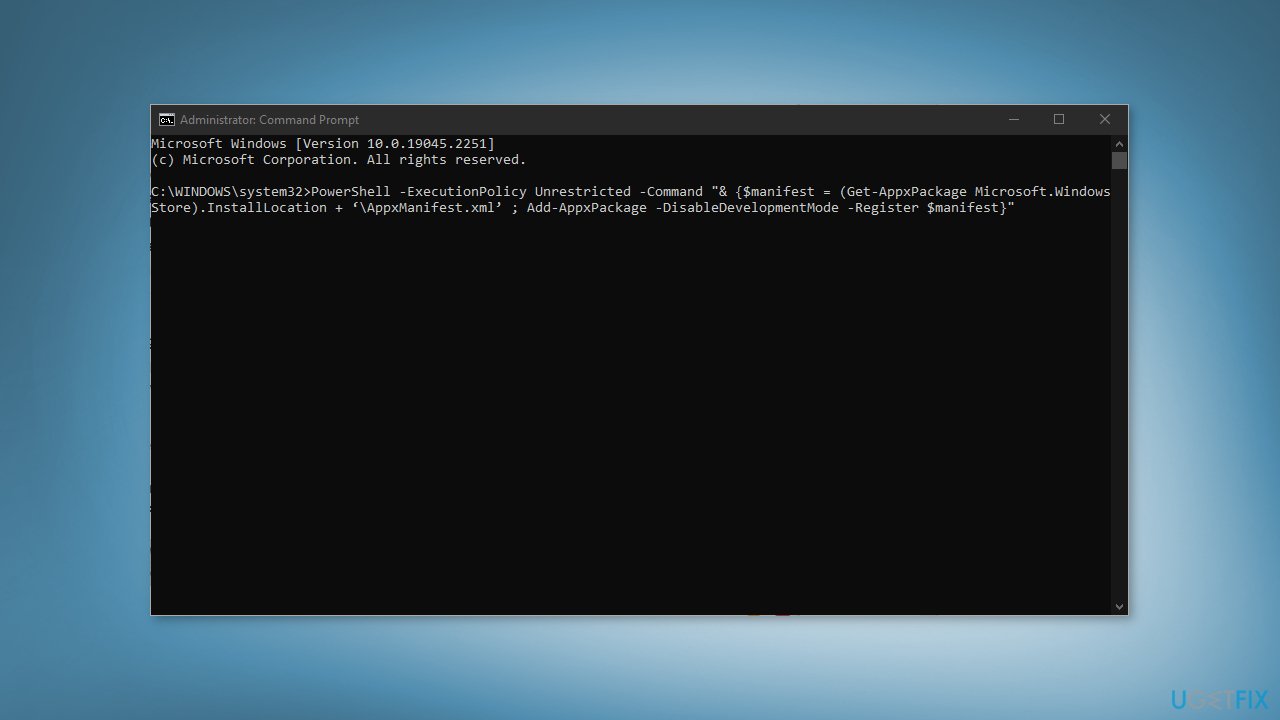
- Right-click the Start button located in the lower left corner and choose Command Prompt (Admin)
- In the Command Prompt, copy-paste the following command and press Enter:
PowerShell -ExecutionPolicy Unrestricted -Command “& {$manifest = (Get-AppxPackage Microsoft.WindowsStore).InstallLocation + ‘\AppxManifest.xml’ ; Add-AppxPackage -DisableDevelopmentMode -Register $manifest}”
Bottom line
To fix corrupted Microsoft Store icons, you can check and adjust your Scale and Layout settings, as well as your Ease of Access settings. If these steps do not resolve the issue, consider using a maintenance tool to scan for system errors or manually rebuilding the icon cache.
Frequently asked questions
You can try resetting the Microsoft Store cache by running the command 'wsreset.exe' in the Run dialog. This often resolves issues with corrupted icons.
If your Microsoft Store icons are missing, you can reinstall the Microsoft Store by executing the command 'Get-AppxPackage Microsoft.Store | Remove-AppxPackage' in PowerShell, then reinstall it from the Microsoft Store.
Yes, you can use the System File Checker tool by running 'sfc /scannow' in the Command Prompt, which can repair corrupted files related to the Microsoft Store.




Report an issue
What's wrong with this guide? We review every report and update or remove content.
Report received — thank you. We'll review and fix it.
You need a free account to submit a report.
Be the first to comment