How to fix
“Cortana is not available in your region” Bug
on Windows
Resolve the "Cortana is not available in your region" issue on Windows 10 quickly and effectively with our expert-tested solutions. Fixed in minutes!

What causes How to Fix “Cortana is not available in your region” Bug on Windows 10?
- Cortana is not available in certain regions
- Incorrect region or language settings
- System errors affecting Cortana functionality
- Temporary system shortages
- Cortana's limited availability in specific countries
Repairs Windows system files, removes malware, and restores a clean OS state — without reinstalling.
Hi. I’m using Windows 10 Pro for about a half of the year. I’m logged into my Microsoft account. Recently a strange thing happened with Cortana. I was using a personal computer only, but recently bought a laptop and logged into it using the same Microsoft account. However, I ran into a problem related to Cortana, which does not work on my laptop. I receive this message all the time "Cortana is not available in your region and language you've selected." I’m in UK and the settings, including language, keyboard, speech, etc. is set to UK. Could you please tell me why this is happening?
If you are a Windows fan, you must have heard about its superior new features, such as Cortana. Unfortunately, but lots of people are struggling to enable all Windows 10 features and make them run smoothly. While some of the problems appear due to critical system errors, the others are temporary system shortages that Microsoft is working on gradually. In this post, we would like to help those Windows 10 users who can’t make a full use of Cortana assistant due to regional constraints.
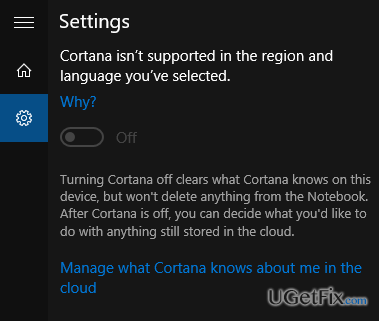
If the term Cortana doesn’t mean much for you, then you should be aware that this is a virtual Microsoft’s assistant, which allows controlling the system via voice commands, making calls, send emails/texts, opening apps on phone, and many more. Unfortunately, but many people can’t use this handy service since it’s not available in the whole world. Officially, it’s available in UK, Italy, Spain, France, China, and US and has an adapted language for each aforementioned region. It means that people who live in other regions than these can’t access Cortana anyway. On top of that, quite a lot of instances have been registered when people from the official regions received the message "Cortana is not available in your region and language you've selected" and could not use the service either. Luckily, there is a workaround, which helps to enable Cortana in any region of the world.
How to Enable Cortana on Windows 10 Outside the Official Regions?
Don’t get upset if Cortana is unavailable on your Windows 10 system. As we have already mentioned, it’s possible to enable Cortana without regional restrictions. To do so, perform these steps:
- Go to the Window 10 Settings.
- Open Time & Language and then select Region & Language.
- Click Add a Language under Language heading and look for English.
- Select the English (United States)/ (United Kingdom).
- After that, click on Options and hit Download button.
- Once you’re done, go to the previous page and select Speech.
- Under Speech-language, opt for the language (English (United States)/ (United Kingdom)) that you’ve previously selected and then close everything.
- Finally, restart your PC.
Bottom line
To fix the 'Cortana is not available in your region' issue, users can check and adjust their region and language settings, ensure their system is updated, and consider using workarounds to enable Cortana. If none of these solutions work, further troubleshooting may be necessary.
Frequently asked questions
First, check your region and language settings in the Windows Settings app to ensure they match Cortana's supported regions. If the settings are correct, try resetting Cortana or running the Windows Troubleshooter for additional help.
Navigate to Settings > Time & Language > Region, and select a region where Cortana is available, such as the United States or the United Kingdom. After changing the region, restart your computer for the changes to take effect.
Yes, ensuring that your Windows 10 is up to date can help resolve compatibility issues with Cortana. Go to Settings > Update & Security > Windows Update, and check for updates to download and install any available updates.




Report an issue
What's wrong with this guide? We review every report and update or remove content.
Report received — thank you. We'll review and fix it.
You need a free account to submit a report.
Be the first to comment