How to fix
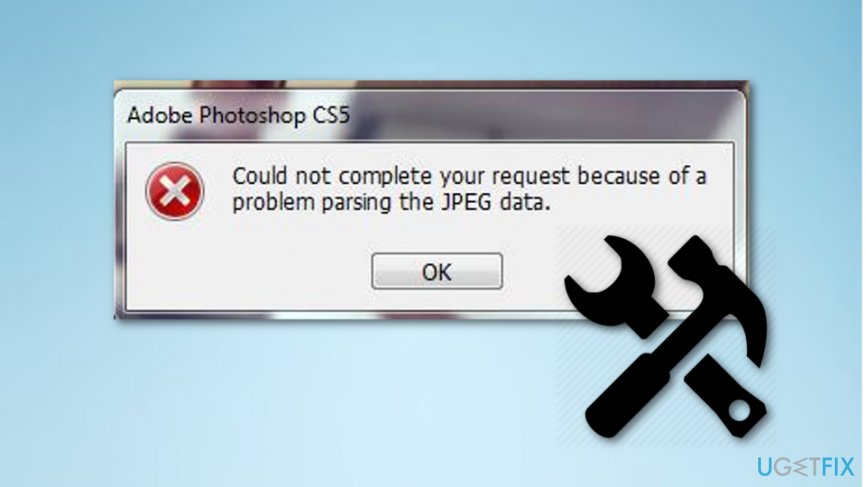
“Could not complete your request because of a problem parsing the JPEG data” error
on Windows
Resolve the "Could not complete your request because of a problem parsing the JPEG data" error on Windows 10 and Windows 11 effortlessly. Expert-tested …

What causes How to fix “Could not complete your request because of a problem parsing the JPEG data” error?
- JPEG file analysis failure
- Incompatible picture extension
- Corrupted JPEG file
- Potential computer virus infection
Repairs Windows system files, removes malware, and restores a clean OS state — without reinstalling.
Hello, yesterday I was using Adobe Photoshop and when I tried to import a picture, the program displayed an error which was saying: "Could not complete your request because of a problem parsing the JPEG data". What is this error about and how could I take care of it? I am still not able to import any pictures. Please, help.
We are glad that you have come to our website and decided to ask our experts for help. For a little bit of knowledge, Adobe Photoshop[ref en-1] is a graphics program which works on Mac and Windows operating systems. This graphics editor tool is commonly used through numerous computer users because it has a wide range of functions to offer.
Talking about the "Could not complete your request because of a problem parsing the JPEG data" error that you received recently, it is not that uncommon as it might look from the first view. It announces that something went wrong during the analysis of the JPEG file[ref en-3] and it could not have been uploaded successfully. However, users receive such alerts because usually the extension of the picture is not suitable for importing or there is another problem with it.
We have provided some methods below that might help you with this problem. However, if you have tried all of them, and you are still struggling with the same error, maybe there is a chance that the error message is caused due to a secret computer virus installation. To check this speculation, you can use [d1]. Perform a full system scan with the security software tool[ref en-2] and check all components for dubious infections.
Method no. 1: Use Picture Viewer
This method was found useful for some users even though it might not make any sense. However, try following the below-given steps and find out if it will bring success for you.
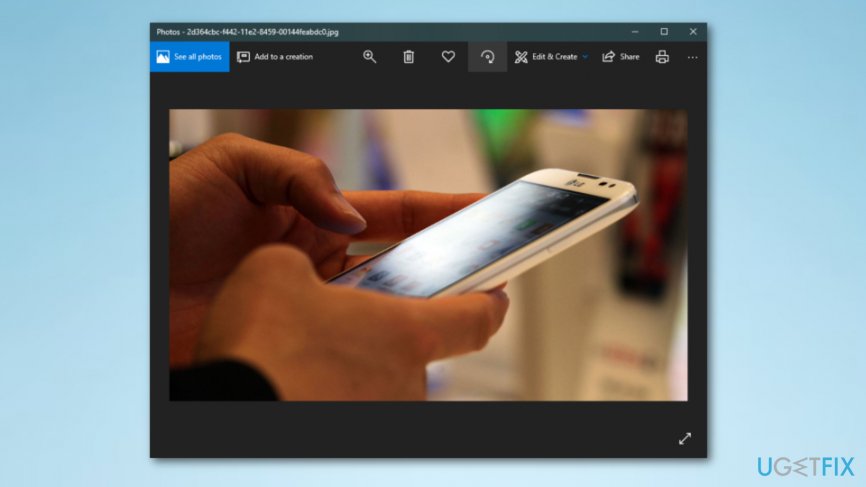
- Open the picture that you want to import from the desktop in the default picture viewing app which you can find in your computer;
- Then press the Rotate Icon and rotate the picture;
- Rotate the image until it will return to its starter position and close the app.
- Try importing the picture into Photoshop again.
Method no. 2: Open the picture in the Paint program
When using Paint to correct the picture, it will do the job automatically for you an save a new copy of the file. After that, you should be able to use Photoshop with this image successfully.
- Find the search bar on the left lower corner of your PC;
- Type in "Paint" and run the app;
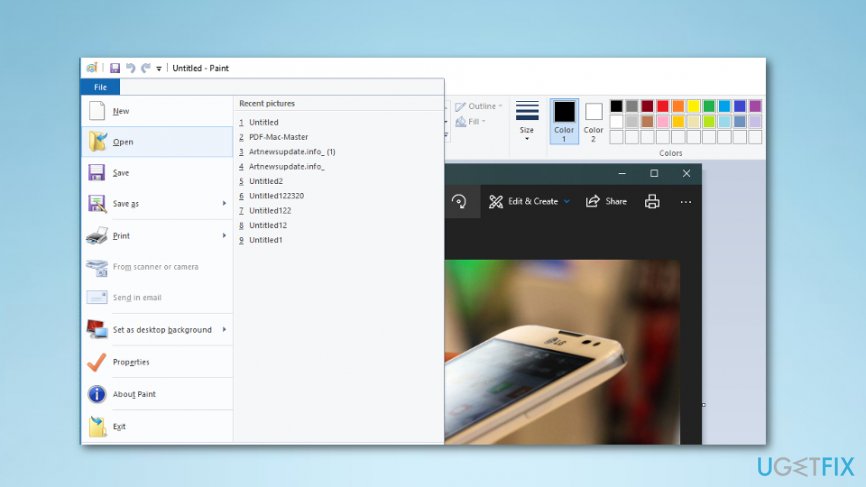
- Press File and choose Open;
- Search for the saved image and then open it;
- After that, press on File ---> Save as ---> JPEG picture;
- Save the file in some type of location;
- Important the image into Photoshop.
Method no. 3: Walk around the error by taking a screenshot
This technique will require taking a screenshot of your selected picture and cutting out the unwanted background. Even though your image might lose some of its quality, this method might be helpful to avoid the error.
- Open the picture;
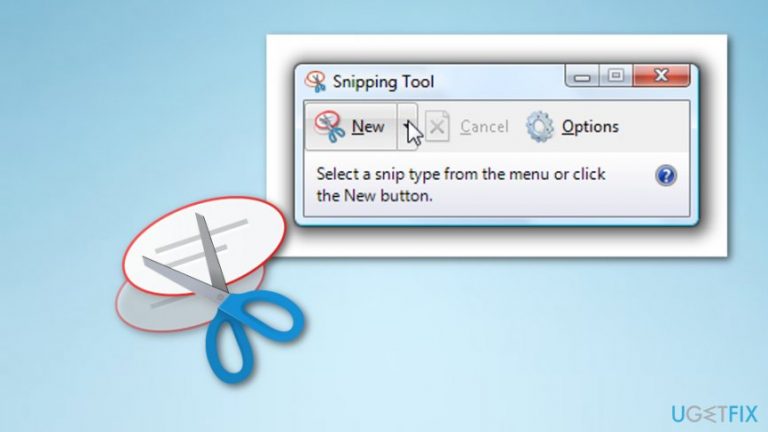
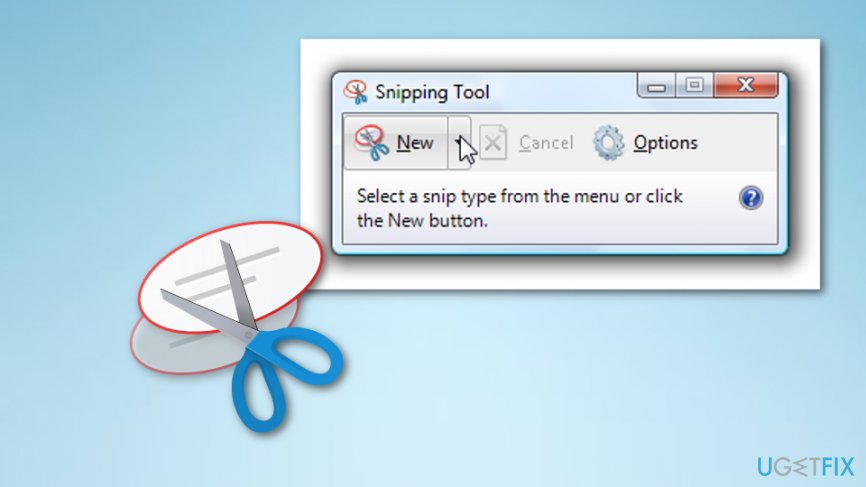
- Take a screenshot on Windows by pressing CTRL + C + Print Screen and then paste it in Paint, crop it and save it, or you can use a Snipping Tool for such purpose which you should find in the search bar which is located in the lower left corner of your desktop. Take a screenshot on Mac OS X by holding Command + Shift + 3 (for capturing the entire screen), or Command +Shift + 4 (for capturing a part of the screen).
- Import the screenshot into the Photoshop program.
Bottom line
To address the 'Could not complete your request because of a problem parsing the JPEG data' error, you can try using the default picture viewer to rotate the image or perform a full system scan with security software to check for viruses. If these methods do not resolve the issue, consider exploring additional troubleshooting steps.
Frequently asked questions
This error typically occurs due to corrupted JPEG files or issues with the image viewer application. Ensure that your image viewer is updated and try opening the JPEG file with a different program.
You can use built-in tools like the Photos app to attempt repairs or third-party software designed specifically for recovering corrupted JPEG files. Always create backups before attempting recovery.
To prevent this error, always ensure that your Windows 10 or Windows 11 system is updated and avoid abrupt shutdowns while files are being saved. Additionally, use reliable antivirus software to protect against malware that can corrupt files.




Report an issue
What's wrong with this guide? We review every report and update or remove content.
Report received — thank you. We'll review and fix it.
You need a free account to submit a report.
Be the first to comment