How to fix
“Couldn’t load plugin” error on Chrome
on Windows
Resolve the “Couldn’t load plugin” error in Chrome on Windows 10 and 11 effortlessly. Get expert-tested solutions for a seamless browsing experience!

What causes How to fix “Couldn’t load plugin” error on Chrome?
- Plugin is ad-supported and generates third-party advertisements
- Plugin is not supported by the web browser
- Plugin is not compatible with the software running on the system
- Chrome settings prevent Flash Player from running properly
- Adobe Flash Player is outdated and will soon not be supported
Repairs Windows system files, removes malware, and restores a clean OS state — without reinstalling.
Hi! While using Chrome, an error message saying “Couldn’t load plugin.” It seems that without maintenance it’s not going to go out. Contrary, the pop-up occurs more and more frequently, so maybe you could help me?
A browser plugin is usually a useful feature that is designed to enhance the experience to the user. These components are often referred to as add-ons or extensions, and many users often prefer to have a variety of them installed on their browsers. Unfortunately, many Google Chrome users noticed that they started to encounter "Couldn’t load plugin" error while browsing.
The most common examples of browser plugins include search engines, ad-blockers, online virus scanners, Java, Adobe Flash Player, etc. All of them can be downloaded from the official Google or Microsoft stores, as well as third-party websites.
However, quite often people experience problems related to the add-ons. Sometimes it appears that the required plug-in is ad-supported, so once installed it starts generating third-party advertisements on each website. In other cases, a particular plug-in is not supported by a web browser or is not compatible with the software running on the system.
One of such problems that users often get is related to "Couldn’t load plugin" error, and it is associated with Adobe Flash Player or its initial component PepperFlash. In some other cases, the reason for the problem might arise due to Chrome settings which prevent Flash Player from running properly.
Generally, Flash Player is an outdated add-on that will soon not be supported by Adobe anymore. The problem with the plugin is that it can be highly exploitable and many zero-days[ref en-2] were discovered and patched. Most of them allow remote code execution,[ref en-3] which technically will enable hackers to take over the victims' machines.
Therefore, it is a wise idea to get rid of the plugin altogether. Nevertheless, if you think you need it still, please follow the steps below to fix "Couldn’t load plugin" error on Google Chrome.
Tip: before you proceed with "Couldn’t load plugin" fix, you should scan your device with repair software [d1], as it can repair many errors automatically.
Fix 1. Make sure Google Chrome is up to date
Generally, Google Chrome should be updated automatically when you restart the browser. However, some users tend to keep the browser running without restarting it for long periods of time. Therefore, you should make sure it is up to date:
- Click on the Menu which is located at the top-right of your Google Chrome browser.
- Go to Help > About Google Chrome.
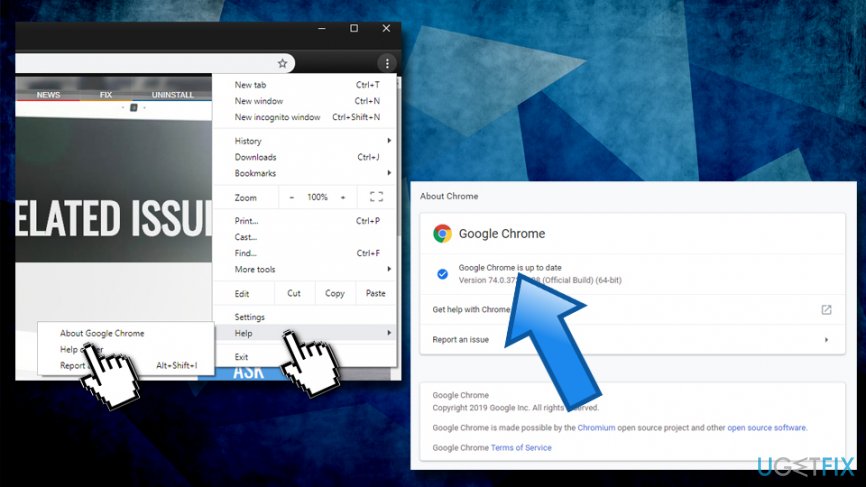
Fix couldnt load plugin error on chrome check if chrome is up to date - The settings page will open and you will be able to see if your browser is up to date.
Fix 2. Make sure all Chrome's plugins are up to date
It also equally important to make sure that all the installed components are updated on Google Chrome, especially Adobe Flash:
- Open Google Chrome and paste the following into the search bar: chrome://components.
- Hit Enter - a list of installed components should show up.
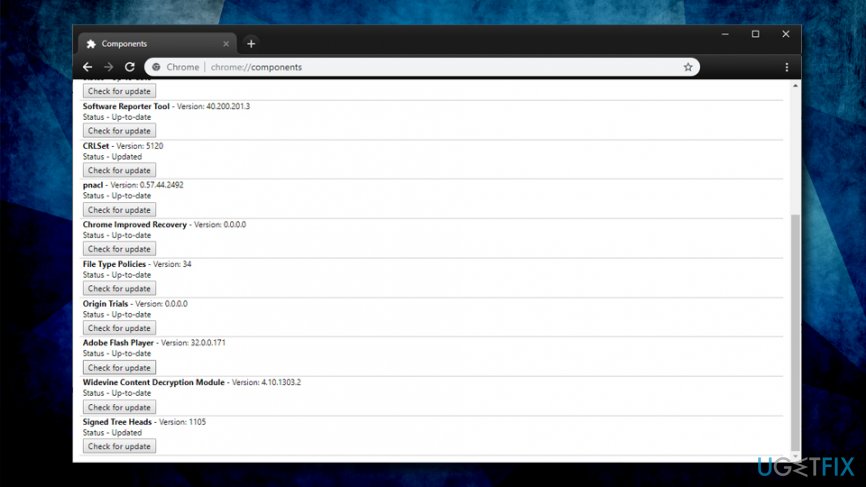
Fix couldnt load plugin error on chrome make sure plugins are up to date - Make sure all of the plugins are up to date by clicking Check for update.
Fix 3. Modify PepperFlash component
In most of the instances, “Couldn’t load plugin” error emerged due to the failure of pepper flash component. Therefore, you should try to modify it. First of all, try to rename the pepflashplayer.dll:
- Go to the C:\\Users\\Username\\AppData\\Local\\Google\\Chrome\\User Data\\PepperFlash\\32.0.0.171.
- Find pepflashplayer.dll and rename the file to pepflashplayerX.dll.
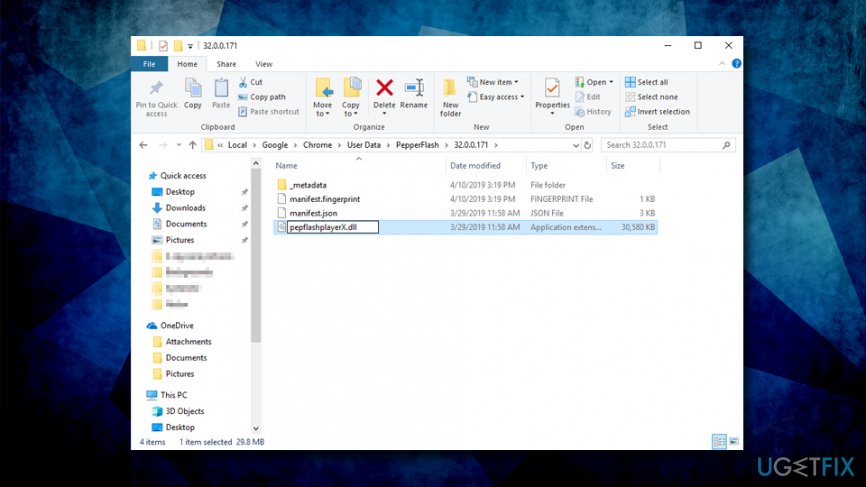
Fix couldnt load plugin error on chrome rename pepper flash folder - After that, restart Chrome and check if “Couldn’t load plugin” error occurs again.
Fix 4. Delete PepperFlash Folder
- Close Google Chrome by pressing X button. Besides, open Task Manager (Ctrl + Shift + Esc) and choose End task under any Google Chrome processes that are running.
- Then press on Win key + R, type %localappdata%, and click OK.
- Navigate to Google\\Chrome\\User data and remove the PepperFlash folder.
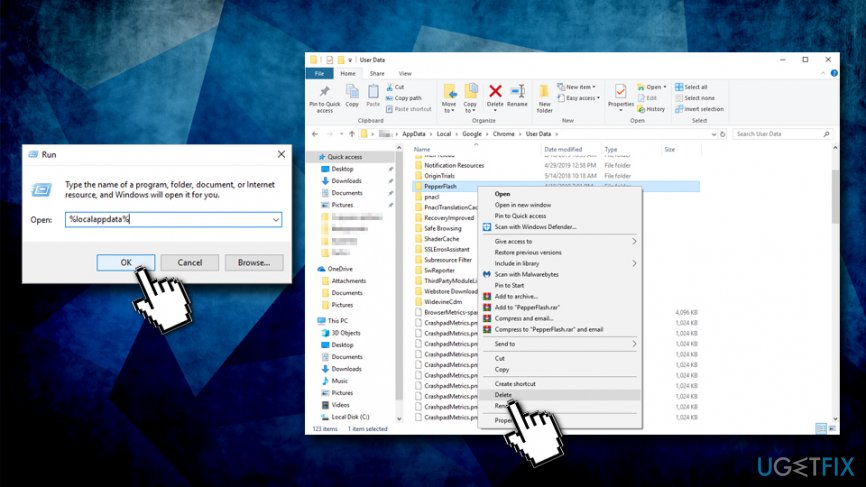
Fix couldnt load plugin error on chrome delete pepperflash
Fix 5. Uninstall NPAPI Flash plugin
There are versions of Flash Player that can be downloaded and installed: NPAPI & PPAPI.[ref en-1] Users who complained about "Couldn’t load plugin" error said that they had both installed. Therefore, you need to uninstall one of the versions, preferably NPAPI and leave PPAPI running:
- Click on Cortana's search box and type in Control Panel.
- Hit Enter
- Navigate to Programs > Uninstall a program
- From the installed program list, remove Adobe Flash NPAPI by right-clicking on it and picking Uninstall
- Follow the on-screen instructions and then restart Google Chrome
Method 6. Disable Shockwave Flash
- Open Chrome and go to Menu.
- Select More tools and the open Task Manager.
- Find Plugin: Shockwave Flash, click it, and select End process.
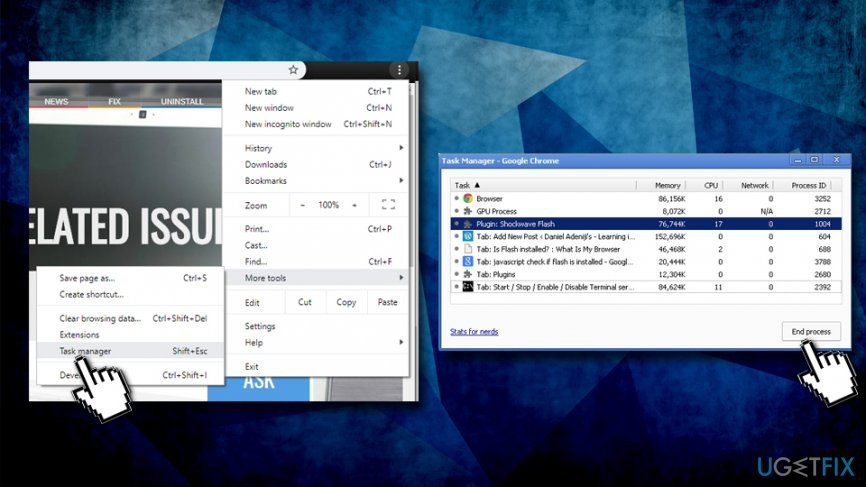
Fix couldnt load plugin error on chrome shut down shockwave plugin - Finally, select Reload.
Bottom line
To fix the 'Couldn’t load plugin' error on Google Chrome, users can scan their device with repair software and ensure that Google Chrome is updated. If the issue persists, consider removing the outdated plugins or adjusting Chrome settings.
Frequently asked questions
Try disabling any problematic extensions by going to Chrome's settings, then selecting 'Extensions'. If the issue persists, consider resetting Chrome settings to their default.
Yes, ensuring that your Windows 11 is up to date can fix compatibility issues that may cause the 'Couldn't load plugin' error in Chrome.
You can try clearing the browser cache and cookies, which often resolves plugin-related issues without the need to reinstall Chrome.




Report an issue
What's wrong with this guide? We review every report and update or remove content.
Report received — thank you. We'll review and fix it.
You need a free account to submit a report.
Be the first to comment