How to fix
Counter-Strike 2 Error 1114
on Windows
Resolve Counter-Strike 2 Error 1114 on Windows 10 and 11 with expert-tested solutions that get you back in the game quickly. Zero traces left.

What causes How to fix Counter-Strike 2 Error 1114 in Windows?
- Compatibility issues between CS2 and specific Windows updates
- Corrupted game files
- Missing game files
- Outdated graphics card drivers
- Inappropriate in-game settings
Repairs Windows system files, removes malware, and restores a clean OS state — without reinstalling.
Hello. When I try to launch Counter-Strike 2 on Windows I get the A game file appears to be missing or corrupted" message with an 1114 error. Is there a way to fix this?
For lovers of online first-person shooters, Valve Corporation's Counter-Strike 2 has proven to be a popular option. It has a devoted player base as the eighth game overall and the fifth official installment in the main Counter-Strike series. Error 1114, which seems to be directly related to the Windows operating system release, has recently become a problem for several players.
Players who encounter the CS2 Error 1114 launch issue are met with the unsettling message "A game file appears to be missing or corrupted." For gamers who are eager to enjoy their CS2 experience, this notification might be quite annoying. Although the precise source of this problem may vary, compatibility issues between CS2 and specific Windows updates or setups are probably to blame.
It is clear how Error 1114 affects users. Players are virtually locked out of the game because they can't start CS2. The CS2 community may be disappointed if this problem causes a large disruption in their game experience. This startup issue is made much more problematic for some people who use Counter-Strike 2 as a platform for competitive gameplay in addition to being a source of entertainment.
While some have sought to upgrade their graphics card drivers[ref en-1] or completely restart the game, others have attempted to use Steam to check the game files' integrity. As further potential remedies, changing a few in-game options or selecting compatibility mode with earlier Windows versions have been recommended.
In this guide, you will find 6 steps that should help you fix Counter-Strike 2 Error 1114 in Windows. You may run a maintenance tool like [d1] that can fix most system errors, BSODs,[ref en-2] corrupted files, and registry[ref en-3] issues. Otherwise, follow the step-by-step instructions below.
Method 1. Run CS2 as Administrator
- Locate the CS2 game icon.
- Right-click on it.
- From the context menu that appears, select Run as administrator.
- Confirm your choice by clicking Yes or entering your admin password when prompted.
- CS2 will launch with elevated privileges.
- Test the game to ensure the error is resolved.
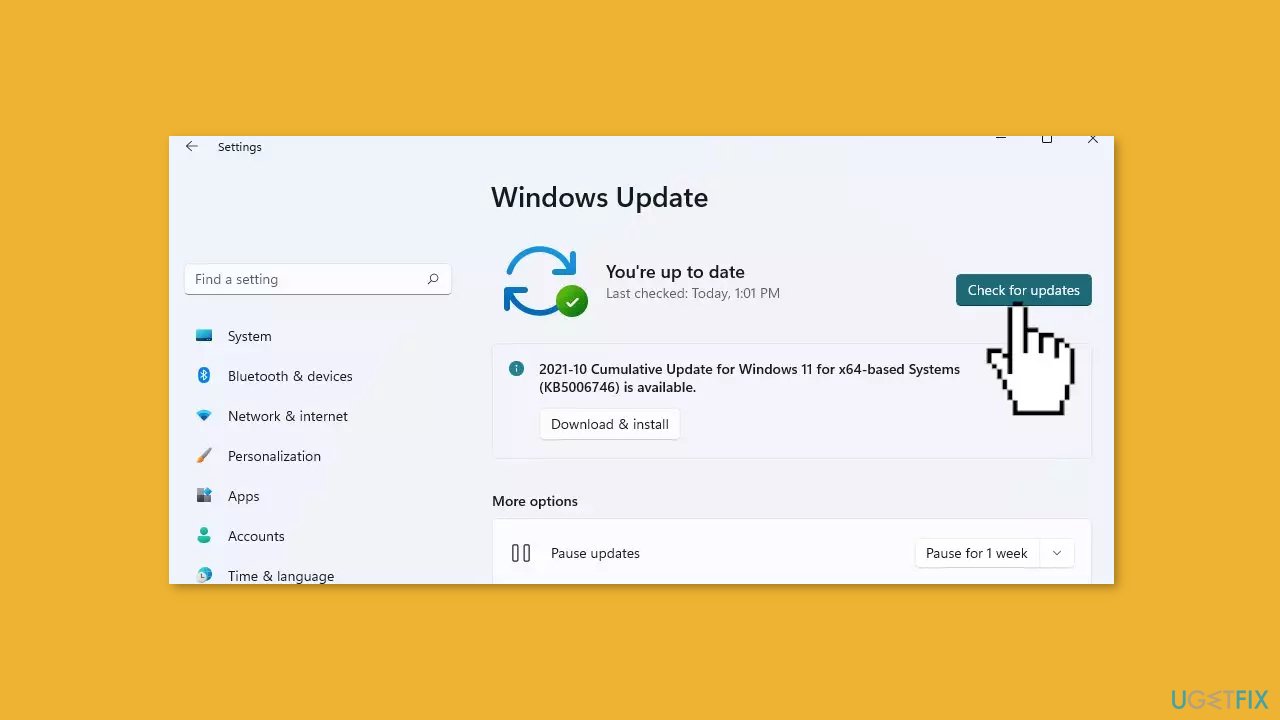
Method 2. Install Windows Updates
- Click Start on the taskbar.
- Select the Setting app pinned to the Start menu.
- Click Windows Update on the left side of Settings.
- Press the Check for updates button to download and install new patch updates.
Method 3. Check Game Files
- Open Steam.
- Go to your Library.
- Right-click on Counter-Strike: Global Offensive.
- Select Properties.
- Navigate to the Local Files tab.

- Click on Verify Integrity of Game Files.
- Wait for the process to finish.
- Click Close once it's done.
Method 4. Update Graphic Drivers
- Right-click on Start and select Device Manager.
- In the Device Manager window, double-click on Display adapter.
- Right-click on the graphics driver (e.g., Intel, AMD, or other) and select Update driver.
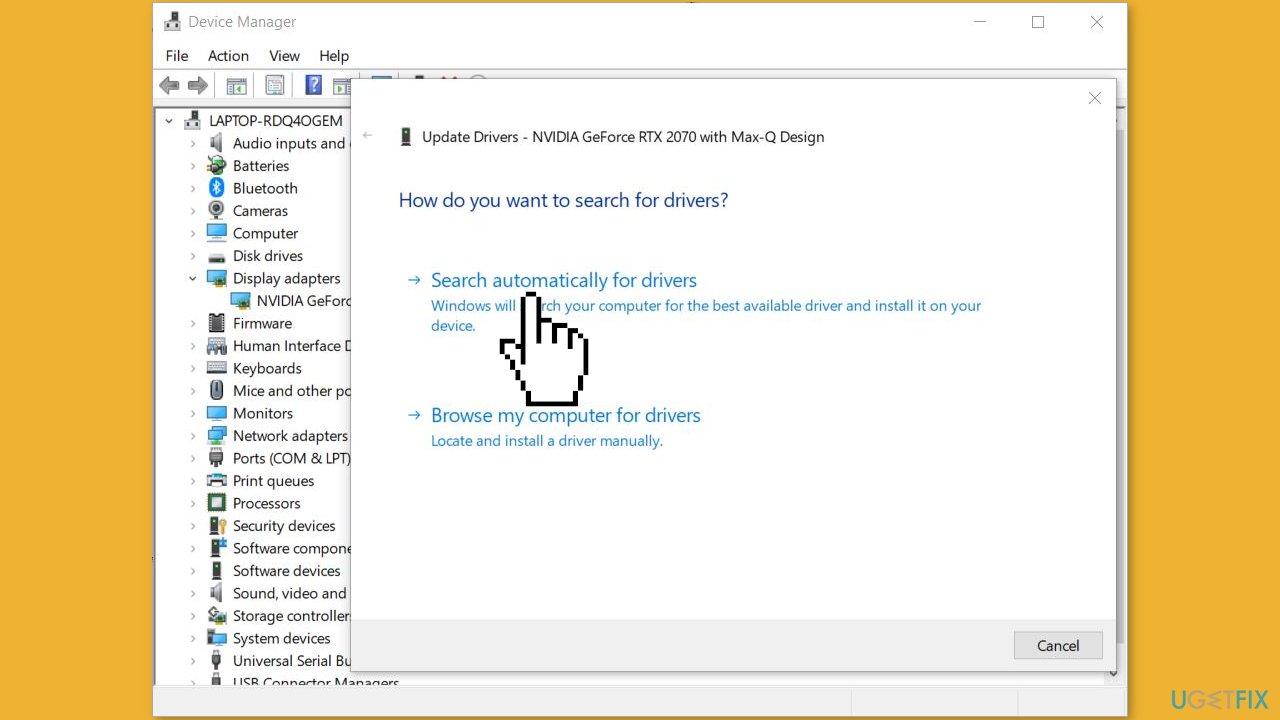
- Choose Search automatically for drivers.
- Once the update is completed, restart your computer.
Method 5. Remove Configuration Files Permanently
- Close CS2 and Steam.
- Navigate to the CS2 installation directory, which is often located at C:\Program Files (x86)\Steam\steamapps\common\CS2.
- Search for folders or files with names like config or cfg.
- Delete these folders/files.
- Restart CS2 through Steam.
- Check if the error has been resolved or not.
Method 6. Reinstall the Game
- Press the Windows key + R.
- Type apppwiz.cpl in the Run dialog box.
- Press the Enter key to open the Programs and Features window.
- Locate Counter Strike 2 in the list.
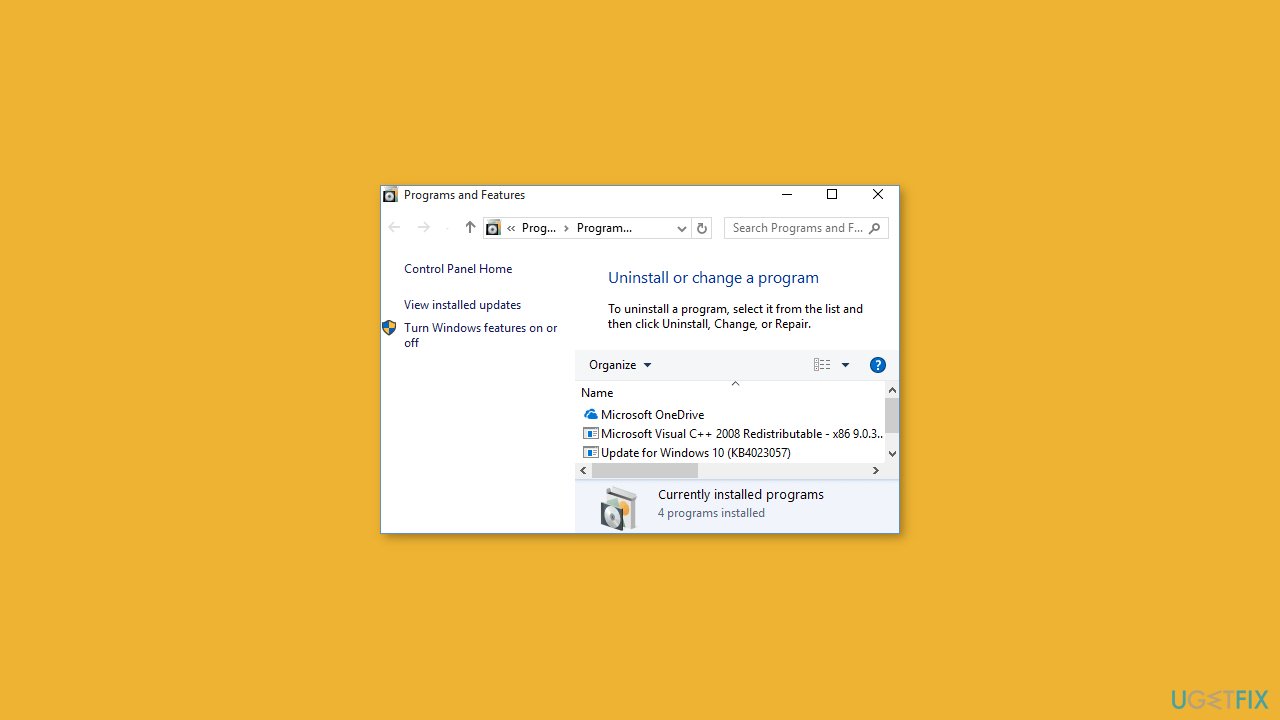
- Right-click on CS2.
- Select Uninstall.
- Go to Steam and download the CS2 installer.
- Install CS2 by following the on-screen instructions.
- Restart your computer.
- Finally, launch CS2 to check if the error has been resolved.
Bottom line
To fix Counter-Strike 2 Error 1114, you can try running the game as an administrator, checking the integrity of game files through Steam, updating your graphics card drivers, or adjusting in-game settings. If none of these solutions work, consider using a maintenance tool to address system errors.
Frequently asked questions
Error 1114 typically indicates that a device has failed to initialize properly, often related to graphics settings or drivers. This can occur if your graphics card settings are misconfigured or if the drivers are outdated.
To update your graphics drivers, go to Device Manager, find your display adapter, right-click it, and select 'Update driver'. You can also visit the manufacturer's website for the latest drivers compatible with Windows 10 or Windows 11.
Yes, try launching the game in windowed mode or adjusting the graphics settings to a lower resolution to see if that resolves Error 1114. Additionally, ensuring that the DirectX version is up to date can help fix compatibility issues.




Report an issue
What's wrong with this guide? We review every report and update or remove content.
Report received — thank you. We'll review and fix it.
You need a free account to submit a report.
Be the first to comment