How to fix
Crackling audio after Windows update
on Windows
Resolve crackling audio issues after your Windows 10 or 11 update with our expert-tested solutions. Fix it quickly and enjoy clear sound again!

What causes How to fix crackling audio after Windows update?
- Improper internal system settings
- Sound hardware issues
- Outdated or altered drivers
- Corrupted drivers
- Loose cable connections
Repairs Windows system files, removes malware, and restores a clean OS state — without reinstalling.
I have an issue with my audio that started to occur after the OS update. I recently upgraded Windows 10 to the newest version, and now I hear cracking audio whenever I try to listen to something. This craking/ popping sound is coming from my speakers, and I cannot fix the issue. It is obviously related to the operating system and the update, I think. Before the upgrade, everything worked just fine. Can you help?
The crackling audio issue commonly occurs after the Windows operating system update.[ref en-1] But people can encounter this problem due to various reasons. The reason behind this problem can be improper internal system settings; the sound hardware of the computer is the culprit. Of course, one of the more common reasons are drivers that can get outdated or altered, and corrupted.
Adjusting some of the audio device settings, updating needed drivers, or altering the interfering application/ hardware piece can help with the sound cracking issue. Messing with settings and other parts of the system can create issues if you don't know what you are doing. When dealing with this kind of issue, the first step could be checking the hardware itself, cable connections might get loose, so the audio starts cracking and delivering bad sounds.
This issue with crackling audio after Windows update can persist even when common problems with the system and programs to hardware are solved. The buggy update of the operating system can often lead to issues with the performance or even more critical system errors.[ref en-2]
However, the issue can be fixed manually if you rely on the guide below. One of the quick methods could be tools like PC repair software or optimization applications. You can solve system issues by repairing altered files using [d1], and this way, get back to normal sounds. This tool finds and repairs system files on Windows machines and can resolve problems that occur due to the altered pieces.
We can assure you that this crackling audio issue is not related to critical system errors or malware infections[ref en-3] of any sort. There are fixes for this particular issue, and you solve the problem yourself. If the issue is not solved with a quick system repair scan, you can rely on the full guide listed here. Make sure to try a few methods at least.
1. Change Audio format
- Check your audio quality by right-clicking the speaker icon at the bottom.
- Choose Playback Devices.
- Double-click the default device with the green mark.
- Choose the Advanced tab and use the Default Format box to select the sound quality level.
- Set the audio to 16 bit, 44100 Hz (CD Quality).
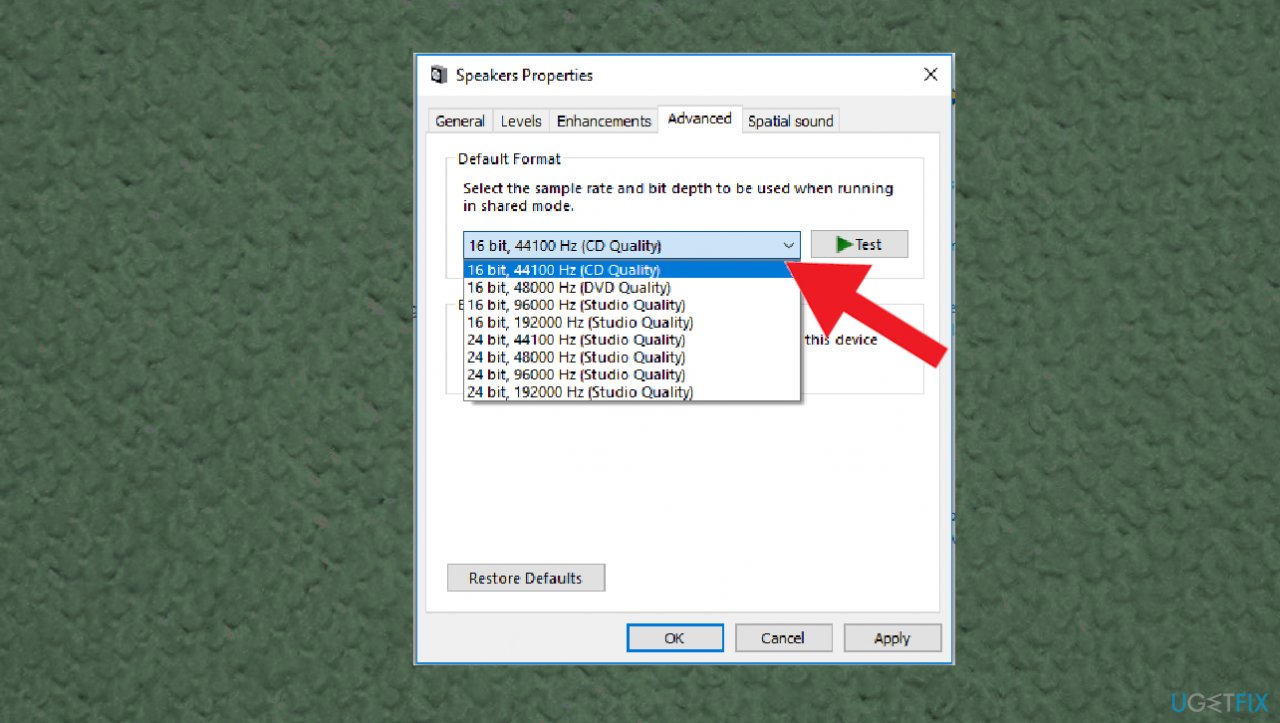
Audio crackling after windows update fix format - Click OK.
- See if the issue persists.
2. Disable audio enhancements
- Go to sound properties by right-clicking the speaker icon at the notification center.
- Choose the Enhancements tab and un-check the marks near enabled enhancements.
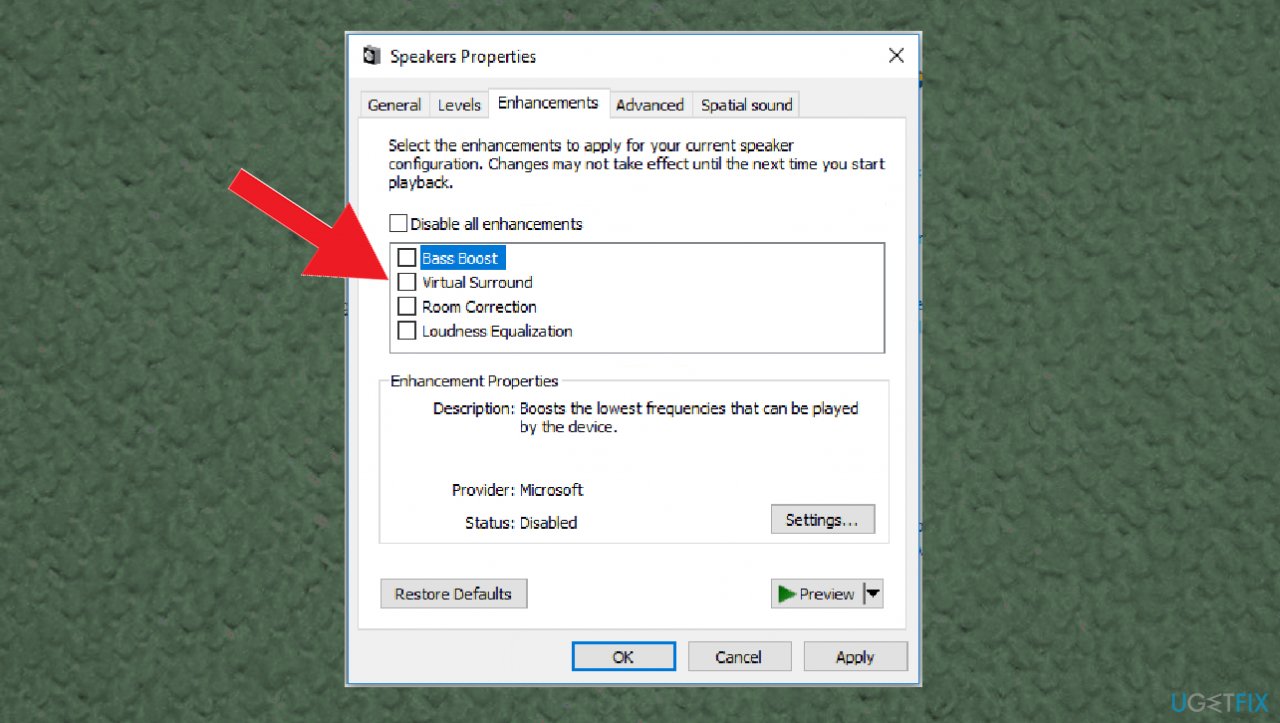
Audio crackling after windows update fix enhancements - Go to the Advanced tab then and uncheck Allow applications to take exclusive control of this device and Give exclusive mode application priority.
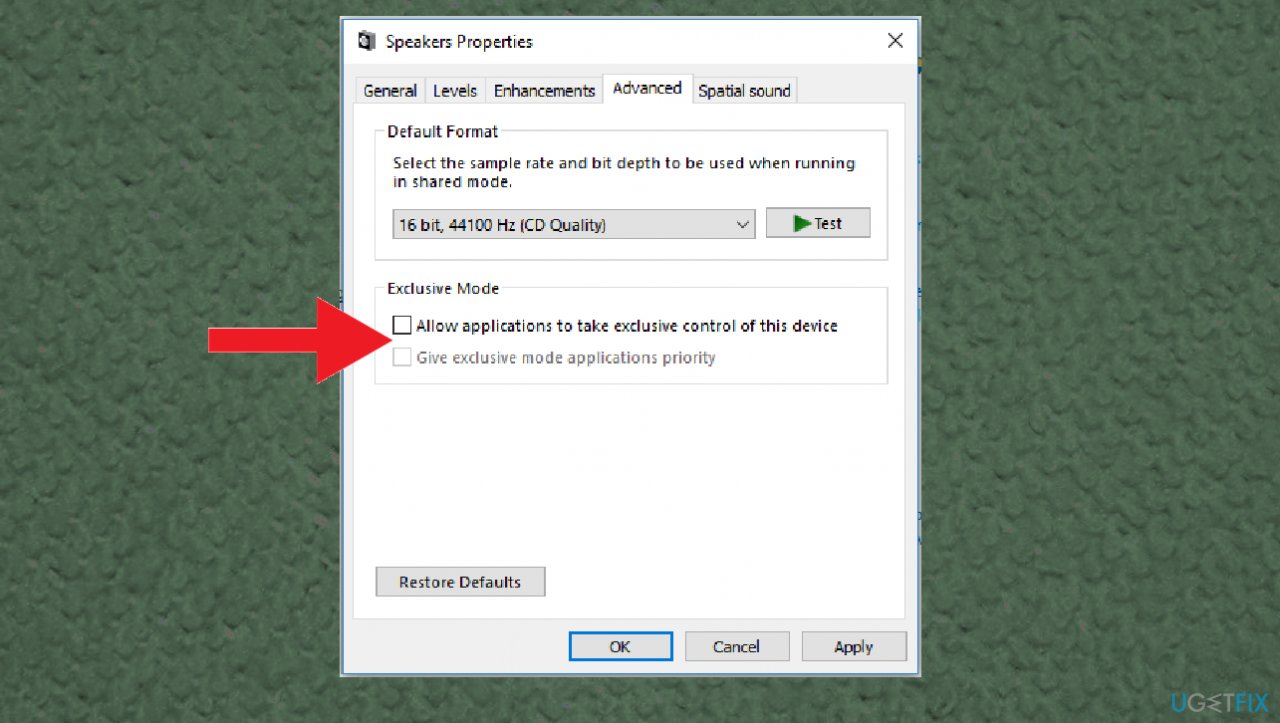
Audio crackling after windows update fix advanced - Choose Apply and OK, so save changes.
3. Reinstall drivers
- Right-click on the Start button and select Device Manager.
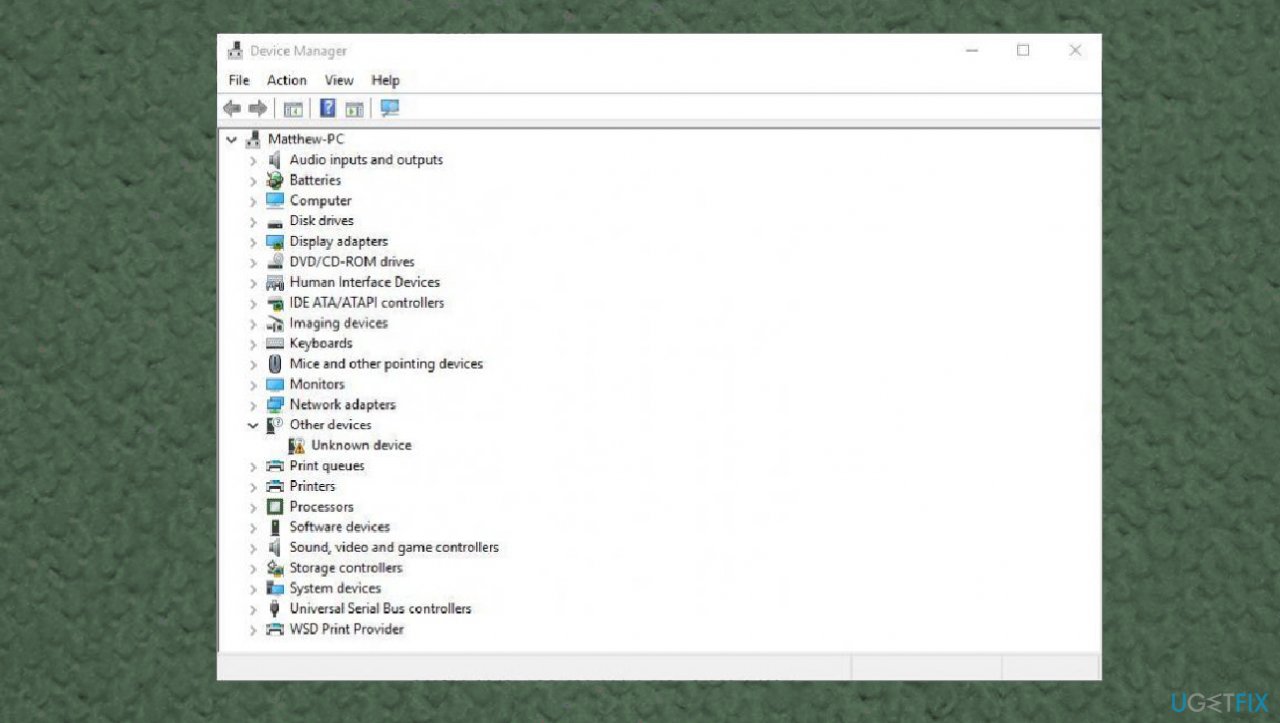
Audio crackling after windows update fix device manager - Expand the Audio inputs and outputs section.
- Right-click on your sound device and select Uninstall.
- Confirm with Uninstall.
- Expand Sound, Video and game controllers section.
Audio crackling after windows update fix search - Right-click on the malfunctioning output device and select Uninstall device.
- Reboot the system.
4. Update sound drivers
- Press Windows + X select Device manager.
- Expand Sound, video and game controllers.
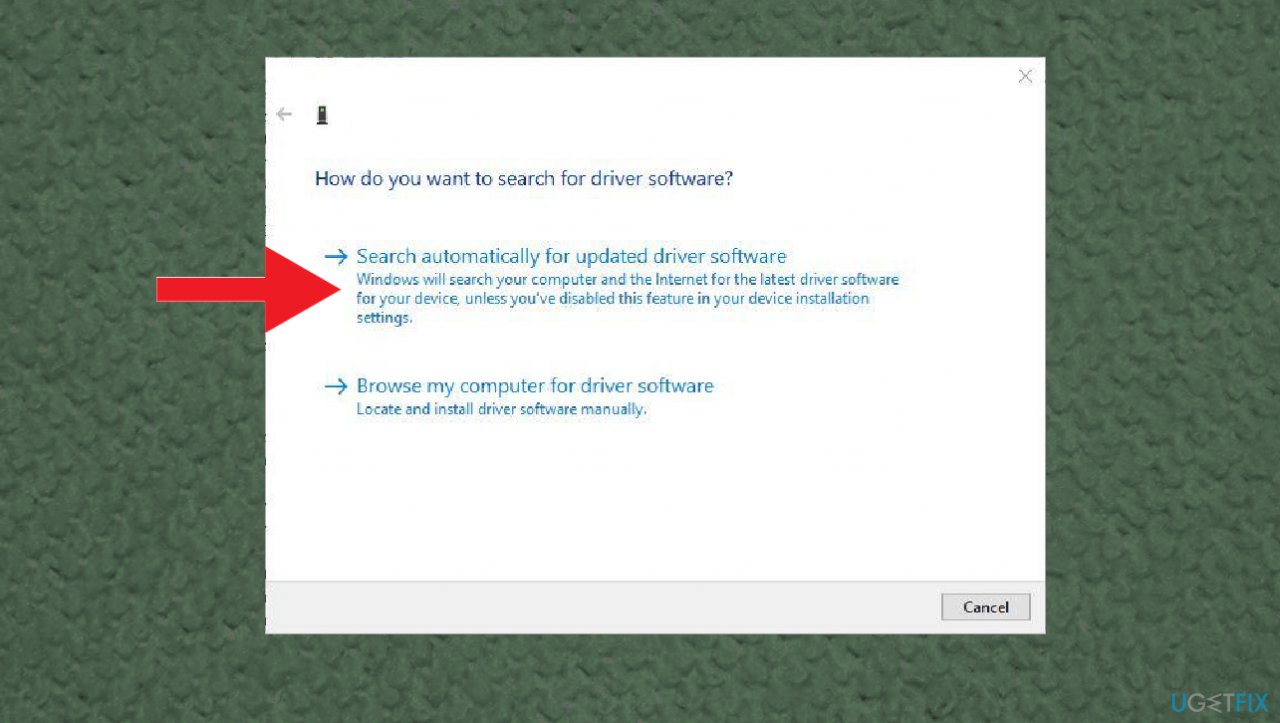
- Right-click installed sound driver and then select Update Driver.
- This will check for the latest updated audio driver for your PC.
- Choose to search and automatically download and install drivers for you.
- Restart Windows.
You can manage everything with your device drivers and update, install, reinstall them with the help of a proper tool designed for this job. [rev id="DriverFix"] is the program that can find needed updates and install them without your interaction. The program finds compatible upgrades and keeps those drivers up-to-date by checking for newer versions.
5. Edit registry
- Press Windows key and R key together to open the Run dialog.
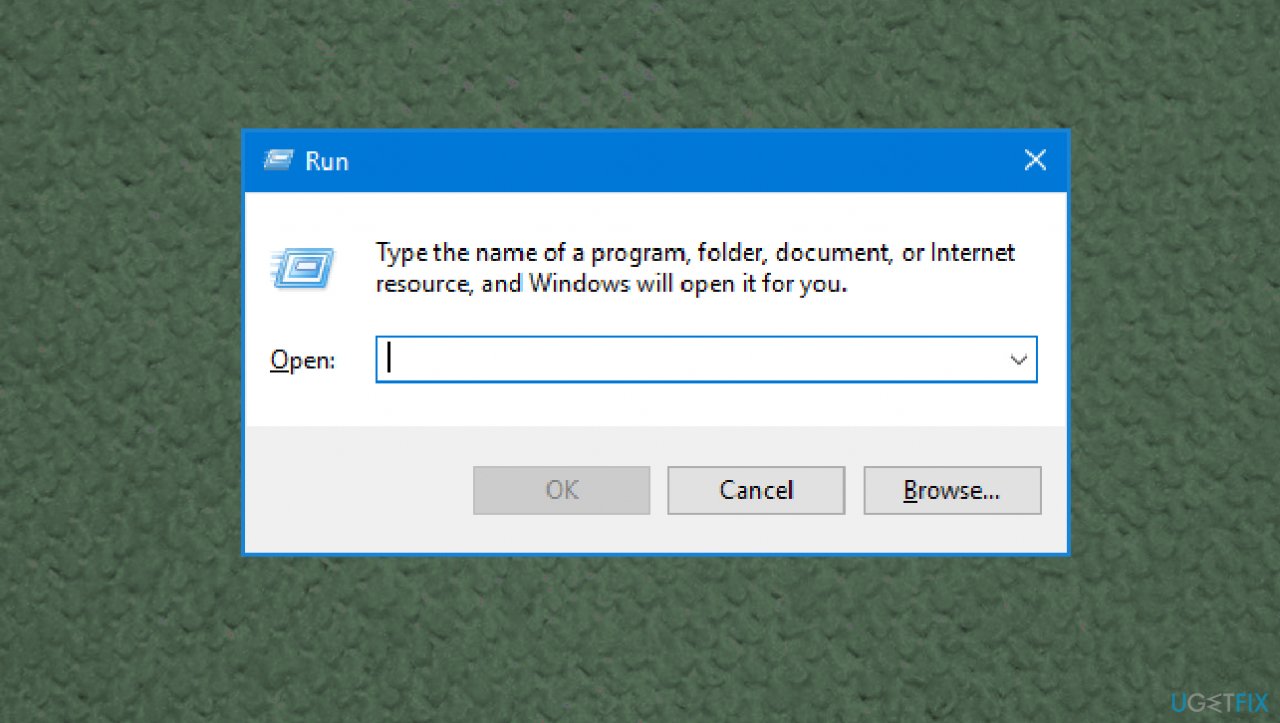
Audio crackling after windows update fix run box - Type regedit in the box and click OK to continue.
- In the Registry Editor window, navigate to:
HKEY_CURRENT_USER\\Software\\Realtek\\RAVCpI64\\Powermgnt path. - Change the value data of Delay time to 10.
- Change the value data of Enabled from 0 to 1 so as to fix Windows popping sound.
- Change Only Battery to 1.
Bottom line
To fix the crackling audio issue, you can adjust audio device settings, update necessary drivers, or check hardware connections. If these steps do not resolve the problem, consider using PC repair software to repair altered system files.
Frequently asked questions
Audio crackling after a Windows 10 update can result from driver incompatibilities or changes in audio settings. Updating your audio drivers or adjusting the audio format settings can often resolve the issue.
To fix crackling audio on Windows 11, try updating your audio drivers through Device Manager or running the audio troubleshooter in the Settings app. Additionally, disabling audio enhancements in the sound settings may help eliminate the crackling.
If the crackling audio persists after trying basic troubleshooting steps, consider rolling back the recent Windows update or performing a system restore to a point before the update. This can often resolve compatibility issues that affect audio performance.




Report an issue
What's wrong with this guide? We review every report and update or remove content.
Report received — thank you. We'll review and fix it.
You need a free account to submit a report.
Be the first to comment