How to fix
CredentialUIBroker.exe Remote Desktop error
on Windows
Resolve the CredentialUIBroker.exe Remote Desktop error on Windows 10 and 11 quickly. Get expert-tested solutions for smooth connectivity today!

What causes How to fix CredentialUIBroker.exe Remote Desktop error in Windows?
- Outdated system files
- Incorrect settings
- Conflicts with other software
- Corrupted Windows system files
- Network problems
Repairs Windows system files, removes malware, and restores a clean OS state — without reinstalling.
I am unable to connect to the Remote Desktop Connection because of a CredentialBroker.exe error. Could you provide some insights into this and how should I go about this?
Remote Desktop is a powerful tool integrated into the Windows operating system that allows users to connect to and control another computer remotely. This feature is particularly useful for IT professionals managing servers or networks, employees working from home who need access to their office computers, and for providing technical support to resolve issues without needing physical access to the device. It's designed to facilitate a seamless connection to another Windows machine, mirroring its desktop environment to the user initiating the Remote Desktop session.
However, despite its usefulness, some individuals encounter difficulties when attempting to utilize Remote Desktop due to an error associated with CredentialUIBroker.exe. This is an executable file that's part of the Windows operating system, primarily responsible for managing user credentials during a Remote Desktop session. When an error occurs with CredentialUIBroker.exe, it often prevents the Remote Desktop feature from functioning properly, leading to an inability to establish a remote connection.
The occurrence of the CredentialUIBroker.exe Remote Desktop error can be attributed to a variety of reasons. You may face this issue due to outdated system files, incorrect settings, or conflicts with other software on your system. It's also possible that the error arises from corrupted Windows system files that are essential for Remote Desktop to operate smoothly. Another common cause could be related to network problems, where the communication between the two computers is hindered, disrupting the CredentialUIBroker.exe process.
Ensuring that your Windows operating system is up to date with the latest patches and updates can be a significant first step to fixing the issue. It's also beneficial to verify that the Remote Desktop settings are configured correctly and that your firewall or antivirus programs are not obstructing the Remote Desktop feature.

In the event that these approaches do not resolve the CredentialUIBroker.exe Remote Desktop error, it may be indicative of deeper underlying issues within the Windows operating system. In such cases, utilizing professional PC repair software [d1] could offer a convenient solution. This type of software is capable of scanning your system for anomalies and automatically repairing any Windows issues that it detects, potentially resolving the Remote Desktop error without requiring extensive technical knowledge.
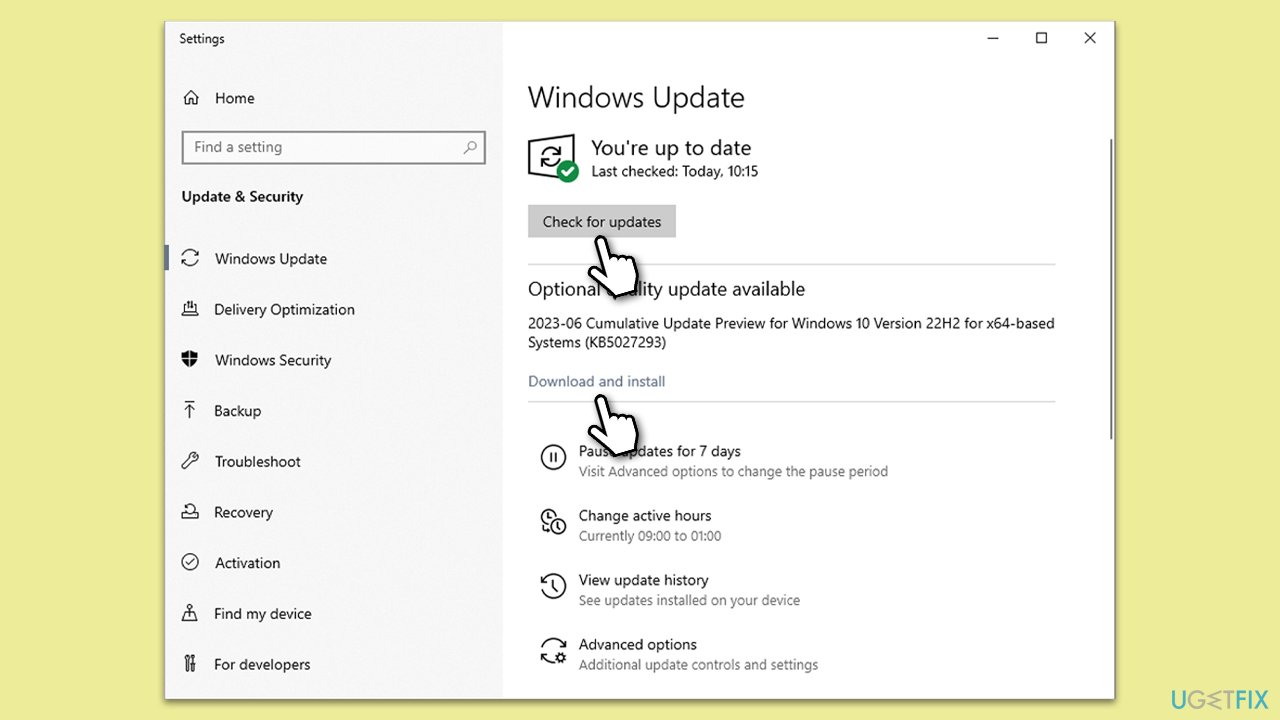
Fix 1. Update Windows
Keeping Windows up-to-date is crucial as it often includes patches for security vulnerabilities and fixes for known bugs that could resolve the CredentialUIBroker.exe error. An updated system ensures you have the latest files and system improvements.
- Type Update in Windows search and hit Enter.
- Click on Check for updates.
- If updates are available, click on Install now. Make sure you install optional updates as well.
- After the updates are installed, restart your computer.
Fix 2. Configure Remote Desktop settings
Properly configuring Remote Desktop settings is essential for a successful connection. Misconfiguration can lead to CredentialUIBroker.exe errors.
- Right-click on Start and pick System.
- Click on Remote Desktop on the left panel.
- Under Remote Desktop, choose Enable Remote Desktop is enabled.
- Go to Advanced settings and ensure that Allow connections only from computers running Remote Desktop with Network Level Authentication is checked if security is a concern.

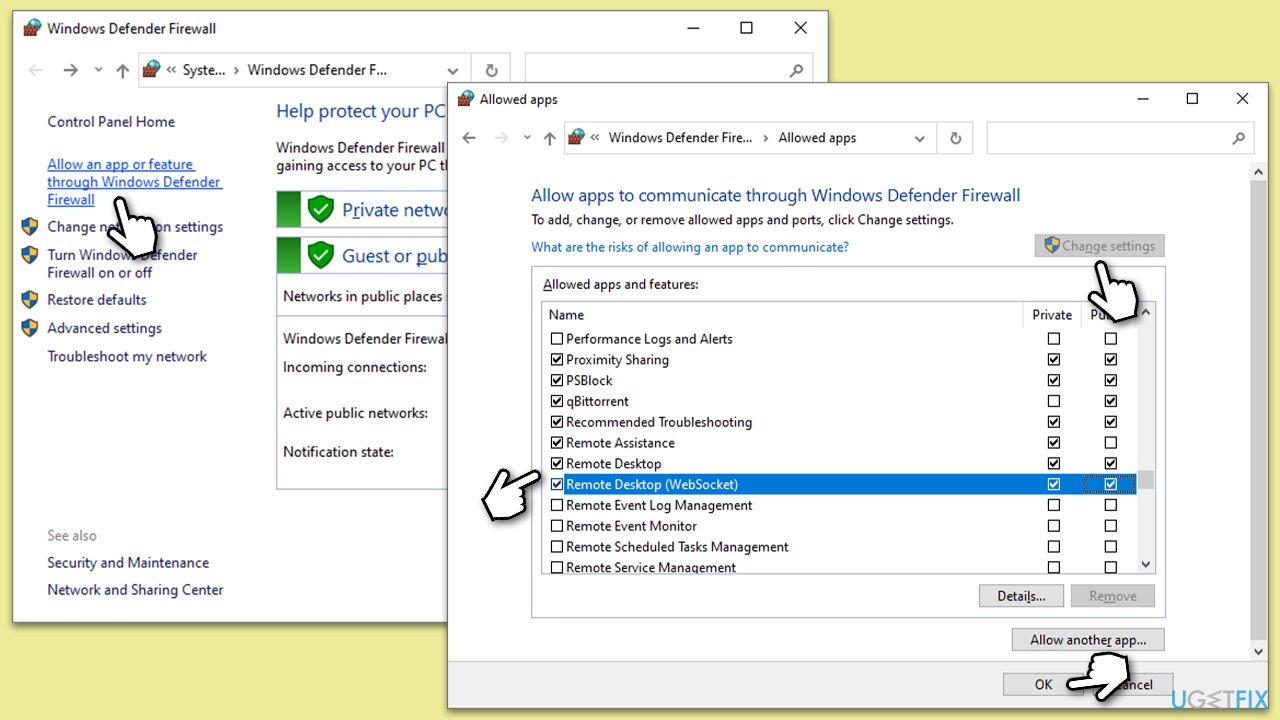
Fix 3. Check Firewall settings
The Windows Firewall can block Remote Desktop connections. Ensuring it allows Remote Desktop traffic is necessary to prevent CredentialUIBroker.exe errors.
- Type in Control Panel in Windows search and press Enter.
- Go to System and Security and click on Windows Defender Firewall.
- On the left side of the window, click Allow an app or feature through Windows Defender Firewall.
- Click Change settings (if you are not on an administrator account, you will be asked to enter a password).
- Scroll down and enable Private and Public access to the following entries:
- Click OK.
Fix 4. Temporarily disable antivirus
Sometimes, antivirus software may interfere with Remote Desktop connections. Temporarily disabling it can help determine if it is the cause of the error.
- Open your antivirus application.
- Look for a setting that allows you to disable or turn off protection temporarily.
- Disable the antivirus protection for a short period.
- Try to establish a Remote Desktop connection.
Fix 5. Run Network troubleshooter
Windows includes a set of troubleshooters designed to find and fix common problems. The network troubleshooter can resolve issues that might be causing Remote Desktop errors.
- Right-click on Start and pick Settings.
- Go to Network & Internet section.
- On the right side, find the Advanced network settings section.
- Click Network troubleshooter and wait.
- The fixes will be automatically applied.

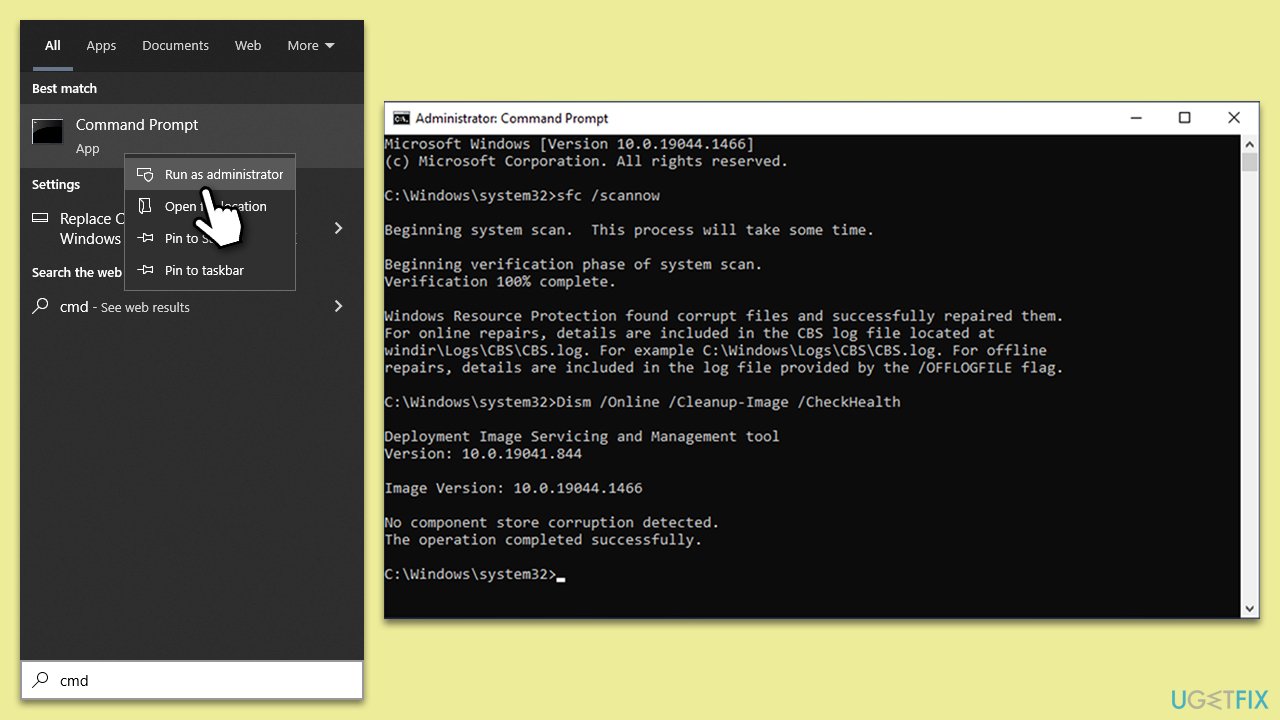
Fix 6. Run SFC and DISM
The CredentialUIBroker.exe error might be fixed by running SFC and DISM scans via an elevated Command Prompt.
- Type cmd in Windows search.
- Right-click on Command Prompt and select Run as administrator.
- User Account Control will ask whether you want to allow changes - click Yes.
- Use the following command and press Enter:
sfc /scannow - Once the scan is complete, you should also run the following commands to repair Windows image files (don't forget to press Enter after each):
DISM /Online /Cleanup-Image /CheckHealth
DISM /Online /Cleanup-Image /ScanHealth
DISM /Online /Cleanup-Image /RestoreHealth - Restart your device.
Fix 7. Update Network drivers
Outdated or corrupt network drivers can cause issues with Remote Desktop connections. Updating them can resolve CredentialUIBroker.exe errors.
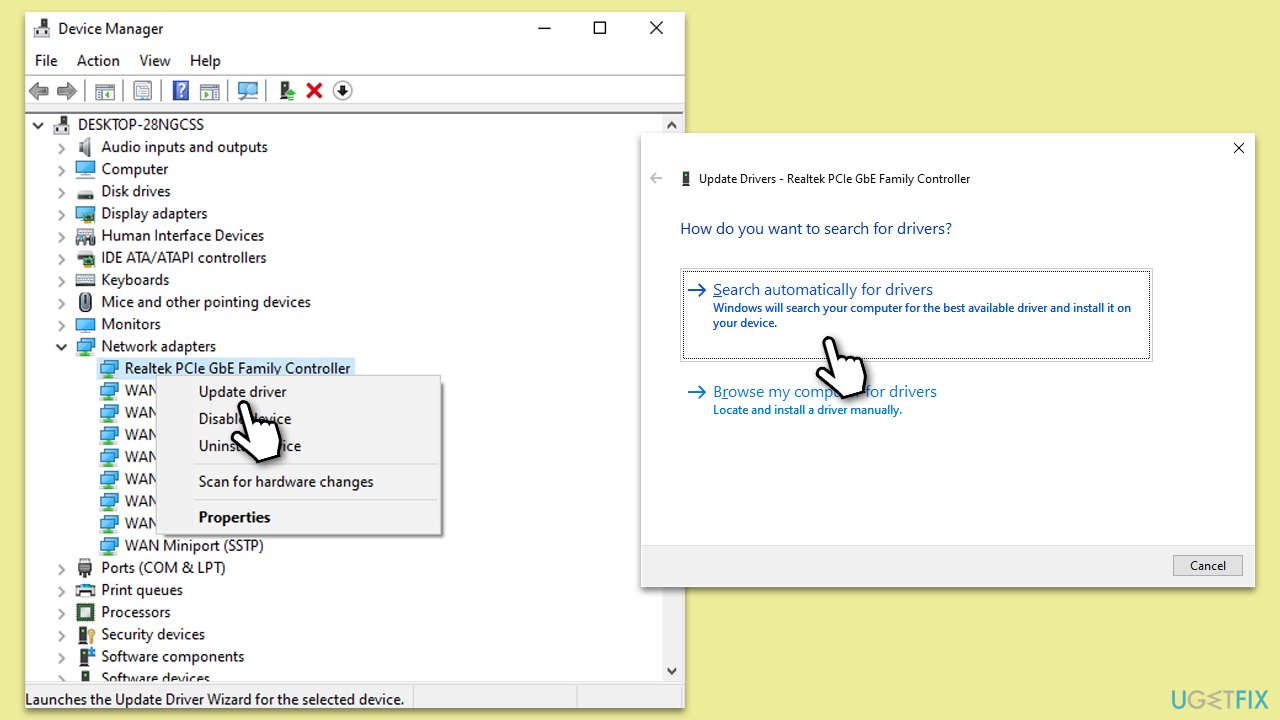
- Type Device Manager in Windows search and press Enter.
- Locate and expand the Network adapters section.
- Right-click on your Network adapter and select Update driver.
- Pick Search automatically for drivers and wait.
- Follow the on-screen instructions and restart your device once done.
If Windows fails to find any updates, you should consider downloading the latest network drivers from the official device manufacturer manually or employing an automatic solution, such as [rev id="DriverFix"].
Fix 8. Restore system to the previous state
Using System Restore to revert your computer back to a state before the CredentialUIBroker.exe error occurred might resolve the issue.
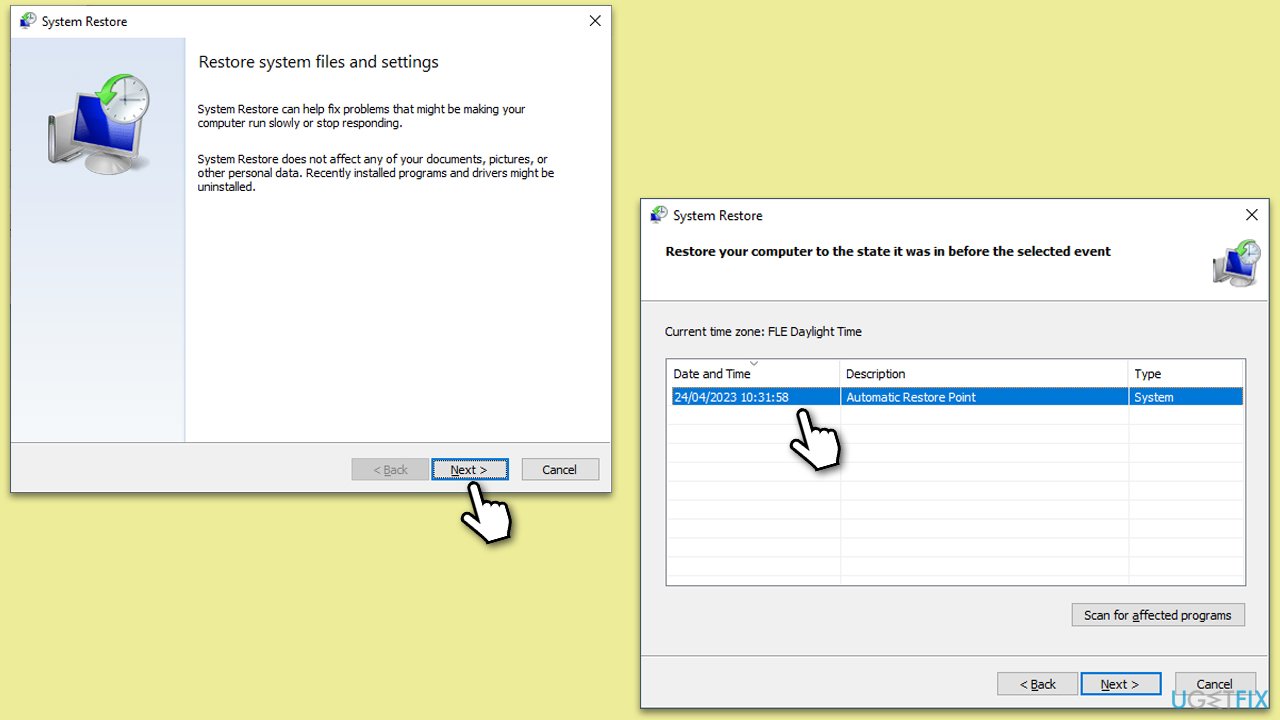
- Type in Create a Restore point in Windows search and hit Enter.
- Go to the System Protection tab and pick System Restore.
- Click Next.
- Click Show more restore points (if available).
- Pick the time before the problem occurred and click Next.
- Follow the prompts to finish the process.
Fix 9. Reset Remote Desktop Licensing
If the problem is related to licensing issues with Remote Desktop, resetting the licensing mode can sometimes resolve the problem. Make sure you back up your registry before making any changes.
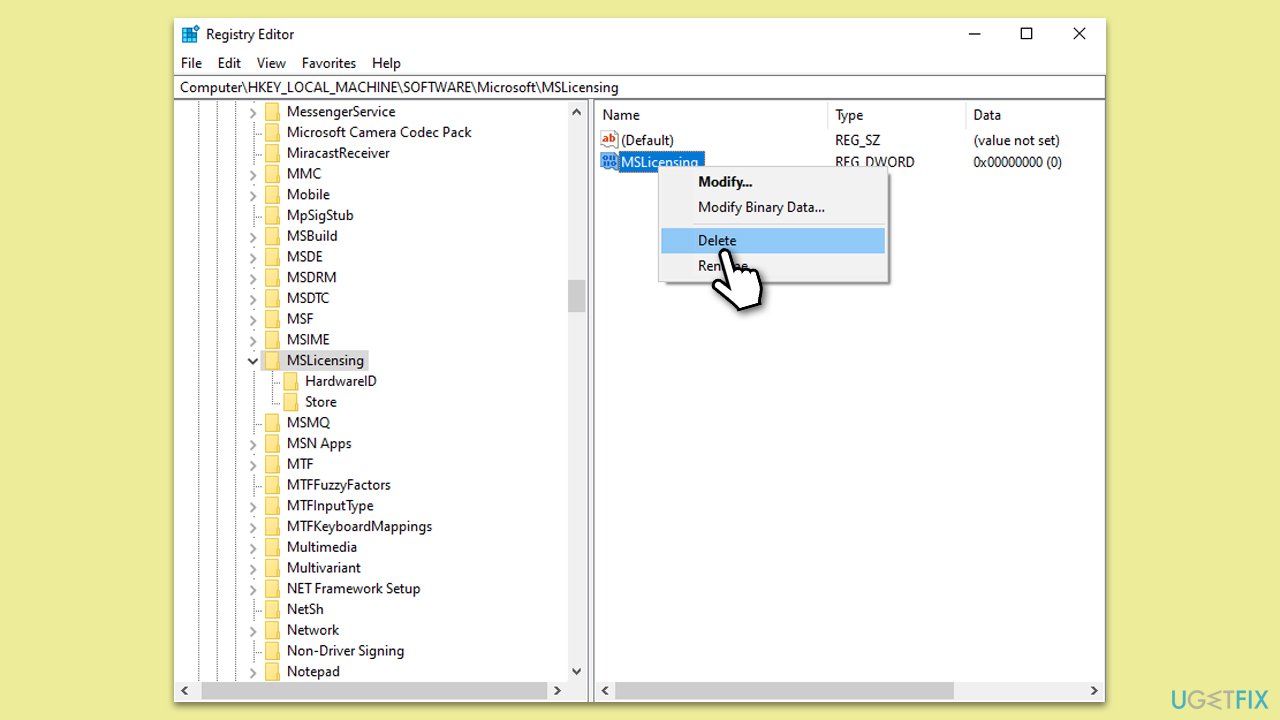
- In Windows search, type regedit, and press Enter to open the Registry Editor.
- Navigate to the following location:
Computer\HKEY_LOCAL_MACHINE\Software\Microsoft\MSLicensing - Right-click on the MSLicensing key and select Delete.
- Close the Registry Editor and restart your computer.
- Upon restart, try to initiate a Remote Desktop connection which will recreate the licensing keys.
Bottom line
To fix the CredentialUIBroker.exe Remote Desktop error, ensure your Windows operating system is updated, verify that Remote Desktop settings are correct, and check that your firewall or antivirus programs are not obstructing the feature. If these approaches do not resolve the issue, it may indicate deeper underlying problems within the Windows operating system.
Frequently asked questions
This error typically occurs due to corrupted system files, outdated drivers, or issues with user profile settings in Windows 10.
To fix this error in Windows 11, try running the System File Checker and ensure your Remote Desktop settings are correctly configured.
Yes, keeping your Windows 10 or Windows 11 system updated and regularly checking for driver updates can help prevent this error from happening again.




Report an issue
What's wrong with this guide? We review every report and update or remove content.
Report received — thank you. We'll review and fix it.
You need a free account to submit a report.
Be the first to comment