How to fix
Critical error on Start Menu and Cortana
on Windows
Resolve critical Start Menu and Cortana errors on Windows 10 and 11 quickly with expert-tested solutions that restore functionality in minutes.

What causes How to fix critical error on Start Menu and Cortana?
- Conflicts with security applications
- Malware infection
- Corrupted user profile
- Issues with Windows updates
- Problems with system files
Repairs Windows system files, removes malware, and restores a clean OS state — without reinstalling.
Hello. I recently encountered “Critical Error Start Menu And Cortana Aren’t Working” error. I tried restarting my computer, but it did not work. I am not sure how to fix this issue. Can you help me, please?
Windows 10 has been extremely popular since its launch - 14 million people upgraded the new version on the first day.[ref en-1] Even though the new OS is improved and has fewer problems in general - it does not avoid error messages.
The issue related to “Critical Error Start Menu And Cortana Aren’t Working” started affecting multiple users and they are looking for a solution. Do not worry, as you came to the right place. We have made every effort to help you fix annoying issues.
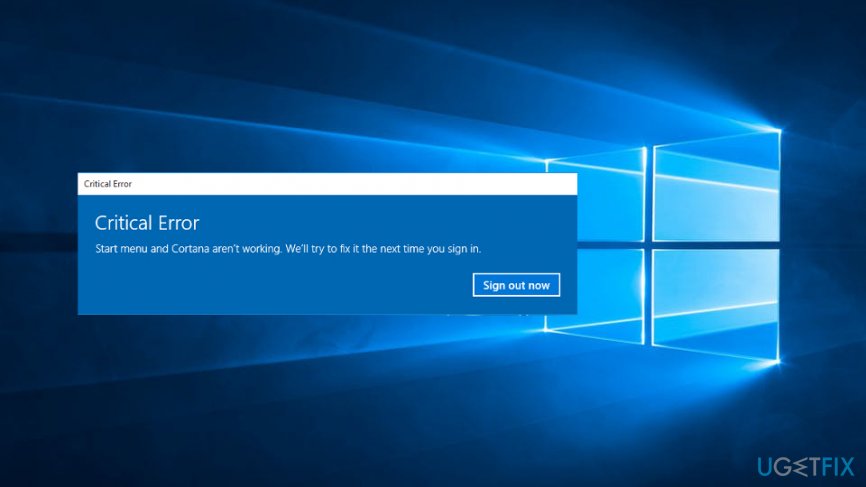
This critical error is related to Start Menu and Cortana. As soon as the user tries to launch Start Menu or Cortana,[ref en-2] the critical error shows up, explaining that these functions are not operating properly and a fix will be attempted next time user signs in.
However, even if users try to restart their computer - the promised fix does not work, and people are still stuck with the annoying message and malfunctioning features. Some users tried restarting their PC multiple times, switch to another account, etc., but nothing worked.
Even if you can get away without using Cortana, you definitely cannot operate your computer properly without the start menu. Some users were forced to go back to previous Windows versions merely because they can’t enjoy a problem-free OS.
We have compiled a list of possible solutions to the problem, so make sure to check them out.
TIP: before you proceed with the following Start Menu and Cortana fix, scan your computer with [d1] and make sure the culprit of the problem is not malware.[ref en-3]
This video will help you:
[youtube mB-9Cf7r-Vk]
Fix 1. Uninstall your Anti-virus or/and Dropbox
Even though Microsoft released multiple updates to increase the compatibility with most of the security applications, some of them might still conflict with Windows 10 OS. Therefore, try to eliminate the problem by uninstalling your current antivirus and consider upgrading to [d1]. Alternatively, you can try updating to the newer version of your current security software.
- As the start menu is not working, use Windows + R to open the Run dialog
- Type in control panel and click OK
- Select Programs and Features
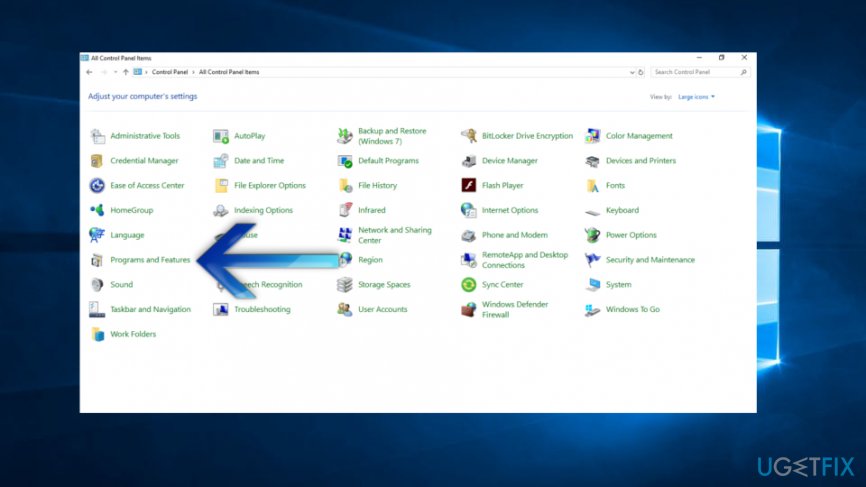
- Find your anti-virus program and click Uninstall
- Restart your computer
If uninstalling security software did not work, follow the same instructions and uninstall Dropbox.[ref en-4]
Fix 2. Hide Cortana icon
- Right-click on the Taskbar and select Search
- From all the options, pick Hidden
- Repeat step number 1
- This time, select Show search icon
- Restart your computer
Fix 3. Fix “Critical Error Start Menu And Cortana Aren’t Working” via PowerShell
- Open Task Manager by holding CTRL + ALT + Delete
- Click on File and pick Run new task
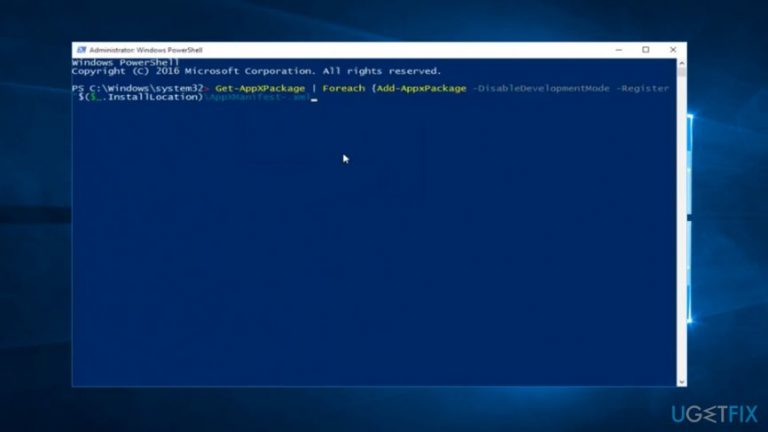
- Type powershell
- Right-click on PowerShell and select Run as administrator
- You will see all running programs. Right-click on PowerShell and pick Open File Location
- Copy the following in the command prompt:
Get-AppXPackage -AllUsers | Foreach {Add-AppxPackage -DisableDevelopmentMode -Register “$($_.InstallLocation)\\AppXManifest.xml”}
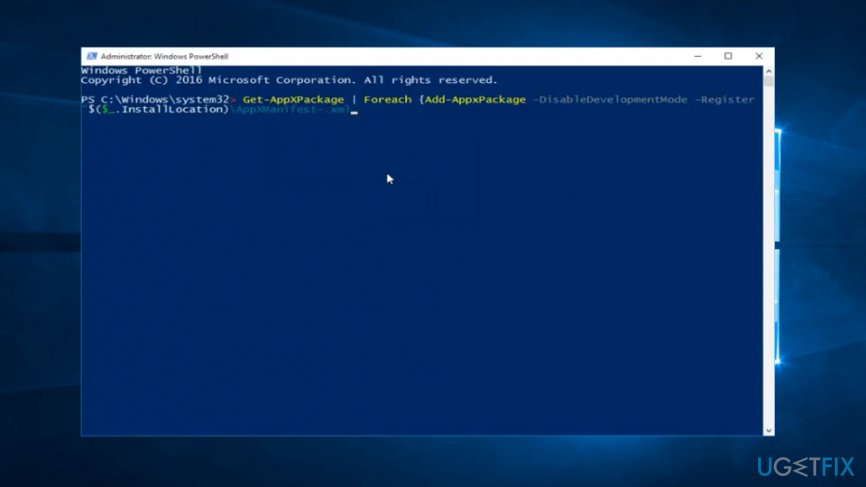
- Press Enter and restart your computer
Fix 4. Try fixing the error via Command Prompt
- Open Task manager and pick File -> New Task
- Type in cmd and click OK (don't forget to give the Administrative privileges)
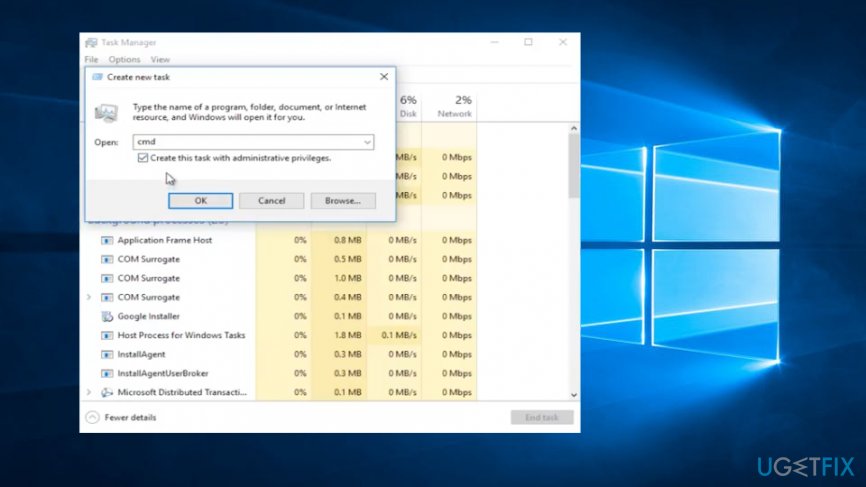
- Type in the following:
ren %windir%\\System32\\AppLocker\\Plugin*.* *.bak
- Restart your computer
Bottom line
To fix the critical error with the Start Menu and Cortana, you can try uninstalling your anti-virus or Dropbox, scanning for malware, or switching user accounts. If these solutions do not resolve the issue, consider rolling back to a previous Windows version or seeking further technical support.
Frequently asked questions
Try restarting Windows Explorer through the Task Manager, which can resolve temporary glitches affecting the Start Menu and Cortana.
You can reset them by running the PowerShell command 'Get-AppxPackage *windows.immersivecontrolpanel* | Remove-AppxPackage' to reinstall the components.
Yes, you can perform a system file check using 'sfc /scannow' in the Command Prompt to repair corrupted system files causing the error.




Report an issue
What's wrong with this guide? We review every report and update or remove content.
Report received — thank you. We'll review and fix it.
You need a free account to submit a report.
Be the first to comment