How to fix
“Critical Error – Start menu and Cortana aren’t working” error
on Windows
Resolve the "Critical Error - Start menu and Cortana not working" issue on Windows 10 easily. Expert-tested solutions with screenshots for quick fixes!


What causes How to fix “Critical Error – Start menu and Cortana aren’t working” error on Windows 10?
- Incorrect Windows configuration
- Conflict with antivirus software
- Damaged Windows update files
- Installation of Windows 10 Update KB3194798
- Registry errors
Repairs Windows system files, removes malware, and restores a clean OS state — without reinstalling.
I have one issue on my laptop. I have installed an upgrade to Windows 10 about a week ago, and no problems until yesterday. For now, after signing in to Windows 10, a window comes up saying "Critical Error - Start menu and Cortana aren't working. We'll try to fix it the next time you sign in." There is a button on that window that says "Sign out now." When I click on it, the laptop restarts and I’m able to enter my password. After that, the same critical error shows up again. Could you please help me to get out of this vicious circle?
"Start menu and Cortana aren't working" error most often appears on Windows 10. This particular Windows version is unpopular due to a heavy occurrence of system errors.[ref en-1] Registry errors, update errors, software compatibility errors, hardware errors, and similar are disrupting millions of Windows 10 users every day. While Microsoft is continuously working on the improvement of its newest OS version, the amount of bugs is so big that each of them cannot be solved quickly.
"Critical Error - Start menu and Cortana aren't working. We'll try to fix it the next time you sign in" error, which happens right after signing in to Windows 10 got reported many times.[ref en-2] We’ve initiated research and found out that this bug is quite common, especially for those who have installed Windows 10 Update KB3194798.
The reason of “Critical Error - Start menu and Cortana aren't working” error is not clear yet, but there are several speculations that it might be springing due to incorrect Windows configuration, conflict with antivirus software or damaged Windows update files. Despite the fact that there is no official patch published, IT specialists have revealed several fixes that might help in this situation.
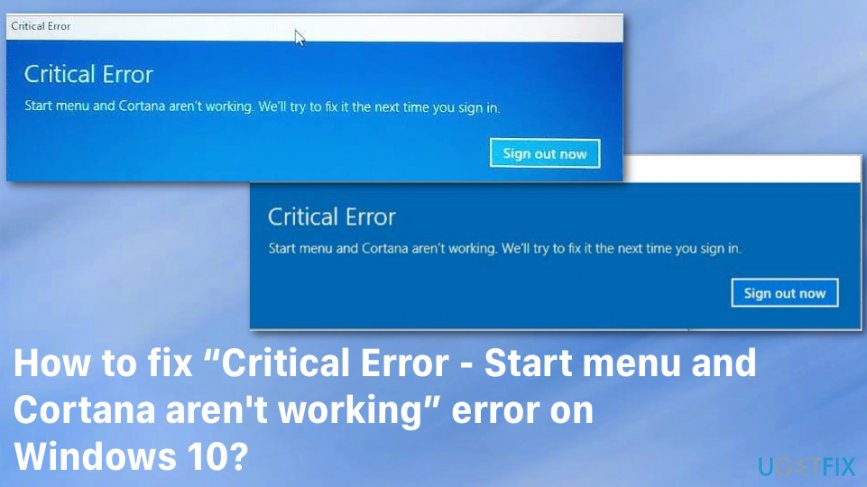
Additionally, the issue that delivers "Critical Error - Start menu and Cortana aren't working" error on Windows can be related to the initial launch of Start menu and Cortana. There might be a number of different methods to fix the issue but you need to try all of them to say that nothing is working because it may be the cocktail of different fixes that improve the situation.
How to Fix “Critical Error - Start menu and Cortana aren't working” error on Windows 10?
Since it’s not clear what kind of system problems prompt “Critical Error - Start menu and Cortana aren't working” error to show up, the first thing that you should try is a system boot in Safe Mode. [ref en-3]
In case you are still unable to perform some task on your Windows 10 due to this error, try to disable your antivirus or install all available Windows updates. Besides, a full system scan with an optimization utility, such as [d1] may also help to fix “Critical Error - Start menu and Cortana aren't working”.
Boot your PC In Safe Mode
- Press Win key and type Settings in the search box.
- Click on the search results and select Update and recovery option.
- Navigate to the Recovery and find Advanced startup.
- Under this option, select Restart now.
- Then click Troubleshoot and select Advanced options.
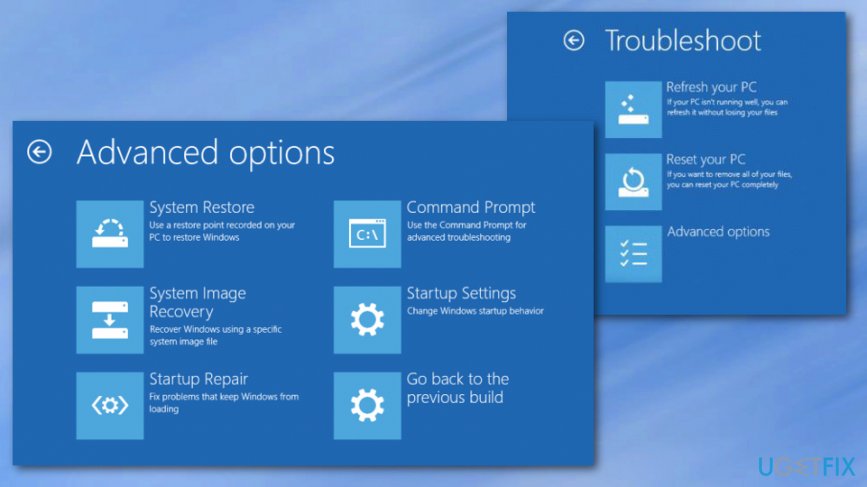
How to fix critical error start menu and cortana arent working error troubleshoot - After that, find Startup Settings and press Restart.
- To Enable Safe Mode with Command Prompt, press F6 on your keyboard.
- Type start %windir%\\explorer.exe "C:\\Program Files (x86) in the Command Prompt window and hit Enter.
These steps apply in case you are able to boot up your PC in Normal Mode. In case you are not able to boot your PC, here’s what you have to do:
- Click Power button and press Shift key.
- Select Restart and then Troubleshoot.
- Click Advanced options and select Startup Settings.
- Finally, select Restart.
- When the system boots up, select Enable Safe Mode with Networking.
Fix for “Critical Error - Start menu and Cortana aren't working” error using Command Prompt
- Right-click on the Start Menu button and select Command Prompt(Admin);
- Type the following and press Enter:
ren %windir%\\System32\\AppLocker\\Plugin*.* *.bak - Restart the computer.
System File Checker scan
- Repeat previous steps to run Command Prompt with administrative rights;
- Enter the command: sfc /scannow
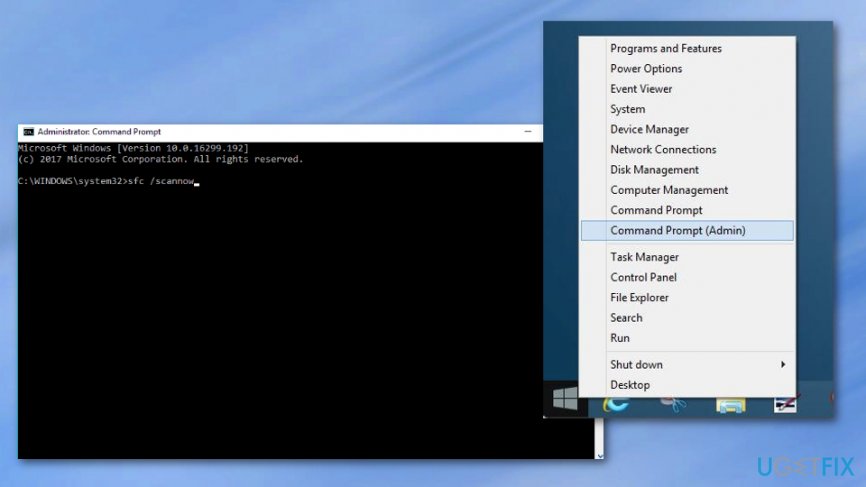
How to fix critical error start menu and cortana arent working error sfc scan
Open an Elevated PowerShell
- Click Win key + R, type PowerShell, and press Enter.
- Right-click on the search results and select Run as Administrator.
- Type Get-AppXPackage –AllUsers | Foreach {Add –AppXPackage –DisableDevelopmentMode –Register “$($_.InstallLocation)AppXManifest.xml”} in the PowerShell window.
- The process will be carried out for several minutes, so be patient.
- Once done, check if the “Critical Error - Start menu and Cortana aren't working” bug has been fixed. Since usually, it emerged when clicking on the Start (or Cortana) key, try to press it and see what happens.
Bottom line
To resolve the 'Critical Error - Start menu and Cortana aren't working' issue, you can try several fixes such as resetting Windows configuration, disabling antivirus software, or repairing Windows update files. If these methods do not work, consider seeking further assistance or checking for updates from Microsoft.
Frequently asked questions
First, try restarting your computer as it can resolve temporary glitches. If the problem persists, consider running the System File Checker to repair corrupted system files.
Yes, you can fix this issue by resetting the Windows Explorer process or creating a new user account, which often resolves the error without needing a full reinstallation.
To prevent future occurrences, keep your Windows 10 updated and regularly run system maintenance tools to check for and repair any underlying issues.




Report an issue
What's wrong with this guide? We review every report and update or remove content.
Report received — thank you. We'll review and fix it.
You need a free account to submit a report.
Be the first to comment