How to fix
CRYPT32.dll missing or not found error
on Windows
Resolve the CRYPT32.dll missing error on Windows 10 and 11 quickly and easily. Our expert-tested solutions ensure a smooth fix in minutes.

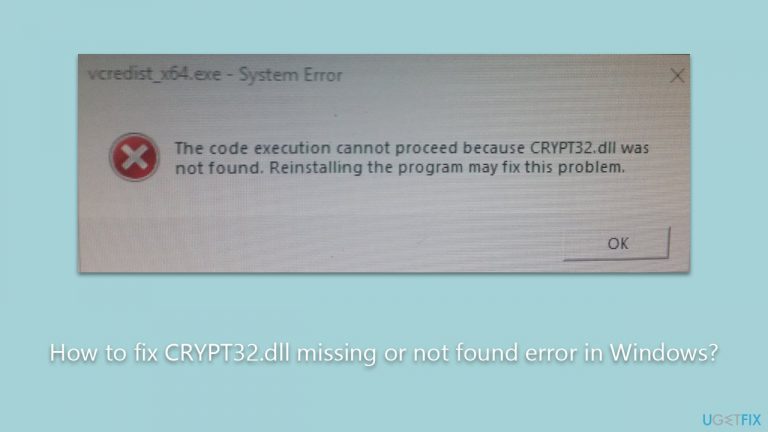
What causes How to fix CRYPT32.dll missing or not found error in Windows?
- Crypt32.dll file has been accidentally deleted
- Crypt32.dll file is corrupted
- Crypt32.dll file has not been properly registered within the Windows registry
- Malware or viruses have damaged or deleted the DLL file
Repairs Windows system files, removes malware, and restores a clean OS state — without reinstalling.
Hello. I ran into a problem on my Windows 10 recently. I booted it up as normal and then attempted to boot Skype, which resulted in an error saying, "The program can't start because CRYPT32.dll is missing from your computer. Try reinstalling the program to fix this problem." How do I fix this?
Dynamic Link Libraries, or DLL files, are essential components in the Windows operating system, acting as shared libraries of procedures and functions that multiple programs can use simultaneously. This shared use allows for an efficient and streamlined operating experience, making DLL files indispensable to Windows OS.
DLL files, while crucial, can sometimes lead to system errors. An example of such an error is the CRYPT32.dll missing or not found error. The file in question, Crypt32.dll, is a module integral to both Windows and Windows Server operating systems. It's worth noting that there are different versions of it, each providing different capabilities based on the version of the operating system installed on your computer.
The CRYPT32.dll missing or not found error can occur for various reasons. You might experience this error because the Crypt32.dll file has been accidentally deleted, is corrupted, or has not been properly registered within the Windows registry. Malware or viruses might also be a contributing factor, as these malicious programs can damage or delete DLL files, causing subsequent errors.
To fix the CRYPT32.dll missing or not found error, various steps can be taken. You might need to reinstall the specific program associated with the DLL, recover the deleted file from the recycle bin, or even restore your system to a previous state before the error occurred. Updating your Windows operating system or the drivers of your hardware components may also be necessary to rectify the error, ensuring that the correct and most recent version of Crypt32.dll is being utilized.

In case the error continues to persist despite taking these steps, consider employing a reputable PC repair tool like [d1]. Such tools are designed to identify and fix issues related to DLL files and other system errors, facilitating a stable and efficient computing environment.
Fix 1. Reinstall the problematic program
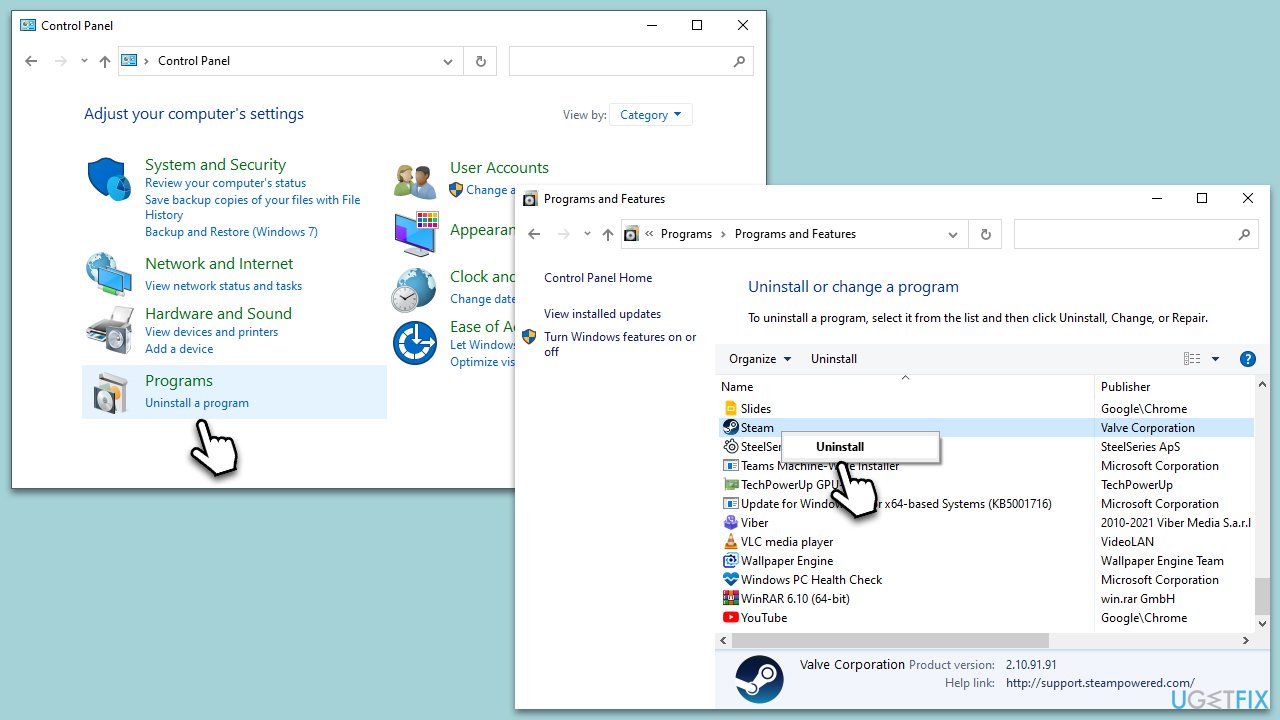
The "CRYPT32.dll not found" error often occurs when a particular program fails to locate the required DLL file. By reinstalling the program, you ensure that all its constituent files, including necessary DLLs, are adequately installed and configured. This approach often resolves errors stemming from missing or corrupted files.
- Type Control Panel in Windows search and press Enter.
- Go to Programs > Uninstall a program.
- Find the program mentioned in the error message.
- Right-click on it and select Uninstall, then follow the prompts.
- Restart your computer.
- Download the latest version of the program from its official website.
- Install the program following the on-screen instructions.
- Restart your computer again to complete the installation.
Fix 2. Restore the file from the Recycle Bin
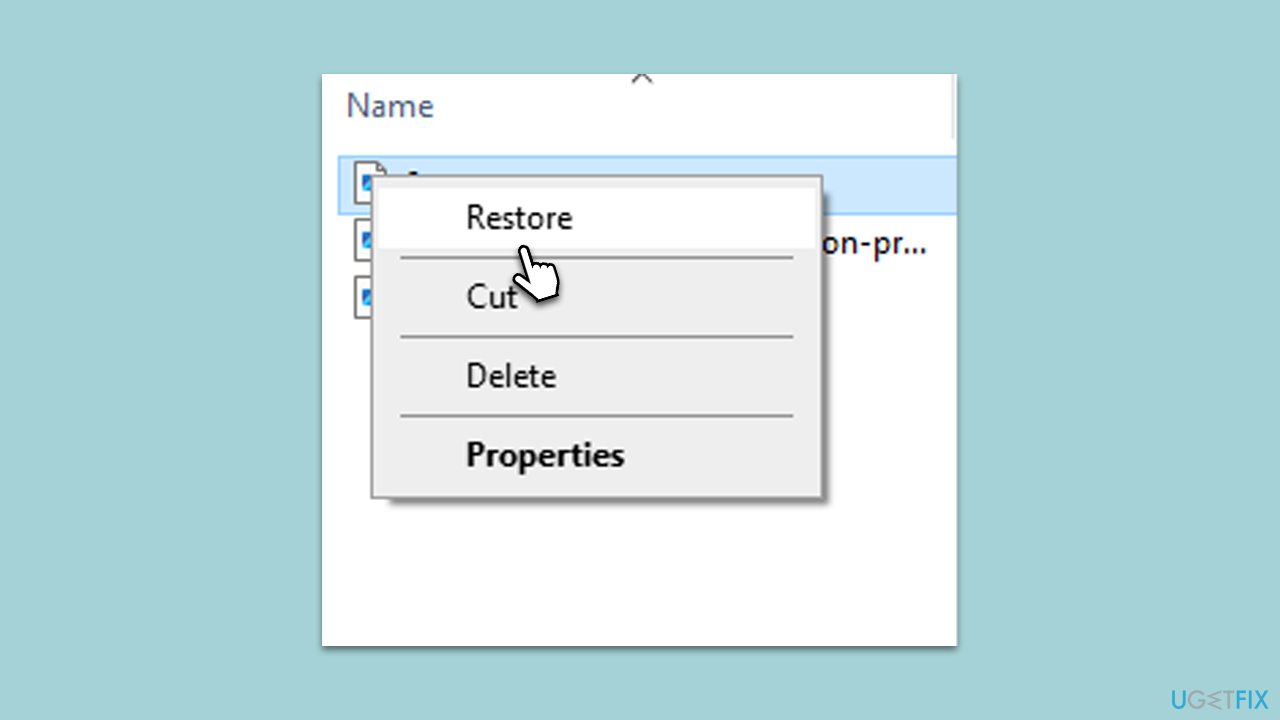
Sometimes, the DLL file might be accidentally deleted. Check the Recycle Bin to see if the file is there and restore it.
- Open the Recycle Bin on your desktop.
- Look for the CRYPT32.dll file.
- Right-click on the file and select Restore.
- Once restored, restart your computer.
Fix 3. Run a System File Checker
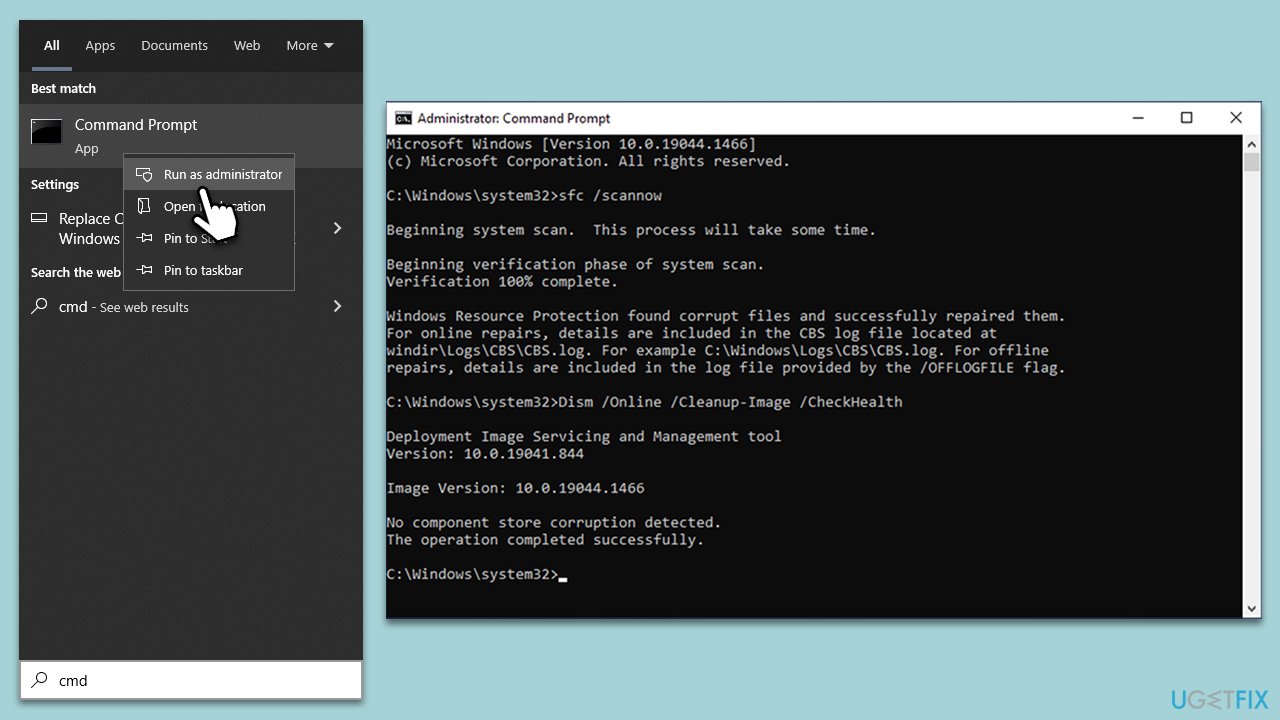
System File Checker (SFC) tool repairs corrupted system files, including DLLs.
- Type cmd in Windows search.
- Right-click on Command Prompt and pick Run as administrator.
- User Account Control window will show up - click Yes when prompted.
- Then, copy and paste the following command, pressing Enter after:
sfc /scannow - Wait till the scan is finished. If Windows finds system file integrity violations, it will attempt to fix them. After this, use the set of the following commands, pressing Enter each time:
DISM /Online /Cleanup-Image /CheckHealth
DISM /Online /Cleanup-Image /ScanHealth
DISM /Online /Cleanup-Image /RestoreHealth - Close down the Command Prompt and restart your device.
Fix 4. Update Windows
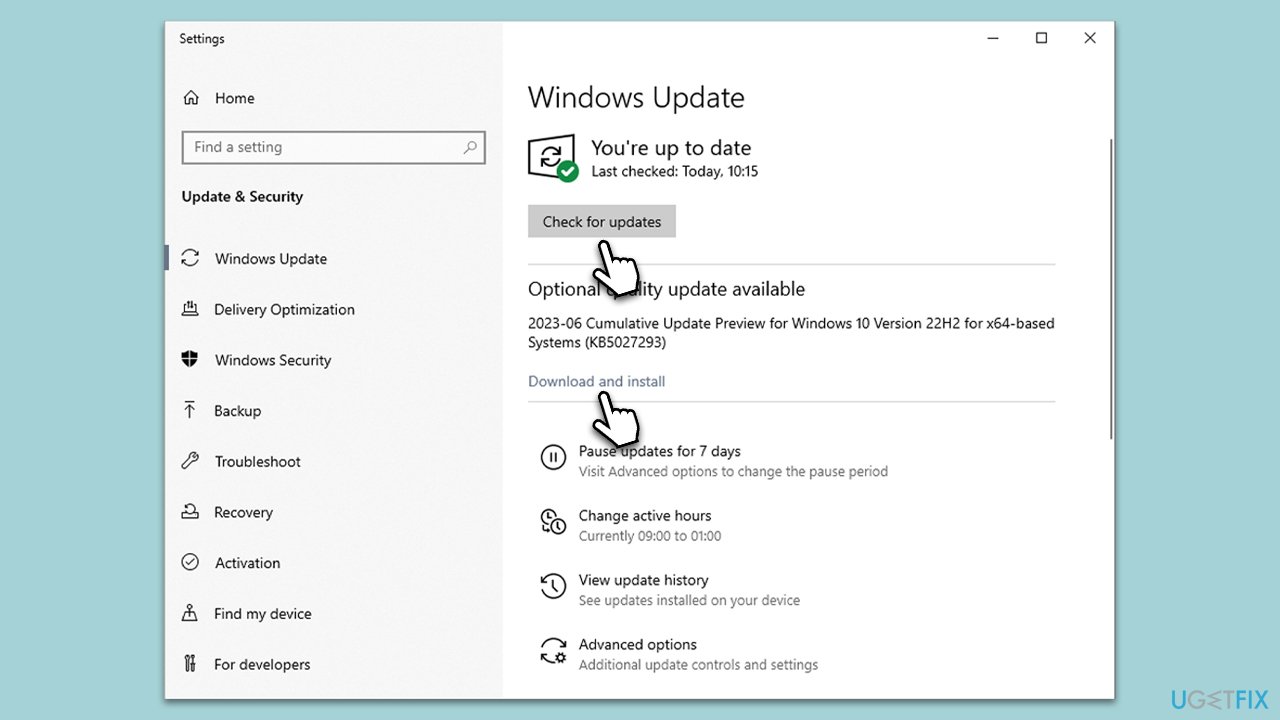
Outdated Windows versions might not support certain DLL files, leading to errors. Keeping your system updated can rectify this.
- Go to Settings > Update & Security > Windows Update.
- Click on Check for updates.
- Install any available updates, including optional opes.
- Restart your computer to apply changes.
Fix 5. Perform a System Restore
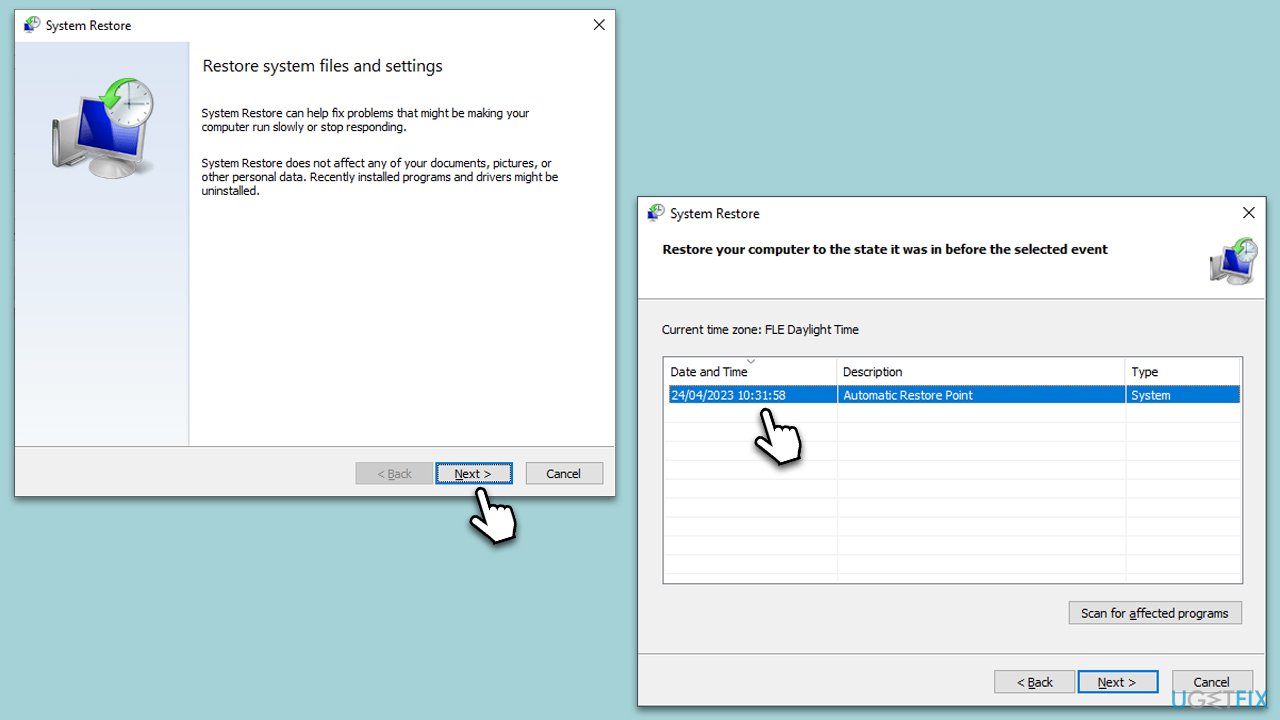
System Restore can revert your computer’s system files and settings to a previous point in time, potentially resolving any recent errors.
- Type in Create a Restore point in Windows search and hit Enter.
- In the System Protection tab, pick System restore.
- Click Next.
- Click Show more restore points (if available).
- Pick the time before the problem occurred and click Next.
- Your computer will reboot.
Fix 6. Register the DLL file manually
Registering the DLL file again can resolve any registration-related errors.
- Open Command Prompt as Administrator.
- Type regsvr32 /u CRYPT.dll to unregister the file.
- Then type regsvr32 /i CRYPT.dll to register it again.
- Restart your computer.
Fix 7. Conduct a malware scan
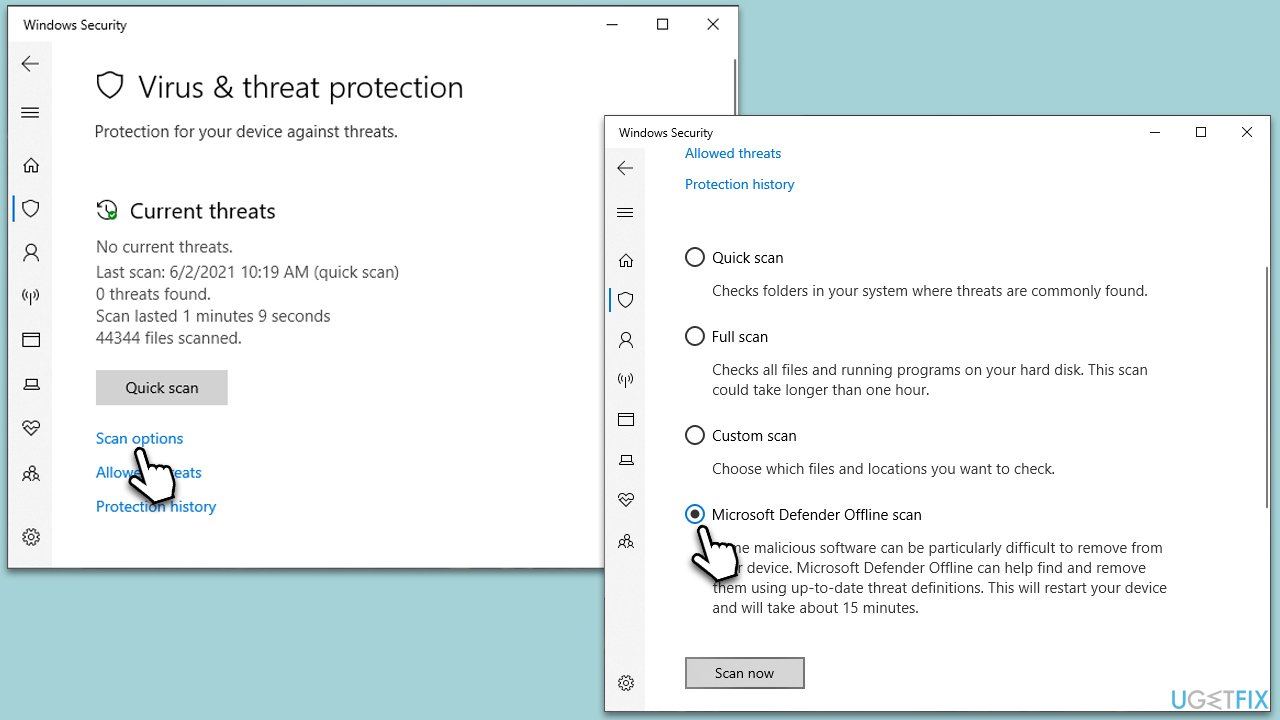
Malware can corrupt or delete system files. Running a full system scan can detect and remove these threats. You can use Microsoft Security Scanner is a free option, as well as the built-in Windows Defender. If you choose the latter, follow these steps:
- Type in Windows Security in Windows search and press Enter.
- Select Virus & threat protection.
- Pick Scan options.
- Select Microsoft Defender Offline scan and click Scan now.
- The computer will now restart, and the scan begin.
Bottom line
To fix the CRYPT32.dll missing or not found error, you can try reinstalling the associated program, recovering the file from the recycle bin, or restoring your system to a previous state. Updating your Windows operating system or hardware drivers may also help. If the error persists, consider using a reputable PC repair tool.
Frequently asked questions
This error typically occurs due to corrupted system files, malware infections, or issues during software installations that affect the CRYPT32.dll file in Windows 10.
You can restore the CRYPT32.dll file by running the System File Checker tool using the command 'sfc /scannow' in the Command Prompt, which will scan and repair missing or corrupted system files.
No, downloading CRYPT32.dll from third-party sites is not recommended, as it may lead to further system issues or malware infections; it's best to use built-in Windows tools to fix the problem.




Report an issue
What's wrong with this guide? We review every report and update or remove content.
Report received — thank you. We'll review and fix it.
You need a free account to submit a report.
Be the first to comment