How to fix
CSGO takes a long time to start
on Windows
Resolve the long startup time for CSGO on Windows 11 with our expert-tested solutions and clear screenshots to fix it in minutes.

What causes How to fix CSGO takes a long time to start in Windows 11?
- Third-party startup applications
- Installation issues
- Corrupted system files
- Outdated system files
- Usage of conventional hard disk instead of SSD
Repairs Windows system files, removes malware, and restores a clean OS state — without reinstalling.
Hey. I have this issue on Windows 11 right now. CS:GO takes a long time to start. I am bothered and want to solve this. It was all good before, even after the upgrade to 11. I need help because I cannot find anything that could properly work for me.
The recent upgrades of the Windows operating system do not mean that The new versions are immune to issues or problems. It is common to encounter feature failure or compatibility issues. It is normal to encounter problems with particular games or applications. CS:GO takes a long time to start in Windows 11 is one of the problems that users[ref en-1] complain about.
The issue can occur out of nowhere and after the proper program behavior before. The slow startup is frustrating, but it is not a crucial issue, and the process can be speeded up. Windows 11 have improved memory and hardware management, so the processor should work faster and more efficiently, but it is new, and implementation has some flaws still.
This problem when CSGO takes a long time to start can be related to third-party startup applications and configurations related to those programs. Of course, it is common to have issues with performance due to installation issues or system files. Upgrading to the newest update can solve the problem quickly here.
Also, tools like [d1] find and fixes issues with affected system files in various folders. It can indicate system data that is corrupted by malicious programs[ref en-2] that managed to trigger some changes. Or it can indicate what system files are out of date or haven't transferred the information during the OS upgrade. It is a quick solution for these system errors.
An additional cause for such problems when CS:GO takes a long time to start in Windows 11 could be the usage of conventional hard disk, instead of SSD.[ref en-3] However, all these reasons show that there are solutions for the possible incidents. You can fix the problem by tweaking some settings or improving the overall performance.
1. Perform a clean boot
- Press the Win + R to open the Run dialog.
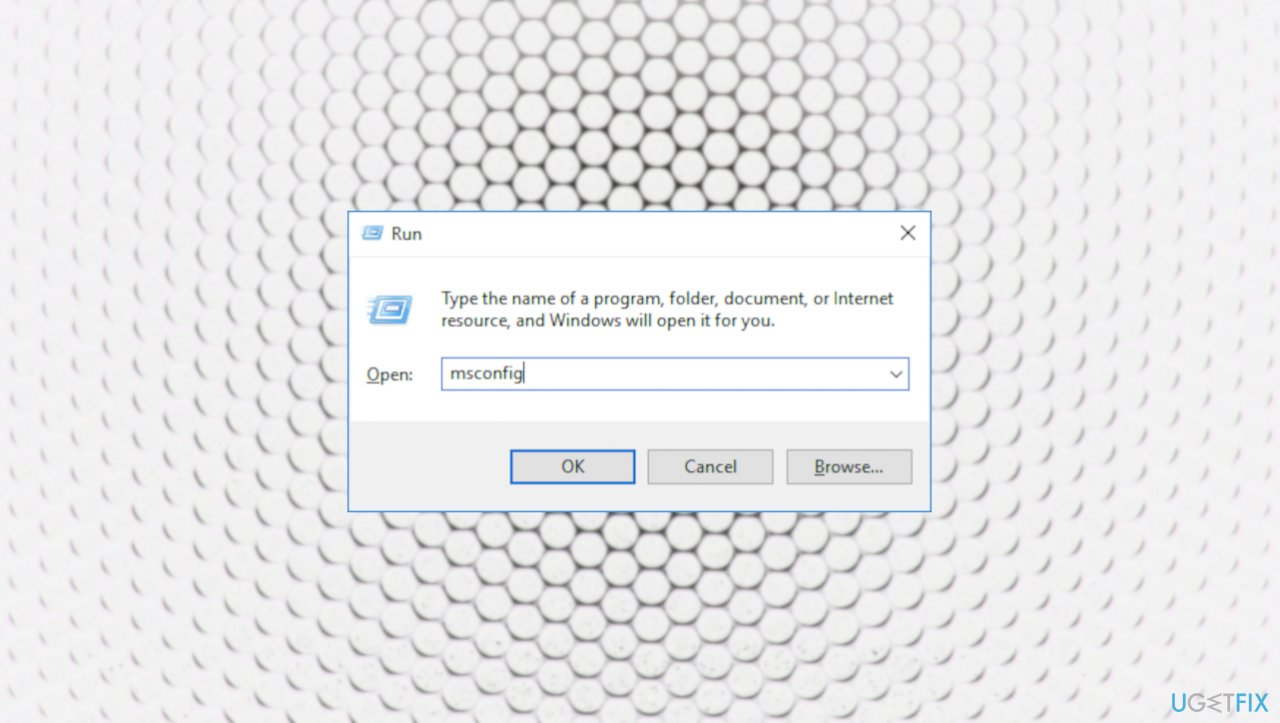
Csgo startup taking too long windows msconfig - Type msconfig and click OK to open System Configuration.
- When the System Configuration utility opens.
- Click on the Services tab.
- Select the Hide all Microsoft services box.
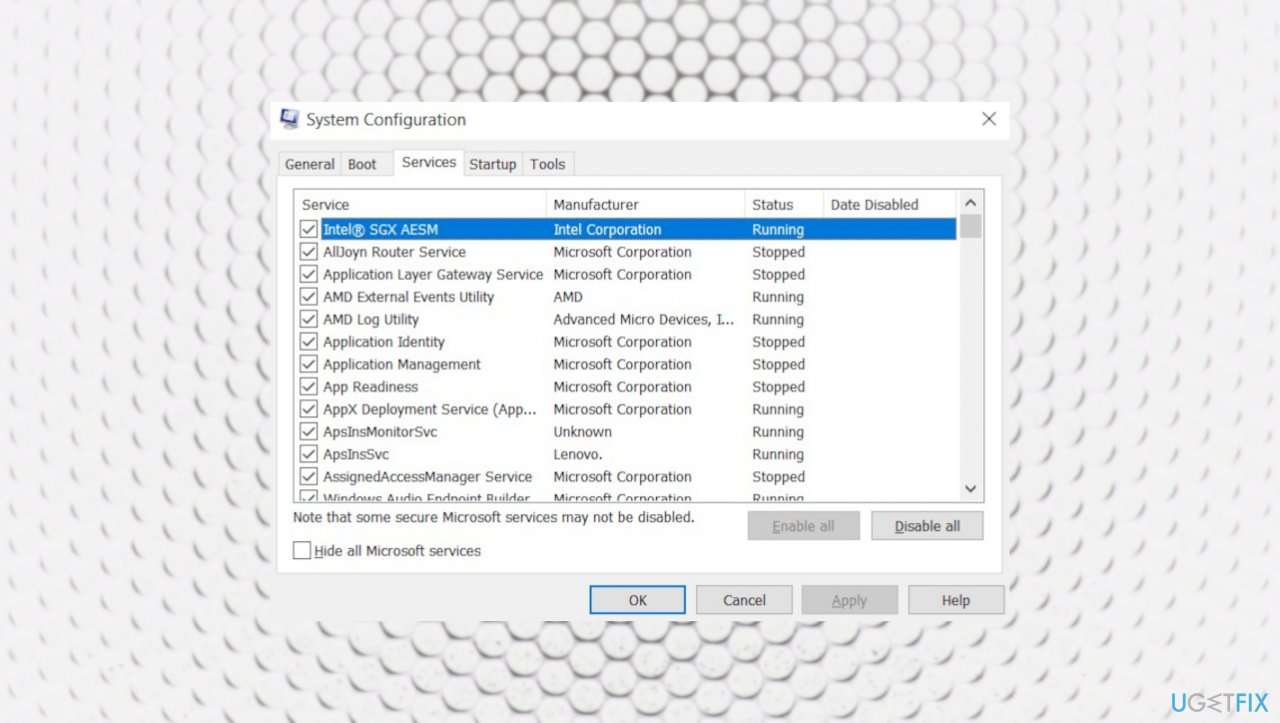
Csgo startup taking too long windows system configurations - Click the Disable all button.
- Open the Startup tab and click on Open Task Manager.
- In the Startup tab, select each item and click Disable.
- Close Task Manager.
- Click OK and then restart your PC.
2. Troubleshoot
- Type in Troubleshoot in Windows search and hit Enter.
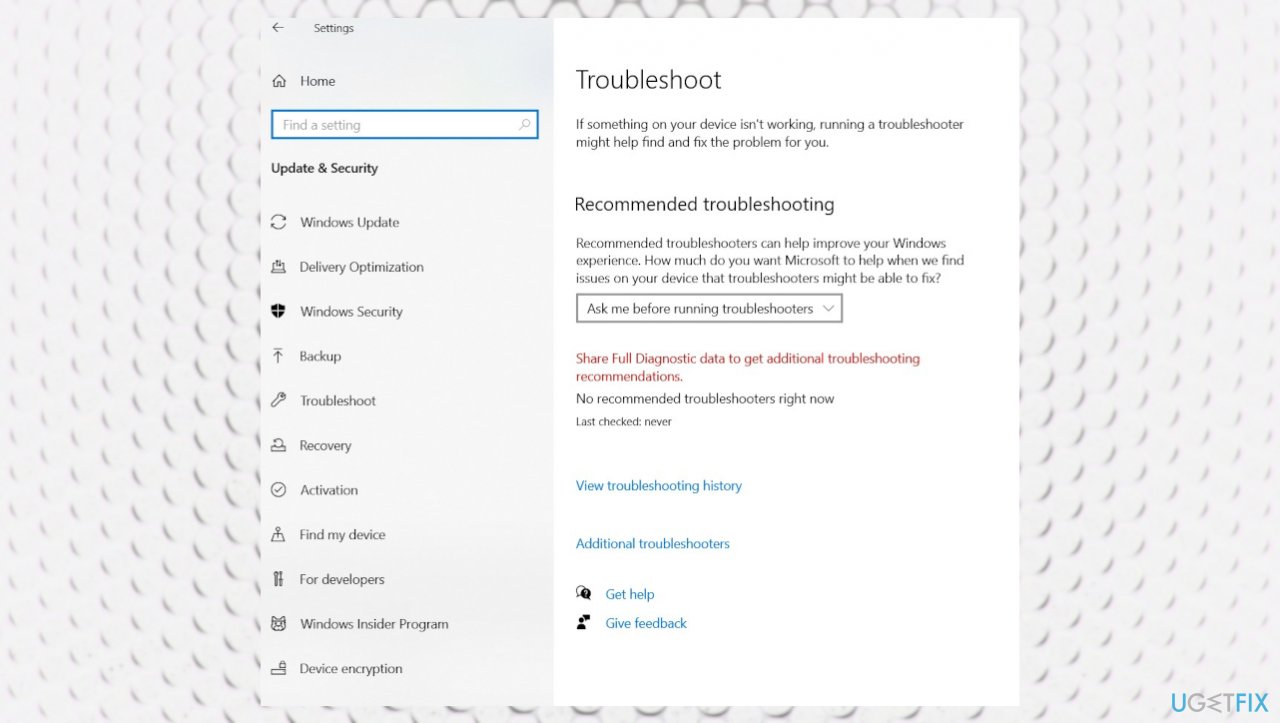
Csgo startup taking too long windows troubleshooting - Click Additional troubleshooters.
- Scroll down to the Windows Store Apps option and select it.
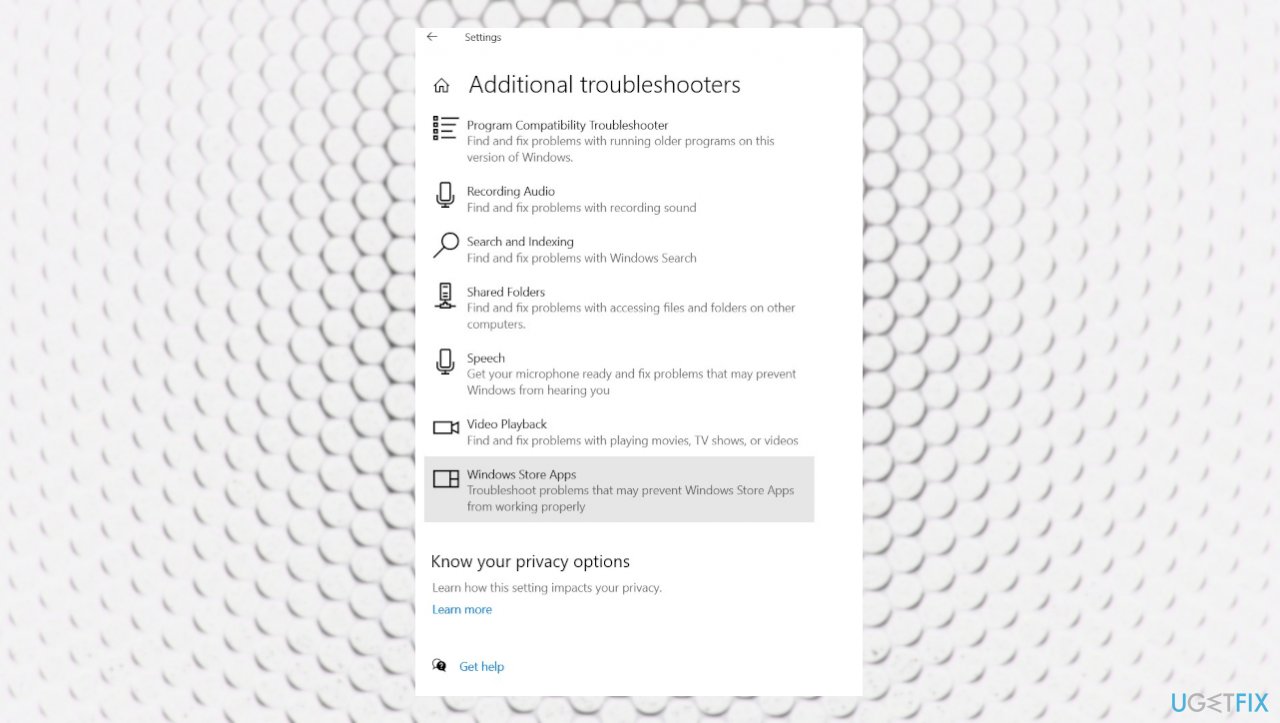
Csgo startup taking too long windows app troubleshoot - Click Run the troubleshooter and wait for the results.
- Apply the suggestions and then reboot your PC.
3. Reset or Repair the game
- Go to Windows Settings by hitting Windows and I keys.
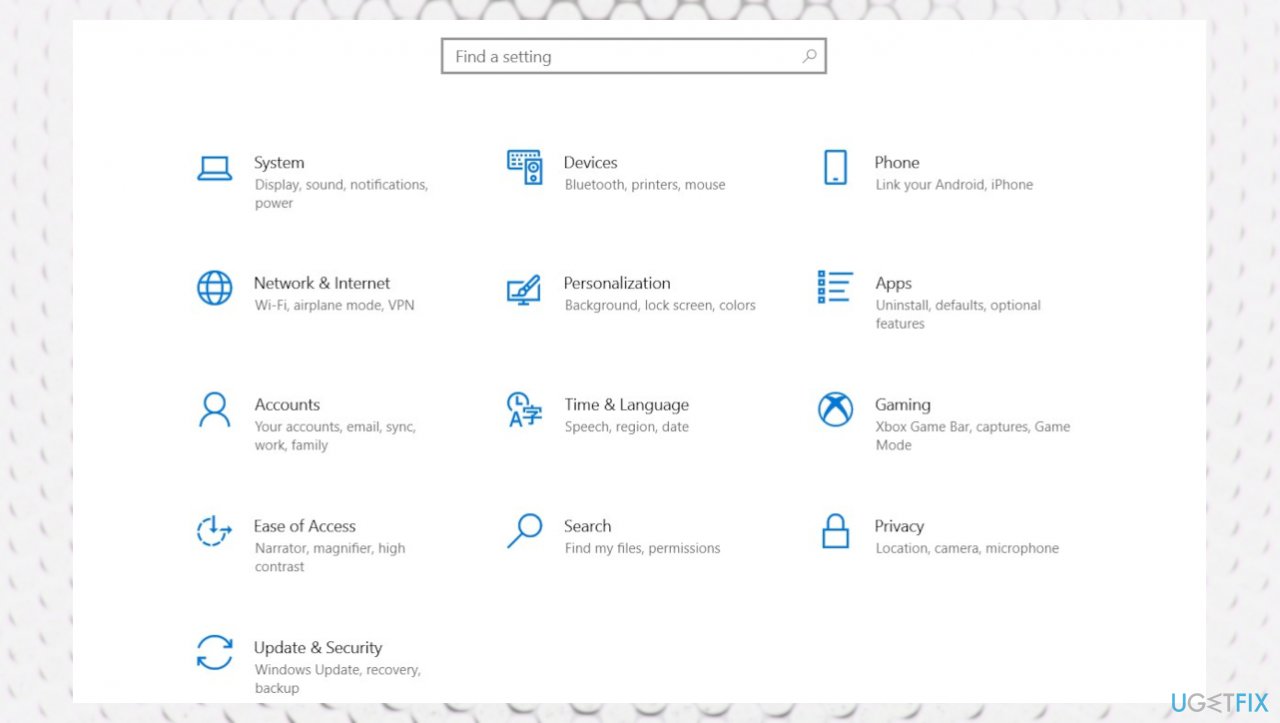
Csgo startup taking too long windows settings - Go to Apps.
- Select Apps & Features.
- Find the game.
- Go to Advanced Options and select Reset or Repair.
- Restart PC.
4. Update drivers
- Right-click on Start and select Device Manager.
- Expand Display adapters section.
- Right-click on your graphics card and select Update driver.
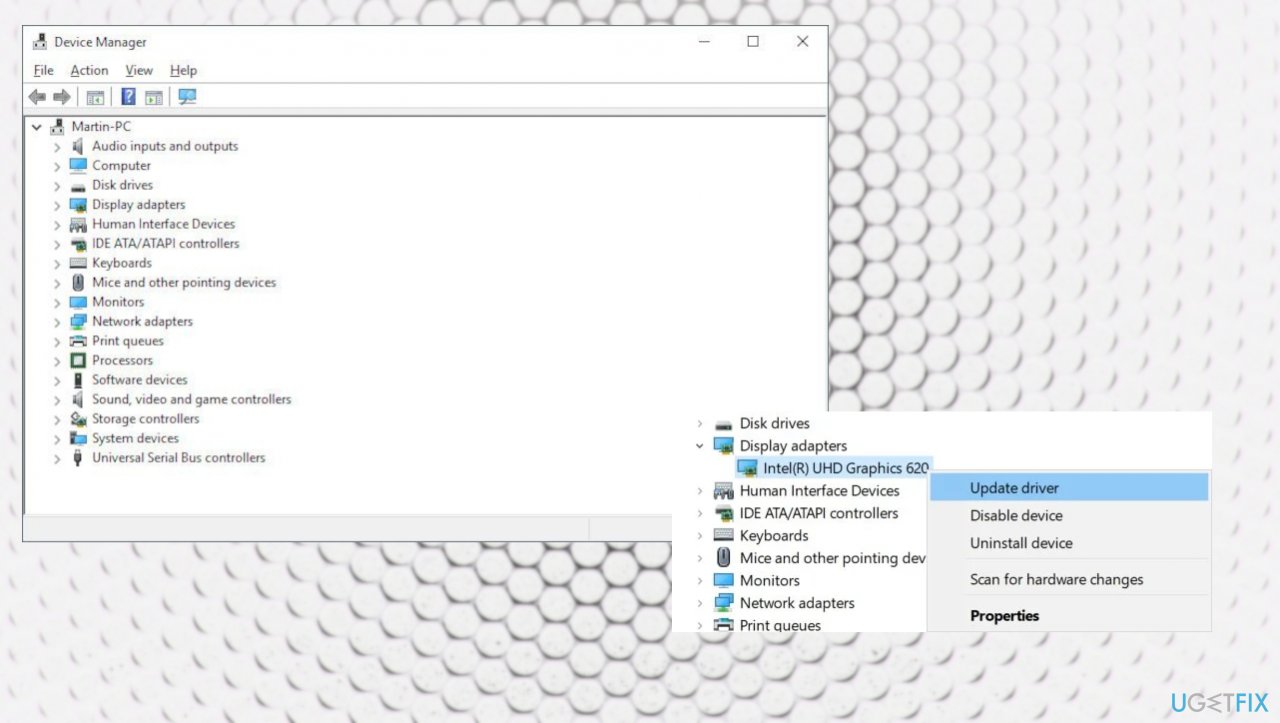
Csgo startup taking too long windows drivers - Pick Search automatically for updated driver software.
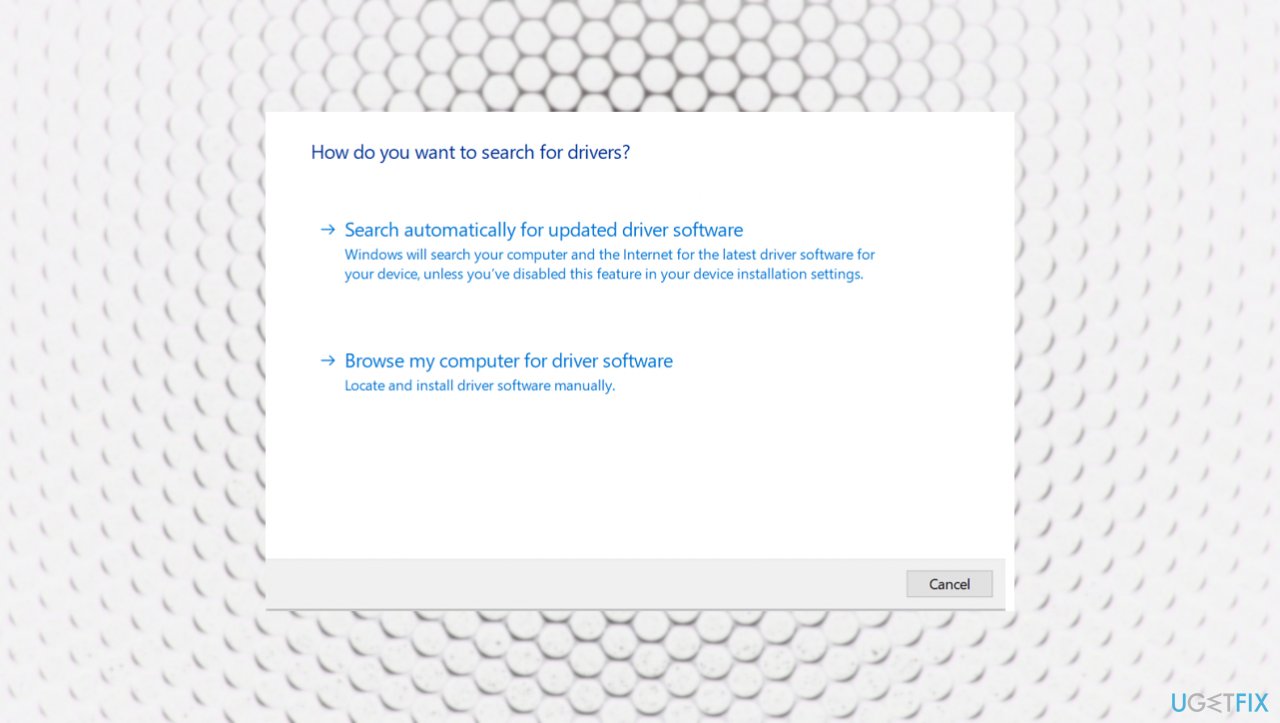
Csgo startup taking too long windows driver update - Wait till Windows downloads and installs updates.
- Reboot.
5. Check for updates for OS
- Right-click Start button and pick Settings.
- You can also hit Windows and I button to go straight to Settings window.
- Go to Update & Security.
- On the right, locate and click View update history.
- You can also Check for the latest updates.
- Install any pending OS update.
6. Enable the Fast Startup
- Press Win + R to open Run.
- Type control and click OK to open Control Panel.
- Go to System and Security.
- Then Power Options.
- In the left pane, click on Choose what the power buttons do.
- Click Change settings that are currently unavailable.
- Under the Shutdown settings section.
- Select Turn on fast startup.
- Click Save changes.
- Restart your PC.
Bottom line
To fix the issue of CS:GO taking a long time to start in Windows 11, you can perform a clean boot, upgrade to the latest updates, and use tools to find and fix system file issues. If these solutions do not resolve the problem, consider checking your hardware or seeking further technical assistance.
Frequently asked questions
CSGO may take a long time to start on Windows 11 due to background processes, outdated drivers, or system resource limitations. Ensuring your drivers are updated and closing unnecessary programs can help speed up the launch.
To reduce CSGO's startup time on Windows 11, you can disable background applications and optimize game settings in the Steam client. Additionally, verifying the integrity of game files can also improve performance.
Yes, Windows 11 users can fix CSGO startup issues by running the game as an administrator and adjusting compatibility settings. This can help resolve conflicts that may cause delays during the game's launch.




Report an issue
What's wrong with this guide? We review every report and update or remove content.
Report received — thank you. We'll review and fix it.
You need a free account to submit a report.
Be the first to comment