How to fix
Ctrl key not working
on Windows
Resolve Ctrl key issues in Windows 10 or 11 with effective fixes. Get back to productivity quickly, with expert-tested solutions and clear guidance.


What causes How to fix Ctrl key not working in Windows?
- Software compatibility issues
- Outdated keyboard drivers
- Debris or damage on the keyboard
- Bugs in the operating system
- Issues with system files
Repairs Windows system files, removes malware, and restores a clean OS state — without reinstalling.
Hello. The Ctrl key is not working consistently with my Windows PC. Can you help with this?
Users' capacity to do different tasks effectively might be greatly impacted by the Ctrl key issue in Windows. A significant component of keyboard shortcuts and combinations is the Ctrl key, sometimes known as a modifier key. It functions by enabling users to concurrently press it and other keys to initiate specific functions, improving productivity and system and application navigation.
Users may run across a variety of issues when the Ctrl key breaks or malfunctions. The inability to use keyboard shortcuts that rely on the Ctrl key is one of the most frequent problems. This can interfere with ordinary processes like copying and pasting text, undoing or redoing changes, opening new tabs in web browsers, and carrying out different operations in software programs.
There may be a need to combine software and hardware troubleshooting techniques to fix the Ctrl key issue. Some possible solutions include checking for software updates, as compatibility issues or bugs could contribute to the problem. It's possible that users need to make sure their keyboard drivers[ref en-1] are updated. Physical elements like debris or keyboard damage should be looked into in case they are also the source of the issue.
In this guide, you will find 6 steps that should help you fix the Ctrl key not working. You can also use a system repair tool like [d1] that can fix most system errors, BSODs,[ref en-2] corrupted files, and registry[ref en-3] issues. Otherwise, follow the step-by-step instructions below.
Solution 1. Install Windows Updates
- Press the Windows key + R to open the Run box.
- Type ms-settings:windowsupdate in the text box and press Enter.
- Click the Check for updates button.
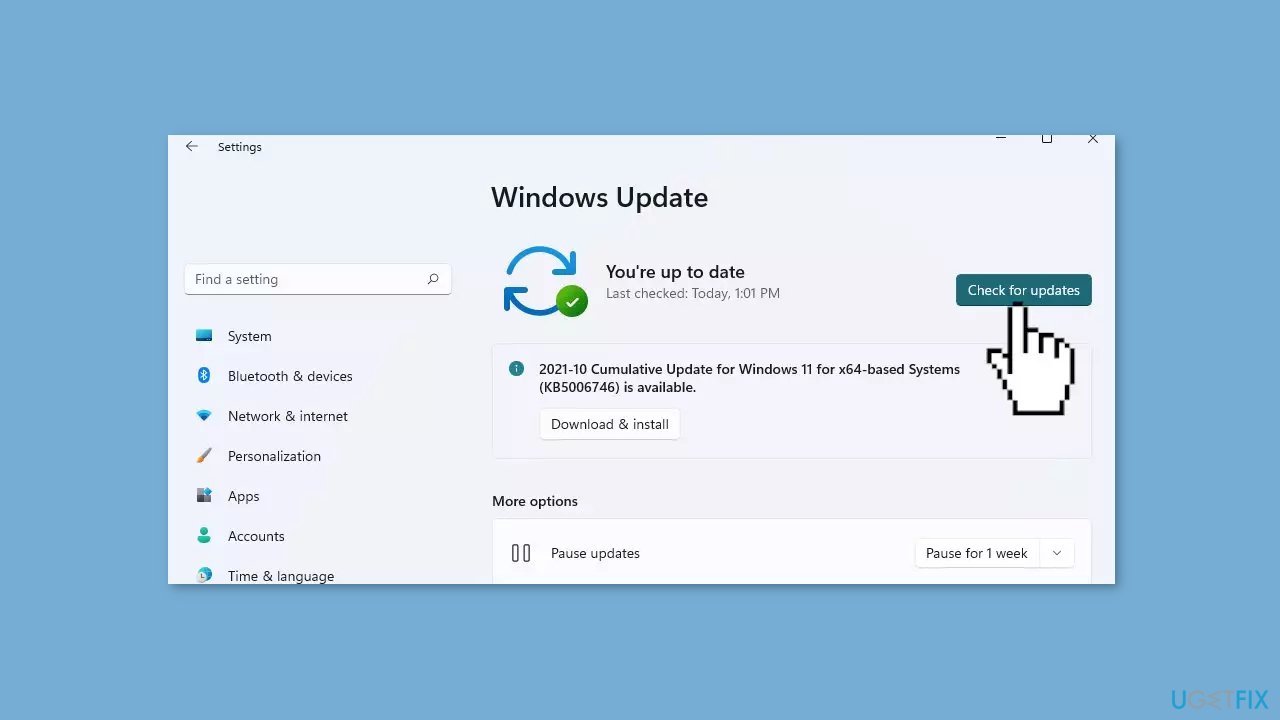
- If a new update is available, click the Download & Install all button.
- Restart your computer after the process is finished and check to see if the problem is fixed.
Solution 2. Run the Troubleshooters
Running the keyboard troubleshooter can be a helpful tool in resolving issues with keyboard malfunctions, such as Ctrl key problems. The troubleshooter is intended to automatically diagnose and resolve various keyboard-related issues.
When a user runs the keyboard troubleshooter, it checks for issues with the keyboard driver and settings, scans for hardware malfunctions, and attempts to resolve any issues that are discovered. If the troubleshooter detects any errors or discrepancies, it can offer solutions or apply automatic fixes to the system.
- Open the Settings window.
- In the Settings menu, select System > Troubleshoot > Other troubleshooters.
- Scroll down to the Keyboard section and click Run.
- Follow the on-screen instructions to finish the process.
- Check if the problem has been resolved.
If the keyboard troubleshooter did not help, you can try the Hardware and Devices troubleshooter:
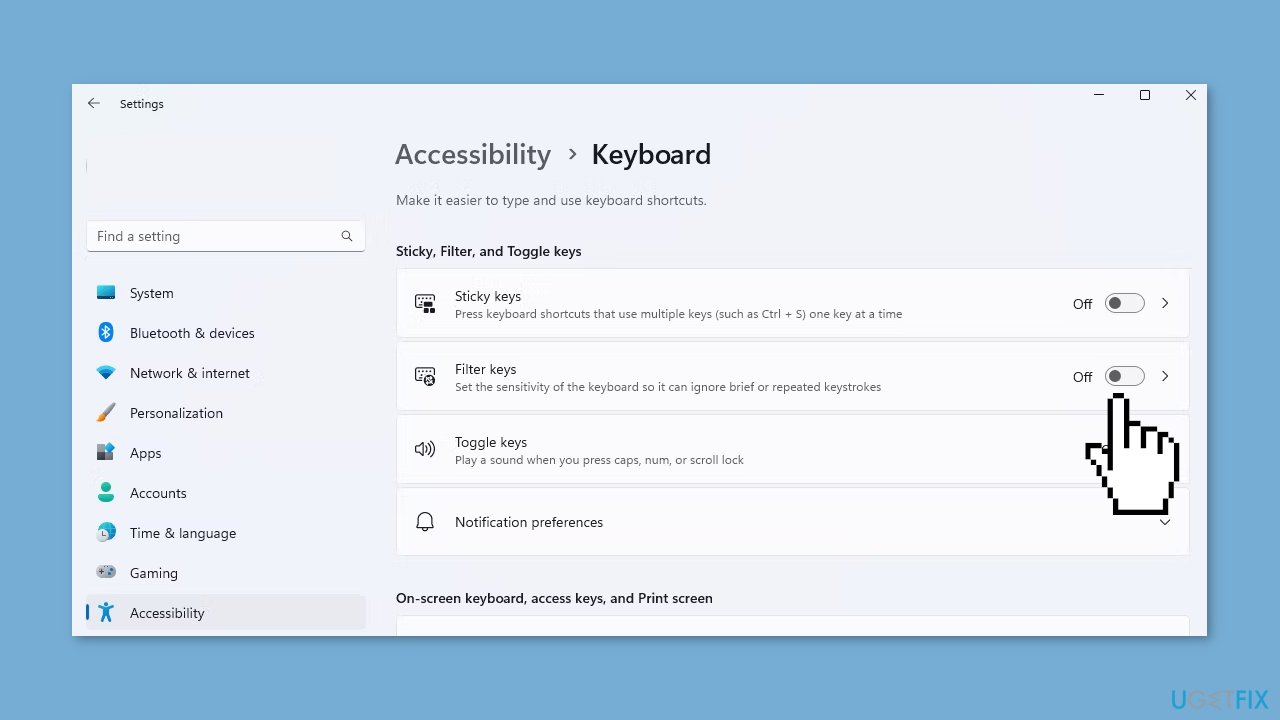
- Run Command Prompt as an administrator.
- Type the following command in the elevated command prompt window and press Enter:
msdt.exe -id DeviceDiagnostic
- The Hardware and Devices Troubleshooter will open.

- Click Next to initiate the scan process.
- Follow the on-screen instructions.
- After completing the above steps, restart your computer.
- Check whether the arrow keys are now functioning properly.
Solution 3. Fix Corrupted System Files
Use Command Prompt commands to repair system file corruption:
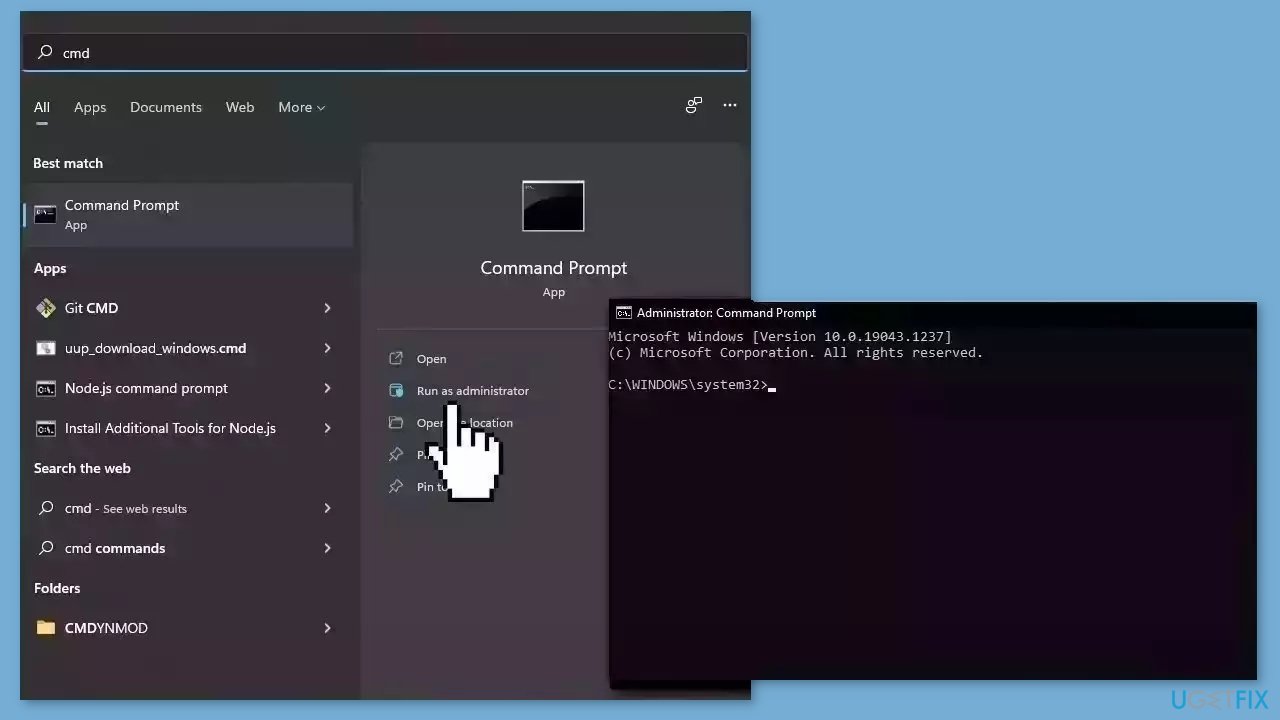
- Open Command Prompt as administrator
- Use the following command and press Enter:
sfc /scannow
- Reboot your system
- If SFC returned an error, then use the following command lines, pressing Enter after each:
DISM /Online /Cleanup-Image /CheckHealth
DISM /Online /Cleanup-Image /ScanHealth
DISM /Online /Cleanup-Image /RestoreHealth
Solution 4. Change Keyboard Accessibility Settings
- Open the Settings menu on your computer.
- Click on Accessibility in the left sidebar.
- Select Keyboard from the options displayed on the right pane.
- Locate the toggle switch next to Sticky Keys and turn it off.
- Find the toggle switch next to Filter Keys and also turn it off.
- Restart your computer to apply the changes.
- Check whether the issue you were facing has been resolved.
- You can re-enable the Sticky Keys and Filter Keys by going back to the Keyboard settings.
- Locate the toggle switch for Sticky Keys and turn it on again if needed.
- Similarly, find the toggle switch for Filter Keys and turn it on if required.
Solution 5. Try Clean Boot
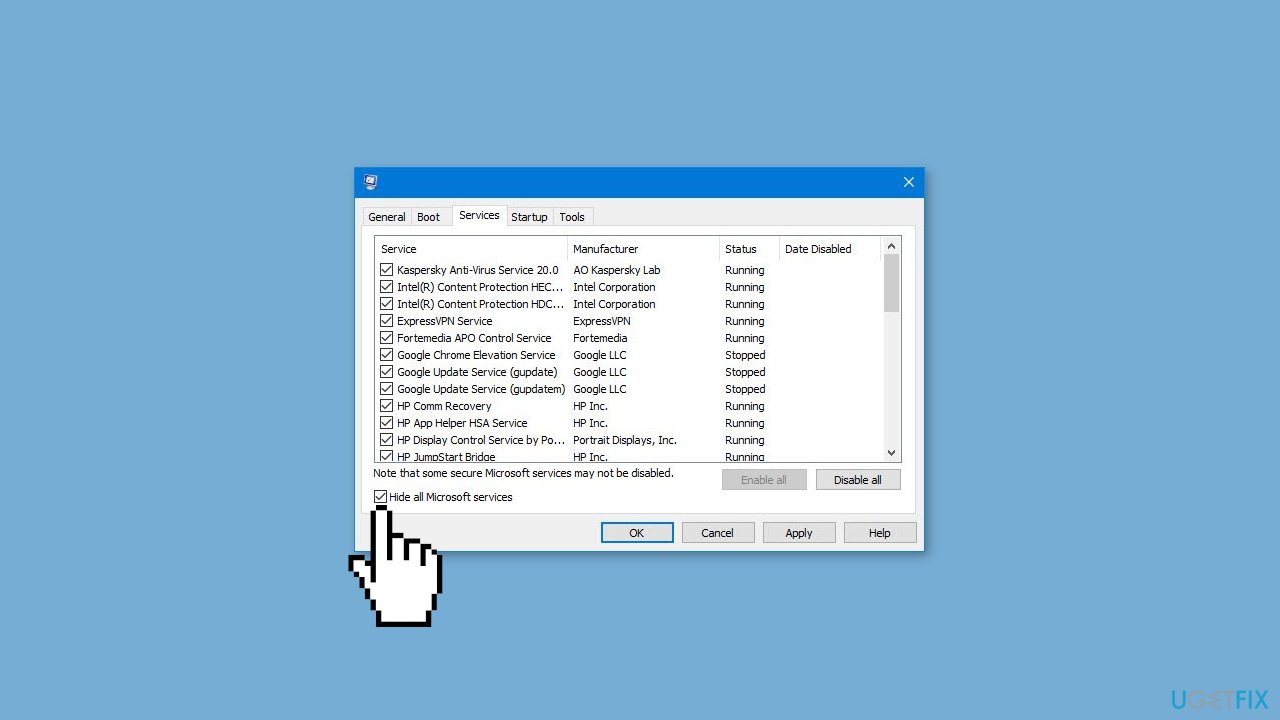
- Open the Search menu, type in system configuration, and press Enter.
- Under the Services tab, tick the Hide all Microsoft services box.
- Click on Disable all button.
- Head over to the Startup tab and click on Open Task Manager.
- Select a third-party program and click on Disable at the top.
- Repeat this step to disable all third-party apps and programs.
- Restart your PC to enter the clean boot state and see if the issue persists.
- If the issue disappeared in the clean boot state, then you can be certain that a third-party app is causing it.
- Go through all recently installed apps or programs and remove them one by one.
Solution 6. Reinstall the Keyboard Driver
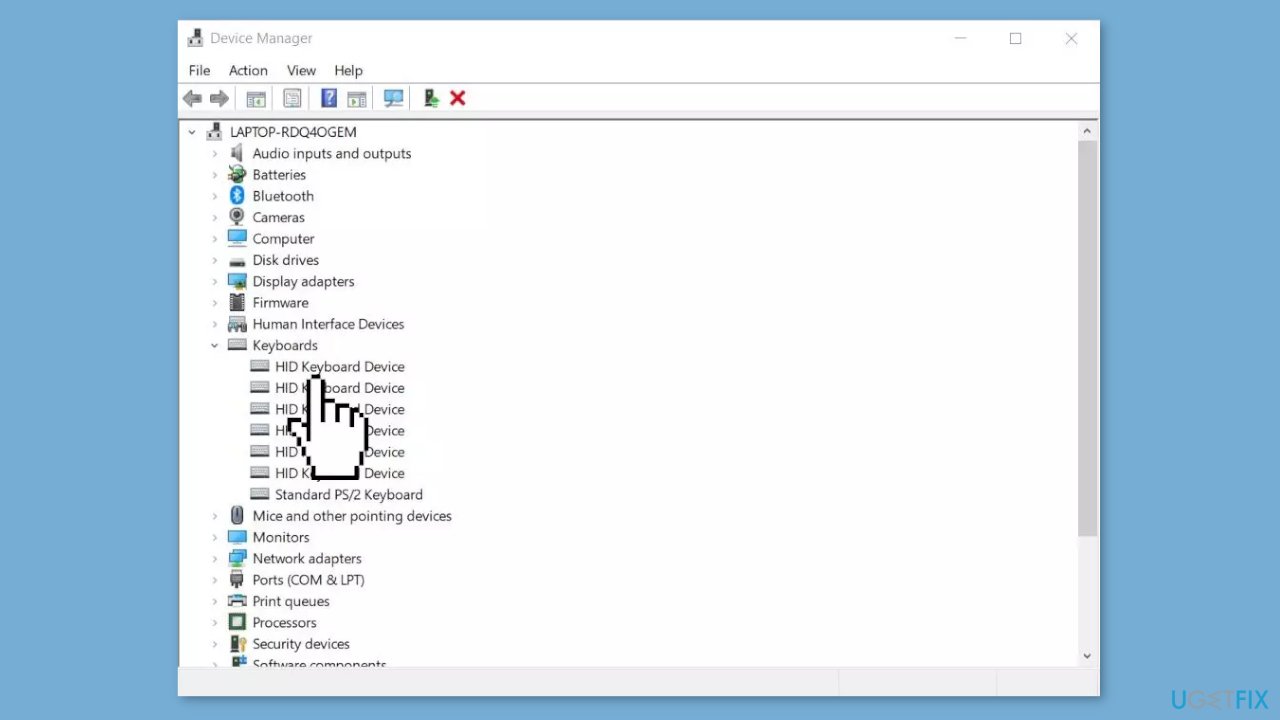
- Launch Device Manager.
- Right-click on your keyboard driver.
- Select Uninstall device from the context menu.
- A confirmation dialog may appear, asking if you want to uninstall the device.
- Confirm the uninstallation.
- Restart your computer.
- Once your system is back online, Windows will automatically detect and reinstall the keyboard driver.
Bottom line
To fix the Ctrl key not working, you can install Windows updates, run the keyboard troubleshooter, and check for any physical damage to the keyboard. If these solutions do not resolve the issue, consider using a system repair tool or seeking further technical support.
Frequently asked questions
First, check if the Ctrl key is physically stuck or damaged. If it seems fine, try restarting your computer or checking for any software conflicts that might be affecting keyboard functionality.
You can troubleshoot by updating your keyboard drivers through Device Manager or performing a system scan using the Command Prompt to fix any underlying issues.
Yes, you can use third-party software like SharpKeys or Windows PowerToys to remap the Ctrl key to another key temporarily until you resolve the issue.




Report an issue
What's wrong with this guide? We review every report and update or remove content.
Report received — thank you. We'll review and fix it.
You need a free account to submit a report.
Be the first to comment