How to fix
CTRL + Space not working
on Windows
Resolve the CTRL + Space issue on Windows 10 or 11 effortlessly. Get back to smooth typing with expert-tested solutions. Fixed in minutes!

What causes How to fix CTRL + Space not working in Windows?
- Keyboard drivers are outdated
- System updates are pending
- Keyboard settings are misconfigured
- PowerToys Peek feature is enabled
Repairs Windows system files, removes malware, and restores a clean OS state — without reinstalling.
Hello. I recently discovered that pressing the space bar and CTRL key simultaneously results in the space bar not registering any input. This issue persists across different applications, whether it's Microsoft Word or a web browser. Is there a way to fix this?
In Windows, users have complained that pressing the CTRL key and the Space bar at the same time does not result in the desired input. Pressing these two keys simultaneously usually results in the Space bar not registering any input and the system not responding at all.
Users who depend on keyboard shortcuts or particular key combinations for daily tasks may be greatly impacted by this issue. The keyboard shortcut CTRL + Space is frequently used for several purposes and features, such as text editing, document formatting, and even inside particular programs or instruments. The unresponsiveness of the CTRL + Space key combination may cause users who are used to using it to find their workflow interrupted and their efficiency reduced.
For users who rely significantly on keyboard shortcuts for business or operating system navigation, this becomes an urgent matter. Without a working CTRL + Space combo, users could have to use other shortcuts, which could slow down their work and reduce productivity overall.
While exact fixes may differ depending on the underlying reason for the issue, users may want to look into potential fixes including updating keyboard drivers, checking for system updates, or modifying keyboard settings. In this guide, you will find 5 steps that should help you fix CTRL + Space not working in Windows.
You can also run a maintenance tool like [d1] that can fix most system errors, BSODs, corrupted files, and registry issues. Otherwise, follow the step-by-step instructions below.
Solution 1. Disable PowerToys Peek Feature
For certain users encountering the CTRL + Space issue in Windows, it has been identified that the problem is associated with a specific feature within Microsoft PowerToys, namely "Peek." Users who have this utility installed have reported a correlation between the unresponsiveness of the CTRL + Space combination and the activation of the Peek feature.
- Open Microsoft PowerToys settings.
- Locate the Peek feature in the settings menu.
- Disable the Peek feature or reassign the shortcut for Peek to a different key combination.
- Save your changes and exit the PowerToys settings.
Solution 2. Fix Corrupted System Files
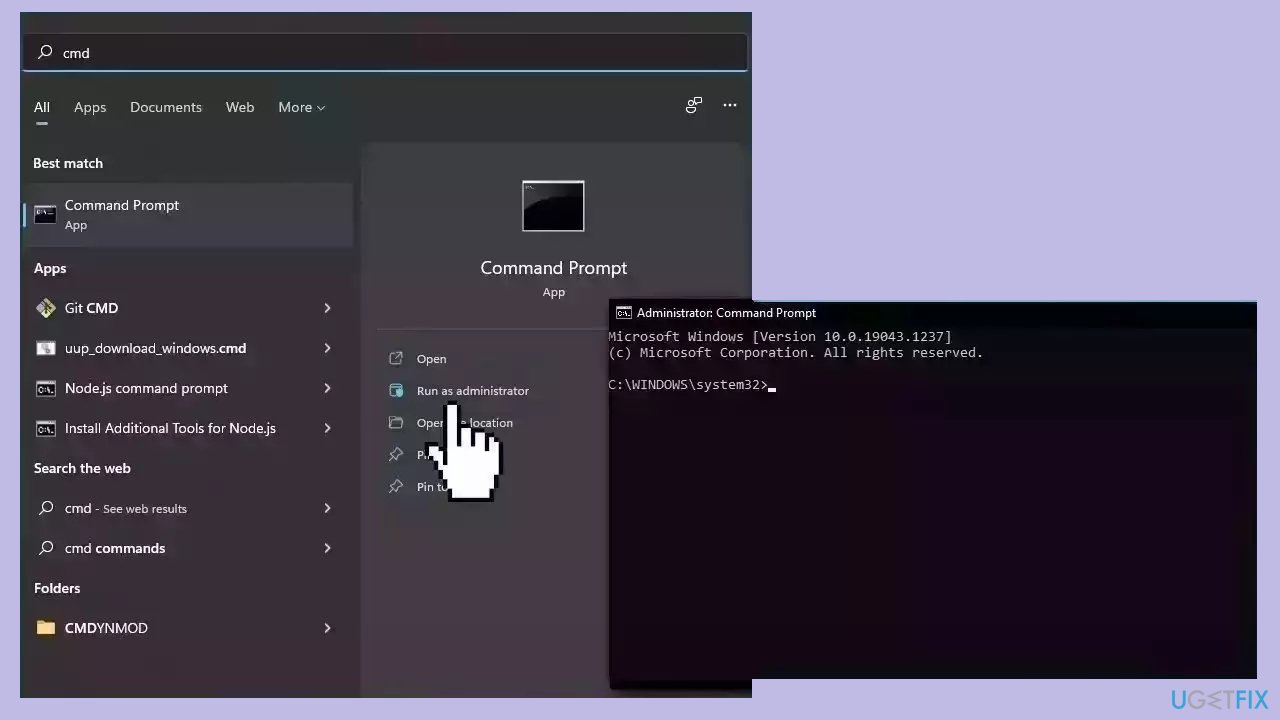
Use Command Prompt commands to repair system file corruption:
- Open Command Prompt as administrator
- Use the following command and press Enter:
sfc /scannow
- Reboot your system
- If SFC returned an error, then use the following command lines, pressing Enter after each:
DISM /Online /Cleanup-Image /CheckHealth
DISM /Online /Cleanup-Image /ScanHealth
DISM /Online /Cleanup-Image /RestoreHealth
Solution 3. Disable Sticky and Filter keys
- Press the Windows key + I to open the Settings app.
- Click on Accessibility and click on Keyboard in the left-hand menu.
- Find the Sticky keys option, and toggle off the Press one key at a time for keyboard shortcuts.
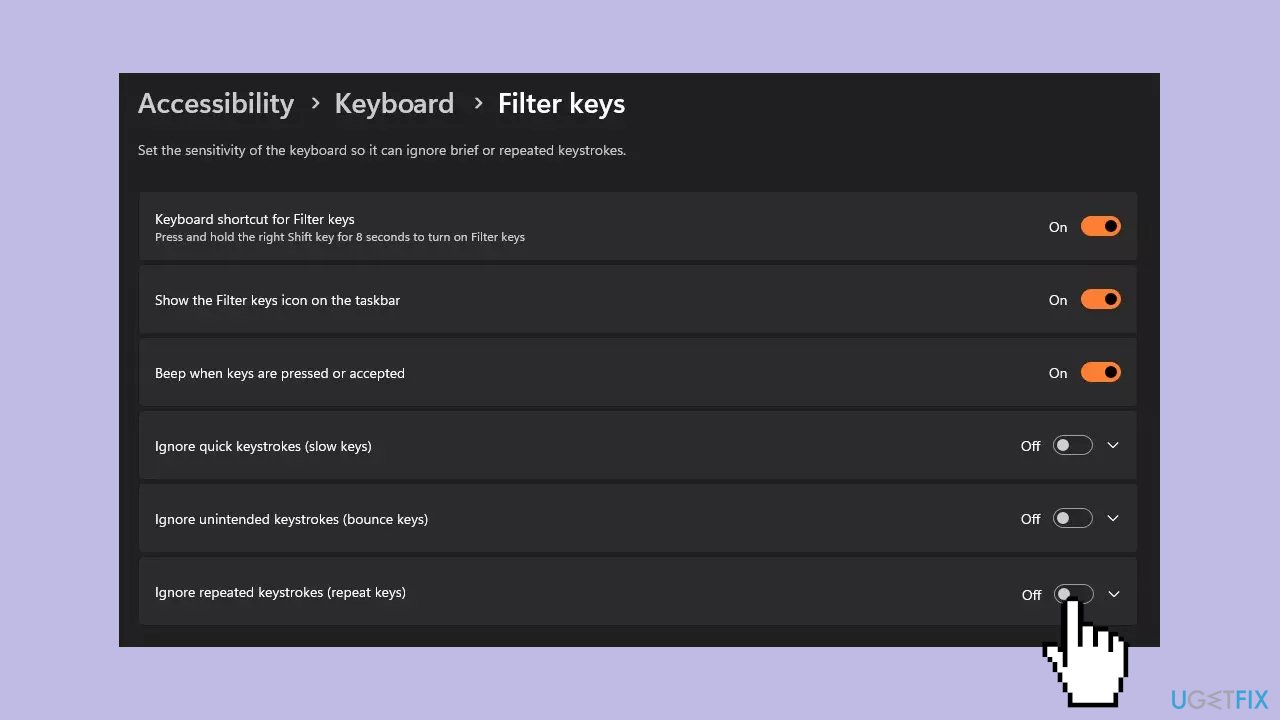
- Click the Filter Keys link, toggle off the Ignore brief or repeated keystrokes.
- Close the Settings app and restart the PC to effect the changes.
Solution 4. Run the Keyboard Troubleshooter
- Press the Windows key + I to open the Settings app.
- Click on System, then select Troubleshoot from the right pane.
- Click on Other Troubleshooters.
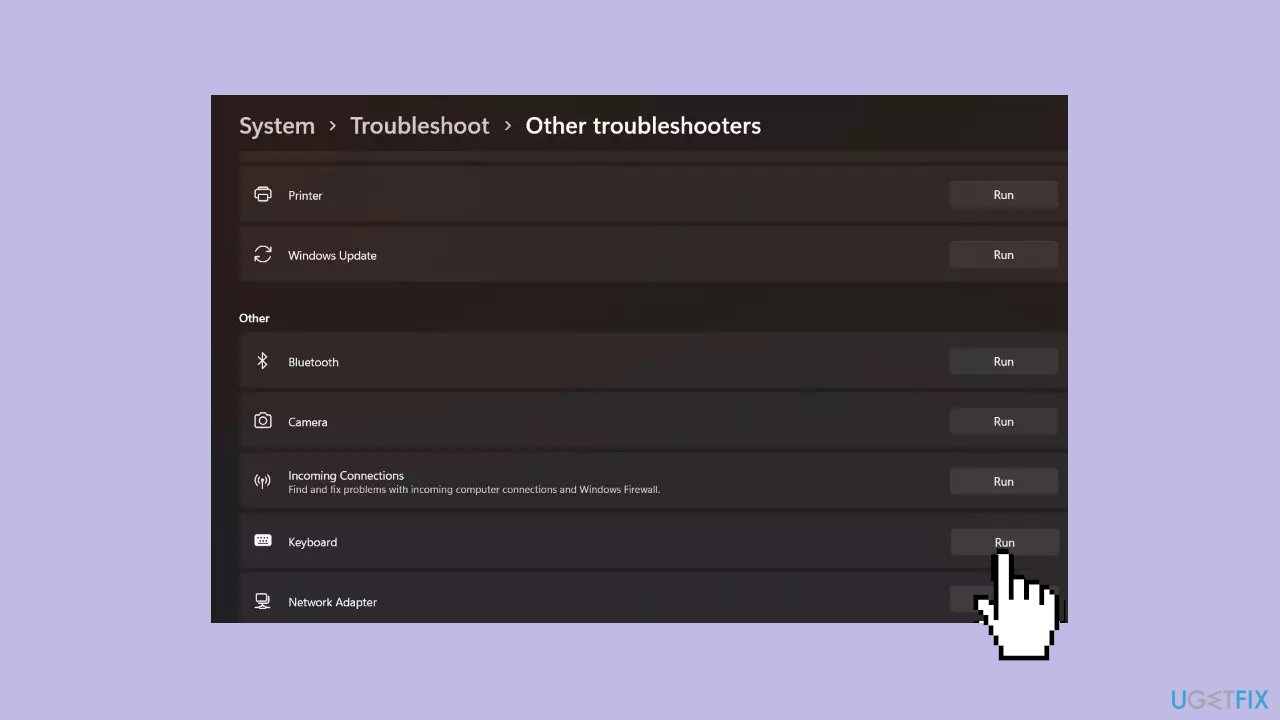
- Then, click the Run button against the Keyboard.
- Wait for the Troubleshooter to find and fix the Keyboard issues on your computer.
Solution 5. Reinstall the Keyboard Driver
- Launch Device Manager.
- Right-click on your keyboard driver.
- Select Uninstall device from the context menu.
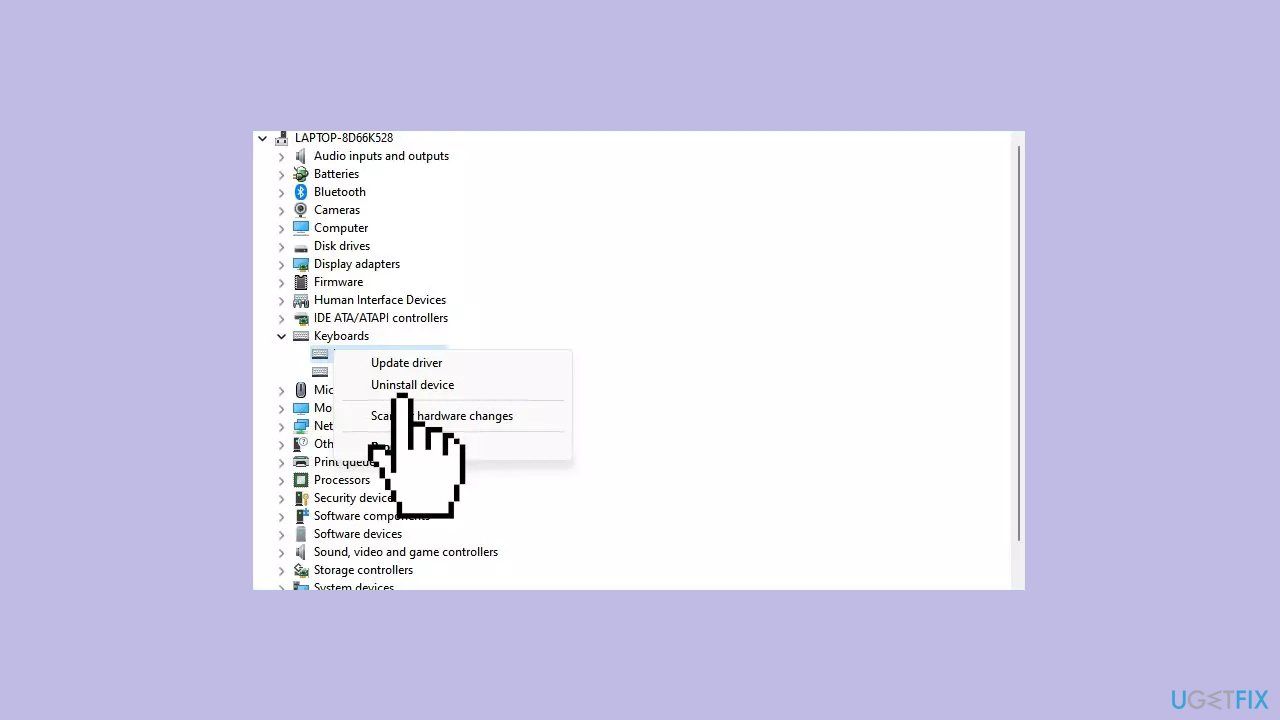
- A confirmation dialog may appear, asking if you want to uninstall the device.
- Confirm the uninstallation.
- Restart your computer.
- Once your system is back online, Windows will automatically detect and reinstall the keyboard driver.
You can also use a dedicated utility like [rev id="DriverFix"] that can find the best drivers for your machine and install them automatically.
Bottom line
To fix the CTRL + Space issue, users can try updating their keyboard drivers, checking for system updates, modifying keyboard settings, or disabling the PowerToys Peek feature. If these solutions do not resolve the problem, consider running a maintenance tool to address system errors.
Frequently asked questions
This issue may occur due to incorrect keyboard settings or conflicting software. Check your language and input settings to ensure they are properly configured.
Try resetting your keyboard settings to default or disabling any third-party applications that might interfere with keyboard shortcuts. Additionally, ensure that your keyboard driver is up to date.
If the problem persists, consider creating a new user profile to see if the issue is specific to your current account. Alternatively, running the Windows Troubleshooter may help identify and resolve the issue.




Report an issue
What's wrong with this guide? We review every report and update or remove content.
Report received — thank you. We'll review and fix it.
You need a free account to submit a report.
Be the first to comment