How to fix
Cumulative Update KB4038788 Error Code 0x80242fff
on Windows
Resolve the Cumulative Update KB4038788 Error Code 0x80242fff on Windows 10 quickly and efficiently. Expert-tested solutions await you!

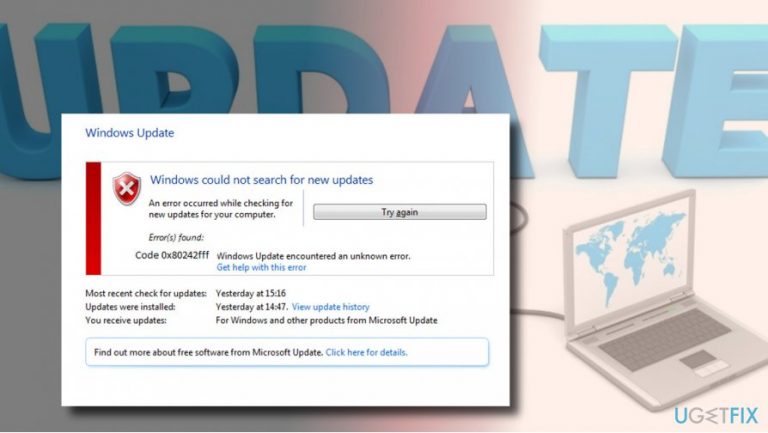
What causes How to Fix Cumulative Update KB4038788 Error Code 0x80242fff on Windows 10?
- Windows Update engine issues
- Damaged updates installation
- Failed download process
- Initialization errors during update install
- Corrupted Windows Update components
Repairs Windows system files, removes malware, and restores a clean OS state — without reinstalling.
For several months in a row, the Tuesday updates for Windows 10 (X64) fails to install or get installed, but totally crash the system, so I have to revert the changes back. This time, I tried to install Cumulative Update (Version 1703) (KB4038788), which did not install successfully. The system returned an Error Code 0x80242fff.
Windows Update is a feature that came as a Windows 10 improvement. Microsoft developed it with a purpose to install the latest patch and security updates regularly and prevent the system from crashes and vulnerabilities. However, automatic Windows Update feature is often criticized by Windows 10 users by installing damaged updates and, therefore, crashing the system completely. On top of that, Windows Update often fails during the download process or initialization of the update install.
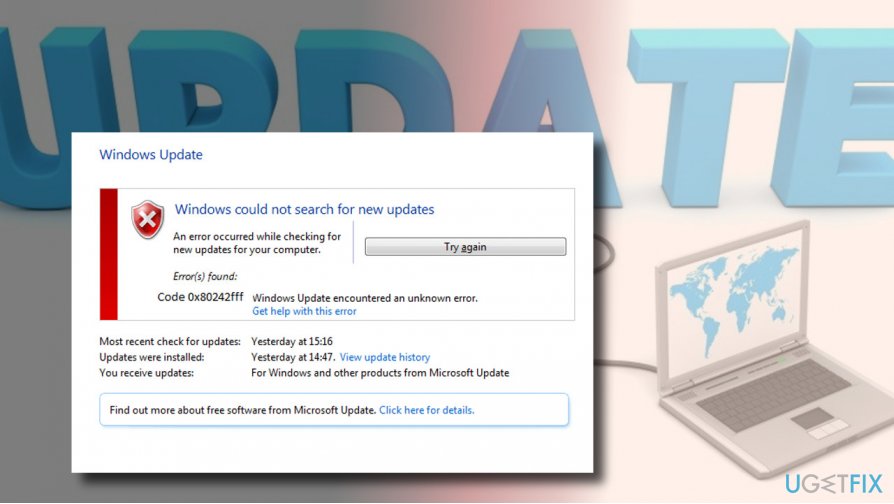
Recently, people reported an issue while installing 2017-09 Cumulative Update for Windows 10 Version 1703 for x64-based Systems (KB4038788). The update fails to download and returns an Error Code 0x80242fff. The update never finishes downloading and eventually returns a notification saying “Some updates were not installed.” Typically, error codes starting with the 8024 hint on Windows Update indicate the problem of Windows Update engine. Therefore, you should try fixing the error 0x80242fff by resetting Windows Update components.
Reset Windows Update Components to Fix 0x80242fff Error
- Right-click on Windows key and select Command Prompt (Admin).
- If a UAC shows up, click OK to proceed.
- Stop BITS, Windows Update, Cryptographic, MSI Installer services. To do so, copy and paste the following commands in the run and press Enter after each:
net stop bits
net stop wuauserv
net stop appidsvc
net stop cryptsvc - Now type Del "%ALLUSERSPROFILE%\\Application Data\\Microsoft\\Network\\Downloader\\qmgr*.dat command to delete qmgr*.dat files.
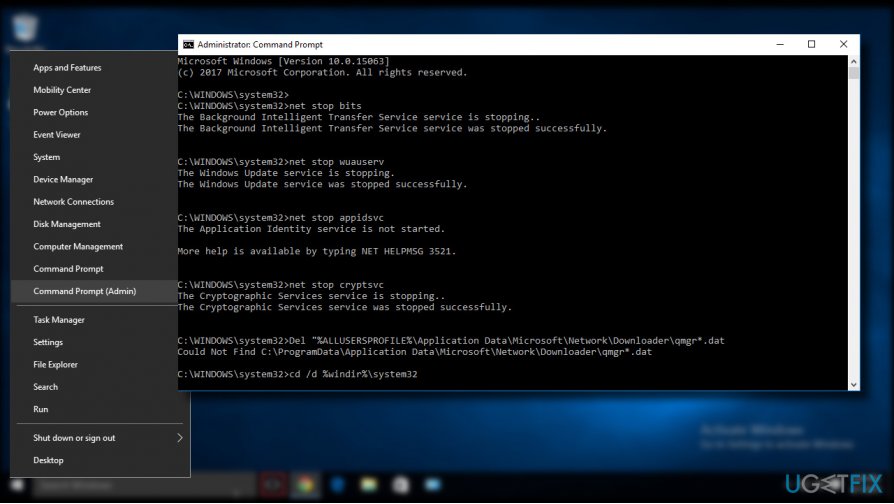
- Then copy and paste cd /d %windir%\\system32 command and press Enter to execute the command.
- To re-register BITS and Windows Update files, you will have to type all the commands (followed by Enter) provided below:
regsvr32.exe atl.dll
regsvr32.exe urlmon.dll
regsvr32.exe mshtml.dll
regsvr32.exe shdocvw.dll
regsvr32.exe browseui.dll
regsvr32.exe jscript.dll
regsvr32.exe vbscript.dll
regsvr32.exe scrrun.dll
regsvr32.exe msxml.dll
regsvr32.exe msxml3.dll
regsvr32.exe msxml6.dll
regsvr32.exe actxprxy.dll
regsvr32.exe softpub.dll
regsvr32.exe wintrust.dll
regsvr32.exe dssenh.dll
regsvr32.exe rsaenh.dll
regsvr32.exe gpkcsp.dll
regsvr32.exe sccbase.dll
regsvr32.exe slbcsp.dll
regsvr32.exe cryptdlg.dll
regsvr32.exe oleaut32.dll
regsvr32.exe ole32.dll
regsvr32.exe shell32.dll
regsvr32.exe initpki.dll
regsvr32.exe wuapi.dll
regsvr32.exe wuaueng.dll
regsvr32.exe wuaueng1.dll
regsvr32.exe wucltui.dll
regsvr32.exe wups.dll
regsvr32.exe wups2.dll
regsvr32.exe wuweb.dll
regsvr32.exe qmgr.dll
regsvr32.exe qmgrprxy.dll
regsvr32.exe wucltux.dll
regsvr32.exe muweb.dll
regsvr32.exe wuwebv.dll - To reset Winsock, type netsh winsock reset and netsh winhttp reset proxy commands. Press Enter after each of them as usually.
- Finally, restart BITS, Windows Update, Cryptographic, MSI Installer services by entering the following commands each followed by Eter:
net start bits
net start wuauserv
net start appidsvc
net start cryptsvc
Scan the System for Malware
If resetting Windows Update components did not help, it might be that your OS has been infected with malware, which is preventing security and patch updates from being installed. Thus, install a professional security tool, for example, [d1] and the system with it.
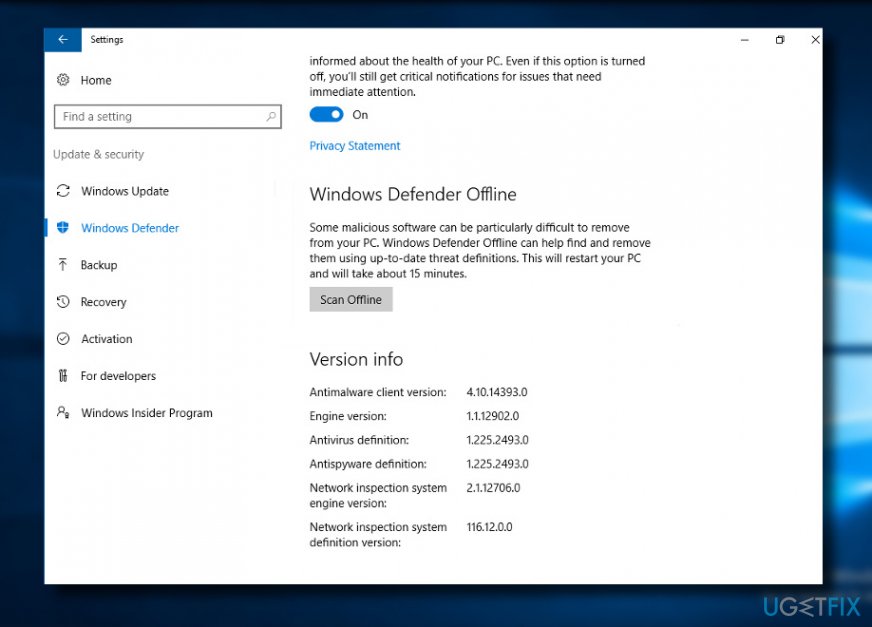
If the system fails to run a third-party anti-malware, try a built-in Windows Defender. To launch it, follow these steps:
- Open Windows Defender from the Notifications.
- Open Home tab and select Settings.
- Scroll down to find Scan Offline option.
- Run the scan offline and wait while Defender is performing a deep scan.
Step2
Change Proxy Settings
To start with, remove invalid characters in proxy exception list:
- Open Internet Explorer.
- Click on the Gear Icon located at the right top of the window.
- Choose Internet Options and open Connections Tab.
- Go to LAN settings, and check the box near “Use a proxy server for your LAN.”
- Open Advanced tab.
- Delete everything in “Do not use a proxy server for addresses beginning with” field.
- Click OK.
- After that, clear Proxy cache. For that, right-click on Windows key and select Command Prompt (Admin).
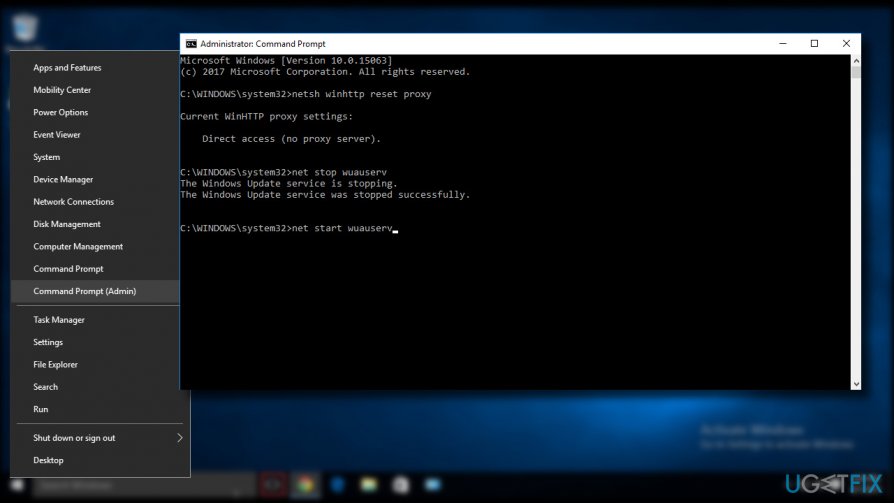
- In the Command Prompt run box, type the following commands and hit Enter:
netsh winhttp reset proxy
net stop wuauserv
net start wuauserv
Bottom line
To fix the error code 0x80242fff, you should reset Windows Update components by stopping related services and re-registering necessary DLL files. If these steps do not resolve the issue, consider seeking further assistance or exploring alternative update methods.
Frequently asked questions
Error code 0x80242fff typically indicates that there is an issue with the Windows Update components, preventing the cumulative update from installing properly on your system.
To resolve the error, you can try running the Windows Update Troubleshooter, resetting the Windows Update components, or manually downloading and installing the update from the Microsoft Update Catalog.
While the error code 0x80242fff is primarily reported by Windows 10 users, similar issues can arise in Windows 11 if there are problems with the update process.




Report an issue
What's wrong with this guide? We review every report and update or remove content.
Report received — thank you. We'll review and fix it.
You need a free account to submit a report.
Be the first to comment