How to fix
“Current security settings do not allow this file to be downloaded” error
on Windows
Resolve the “Current security settings do not allow this file to be downloaded” error on Windows 10 easily and effectively. Fixed in minutes!

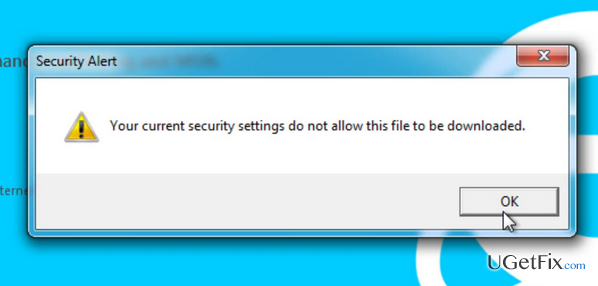
What causes How to fix “Current security settings do not allow this file to be downloaded” error on Windows 10?
- Faulty Internet Explorer’s settings
- Incorrect Internet Options
- Damaged registry keys
- Antivirus protection
- Too high-security level
Repairs Windows system files, removes malware, and restores a clean OS state — without reinstalling.
I tried to download iTunes, but the process was terminated by an error “Current security settings do not allow this file to be downloaded.” I thought at first that the problem is related to my Norton Security software, so I disabled it and removed. The thing is that Norton removal did not fix the problem. Instead, now when I try to re-install Norton Security software, the “Current security settings do not allow this file to be downloaded” error pop-up shows up. What should I do??
“Current security settings do not allow this file to be downloaded” is an undesirable Microsoft Security Alert, which may cause lots of inconveniences to the PC user. There is nothing much to explain about this pop-up because, despite being a short, seemingly uninformative message, “Current security settings do not allow this file to be downloaded” alert indicates the culprit, which is PC’s security settings. We have analyzed various diverse cases related to this security alert and excluded the faulty Internet Explorer’s settings, incorrect Internet Options, damaged registry keys, antivirus protection or too high-security level causes as the most frequent “Current security settings do not allow this file to be downloaded” error causes. Indeed, PC’s security is a priority, but if you cannot install anything due to the too high-security requirements, the PC might become a useless thing. Luckily, there are several methods that may help you to fix “Current security settings do not allow this file to be downloaded” error without affecting PC’s security.
How to Disable “Current security settings do not allow this file to be downloaded” Pop-Up on Windows 10?
To start with, experts recommend disabling the third-party antivirus if you are using it and check if the “Current security settings do not allow this file to be downloaded” pop-up reappears. If it does, then try to run a scan with [d1]. This piece of software will fix the registries, system files, and heal other problematic areas, as well as delete malware. Did not help? Then try the following fixes:
Method 1. Enable the file download in Internet Explorer.
- Open Internet Explorer and click Tools.
- Open Options and go to the Security tab.
- Select the Internet Zone and click Custom Level.
- Find Download and make sure that File download is Enabled.
- Then click Apply and OK to save the changes.
- Restart Internet Explorer and check if that helped.
Method 2. Reset Internet options
- Right-click on Windows key and select Control Panel.
- Find Internet Options on the list and open it.
- Then click on Security tab at the top of the screen and click Custom level.
- Scroll down to the Downloads section and make sure that File download and Font download options are enabled.
- Then find the Miscellaneous section and check the Prompt option for Launching applications and unsafe files and Launching programs and files in an iframe.
- Then click Apply and OK to save the changes.
Method 3. Unblock separate files
If you can’t download a particular file, it might be that your PC is blocking a specific type of files as it recognizes them as malware. If you are sure that a file you attempt to download is not malicious, you can unblock it by performing the following steps:
- Right-click on the file and select Properties.
- Click Unblock button and try to download it again.
- If you opt for another file, you will have to repeat the same steps.
Method 4. Export several registry keys
To perform this method, you have to have an alternative PC, which runs the same version of Windows 10 and does not encounter “Current security settings do not allow this file to be downloaded” error. Alternatively, you may try to create a new user account and check if the “Current security settings do not allow this file to be downloaded” error occurs on it as well. If not, then you may export the registry keys from a different account.
- Use a PC or an alternative account that does not throw “Current security settings do not allow this file to be downloaded” error.
- Press Windows key + R, type regedit, and hit Enter.
- Once you are inside the Registry Editor, use the left pane to navigate to the HKEY_CURRENT_USER\Software\Microsoft\Windows\CurrentVersion\Internet Settings\Zones key.
- Right-click on the Zones key and select Export.
- Select the location where you want the key to be saved and enter the name of the copy, e.g. copy_zones.reg.
- Click Save and close the Registry Editor.
- Now open the problematic account or PC and open the Registry Editor on it.
- Use the left pane to navigate to the HKEY_CURRENT_USER\Software\Microsoft\Windows\CurrentVersion\Internet Settings\Zones key.
- Rename the Zones key as, for example, damaged_zones and delete it.
- Then locate copy_zones.reg file that you have created previously and run it.
- Once the new key is added, check if the problem has been resolved.
Hopefully, this guide was helpful and you have successfully fixed “Current security settings do not allow this file to be downloaded” error on Windows 10.
Bottom line
To fix the 'Current security settings do not allow this file to be downloaded' error, you can disable third-party antivirus software, enable file downloads in Internet Explorer, and run a scan with specific software to repair registries and system files. If these methods do not resolve the issue, further troubleshooting may be necessary.
Frequently asked questions
You can resolve this error by adjusting your Internet Explorer security settings or by changing the Group Policy settings if you're using Windows 10 Pro or Enterprise.
Yes, the steps to fix the 'Current security settings do not allow this file to be downloaded' error are similar on Windows 11; you will need to access your browser settings or Group Policy Editor.
You can temporarily disable your antivirus or firewall settings, but ensure to re-enable them after downloading to maintain your system's security.




Report an issue
What's wrong with this guide? We review every report and update or remove content.
Report received — thank you. We'll review and fix it.
You need a free account to submit a report.
Be the first to comment