How to fix
Cursor moving to the left when typing
on Windows
Fix the annoying cursor drift in Windows 10 or 11 while typing. Quick solutions to enhance your typing experience, expert-tested and updated 2025.

What causes How to fix cursor moving to the left when typing in Windows?
- Software issue
- Mouse or touchpad settings
- Outdated device drivers
- Malware or third-party program conflicts
- Unintentional screen clicks
Repairs Windows system files, removes malware, and restores a clean OS state — without reinstalling.
Hello. When I start typing on my Windows PC the cursor keeps moving to the left. How do I stop this?
Users may find it confusing when the cursor in Windows shifts to the left while they are typing. When the text cursor behaves in this way, it typically indicates a software issue rather than a hardware one. Users may find this issue especially aggravating because it can interfere with their workflow, cause typographical errors in content, and make using computers less effective overall.
Users may experience many side effects from this unpredictable cursor movement. In documents, emails, or any other text-based application, it might first and primarily result in inaccurate text placement, necessitating continual editing and correction. In addition to wasting time, this lowers productivity. Additionally, the problem may be very unpleasant and distracting, making it challenging for users to concentrate on their duties. Cursor movement can considerably obstruct and annoy users when they are working on tasks like gaming or graphic creation.
Furthermore, the issue of the pointer sliding to the left can impair productivity for people who extensively rely on keyboard shortcuts and hotkeys. Additionally, it could result in unintentional screen clicks that could result in undesirable activities or changes to the currently open window.
Examining software-based solutions is often the first step in solving this problem. These can entail changing the mouse or touchpad settings, installing or updating device drivers,[ref en-1] or even performing system diagnostics and repairs. Users may also need to think about malware or third-party program conflicts as potential causes.
In this guide, you will find 6 steps that should help you fix the cursor moving to the left when typing in Windows. You can also try running a maintenance tool like [d1] that can fix most system errors, BSODs,[ref en-2] corrupted files, and registry[ref en-3] issues. Otherwise, follow the step-by-step instructions below.

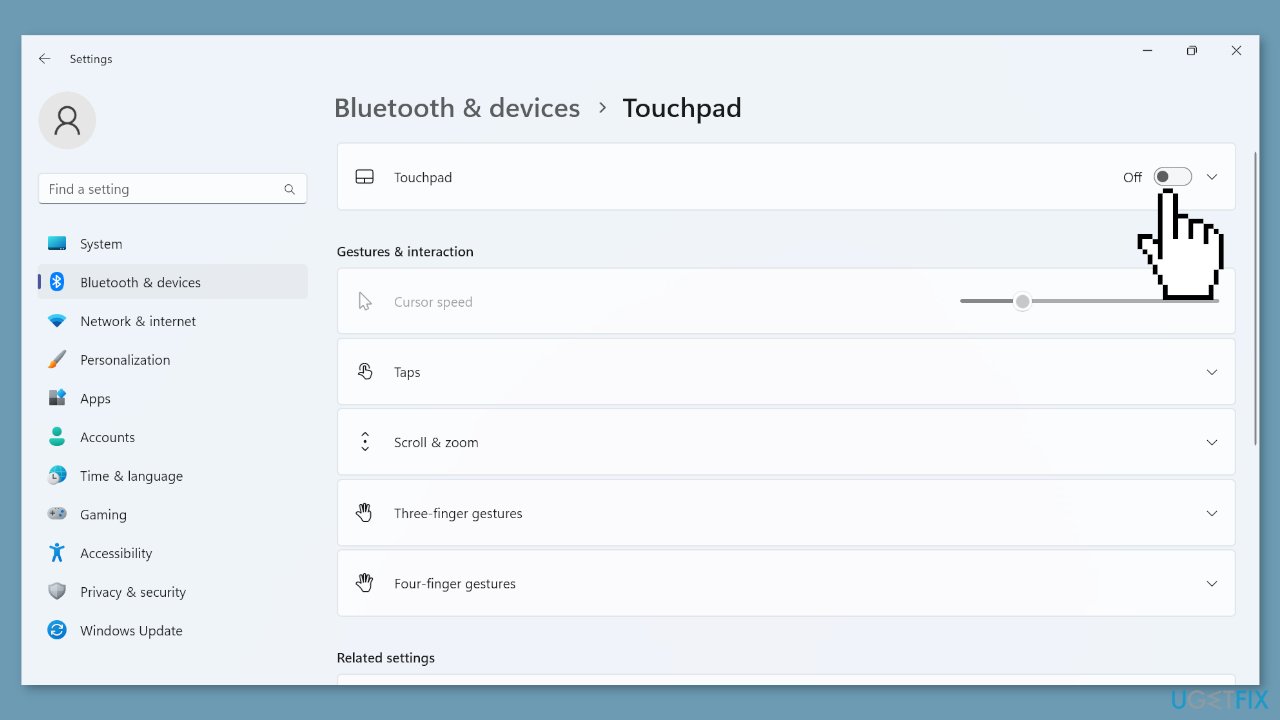
Solution 1. Disable the Touchpad
- Press Windows + I to open Settings.
- Go to Bluetooth & devices from the navigation pane.
- Click on Touchpad.
- Now, disable the toggle for Touchpad.
Solution 2. Change the Mouse Settings
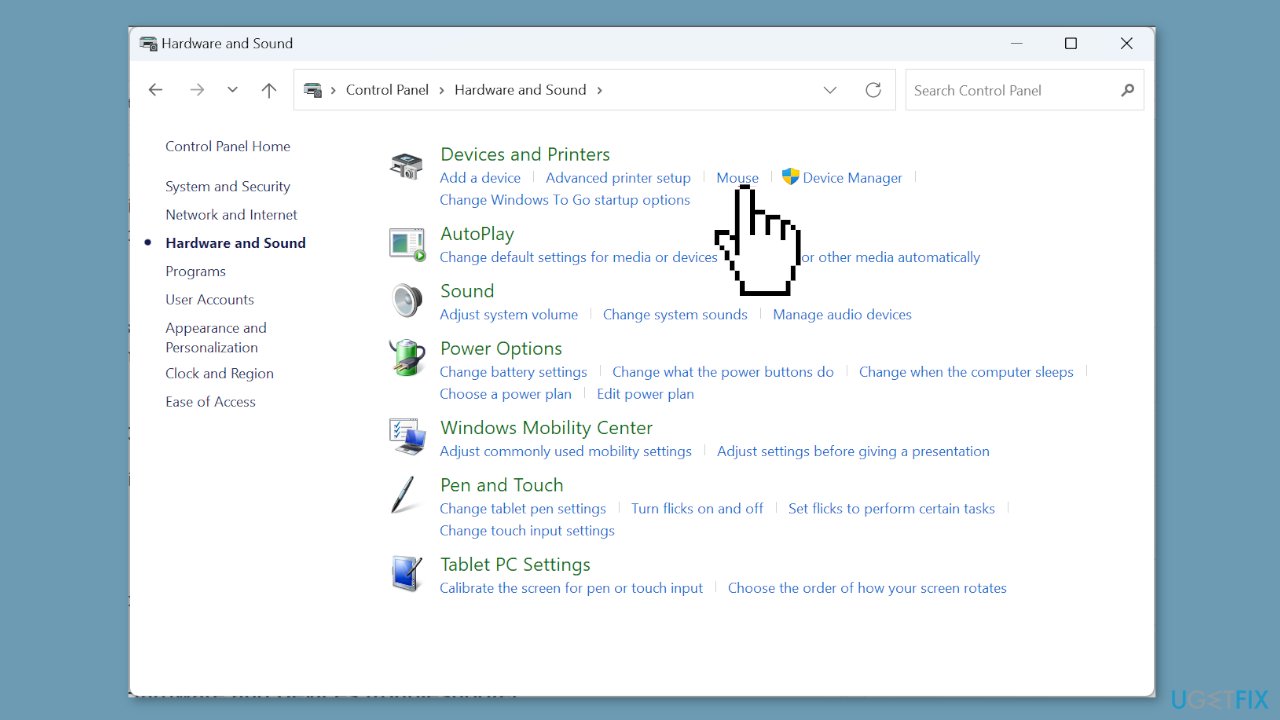
- Press Windows + S to open Search.
- Type Control Panel in the text field and click the relevant search result.
- Click on Hardware and Sound.
- Now, click on Mouse under Devices and Printers.
- Go to the Pointer Options tab.
- Tick the checkbox for Enhance pointer precision under Motion.
- Uncheck Automatically move pointer to the default button in a dialog box under Snap to.
- Once done, click OK to save the changes.
- Restart the computer.
- Check whether the problem is resolved.
Solution 3. Run the Hardware and Devices Troubleshooter
- Press Windows + R to open Run.
- Paste the following command and hit Enter:
msdt.exe -id DeviceDiagnostic
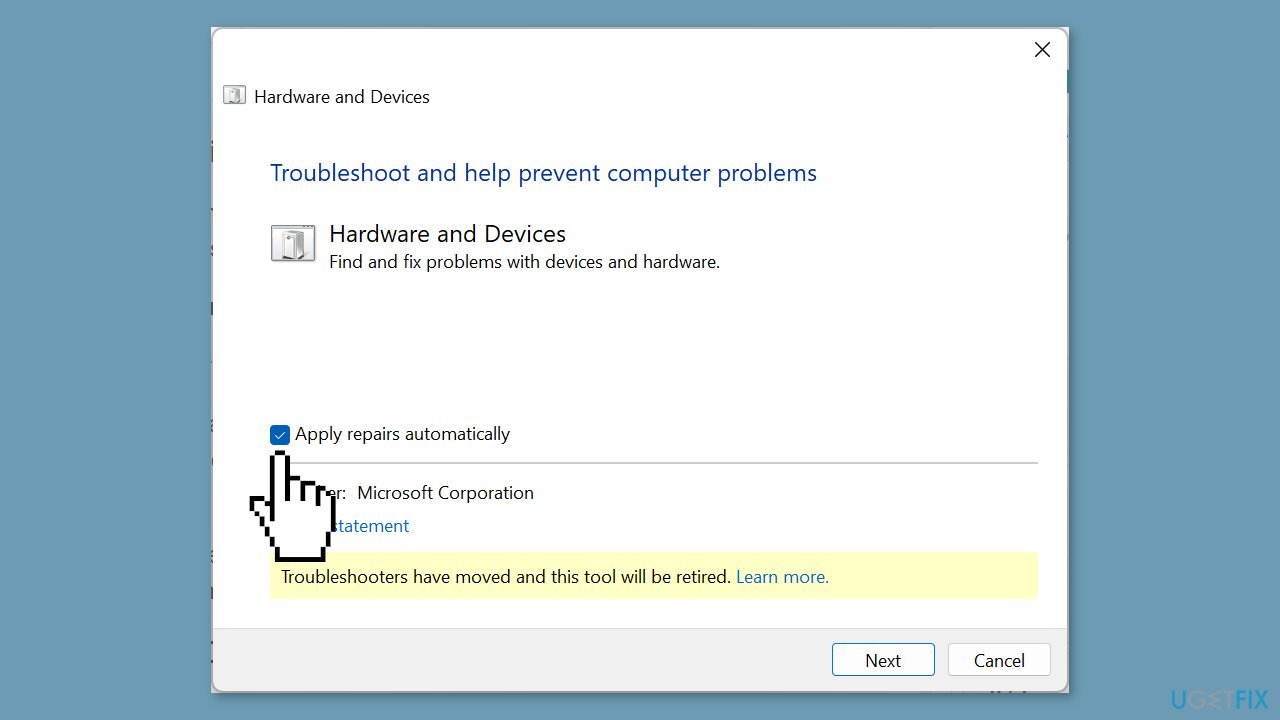
- Click the Advanced option.
- Tick the checkbox for Apply repairs automatically.
- Click Next to proceed with the troubleshooting.
- Let the tool identify and fix problems.
Solution 4. Update or Reinstall the Mouse Drivers
- Press Windows + R to open Run.
- Type devmgmt.msc in the text field and click OK.
- Double-click Mice and other pointing devices.
- Right-click on the problematic mouse/touchpad.
- Select Update driver.
- Click on Search automatically for drivers and let Windows search the PC and install the best one available.
- Finally, restart the computer for the changes to come into effect.
If updating does not work, you can try reinstalling the drivers:
- Press Windows + X to open the Power User menu.
- Select Device Manager from the list of options.
- Expand the Mice and other pointing devices entry.
- Right-click on the affected mouse/touchpad.
- Select Uninstall device.
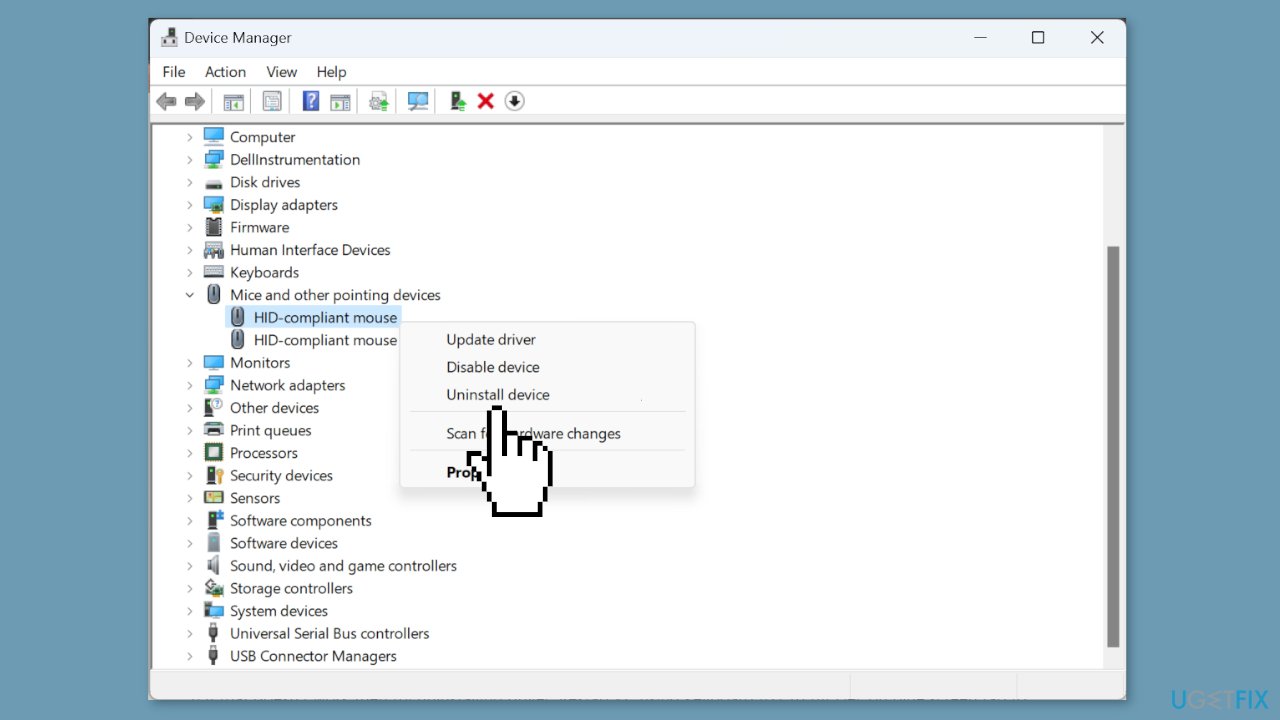
- If available, tick the checkbox for Attempt to remove the driver for this device.
- Click Uninstall.
- Once done, restart the computer.
- Verify whether the cursor still moves backward when typing.
You can also try a dedicated utility like [rev id="DriverFix"] that can find the best drivers for your machine and install them automatically.
Solution 5. Try Clean Boot
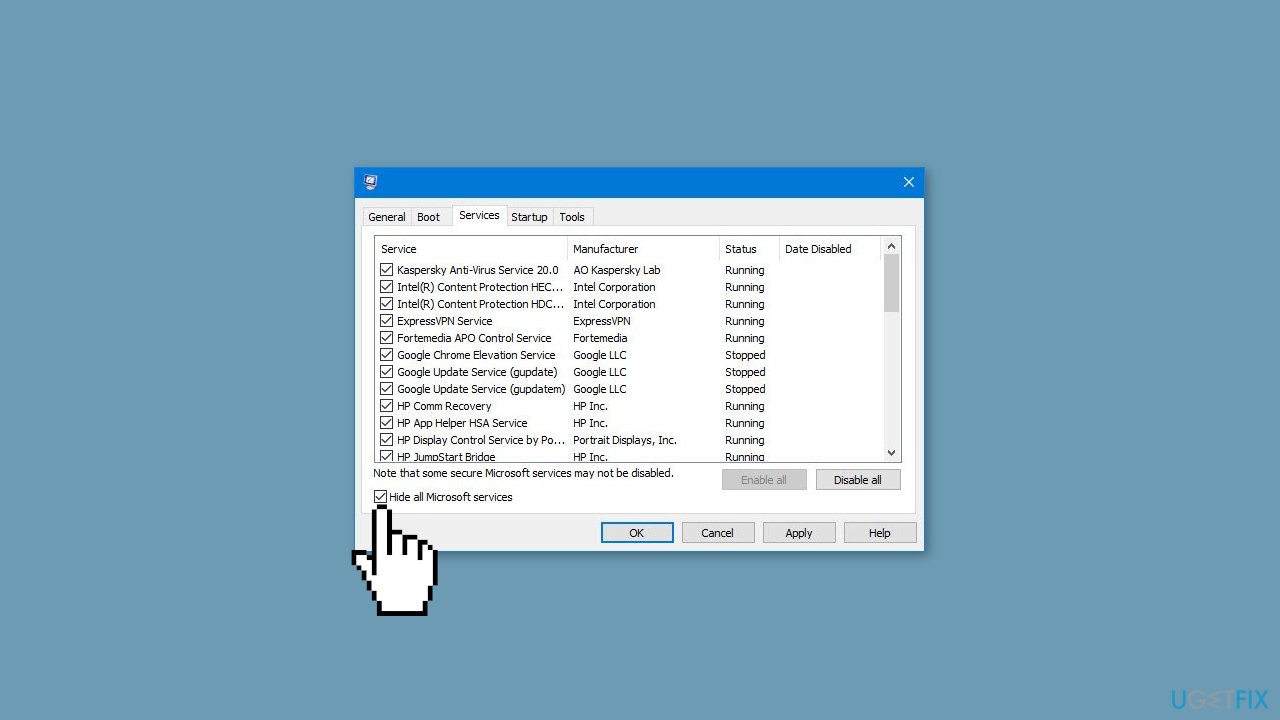
- Open the Search menu, type in system configuration, and press Enter.
- Under the Services tab, tick the Hide all Microsoft services box.
- Click on Disable all button.
- Head over to the Startup tab and click on Open Task Manager.
- Select a third-party program and click on Disable at the top.
- Repeat this step to disable all third-party apps and programs.
- Restart your PC to enter the clean boot state and see if the issue persists.
- If the issue disappeared in the clean boot state, then you can be certain that a third-party app is causing it.
- Go through all recently installed apps or programs and remove them one by one.
Solution 6. Perform an In-place Upgrade
- Go to Microsoft’s official website.
- Select the installed OS edition and product language.
- Download the Windows 11 ISO.
- Once downloaded, double-click the ISO file and click Open.
- Run the setup.exe file.
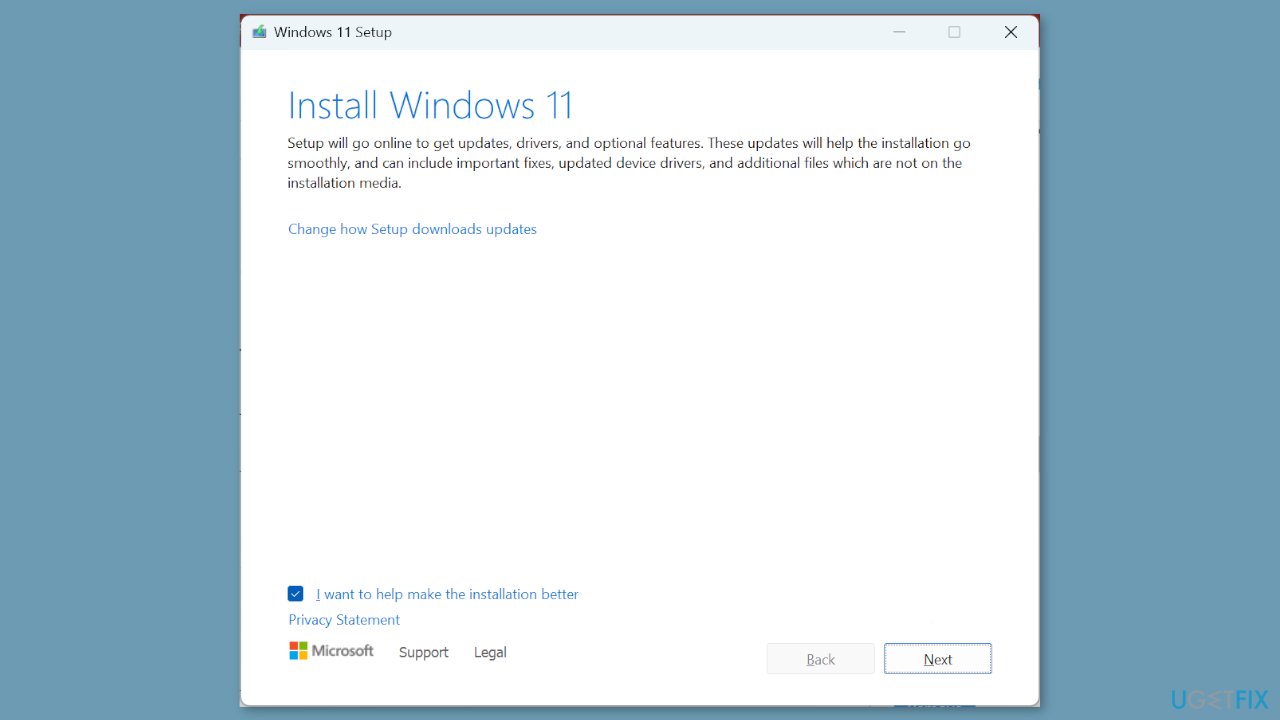
- Now, click Yes in the UAC prompt.
- Click Next to proceed.
- Click Accept to agree to the license terms.
- Finally, verify that the setup reads Keep personal files and apps, and click Install to start the repair upgrade.
- It may take a few hours to complete the repair.
Bottom line
To fix the cursor moving to the left when typing in Windows, you can disable the touchpad, update device drivers, and check for malware or program conflicts. If these solutions do not resolve the issue, consider running a maintenance tool to fix system errors.
Frequently asked questions
This issue may be caused by an accidental touchpad gesture or a faulty keyboard. Check your touchpad settings and try using an external keyboard to see if the problem persists.
You can disable the touchpad by going to Settings > Devices > Touchpad and turning off the touchpad while typing option. This can help prevent the cursor from moving unexpectedly.
Ensure your keyboard and touchpad drivers are up to date, as outdated drivers can cause input issues. Additionally, try adjusting the sensitivity settings in the touchpad control panel.




Report an issue
What's wrong with this guide? We review every report and update or remove content.
Report received — thank you. We'll review and fix it.
You need a free account to submit a report.
Be the first to comment