How to fix
CxUIUSvc high CPU usage
on Windows
Resolve CxUIUSvc high CPU usage issues on Windows 10 and 11 effortlessly. Achieve a smoother experience with expert-tested solutions and tips.


What causes How to fix CxUIUSvc high CPU usage in Windows?
- Outdated Conexant audio drivers
- Corrupt Conexant audio drivers
- Conflicts with third-party audio software
- Corruption in driver files
- Incorrect service settings
Repairs Windows system files, removes malware, and restores a clean OS state — without reinstalling.
I have noticed that sometimes, my laptop's fans start spinning fast and it becomes very loud. When I check the Task Manager at that time, I see that something called CxUIUSvc consuming the most of CPU. What is this and is there a way to resolve this? Can I disable it somehow?
The CxUIUSvc is the Conexant SmartAudio Universal Service, part of the Conexant audio driver that can be found in most laptops from manufacturers like HP and Lenovo. While its primary function is to handle various audio-related capabilities, including sound effects and settings of devices, this process has also become notorious for making Windows consume high CPU. This can be a significant problem, causing system performance to degrade, making operations slow, causing fan noise due to overheating, and shortening battery life in laptops.
When CxUIUSvc consumes too much CPU, normal system tasks slow down, and even common operations like web browsing or file transfers become unbearably slow. Peaks from 30% to as much as 70% of CPU usage are regularly reported by users, therefore not only slowing down their systems but also shortening the hardware life span in some cases by exposing them to heat for longer durations. The problem may stick around even after rebooting the device and thus end up being an ongoing issue for those affected.
Its root causes are usually related to outdated or corrupt Conexant audio drivers, which may become ineffective after a Windows update. Conflicts between applications, especially third-party software that also interacts with the audio system, can further complicate the problem. Sometimes, corruption in the driver files or incorrect service settings will start using undue resources needlessly, causing CxUIUSvc high CPU usage.
To resolve this, one should identify the driver or the configuration issues and fix it. Among the common solution steps is updating, reinstallation, or rollback to the previous Conexant audio drivers, besides trying to reconfigure the service so it does not occupy the CPU completely. Others include general optimization of settings at startup to minimize this problem. Detailed step-by-step instructions will be provided in the next section.
For overall better health and automatic solutions for many of your Windows problems, we highly recommend trying a potent repair software [d1].
Fix 1. End the CxUIUSvc process in Task Manager
Ending the process temporarily halts its CPU usage, giving you immediate relief and allowing you to address the issue.
- Press Ctrl + Shift + Esc to open Task Manager.
- Navigate to the Processes tab and locate CxUIUSvc.
- Right-click on it and select End task.
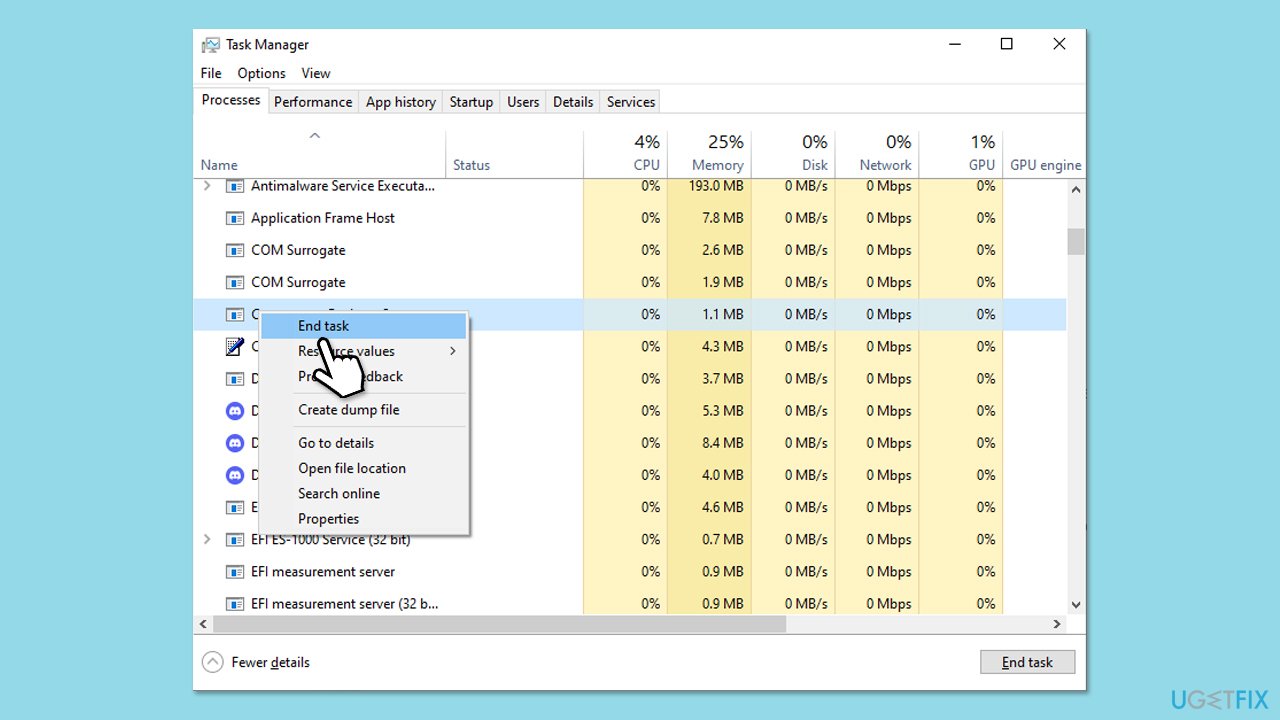
Note: after a system restart, the process will restart, so if you want it permanently off, follow the steps in the next fix.
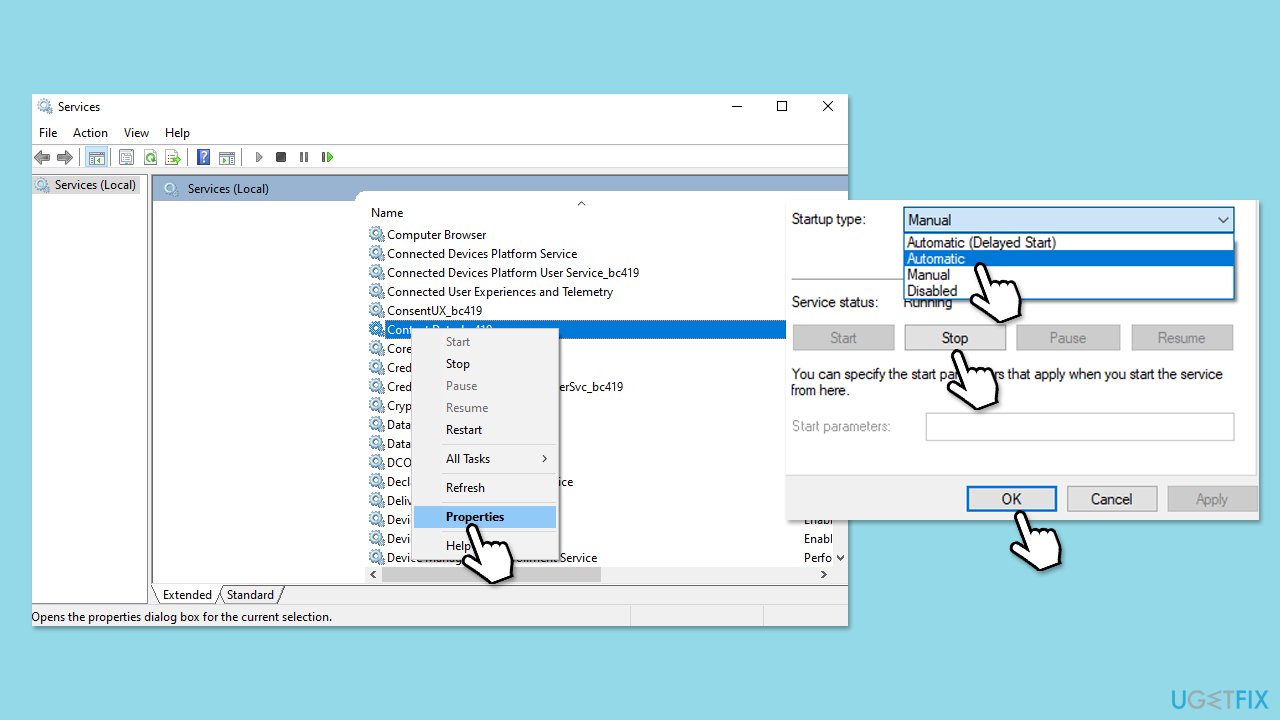
Fix 2. Disable the CxUIUSvc service
Disabling the service prevents it from running and consuming CPU resources unnecessarily.
- Type Services in Windows search and press Enter.
- Locate Conexant SmartAudio Universal Service (CxUIUSvc) in the list.
- Right-click on the service and select Properties.
- Under the Startup type, select Disabled from the drop-down menu.
- Click Stop to stop the service.
- Click OK and Apply.
- Restart your computer.
Fix 3. Update the Conexant audio driver
An old driver might lead to the service not working properly - updating it often solves compatibility problems.
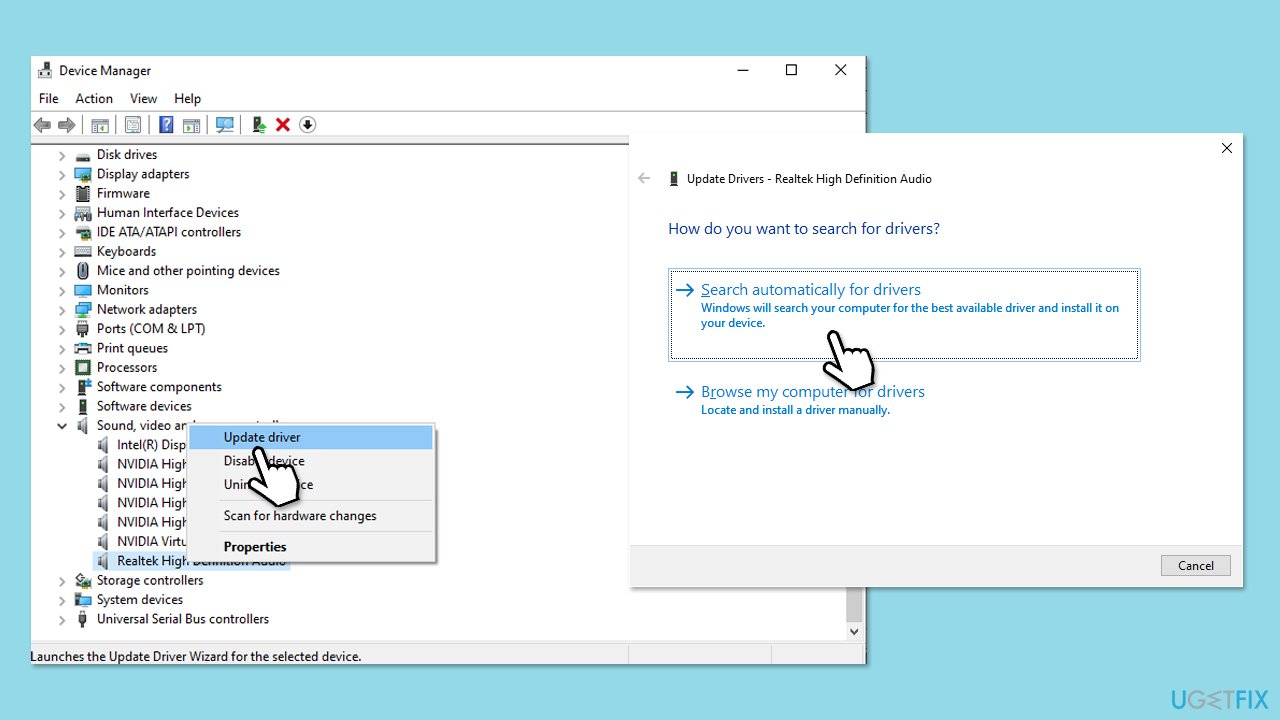
- Right-click on Start and select Device Manager.
- In Device Manager, find and expand the Sound, video, and game controllers section.
- Right-click on the listed audio device (Conexant SmartAudio, Synaptics HD audio, or similar) then select Update driver.
- Select Search automatically for drivers and follow the prompts.
- Restart your system.
Fix 4. Roll back the audio driver
If the issue started after a driver update, rolling back to a previous version can restore functionality.
- Open Device Manager.
- Expand Sound, video, and game controllers, then right-click on the device.
- Select Properties, navigate to the Driver tab, and click Roll Back Driver.
- Follow the on-screen instructions and restart your computer.
Fix 5. Reinstall the Conexant audio driver
Reinstalling the driver replaces corrupted or missing files.
- Open Device Manager and expand Sound, video, and game controllers.
- Right-click on Conexant SmartAudio and select Uninstall device.
- Check the box next to Delete the driver software for this device and click Uninstall.
- Restart the computer and Windows will attempt to re-install the driver.
- The most convenient way to ensure drivers on your computer are updated to the latest versions is either through Lenovo or HP's official site, depending on the make of your system, or with automated driver updating software such as [rev id="DriverFix"].
Fix 6. Check for Windows updates
Sometimes, a system update contains fixes for driver-related issues or compatibility problems.
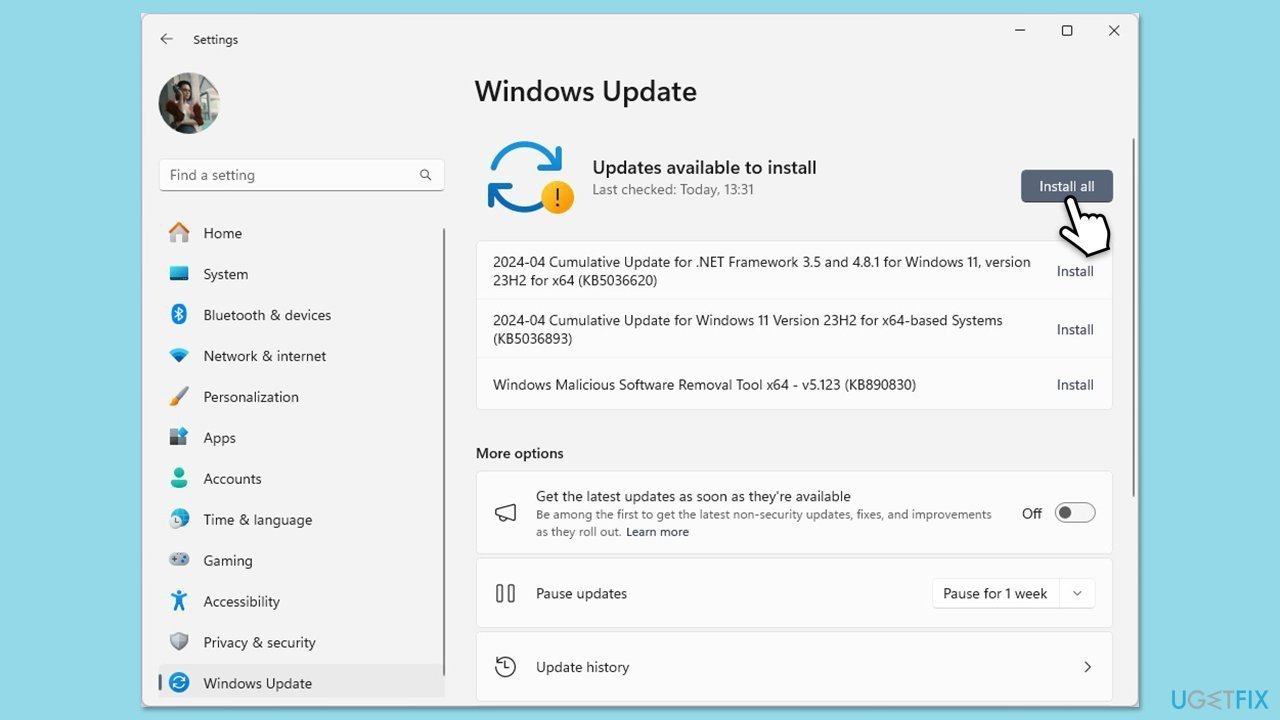
- Type Updates in Windows search and press Enter.
- In the new window, click Check for updates.
- Wait till all the necessary files are downloaded and installed.
- If optional updates are available, install them as well.
- When done, reboot your system to apply updates.
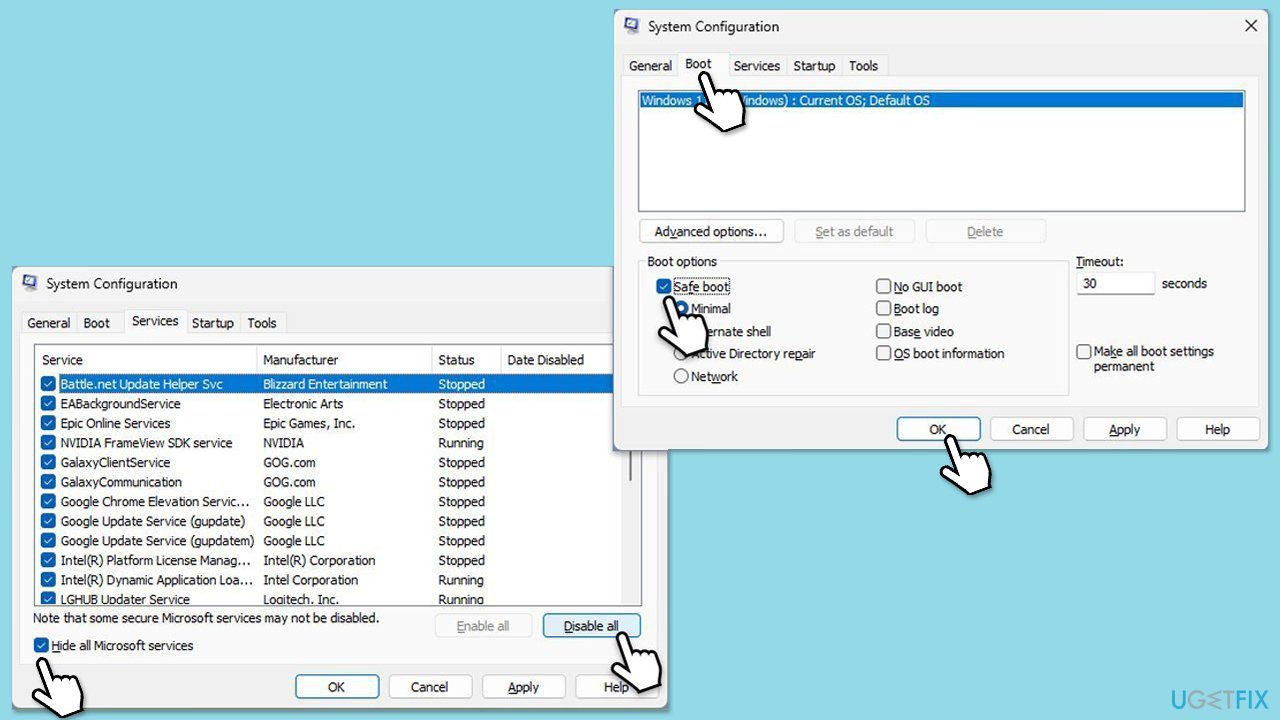
Fix 7. Perform a Clean Boot
A clean boot disables non-Microsoft services that may conflict with the CxUIUSvc service.
- Type msconfig in Windows Search and press Enter to open the System Configuration window.
- Click on the Services tab and check the Hide all Microsoft Services box.
- Click Disable all to disable non-Microsoft services, then click the Startup tab.
- Open the Task Manager, disable all startup items, and close the Task Manager.
- Go to the Boot tab and mark the Safe boot option.
- Click OK on the System Configuration window and restart your computer.
- If the problem is gone, you need to find which software is causing conflicts.
- Enable half of the disabled services in System Configuration.
- Restart and check CPU usage.
- Repeat, enabling services in smaller groups until the issue reappears.
- Once found, keep the problematic service disabled or consider updating it.
Fix 8. Reinstall Windows audio components
Reinstalling audio-related Windows components can resolve underlying conflicts affecting the CxUIUSvc service.
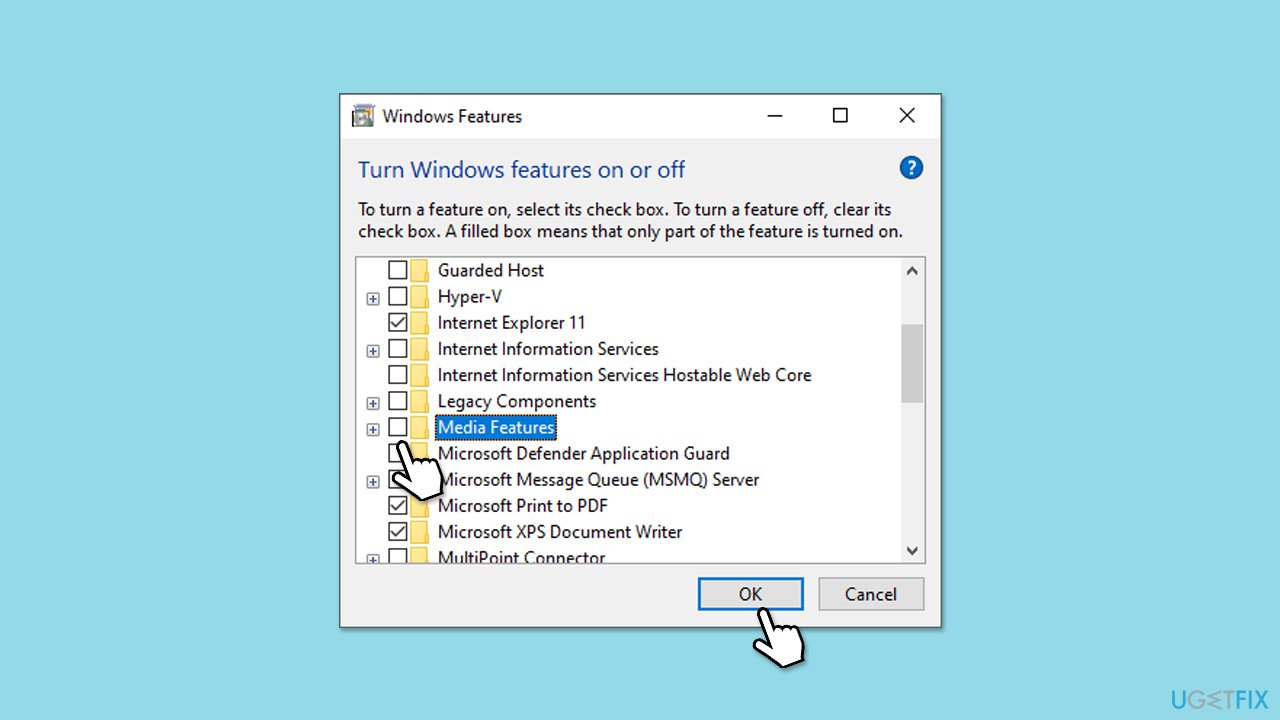
- Type optionalfeatures in Windows search and hit Enter.
- In the Windows Features dialog, scroll down a bit and uncheck Media Features, then click OK.
- Restart your computer, then reopen the Windows Features dialog.
- Recheck Media Features and click OK.
- Restart your computer again and check the CPU usage.
Bottom line
To resolve CxUIUSvc high CPU usage, you can update, reinstall, or roll back the Conexant audio drivers, and reconfigure the service settings. Additionally, optimizing startup settings may help minimize the issue. If these solutions do not work, further investigation into driver or configuration issues may be necessary.
Frequently asked questions
CxUIUSvc high CPU usage is often caused by background tasks related to Windows Ink or other system processes that are not functioning correctly. This can lead to excessive resource consumption, impacting overall system performance.
To reduce CxUIUSvc CPU usage in Windows 11, you can try disabling Windows Ink features through the Settings app or updating your graphics drivers. Additionally, performing a clean boot may help identify conflicting applications.
Yes, it is generally safe to disable CxUIUSvc in Windows 10 if you do not use related features like Windows Ink. However, make sure to monitor your system's performance and re-enable it if you encounter issues.




Report an issue
What's wrong with this guide? We review every report and update or remove content.
Report received — thank you. We'll review and fix it.
You need a free account to submit a report.
Be the first to comment