How to fix
Cyclic Redundancy Check error
on Windows
Resolve the Cyclic Redundancy Check error on Windows 10 and 11 effortlessly. Follow our expert-tested tips for a quick fix and a hassle-free experience.

What causes How to fix Cyclic Redundancy Check error on Windows?
- Corrupted registry entries
- Cluttered hard disk
- Software conflicts
- Misconfigured system files
- Damaged personal folders
Repairs Windows system files, removes malware, and restores a clean OS state — without reinstalling.
Hello, all. I cannot access my external HDD because it gives me an error “Drive is Not Accessible: Data Error (Cyclic Redundancy Check).” I was offered to format it, but I can’t do that since it’s full of important data. Could you please help?
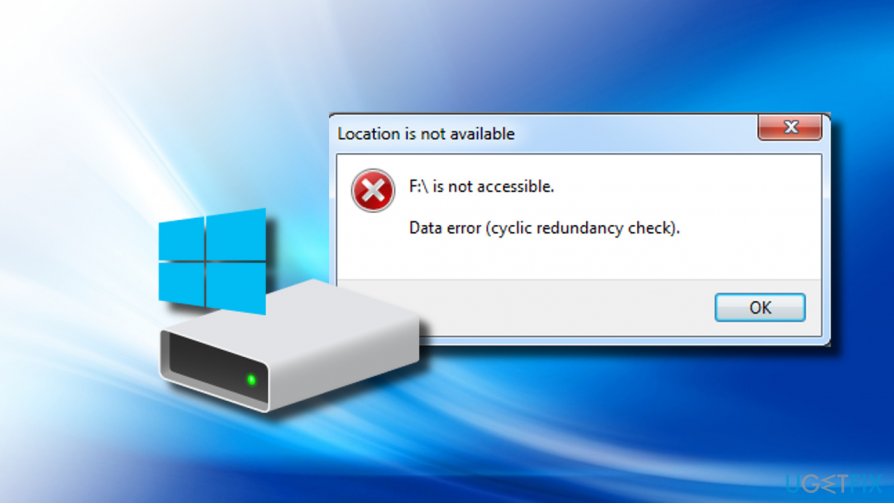
“Drive is Not Accessible: Data Error (Cyclic Redundancy Check)” or “Cannot initialize disk: cyclic redundancy check” error messages are common on Windows XP, Windows 8, and Windows 10. Lately, the latter version of the Windows OS is affected most frequently.
Cyclic Redundancy Check (CRC)[ref en-1] is a data verification and error-detecting feature. It is used in digital networks and storage devices (hard drive, CD’s, DVD’s, USB drive, etc.) to prevent, detect, and fix disk errors, accidental/inappropriate date changes.
However, sometimes Cyclic Redundancy Check fails to work properly due to corrupted registry entries, cluttered hard disk, software conflicts or misconfigured system files. In this case scenario, people may start receiving “Drive is Not Accessible: Data Error (Cyclic Redundancy Check)” or similar error messages reporting Cyclic Redundancy Check problems, which prevent people from accessing data stored on hard drive, initializing a hard disk or copying files from/to it.
Sometimes, Cyclic redundancy check error occurs on Microsoft Outlook.[ref en-2] In this case, the user receives an error message saying: “File path\\filename.pst could not be accessed. Data error. Cyclic redundancy check.” Instead of path/filename.pst, the concrete location and the file name is given. It means that some of user’s personal folders (.pst) file has been damaged. In this case, the PC’s owner may not be able to view a part of downloaded messages or delete them.
NOTE: if you get an offer to format the disk along with the Cyclic redundancy check error, don’t rush to do so. Formatting will cause a complete data loss, so try to fix the error and recover all important information stored on the disk. Leave formatting[ref en-3] as the utmost solution.
Cyclic Redundancy Check error fix
First of all, we would strongly recommend you to check the system with a professional PC optimization utility to fix possible problems with Windows registry or file configuration. Such software will also check for malware and potentially unwanted programs. For this purpose, we would recommend using [d1].
If a complete scan with Reimage or another optimization tool did not fix Cyclic redundancy check error, please try the following method:
Run the CHKDSK Utility
CHKDSK is a built-in Windows utility, which scans and repairs errors on a drive. To run the tool, you can:
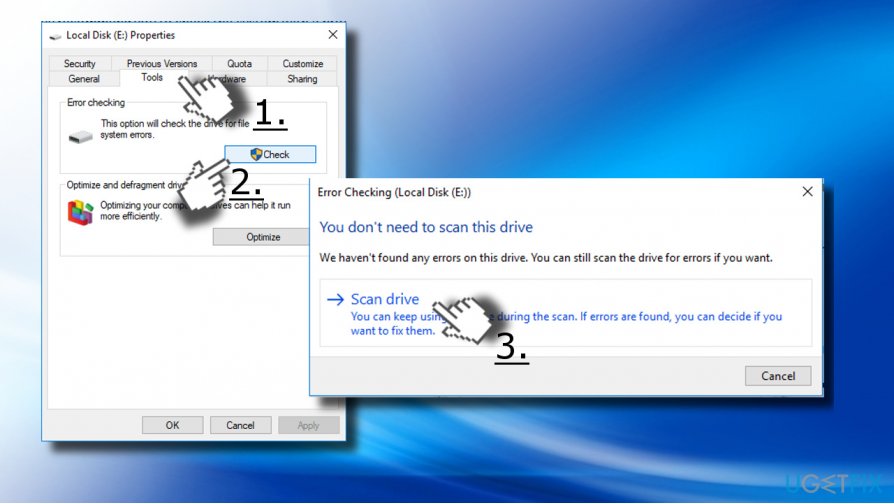
- Right-click on the drive that encounters a Cyclic redundancy check error and select Properties.
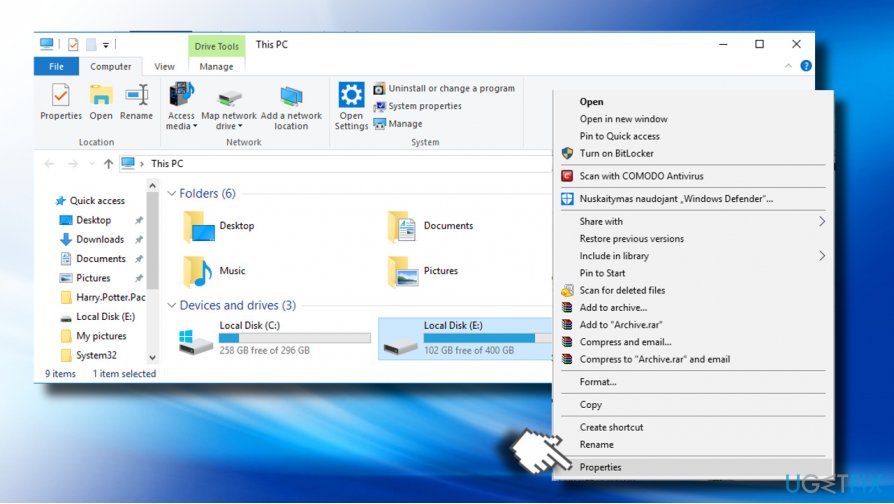
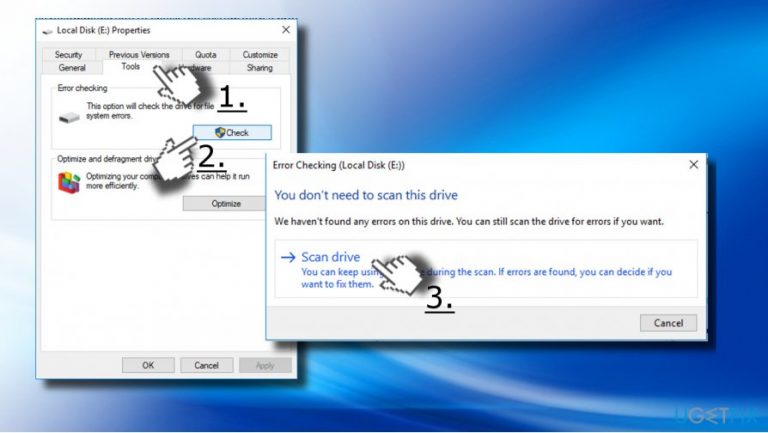
Open disks properties - Open Tools and click Check now under Error Checking. Reboot the PC to run a scan. NOTE: the default CHKDSK scan is set to basic. If you want to perform an advanced scan, mark the check box next to advanced scan.
In case you cannot run CHKDSK scan via disk’s properties, run the tool using Command Prompt:
- Right-click on Windows key and select Command Prompt (Admin).
- Type the chkdsk /f x: command and press Enter. The letter x stands for the drive that needs to be scanned.
- If you were reported that the drive is in use by another process, press Y to set the scan during the next system’s reboot.
- Then restart your PC to start the scanning.
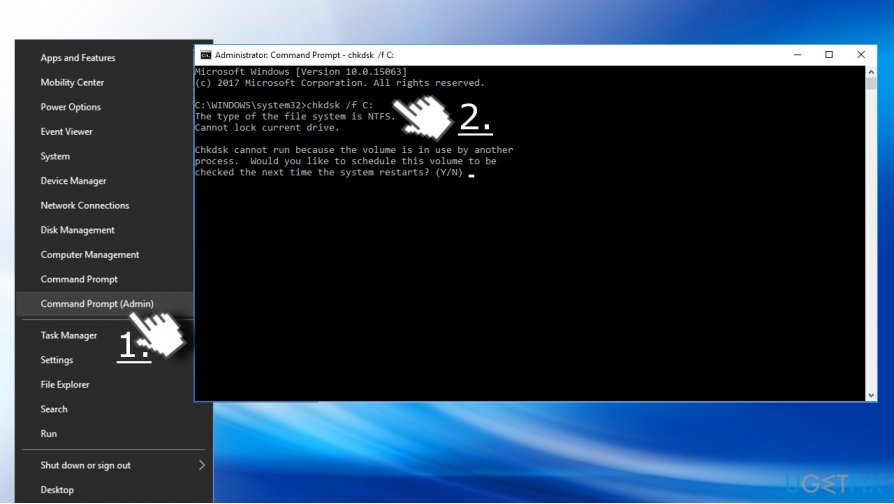
Run disk scan using command prompt
Use a professional utility to scan the disk and recover data
If CHKDSK scan got stuck and could not be completed, install a professional disk check utility and use it for fixing and repairing the disk. For this purpose, you can use Reimage or another professional utility that you prefer.
If disk scan using CHKDSK utility did not help, the last method to fix Cyclic redundancy check is to format the disk. But before that, you should recover all important data unless there’s no such data stored on it.
For this purpose, download a professional software recovery utility, such as [rev id=”Data Recovery Pro”] or [rev id=”Reimage”].
- Download the tool and run the setup.exe file to install it.
- Then set the program to scan the corrupted disk and recover the most important or data stored on it. Make sure to save recovered information in the alternative folder.
- Once done, right-click on the malfunctioning disk and select Format.
- Finally, check if the Cyclic redundancy check error has successfully been fixed.
Bottom line
To fix the Cyclic Redundancy Check error, it is recommended to use a professional PC optimization utility to address potential issues with the Windows registry or file configuration. Avoid formatting the disk as it will result in complete data loss. If these solutions do not work, consider seeking professional help.
Frequently asked questions
The Cyclic Redundancy Check (CRC) error is a data verification issue that indicates corruption in files or storage devices, often affecting hard drives and external drives on Windows 10 and 11.
You can fix the CRC error by running the CHKDSK utility through Command Prompt, which scans and repairs file system errors on your drives in Windows 11.
Yes, you can use data recovery software or built-in tools like File History to recover files before attempting repairs on the corrupted drive in Windows 10.




Report an issue
What's wrong with this guide? We review every report and update or remove content.
Report received — thank you. We'll review and fix it.
You need a free account to submit a report.
Be the first to comment