How to fix
D3d11.dll game crash
on Windows
Resolve d3d11.dll game crashes in Windows 10 and 11 effortlessly. Follow our expert-tested solutions to get back to gaming in minutes!

What causes How to fix d3d11.dll game crash in Windows?
- D3d11.dll file is missing
- D3d11.dll file is corrupted
- Accidental deletion of D3d11.dll file
- Malware infections affecting system files
- Outdated system preventing proper game operation
Repairs Windows system files, removes malware, and restores a clean OS state — without reinstalling.
Hello. I was trying to play a video game from Steam, but it crashed after some time and I received a "D3d11.dll Not Found or Missing" error. Any suggestions would be helpful.
Windows is one of the most popular operating systems. People love it for its user-friendly interface, customization abilities, built-in troubleshooters, and much more. However, it relies on thousands of processes running in the background to keep it running smoothly. If one of those processes goes rogue, users can experience errors, crashes, bugs, and lagging.
Well, some people have been experiencing game crashes. Users report trying to play games from Steam when they were interrupted by a message "D3d11.dll Not Found or Missing." One person said that his PC started getting hot before eventually crashing.
To understand why this might be happening you should know what a DLL (Dynamic-Link Library)[ref en-1] is. It is a system file that contains code and data that can be used by multiple programs at the same time. That is why users report experiencing the same error with multiple games.
If D3d11.dll for some reason has gone missing, got corrupted certain programs may be impossible to use. Sometimes users accidentally delete these files, so it is worth going to the Recycle Bin and looking to see if you can recover it there. If that is not the case for you, we have prepared a 7 step guide that might help you fix the d3d11.dll game crash in Windows.
Manual troubleshooting can be a lengthy process, so you can also try to use a maintenance tool like [d1] that can fix various system errors, BSoDs,[ref en-2] corrupted files, and registry[ref en-3] issues. This repair tool is also very helpful in case of malware infections. It will fix damaged files and clear up cookies and cache.
Method 1. Install Available Updates
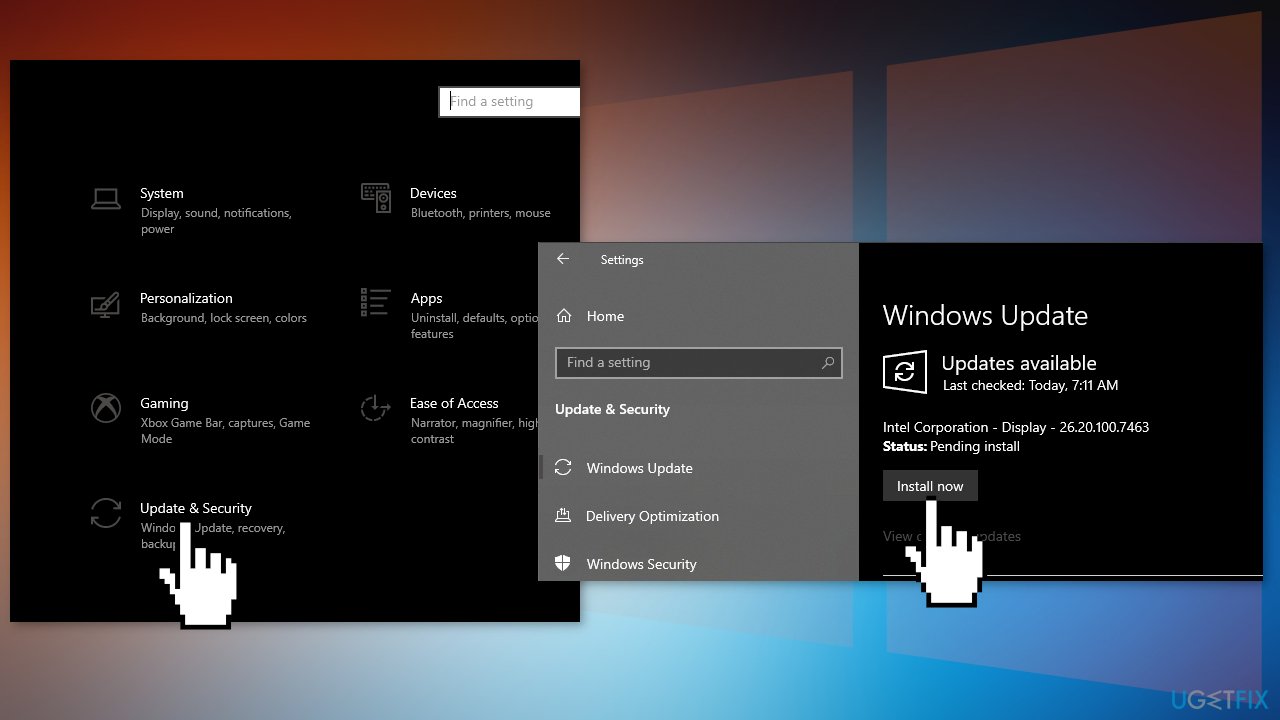
- Click Settings from your start menu and click Update & Security
- Choose Windows Upgrade from the left panel and click the Check for updates button, and then your computer will check for, download, and install any updates found
Method 2. Fix Corrupted System Files
Use Command Prompt commands to repair system file corruption:
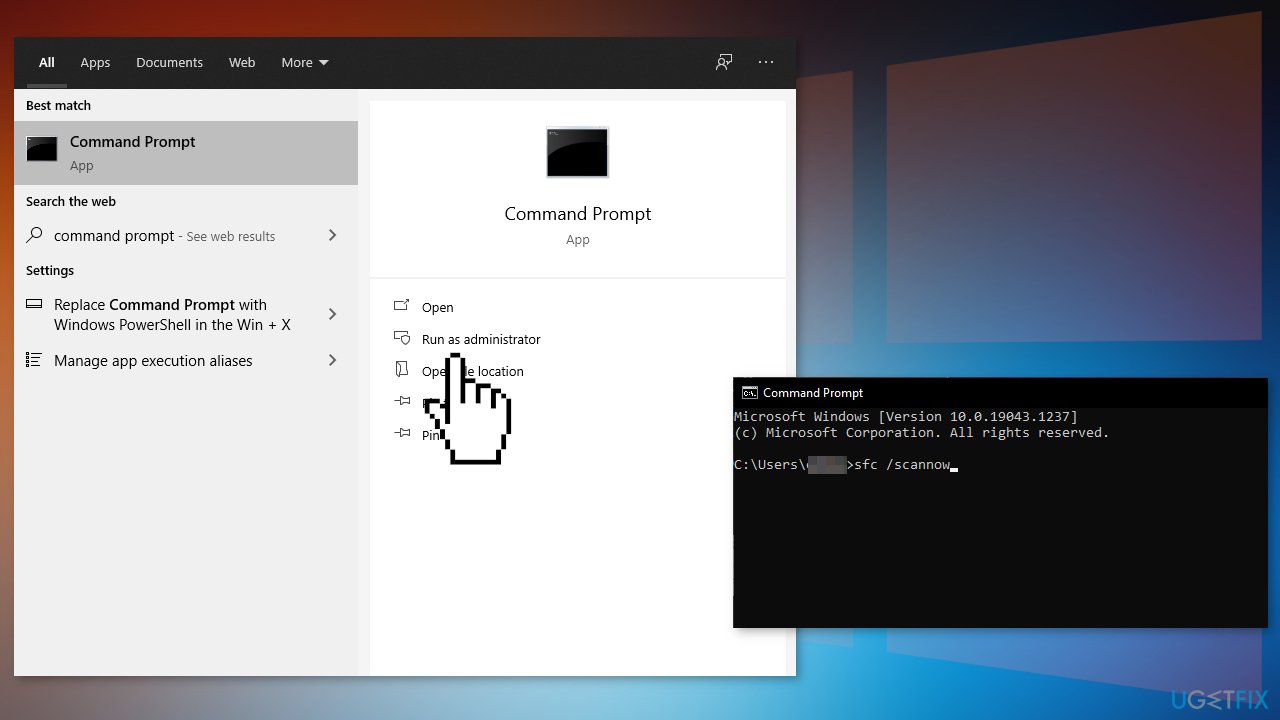
- Open Command Prompt as administrator
- Use the following command and press Enter:
sfc /scannow
- Reboot your system
- If SFC returned an error, then use the following command lines, pressing Enter after each:
DISM /Online /Cleanup-Image /CheckHealth
DISM /Online /Cleanup-Image /ScanHealth
DISM /Online /Cleanup-Image /RestoreHealth
Method 3. Reinstall the Problematic Program
If you experience an error when you try to launch a specific program, it is a good idea to try to reinstall it.
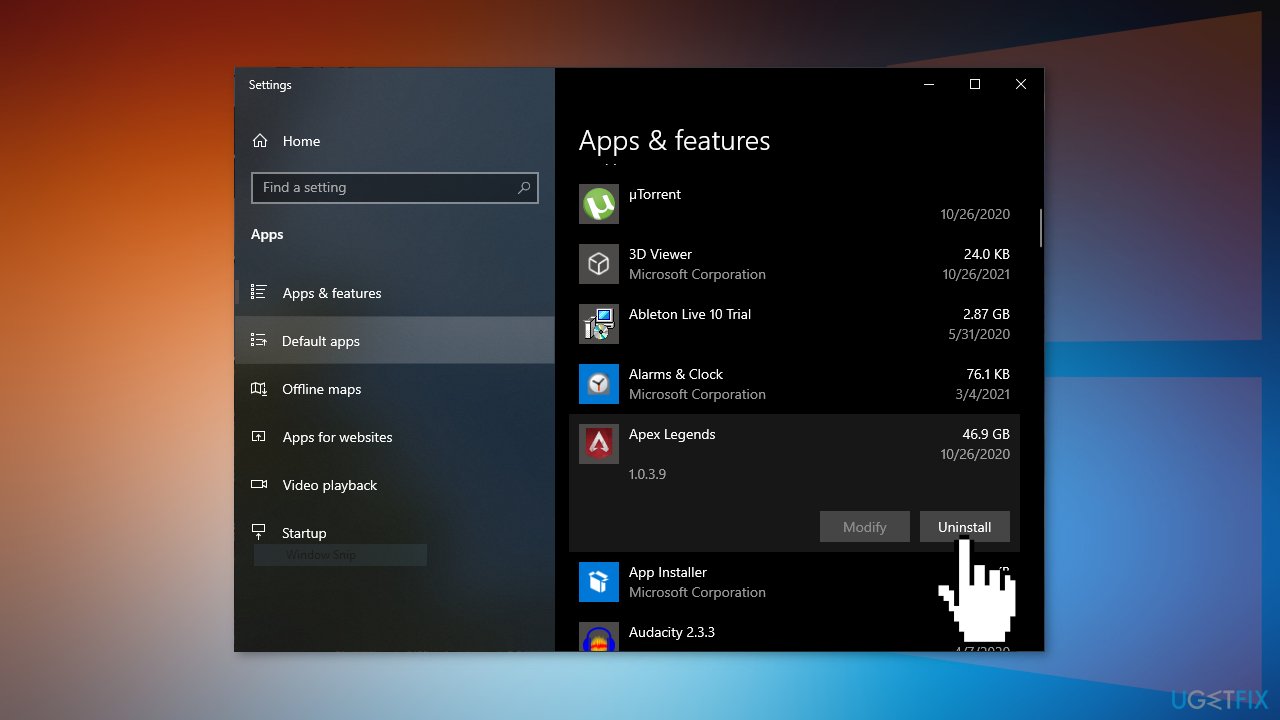
- Go to Apps & Features, find the program in the list using the search bar
- Click on it and choose Uninstall
- Now install the program the same way you did before
Method 4. Update Graphics Card Driver
- Right-click on Start and find Device Manager
- Expand Display adapters section
- Right-click on your graphics card and select Properties
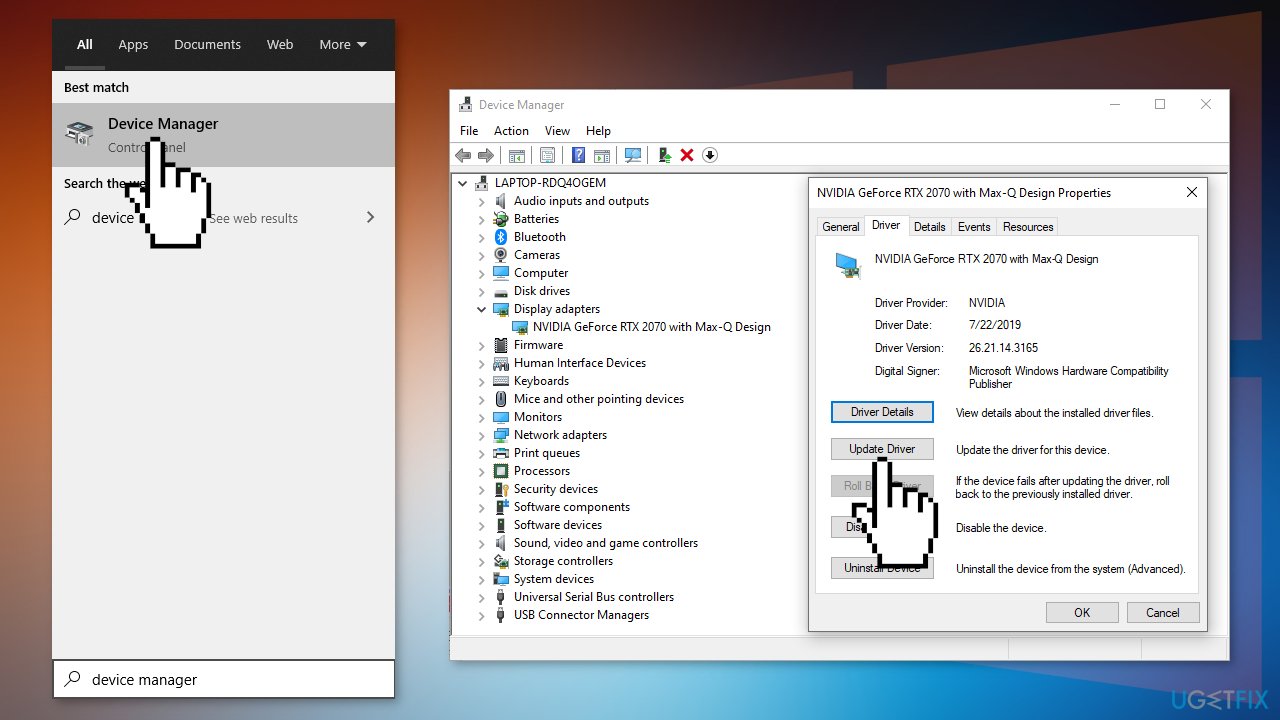
- Go to the Driver tab and click Update or employ an automatic updater such as [rev id="DriverFix"] which can be used to quickly update and backup all your drivers without hassle
- If the update did not get rid of the problem you can select Roll Back Driver and click Yes
- Restart your PC
Method 5. Install Microsoft DirectX
- Visit the DirectX download page on Microsoft's site
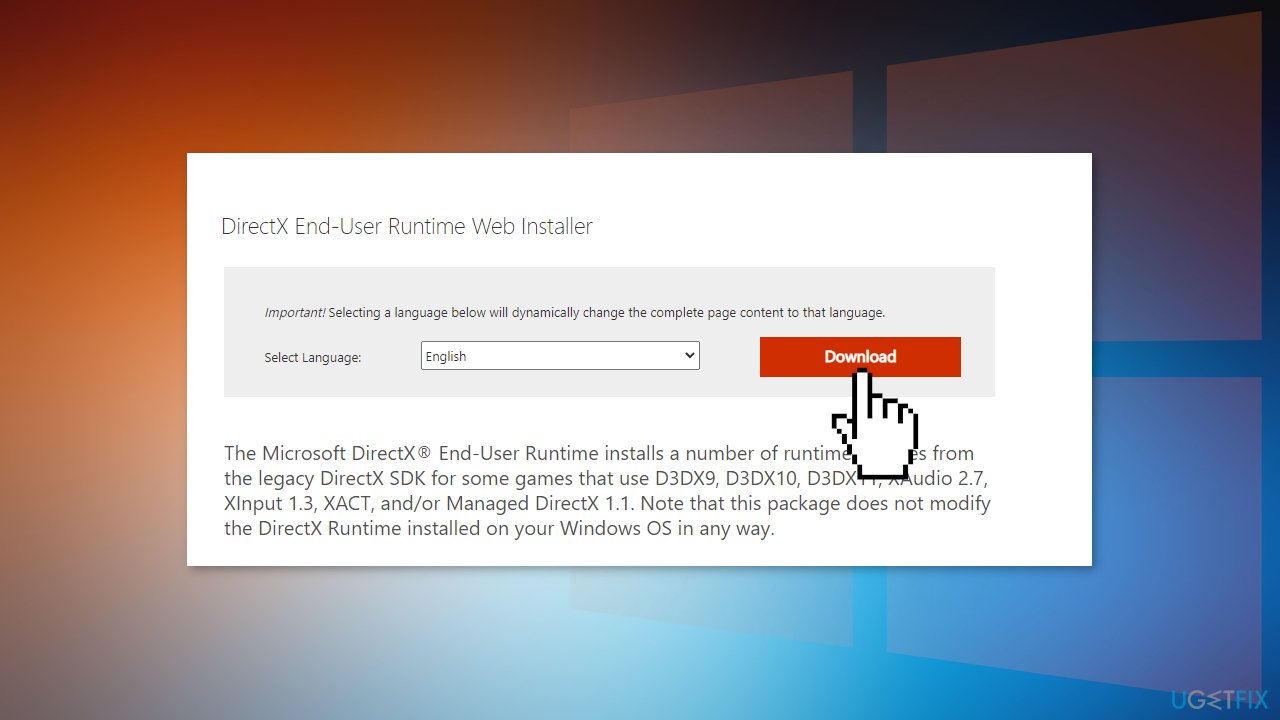
- Select your preferred language from the drop-down box and then choose Download to save the setup file to your computer
- Open the dxwebsetup.exe file and complete the DirectX installation by following directions
Method 6. Use System Restore
System Restore can roll back the system back to a previous point when the error was not present. Use this utility and choose a restore point before the error started appearing.
- Search for Control Panel in your taskbar
- Change the view mode to Large icons
- Click on Recovery, then Open System Restore
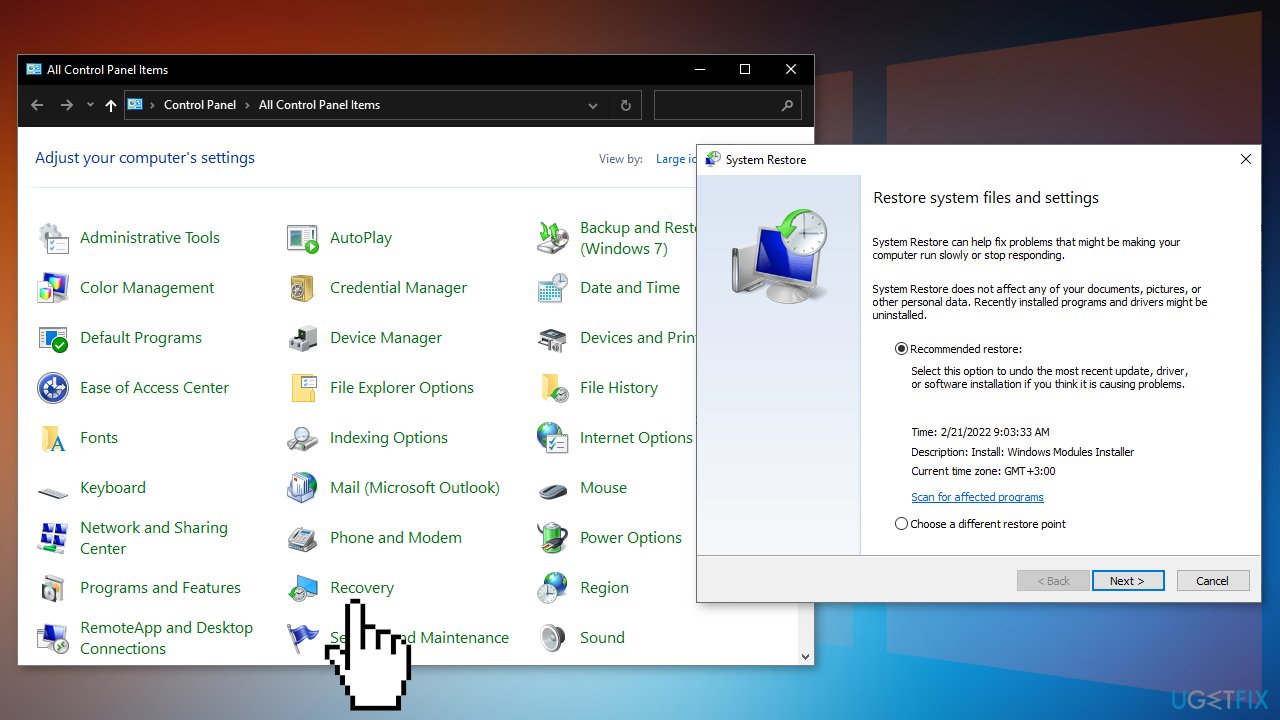
- If prompted, enter your user password
- Follow the on-screen instructions and wait for the wizard to complete the restoration
- Restart your computer
Method 7. Repair Install Windows
- Download the Windows 10 ISO file
- Now mount the ISO file
- Double-click on the file setup.exe to start the repair, install from the mounted drive
- When the installation provides the License Terms, read them and click Accept
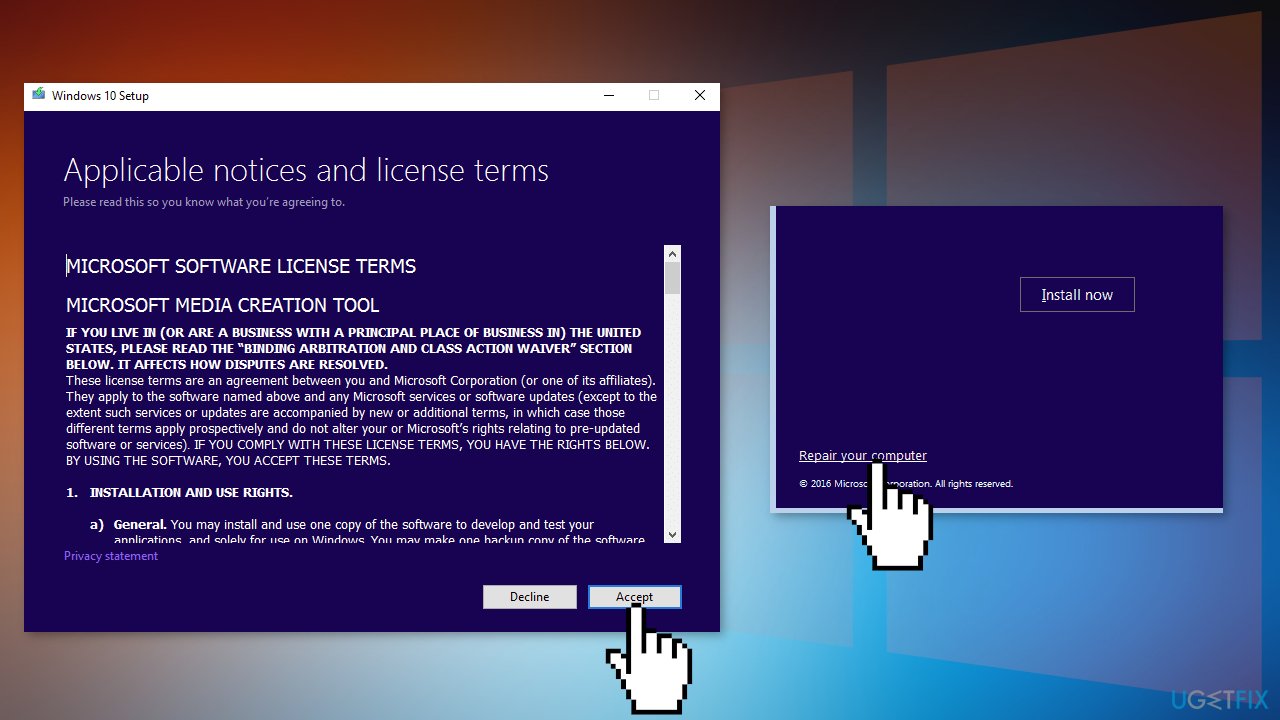
- Windows 10 will now check for updates and will install the ones available
- When all is set, click Install
- When the installation is complete, follow the on-screen instructions
Bottom line
To fix the d3d11.dll game crash, you can install available updates, check for corrupted system files, and consider using a maintenance tool for repairs. If these methods do not resolve the issue, further investigation into the system may be necessary.
Frequently asked questions
The d3d11.dll game crash can be caused by outdated graphics drivers, corrupt game files, or incompatible DirectX versions on Windows 10 or Windows 11.
You can update your graphics drivers by visiting the manufacturer's website or using the Device Manager in Windows 10 or Windows 11 to search for updates.
Reinstalling DirectX can help resolve d3d11.dll issues, especially if the installation is corrupted; this can be done easily through the Microsoft website on Windows 10 or Windows 11.




Report an issue
What's wrong with this guide? We review every report and update or remove content.
Report received — thank you. We'll review and fix it.
You need a free account to submit a report.
Be the first to comment