How to fix
D3DCompiler_43.dll is Missing error
on Windows
Resolve the D3DCompiler_43.dll missing error on Windows 10 or 11 quickly and efficiently. Expert-tested solutions ensure a smooth gaming experience, fix…

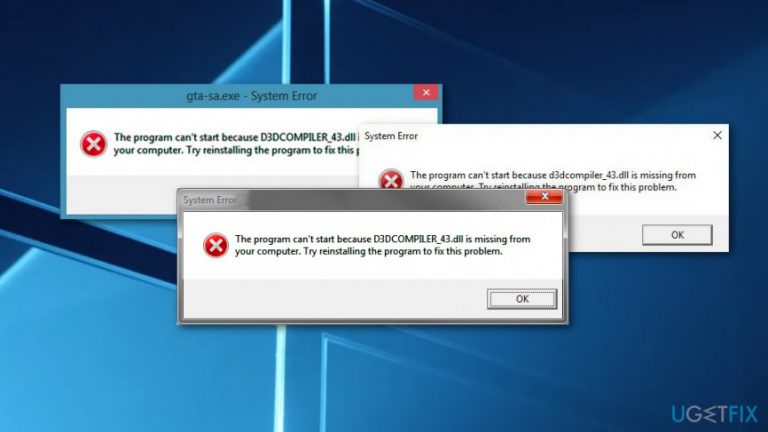
What causes How to fix D3DCompiler_43.dll is Missing error?
- Missing D3DCompiler_43.dll file
- Corrupted Dynamic Link Libraries (DLL)
- Issues with Microsoft DirectX
- Problems with the program or game installation
- Outdated Windows system files
Repairs Windows system files, removes malware, and restores a clean OS state — without reinstalling.
I don’t know what has happened. Every time I try to run Need for Speed game, I receive D3DCompiler_43.dll is Missing error. I cannot launch the game anymore. Could you explain to me what does it mean and how can I fix it?
D3DCompiler_43.dll is a file that belongs to Microsoft DirectX software[ref en-1] which is usually used by various games and graphics programs. Therefore, the majority of users receive this system error when using one of these apps. However, the error message might vary, but the most important part is that all of them warn about the same issue - something is wrong with this DLL file:
- D3dcompiler_43.DLL Not Found
- The file d3dcompiler_43.dll is missing
- File d3dcompiler_43.dll not found
- D3dcompiler_43.dll not found. Reinstalling might help fix this
The D3DCompiler_43.dll error might occur on any version of Windows operating system. The reason for the problem is that program or a game cannot find needed Dynamic Link Libraries (DLL)[ref en-2] file needed to operate properly.
However, you can fix D3DCompiler_43.dll is Missing error by running Windows System File Checker,[ref en-3] updating Microsoft DirectX or reinstalling the program that delivered the error. The explanation on how to perform these options is given below.
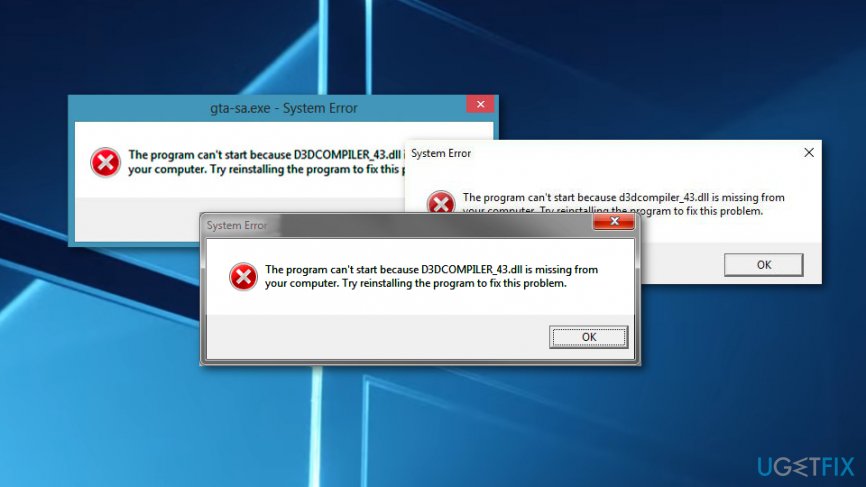
Fix D3DCompiler_43.dll is Missing error on Windows 10
Despite the fact that D3DCompiler_43.dll error might show up on any Windows computer, we have provided instructions for Windows 10 OS. However, the principles remain the same. Older OS users should fix the problem following the same methods. The only differences you might notice is the interface.
However, before you start trying these methods, you should restart the computer and run the program or a game that triggered an error. Sometimes it’s enough to do it and forget about the issue forever. If it hasn’t helped you, start with the first method.
You should check this video out first:
[youtube _XFQ2eo8544]
Method 1. Run System File Checker
System File Checker is Windows tool that allows fixing damaged files. Therefore, this method might help to fix D3DCompiler_43.dll error:
- Click Win + X key and choose Command Prompt (Admin) from the menu.
- Type DISM.exe /Online /Cleanup-image /Restorehealth command and click Enter.
- Then enter sfc /scannow command and click Enter.
- Wait until the scam is over and see if it helped to solve your problem. If some corrupted files were detected and fixed, reboot the computer.
Method 2. Install updates for Microsoft DirectX
Outdated programs often cause problems. The corrupted and updated D3DCompiler_43.dll file can be included in the recent DirectX update package. So, you need to run The DirectX End-User Runtime Web Installer to get it:
- Download needed tool from the official Microsoft’s website.
- You will be offered to install recommended programs, remove the ticks from pre-selected entries if you do not want to install them.
- Click Next DirectX End-User Runtime Web Installer button to download the installer on your PC.
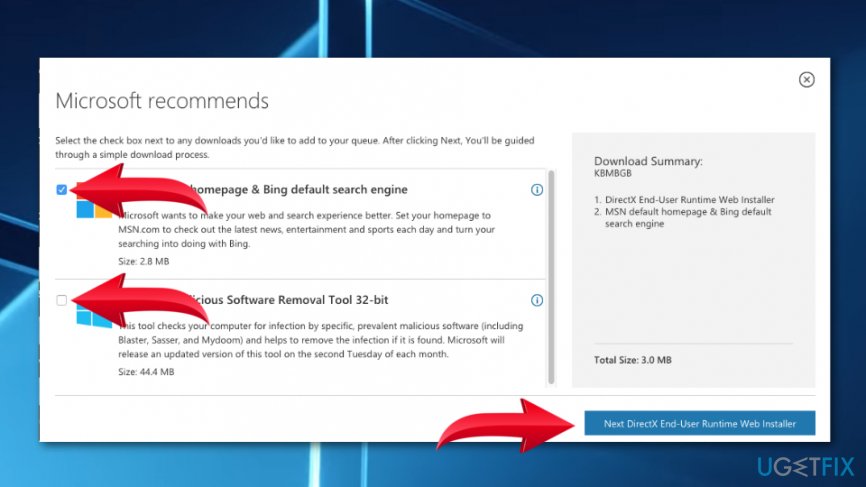
Next directx end user runtime web installer button - Open the setup once the download is finished.
- Click I accept the agreement button in the DirectX setup window.
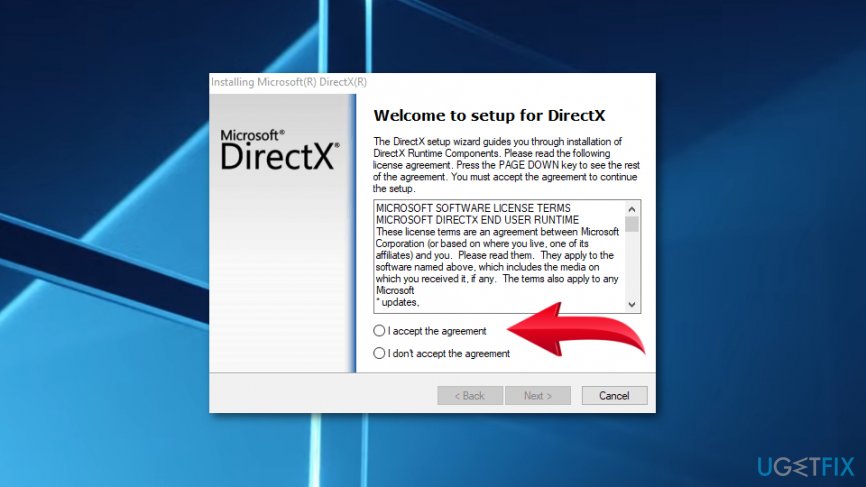
Accept directx setup agreement - Remove the tick from Install the Bing Bar option. If you leave it pre-selected, your browser’s settings will be changed.
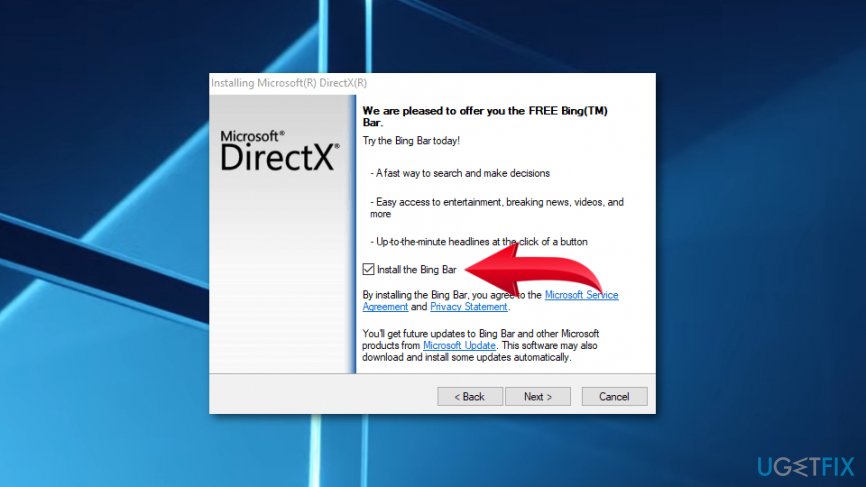
Remove the tick from bing bar installation - Click Next button to start update procedure.
Method 3. Reinstall troublesome program
The problem of the D3DCompiler_43.dll error might be the program itself. So, you should uninstall it and then install it again.
- Press Win+R.
- In the appeared Run box, enter appwiz.cpl and click OK.
- You will end up in Uninstall or change program menu in Control Panel. Find the program or game and select it.
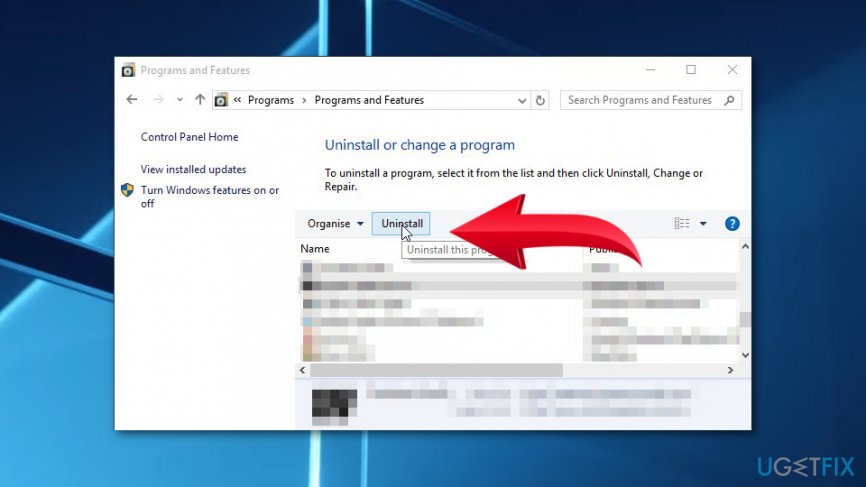
Uninstall corrupted program - Click Uninstall button and click Yes on the appeared dialog box.
Note. Some programs have Repair feature. So, if click the program and see this option, you should take advantage of it.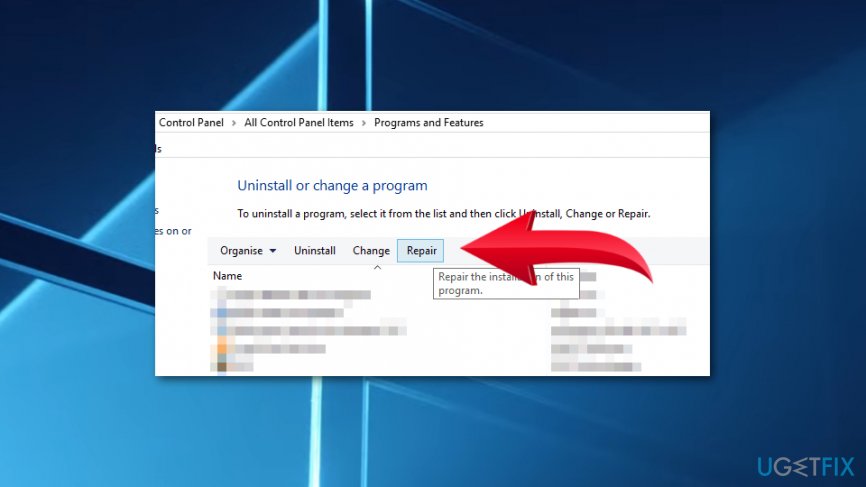
However, if software repair does not help, then you should uninstall and then install this program again.
Bottom line
To fix the D3DCompiler_43.dll is Missing error, you can run the Windows System File Checker, update Microsoft DirectX, or reinstall the program that triggered the error. If these methods do not resolve the issue, consider restarting your computer and trying again.
Frequently asked questions
The D3DCompiler_43.dll file is a dynamic link library that is essential for running applications that utilize Direct3D, particularly games and graphics-intensive software on Windows 10 and Windows 11.
You can restore the missing D3DCompiler_43.dll file by downloading the DirectX End-User Runtime Web Installer from Microsoft's official website and running it to ensure all necessary DLL files are installed.
On Windows 11, you can try reinstalling the affected application, updating your graphics drivers, or running the System File Checker tool by executing 'sfc /scannow' in the Command Prompt to repair corrupted system files.




Report an issue
What's wrong with this guide? We review every report and update or remove content.
Report received — thank you. We'll review and fix it.
You need a free account to submit a report.
Be the first to comment