How to fix
D3dx10_43.dll is missing or not found error
on Windows
Resolve the d3dx10_43.dll missing error on Windows 10 and 11 effortlessly. Get expert-tested solutions to fix it in minutes!

What causes How to fix d3dx10_43.dll is missing or not found error in Windows?
- Corrupted updates
- Corrupted installations
- Accidental deletion of system files
- Missing important system files
Repairs Windows system files, removes malware, and restores a clean OS state — without reinstalling.
Hello. When I try to open a few programs on my Windows computer, I receive the same error - "d3dx10_43.dll is missing or not found." What can I do?
Recently, some users have experienced the "d3dx10_43.dll is missing or not found" error in Windows. The d3dx10_43 DLL file[ref en-1] is one of many files contained in the DirectX software collection. Since DirectX is utilized by most Windows-based games and advanced graphics programs, d3dx10_43.dll errors usually show up only when using these programs.
If you encountered this error, it means that an important system file, required by those apps to run is not present. Missing DLL (Dynamic-Link Library) errors most often appear after corrupted updates, and installations. These system files contain code and data that can be used by multiple programs at the same time. That is why users may fail to open multiple programs and receive the same error.
Additionally, accidental deletion is more common than you may think. Users often delete important system files without realizing the consequences. Do not delete any files if you are not sure what they are for. In this guide, you will find 4 steps that should help you fix the d3dx10_43.dll is missing or not found issue.
However, manual troubleshooting can take a while. First, you can try using a maintenance tool, like [d1]. It can fix most system errors, BSODs,[ref en-2] corrupted files, and registry[ref en-3] problems. Otherwise, follow the step-by-step instructions below.
Solution 1. Install Microsoft DirectX
- Visit the DirectX download page on Microsoft's site
- Select your preferred language from the drop-down box and then choose Download to save the setup file to your computer
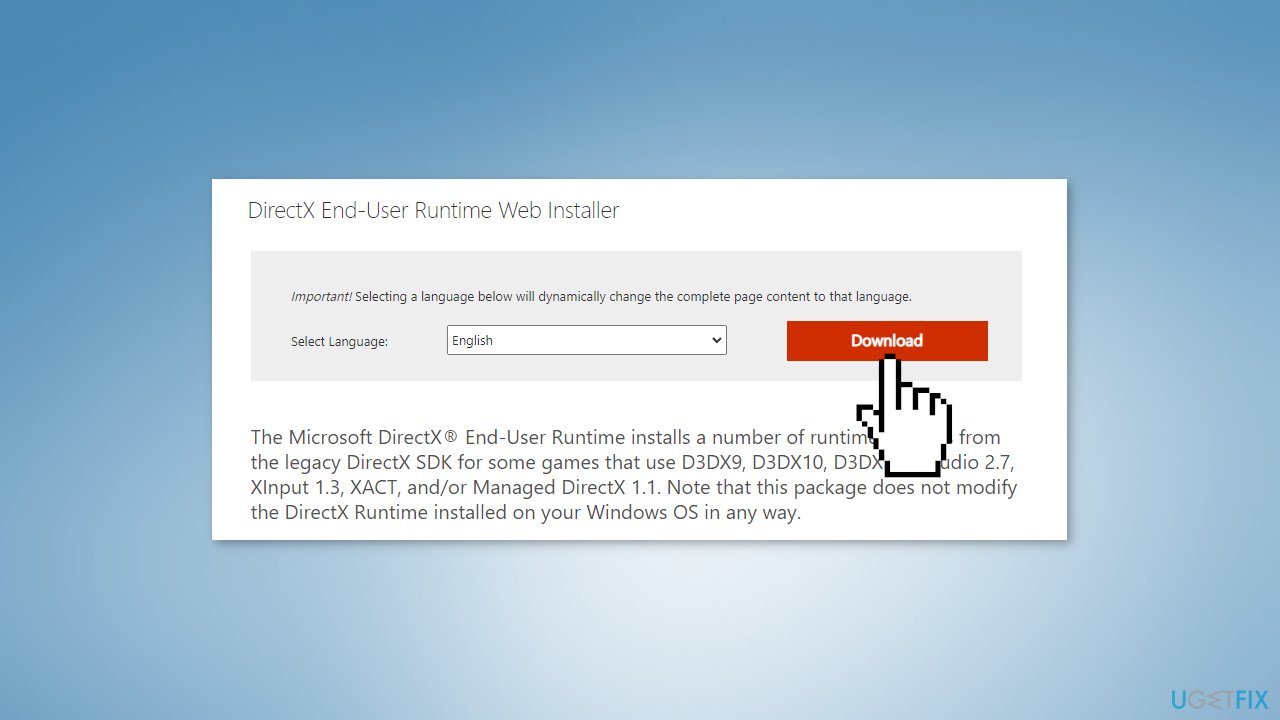
- Open the dxwebsetup.exe file and complete the DirectX installation by proceeding with the on-screen instructions
- Restart your computer
- Check if the problem was solved
Solution 2. Reinstall the Affected Program
- Go to Apps & Features
- Find the program that causes the error in the list
- Click on it and press Uninstall
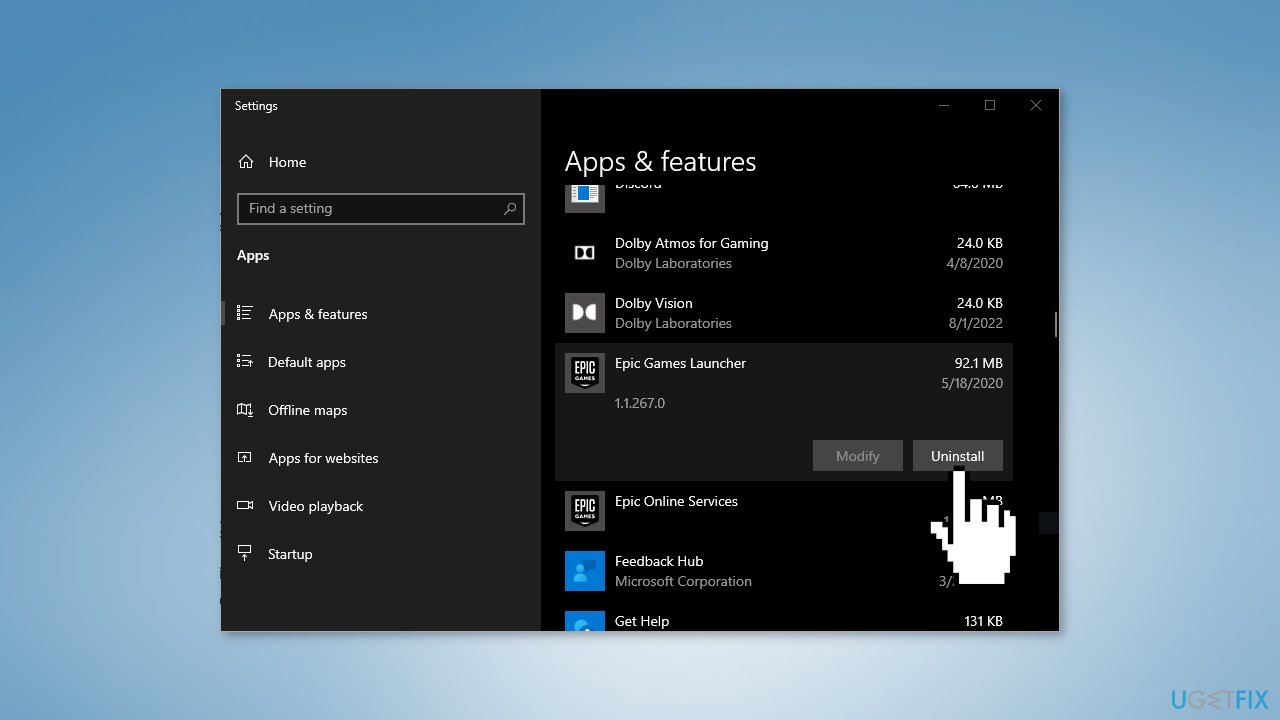
- Now you can install it again and check if the issue disappeared
Solution 3. Restore d3dx10_43.dll from the latest DirectX Package
- From Microsoft's website, select the magnifying glass at the top of the page and search for DirectX
- Scroll down the search results and select the Download DirectX End-User Runtimes (MM YY) link for the latest release date
- Select Download
- Right-click your desktop and select New > Folder. Name the new folder something easy to remember like DirectX Files
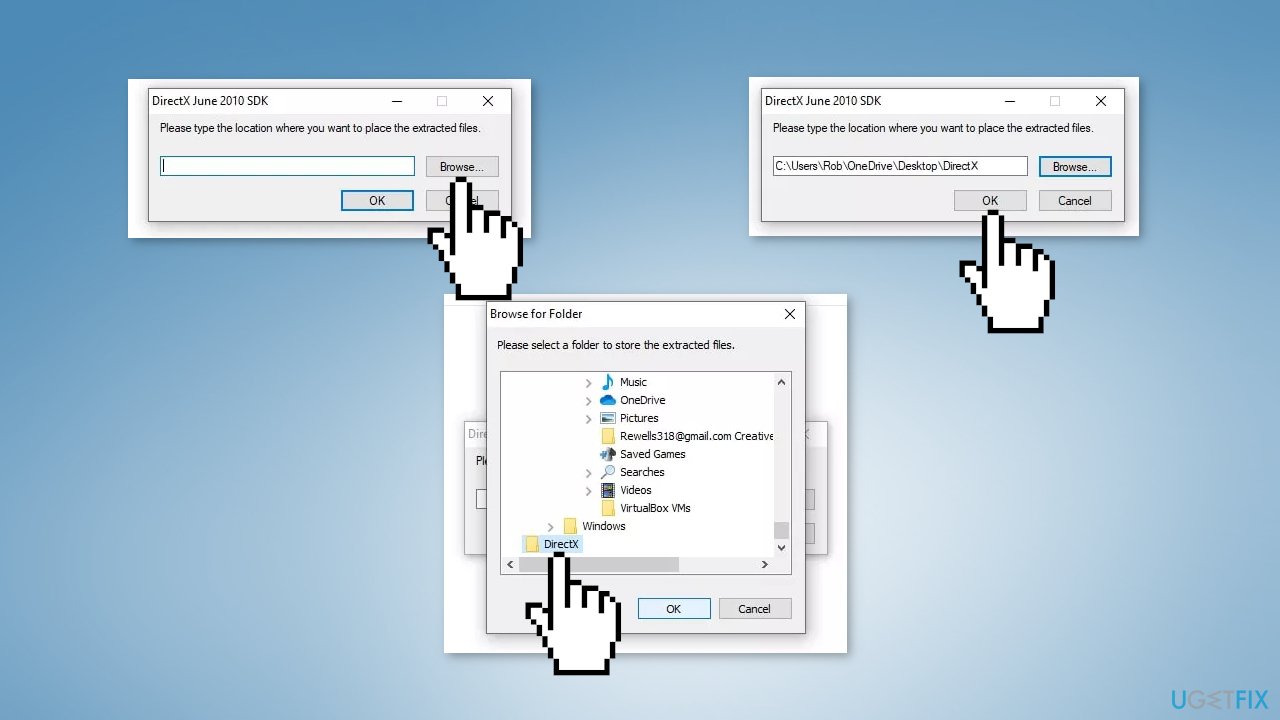
- Open the DirectX installer you downloaded and select Yes to accept the license agreement
- Select Browse in the dialog box
- Choose the folder you created and select OK
- Select OK when you see the folder path in the text box. The DirectX installation program will extract all of its files to the folder
- Open the folder you created earlier to find a large number of CAB files, a few DLL files, and one called dxsetup.exe
- Locate the CAB file containing the DLL file you're looking for
- Double-click on the appropriate CAB file to open it
- Move the .dll file to your desktop
- Copy the file to the System32 folder located in your Windows installation folder. On most computers, that will be C:\Windows\System32
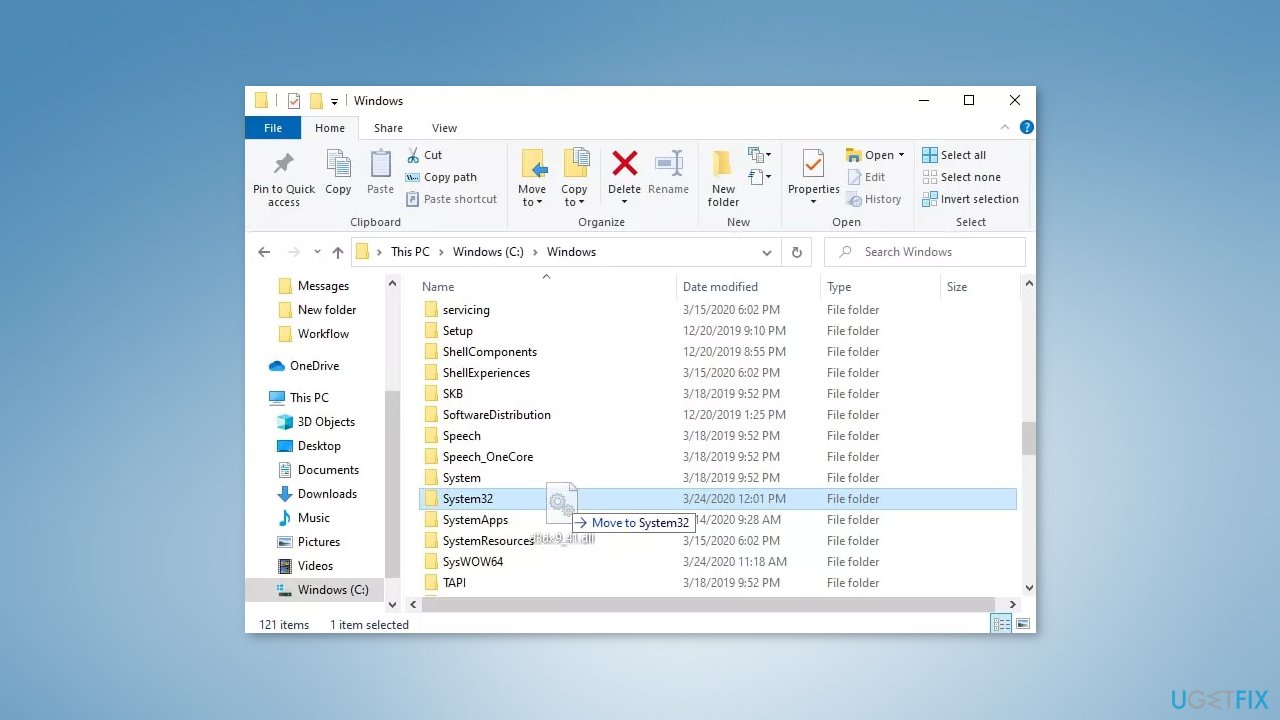
- Delete any copies of the DLL file from your desktop, and delete the folder with the extracted DirectX files
- Restart your computer
Solution 4. Update Graphics Driver
- Go to the Device Manager
- Find your video card driver
- Click on it and choose Update driver
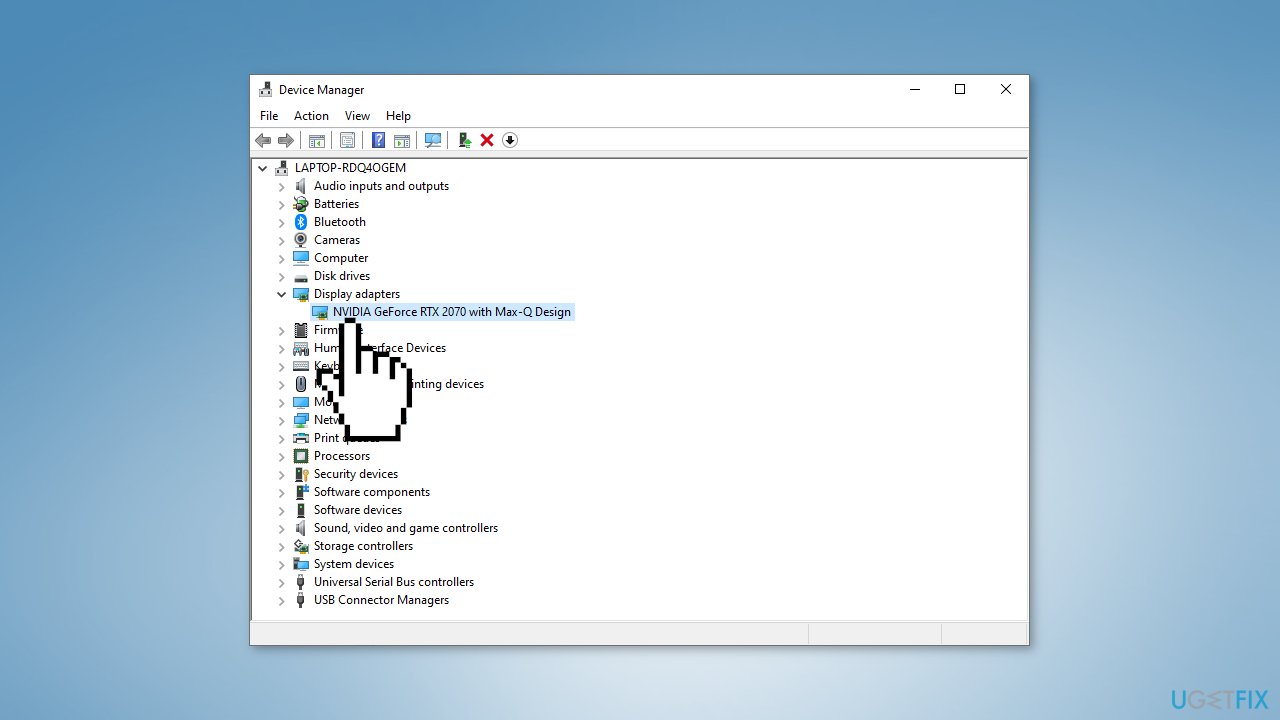
- Choose the Search automatically for drivers option
- Proceed with the on-screen instructions
- Restart your device
- You can also use a dedicated utility like [rev id="DriverFix"] which can find the best drivers for your machine and install them automatically
Bottom line
To fix the 'd3dx10_43.dll is missing or not found' error, you can install Microsoft DirectX or reinstall the affected program. If these solutions do not resolve the issue, consider using a maintenance tool to address system errors.
Frequently asked questions
The d3dx10_43.dll missing error is often caused by a corrupted DirectX installation or an incomplete game installation that relies on this DLL. Additionally, malware infections can also lead to this error by damaging or deleting essential files.
To reinstall DirectX, visit the official Microsoft website, download the DirectX End-User Runtime, and run the installer. This will replace any missing or corrupted DirectX files, including d3dx10_43.dll.
Yes, you can also attempt to restore the d3dx10_43.dll file from a trusted source or use the System File Checker tool by running 'sfc /scannow' in the Command Prompt. Additionally, updating your graphics drivers may resolve compatibility issues related to this DLL.




Report an issue
What's wrong with this guide? We review every report and update or remove content.
Report received — thank you. We'll review and fix it.
You need a free account to submit a report.
Be the first to comment