How to fix
D3dx10_43.dll missing or not found error
on Windows
Resolve the d3dx10_43.dll missing error in Windows 10 or 11 efficiently. Follow our expert-tested solutions for a smooth gaming experience, fixed in min…

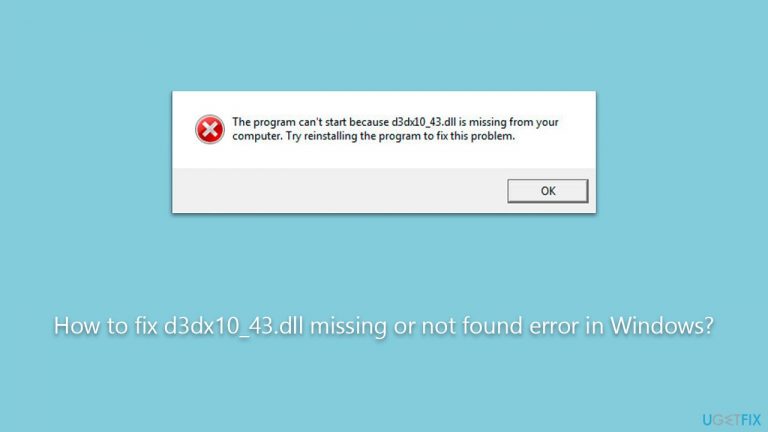
What causes How to fix d3dx10_43.dll missing or not found error in Windows?
- Missing d3dx10_43.dll file
- Corrupted d3dx10_43.dll file
- Incompatible DirectX version
- Issues with the application or game
- Problems with Windows system files
Repairs Windows system files, removes malware, and restores a clean OS state — without reinstalling.
Hi, I just can't seem to be able to launch World of Tanks anymore, even though I had no problem up until recently. The reason for this is an error saying that d3dx10_43.dll is missing. How do I fix this?
Dynamic Link Libraries, commonly known as DLL files, are crucial components in the Windows operating system architecture. These modular software entities contain code and data that can be utilized by multiple applications simultaneously, thus improving system efficiency and performance.
DLLs are what make the Windows ecosystem versatile and dynamic, allowing applications to share functionalities and perform a wide variety of tasks using a shared code base. Consequently, a multitude of DLL files is found in a Windows system, each responsible for a different set of functions.
Occasionally, users might encounter an error message indicating that a specific DLL file, such as d3dx10_43.dll, is missing or not found. This error typically arises when attempting to launch an application or a game, indicating that the system can't locate the required DLL file or that the file may be corrupted. Although this error is most frequently reported in relation to gaming applications, it is not restricted to them. Instances of the error have been reported even when attempting to launch applications like SteamVR.
The d3dx10_43.dll is a part of the Microsoft DirectX software collection, which is designed to enhance Windows-based computers' multimedia and gaming capabilities. This DLL file, in particular, is associated with DirectX 10, and it contains functions and procedures that allow games and other graphics-intensive software to run smoothly and efficiently. When a game or software requires the functionalities contained in the d3dx10_43.dll file, and it can't find it or can't access it, the system raises an error.
If you ever encounter the d3dx10_43.dll missing or not found error, it is crucial to know that it can be resolved by following certain instructions. While these troubleshooting methods can seem technical, they are well within the reach of average computer users. You can find detailed step-by-step instructions for resolving this issue below the article.
Lastly, it is worth noting that using the [d1] PC repair tool can help maintain the overall health of your system. Although it may not directly fix the d3dx10_43.dll error, it is an effective solution for repairing corrupted system files, resolving registry issues, and cleaning unnecessary junk.
Fix 1. Reinstall the application
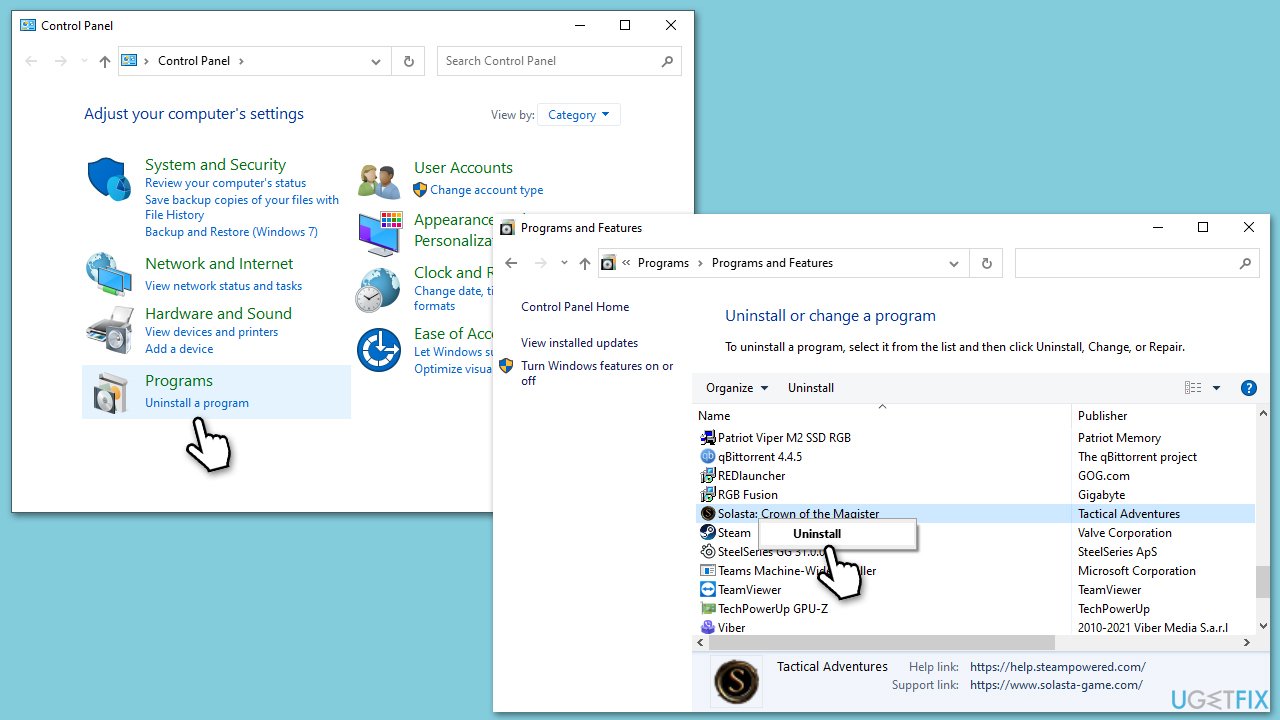
Sometimes, an installation error or application update can corrupt the file paths, causing the system to be unable to find the d3dx10_43.dll file. Reinstalling the application can reset these file paths and potentially resolve the issue.
- Go to Control Panel > Programs > Uninstall a program.
- Select the problematic software and click on Uninstall.
- Restart your computer.
- Reinstall the game or software by downloading it from the official source.
- Try launching the game or software again.
Fix 2. Run SFC and DISM
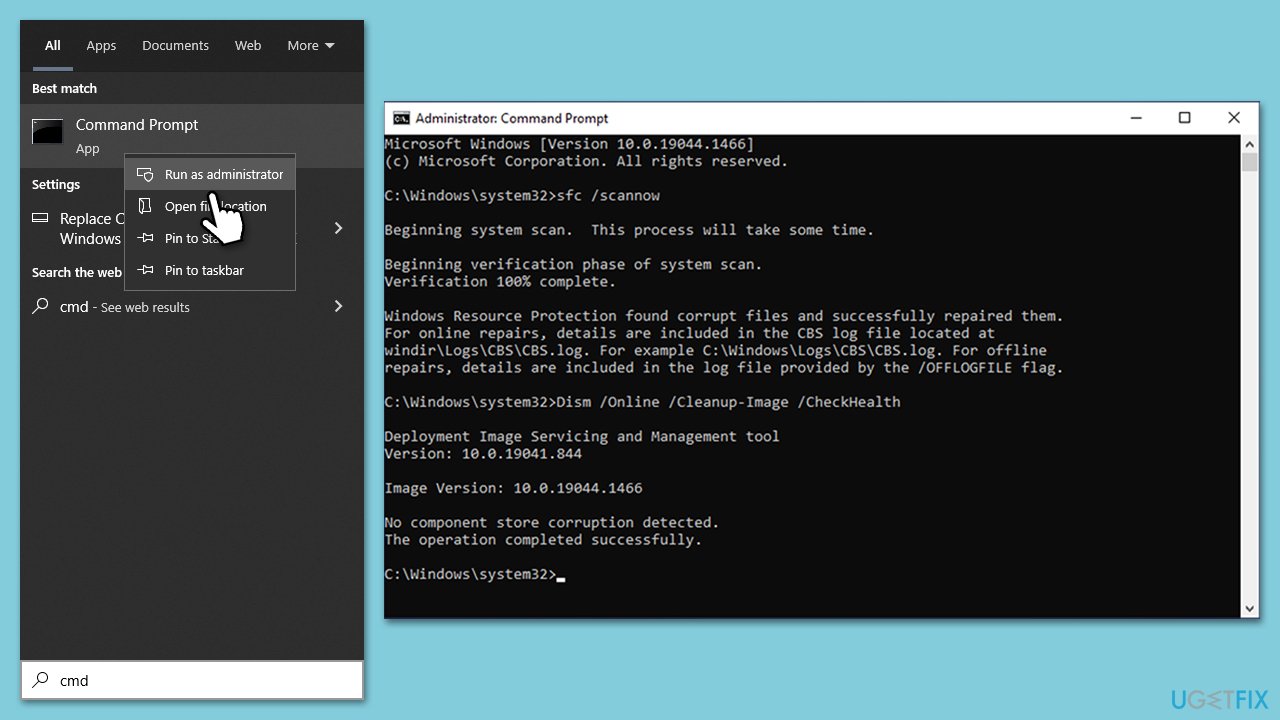
Windows includes built-in utilities called System File Checker (SFC) and Deployment Image Servicing and Management (DISM). These tools can scan and repair missing or corrupted system files, including DLLs.
- Type cmd in Windows search.
- Right-click on Command Prompt and pick Run as administrator.
- When User Account Control (UAC) asks whether you want to allow changes, click Yes.
- Use the following command and press Enter:
sfc /scannow - When the scan is complete, you should also run the following commands to repair Windows image files:
DISM /Online /Cleanup-Image /CheckHealth
DISM /Online /Cleanup-Image /ScanHealth
DISM /Online /Cleanup-Image /RestoreHealth - Restart your system.
Fix 3. Install all Windows updates
DirectX is downloaded and updated via Windows updates, and no official standalone packages exist anymore. Thus, to endure you are running the latest version, install all available Windows updates as follows:
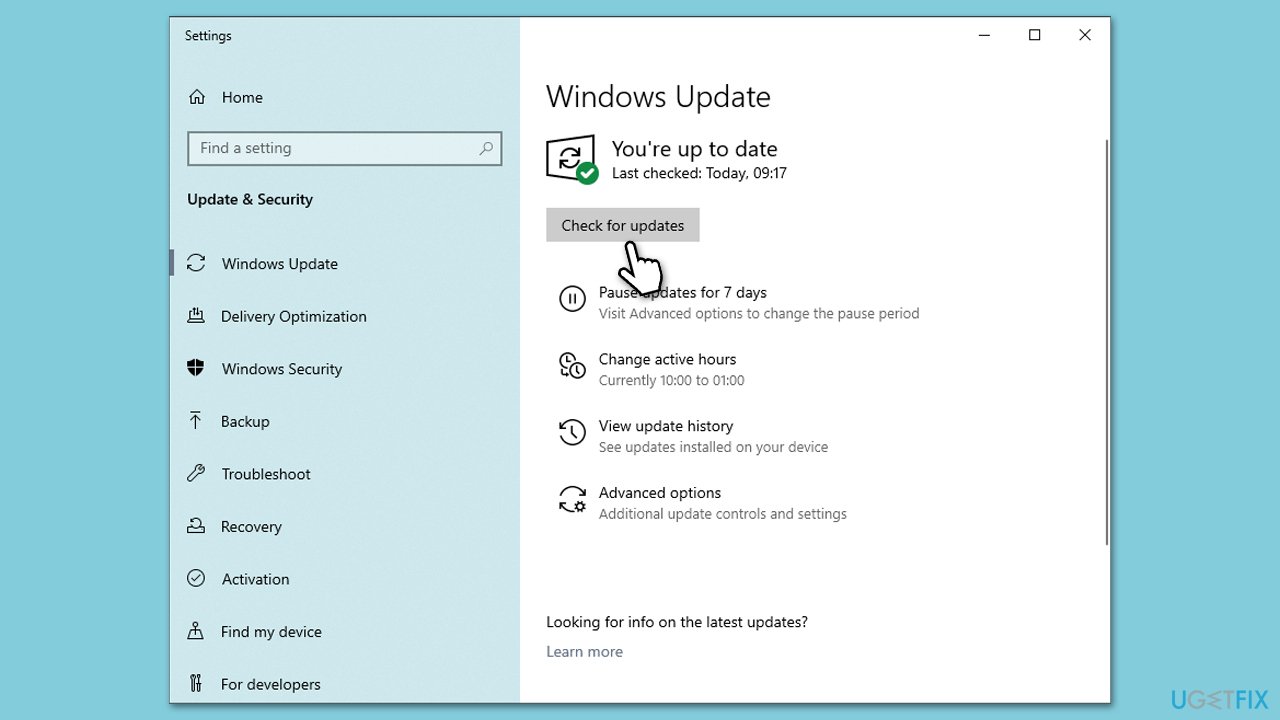
- Type Updates in Windows search and hit Enter.
- In the new window, click the Check for updates button.
- Now all the necessary files will be downloaded and installed.
- If optional updates are available, install them as well.
- Reboot your device when done.
Fix 4. Update GPU drivers
Outdated device drivers, especially graphics drivers, may cause issues with DirectX and result in the d3dx10_43.dll error.
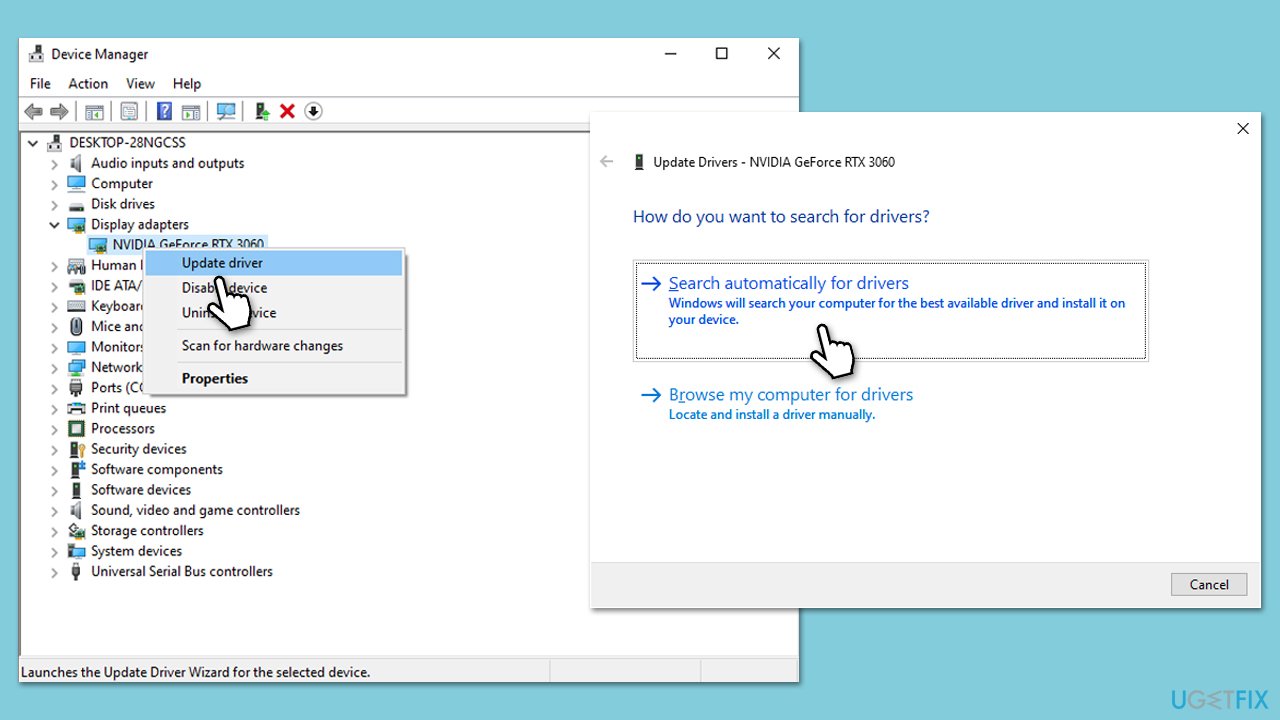
- Right-click on the Start button and select Device Manager.
- Expand the Display adapters category, right-click on your GPU, and select Update Driver.
- Select Search automatically for updated driver software.
- Repeat the process for all devices.
- Once done, reboot your system.
If you want a quicker way of resolving driver issues, we recommend employing an automatic driver updater [rev id="DriverFix"].
Fix 5. Run a Clean boot
Running a clean boot starts Windows with a minimal set of drivers and startup programs. This can help you identify if another software is causing conflict.
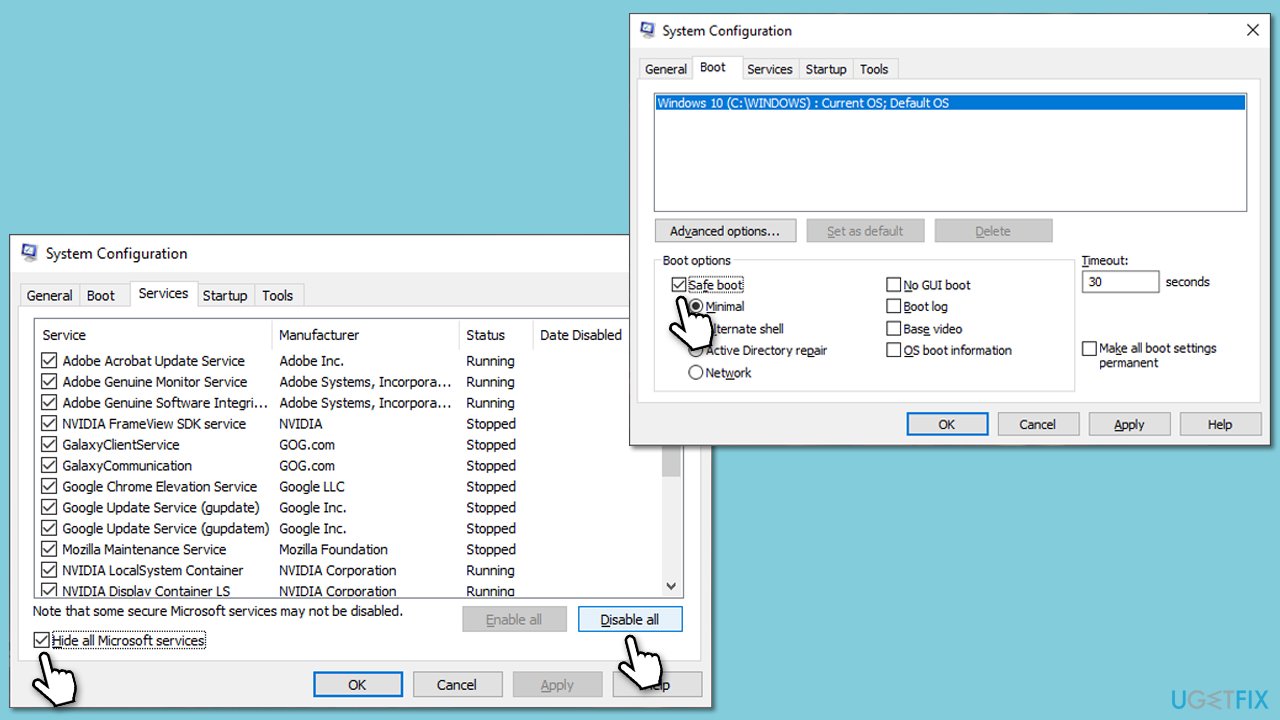
- Type msconfig in Windows search and press Enter.
- Pick the Services tab.
- Mark Hide all Microsoft services and select Disable all.
- Select the Startup tab and click Open Task Manager.
- In the Task Manager, right-click on each of the items and select Disable, then close the Task Manager.
- Go to the Boot tab, mark the Safe Boot option, then click Apply and OK.
- Try downloading the update in this mode.
Fix 6. Try the Media Creation Tool
Media Creation Tool is a utility provided by Microsoft that allows you to install and upgrade your Windows system. If some of the Windows components are corrupt or missing running this tool can help you fix the issue, as it will reinstall all the system files while keeping your personal files and applications. Before proceeding, make sure you uninstall third-party security software before proceeding.
- Visit the official Microsoft website and download Windows 10 installation media (Windows 11 version).
- Double-click the installer, select Yes when UAC shows up, and agree to the terms.
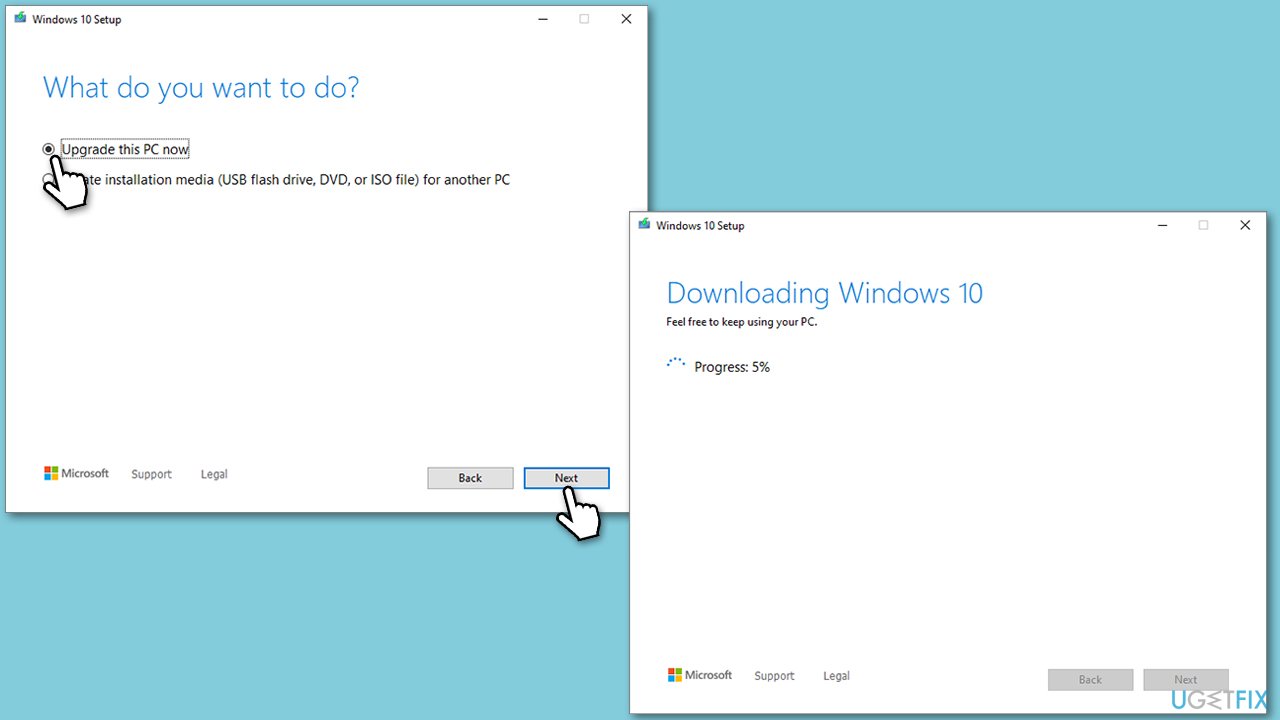
- Select Upgrade this PC now and click Next.
- Windows will start downloading the needed files.
- Agree to the terms once again and click Next.
- Before installing, make sure that you are happy with your choices (otherwise, you can click Change what to keep option).
- Finally, click Install to begin the upgrade process.
Bottom line
To fix the d3dx10_43.dll missing or not found error, users can reinstall DirectX, check for Windows updates, or repair the application. If these methods do not resolve the issue, consider reinstalling the game or application that is causing the error.
Frequently asked questions
The d3dx10_43.dll missing error is often caused by missing or corrupted DirectX files, usually due to incomplete software installations or outdated graphics drivers.
You can download the d3dx10_43.dll file from a reliable DLL repository, then place it in the C:\Windows\System32 directory, and register it using the Command Prompt.
Yes, updating DirectX to the latest version can resolve the d3dx10_43.dll error, as it ensures that all necessary components are properly installed.




Report an issue
What's wrong with this guide? We review every report and update or remove content.
Report received — thank you. We'll review and fix it.
You need a free account to submit a report.
Be the first to comment