How to fix
DaVinci Resolve high CPU usage
on Windows
Resolve high CPU usage in DaVinci Resolve on Windows 10/11 effortlessly. Expert-tested solutions ensure smooth performance and efficiency, fixed in minu…

What causes How to fix DaVinci Resolve high CPU usage in Windows?
- Unsupported PC that does not meet minimum system requirements
- Using an outdated version of DaVinci Resolve
- Corrupted files within the DaVinci Resolve project
- Interfering programs like antivirus software running in the background
Repairs Windows system files, removes malware, and restores a clean OS state — without reinstalling.
I am occasionally using DaVinci Resolve to create small video projects for school. Recently, I've noticed that it uses way too much CPU, and my PC starts lagging immediately. Any tips on what I could do to solve this? I am using the latest Windows version.
DaVinci Resolve is a widely used professional video editing tool that is popular among filmmakers and video editors around the world. Available as a free download from the Blackmagic website, it offers a wide range of features for video editing, color correction, visual effects, and audio post-production.
However, some users of DaVinci Resolve have reported experiencing high CPU usage on Windows 11/10, which can be a cause for concern. High CPU usage occurs when the software is utilizing a significant portion of the computer's processing power, resulting in slower performance and reduced system responsiveness.
High CPU usage in DaVinci Resolve can be caused by several factors. One common reason is an unsupported PC that does not meet the minimum system requirements for the software. The app requires a powerful computer with a multicore processor, ample RAM, and a dedicated GPU to handle the resource-intensive tasks involved in video editing.
Another potential cause of high CPU usage is using an outdated version of DaVinci Resolve. Software updates often include bug fixes and performance improvements, so using an older version may result in increased resource usage. Additionally, corrupted files within the DaVinci Resolve project can cause high CPU usage as the software struggles to process them.
Interfering programs like antivirus software can also contribute to the problem as well. Antivirus scans running in the background while editing videos can consume system resources and impact performance.
High CPU usage in DaVinci Resolve is a problem because it can result in slow rendering times, stuttering playback, and decreased overall system performance. Video editing tasks, especially those involving high-resolution footage or complex effects, require significant processing power. If DaVinci Resolve uses too much CPU, it can lead to a frustrating and inefficient editing experience.
1. Ensure you meet the requirements
If it is your first time using the app, make sure you are meeting the system requirements:
- Windows 10 or later.
- 16 GB of system memory (32 GB for intense graphics work).
- Intel Core i7 or AMD Ryzen 7 CPU.
- Integrated or discrete GPU with at least 2GB of VRAM, which supports OpenCL 1.2 or CUDA 11 and the Latest driver.
- Blackmagic Design Desktop Video 10.4.1 or later.
- A fast Solid State Hard Drive (SSD).
2. Update the app and install Windows updates
Make sure that the software is up to date. To do so, click on the Davinci Resolve button at the top-left corner and click Check for Updates. Next, update Windows as follows:
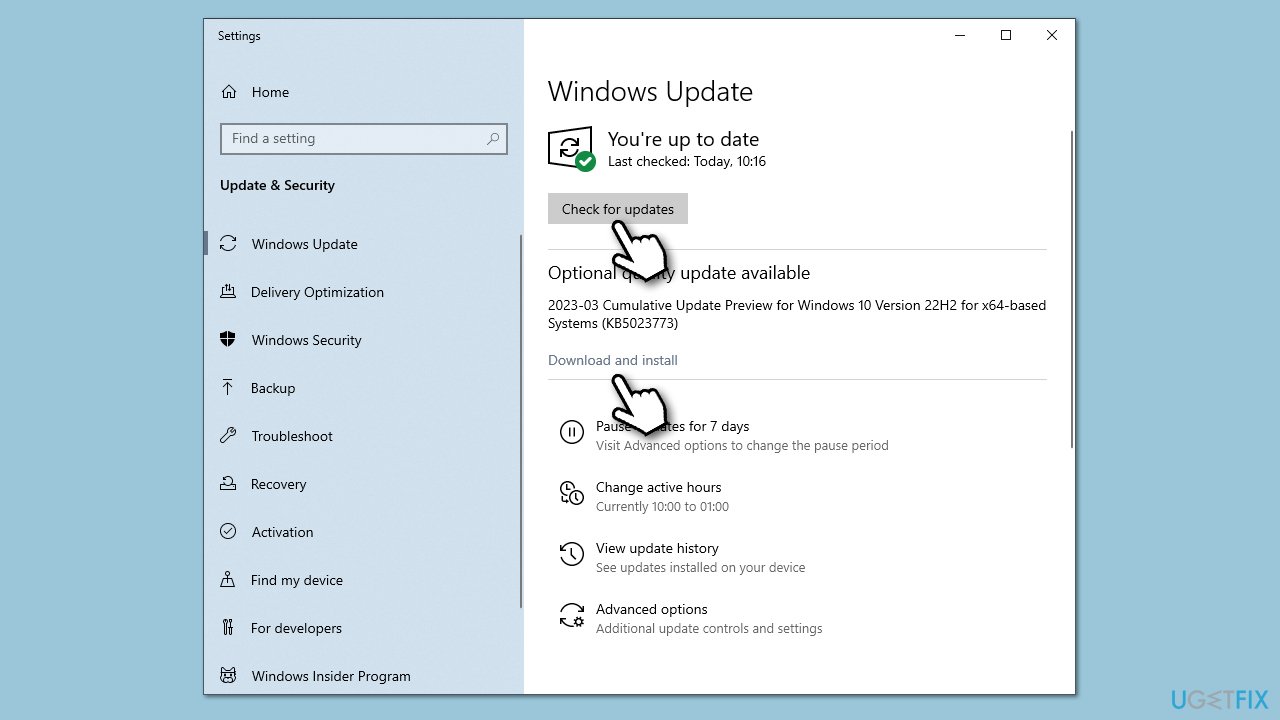
- Type Updates in Windows search and press Enter.
- In the new window, click Check for updates.
- If optional updates are available, install them as well.
- Wait till all the files are downloaded and installed.
- Restart your PC.
3. Update your drivers
Updating drivers can also be a potential solution to resolve DaVinci Resolve high CPU usage in Windows. Outdated or incompatible drivers can cause conflicts and performance issues, leading to increased resource usage.
By updating drivers, especially those related to the graphics card, CPU, and audio, to the latest versions available from the manufacturers' websites, users can ensure that their hardware is optimized for this app, potentially reducing CPU usage and improving overall performance during video editing tasks.
If you would like a quicker solution to updating drivers, you can employ [rev id="DriverFix"] - a driver updater that can scan your system and install all the newest drivers for your hardware automatically.
4. Reduce playback resolution
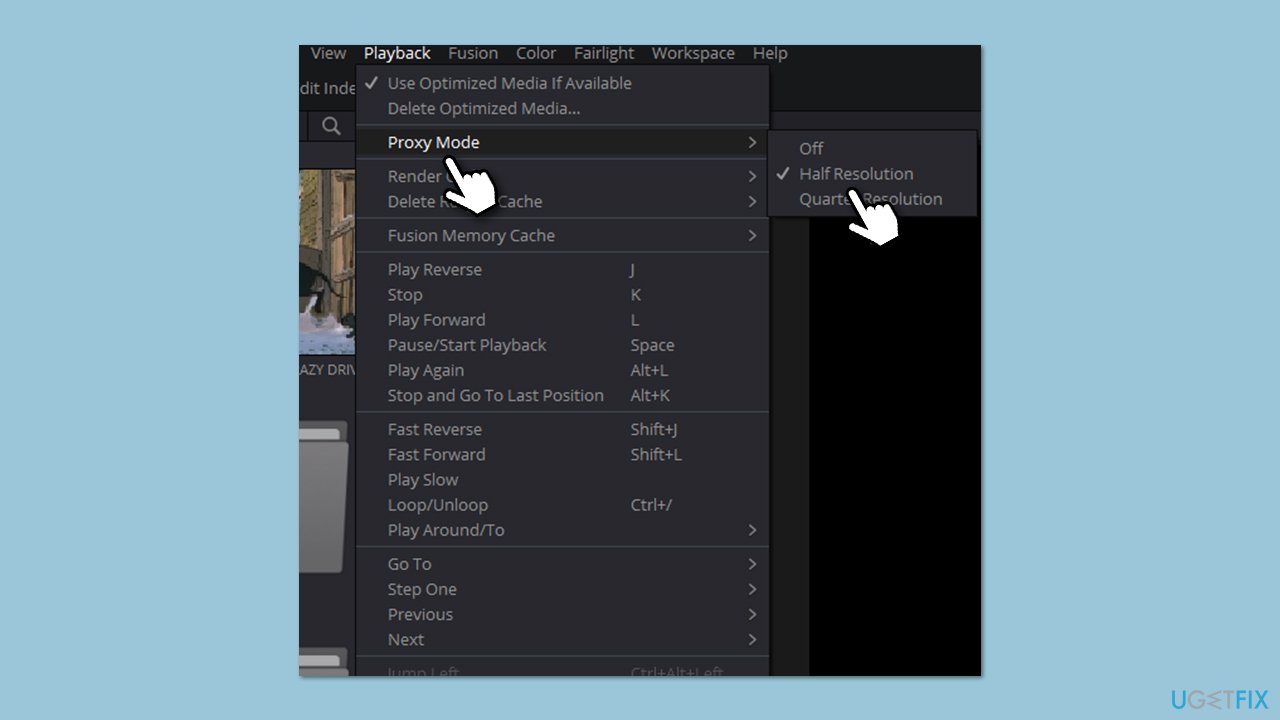
- Access the Playback option in the menu bar.
- Hover over to Timeline Proxy Resolution/Proxy mode.
- Choose Half or Quarter resolution to optimize performance in DaVinci Resolve and ensure smooth editing without any problems.
5. Choose the Optimized Media setting
- Click on the cog wheel in the bottom right corner or press Shift + 9 for Project Settings.
- Go to Master Settings and find the Optimized Media and Render Cache section.
- Choose DNxHR from the dropdown for Optimized Media Format (e.g., DNxHR HQX or DNxHR 444 - HDR based on storage space and color grading preferences).
- Alternatively, choose DNxHR LB for smaller file size and faster-optimized media generation.
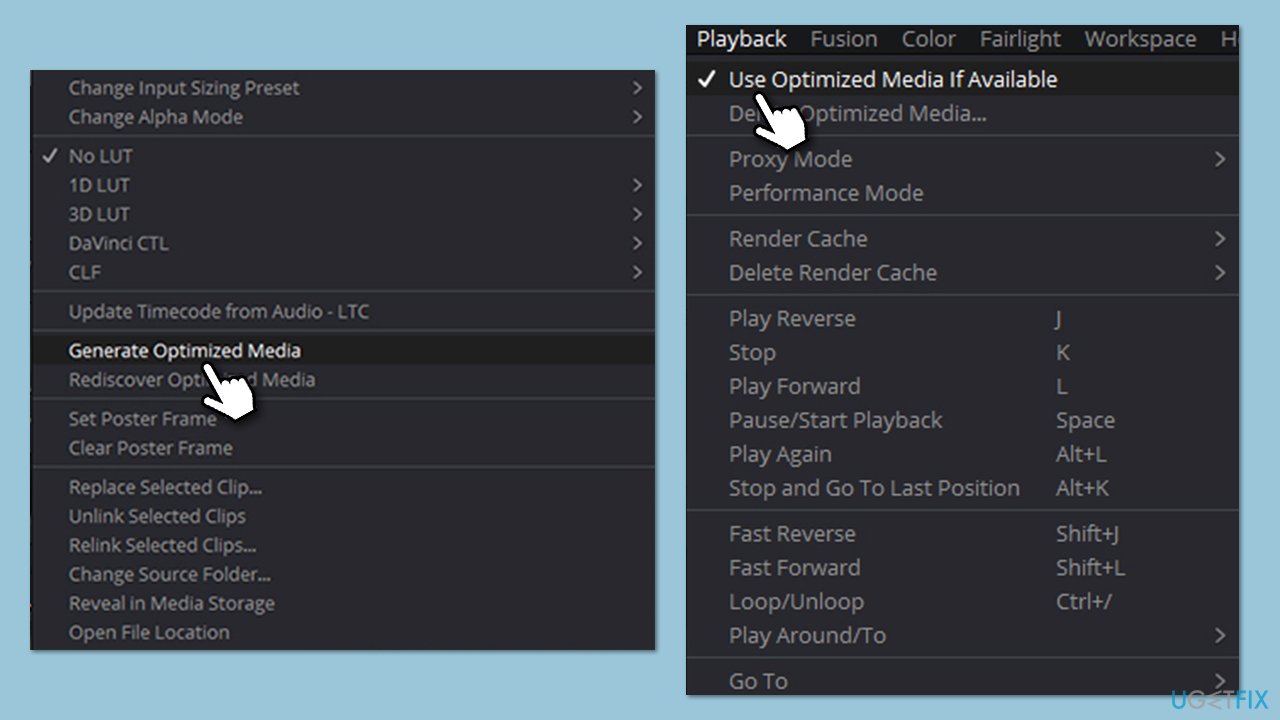
- Next, return to the media page in the Media pool, right-click on the clip, and select Optimize Media.
- Finally, click Playback at the top and select Use Optimized Media if available.
Bottom line
To fix high CPU usage in DaVinci Resolve, ensure your PC meets the minimum requirements, update to the latest version of the software, check for corrupted project files, and disable any interfering antivirus programs. If these solutions do not resolve the issue, consider optimizing your project settings or seeking further technical support.
Frequently asked questions
You can lower the playback resolution and disable unnecessary effects or features in DaVinci Resolve to help reduce CPU usage on Windows 10.
Yes, keeping Windows 11 updated can improve system performance and compatibility with DaVinci Resolve, potentially reducing high CPU usage.
To optimize Windows 10, make sure to close background applications, adjust power settings for high performance, and ensure that your system drivers are up to date.




Report an issue
What's wrong with this guide? We review every report and update or remove content.
Report received — thank you. We'll review and fix it.
You need a free account to submit a report.
Be the first to comment