How to fix
Dciman32.dll not found or missing error
on Windows
Resolve the dciman32.dll missing error on Windows 10 or 11 easily. Our expert-tested guide ensures your system runs smoothly in minutes, with screenshots.

What causes How to fix dciman32.dll not found or missing error in Windows?
- Accidental deletion of the file
- Corruption due to malware or viruses
- Issues stemming from faulty applications
- Problems with Windows updates
Repairs Windows system files, removes malware, and restores a clean OS state — without reinstalling.
My PC has an issue where, whenever I try to open any app, I always get an error "C:\Windows\SYSTEM 32\DCIMAN32.dll is either not designed to run on Windows or it contains an error." How do I fix it? I can't use my computer properly.
DLL (Dynamic Link Library) files are essential components in the Windows operating system. They contain code and data that multiple programs can use simultaneously, helping to save memory and reduce disk space. These files allow various software applications to perform common functions without requiring their own separate code for these tasks.
When DLL files become corrupted or go missing, it can lead to significant problems. Common issues include programs failing to open, unexpected interruptions, and frequent crashes. One such error is the "dciman32.dll not found" or "dciman32.dll is missing" error, which typically occurs when you attempt to launch certain applications.
The dciman32.dll file is part of the Windows Graphics Device Interface (GDI) and is crucial for handling various graphical tasks within applications. It helps manage bitmap graphics and ensures that graphical elements display correctly. When this file is missing or corrupted, the applications relying on it cannot function properly, leading to the error messages mentioned.
Causes of the dciman32.dll error
Several factors can lead to the dciman32.dll error. These include accidental deletion of the file, corruption due to malware or viruses, issues stemming from faulty applications, or problems with Windows updates. Understanding these causes is vital for identifying potential solutions to the problem.
Addressing the dciman32.dll error
To fix the dciman32.dll error, you can try several methods, such as repairing corrupted system files, registering the DLL file again, performing a clean boot, updating Windows to the latest version, using System Restore to revert to a previous state, or repairing the Windows installation. Detailed instructions for these steps can be found below for those who need assistance.
Additionally, for a more hands-off approach, we recommend running a scan with a powerful PC repair utility [d1], which can repair Windows system files and fix the errors related to them automatically.
Fix 1. Repair corrupted system files
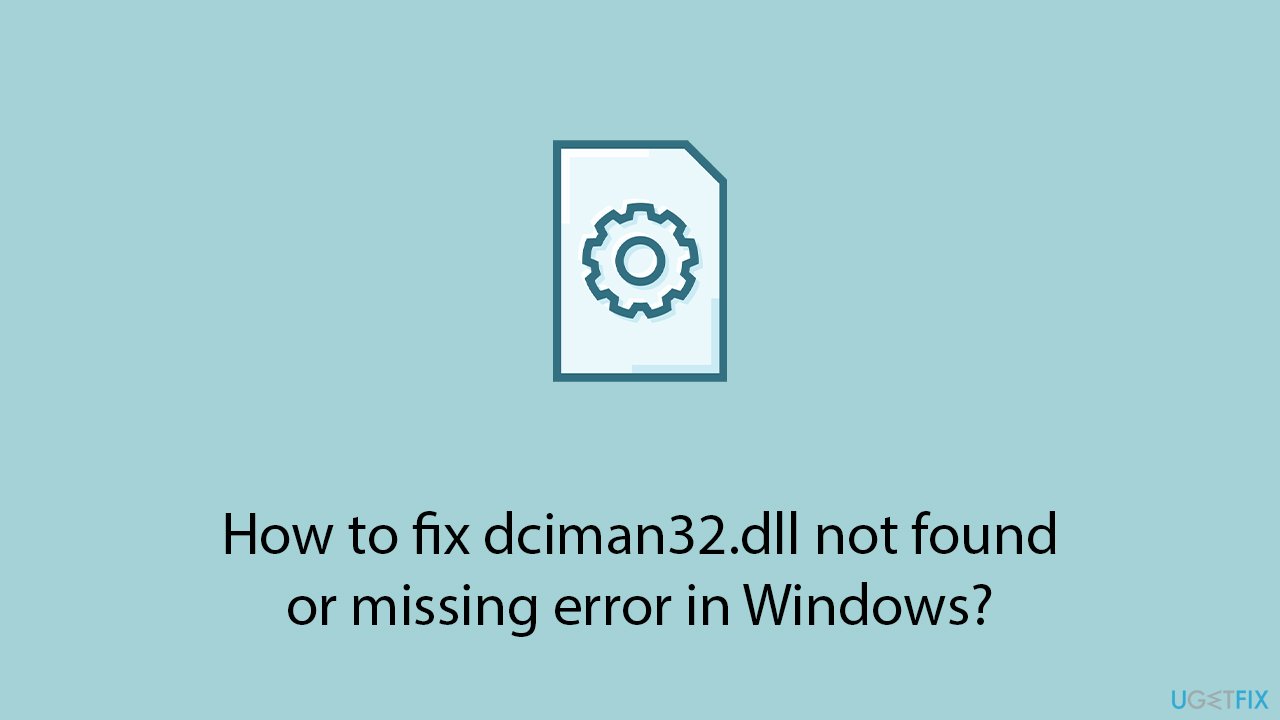
System files can become corrupted due to various reasons, including malware, abrupt shutdowns, or failed updates. Repairing these files can help restore the functionality of your applications.
- Type cmd in Windows search.
- Right-click on Command Prompt and pick Run as administrator.
- User Account Control window will show up - click Yes when prompted.
- Then, copy and paste the following command, pressing Enter after:
sfc /scannow - Wait till the scan is finished. If Windows finds system file integrity violations, it will attempt to fix them. After this, use the set of the following commands, pressing Enter each time:
DISM /Online /Cleanup-Image /CheckHealth
DISM /Online /Cleanup-Image /ScanHealth
DISM /Online /Cleanup-Image /RestoreHealth - (Note: if you get an error executing this last command, add /Source:C:\RepairSource\Windows /LimitAccess to it and try again).
- Close down the Command Prompt and restart your system.
Fix 2. Re-register the DLL file again
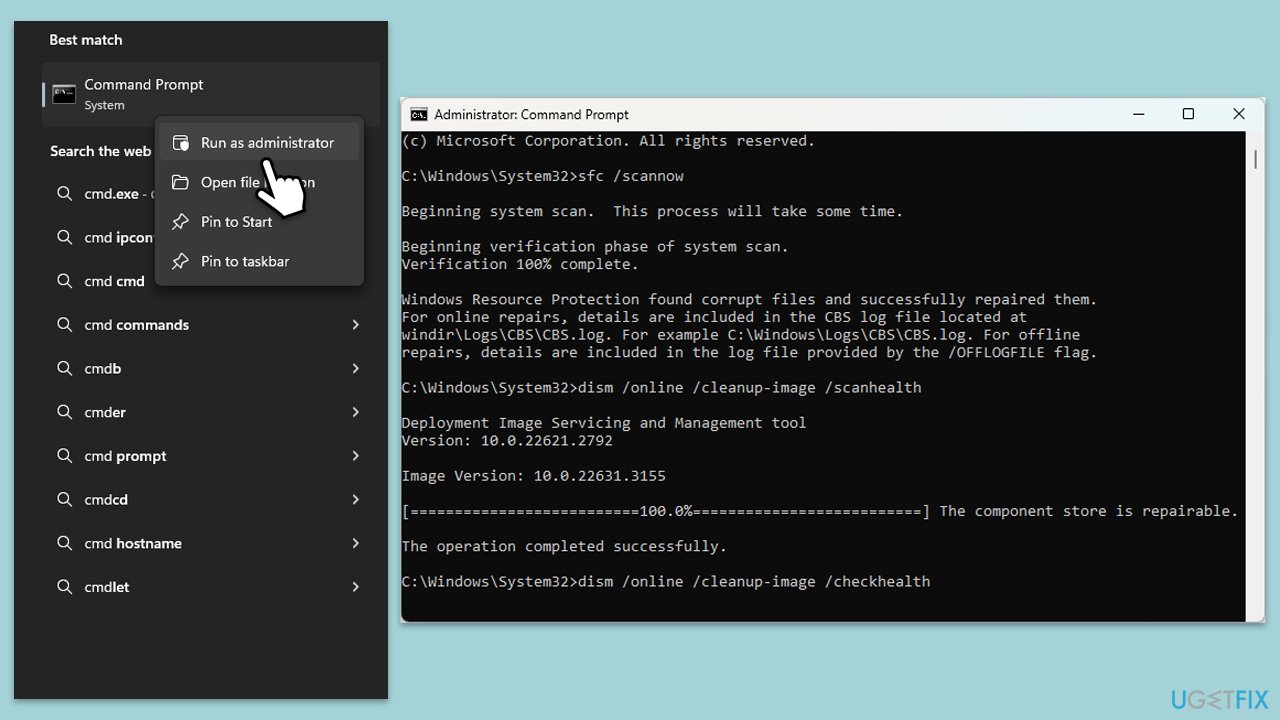
Reregistering the DLL file ensures that the system recognizes it and can use it properly.
- Open Command Prompt as administrator.
- Type in the following commands and press Enter after each:
regsvr32 /u dciman32.dll
regsvr32 dciman32.dll - Close down everything and restart your computer.
Fix 3. Perform a clean boot
Performing a clean boot can help identify if background programs are causing the error. It starts Windows with a minimal set of drivers and startup programs.
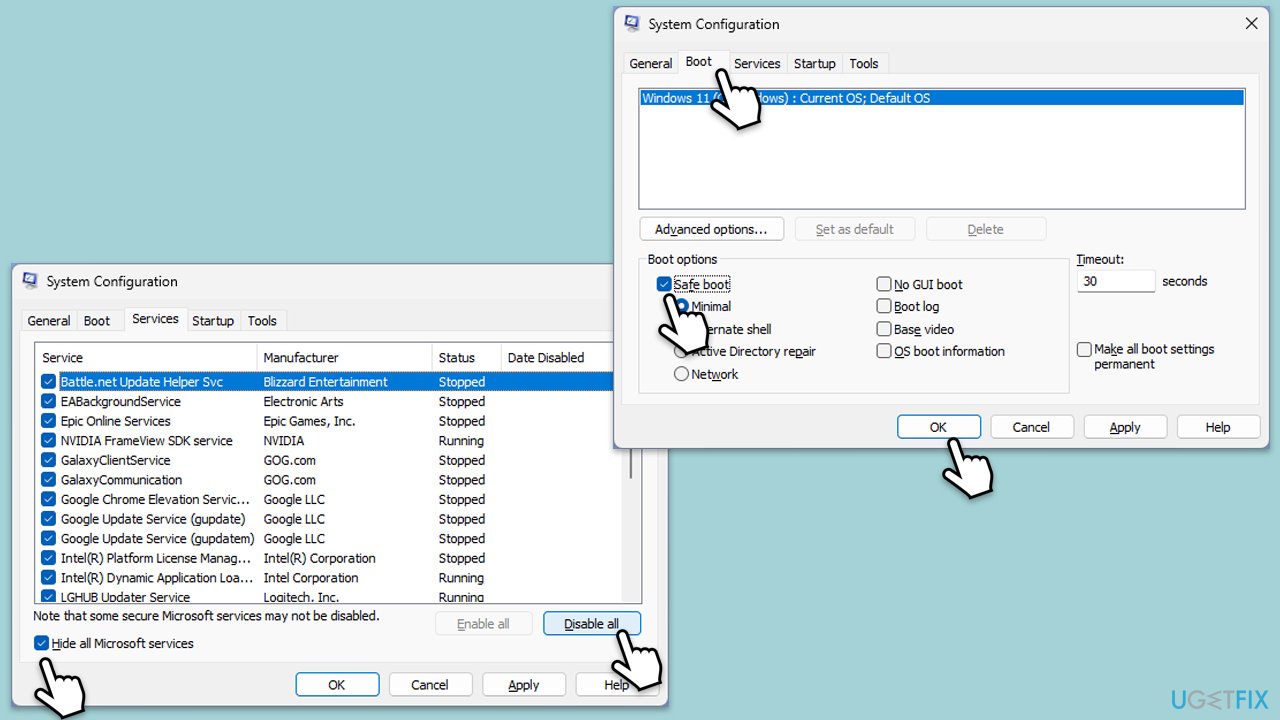
- Type msconfig in Windows Search and press Enter to open the System Configuration window.
- Click on the Services tab and check the Hide all Microsoft Services box.
- Click Disable all to disable non-Microsoft services, then click the Startup tab.
- Open the Task Manager, disable all startup items, and close the Task Manager.
- Go to the Boot tab and mark the Safe boot option.
- Click OK on the System Configuration window and restart your computer.
- Once in the Clean Boot state, check if you can open apps normally. If the error does not occur, enable services and startup items one at a time (or in groups) to pinpoint the conflict.
Fix 4. Update Windows
Keeping Windows updated ensures that you have the latest fixes and improvements from Microsoft, which can resolve many system issues.
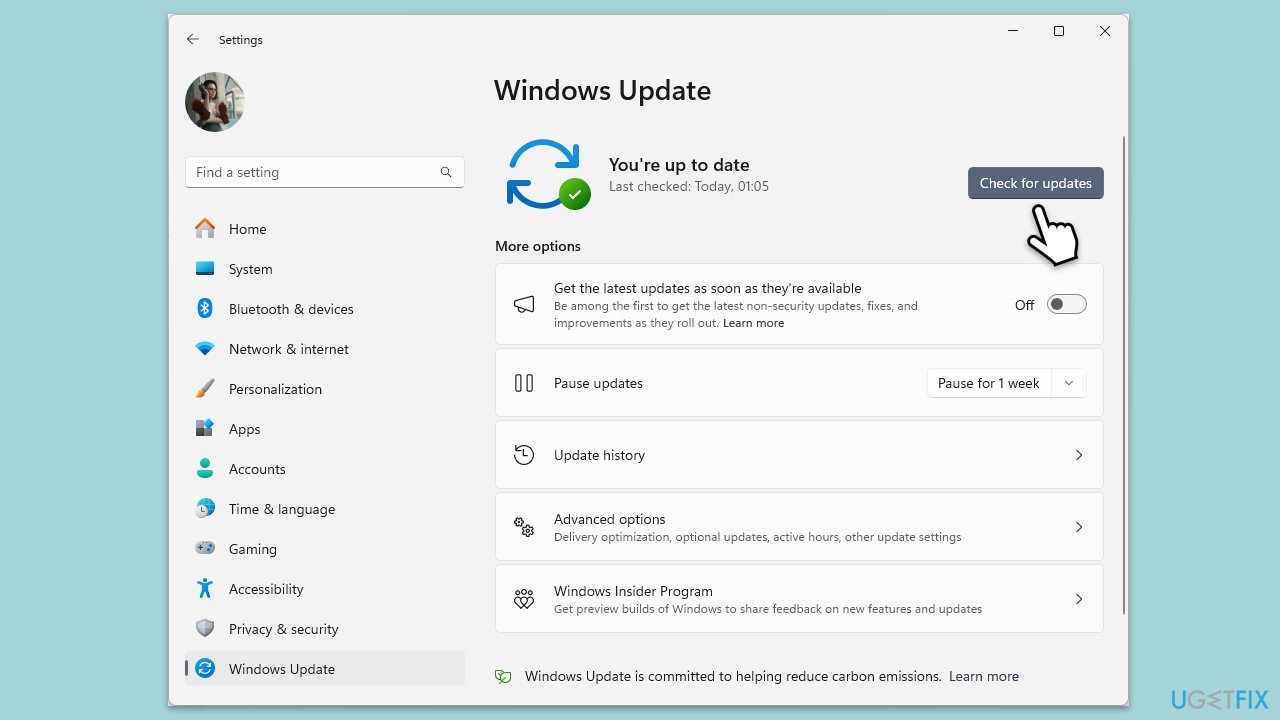
- Type Updates in Windows search and press Enter.
- When the new window opens, click Check for updates and wait.
- If there are optional updates available, install them as well.
- Restart your computer to implement the changes.
Fix 5. Use System Restore
System Restore allows you to revert your computer's state to a previous point in time, which can fix issues caused by recent changes.
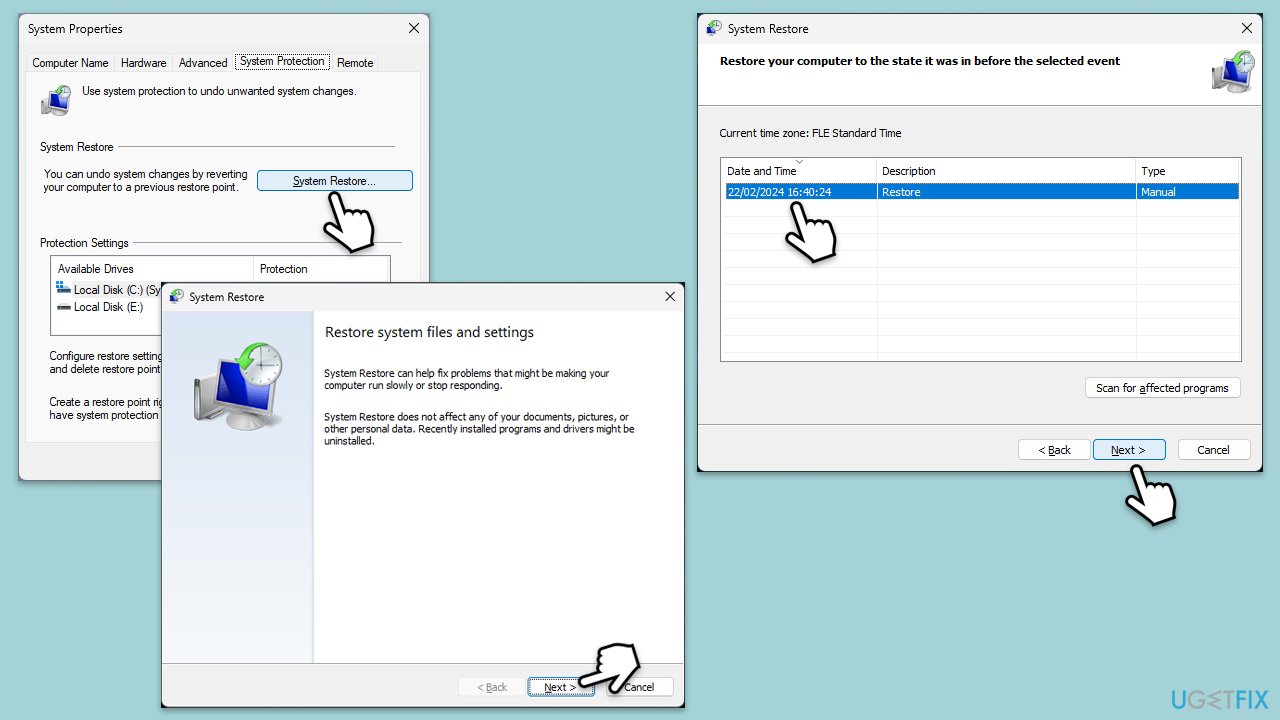
- Type in Create a Restore point in Windows search and hit Enter.
- Go to the System Protection tab and pick System Restore.
- Click Next.
- Click Show more restore points (if available).
- Pick the time before the problem occurred and click Next.
- Follow the prompts to finish the process.
Fix 6. Repair Windows installation
Repairing your Windows installation can fix corrupted or missing system files, including DLL files.
- Visit the official Microsoft website and download Windows 10 installation media (Windows 11 version).
- Double-click the installer and select Yes when UAC shows up.
- Agree to terms.
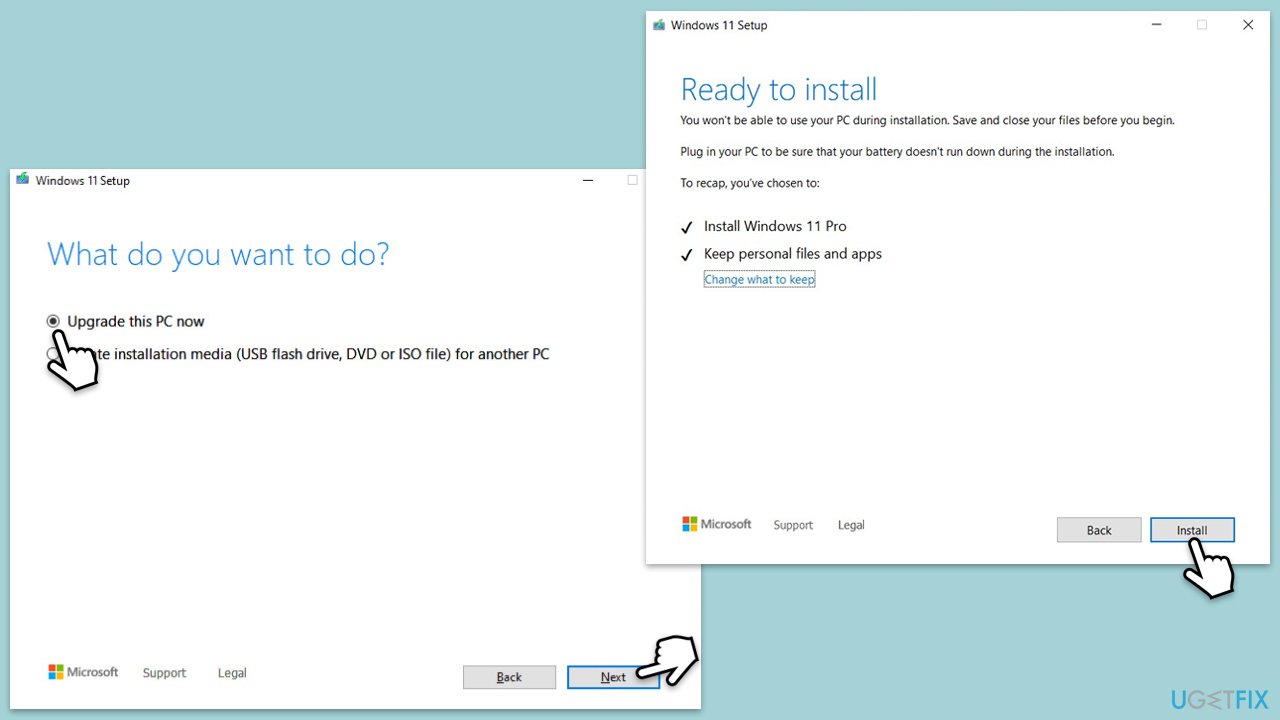
- Select Upgrade this PC now and select Next.
- Windows will now download all the necessary files – it might take a while.
- Agree to terms once again and click Next.
- Before installing, make sure that you are happy with your choices (otherwise, you can click the Change what to keep option).
- Click Install to begin the upgrade process.
Bottom line
To fix the dciman32.dll error, you can try repairing corrupted system files, registering the DLL file again, performing a clean boot, updating Windows, using System Restore, or repairing the Windows installation. If these methods do not resolve the issue, consider running a scan with a powerful PC repair utility.
Frequently asked questions
The dciman32.dll not found error in Windows 10 can be caused by corrupt system files, malware infections, or issues during software installation that affect the DLL file's integrity.
To restore the missing dciman32.dll file in Windows 11, you can run the System File Checker tool by executing 'sfc /scannow' in an elevated Command Prompt.
Yes, reinstalling the software that relies on dciman32.dll can often resolve the error, as it may replace any corrupted or missing files associated with the application.




Report an issue
What's wrong with this guide? We review every report and update or remove content.
Report received — thank you. We'll review and fix it.
You need a free account to submit a report.
Be the first to comment