How to fix
DCOM error 10016
on Windows
Resolve DCOM error 10016 on Windows 10 or 11 quickly and effectively. Follow our expert-tested guide for a hassle-free fix today!

What causes How to fix DCOM error 10016 in Windows?
- User does not have necessary permissions
- DCOM server tried to start using its infrastructure
- Application-specific permission settings do not grant Local Launch permission
- Faulty power supply
- Overclocking issues
Repairs Windows system files, removes malware, and restores a clean OS state — without reinstalling.
Hello. I am having issues when trying to open certain applications and sometimes my Windows PC crashes completely. I have found out about the DCOM error 10016. What is going on?
The Distributed Component Object Model (DCOM) is a protocol that enables software components to communicate directly over the network. DCOM is designed for use across multiple network transports, including Internet protocols such as HTTP.[ref en-1] A DCOM error 10016 means that a program tried to start the DCOM server by using its' infrastructure, but the user does not have the necessary permissions to do so.
This error is known from the older days of Windows but has been also seen in Windows 8 and 10. The message appears in a form of a system error. It may be completely harmless, but seeing it and having to deal with it all the time can be annoying. Some users report experiencing crashes at least 3 times an hour which is not a pleasant experience.
Most times the error appears when users are trying to launch an application. The error says:
The application-specific permission settings do not grant Local Launch permission for the COM Server application with CLSID {-} to the user -. This security permission can be modified using the Component Services administrative tool.
It can be hard for an average user to understand what is the problem. Do not worry about it, in this article we will take you step-by-step to keep it as simple as possible. Before starting with the troubleshooting process, make sure your system’s power supply is up to the mark and is not faulty. If you are using any type of overclocking[ref en-2] then lower it or disable it.
Trying to fix this issue could take a while, so you can try using [d1] repair tool to avoid going through all the possibilities. It can identify the damaged system components, fix BSODs,[ref en-3] and registry issues by scanning the system. This software could also be used to free up space by clearing cookies and cache,[ref en-4] which should boost the device's performance.
Below you will find a couple of manual methods that could fix the DCOM error 10016 and keep your computer free from crashes. Please follow all of the steps very carefully:
Solution 1. Give Permissions to the App
- Press the Windows + R keys on your keyboard to open the Run dialog box
- Type RegEdit and press Enter
- In the Registry Editor, expand the HKEY_CLASSES_ROOT folder, and the CLSID folder inside
- Find the folder with the CLSID you received in the error message
- Right-click on it, select permissions and click on Advanced
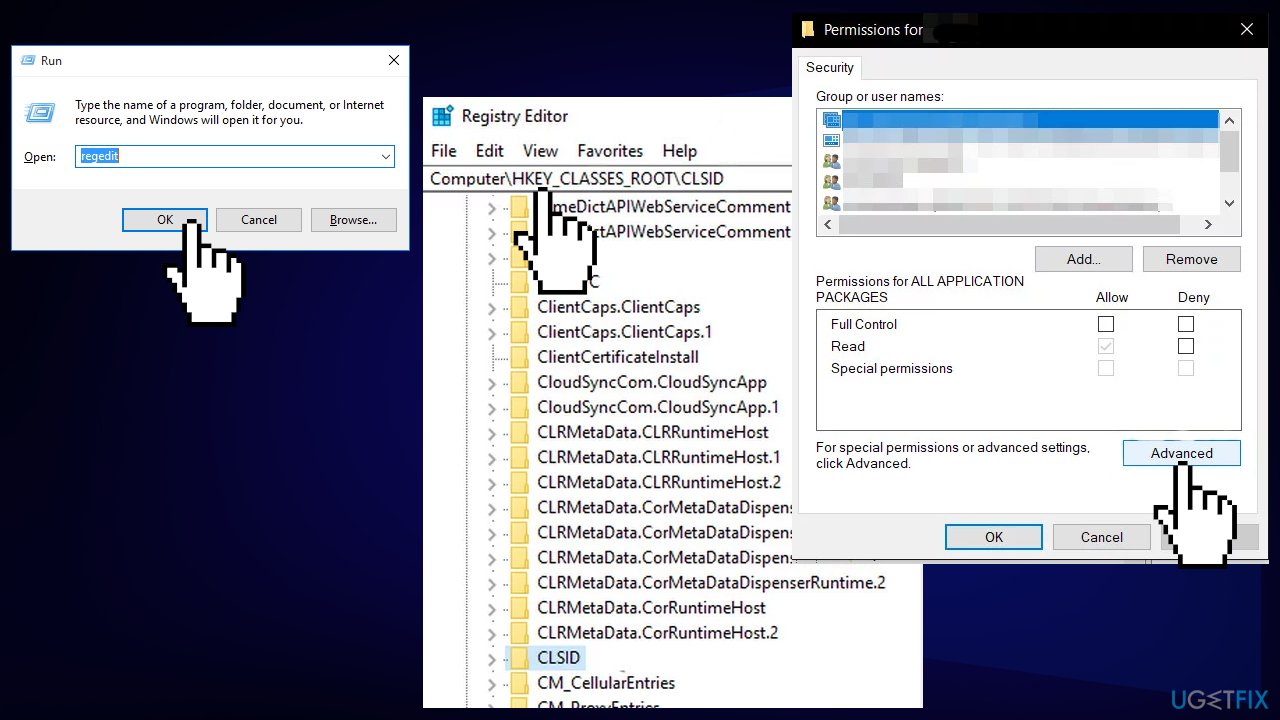
Give permissions to the app - Change the owner to the Administrators group
- Select Replace all child object permission entries
- Click OK, and then select Yes to the Windows Security warning
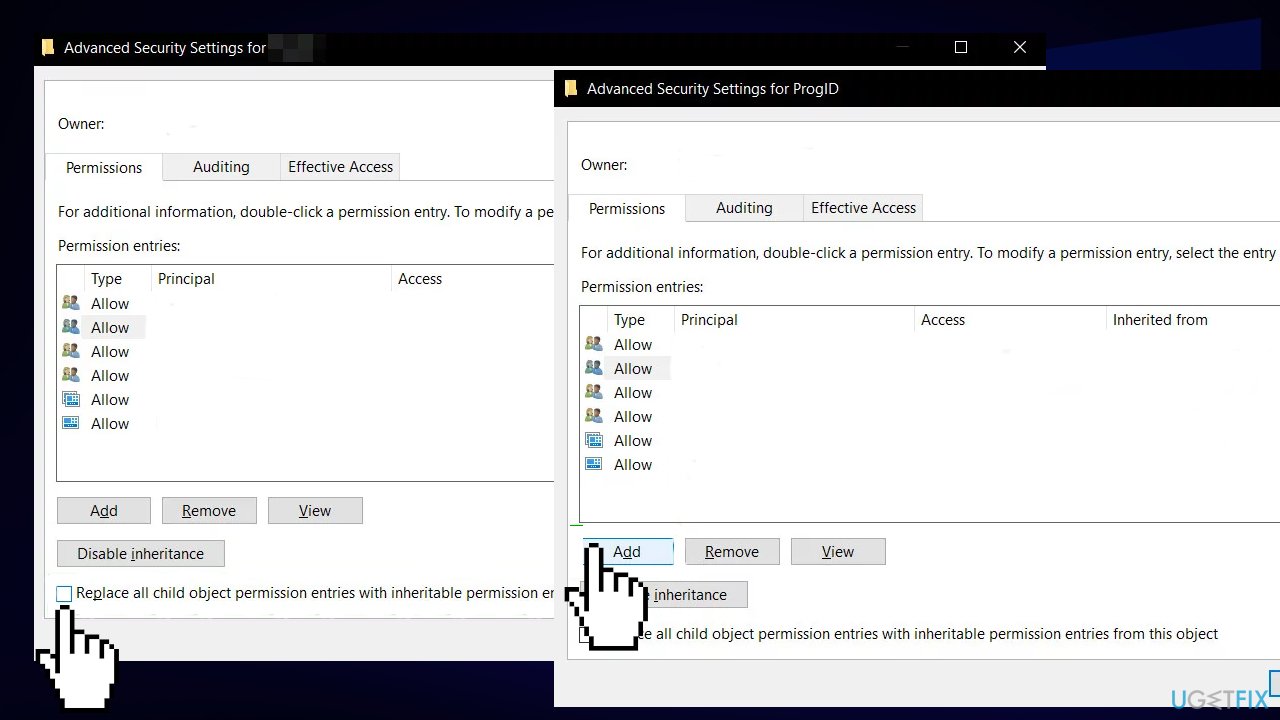
Give permissions to the app2 - Back in the main permissions window, click Add, enter Everyone and click OK
- Again in the main permissions Window, select Everyone from the list of users in the top, and select Full Control from the Allow column in the bottom half
- Click OK, apply full control
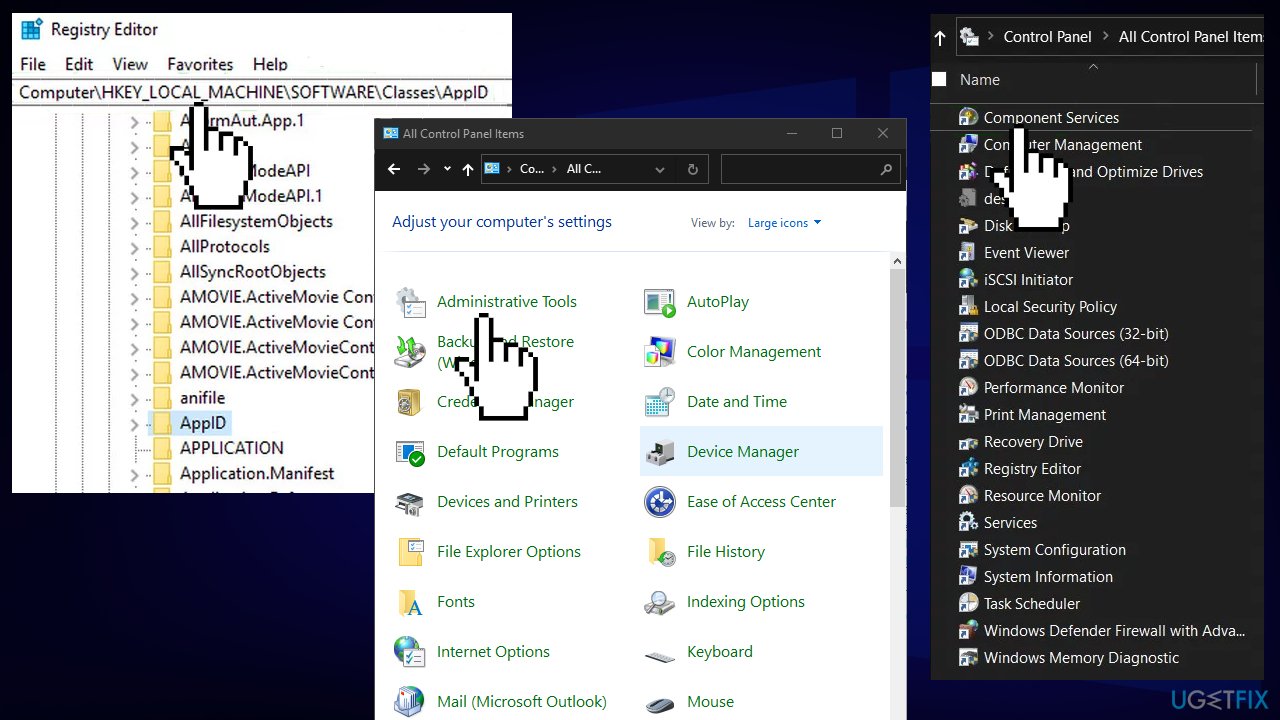
- Expand the HKEY_LOCAL_MACHINE inside, expand these folders: Software, Classes, AppID
- Go to the folder which has the same APPID you received in your error message
- Right-click, choose permissions and select Advanced
- Give the app sufficient permissions
- Press the Windows key, and type Control Panel
- Switch to icons view at the top right, and open Administrative Tools
- Open Component Services
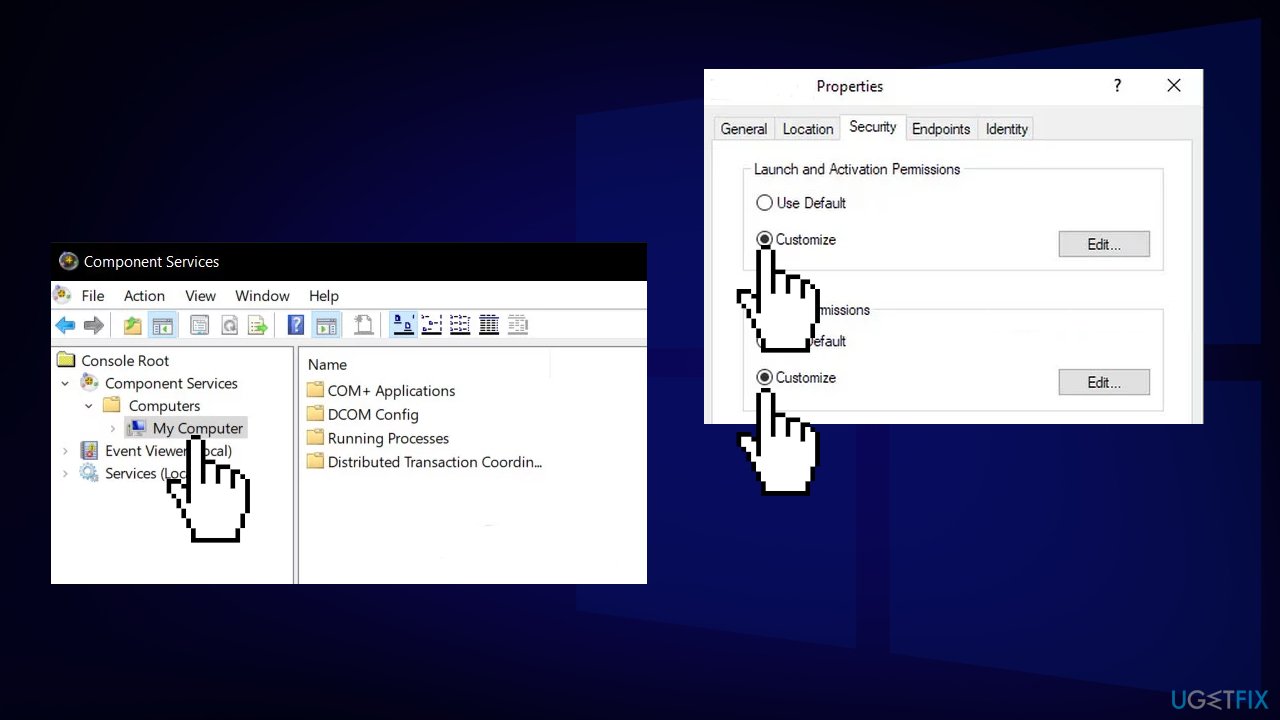
Give permissions to the app3 - Click Computer, followed by My Computer
- Find the service that’s causing the issue, right-click it, and select properties
- Click the Security tab
- If permissions were properly set in the registry you should be able to select Customize on all three categories in this window (Launch and Activation Permissions, Access Permissions, and Configuration Permissions); if any of these items are greyed, repeat the previous steps for setting registry permissions to verify those settings
- Once Customize has been selected on all three categories, select Edit on Launch and Activation Permissions; If you receive a warning that one or more permissions entries attached have an unrecognized type, click Remove
Give permissions to the app4 - In the new window look for System in the list of users at the top. If it does not exist click Add
- Type System and click OK
- Select System from the list of users in the window
- In the bottom half of the window, place a check in the Allow column beside Local Launch and Local Activation. You may also see Local Access instead, just be sure there is a check for this item in the Allow column. Click OK
- Repeat the steps for the other two items, Access Permissions, and Configuration Permissions.
- Repeat steps for other ClSID and AppID values listed in event logs
- Reboot your PC for the changes to take effect
Solution 2. Delete Registry Keys
- Click on the Windows button and in the search box, type Registry Editor
- Right-click on the Registry Editor and click on Run as Administrator
- Navigate to the following key:
HKEY_LOCAL_MACHINE\\SOFTWARE\\Microsoft\\Ole
- Delete the following keys
DefaultAccessPermission
DefaultLaunchPermission
MachineAccessRestriction
MachineLaunchRestriction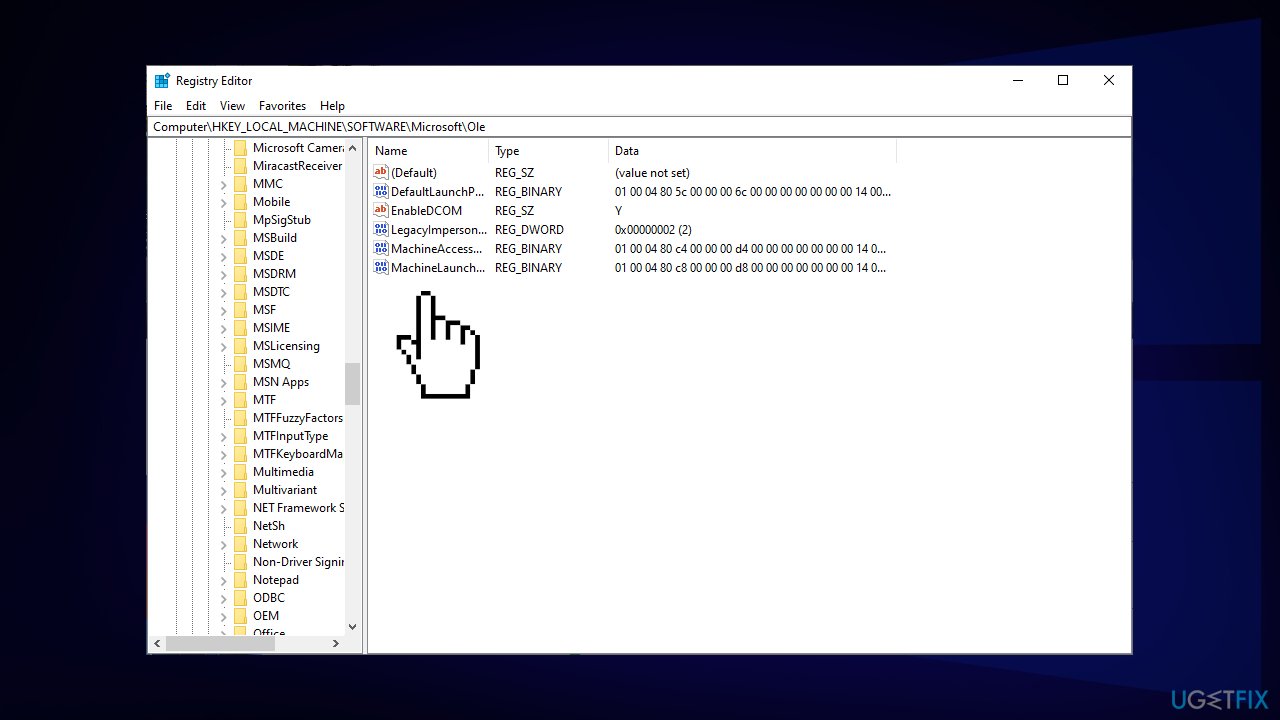
- Save changes and restart your system
Bottom line
To fix DCOM error 10016, you can modify security permissions using the Component Services administrative tool, ensure your power supply is functioning properly, and disable any overclocking. If these methods do not resolve the issue, consider using a repair tool to identify and fix system components.
Frequently asked questions
DCOM error 10016 typically indicates a permissions issue with certain applications trying to access system components, which can lead to functionality problems in Windows.
To change DCOM permissions, open the Component Services app, navigate to the relevant DCOM object, and adjust the security settings to grant the appropriate permissions.
Yes, resolving DCOM error 10016 can improve your Windows 11 system stability by ensuring that applications have the necessary permissions to function properly.




Report an issue
What's wrong with this guide? We review every report and update or remove content.
Report received — thank you. We'll review and fix it.
You need a free account to submit a report.
Be the first to comment