How to fix
Dcomp.dll Bad Image error
on Windows
Fix the Dcomp.dll Bad Image error on Windows 10 and 11 easily. Get expert-tested solutions and resolve issues quickly for smooth performance!


What causes How to fix Dcomp.dll Bad Image error in Windows?
- Missing Visual C++ components
- Outdated system files
- Damaged system files
- System crashes
- Infections
- Hardware failures
Repairs Windows system files, removes malware, and restores a clean OS state — without reinstalling.
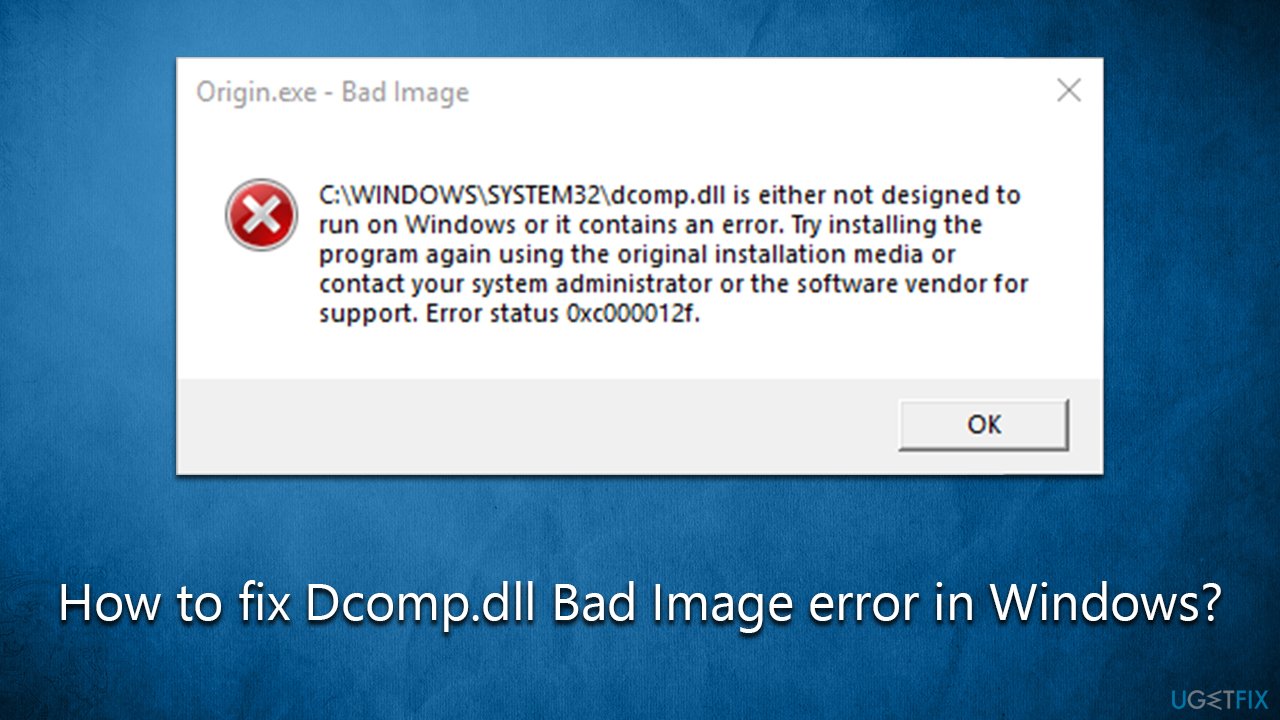
Hi. I started a game, and this error showed up: "Dcomp.dll is either not designed to run on Windows or it contains an error." I closed it down and now I can't play the game anymore because of this. Would appreciate any tips on how to resolve this.
Windows is one of the most widely used operating systems, but even the best software can experience technical issues. One common error Windows users face is the Bad Image error related to the Dcomp.dll executable file. This error can be caused by a variety of reasons, but the most common cause is missing Visual C++ components.
Bad Image error message appears when Windows is unable to start a particular program or application due to an issue with the Dcomp.dll file. The error message may also indicate that the file is either missing, damaged, or outdated. In some cases, the error message may also mention other DLL files, which indicates that the issue is more widespread.
To resolve this error, it is important to understand the root cause of the problem. In most cases, missing Visual C++ components are the culprit. Visual C++ is required by many programs and applications to run properly, and if they are missing, it can cause a Bad Image error. The easiest way to resolve this issue is to reinstall the missing components.
Another potential cause of the Dcomp.dll Bad Image error is outdated or damaged system files. This can occur due to multiple reasons, including system crashes, infections, and hardware failures. To resolve this, you can take several approaches, which we list below.
If you want to attempt fixing the Dcomp.dll Bad Image error automatically, we strongly recommend running a scan with a powerful repair tool [d1]. Not only can it deal with Windows-related DLL files by replacing them, but it can also sort out issues related to malware damage or Blue Screen crashes.
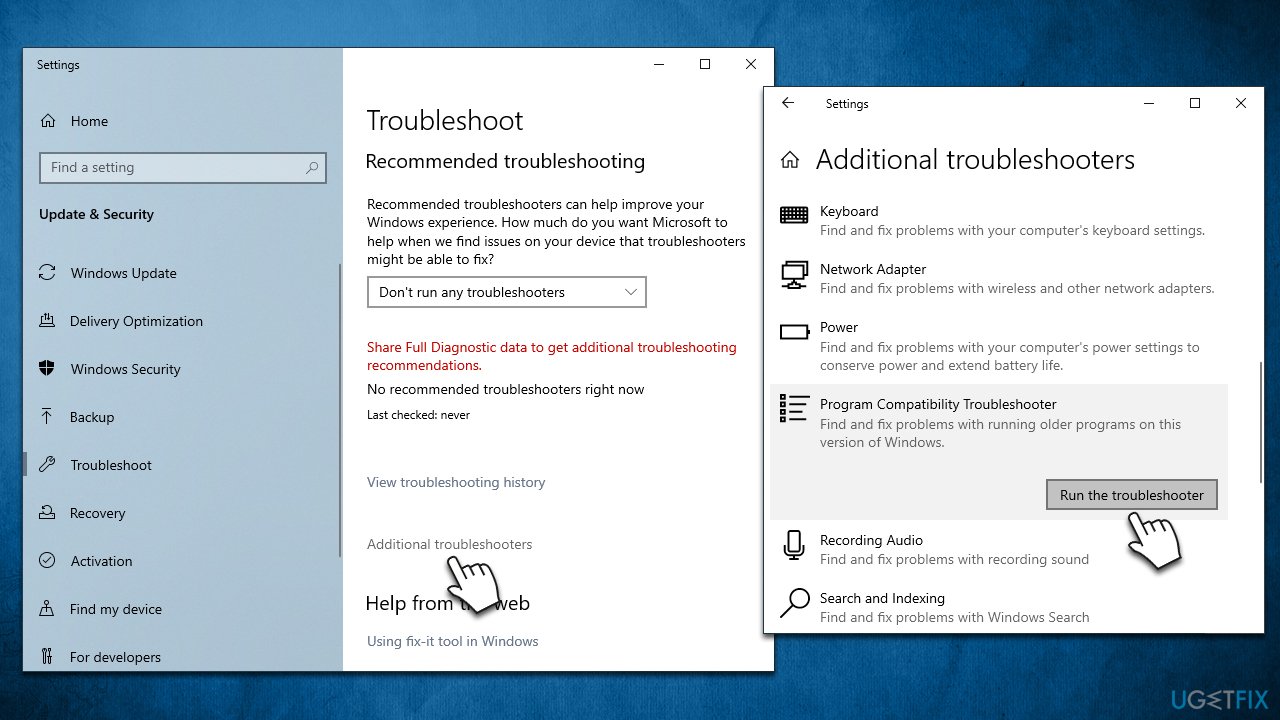
Fix 1. Run program compatibility troubleshooter
Windows troubleshooters are excellent tools that can help you deal with certain issues. If compatibility issues are present, a compatibility troubleshooter should be able to deal with them.
- Type troubleshoot in Windows search and hit Enter.
- Click Additional troubleshooters/Other troubleshooters.
- Find Program Compatibility Troubleshooter
- Click on it once, and select Run the troubleshooter/Run.
- Wait for the scan to be completed and apply the suggested fixes.
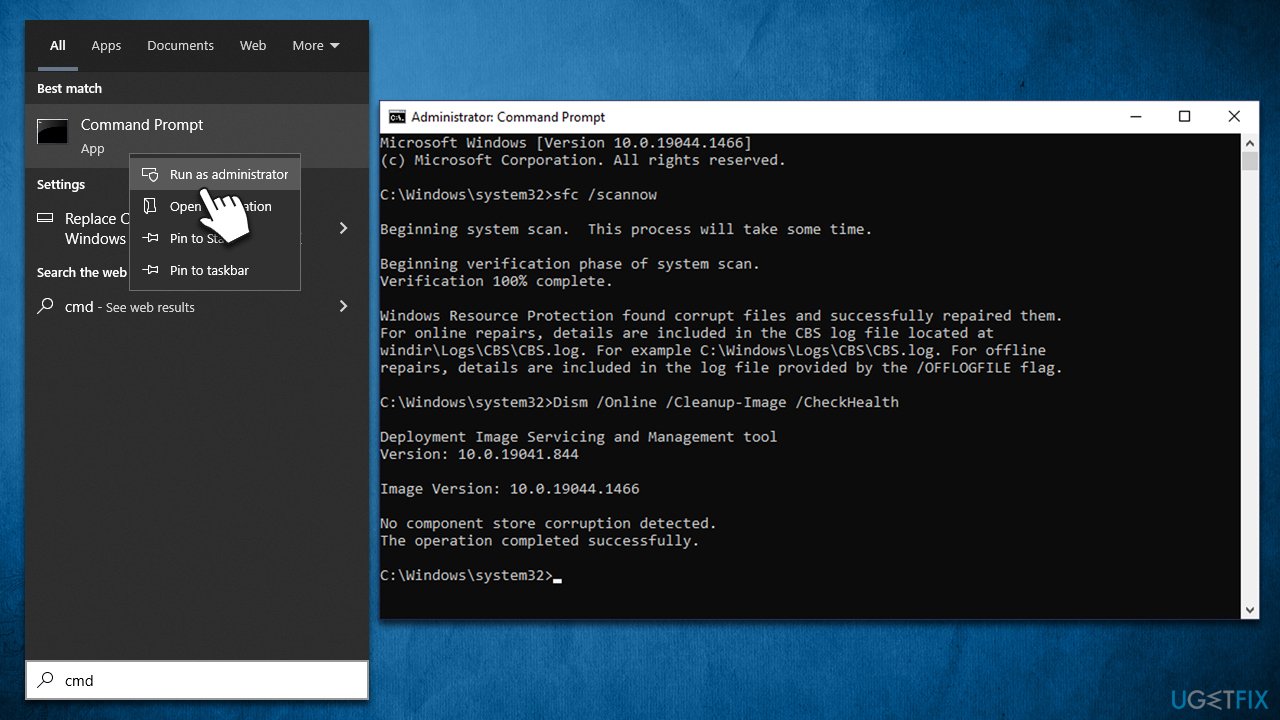
Fix 2. Fix corrupted system files
- Type cmd in the Windows search field.
- Right-click on Command Prompt and select Run as administrator.
- When User Account Control shows up, click Yes.
- Use the following command lines, pressing Enter every time:
sfc /scannow
DISM /Online /Cleanup-Image /CheckHealth
DISM /Online /Cleanup-Image /ScanHealth
DISM /Online /Cleanup-Image /RestoreHealth - Restart your PC.
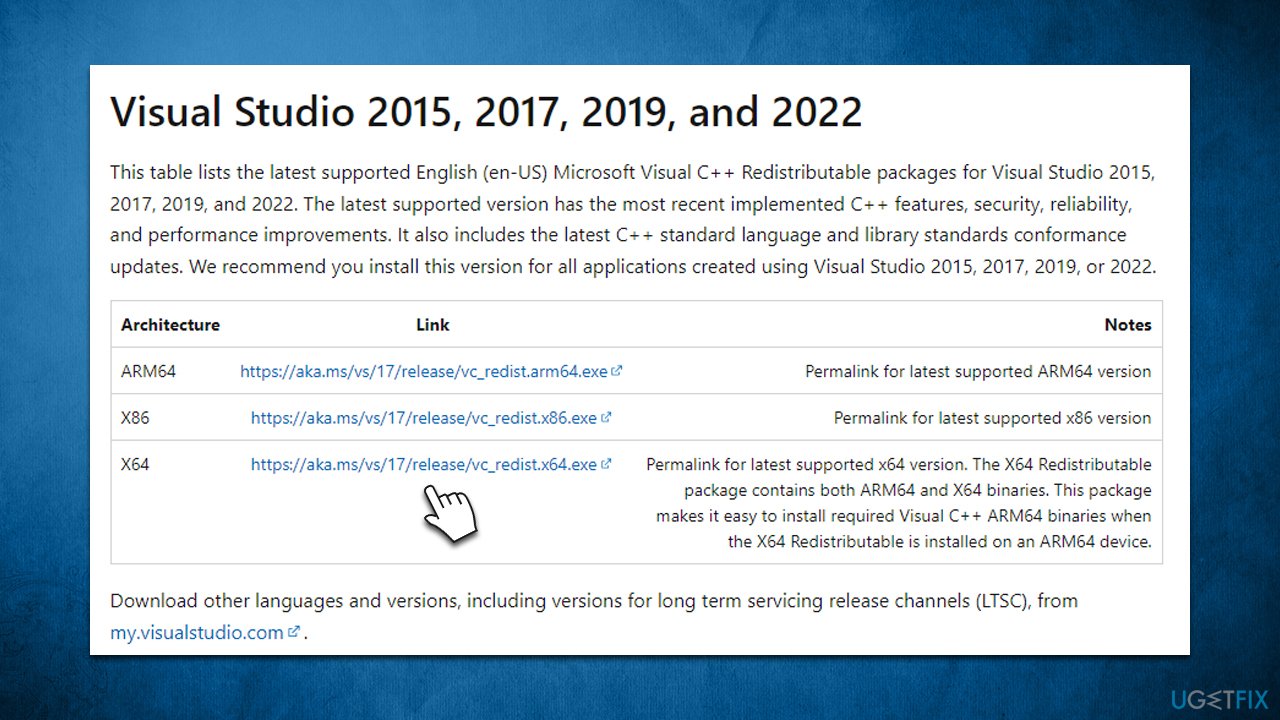
Fix 3. Install the missing Visual C++ components
If some of the Visual C++ components are missing from your device, some programs might malfunction or fail to start with Dcomp.dll error.
- Open Control Panel and go to Programs > Uninstall a program.
- Here, scroll down and check the list of the installed Visual C++ versions.
- Open your browser and navigate to the official Microsoft Visual C++ download page.
- Download and install all the missing versions (including the x84 and x64 versions) of Visual Studio.
- Once done, restart your system and see if the error persists.
Fix 4. Use Disk Cleanup
- Type Disk Cleanup in Windows search and press Enter.
- If your Windows is installed on drive C, pick it from the list (should be by default) and press OK
- Click Clean up System Files.
- Here, mark the areas you want to be deleted, such as Setup log files, Recycle bin, Temporary files, etc.
- Click OK and wait.
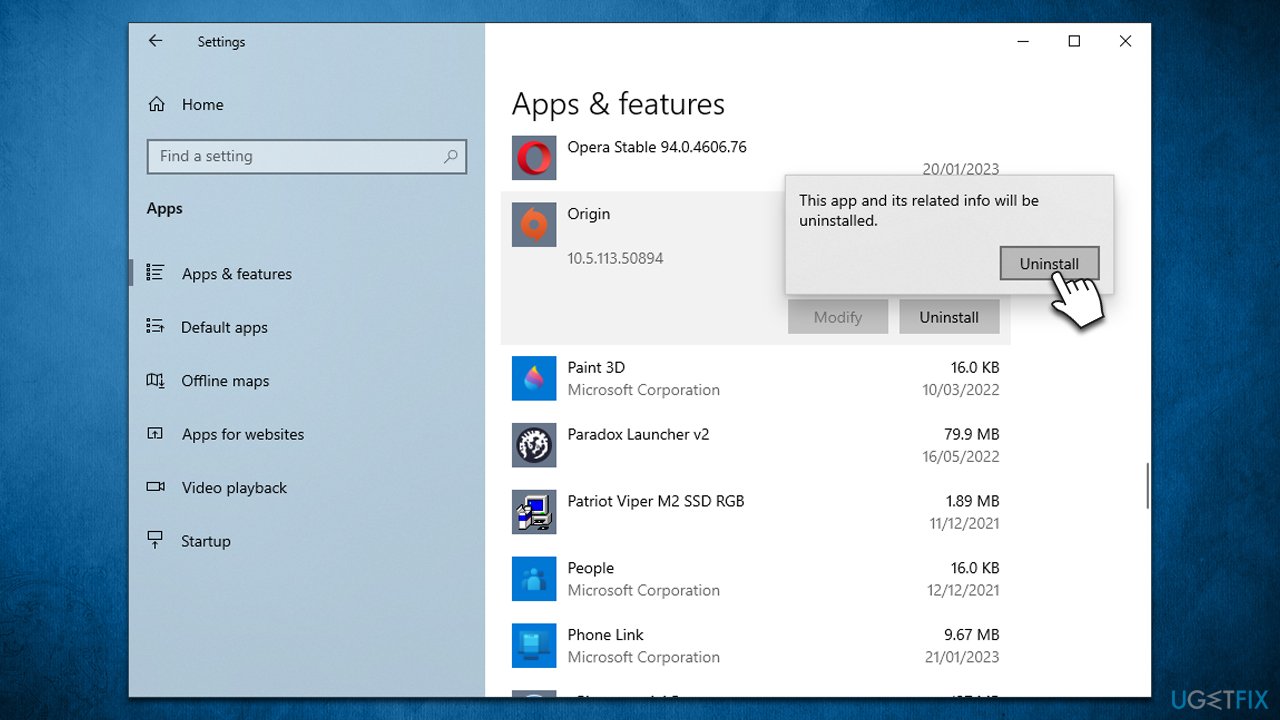
Fix 5. Reinstall problematic software
If only one application fails to start due to the Dcomp.dll error, you should try reinstalling it.
- Right-click on Start and select Apps & Features.
- Scroll down until you see the app in question.
- Click and select Uninstall > Uninstall.
- Follow with on-screen instructions to finish program removal.
Fix 6. Reset Windows
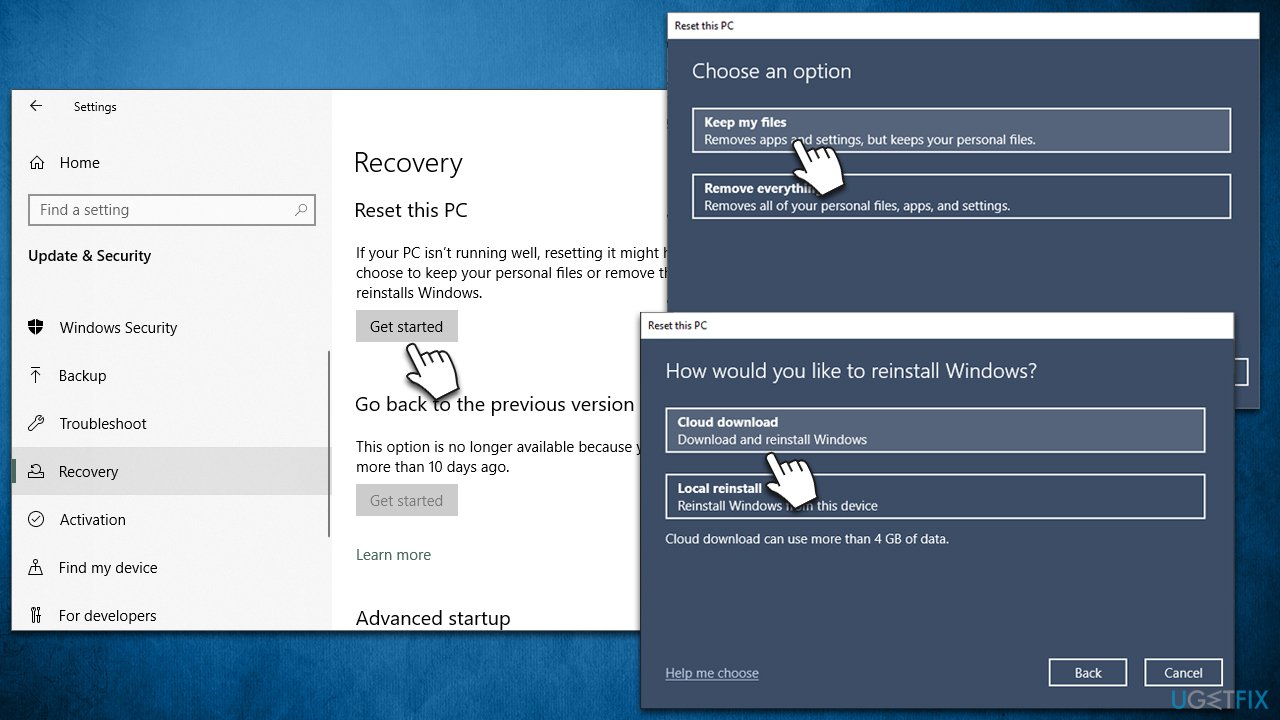
Before proceeding, uninstall third-party security software and disconnect unnecessary peripherals, such as printers, external drives, etc.
- Right-click on Start and select Settings.
- Choose Update & Security section and pick Recovery.
- Under Reset this PC section, click Get Started.
- Select Keep my files and then follow up with Cloud download.
- Simply follow the on-screen instructions - your system will restart at some point.
Bottom line
To resolve the Dcomp.dll Bad Image error, you can reinstall the missing Visual C++ components, run a program compatibility troubleshooter, or use a repair tool to scan for issues. If these fixes do not work, consider checking for malware damage or performing a system restore.
Frequently asked questions
The Dcomp.dll Bad Image error is typically caused by corrupted or missing Dcomp.dll files, incompatible software, or issues with Windows updates.
To repair the error, you can run the System File Checker (SFC) scan by opening Command Prompt as an administrator and typing 'sfc /scannow'.
Yes, you can manually replace the Dcomp.dll file by downloading a fresh copy from a reliable source, but ensure to back up the original file before replacing it.




Report an issue
What's wrong with this guide? We review every report and update or remove content.
Report received — thank you. We'll review and fix it.
You need a free account to submit a report.
Be the first to comment