How to fix
“Delayed Write Failed” error
on Windows
Resolve the "Delayed Write Failed" error on Windows 10 or 11 quickly and effectively. Expert-tested solutions with screenshots for guaranteed success.

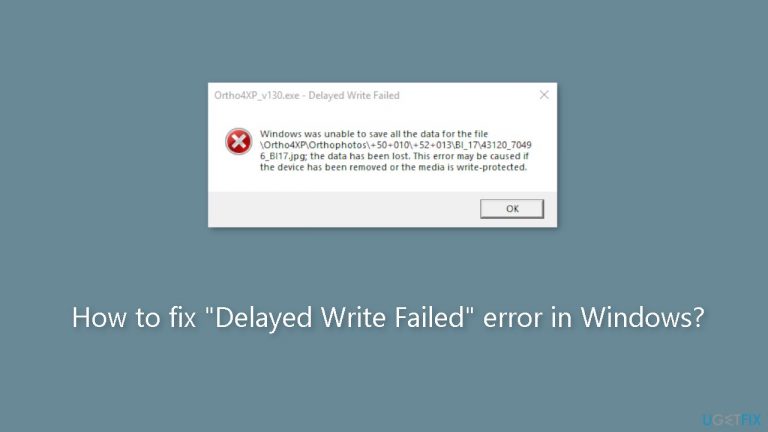
What causes How to fix “Delayed Write Failed” error in Windows?
- Drive failure
- Failed drive controller
- Corrupt files on the storage media
- Faulty sectors
- Damaged cables
- Defective USB ports
Repairs Windows system files, removes malware, and restores a clean OS state — without reinstalling.
Hello. I was transferring some files on my Windows PC and I got the "Delayed Write Failed" error. How can I fix this?
Users may experience annoyance and disturbance due to the "Delayed Write Failed" error in Windows. Attempts to copy files to an external storage device, such as a USB drive or an external hard disk, frequently result in this error. It is frequently a sign that something went wrong during the writing or caching process, preventing the action from being completed.
Drive failure is one of the main reasons of this error. Write failures may occur if the external storage device experiences physical or logical problems. These problems could be a failed drive controller, corrupt files on the storage media, or even faulty sectors. The "Delayed Write Failed" error can also be brought on by issues with the device's connectivity, such as damaged cables or defective USB ports.
This error may have a large negative effect on users. If files are only partially written to the storage device, it may cause data transfer activities to be disrupted, possibly resulting in data loss or corruption. Users may become frustrated and waste time while attempting to fix the problem and finish their file transfers or backups. This mistake may occasionally result in workflow disruptions and productivity losses if the external storage device is being used for important operations.
Addressing the underlying issues is frequently necessary to fix the "Delayed Write Failed" error. This can entail fixing any file system problems, running diagnostics on the external storage device or utilizing third-party tools to assess its health, as well as making sure the connections between the computer and the device are secure and reliable. To rule out connectivity issues, users may also need to think about utilizing different USB ports or cables.
In this guide, you will find 4 steps that should help you fix "Delayed Write Failed" error. You can also run a maintenance tool like [d1] that can fix most system errors, BSODs,[ref en-1] corrupted files, and registry[ref en-2] issues. Otherwise, follow the step-by-step instructions below.

Method 1. Turn Off Disk Write Caching
- Right-click the Start button and choose Device Manager.
- Expand the Disk Drives section.
- Right-click the problematic drive and select Properties.
- Go to the Policies tab.
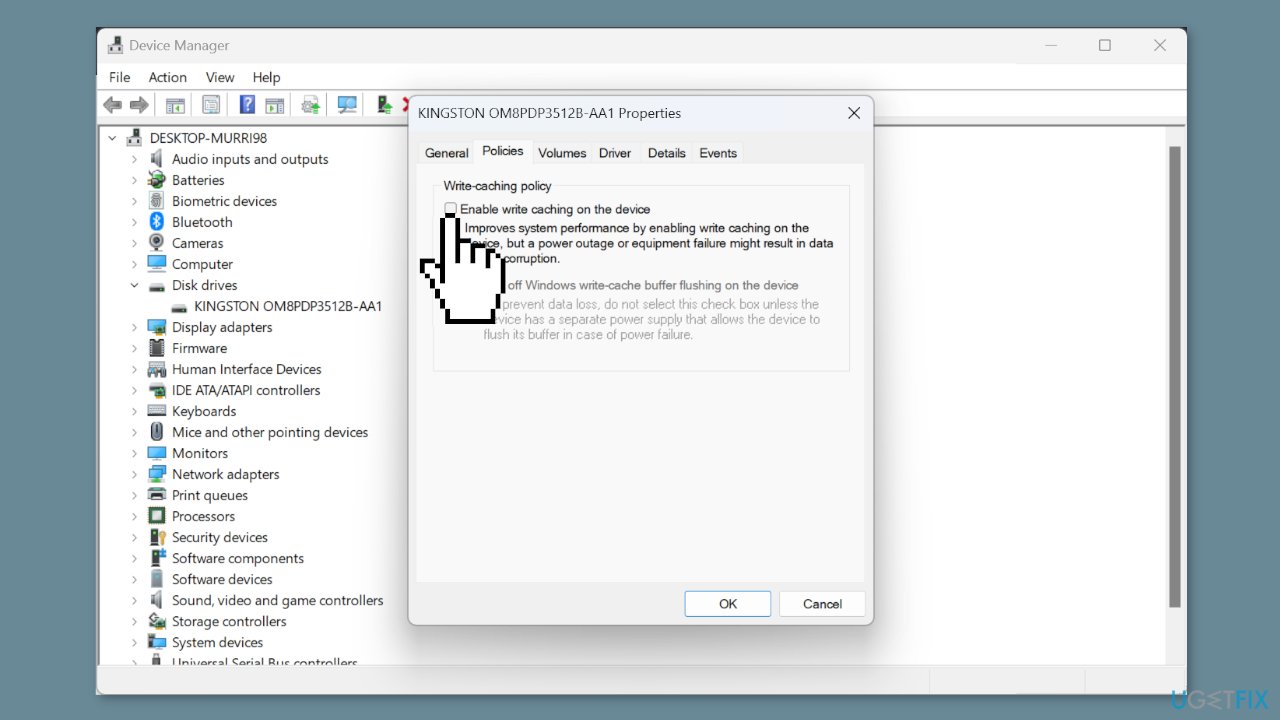
- Uncheck the Enable write caching on the device box.
- Attempt to copy the files from the drive once more.
Method 2. Use System Restore
System Restore is a feature in Microsoft Windows that allows users to revert their computer's state to a previous point in time. This can be helpful if you have made changes to your system that are causing problems.
- Press the Windows key + R on your keyboard to open the Run box.
- Type SystemPropertiesProtection and press Enter.
- Go to the System Protection tab.
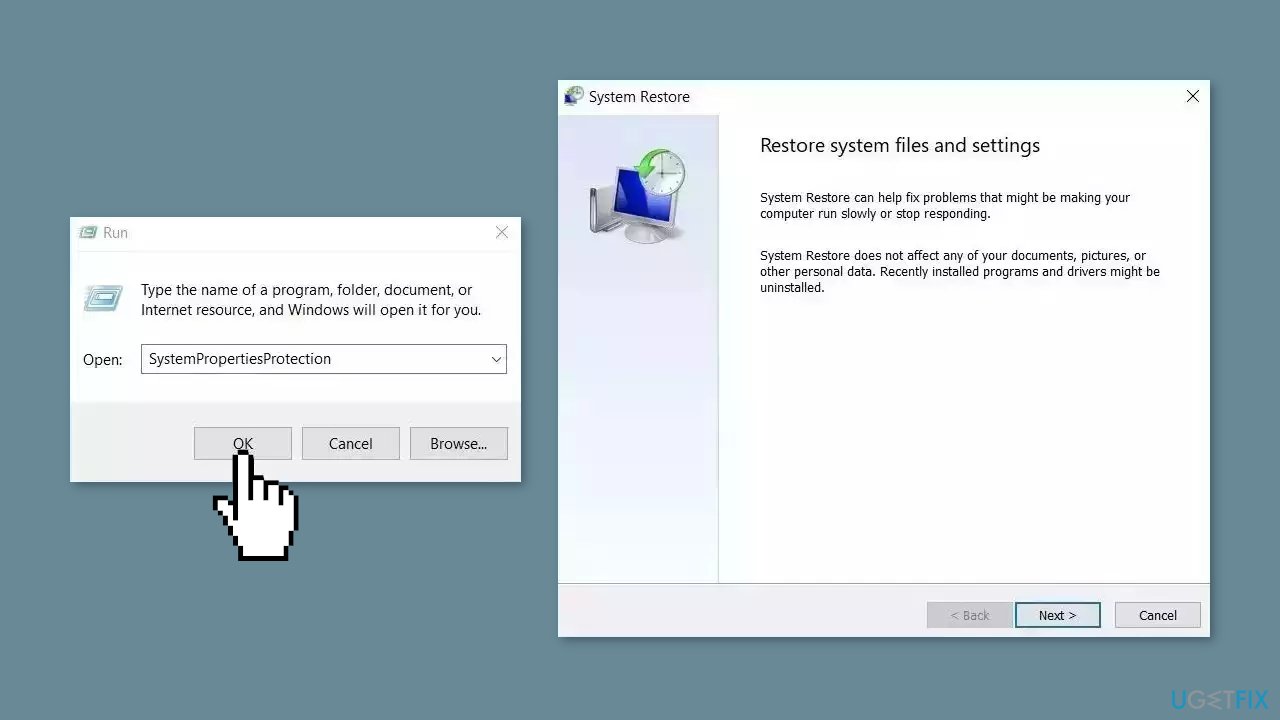
- You will see the System Restore… button. Click it to run System Restore.
- Follow the prompts until you can select a restore point.
- Select the one you want (ideally before the issue started occurring) and go ahead with the process.
Method 3. Check the Disk for Errors
- Press the Windows key + E to open File Explorer.
- Right-click the desired drive and choose Properties.
- Go to the Tools tab.
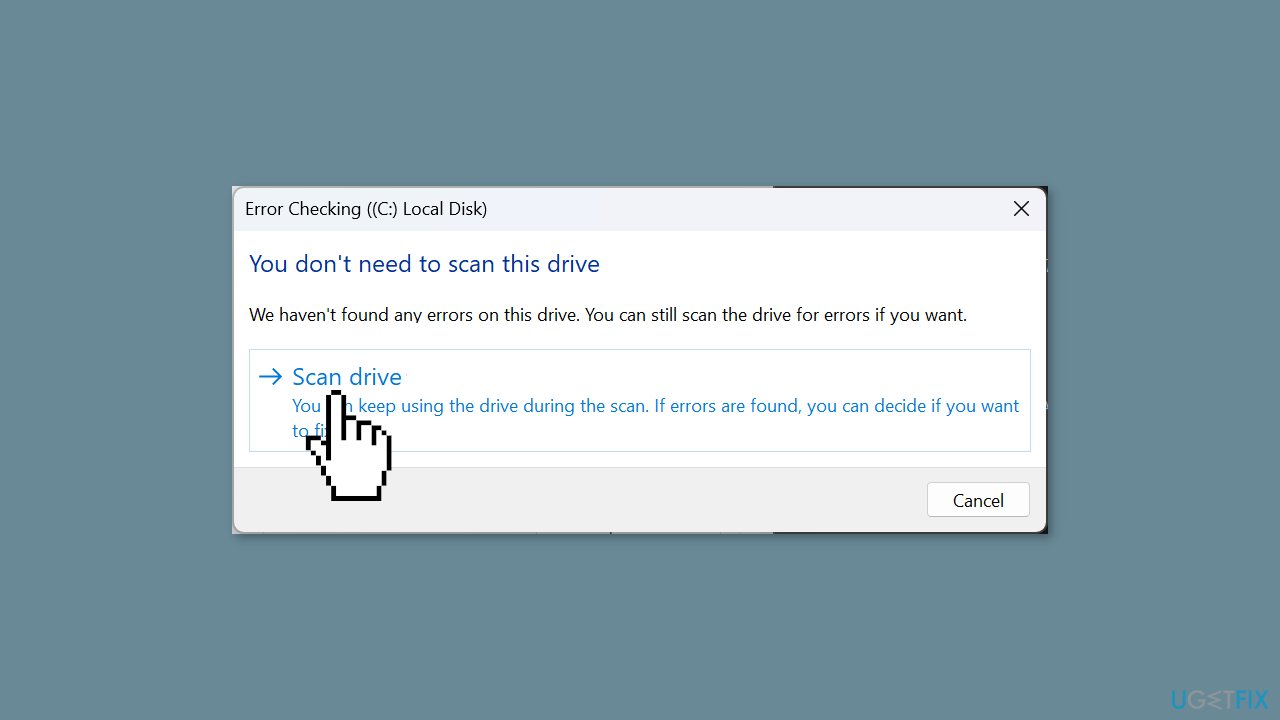
- Click the Check button.
- If no issues are detected, you can still choose to Scan drive for a more thorough check.
- After this, for SSD, click the Optimize button, and then click Optimize again to address any potential drive issues.
- For HDD, select the defragmentation option to resolve any bad sectors.
Method 4. Update the Disk Driver
- Right-click the Start button and choose Device Manager.
- Expand the Disk Drives section.
- Right-click the problematic drive.
- Select Update driver.
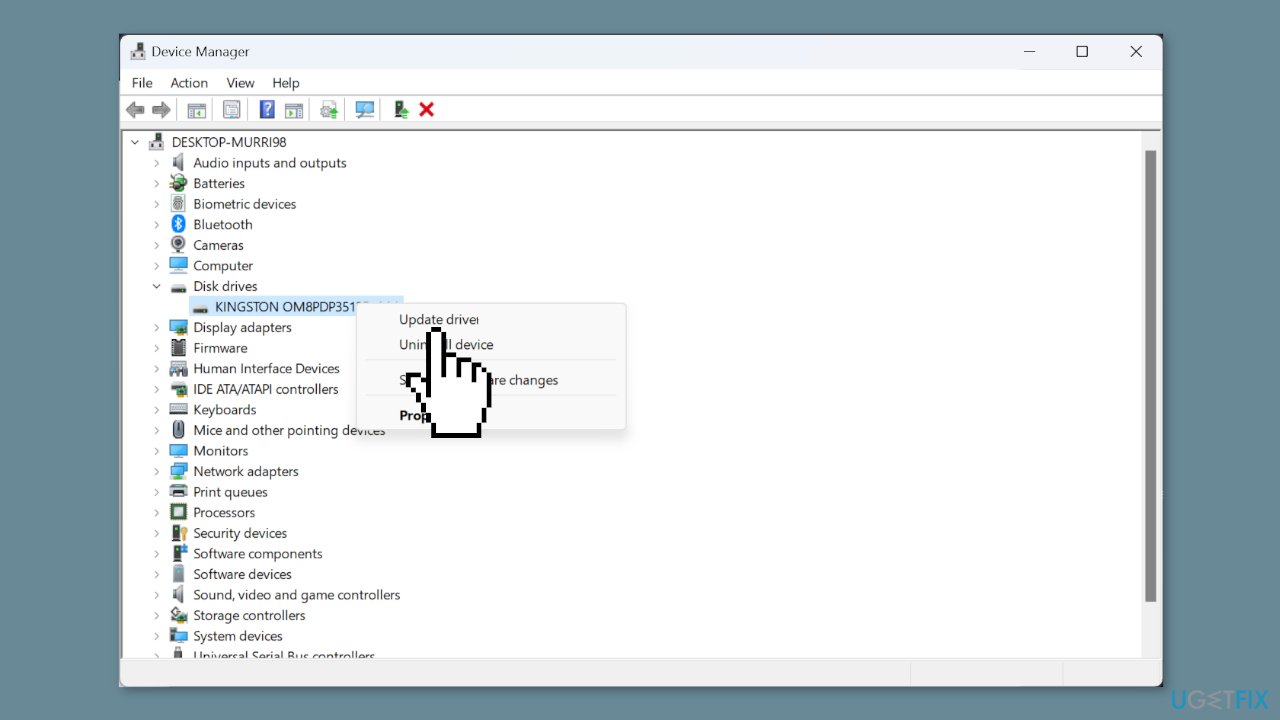
- Click Search automatically for drivers and follow on-screen instructions.
- For older drives, visit the manufacturer's website.
- Download the latest driver.
- Repeat the steps and click Browse my computer for drivers.
- Point to the driver's location on your computer.
Bottom line
To fix the 'Delayed Write Failed' error, users should address underlying issues such as repairing file system problems, running diagnostics on the external storage device, and ensuring secure connections. Additionally, trying different USB ports or cables may help. If these steps do not resolve the issue, consider using a maintenance tool that can fix system errors and corrupted files.
Frequently asked questions
This error typically occurs due to issues with hardware connections, like faulty USB drives or external hard drives, or it can be related to file system corruption.
You can troubleshoot this error by checking your device connections, running the CHKDSK utility, and ensuring that your drivers are up to date.
Disabling write caching can help resolve the error, but it may also lead to slower performance; it's recommended to try this as a last resort after other solutions.




Report an issue
What's wrong with this guide? We review every report and update or remove content.
Report received — thank you. We'll review and fix it.
You need a free account to submit a report.
Be the first to comment