How to fix
Delete key not working
on Windows
Resolve the Delete key issue on Windows 10 or 11 quickly and efficiently. Follow these expert-tested solutions for a seamless experience!


What causes How to fix Delete key not working in Windows?
- Hardware failures
- Keyboard layout settings mishaps
- Software conflicts
- Outdated drivers
- Application-specific settings or bugs
Repairs Windows system files, removes malware, and restores a clean OS state — without reinstalling.
After the most recent Windows update (22H2), the Delete key stopped working. What should I do now? I don't think this is related to the keyboard itself.
The keyboard is one of the most fundamental components of any computing device. Among the multitude of keys that make up a standard keyboard, the 'Delete' key holds particular importance. It provides a quick and convenient method of eradicating erroneous text, file, or data entries, thereby easing navigation through the digital world. However, its functionality, like any other technology, is not immune to occasional failures and glitches.
A growing number of Windows users have recently reported a peculiar problem - the Delete key not working. This problem seems to manifest in a variety of forms. For some, both the Backspace and Delete keys have simultaneously stopped functioning, creating a troublesome impediment to their workflow.
For others, Delete key stopped working after installing a Windows update, pointing toward potential compatibility or driver-related problems. Interestingly, a subset of users has encountered this issue exclusively within specific applications, such as Microsoft Word, indicating that it may be related to application-specific settings or bugs.
Various factors could contribute to these issues with the Delete key. They could range from simple hardware failures or keyboard layout settings mishaps to more complex software conflicts or outdated drivers. In many cases, these problems are a direct result of miscommunications between the keyboard's hardware and the computer's software, which can be triggered by anything from minor system errors to significant Windows updates.
Fortunately, most of these issues can be addressed through some common troubleshooting techniques, such as checking the keyboard's physical connection, updating system drivers, or tweaking keyboard settings. However, these methods might not always suffice, especially when dealing with deep-seated software issues.
Using a comprehensive PC repair tool like [d1] can be beneficial for such scenarios. This type of software is designed to detect, diagnose, and resolve a broad spectrum of system issues, including those related to keyboard functionality. Utilizing it could potentially help in swiftly restoring the normal functioning of the Delete key, thus ensuring uninterrupted productivity and ease of use for any Windows user.
Quick tips before proceeding
- Try using a different USB port for your keyboard.
- Reboot your computer if you haven't done so.
- Scan your system for malware with reputable security software - Microsoft Safety Scanner is a free option that is reliable. You could also use Microsoft Defender.
- Clean your keyboard: dust and dirt may prevent your keys from working correctly.
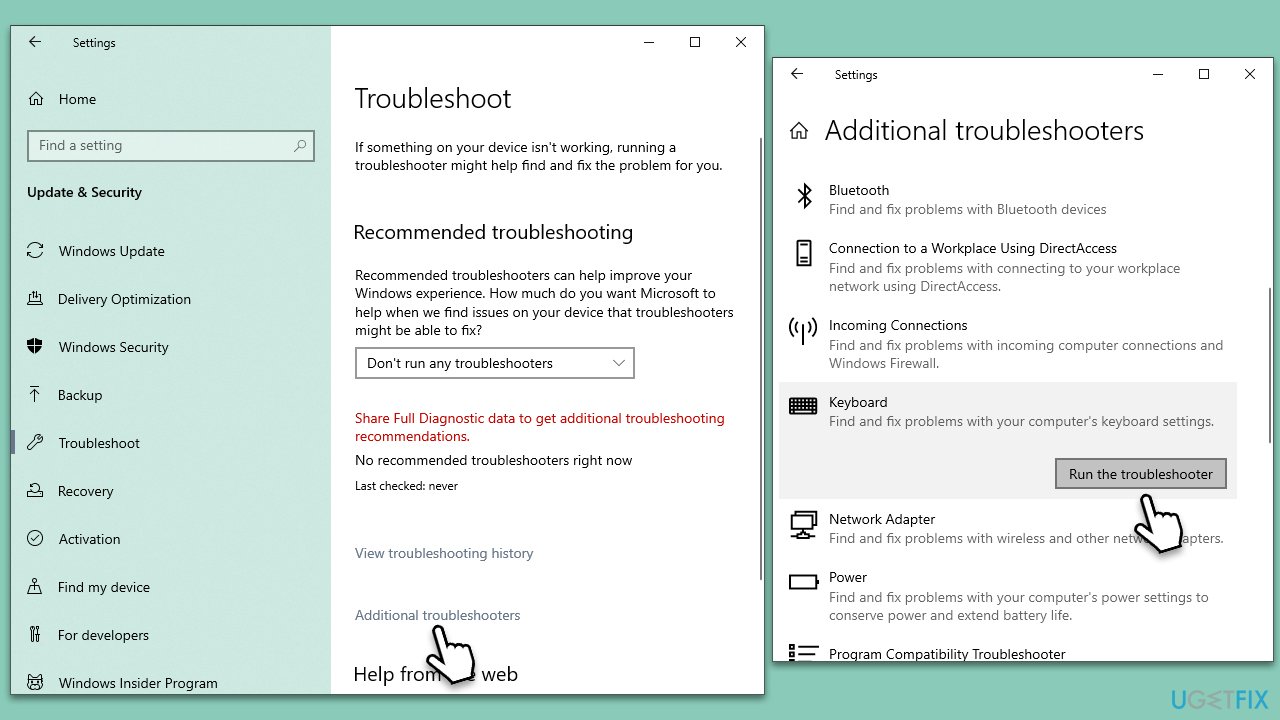
Fix 1. Run keyboard troubleshooter
The built-in Windows Troubleshooter scans your system for issues and attempts to resolve them automatically. In this case, it can help identify and fix issues related to your keyboard.
- Type troubleshoot in Windows search and press Enter.
- On the right, choose Additional troubleshooters/ Other troubleshooters.
- Find Keyboard and click Run the troubleshooter/Run.
- Wait till the process is finished and apply the suggested changes.
Fix 2. Uninstall Windows update
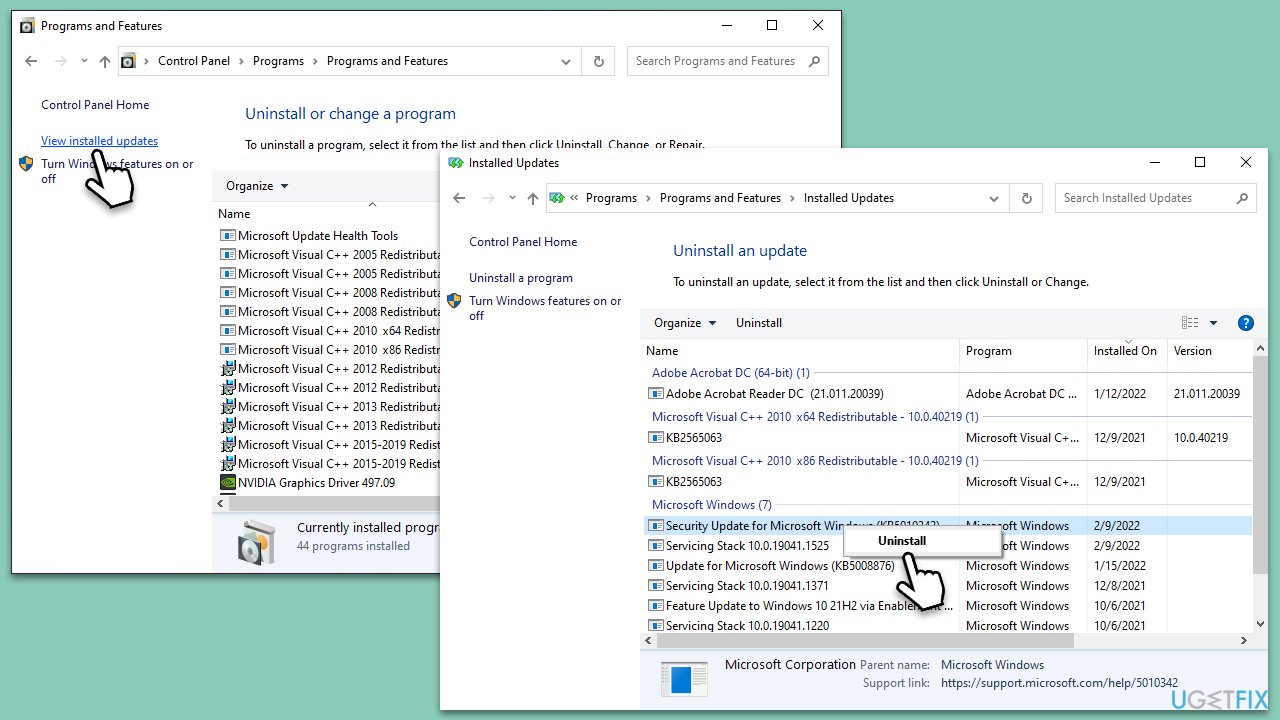
Sometimes, a recent Windows update might cause conflicts with hardware drivers, like those of the keyboard. Uninstalling the problematic update can resolve the issue.
- Type Control Panel in Windows search and press Enter.
- Select Programs > Uninstall a program.
- Click on View installed updates on the left side of the window.
- Sort all the updates by date.
- Right-click on the most recent update and select Uninstall.
- Proceed with on-screen instructions.
- Then, type Updates in Windows search and press Enter.
- Click Pause the updates for 7 days (in Windows 11, you can pick a different time period).
Fix 3. Reset your keyboard
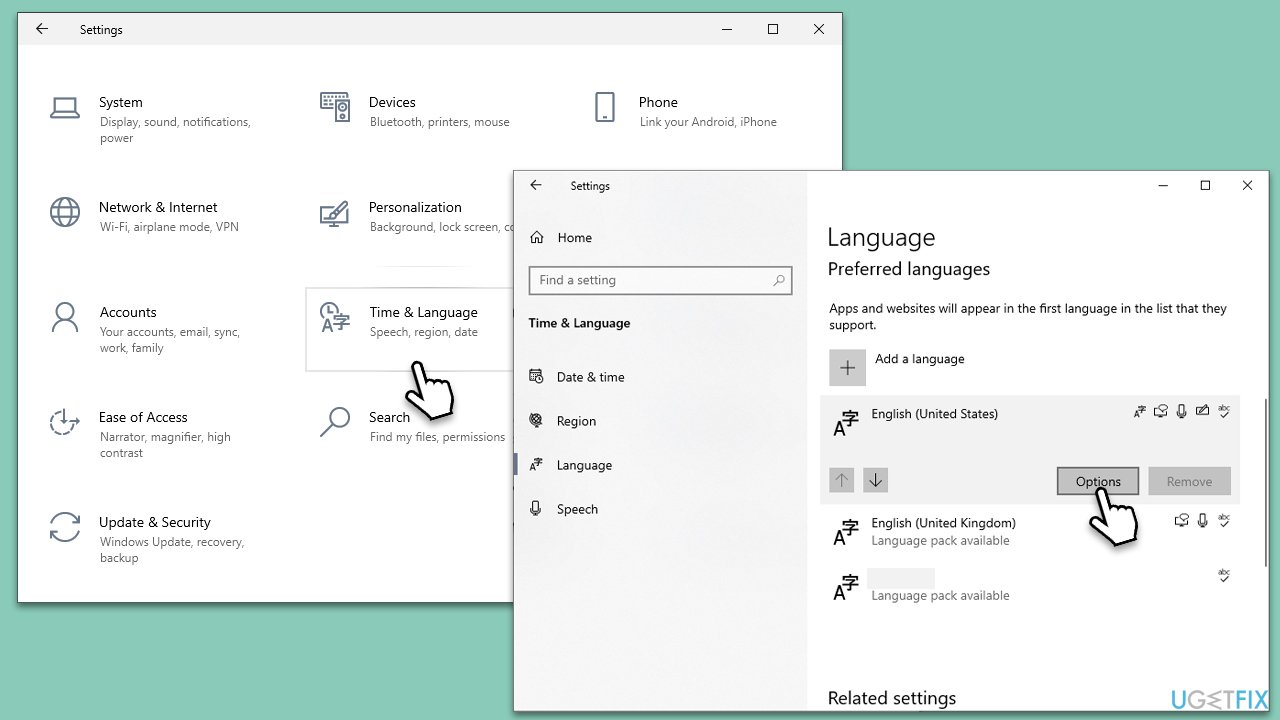
Resetting your keyboard can help solve issues caused by altered settings or corrupted data.
- Right-click on Start and pick Settings.
- Click on Time & Language.
- Click on Language from the left panel.
- Under Preferred languages, click on your current language.
- Click on Options.
- Under Keyboards, click on your current keyboard, then click on Remove.
Fix 4. Update keyboard drivers
Outdated keyboard drivers can cause various issues, including non-working keys. Updating these drivers might fix the problem.
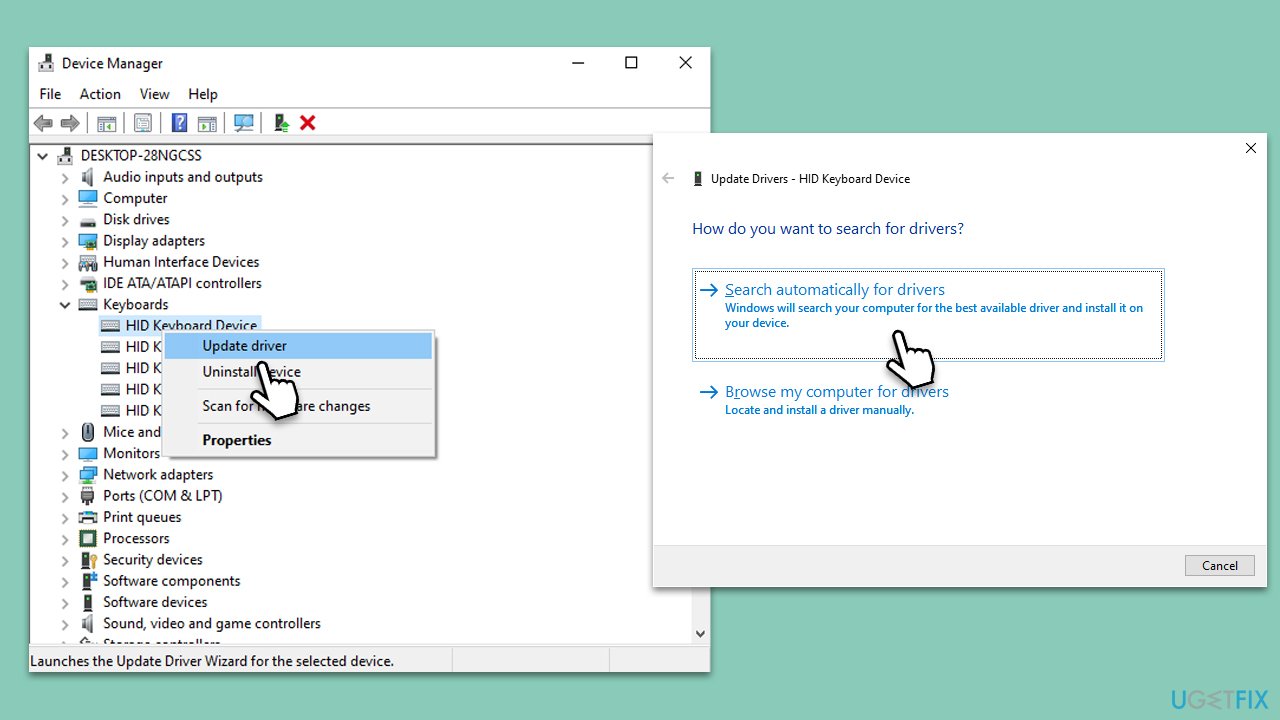
- Press the Windows key + X and choose Device Manager.
- Expand the Keyboards section.
- Right-click on your keyboard, then select Update driver.
- Choose Search automatically for drivers.
- Wait for Windows to install drivers for your device, and then reboot your system.
Be aware that Windows might not find the latest drivers for your hardware (which happens more often than not). Therefore, we recommend either visiting the official website of your device manufacturer and installing drivers manually or taking an automatic approach with the [rev id="DriverFix"] app.
Fix 5. Reinstall keyboard drivers
Reinstalling keyboard drivers can resolve conflicts or issues caused by corrupted or outdated drivers.
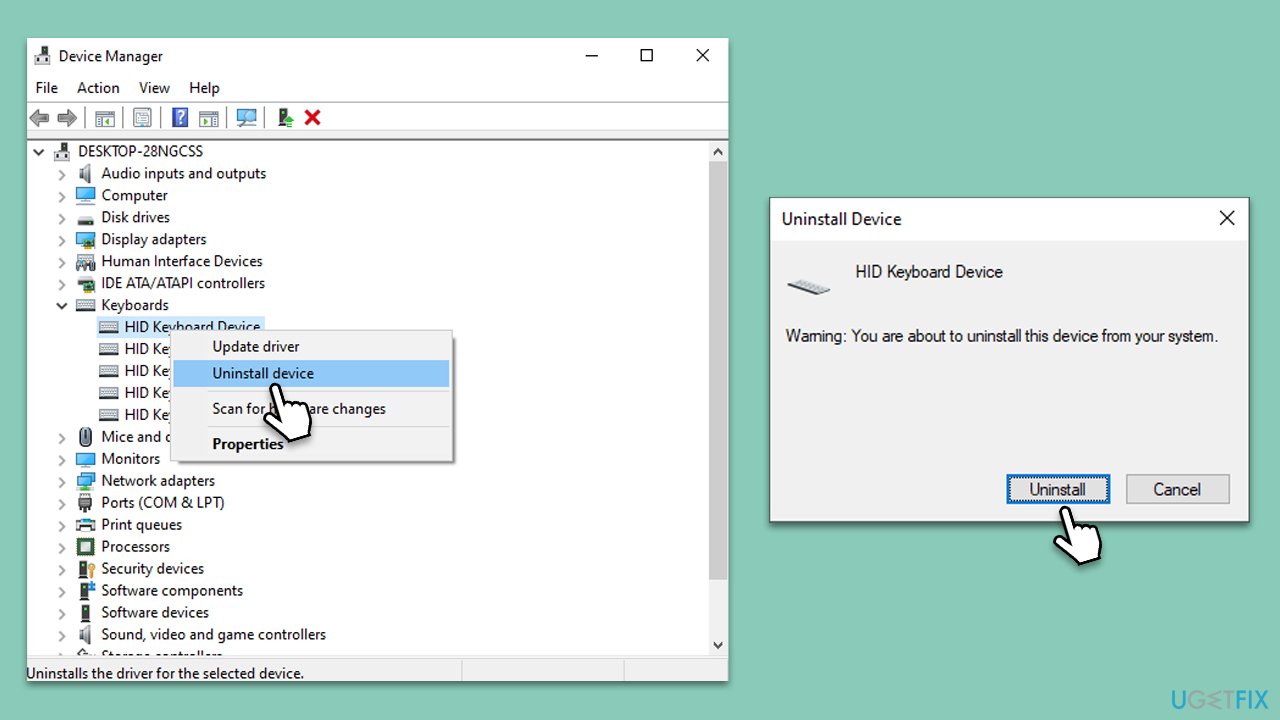
- Open Device Manager once again.
- Expand the Keyboards section.
- Right-click on your keyboard, then select Uninstall device.
- When the warning prompt shows up, click Uninstall.
- Restart your computer. Windows will automatically reinstall the keyboard drivers upon restart. Alternatively, download the newest drivers as explained in the previous method.
Fix 6. Change Power Management settings in Device Manager
Sometimes, power management settings can interfere with keyboard operations. Adjusting these settings might help.
- Open Device Manager.
- Expand the Keyboards section.
- Right-click on your keyboard, then select Properties.
- Go to the Power Management tab.
- Uncheck the box that says Allow the computer to turn off this device to save power.
- Click OK to save changes.
Fix 7. Try Clean Boot
A Clean Boot starts your computer with a minimal set of drivers and startup programs. It can help you isolate software conflicts that occur when you run a program or an application.
- Press the Windows key + R to open the Run dialog box.
- Type msconfig and press Enter.
- In the System Configuration window, click on the Services tab.
- Check the box that says Hide all Microsoft services, then click Disable all.
- Next, click on the Startup tab.
- Click on Open Task Manager.
- Under the Startup tab in Task Manager, for each startup item, select the item and then click Disable.
- Close Task Manager.
- On the Startup tab of the System Configuration dialog box, click OK, and then restart your computer.
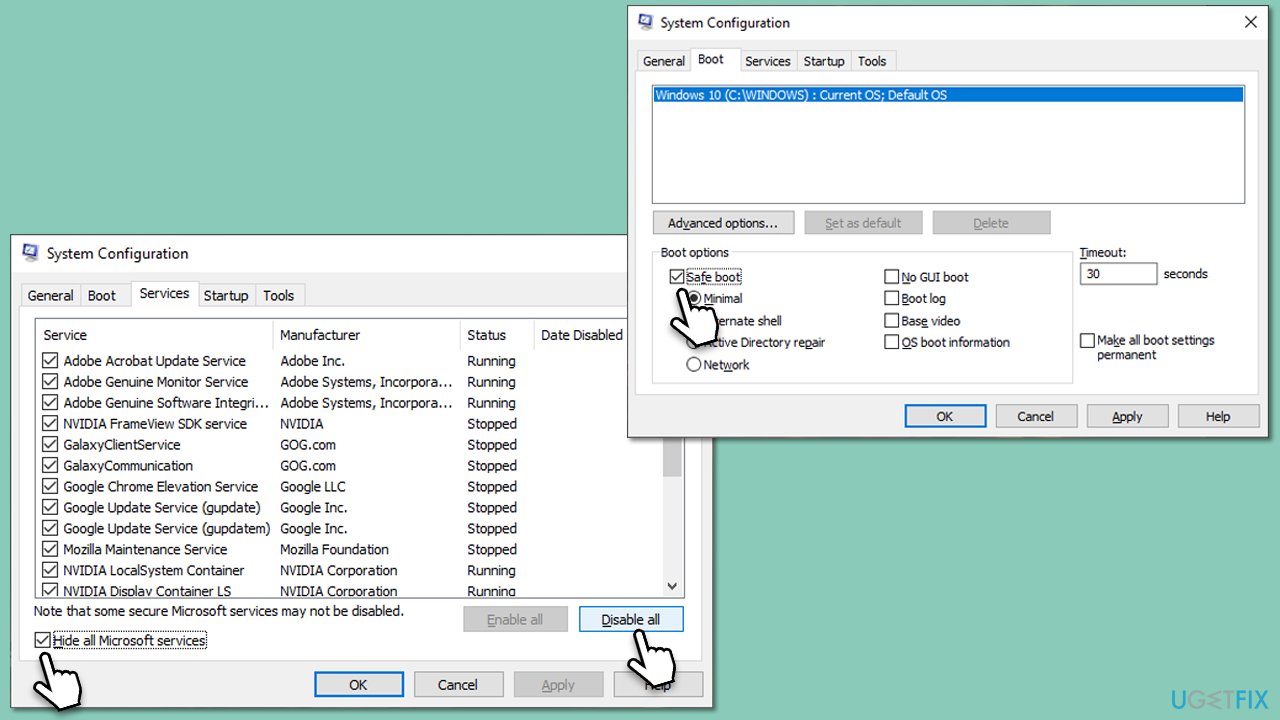
In a clean boot state, test the Delete key. If it functions correctly, one of the disabled services or apps was causing the issue. Enable these one by one, checking the key's functionality after each. Once you identify the problematic service or app, you can disable, uninstall it, or seek an update from the provider. Finally, exit the clean boot state by re-enabling all services and apps, followed by a system restart.
Bottom line
To fix the Delete key not working in Windows, you can check the keyboard's physical connection, update system drivers, or tweak keyboard settings. If these methods do not resolve the issue, consider using a comprehensive PC repair tool to diagnose and fix deeper software problems.
Frequently asked questions
First, check if the Delete key is physically stuck or damaged. If not, try updating your keyboard drivers through Device Manager in Windows 10.
Yes, certain software applications or background processes may interfere with keyboard inputs, including the Delete key. Try performing a clean boot to identify and resolve any conflicts.
Go to Settings > Time & Language > Language in Windows 10 or 11, and ensure the keyboard layout is set correctly. You can also reset the keyboard settings to default to resolve potential issues.




Report an issue
What's wrong with this guide? We review every report and update or remove content.
Report received — thank you. We'll review and fix it.
You need a free account to submit a report.
Be the first to comment