How to fix
Desktop folder missing
on Windows
Recover your missing Desktop folder in Windows 10 or 11 effortlessly with expert-tested solutions that fix the issue in minutes!


What causes How to fix Desktop folder missing in Windows?
- Faulty Windows updates
- Corrupt user profiles
- Folder stuck in OneDrive
- Malware infection
- System configuration issues
Repairs Windows system files, removes malware, and restores a clean OS state — without reinstalling.
Hi, I have a bit of a weird problem I'm dealing with - my Desktop folder simply disappeared from the "Users" directory, and I can no longer access it via the Quick menu either. Is there anything that could be done to resolve this?
In Windows, folders and locations are used by both the system and users to access files. Folders help keep files organized and easily accessible. One of the most commonly used folders is the Desktop folder, which is used to store shortcuts and files that are frequently accessed by the user.
The Desktop folder is a convenient location for users to access their most important files and applications. It is also easily accessible via File Explorer, which is the primary way most people navigate through items on a computer.
However, some users have reported that the Desktop folder has disappeared from the User folder when viewed via File Explorer. This can be frustrating as users rely on the Desktop folder to access important files quickly.
The Desktop folder missing from the User folder is a common issue that can be caused by a variety of reasons, such as faulty Windows updates, corrupt user profiles, the folder being "stuck" in the One-Drive folder, etc.
The first troubleshooting step that users should do is restart their computers and run a full system scan with security software. This will help detect and remove any potential malware that could be causing the issue.
If none of the above methods work, users can try creating a new user account and copying the files from the old account's Desktop folder to the new account's Desktop folder. Below you will find these and several other instructions on how to fix the issue at hand. If you would like a quicker solution, we recommend you run a scan with a PC repair tool [d1].
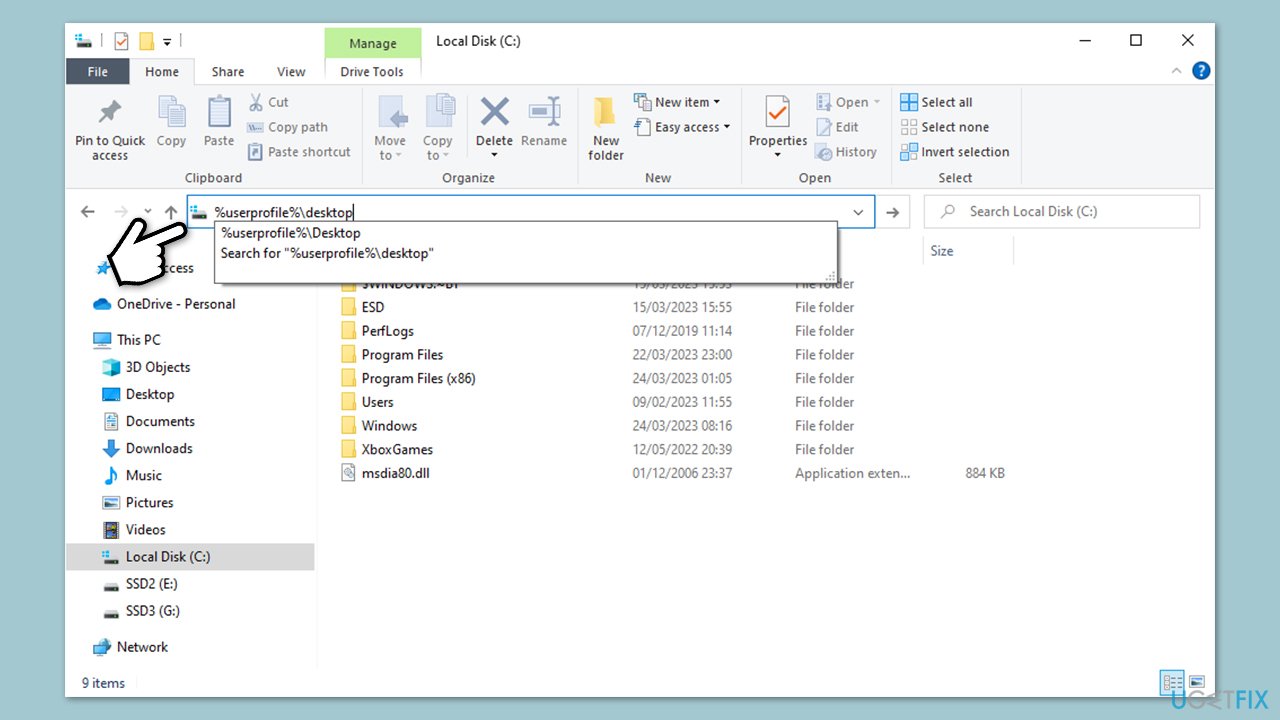
Solution 1. Enter the destination into the address bar
As a workaround, you can access the Desktop folder by using the address as follows:
- Press Win + E to open File Explorer.
- In the address bar, copy and paste the following:
%userprofile%\desktop - Press Enter.
- You should be able to reach the Desktop this way.
Solution 2. Enable Hidden files
In some cases, the desktop folder might be hidden, in which case showing these files could resolve the issue.
- In Windows search, type in File Explorer Options and press Enter.
- Go to the View tab.
- Mark the Show hidden files, folders, and drives option.
- Click Apply and OK.
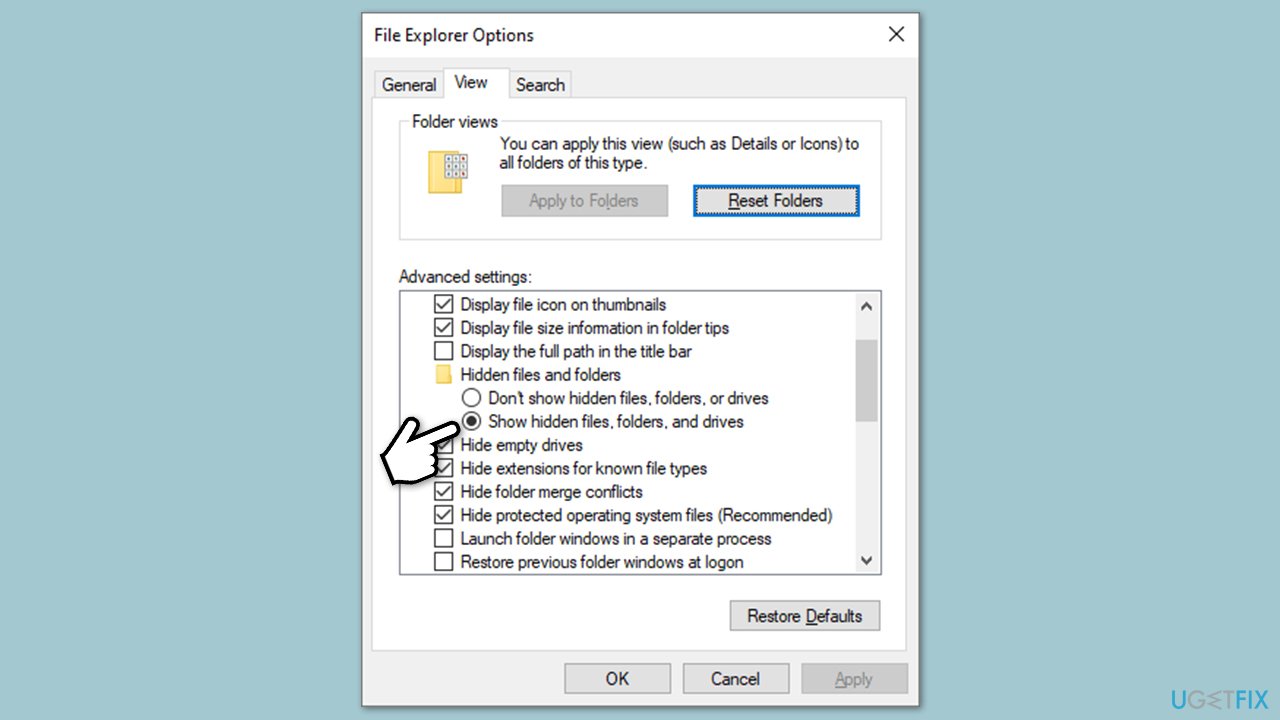
Note: you can also try the Reset folders option at the top.
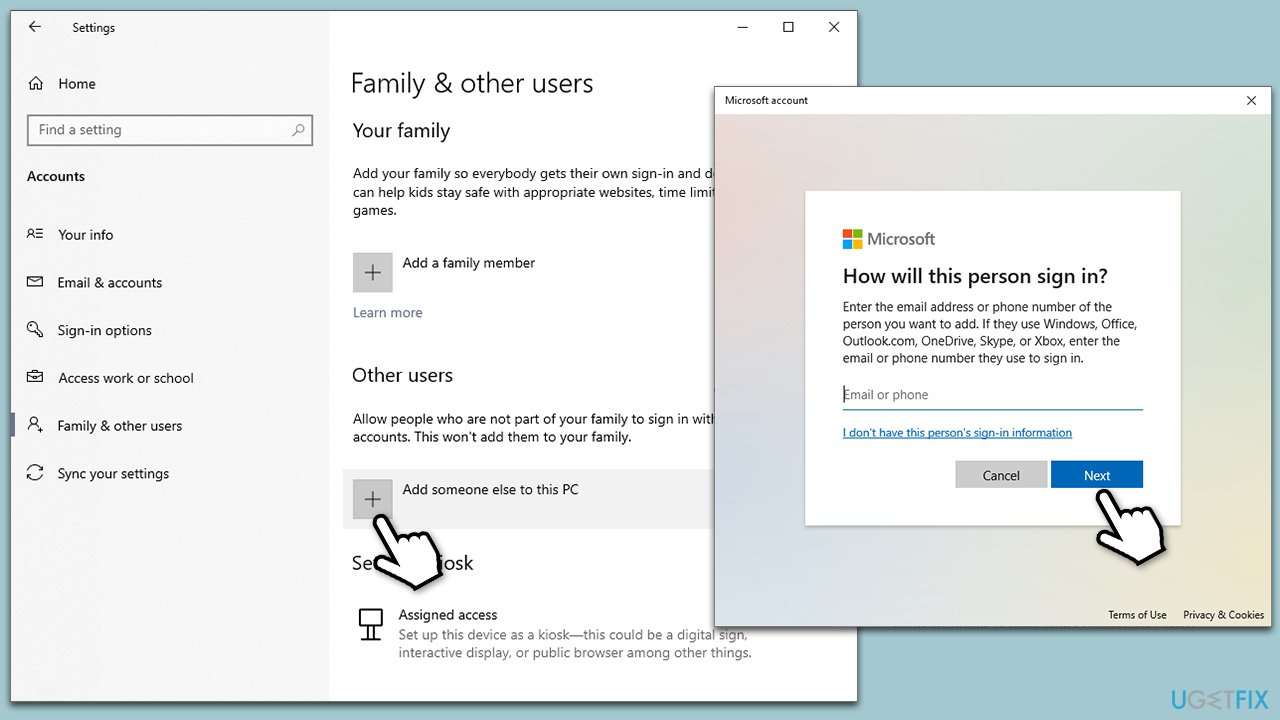
Solution 3. Create new account
You can create a new User account and copy the files over later.
- Right-click on Start and pick Settings.
- Go to the Accounts section.
- Select Family & other users on the left.
- Under Other users, click Add someone else to this PC.
- Select I don't have this person's sign-in information > Add a user without a Microsoft account.
- Enter the required information and click Next.
- Restart your device once done.
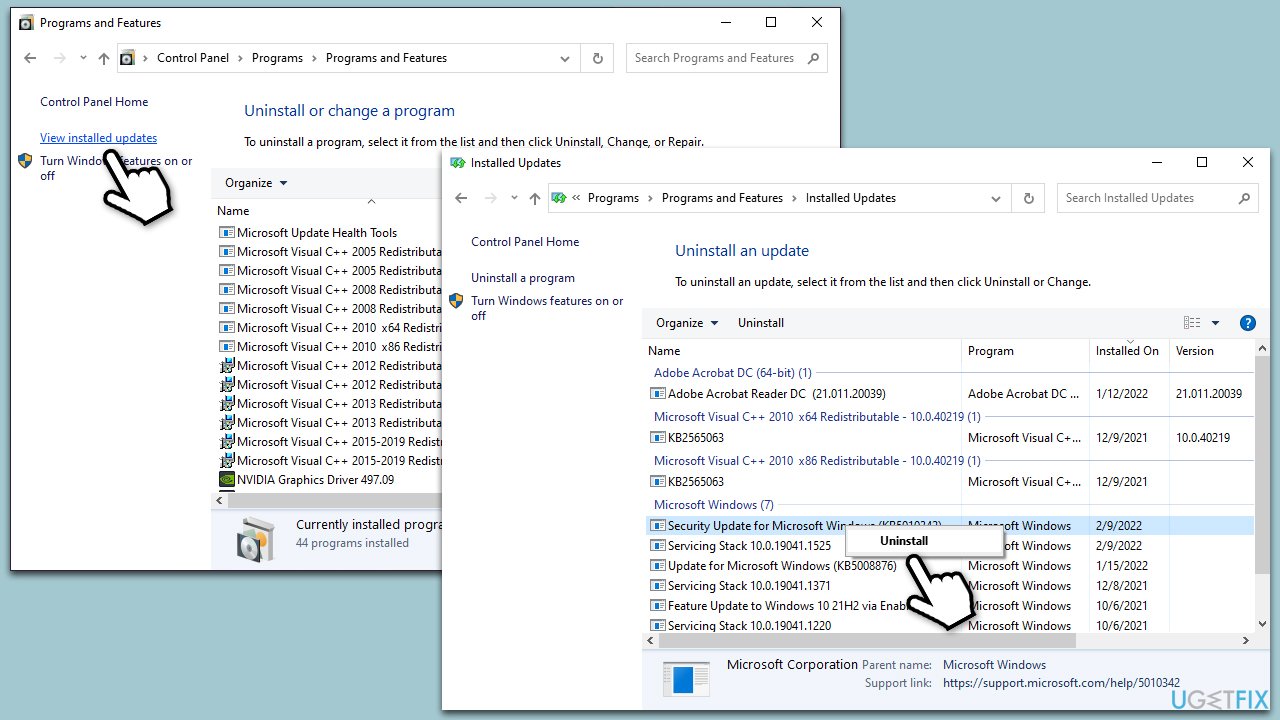
Solution 4. Uninstall Windows update
If your problems started after installing Windows updates, you could remove them as follows:
- Type Updates in Windows search and press Enter.
- Open Settings and go to Windows Update.
- Select Update history and pick Uninstall updates.
- When Control Panel opens, sort it by the date.
- Select the most recent update and click Uninstall at the top.
- Proceed with on-screen instructions to finish the process.
- Go to the Windows update page once again and click Pause updates.
- Reboot your system.
Solution 5. Retrieve the Desktop folder from OneDrive
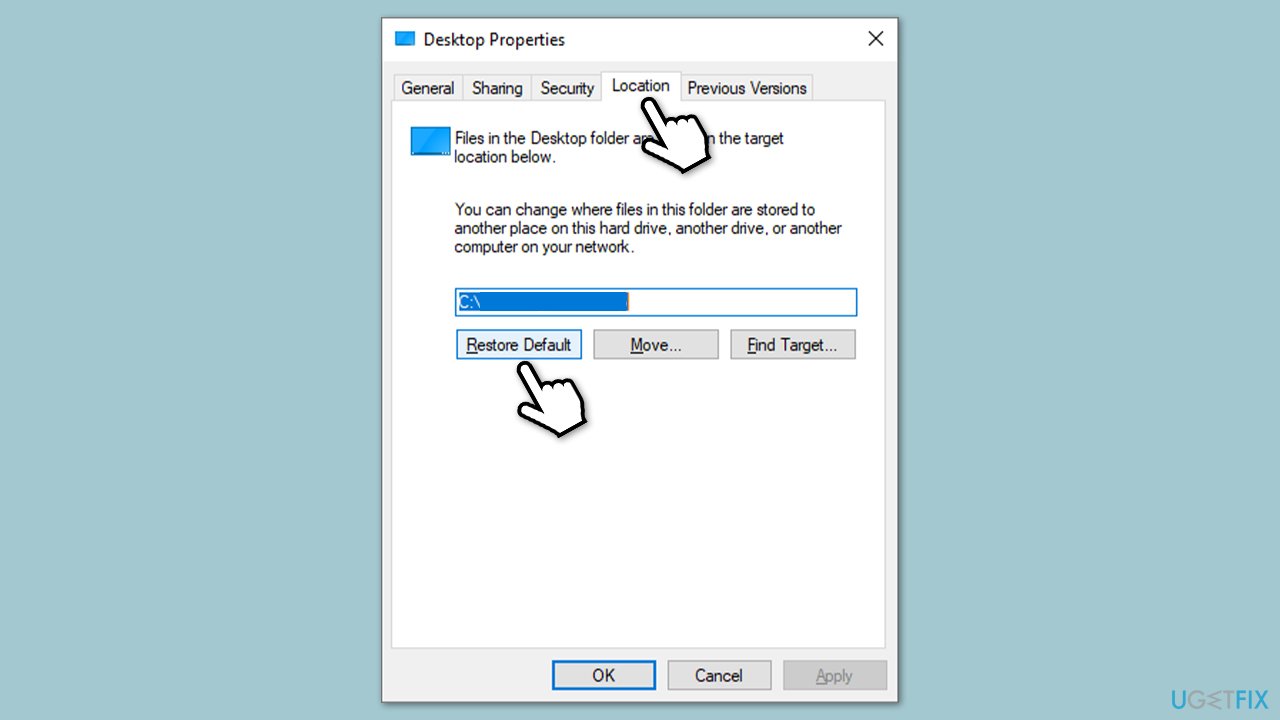
Sometimes, the Desktop folder might be placed in OneDrive. It can be done in the following way:
- Open File Explorer and navigate to the following location:
C:\Users\USERNAME\OneDrive\ - Right-click on the Desktop folder and select Properties.
- Navigate to the Location tab.
- Click Reset Default, then Apply, and OK.
Solution 6. Use System Restore
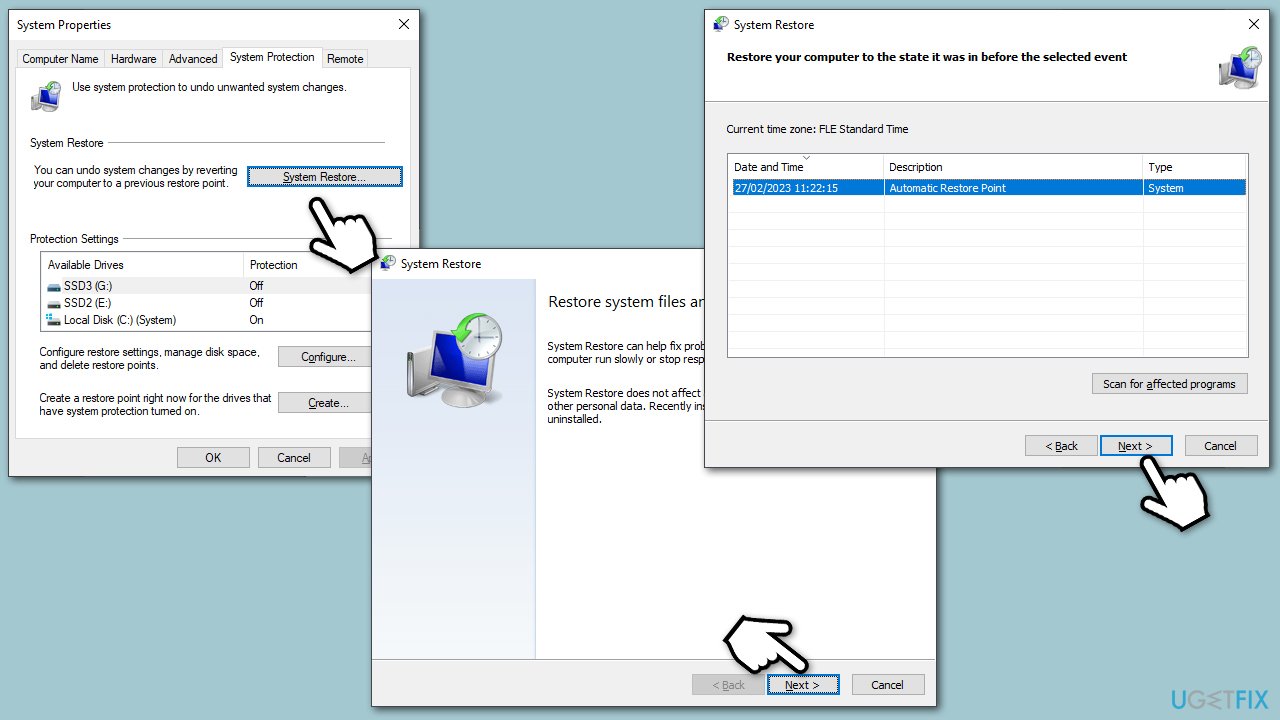
System Restore can restore your computer to the state it was some time ago without you losing your personal files.
- Type in Create a Restore point in Windows search and hit Enter.
- Go to the System Protection tab and pick System restore.
- Click Next.
- Click Show more restore points (if available).
- Pick the time before the problem occurred and click Next.
- Follow the prompts to finish the process.
Solution 7. Reset Windows
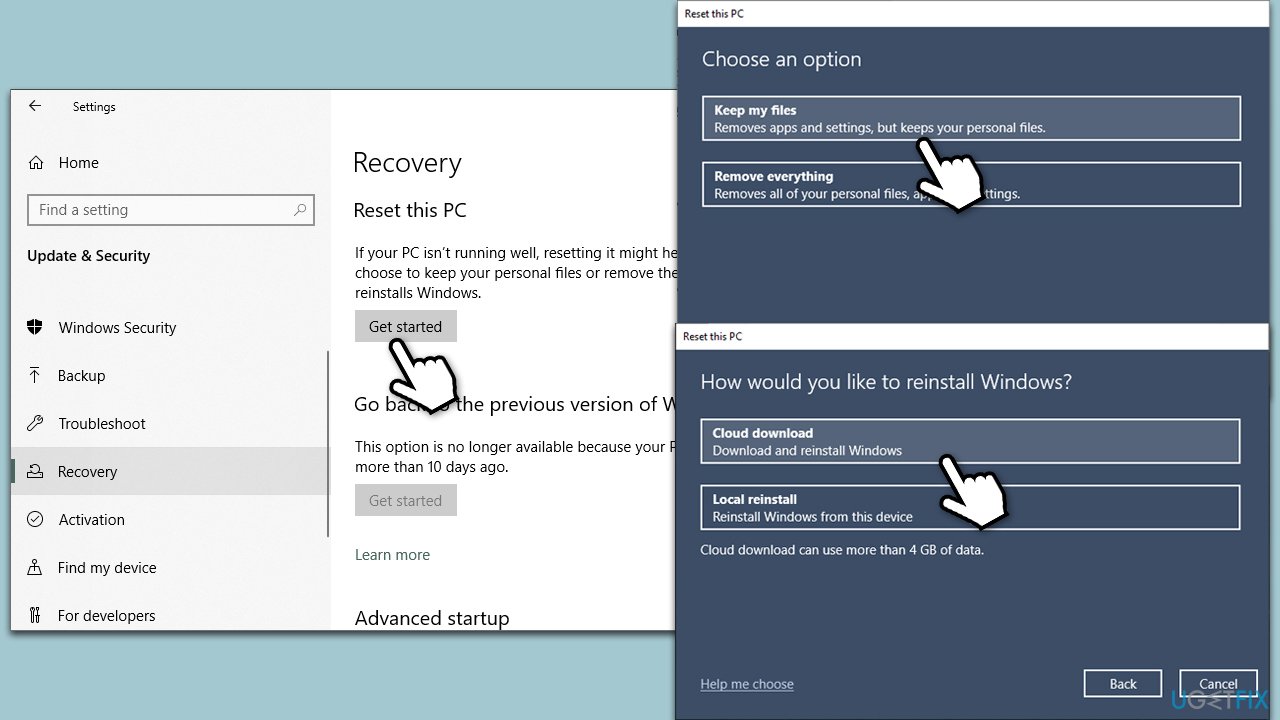
Windows reset is not a complex process on modern systems. Before proceeding, make sure you remove third-party security software and back up your files as a precautionary measure.
- Right-click on Start and then select Settings.
- Go to Update & Security and pick Recovery on the left side of the window.
- Find Reset this PC section and click Get Started.
- Select Keep my files and Cloud download.
- Next, pick whether you want to reinstall the apps.
- Click Reset.
- Your system will restart, and the process of Windows reset will begin.
Bottom line
To fix the missing Desktop folder, users can restart their computers, run a full system scan with security software, or create a new user account and transfer files. If these methods do not resolve the issue, it is recommended to run a scan with a PC repair tool.
Frequently asked questions
You can try restoring the Desktop folder by navigating to File Explorer, right-clicking on 'Desktop' under Quick Access, and selecting 'Restore previous versions' to recover it.
In Windows 11, you can access the missing Desktop folder by searching for 'Desktop' in the Start menu or by checking the location at C:\Users\YourUsername\Desktop.
Yes, you can create a new user profile in Windows 10 or Windows 11 and transfer your files to see if the issue persists, which often resolves profile-related problems.




Report an issue
What's wrong with this guide? We review every report and update or remove content.
Report received — thank you. We'll review and fix it.
You need a free account to submit a report.
Be the first to comment