How to fix
Desktop Window Manager (DWM) using too much memory
on Windows
Solve the Desktop Window Manager memory issue on Windows 10 and 11 effortlessly. Get expert-tested tips and methods, ensuring smooth performance!

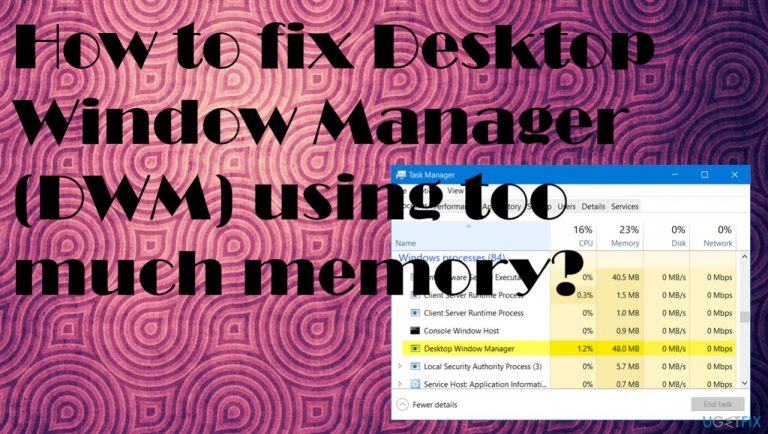
What causes How to fix Desktop Window Manager (DWM) using too much memory?
- High CPU usage by dwm.exe
- Corrupted DWM process
- Issues with graphics card
- Outdated system or drivers
- Malicious files masquerading as dwm.exe
Repairs Windows system files, removes malware, and restores a clean OS state — without reinstalling.
Hello. I have a problem with the high usage of resources. DWM.exe runs in the background and uses a huge amount of memory. I don't like it. However, I have no idea what this is ad how to solve the issue. Usually, games and other applications use memory and other resources, but this Desktop Windows Manager is something else. HELP!
Desktop Window Manager DWM.exe using too much memory is a problem that people[ref en-1] inform technicians about. Windows users should be familiar with carious exe files and processes that run in the background once the Task Manager is opened, but there are issues with malicious files and processes that can mask trojans[ref en-2] and different intruders.
This is why the issue with suspicious dwm.exe creates many questions for the PC users. This particular system process is common, and it is a part of the Windows operating system. The particular DWM helps create the graphic user interface. However, Desktop Window Manager (DWM) using too much memory is a common problem.
This executable file is the process that is responsible for the graphical user interface. It generates visual effects like transparent windows and thumbnails that users see when using the machine. The process runs when Windows tries to apply particular designs and manipulate software with Windows visual effects. Sometimes these processes get corrupted, so you need to fix Desktop Window Manager (DWM) using too much memory and other issues.
The problem starts when the dwm.exe process uses a large amount of CPU, and it shows up in Task Manager. We have covered the particular issue with the executable file and memory, so you might find additional solutions there. However, the issue might be related to other hardware or system configuration issues. If there are any issues with your graphics card or drivers, the process uses a high CPU while creating those visual effects. It can happen when the process runs on an older machine or the system that needs to be updated.
So you may fix Desktop Window Manager (DWM) using too much memory by updating the OS or solve the issue by updating and renewing drivers. You might also suffer from other issues with the system besides this memory usage problem, so running a tool like [d1] can check for more in-depth issues with performance and help you solve corrupted data issues and so on.
#1 Check for recent Windows OS updates
- Right-click on Start and select Settings.
- Go to Update & Security.
- On the right side, click Check for updates.
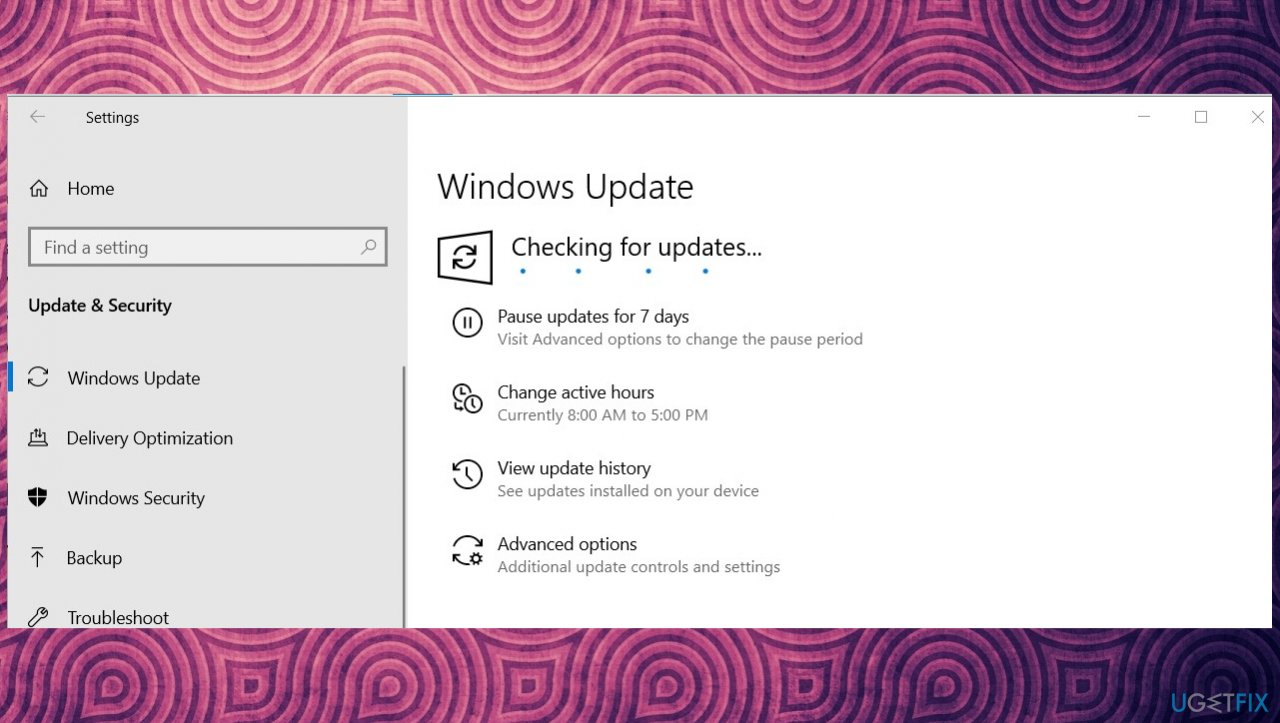
How to fix desktop windows manager dwm exe usage of memory os update check - Install update if there are any newer versions.
- Wait till Windows downloads and installs updates.
- Reboot your system.
#2 Update Graphics drivers to fix Desktop Window Manager (DWM) using too much memory
- Right-click on Start and select Device Manager.
- Expand Display adapters section.
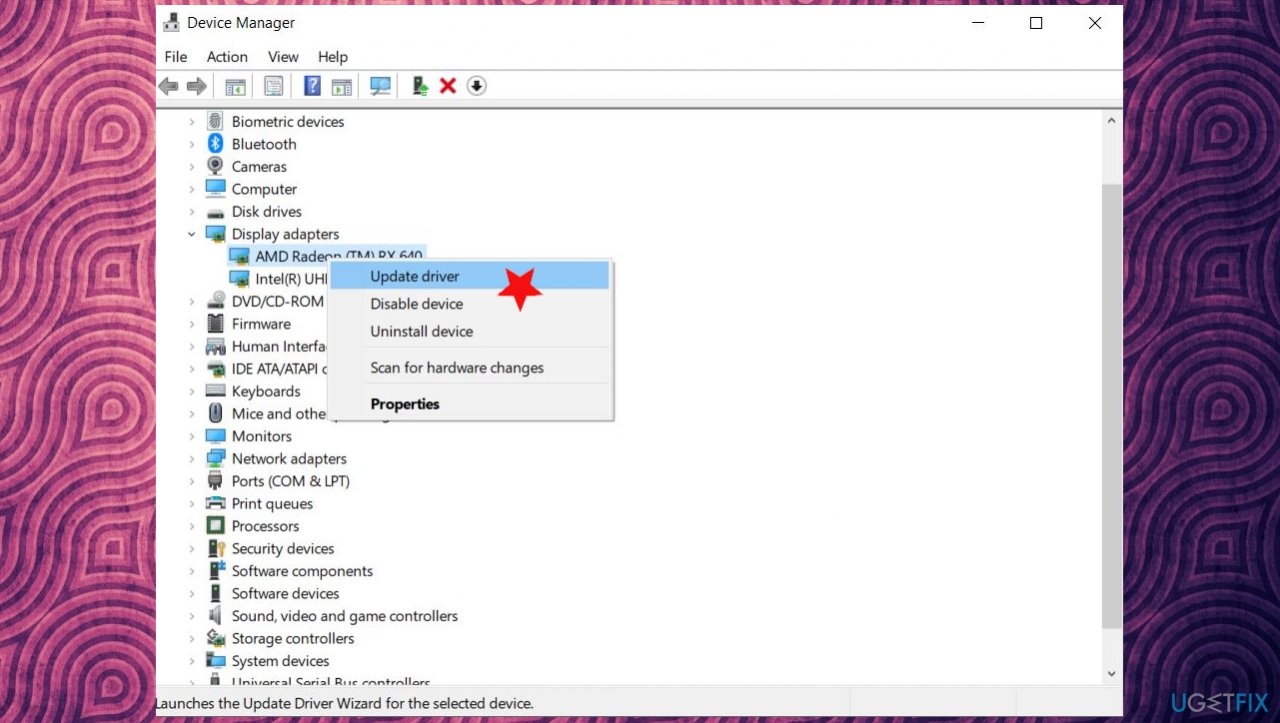
How to fix desktop windows manager dwm exe usage of memory driver update - Right-click on your graphics card and select Update driver.
- Pick Search automatically for updated driver software.
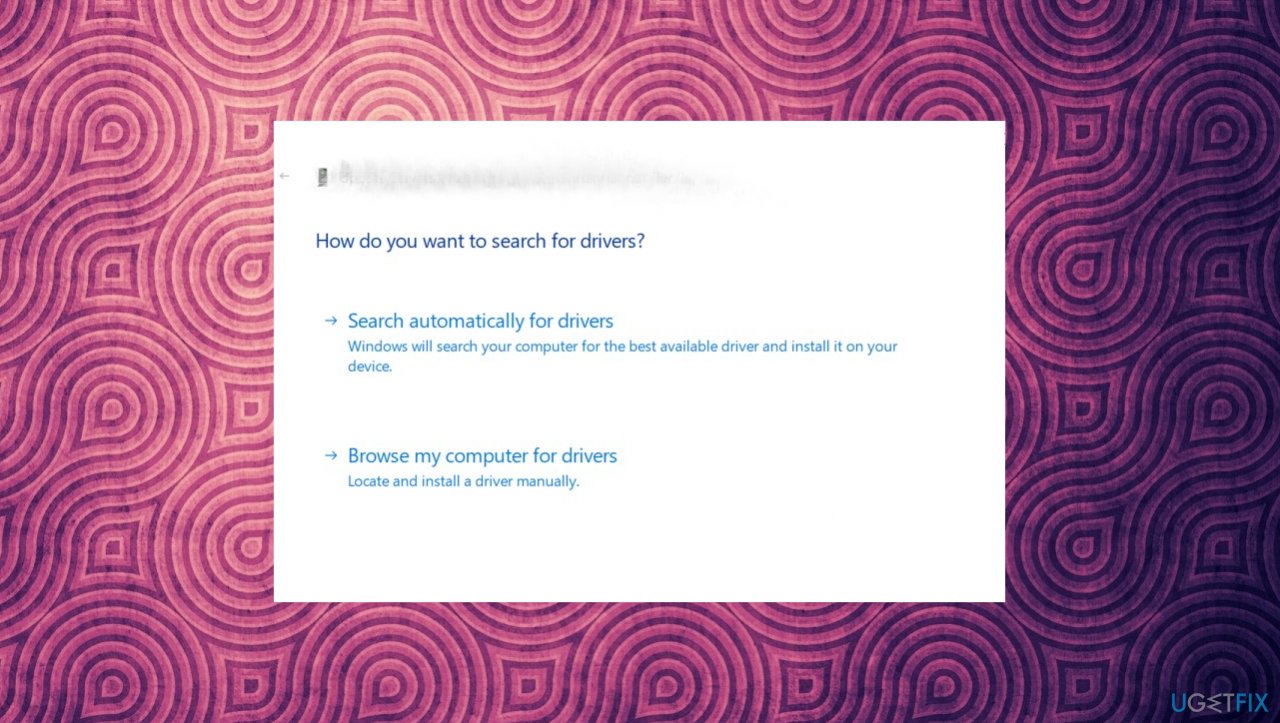
How to fix desktop windows manager dwm exe usage of memory driver update options - Wait until Windows downloads and installs driver updates.
- Reboot the PC.
#3 Update drivers with a driver update tool
It is possible to update or uninstall various drivers on the machine automatically. It can be easier, so technicians recommend relying on tools designed for such processes. It is not the procedure that users want to do manually because people need some knowledge for this process and might trigger different machine issues. It is important to update various drivers. We offer to do so with [rev id="DriverFix"] that quickly improves the performance and resolves drivers' issues.
Damage to your files, drivers, wrong installations of such data can lead to various error messages and additional issues like Desktop Window Manager DWM.exe using too much memory and other errors. This driver manager/ optimization application recommends new drivers, updates outdated ones, and helps make a difference with compatibility issues by finding the drivers' best compatible versions.
#4 Adjust performance options
- Search for sysdm.cpl.
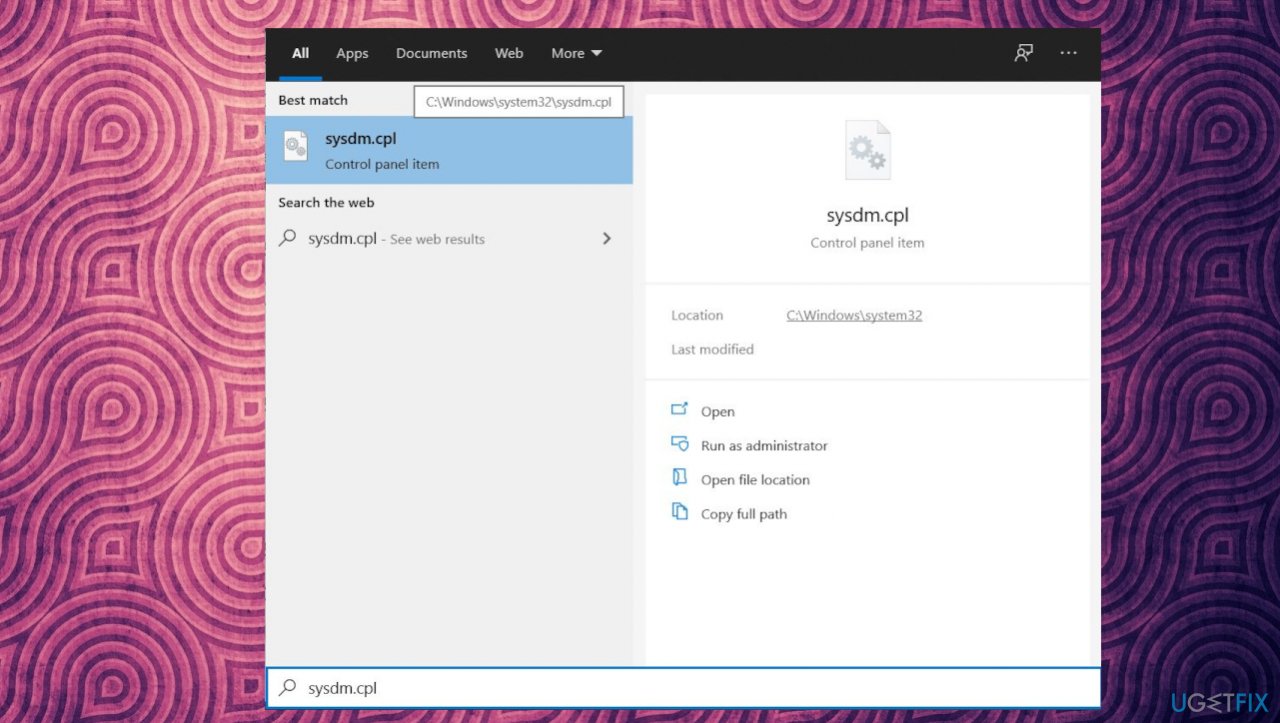
How to fix desktop windows manager dwm exe usage of memory performance - Choose the option from the results.
- Go for Advanced tab.
- Choose Settings under the Performance.
- Then go to the Visual Effects tab and select Adjust the system for best performance.
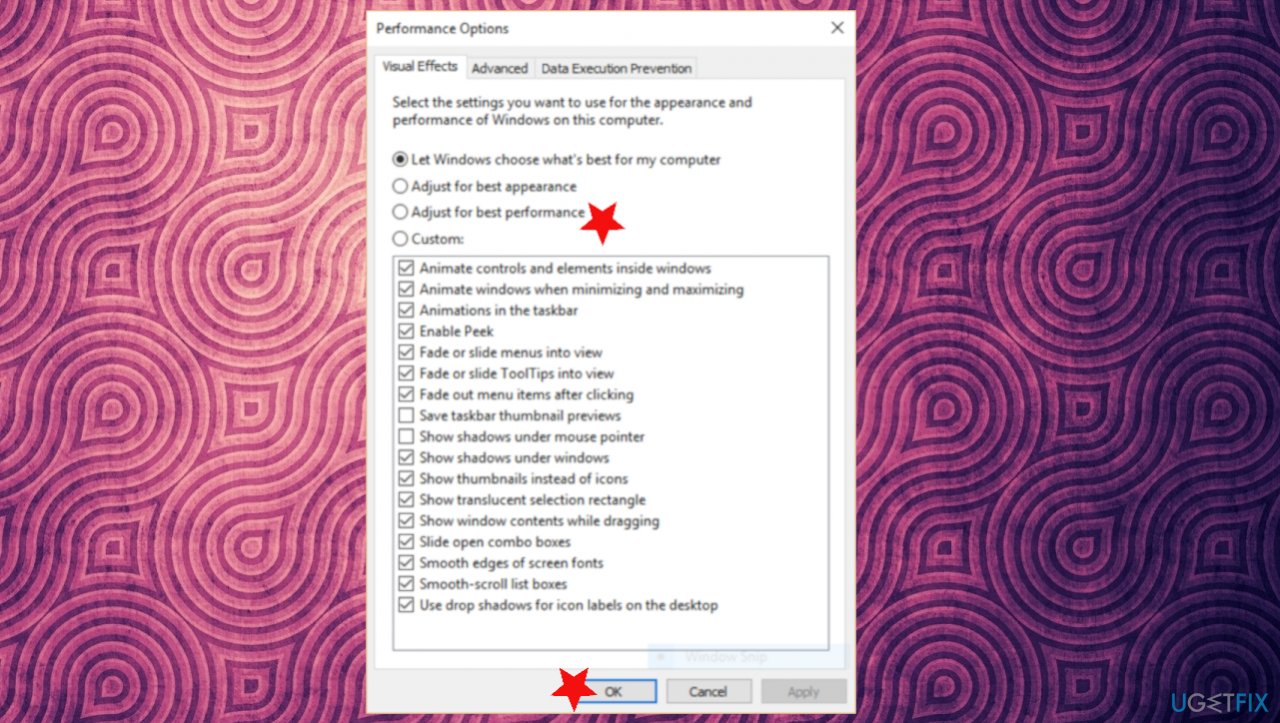
How to fix desktop windows manager dwm exe usage of memory adjust - Confirm with OK.
#5 Scan the system for malware to fix Desktop Window Manager (DWM) using too much memory
You might think that this process is not related to a real Windows component, so checking the computer with an anti-malware tool or the Windows Defender scan can help indicate the issue. Malware[ref en-3] can even damage the system. Some files, system processes get corrupted and altered by the cyber infection. You can also check the file and associated programs to make sure it is a legitimate file before you go and delete the file.
Go to Task Manager and find the Desktop Windows Manager and press it to find the location of the file. If the file is not located in the system folder, it might be related to a malicious process, so you should run a malware scan and clear any threats if detected. This way, you may fix Desktop Window Manager DWM.exe using too much memory issue.
Bottom line
To fix the high memory usage by Desktop Window Manager, consider updating your operating system and graphics drivers. If the problem persists, check for any corrupted files or potential malware. If none of these solutions work, further investigation into hardware issues may be necessary.
Frequently asked questions
Common causes include outdated graphics drivers, corrupted system files, or excessive visual effects settings. You can address these issues by updating your drivers and adjusting your visual effects settings.
To reduce memory usage, try disabling unnecessary visual effects and ensuring your graphics drivers are up to date. You can also check for Windows updates that may resolve performance issues.
Yes, restarting the Desktop Window Manager process is safe and can temporarily alleviate high memory usage. You can do this through the Task Manager without affecting your system stability.




Report an issue
What's wrong with this guide? We review every report and update or remove content.
Report received — thank you. We'll review and fix it.
You need a free account to submit a report.
Be the first to comment