How to fix
“Device is missing important updates” when already up to date
on Windows
Resolve the "Device is missing important updates" error on Windows 10 or 11 effortlessly. Quick fixes and expert-tested solutions await you.

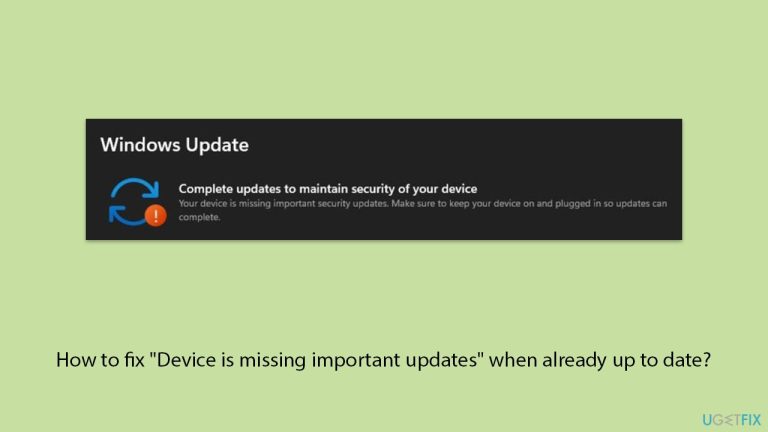
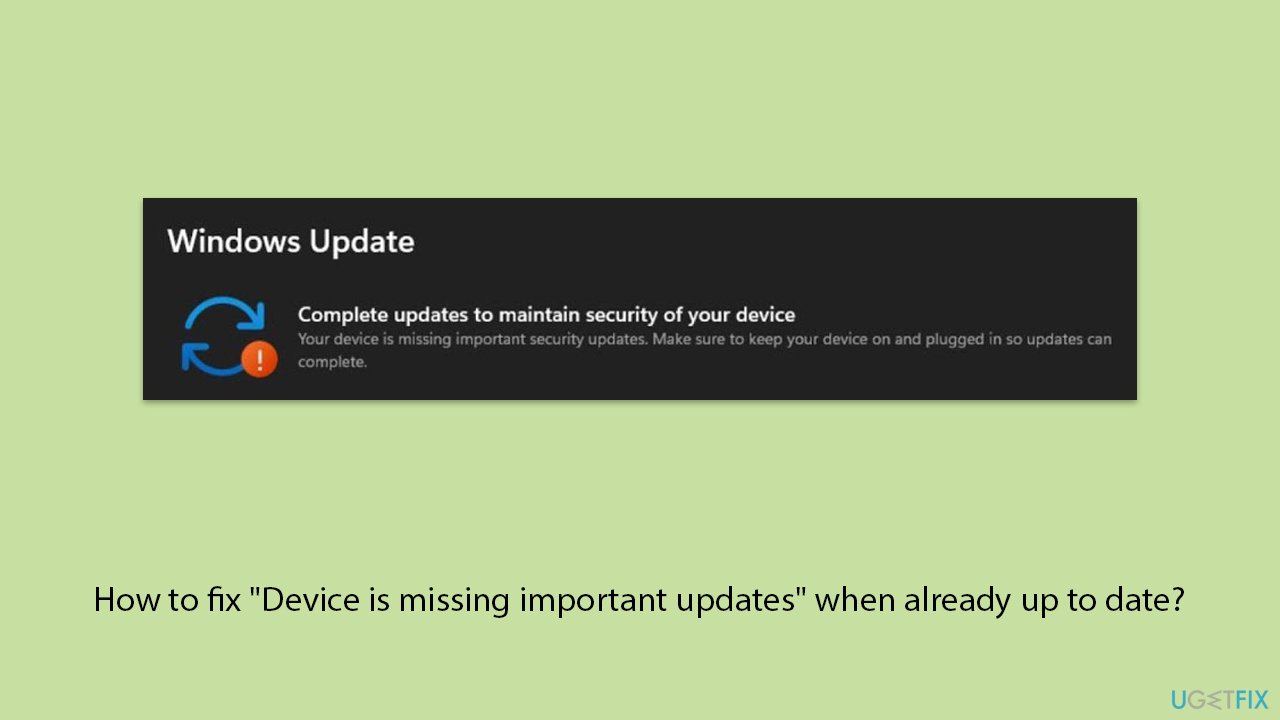
What causes How to fix “Device is missing important updates” when already up to date?
- Corrupted update files that disrupt the installation process
- Glitches in Windows Update services that fail to detect available updates
- Configuration issues that may exclude essential updates from being downloaded or applied
- Failed updates due to errors during the installation process
- Corrupted system files essential for Windows Update operation
Repairs Windows system files, removes malware, and restores a clean OS state — without reinstalling.
I was wondering if you could help me. My computer keep telling me that "Device is missing important updates", even though I installed everything that offered to me through Windows update feature. Why is this happening?
Encountering the "Device is missing important updates" message on Windows, even after the system indicates it's fully updated, can be confusing. This issue suggests that despite showing no pending updates, your system might still lack crucial components necessary for optimal functionality or security.
Understanding the problem
This notification often arises due to inconsistencies between the Windows Update system and the actual status of installed updates. While Windows Update may report that your device is up to date, hidden issues, such as failed updates, incomplete installations, or misconfigured system settings, could prevent important updates from being recognized.
Some common reasons for this discrepancy include:
- Corrupted update files that disrupt the installation process.
- Glitches in Windows Update services that fail to detect available updates.
- Configuration issues that may exclude essential updates from being downloaded or applied.
Missing updates can pose risks, including reduced system performance, vulnerabilities to security threats, and compatibility problems with new applications or features. Addressing this issue ensures that your system remains secure, stable, and fully functional.
Possible causes of the problem
The underlying reasons for the "Device is missing important updates" message can vary, but a few common scenarios are often reported. One possibility is failed updates, where errors during the installation process leave updates incomplete, yet undetected by the system.
Another potential cause involves corrupted system files, which are essential for the smooth operation of Windows Update and can become damaged over time, leading to errors.
Additionally, issues with the Windows Update service itself or its components might prevent the system from recognizing and installing necessary updates, creating a mismatch between the update status and the notification.
Resolving the issue
Identifying and resolving the root cause of this notification may involve a mix of troubleshooting methods. For instance, repairing system files might work if corruption is the issue, while resetting Windows Update components could help in cases involving stuck or incomplete updates. We will outline these solutions in the next section.
If you find manual troubleshooting overwhelming, you can use an automatic repair tool like [d1]. This tool can fix various underlying Windows issues, including problems with updates, corrupted system files, and more, with minimal effort.
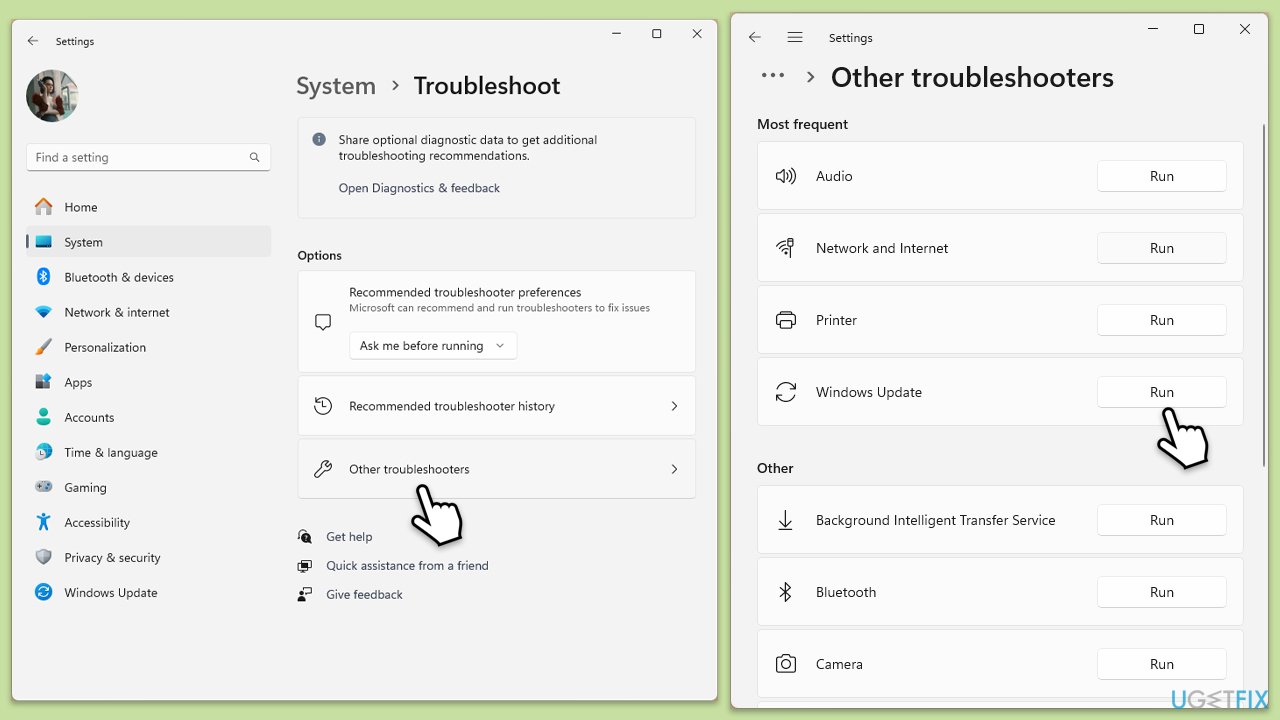
Fix 1. Run the Windows Update troubleshooter
The built-in Windows Update troubleshooter can automatically identify and resolve common issues with the update process. It’s designed to check for errors in the update mechanism and fix them without requiring manual intervention.
- Type Troubleshoot in Windows search and press Enter.
- Select Additional troubleshooters/Other troubleshooters.
- Find Windows Update from the list.
- Click it and select Run the troubleshooter/Run.
- Restart your computer when the update process is finished.
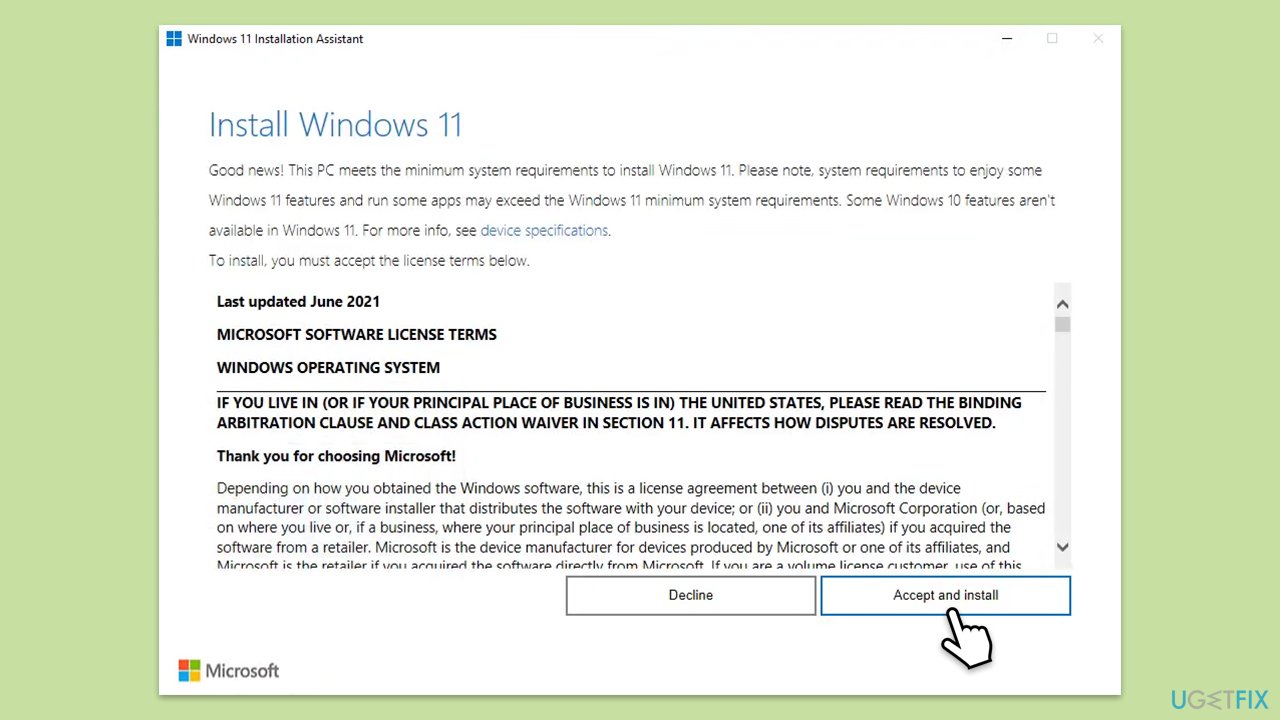
Fix 2. Use Windows 11 Installation Assistant
Using the Windows 11 Installation Assistant can help ensure that all important updates are applied. This tool is designed to upgrade your system while resolving potential update conflicts.
- Visit the official Windows 11 Installation Assistant page.
- Under Windows 11 Installation Assistant, click Download Now.
- Double-click on the downloaded file to launch it.
- After launching the app, simply click Accept and install.
- Wait till the process is finished, then restart your PC.
Fix 3. Check Windows Update services
Restarting the update services ensures they’re running properly and clears any temporary glitches that could interfere with updates.
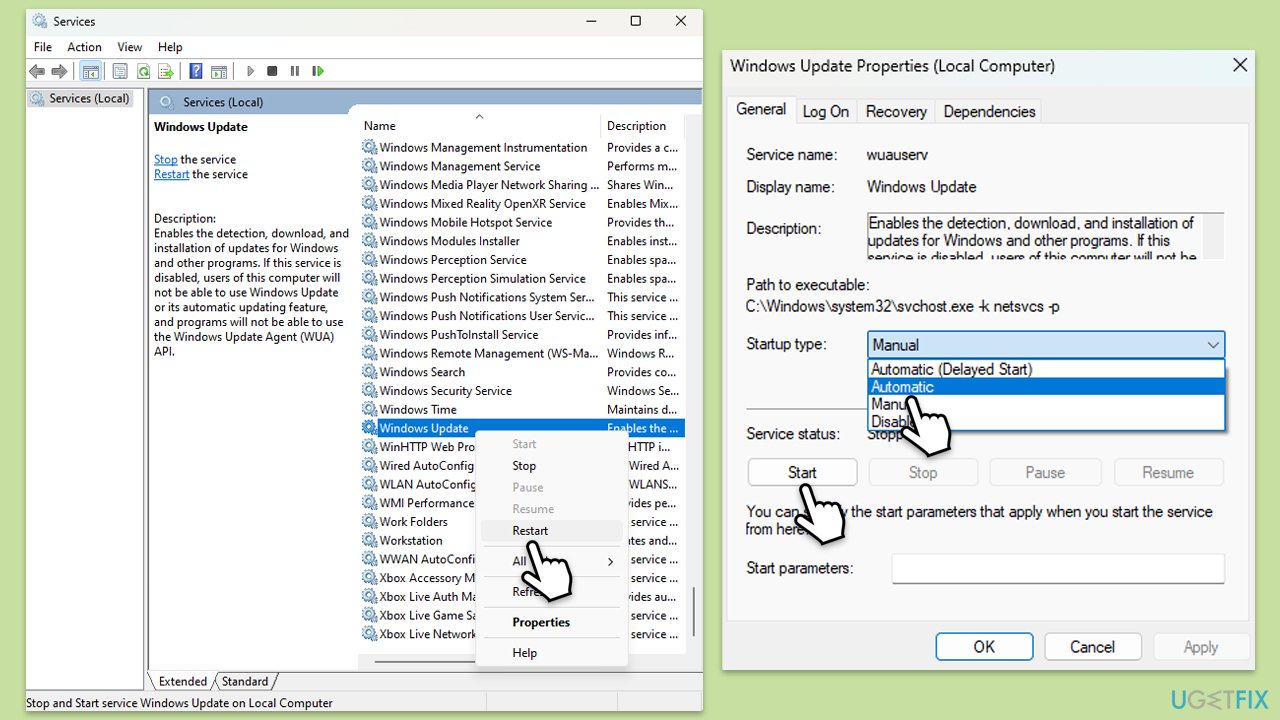
- Type in Services in Windows search and hit Enter.
- Locate Windows Update service.
- If this service is already running, right-click and select Restart.
- If it is not running, double-click it, select Automatic under the Startup type from the drop-down menu.
- Click Start, Apply, and OK.
- Repeat the process with the Background Intelligent Transfer Service (BITS), Cryptographic, and Windows Installer services.
Fix 4. Verify update installation history
Checking your update history helps confirm whether specific updates have failed or been skipped. This can provide insight into which updates might need manual installation.
- Type Updates in Windows search and press Enter.
- Click on Update history.
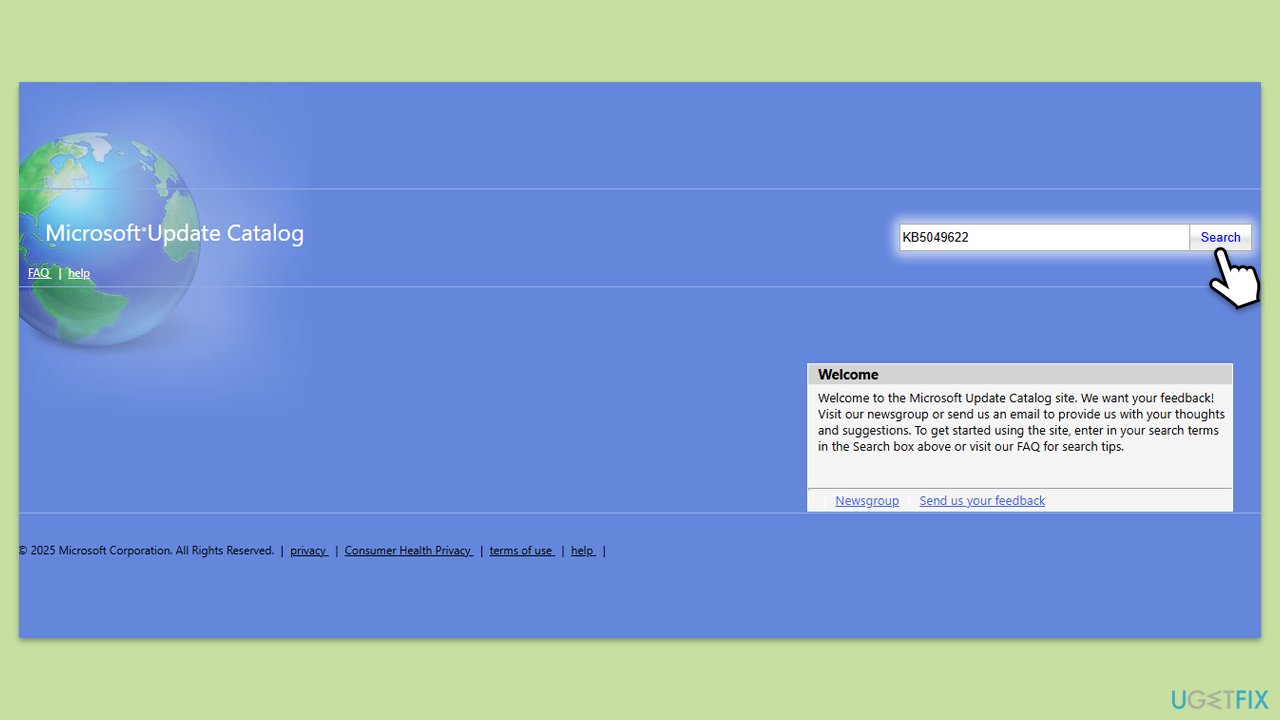
- Look for updates marked as Failed and note their KB numbers.
- Download the failed updates through Microsoft Update Catalog and install them.
- Restart your system.
Fix 5. Reset Windows Update components
Resetting the components involved in the update process removes bugged caches and restores default settings, which can resolve persistent issues.
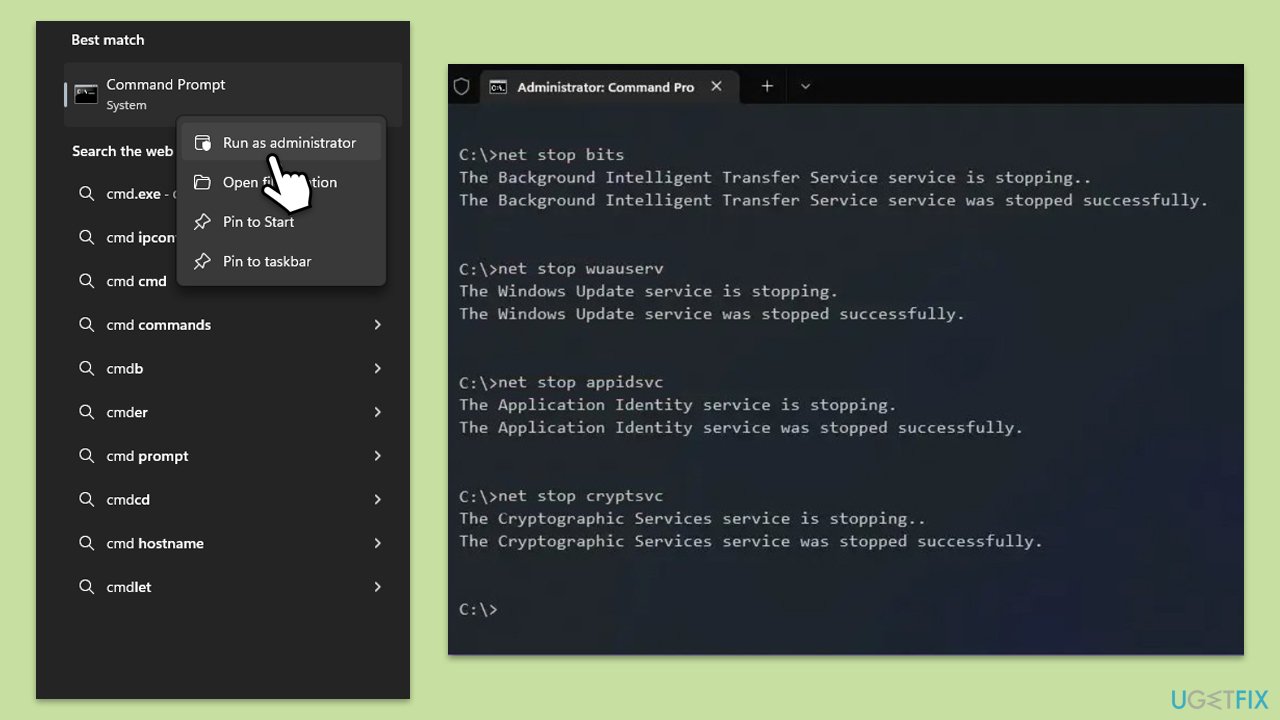
- Type cmd in Windows search.
- Right-click on Command Prompt and select Run as administrator.
- When the User Account Control window pops up, click Yes.
- Type the following commands one by one in Command Prompt and press Enter after each:
net stop wuauserv
net stop cryptSvc
net stop bits
net stop msiserver
Ren C:\Windows\SoftwareDistribution SoftwareDistribution.old
Ren C:\Windows\System32\catroot2 Catroot2.old - When these commands are executed, the last thing to do is to re-enable relevant services:
net start wuauserv
net start cryptSvc
net start bits
net start msiserver - Reboot your device.
Fix 6. Perform an SFC/DISM scan
Corrupted system files can interfere with the update process, but running scans can repair them.
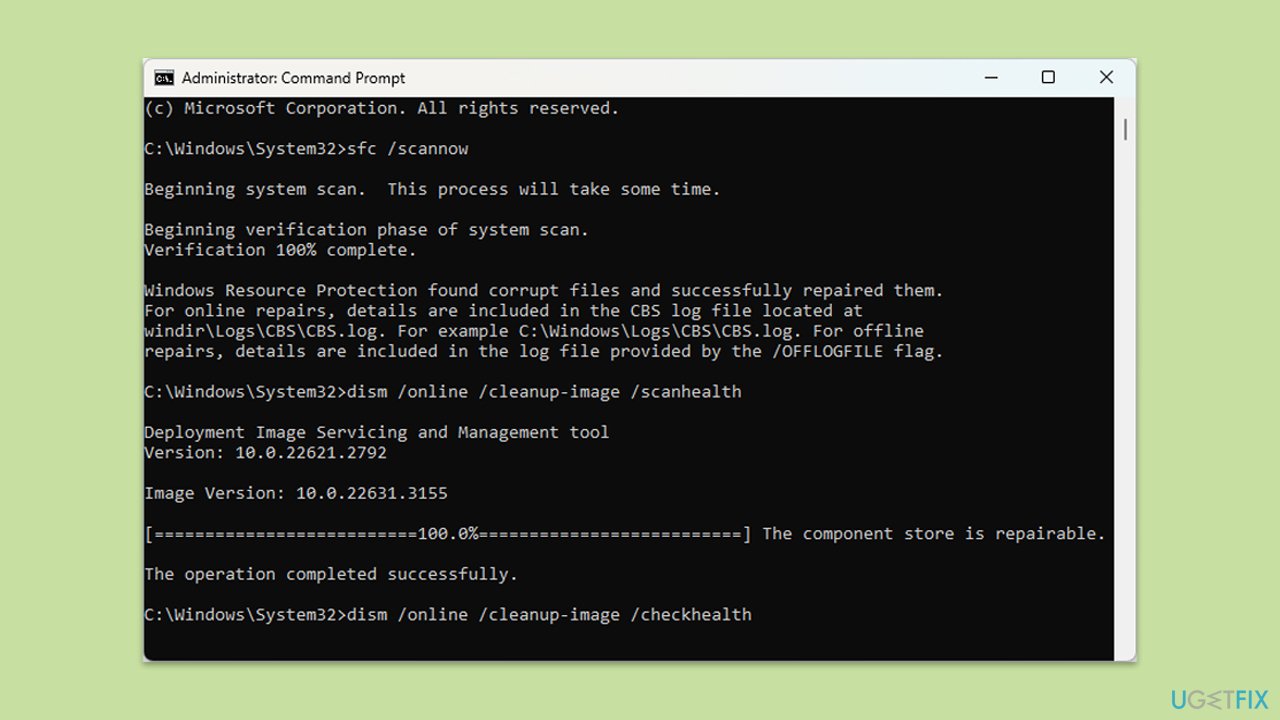
- Open Command Prompt as administrator.
- In the Command Prompt window, paste the following command and hit Enter:
sfc /scannow - Next, use the following commands, pressing Enter each time:
Dism /Online /Cleanup-Image /CheckHealth
Dism /Online /Cleanup-Image /ScanHealth
Dism /Online /Cleanup-Image /RestoreHealth
(Note: if you get an error executing this last command, add /Source:C:\RepairSource\Windows /LimitAccess to it and try again). - Reboot your device.
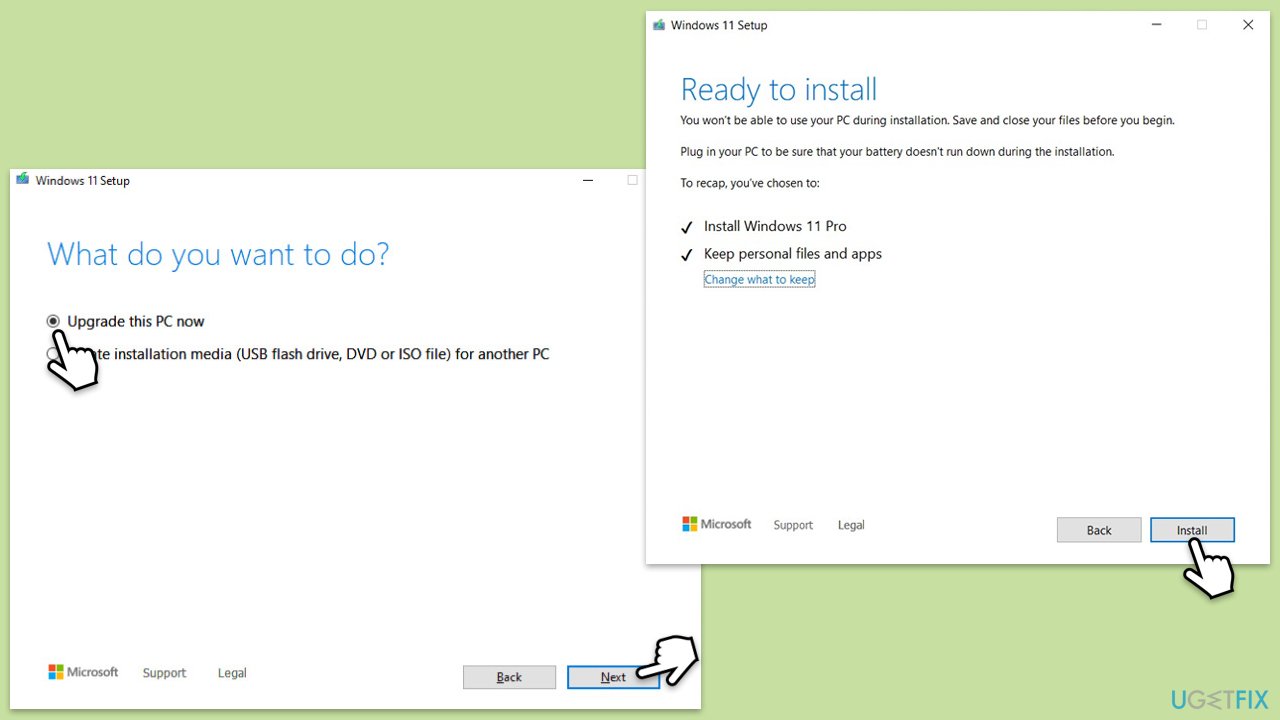
Fix 7. Use the Media Creation Tool
If all else fails, the Media Creation Tool can force your system to download and install the latest updates.
- Visit the official Microsoft website and download Windows 10 installation media (Windows 11 version).
- Double-click the installer and select Yes when UAC shows up.
- Agree to terms.
- Select Upgrade this PC now and select Next.
- Windows will now download all the necessary files – it might take a while.
- Agree to terms once again and click Next.
- Before installing, make sure that you are happy with your choices (otherwise, you can click Change what to keep option).
- Click Install to begin the upgrade process - your PC will restart.
Bottom line
To resolve the issue, you may need to repair system files, reset Windows Update components, or check for any configuration issues. If these methods do not work, consider seeking further assistance or exploring additional troubleshooting steps.




Report an issue
What's wrong with this guide? We review every report and update or remove content.
Report received — thank you. We'll review and fix it.
You need a free account to submit a report.
Be the first to comment