How to fix
Device Manager not detecting SD Card
on Windows
Fix Device Manager not detecting your SD Card in Windows 10 or 11 with expert tips and tricks. Get your device recognized in minutes!


What causes How to fix Device Manager not detecting SD Card in Windows?
- Outdated drivers for the SD Card reader
- Corrupted drivers related to the SD Card reader
- Defective SD card
- Malfunctioning SD card reader
- Hardware issues preventing connection
Repairs Windows system files, removes malware, and restores a clean OS state — without reinstalling.
Hello. I tried to connect my SD card to Windows but the Device Manager is not detecting it. Is there a way to fix this?
There are several reasons why Device Manager in Windows may fail to detect an SD card; these include hardware malfunctions as well as driver[ref en-1] and peripheral issues. Outdated or corrupted drivers related to the SD Card reader are a frequent cause. Under such circumstances, there's a chance that the system and SD Card won't be able to communicate, which would prevent the device from being recognized.
This issue may also be caused by hardware problems, such as a defective SD card or an SD card reader that isn't working properly. An SD card that is broken or not working properly can prevent the card from connecting to the computer, which would prevent the Device Manager from detecting it. In the same way, an unreliable SD Card reader may prevent the SD Card and system connection from operating as intended.
Users may be significantly impacted by this problem, especially those who use SD Cards to transfer or store data. Users might not be able to access crucial information, pictures, or other data kept on an SD card if the device is unable to recognize the card. This might result in discomfort and even data loss, which can negatively impact productivity and aggravate people who depend on their storage devices to perform flawlessly.
Users can try upgrading or reinstalling the SD Card drivers, making sure the SD Card is undamaged, looking for hardware issues with the SD Card reader, and investigating any conflicts in the system to solve the issue.
In this guide, you will find 6 steps that should help you fix Device Manager not detecting SD Card in Windows. You can also run a maintenance tool like [d1] that can fix most system errors, BSODs,[ref en-2] corrupted files, and registry[ref en-3] issues. Otherwise, follow the step-by-step instructions below.
Solution 1. Reinsert SD Card
Occasionally, an improperly seated SD card in the reader may hinder proper detection. Rectifying this issue can be achieved by reinserting the card. Ensure the safe removal of the SD card by right-clicking on the eject icon in the taskbar and selecting "Eject SD card." Verify whether this action yields any improvements.
Solution 2. Switch Different USB Port
The USB port may be experiencing functionality issues. Occasionally, conflicts among drivers for various USB devices can lead to recognition problems. Plugging the device into a different port prompts Windows to reload the drivers, potentially resolving any conflicts. Try connecting your SD card to an alternate port and assess whether the issue persists.
Solution 3. Check if the SD Card Drivers are Disabled
- Press the Windows key + R to open the Run command.
- In the Run dialog box, type devmgmt.msc and press OK.
- Click on View and select Show hidden devices.
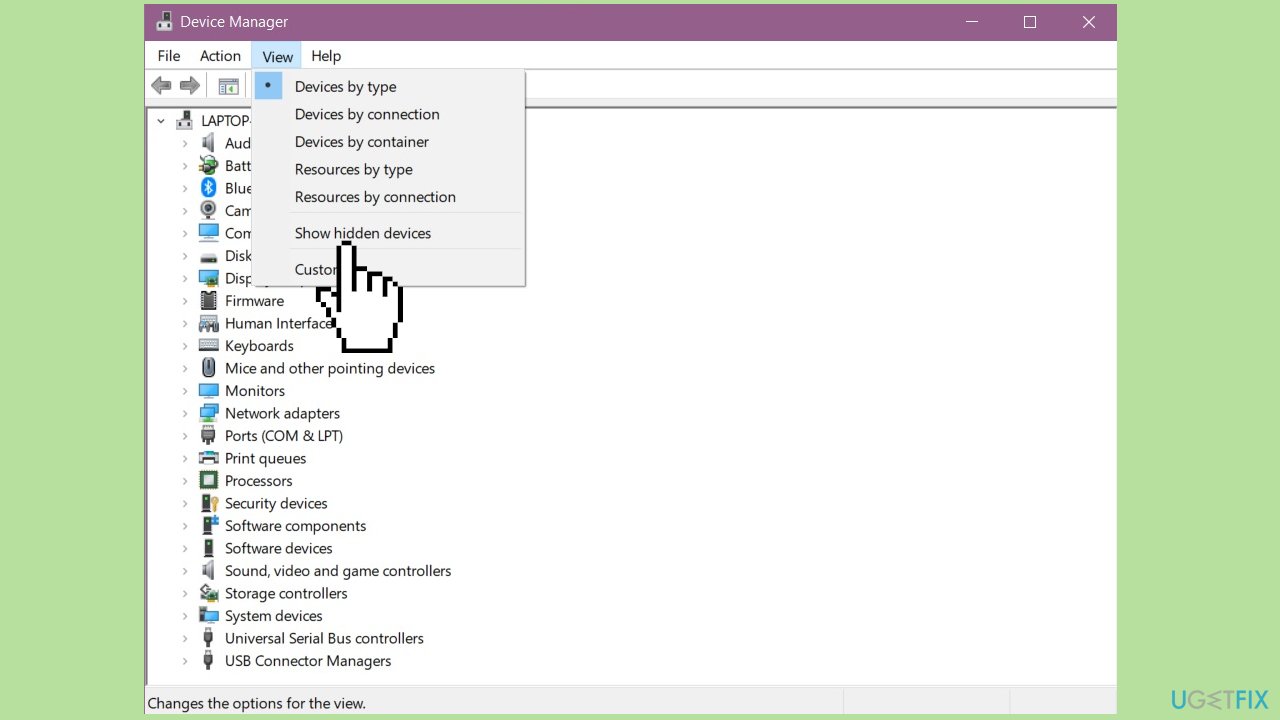
- Check if the SD Card driver appears in the Device Manager.
- If the driver is present but disabled, right-click on it and choose Enable.
Solution 4. Fix Corrupted System Files
Use Command Prompt commands to repair system file corruption:
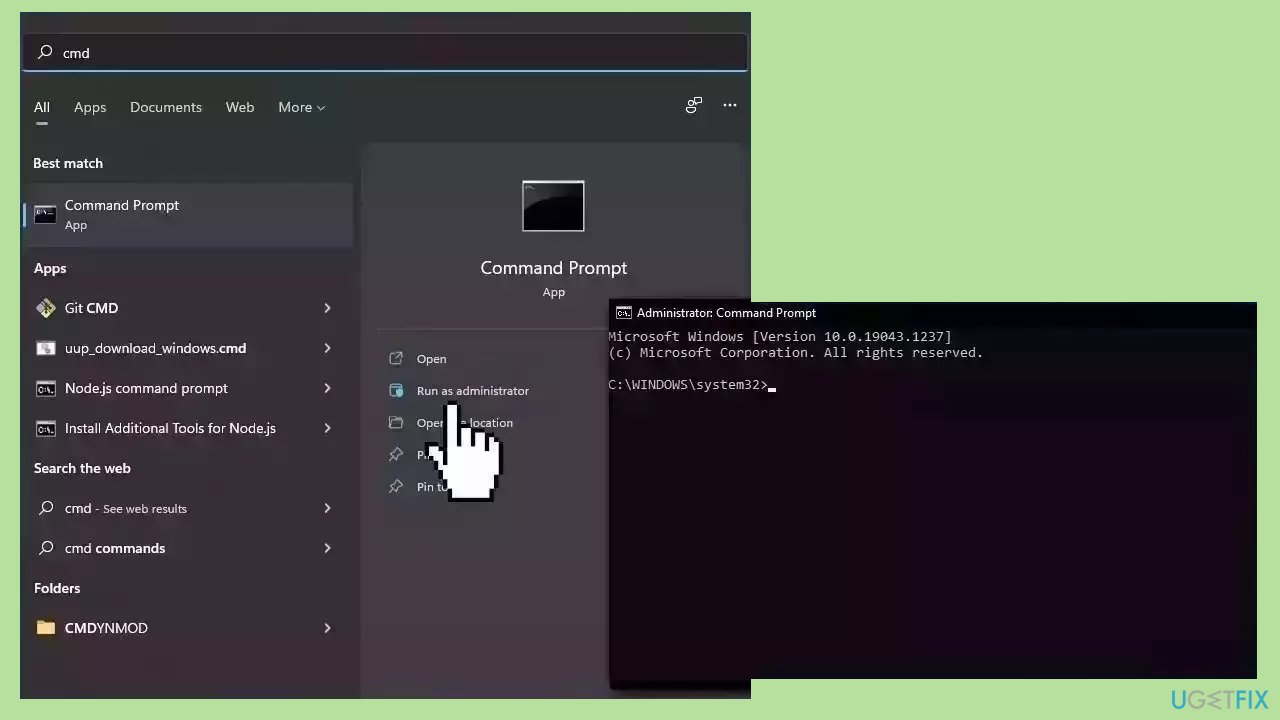
- Open Command Prompt as administrator
- Use the following command and press Enter:
sfc /scannow
- Reboot your system
- If SFC returned an error, then use the following command lines, pressing Enter after each:
DISM /Online /Cleanup-Image /CheckHealth
DISM /Online /Cleanup-Image /ScanHealth
DISM /Online /Cleanup-Image /RestoreHealth
Solution 5. Try Clean Boot
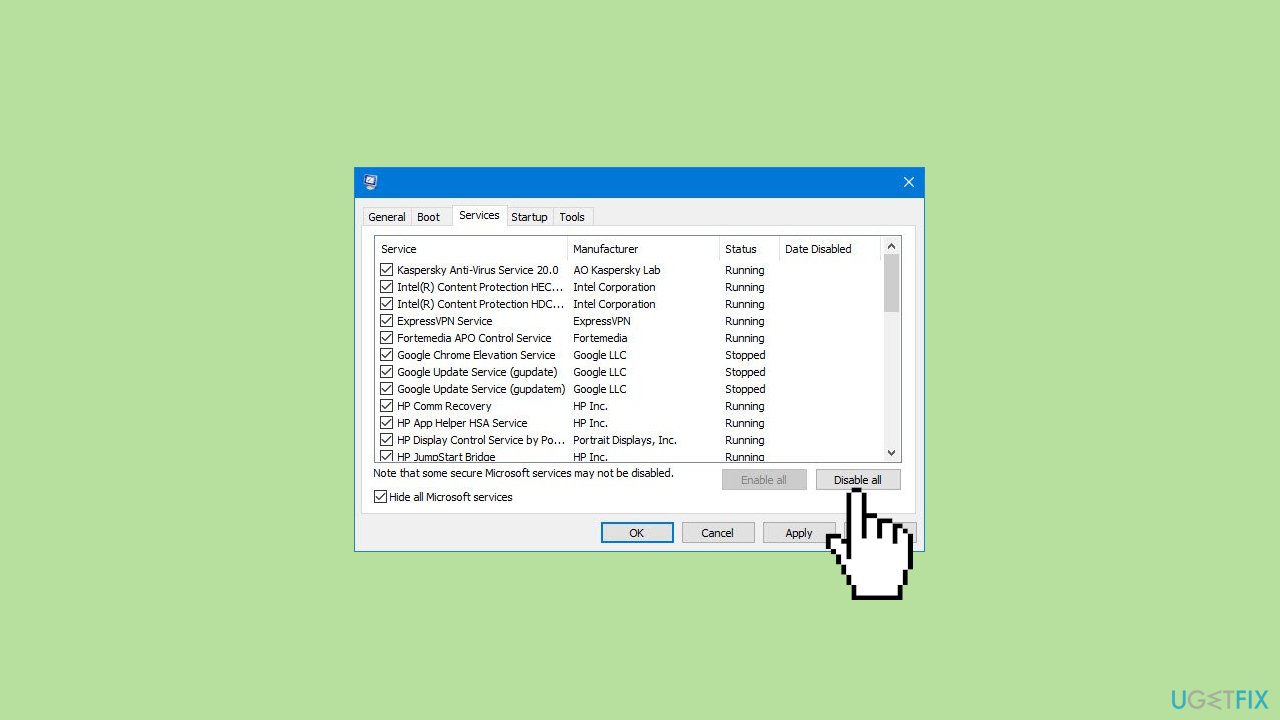
- Open the Search menu, type in system configuration, and press Enter.
- Under the Services tab, tick the Hide all Microsoft services box.
- Click on Disable all button.
- Head over to the Startup tab and click on Open Task Manager.
- Select a third-party program and click on Disable at the top.
- Repeat this step to disable all third-party apps and programs.
- Restart your PC to enter the clean boot state and see if the issue persists.
- If the issue disappeared in the clean boot state, then you can be certain that a third-party app is causing it.
- Go through all recently installed apps or programs and remove them one by one.
Solution 6. Reinstall the Universal Serial Bus Controller Driver
- Open Device Manager using the Windows key + X Menu.
- Expand the Universal Serial Bus controllers branch.
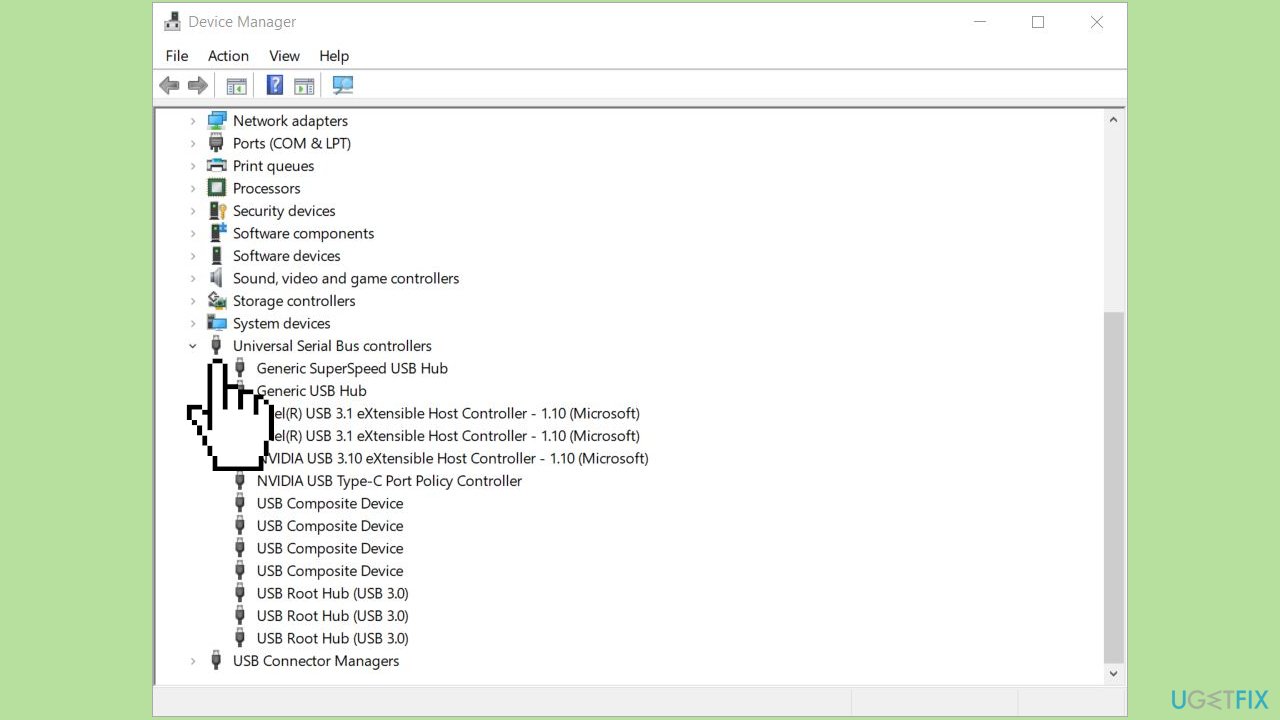
- Right-click on each entry and choose Uninstall.
- Restart your computer.
- The necessary drivers will be automatically reinstalled.
Bottom line
To resolve the issue of Device Manager not detecting the SD Card, users can try reinserting the SD Card, upgrading or reinstalling the drivers, and checking for hardware problems. If these steps do not work, consider using a maintenance tool to fix system errors or exploring further troubleshooting options.
Frequently asked questions
Device Manager may not detect your SD card due to issues like outdated drivers, a malfunctioning card reader, or the card itself being corrupted. Ensure that your SD card is properly inserted and try updating your drivers through Device Manager.
In Windows 11, you can troubleshoot SD card detection by checking the Disk Management tool to see if the card is recognized but unallocated, and by running the Hardware and Devices troubleshooter. Additionally, ensure that the SD card is formatted correctly and is compatible with your device.
If your SD card is not showing up in Device Manager, try using a different card reader or USB port, testing the card on another device, or checking for physical damage to the card. If issues persist, consider formatting the SD card or replacing it.




Report an issue
What's wrong with this guide? We review every report and update or remove content.
Report received — thank you. We'll review and fix it.
You need a free account to submit a report.
Be the first to comment