How to fix
Device Setup Manager Event ID 131 error
on Windows
Resolve the Device Setup Manager Event ID 131 error in Windows 10 or 11 quickly and easily. Expert-tested solutions for seamless troubleshooting.


What causes How to fix Device Setup Manager Event ID 131 error in Windows?
- Corrupt metadata files
- Missing metadata files
- Issues with Windows Update
- Incompatibility with specific peripherals
- Driver installation difficulties
Repairs Windows system files, removes malware, and restores a clean OS state — without reinstalling.
Hello. My Windows PC is getting slow and I see the Device Setup Manager Event ID 131 error on Event Viewer. This error appears multiple times on startup. Is there a way to fix this?
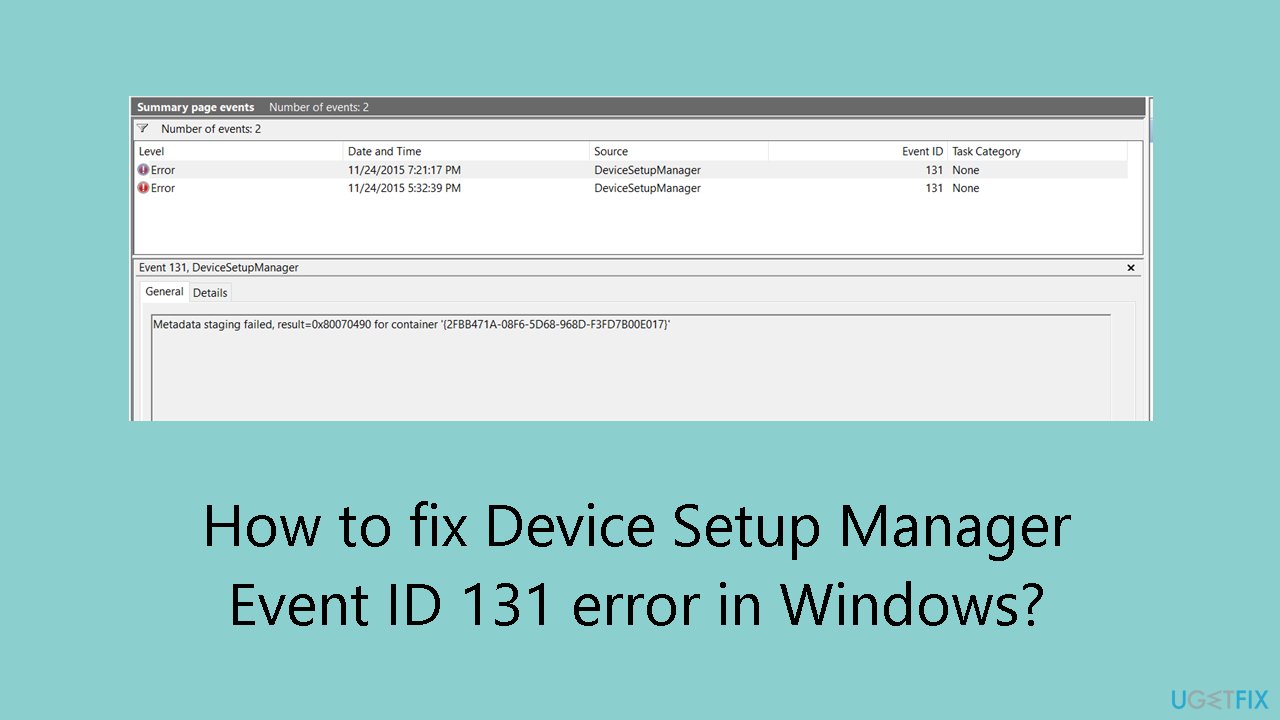
The Windows Device Setup Manager Event ID 131 error, along with the accompanying message "Metadata staging failed, Device Setup Manager Event ID 131 0x80070490," seems to point to an issue with Windows Update's attempt to obtain hardware installation information from the internet. This problem has been reported by users while they are looking into system lag and inconsistent performance.
This problem indicates that Windows Update is having trouble retrieving metadata about the installed hardware during the startup phase. A corrupt file issue or a file not found fault is indicated by the error number 0x80070490, which is frequently linked to this issue. In this case, it can mean that the required metadata files are corrupted or missing, which prevents the Device Setup Manager from operating as it should.
This issue may have a variety of effects that impact how users interact with the system as a whole. First, when the Device Setup Manager tries to retrieve hardware information but runs into difficulties, the system could lag or become sluggish at startup. Longer boot times and generally slower operating system responsiveness may arise from this.
Moreover, the persistent occurrence of this issue could result in an erroneous or incomplete database of system hardware information. Thus, the system's capacity to recognize and communicate with hardware components accurately may be impacted. It is possible for users to experience difficulties with driver installations, device identification, or even incompatibility with specific peripherals or programs.
The fact that Windows Update and metadata retrieval are the error's primary causes highlights how interdependent all of the system's parts are. If this procedure fails, it may cause problems for other tasks that depend on correct hardware information. Users may need to investigate file corruption, check Windows Update settings, or even look into obtaining specific updates or patches from Microsoft in order to solve this issue while they look for remedies.
In this guide, you will find 4 steps that should help you fix Device Setup Manager Event ID 131 error in Windows. You can also run a maintenance tool like [d1] that can fix most system errors, BSODs, corrupted files, and registry issues. Otherwise, follow the step-by-step instructions below.
Solution 1. Fix Corrupted System Files
Use Command Prompt commands to repair system file corruption:
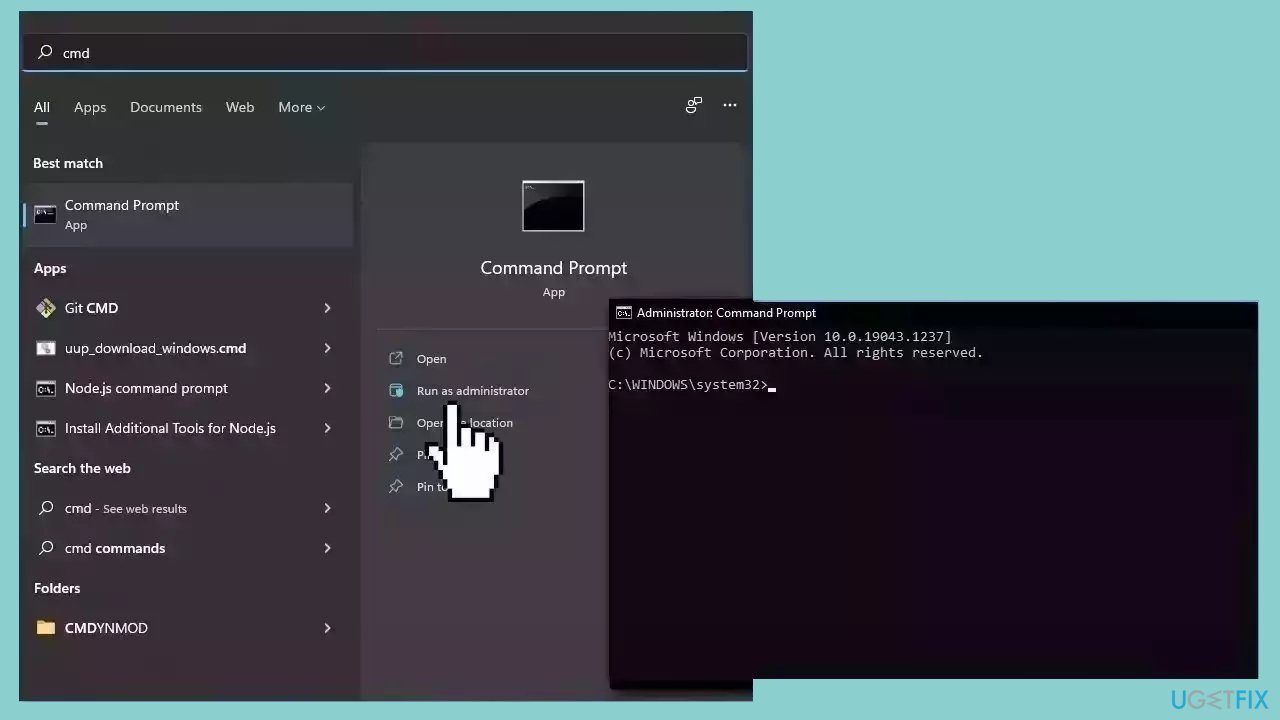
- Open Command Prompt as administrator
- Use the following command and press Enter:
sfc /scannow
- Reboot your system
- If SFC returned an error, then use the following command lines, pressing Enter after each:
DISM /Online /Cleanup-Image /CheckHealth
DISM /Online /Cleanup-Image /ScanHealth
DISM /Online /Cleanup-Image /RestoreHealth
Solution 2. Disable Automatic Device Driver Installations
- Go to the Control Panel.
- Type in the search bar: device installation.
- Click on Change device installation settings.
- Click on No let me choose what to do.
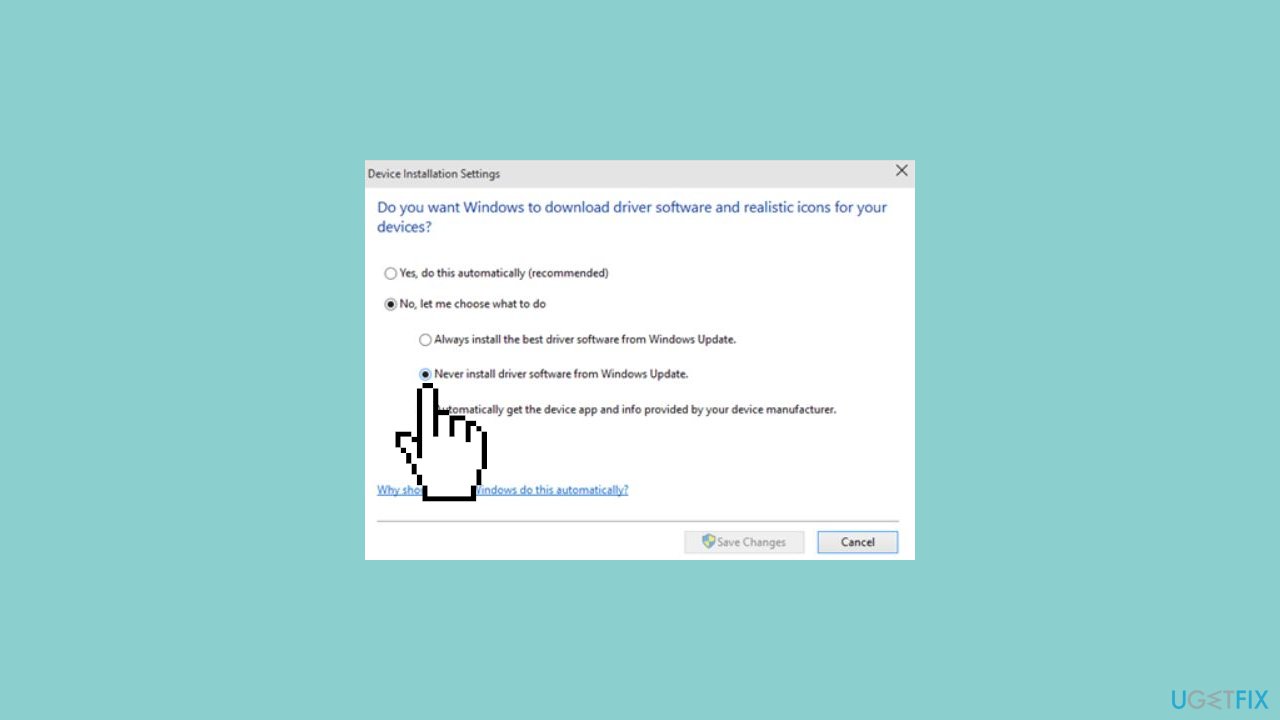
- Choose the option Never install driver software from Windows Update.
- Ensure that Automatically get the device app and info provided by your device manufacturer is unchecked.
Solution 3. Change the Time and Date Server
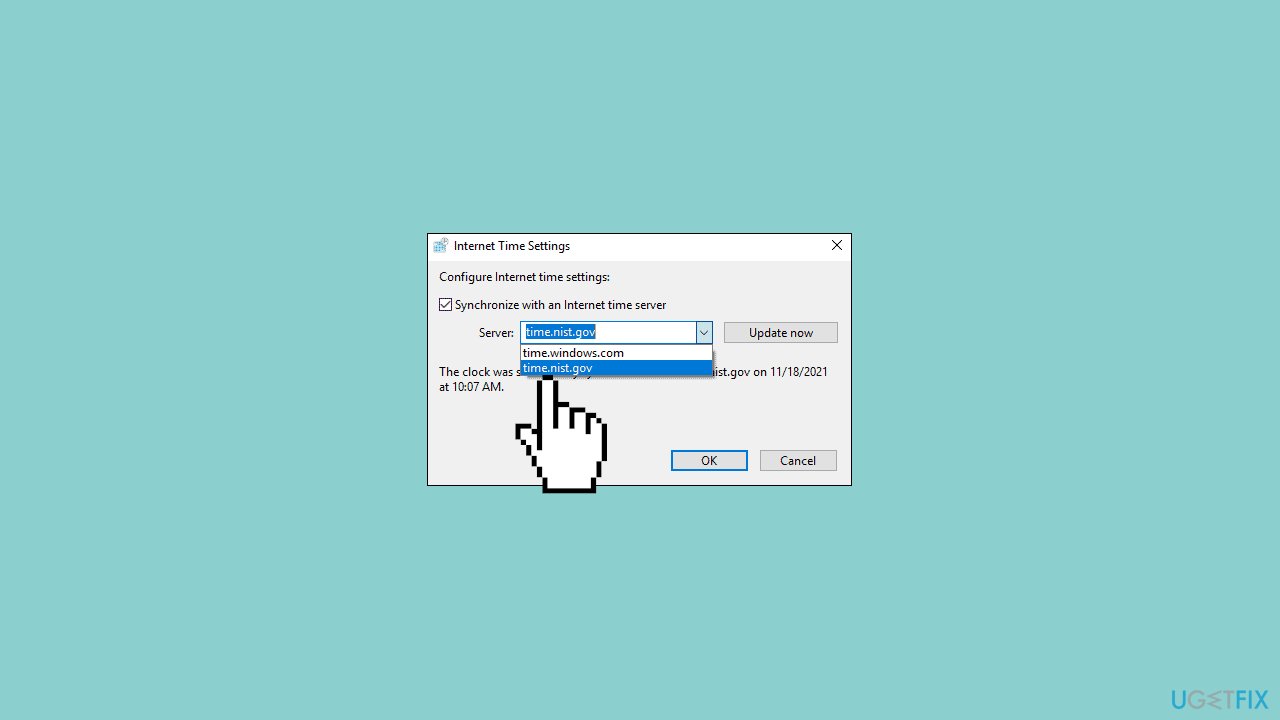
- Click on time and date at the bottom right of the screen.
- Select Internet time.
- Change the server in the drop-down list from Windows time to nist.gov.
- Update the time.
Solution 4. Modify Windows Registry
- Right-click on the Windows logo in the bottom left corner.
- Select Run and type regedit. Click OK.
- Regedit will open. Now go to Edit (in the top left corner of the regedit window, next to File).
- Click on Find...
- Type DeviceMetadataServiceURL and click Find next.
- Wait a few seconds, and you can now see DeviceMetadataServiceURL in the right panel.
- Right-click on DeviceMetadataServiceURL and select Modify....
- Copy and paste the new address in place of the old one:
http://dmd.metaservices.microsoft.com/dms/metadata.svc
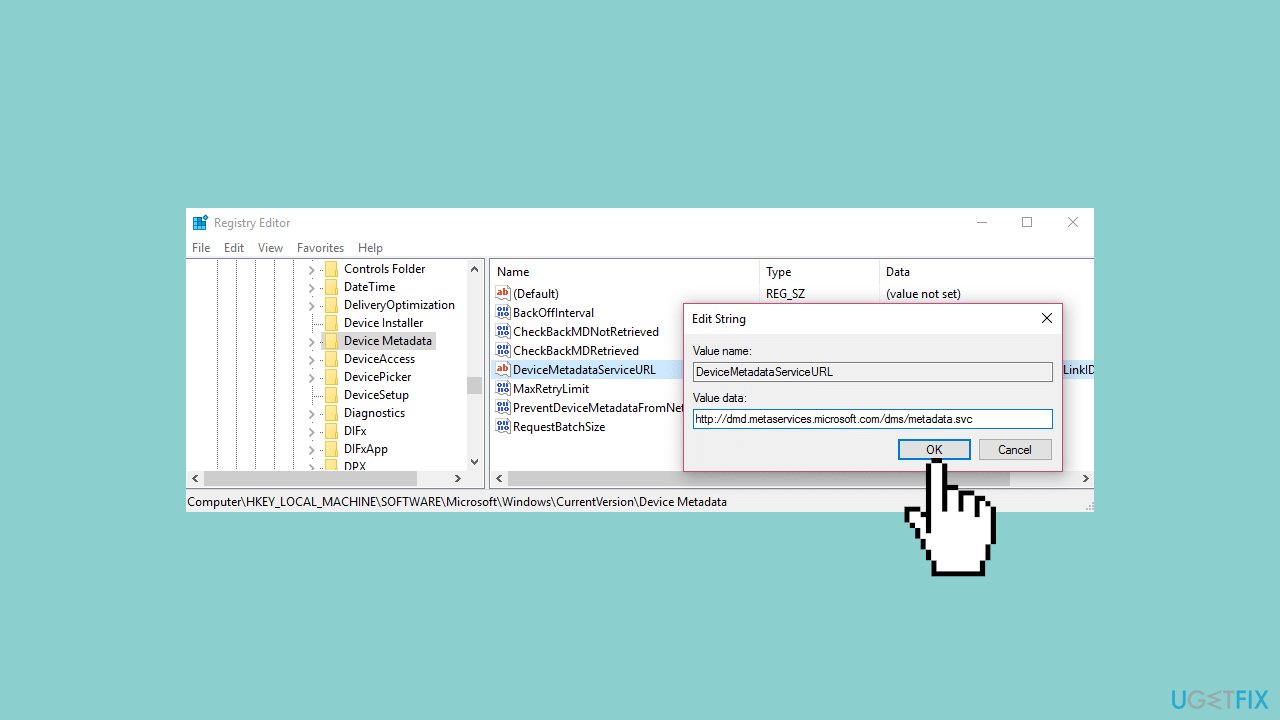
- Before executing this last step, you may want to copy the old address and save it in Notepad, in case you experience any problems and you'd like to revert back to your previous setting.
- Close the registry, and you are done.
- Restart the system. Event viewer and everything else should be finally fine.
Bottom line
To resolve the Device Setup Manager Event ID 131 error, users should investigate file corruption, check Windows Update settings, and obtain specific updates or patches from Microsoft. If these solutions do not work, further troubleshooting may be necessary.
Frequently asked questions
The Event ID 131 error is typically caused by issues with device drivers, corrupted system files, or conflicts with other software installed on your system.
You can start troubleshooting by updating your device drivers, running the Windows Troubleshooter, or executing the System File Checker tool to repair corrupted files.
To prevent this error, ensure that your Windows 10 system is always up to date and regularly check for driver updates from the manufacturer's website.




Report an issue
What's wrong with this guide? We review every report and update or remove content.
Report received — thank you. We'll review and fix it.
You need a free account to submit a report.
Be the first to comment