How to fix
Diablo 4 error 300022
on Windows
Resolve Diablo 4 error 300022 on Windows 10 and Windows 11 effortlessly. Get expert-tested solutions to enjoy uninterrupted gameplay now!

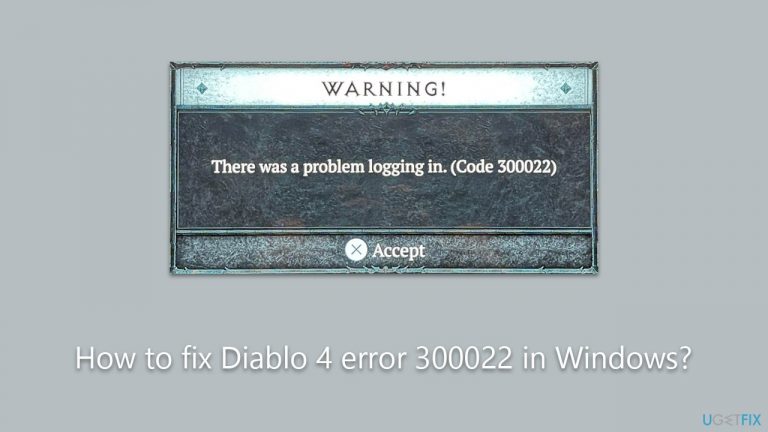
What causes How to fix Diablo 4 error 300022 in Windows?
- Server-related issues
- Overloaded servers
- Server maintenance
- Internet connection problems
- Overly aggressive security software
- Corruption of game files
Repairs Windows system files, removes malware, and restores a clean OS state — without reinstalling.
I can't play Diablo 4 IV due to the 300022 error. I was waiting for almost an hour, only for it to fail with the error. This then repeated after I waited another 40 minutes. How do I fix this?
Diablo IV is Blizzard's latest installment in the Diablo franchise, a series that has been highly influential in the action role-playing game genre. With its debut in 1996, the Diablo series has amassed a massive following, offering a combination of immersive storytelling, dark ambiance, and intricate gameplay mechanics. Its success has inspired numerous imitators, but few equals, making each new release a highly anticipated event for the gaming community.
With the game releasing on June 5, 2023, not all has been smooth sailing for Diablo IV players. One significant issue affecting users is login error 300022. Despite Diablo IV being primarily a single-player game, it mandates an active internet connection to Blizzard's servers for gameplay. Users have reported that they often encounter error 300022 after waiting for a prolonged time to log in. This error continues to recur, preventing them from accessing the game altogether.
One of the primary reasons for encountering error 300022 is server-related issues. These could range from the servers being overloaded to undergoing maintenance or experiencing other technical difficulties. Therefore, the first step in troubleshooting should always be to check the server status on Blizzard's official website or social media channels.
That said, server issues aren't the only contributing factors. Players could also encounter this error due to problems with their internet connection, overly aggressive security software, or even corruption of game files. Given the variety of potential issues, troubleshooting can be a multi-step process.

For those looking for an easier way to solve the problem, a PC [d1] repair tool is often recommended. This tool can scan for and fix various underlying Windows issues that might be affecting game performance. However, if you prefer a more hands-on approach, manual solutions to tackle error 300022 are available. These can range from restarting your internet modem to reinstalling the game or updating your computer's security software.
Fix 1. Check server status
Before jumping into any troubleshooting steps, it's essential to verify whether the issue is on Blizzard's end. Servers could be down for maintenance or overloaded due to high traffic.
- Navigate to Blizzard's online gaming forum. Alternatively, you can rely on the official Twitter page or third-party sources such as Downdetector.
- Look for updates on the Diablo IV server status.
- If servers are down, all you can do is wait until they come back up. Usually, this process does not take long.
Fix 2. Run Network Troubleshooter
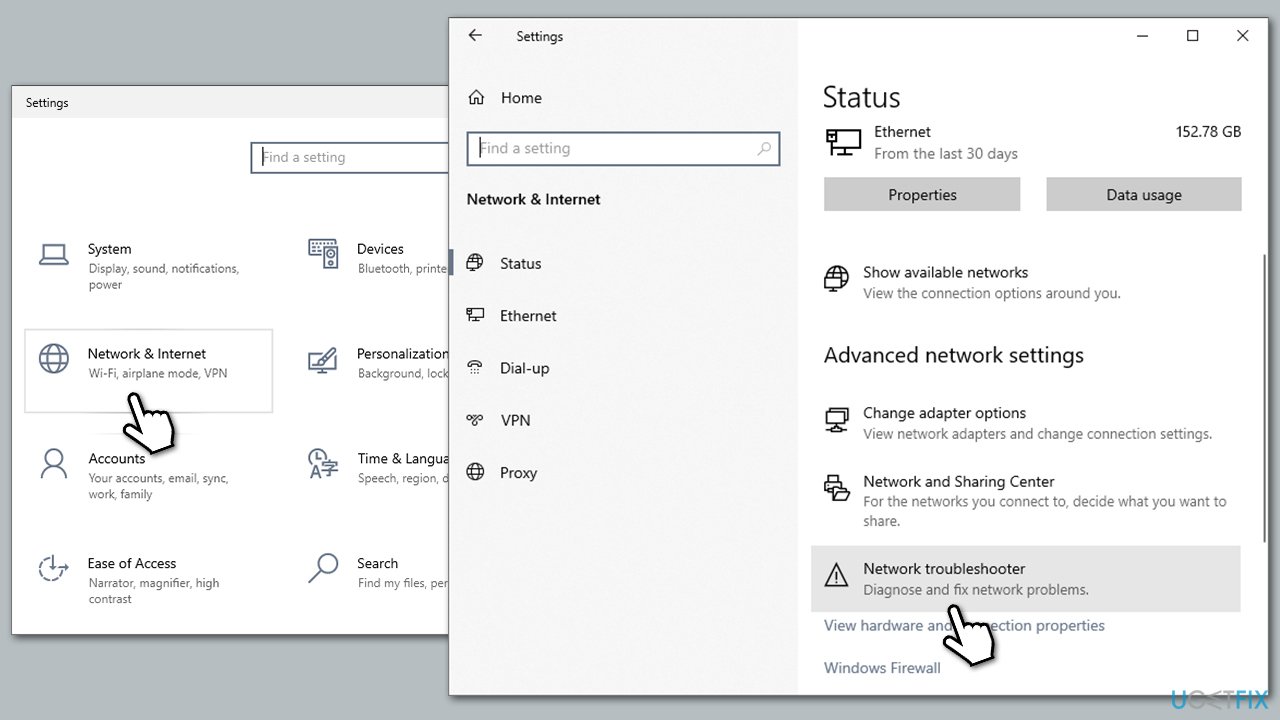
Windows comes with a built-in network troubleshooting tool that can automatically identify and fix issues with your internet connection.
- Right-click on Start and pick Settings.
- Go to the Network & Internet section.
- On the right side, find the Advanced network settings section.
- Click Network troubleshooter and wait till the scan is complete.
- The troubleshooter will show identified issues and recommend solutions.
Fix 3. Run Internet Connections Troubleshooter
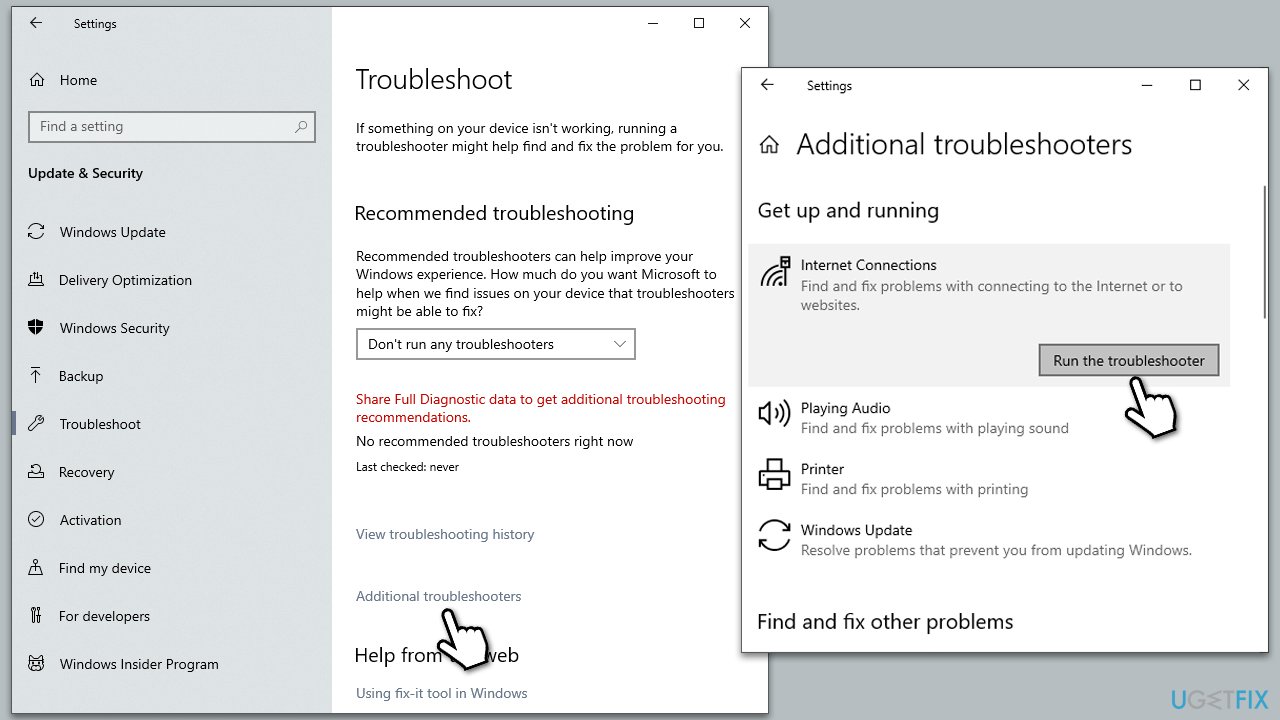
Similar to the network troubleshooter, the Internet Connections troubleshooter is designed to find issues affecting your internet specifically.
- Type troubleshoot in Windows search and hit Enter.
- Select Additional troubleshooters/Other troubleshooters.
- Find Internet Connections and click Run the troubleshooter/Run.
- After the scan is complete, apply all the recommended changes.
Fix 4. Reset your internet
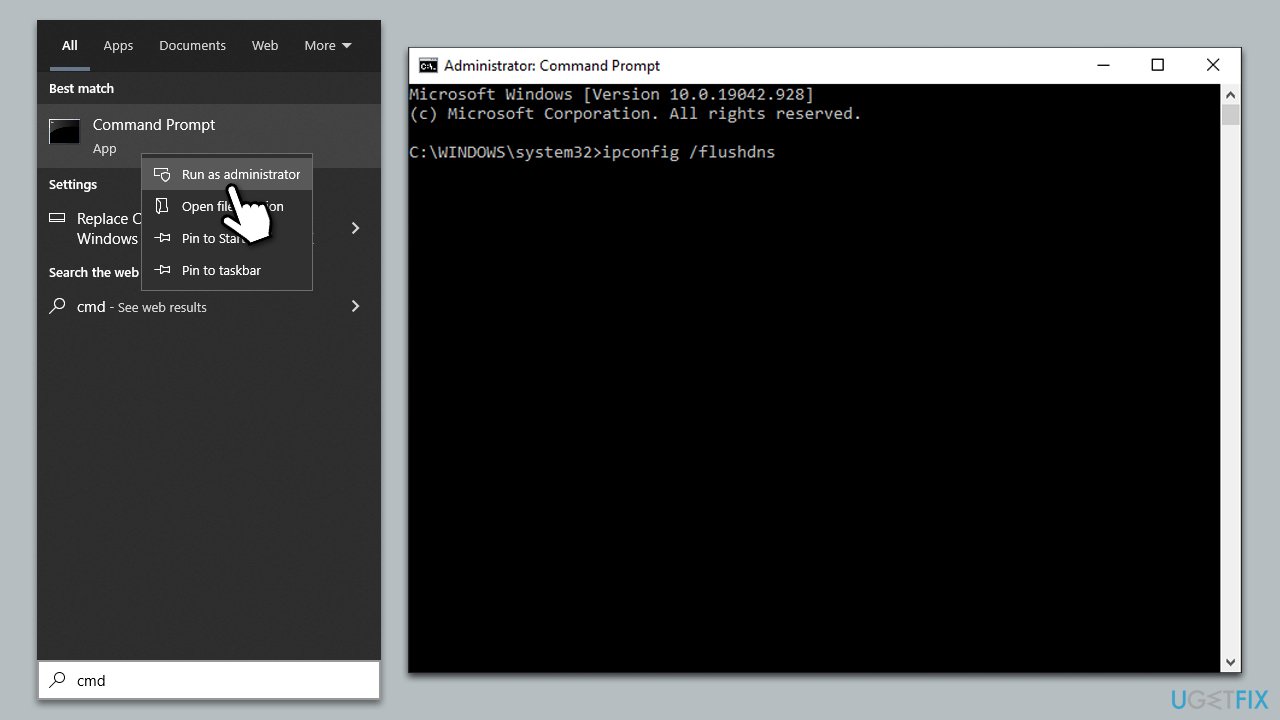
Resetting Winsock and flushing the DNS can refresh your network settings, potentially resolving the issue.
- Type in cmd in Windows search.
- Right-click on Command Prompt and select Run as administrator.
- User Account Control will ask you whether you allow making changes to the system - click Yes.
- Copy and paste each of the following commands, pressing Enter after each:
ipconfig /flushdns
ipconfig /registerdns
ipconfig /release
ipconfig /renew
netsh winsock reset - Restart your computer.
Fix 5. Repair the game files via Blizzard.net app
Corrupted game files can prevent successful logins. Blizzard.net app provides an option to verify and repair these files.
- Open the Battle.net app.
- Select Diablo 4 from your game list.
- Click the cogwheel (Options) next to the Play button.
- Select Scan and repair.
- Click Begin Scan and wait till it's finished.
- Launch the game and see if it fixed your crashes.

Fix 6. Disable third-party security software
Third-party security software can interfere with your game's ability to connect to Blizzard's servers because they may block certain types of network traffic as a precautionary measure. This can lead to errors like 300022. Therefore, disabling these temporarily can help determine if they are the root cause. Remember to turn the software back on once you've done your testing to ensure your system remains secure.
Fix 7. Try Clean Boot
A Clean Boot ensures that there are no third-party applications interfering with your game.
- Press Win + R, type msconfig, then press Enter.
- Select the Services tab and tick the Hide all Microsoft services checkbox.
- Pick Disable all.
- Go to the Startup tab and click Open Task Manager.
- Here, right-click on each of the non-Windows entries and select Disable.
- Close down the Task Manager.
- Go to the Boot tab and tick the Safe boot option
- Restart your system.
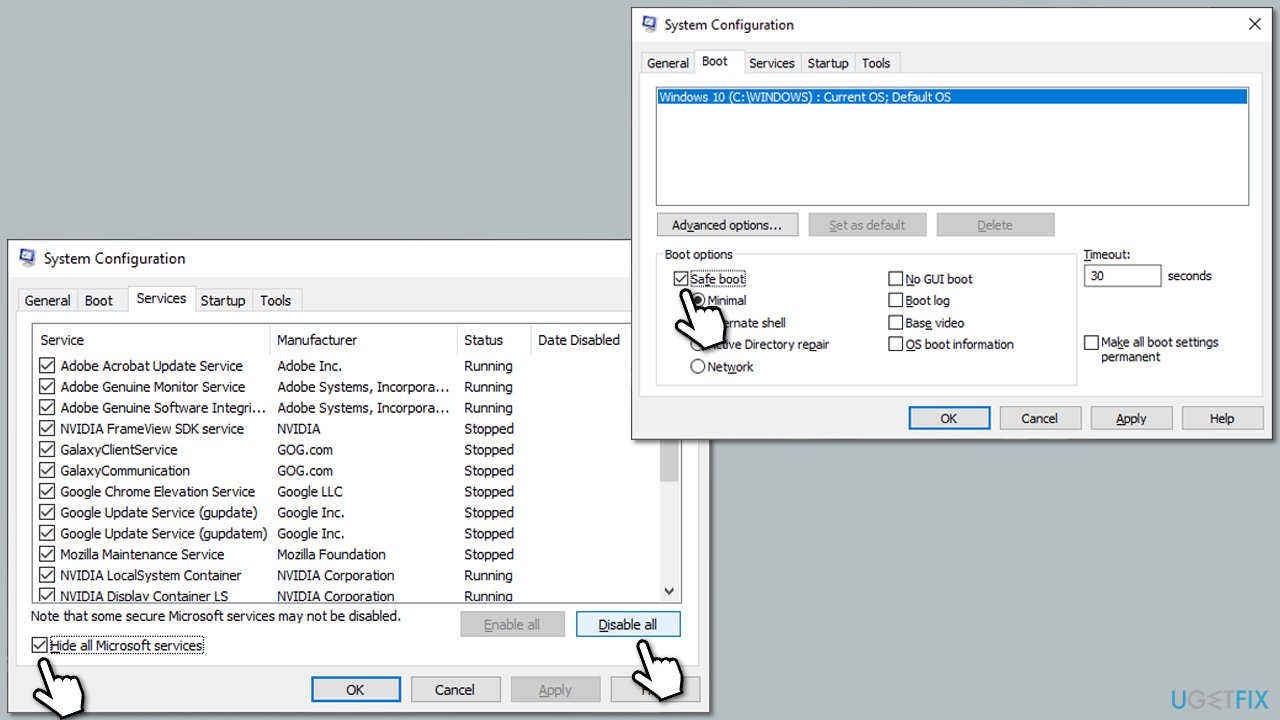
It's important to note that a clean boot serves as a diagnostic mechanism, not as a definitive fix. The primary aim is to single out the software causing the trouble. After performing a clean boot, it is advisable to gradually enable each service or startup program one at a time, followed by a system reboot, to determine the offending application or service. Once the software causing the issue is located, you can then take steps to resolve the problem, either by repairing or removing the problematic software.
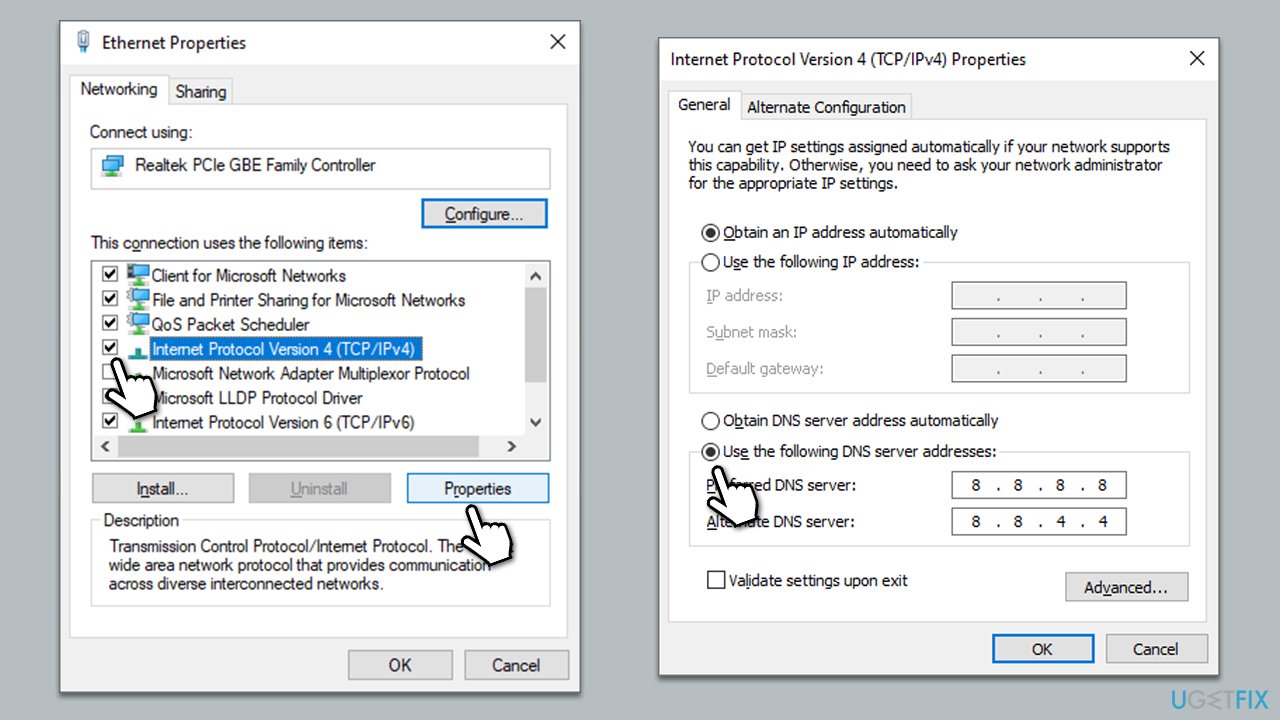
Fix 8. Use Google's DNS
Changing your DNS to Google's can improve your connection quality.
- Right-click on Start and select Settings.
- Go to the Network and Internet section.
- Click on Change adapter options.
- Right-click on your internet connection and pick Properties.
- Click Internet Protocol Version 4 (TCP/IPv4) once and go to Properties
- Select Use the following DNS server addresses option and set your DNS to Google's:
Preferred DNS server: 8.8.8.8
Alternate DNS server: 8.8.4.4 - Click OK.
Bottom line
To fix Diablo 4 error 300022, you can start by checking the server status on Blizzard's official website, restarting your internet modem, or reinstalling the game. If these solutions do not resolve the issue, consider using a PC repair tool to address underlying Windows problems.
Frequently asked questions
Diablo 4 error 300022 is typically caused by server issues or a corrupted game installation on Windows 10 or 11. It may also arise from firewall settings blocking the game.
To troubleshoot error 300022, ensure your Windows 10 or 11 firewall allows Diablo 4, verify the integrity of the game files, and restart your router to check for server issues.
Yes, you can attempt to fix error 300022 by updating your Windows 10 or 11, clearing the game's cache, and checking for any pending game updates before considering a reinstall.




Report an issue
What's wrong with this guide? We review every report and update or remove content.
Report received — thank you. We'll review and fix it.
You need a free account to submit a report.
Be the first to comment