How to fix
Diablo 4 error code 315306 (Unable to find valid license)
on Windows
Resolve Diablo 4 error code 315306 on Windows 10 or 11 effortlessly. Follow our expert-tested guide to get back to gaming in no time, fixed in minutes!

What causes How to fix Diablo 4 error code 315306 (Unable to find valid license) in Windows?
- Game unable to verify license validity
- Outdated game or Battle.net client
- Poor internet connectivity
- Third-party antivirus software interference
- Server issues
Repairs Windows system files, removes malware, and restores a clean OS state — without reinstalling.
Hello. I tried playing Diablo 4 on my Windows PC but I keep receiving the error 315306 (Unable to find valid license). Is there anything I can do?
Diablo 4 is a 2023 action role-playing video game, developed and published by Blizzard Entertainment. It is the fourth game in the popular Diablo series, which is known for its dark fantasy setting, intense combat, and cooperative multiplayer gameplay. Players embark on epic quests, battle hordes of monsters, and uncover the Diablo universe's deep lore and secrets in the world of Sanctuary.
Diablo 4 error code 315306, which states "Unable to find valid license," is a problem that players may encounter when trying to launch or play the game on Windows. This error usually occurs when the game is unable to verify the license's validity, preventing players from accessing and enjoying Diablo 4.
This problem may have a variety of consequences for users. For starters, it prevents players from playing Diablo 4, potentially leading to frustration and disappointment, especially among those who have been eagerly anticipating the game. Furthermore, the inability to obtain a valid license may limit access to specific features, such as multiplayer or online functionality, affecting the overall gaming experience and limiting interaction with the Diablo 4 community.
Troubleshooting and identifying the underlying cause are required to resolve Diablo 4 error code 315306. Checking the Diablo 4 server status, ensuring the game and Battle.net client are up to date, verifying internet connectivity, temporarily disabling third-party antivirus software, or contacting customer support for further assistance are some possible solutions.
In this guide, you will find 7 steps that should help you fix Diablo 4 error code 315306. You can also try running a maintenance tool like [d1] that can fix most system errors, BSODs,[ref en-1] corrupted files, registry[ref en-2] issues, or clear cookies and cache.[ref en-3] Otherwise, follow the step-by-step instructions below.
Solution 1. Verify Diablo 4 Server Status
Prior to proceeding with various troubleshooting methods, it is advisable to verify the server status of Diablo 4. The occurrence of Error Code 315306, which signifies the inability to locate a valid license in Diablo 4, may be attributed to server maintenance or downtime. To stay updated on server status, it is recommended to follow @Diablo and check for any announcements regarding downtime. If multiple users are reporting the same issue, it is likely that the server is experiencing downtime.
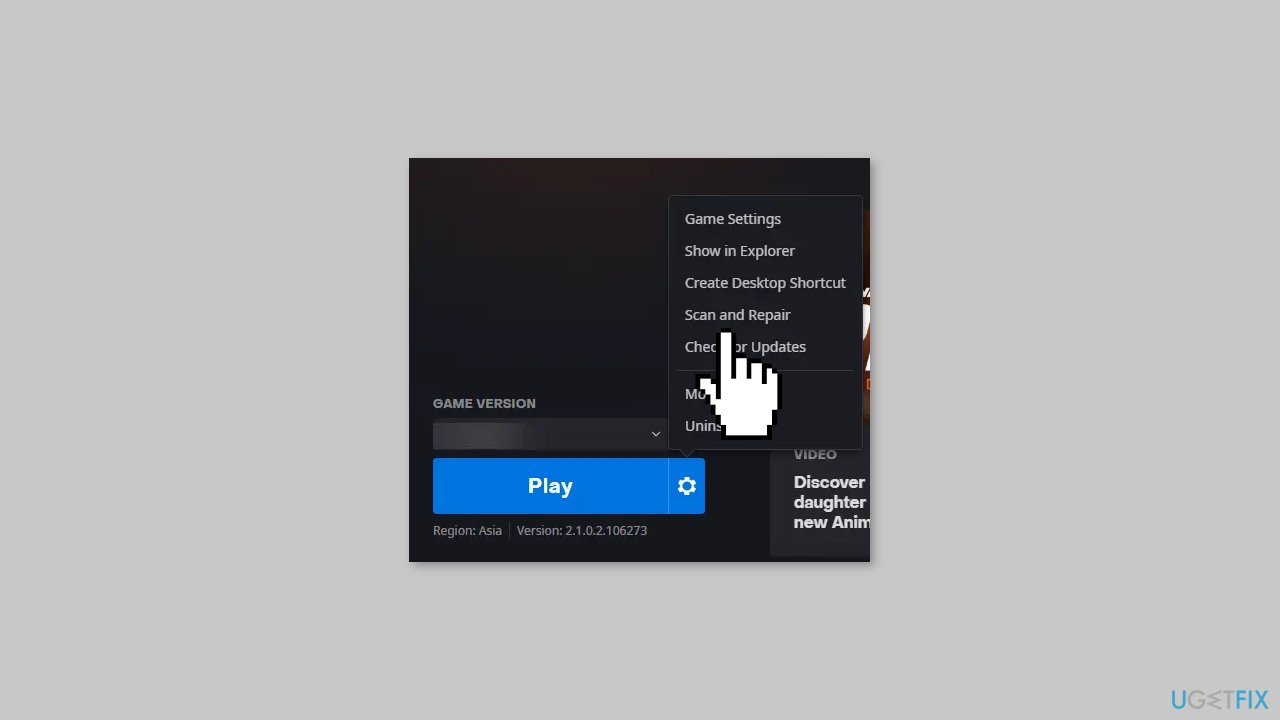
Solution 2. Scan Game Files
- Launch the Battle.net client and click on Diablo 4.
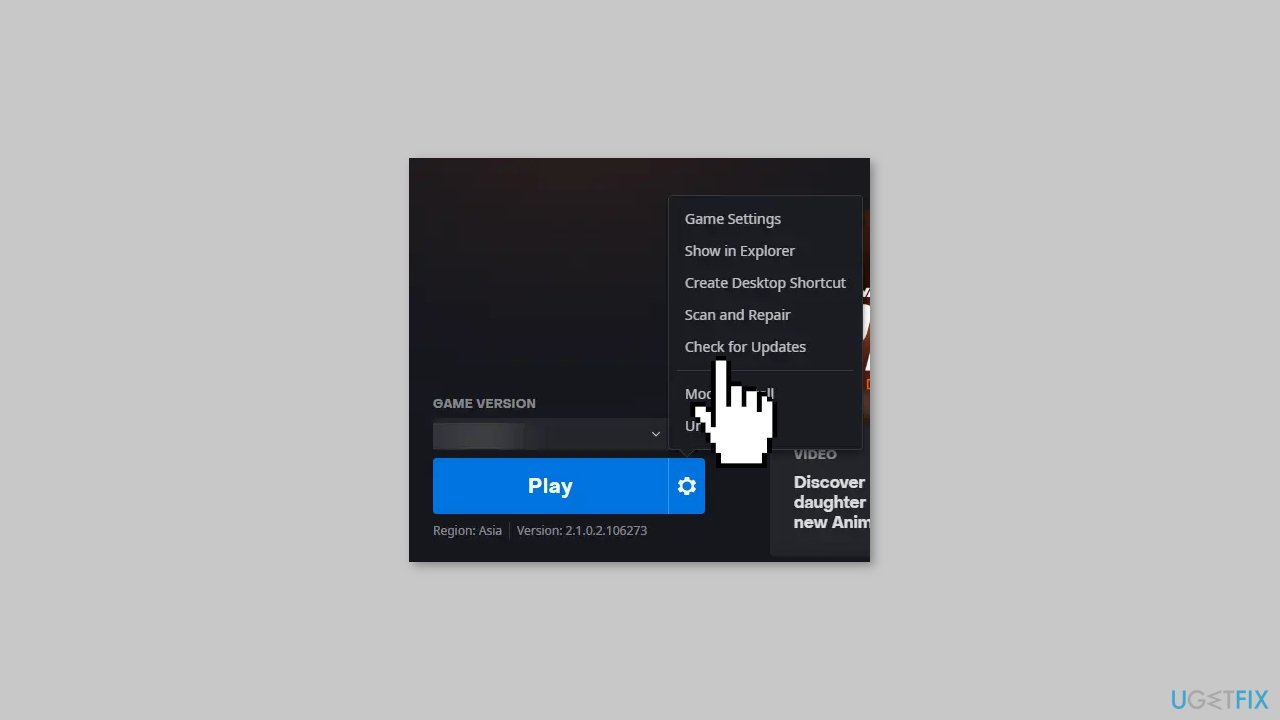
- Click on the Gear icon and select Scan and Repair.
- Now click on Begin Scan and wait for the process to complete.
- Restart your PC once done.
Solution 3. Log out and Log in to Battle.net
- Log out of the Battle.net client.
- Log in again to the Battle.net client.
- Launch Diablo 4.
- Check if the error code 315306 is resolved.
Solution 4. Disable Proxy or VPN
- Press the Windows key + I to open Settings.
- Navigate to Network & Internet > Proxy.
- Toggle off the Automatically detect settings option.
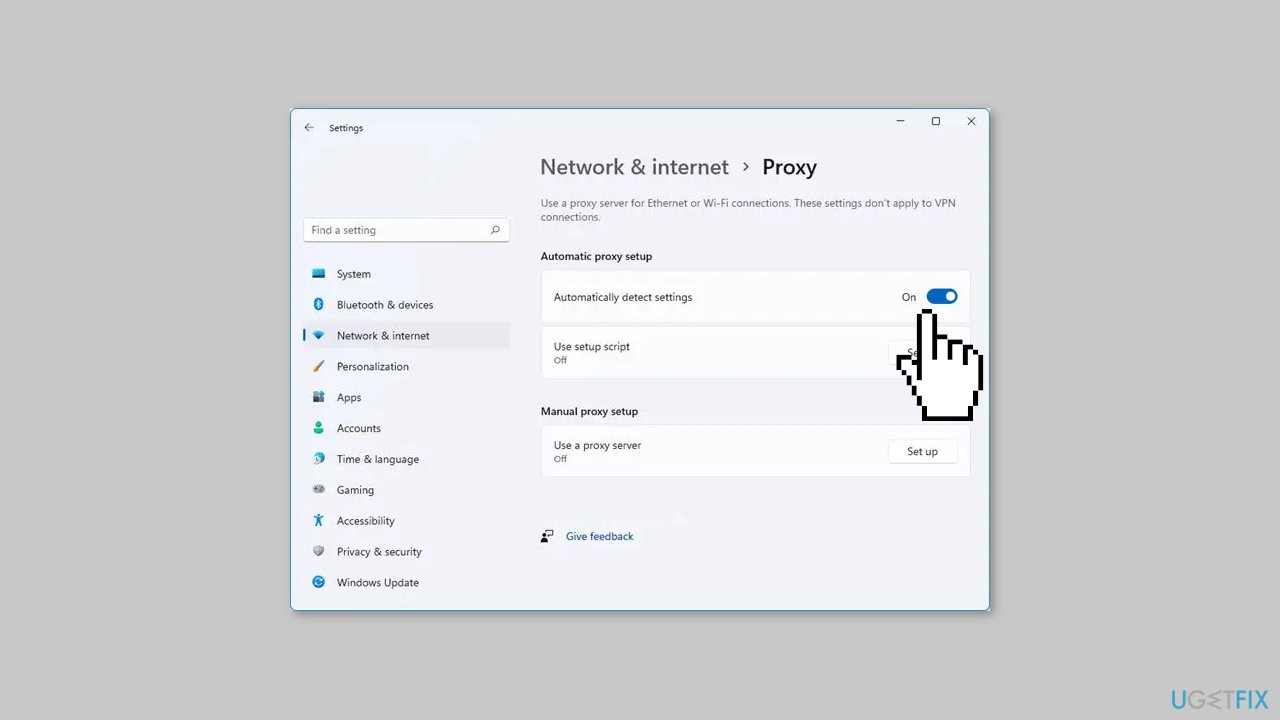
- Click the Set up option next to Use a proxy server.
- Toggle off the Use a proxy server option.
Solution 5. Disable Third-Party Antivirus
Disabling third-party antivirus software can be beneficial in resolving the Diablo 4 error code 315306 (Unable to find valid license) in Windows. This approach is effective for a few reasons. Firstly, third-party antivirus programs can sometimes conflict with the game itself. These antivirus tools may mistakenly identify certain game files or processes as threats and quarantine or block them, resulting in the error code.
Secondly, antivirus software often includes a built-in firewall that monitors and controls network traffic. However, these firewall settings can sometimes unintentionally block the necessary connections required by Diablo 4 to validate the license, leading to the error code 315306. Disabling the antivirus temporarily can help verify if the firewall is causing the problem.
Solution 6. Update the Game
- In the Battle.net client, locate and click on the Diablo 4 game icon.
- If an update is available for Diablo 4, you will see an Update button next to the game icon. Click on it.
- The Battle.net client will start downloading and installing the latest update for Diablo 4.
- Wait for the update process to complete. The progress will be displayed within the Battle.net client.
Solution 7. Reinstall Battle.net and Diablo 4
- Open the Battle.net client.
- Click on the Diablo 4 game icon.
- On the game page, click on the options icon.
- Select Uninstall Game from the drop-down menu.
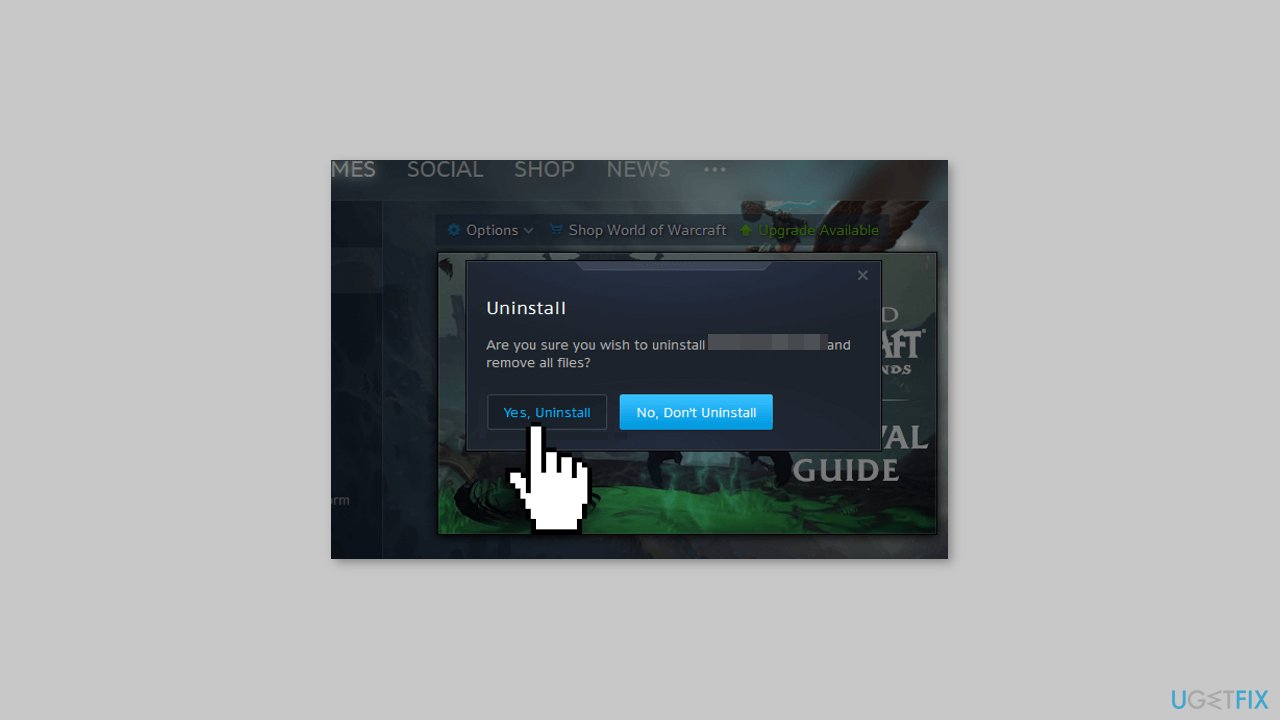
- Follow the prompts to uninstall Diablo 4 completely.
- Open the Control Panel on your computer.
- Select Uninstall a program or Programs and Features.
- Locate the Battle.net client in the list of installed programs.
- Right-click on the Battle.net client and choose Uninstall or Uninstall/Change.
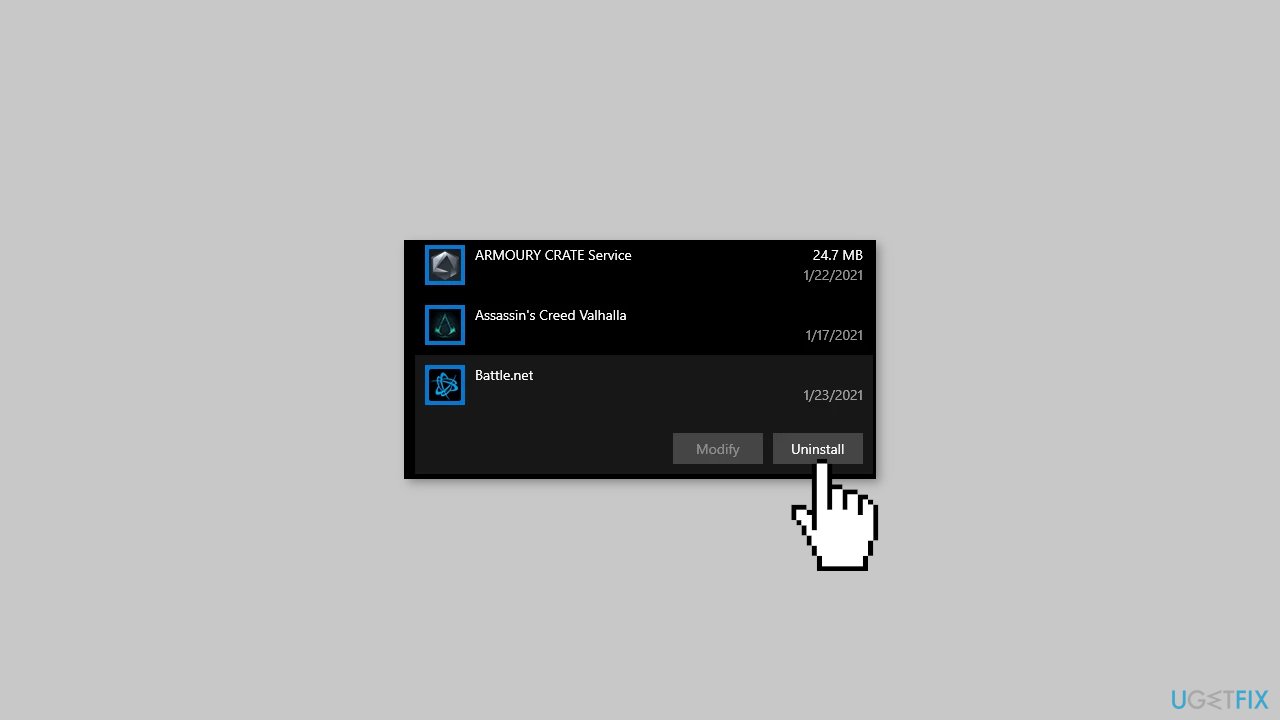
- Follow the prompts to complete the uninstallation process.
- Visit the official Battle.net website in your web browser.
- Click on the Download for Windows button.
- Once the installer is downloaded, run the file to start the installation process.
- Follow the on-screen prompts to install the Battle.net client.
- Launch the Battle.net client and log in with your account credentials.
- In the Battle.net client, search for Diablo 4 in the search bar.
- Click on the Diablo 4 game icon.
- Click on the Install button.
- Choose the preferred installation location and language settings.
- Wait for the download and installation process to complete.
- Once installed, launch Diablo 4 and log in to your account.
Bottom line
To resolve Diablo 4 error code 315306, you can verify the server status, ensure the game and Battle.net client are updated, check your internet connection, and temporarily disable any third-party antivirus software. If these steps do not work, consider contacting customer support for further assistance.
Frequently asked questions
First, ensure that your Windows 10 is fully updated and that your Diablo 4 game files are verified through the Battle.net client. If the issue persists, try reinstalling the game to fix any licensing issues.
Yes, you can try clearing the Battle.net cache and relaunching the client, as this may resolve temporary licensing issues. Additionally, check your account status to confirm your license is active.
To prevent this error, ensure that your graphics drivers and Windows updates are regularly maintained, and always run the game as an administrator for better access to system resources.




Report an issue
What's wrong with this guide? We review every report and update or remove content.
Report received — thank you. We'll review and fix it.
You need a free account to submit a report.
Be the first to comment