How to fix
“Direct3D could not be correctly initialized” error
on Windows
Resolve the "Direct3D could not be correctly initialized" error on Windows 10/11 easily. Follow expert-tested solutions for quick fixes!

What causes How to fix “Direct3D could not be correctly initialized” error in Windows?
- Outdated graphics drivers
- Faulty or outdated DirectX installation
- Incompatibilities with other background programs
- Incompatible hardware parts
Repairs Windows system files, removes malware, and restores a clean OS state — without reinstalling.
Hello. When I try to launch games on my Windows PC, I get the "Direct3D could not be correctly initialized" error. What does it mean? Is there any way to fix this?
An annoying problem that can ruin the gaming experience is the "Direct3D could not be correctly initialized" error in Windows, which is frequently accompanied by the notice "Direct3D failed to initialize" when attempting to load a game. This problem can be brought on by a number of things, such as outdated graphics drivers,[ref en-1] faulty or outdated DirectX installation, incompatibilities with other background programs, or incompatible hardware parts.
Users, especially gamers, may be significantly impacted by this problem. The game cannot launch at all or render visuals correctly when Direct3D is unable to initialize. Users might not be able to play their preferred games as a result, which is upsetting and disheartening. Furthermore, less tech-savvy users may find the error message itself perplexing, which makes it challenging for them to identify the precise source of the issue.
Users usually need to address the precise underlying reason in order to fix this problem. Some possible fixes include updating graphics drivers to make sure the game is compatible, reinstalling or updating DirectX to make sure it isn't out-of-date or damaged, closing or disabling background programs that might be incompatible with the game's graphics, or, in some cases, upgrading or replacing incompatible hardware components.
It's worth noting that the exact steps to resolve the issue may vary depending on the specific circumstances and the game in question. In this guide, you will find 5 steps that should help you fix "Direct3D could not be correctly initialized" error in Windows. You can also run a repair tool like [d1] that can fix most system errors, BSODs,[ref en-2] corrupted files, and registry[ref en-3] issues. Otherwise, follow the step-by-step instructions.

Solution 1. Check Minimum System Requirements
- Visit the official website of the video game you're interested in or go to a trusted gaming platform like Steam, Epic Games Store, or GOG.
- Search for the game in the platform's search bar or navigate to its store page.
- Look for a section or tab labeled System Requirements or something similar.
- In the System Requirements section, you will find the minimum and recommended specifications for the game.
- Compare these requirements with your computer's hardware and software specifications to ensure your system meets at least the minimum requirements.
- If your system meets the requirements, you should be able to play the game without significant issues. If not, you may need to upgrade your hardware or consider playing a different game that's compatible with your system.
Solution 2. Update Drivers
Outdated drivers could be the cause of this issue. In this case, you can fix it automatically by using [rev id="DriverFix"], which will scan your PC for missing and out-of-date device drivers. Or you can update them manually:
- Open Settings.
- Click on Update & Security.
- Click on Windows Update.
- Click the Check for updates button.
- Click the View optional updates option.
- Click the Driver updates tab.
- Select the driver you want to update.
- Click the Download and install button.
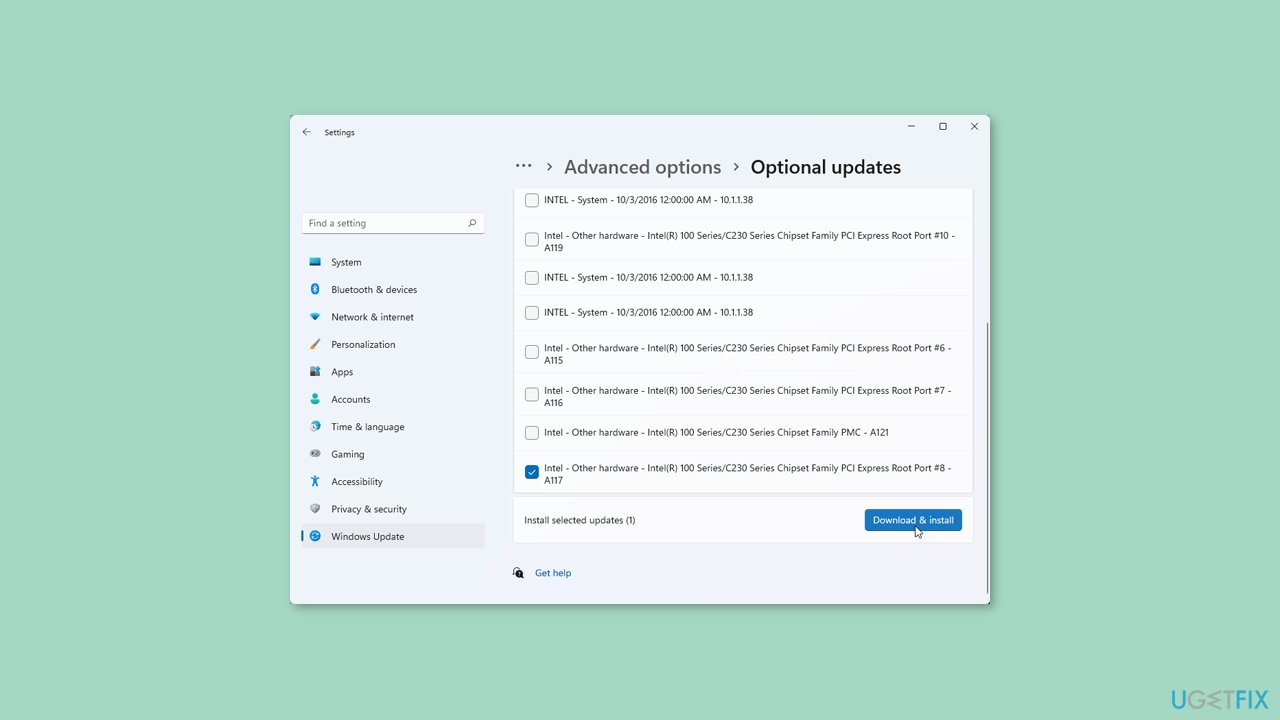
If the View optional updates link is not available after checking for updates, then Windows Update does not have any new drivers or any updates for other products at that particular time.
Solution 3. Reset in-game Options in Blizzard
- Open the Battle.net Desktop App.
- Click the cogwheel next to the Play button and select Game Settings.
- Find the game you are having trouble with in the list and click Reset In-Game Options.
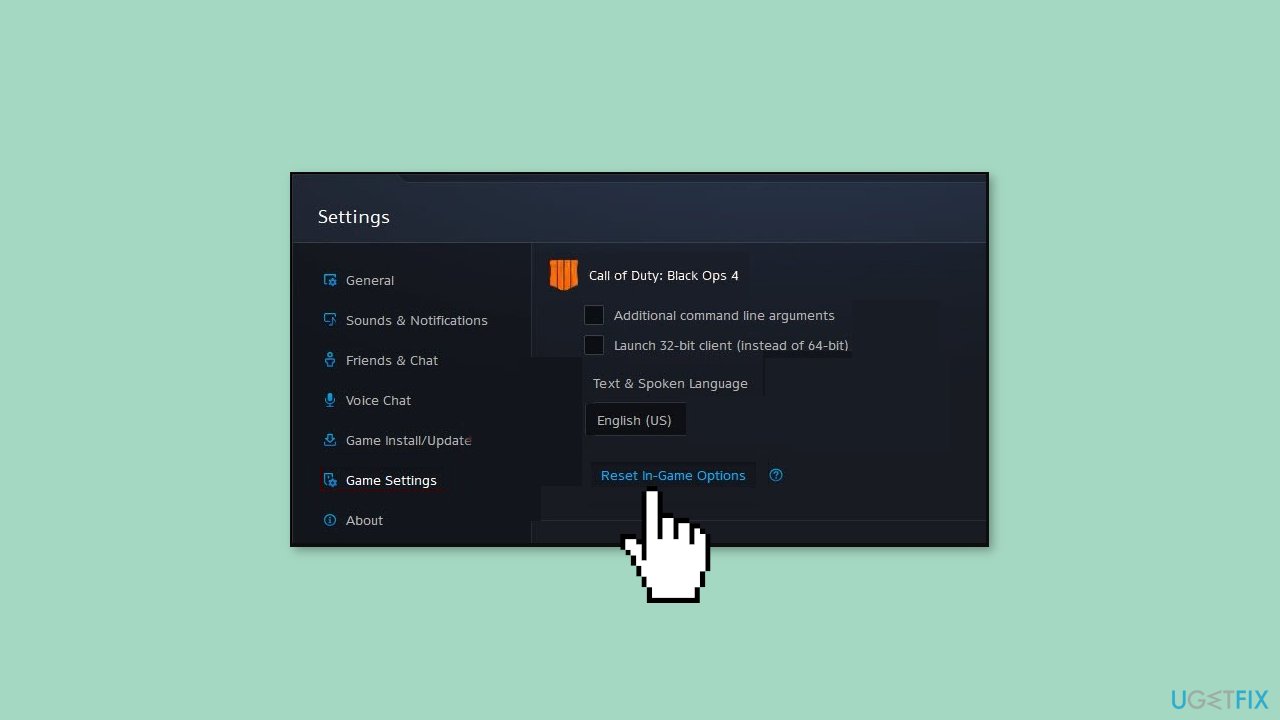
- Click Reset.
- Click Done, then relaunch the game.
Solution 4. Close Background Apps
- Press Ctrl + Shift + Esc to open the Task Manager.
- In the Task Manager window, you'll see a list of running applications and processes.
- Look for the application or process you want to close in the list.
- Click on the application or process to select it.
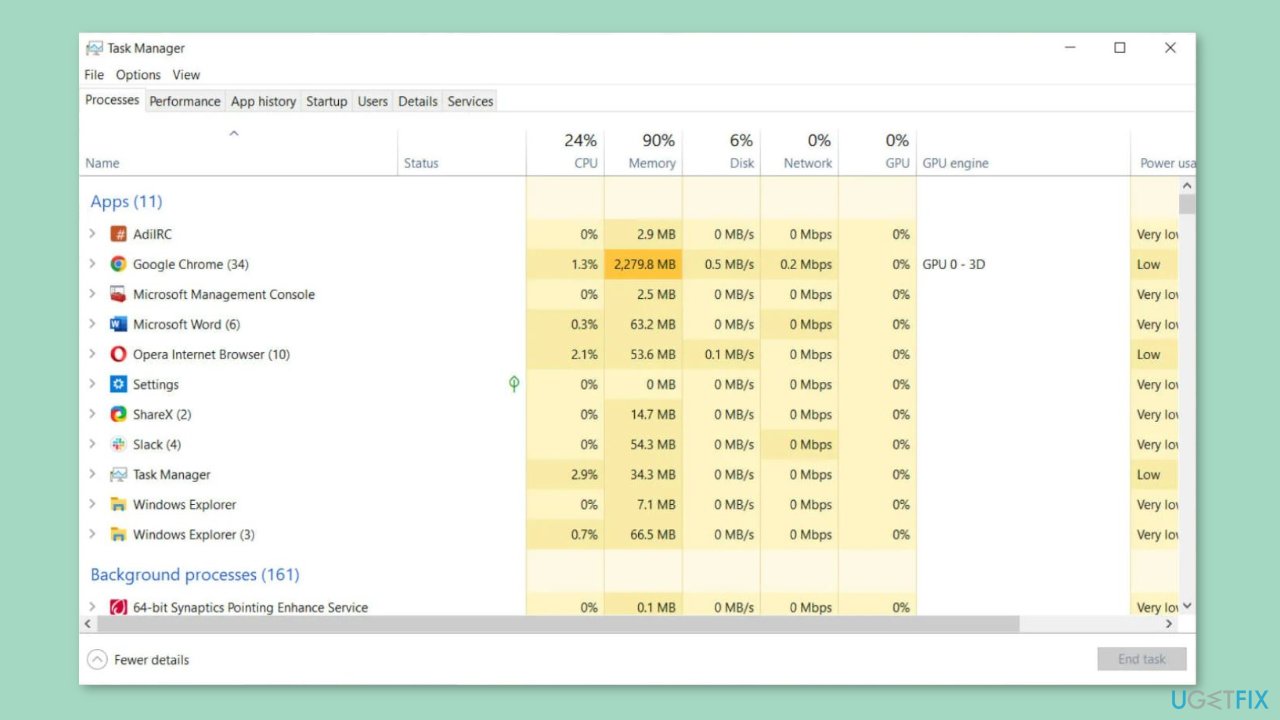
- At the bottom-right of the Task Manager window, click the End Task button.
- The selected background app or process will be closed.
Solution 5. Reinstall Visual C++ Redistributables
- Press Windows key + S and enter Control Panel.
- Select Control Panel from the list of results.
- When Control Panel opens, click on Programs and Features.
- A list of all installed applications will now appear.
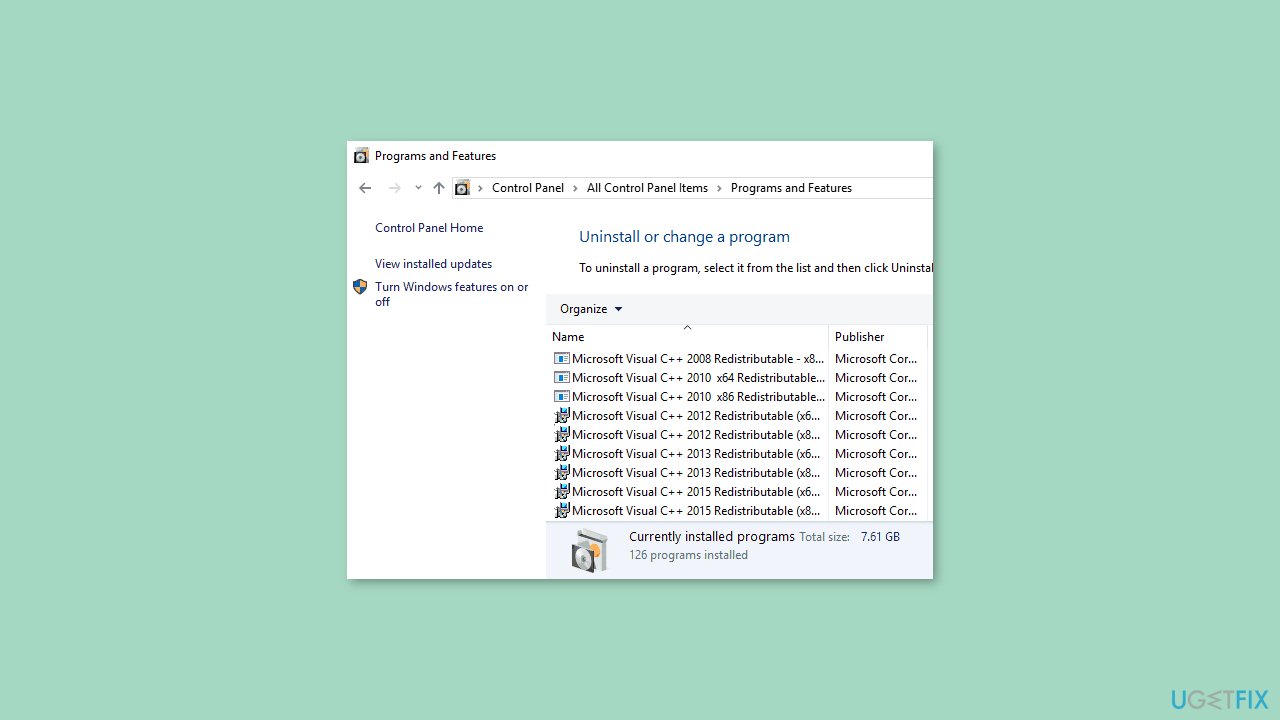
- Double-click the desired Redistributable in order to remove it.
- After removing the problematic Redistributable, you need to reinstall it again. You can download all Visual C++ Redistributables from Microsoft’s website for free.
Bottom line
To fix the 'Direct3D could not be correctly initialized' error, you can update your graphics drivers, reinstall or update DirectX, close incompatible background programs, or upgrade incompatible hardware components. If these solutions do not work, consider running a repair tool that can fix system errors.
Frequently asked questions
Common causes include outdated graphics drivers, corrupted DirectX installation, or incompatible graphics settings. Ensuring your Windows 10 system is updated and drivers are current can often resolve the issue.
You can update your graphics drivers by going to Device Manager, expanding the Display adapters section, right-clicking your graphics card, and selecting 'Update driver.' Alternatively, you can download the latest drivers directly from the manufacturer's website.
Reinstalling DirectX can be a necessary step if the installation is corrupted, which may cause the Direct3D error. You can download the DirectX End-User Runtime from the Microsoft website to perform the reinstallation.




Report an issue
What's wrong with this guide? We review every report and update or remove content.
Report received — thank you. We'll review and fix it.
You need a free account to submit a report.
Be the first to comment