How to fix
Discord keeps freezing
on Windows
Resolve Discord freezing issues on Windows 10 or 11 with expert-tested solutions. Get back to chatting in minutes, with screenshots included!


What causes How to fix Discord keeps freezing?
- Discord client issues
- In-app settings misconfiguration
- Incorrectly used keybinds
- Hardware acceleration settings
Repairs Windows system files, removes malware, and restores a clean OS state — without reinstalling.
Hi, I Discord just keeps freezing all the time. I am using the app for years, and this started happening a few months ago. Is there anything that could be done about this?
Since its release in 2015, Discord has accumulated a significant number of users, reaching as many as 300 million registered accounts by June 2020.[ref en-1] The popularity of the app can be explained by its ease of use when communicating over text and voice, creating personal channels, etc. Despite its success, it does not avoid problems - users keep complaining about issues like startup failures, cutting out audio, overlay not working,[ref en-3] and much more.
Discord freezing is another problem that can be particularly annoying, as it might stop users from communicating with others. Since the app is most commonly used among players to communicate when playing Call of Duty, World of Warcraft, or Minecraft, or other popular games, it can disrupt their time online significantly.
When facing the Discord keeps freezing problem, users reported that their voice communication suddenly drops and that the app stops reacting to every input. In some cases, even attempting to shut it down via the Task Manager might end up failing, prompting users to restart the computer altogether.
While an occasion program freeze is quite common, consistent issues indicate underlying problems. In other words, if your Discord keeps freezing on a regular basis, you need to check your computer. In some cases, the reason for unwanted behavior such as freezes might be related to Discord client, in-app settings, or incorrectly used keybinds.

If you want to find a Discord freezing fix, you came to the right place, as we offer several solutions for this problem below. Before you begin, we would like to offer you [d1] - an automatic solution that could be used to diagnose and fix various Windows errors, including BSODs,[ref en-2] update issues, problems with services, registry, and other Windows components.
Fix 1. Disable Hardware Acceleration
Hardware acceleration allows Discord to utilize your GPU for the better app performance. If you are using this setting while playing games and your graphics card is overloaded, it can cause Discord freezing. Therefore, if you are facing this issue, simply disable Hardware Acceleration via settings:
- Open Discord and click User Settings
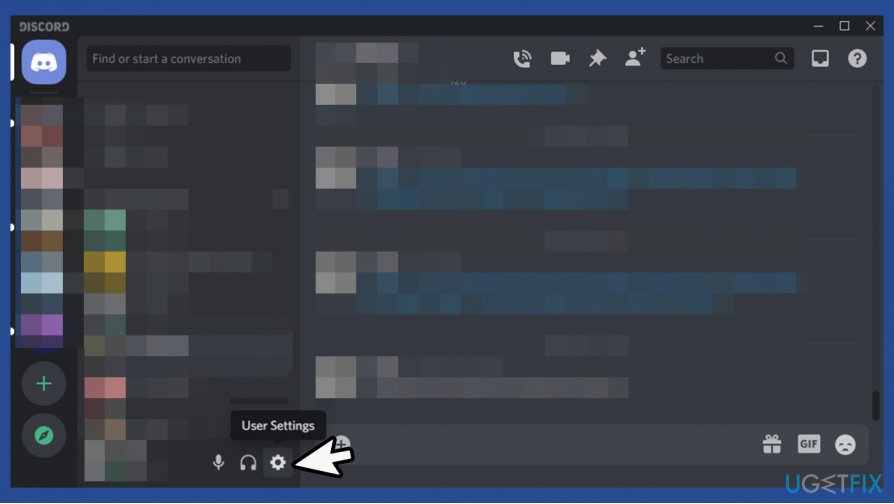
How to fix discord keeps freezing access user settings - Under App Settings, select Appearance
- On the right side, scroll down until you reach Advanced section
- Here, toggle the switch to the left to turn Hardware Acceleration off
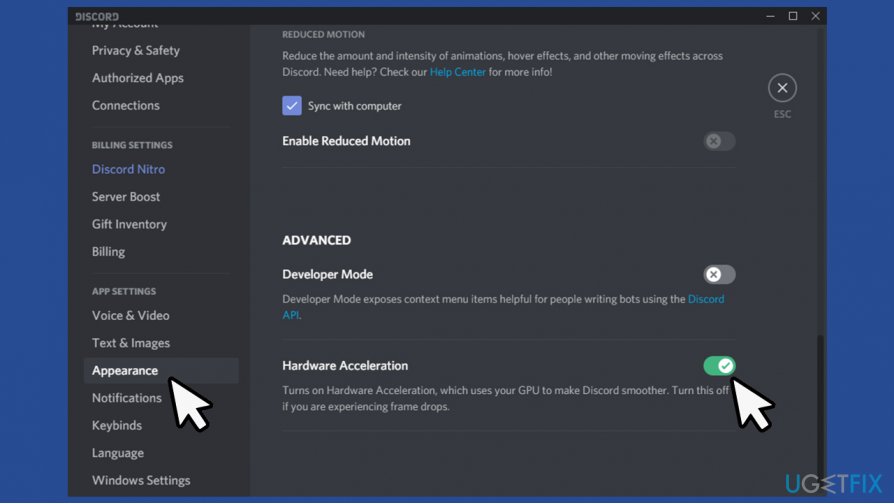
How to fix discord keeps freezing disable hardware acceleration - When the warning shows up, click Okay - the app will restart.
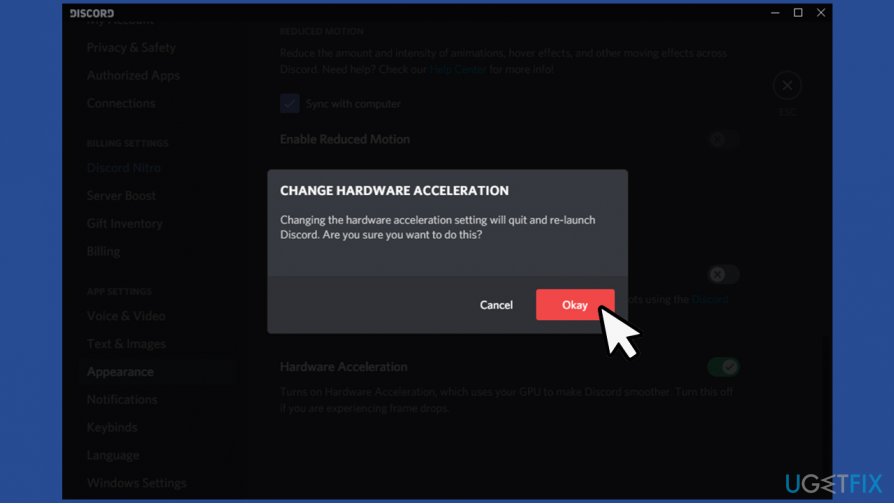
How to fix discord keeps freezing disable hardware acceleration2
Fix 2. Turn off push-to-talk
If your computer uses low hardware specs (for example, older laptops can overheat easily, causing lag, crashes and freezes), you should try tuning off push-to-talk and instead enable voice activity - it will reduce the stress on your computer components:
- Go to Discord's Settings
- Under App Settings, select Voice & Video
- Under Input mode, select Voice Activity
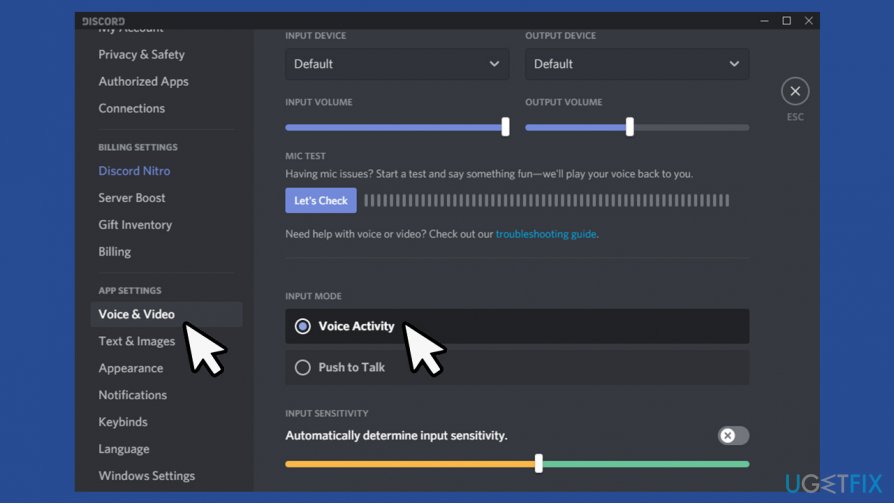
How to fix discord keeps freezing turn off push to talk - Press Esc to exit Settings.
Fix 3. Disable keybinds
- Open Discord's Settings
- Under Keybinds, you should see several entries if such are enabled
- Highlight each of them and press the red X button next to them.
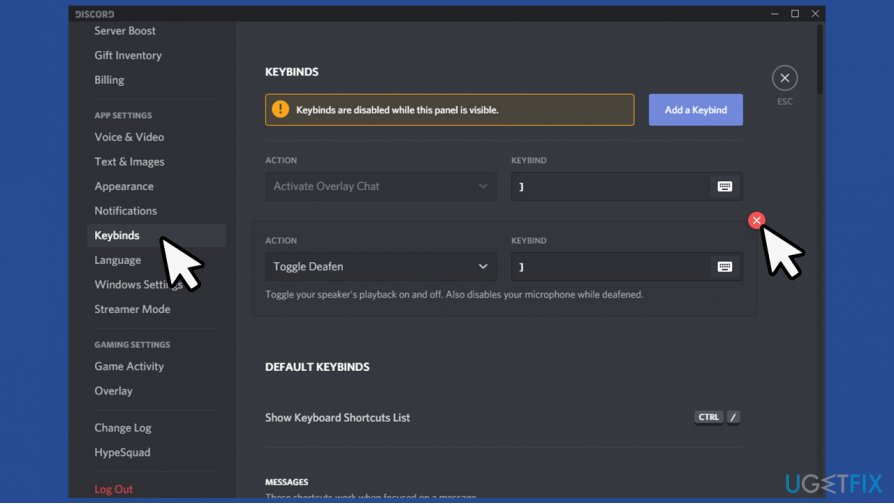
How to fix discord keeps freezing disable keybinds
Fix 4. Turn off or use Compatibility mode
- Exit Discord app fully
- Right-click on Discord shortcut and pick Properties (if you don't have a shortcut on your Desktop, type in app's name in Windows search, right-click it and select Open file location)
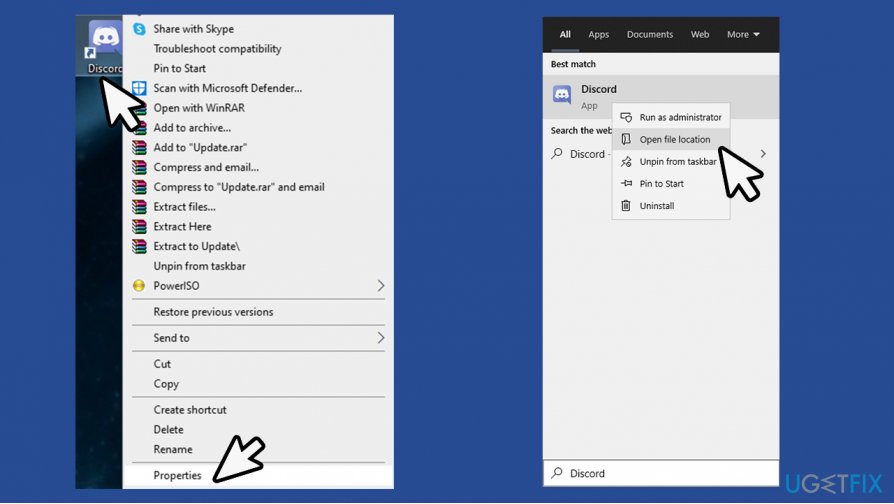
How to fix discord keeps freezing open discord properties - Go to the Compatibility tab
- Under Compatibility mode, remove the tick next to Run this program in compatibility mode for:
- Press Apply and OK
- In the contrary, if you have compatibility mode disabled, you can try running the app in compatibility mode for Windows 8 or even older versions and see of that helps.
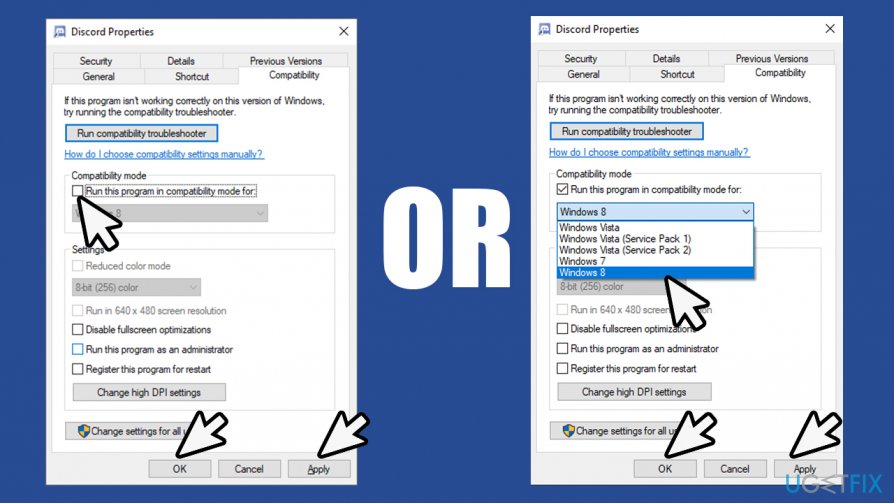
How to fix discord keeps freezing check compatibility mode
Fix 5. Run SFC and DISM to check system file integrity
In case you are encountering frequent program freezes or/and crashes, it might be that some Windows system files are corrupt. In order to fix them, you can run System File Checker via Command Prompt:
- Type in cmd in Windows search bar
- Right-click on Command Prompt result and pick Run as administrator
- Type in the following command and press Enter after:
sfc /scannow
- Wait till scan is finished and reboot your device
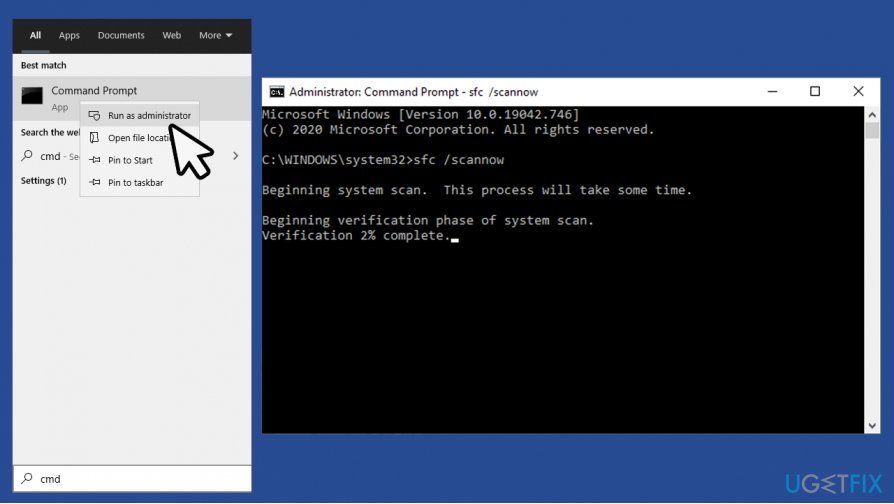
How to fix discord keeps freezing run sfc scan - If that did not help, open Command Prompt (Admin) once again, and type in these commands, pressing Enter after each of them:
dism /online /cleanup-image /scanhealth
dism /online /cleanup-image /checkhealth
dism /online /cleanup-image /restorehealth
Fix 6. Clear Discord app cache and local files
Cached files might sometimes cause various issues, including Discord freezing. You can clear them easily by performing these steps:
- Press Win key + R on your keyboard
- Type in %appdata% and click OK or press Enter
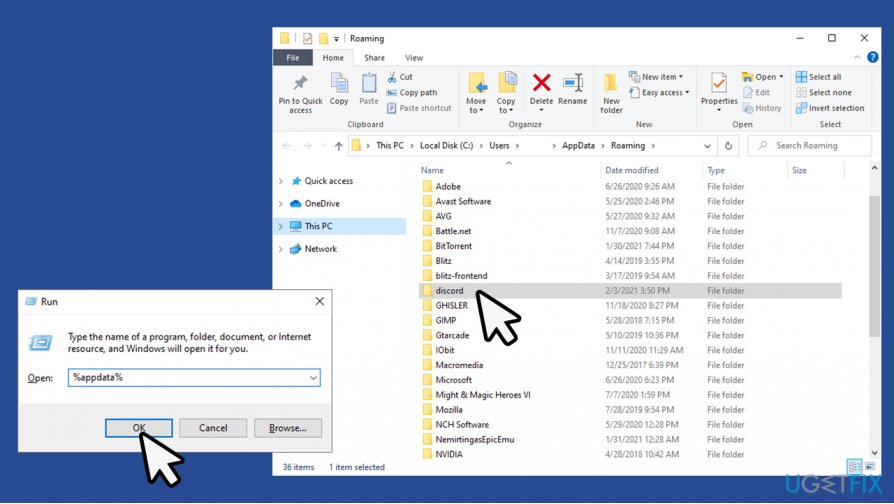
How to fix discord keeps freezing delete appdata files - Scroll until you find Discord folder, hold Shift and press Delete/Del
- Now press Win + R again and type in %localappdata%
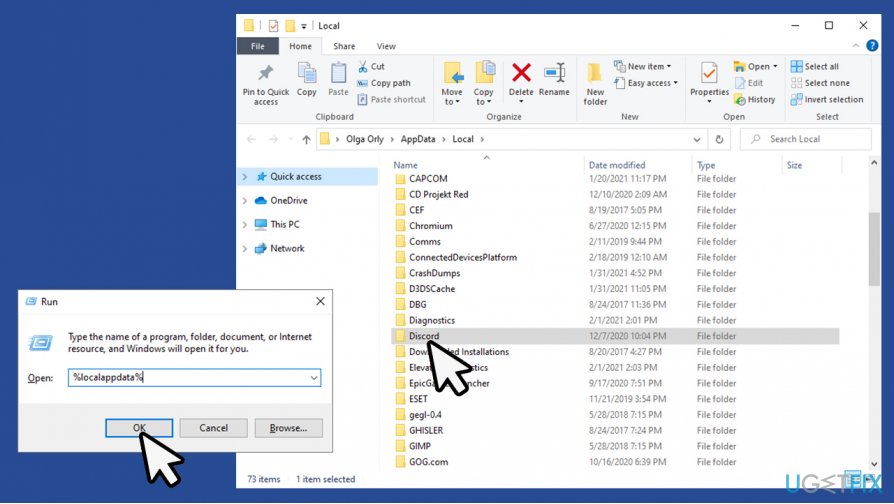
How to fix discord keeps freezing delete localappdata files - Find Discord folder and delete it as explained above.
Fix 7. Reinstall Discord
If you are still facing Discord freezing issues even after trying the above fixes, it might be that it was not installed correctly. If that is the case, you should reinstall the app:
- Right-click on Start and pick Settings
- Go to Apps
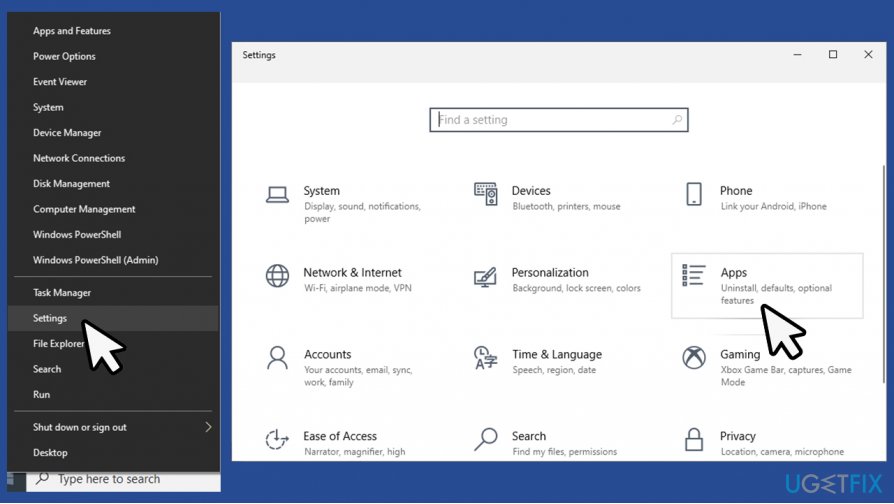
How to fix discord keeps freezing go to settings - Scroll down until you find Discord and select Uninstall
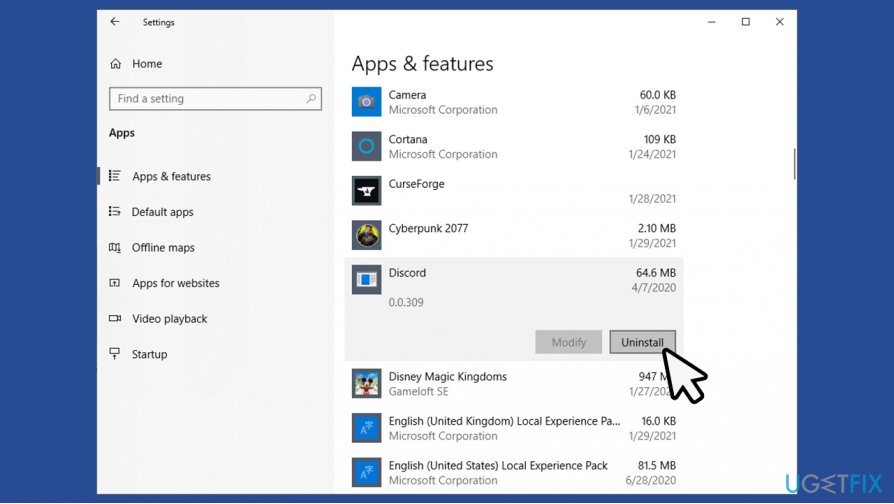
How to fix discord keeps freezing reinstall discord - Follow on-screen instructions
- Now go to the official Discord download page and install the app once again.
Bottom line
To fix the Discord freezing issue, you can try disabling hardware acceleration, checking your in-app settings, and ensuring your keybinds are set correctly. If these solutions do not resolve the problem, consider diagnosing your computer for other underlying issues.
Frequently asked questions
Discord may freeze due to outdated software, corrupted cache files, or conflicts with other applications on your system.
You can clear Discord's cache by closing the app, navigating to %appdata%/Discord in File Explorer, and deleting the 'Cache' folder.
If Discord still freezes after updates, try reinstalling the app or disabling hardware acceleration in Discord's settings.




Report an issue
What's wrong with this guide? We review every report and update or remove content.
Report received — thank you. We'll review and fix it.
You need a free account to submit a report.
Be the first to comment