How to fix
Discord mic not working
on Windows
Resolve your Discord mic issues on Windows 10 or Windows 11 effortlessly. Get back to chatting with our expert-tested solutions, fixed in minutes!

What causes How to fix Discord mic not working?
- Windows 10 privacy settings may not allow Discord to use the microphone
- Recent Windows updates may have affected microphone functionality
- Common bugs in the Discord app
- High server load on Discord
- User reports indicate ongoing issues since 2016
Repairs Windows system files, removes malware, and restores a clean OS state — without reinstalling.
Hi. I have an ongoing issue with Discord mic not working. I use the platform when playing the League of Legends, so it’s incredibly annoying when I can hear other gamers, but nobody hears me. Please help
Discord is a free VoIP service and application, offering an accessible communication over voice, video, and text. Initially released in 2015, the app managed to build a community that exceeds 250 million worldwide[ref en-1]. With the initially targeted audience of gamers, Discord is now outstripping brands like Teamspeak, Slack, or Skype due to a massive expansion to business communication space, and individual home users.
The application is excellent, though due to a massive server load and common bugs, the Discord app receives updates regularly. One of the most problematic issues these days is a malfunctioning Discord microphone, which hasn’t been fixed via the latest updates. Gaming-related forums[ref en-2] are overfilled with people’s reports about Discord mic not working. According to the community, the issue leaves the user to hear the interlocutor, but he or she is unable to communicate back.
According to the community, the sound and mic not working on Discord issue may be related to the latest Windows updates. Due to the modifications implemented on some Windows 10 privacy settings, the Discord app may not be given permission to use the microphone. Thus, one of the solutions to fix mic doesn’t work in Discord issue would be to change privacy settings or withdraw the installed update. Before initiating any changes, navigate to the Start menu and open Settings. Find Update & Security section and click Windows Update. Find Windows Update history and check the date when the latest update has been installed. If the date coincides with Discord mic and sounds not working, then the culprit may be the changes in Windows 10 privacy settings.
The problem has been going on since 2016 and seems to be the most acute for gamers of the Rainbow Six Siege (R6), The League of Legends, Fortnite, PUBG, and other popular video games. Unfortunately, neither the Discord nor game’s support services provide explanations on why the mic stops working in Discord. However, there are many solutions, and since each problem depends on various diverse factors, it’s essential to be patient and try to obtain the culprit of the issue, trying each fix one-by-one.
The analysis of the problems and possible solutions allowed us to prepare the most common solutions answering the heated question on how to fix Discord mic not working.
TIP: before switching to advanced Discord mic not working fixes, we recommend you to launch an automatic repair tool [d1] that would carefully check the system for issues like missing registry entries, compromised services, damaged libraries, and similar.
Method 1. Change Privacy Settings
The Discord mic not working issue has been most prolific in Windows 10 OS. In this case, the problem may be closely related to the Windows creator's updates[ref en-3], which unraveled huge changes in privacy settings. Thus, to fix Discord mic not working, follow these steps:
- Click Windows key + I to open the Settings menu.
- Open the Privacy section and find a Microphone.
- Slite a toggle next to the Allow apps to access the microphone option to On.
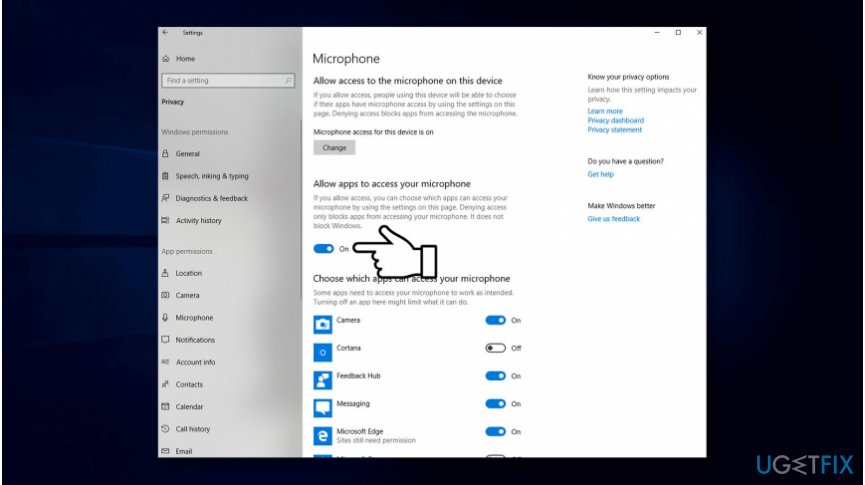
If you don't want individual apps to have access to the microphone, then you can change advanced settings and disable permission to those apps separately.
Method 2. Configure DNS servers
Many people reported that configuring their DNS servers to Google's servers helped to fix Discord mic not working problem on Windows. Although the method is not difficult to perform, make sure to insert the right numbers into the preferred DNS and server tab:
- Open Windows search bar and type Control Panel in.
- Select the Control Panel option and find the Network and Sharing Center.
- While on Network and Sharing Center, click Change adapter settings.
- Now right-click on the connection icon (Local Area Connection or Wireless Network Connection) and select Properties.
- Mark the Internet Protocol Version 4 (TCP /IPv4) and open Properties.
- Locate and open the General tab.
- Select Obtain DNS server address automatically and click OK.
- If the Obtain DNS server address automatically was pre-checked, select the Use the following DNS server address instead option.
- Enter the following server addresses and click OK afterward:
Preferred DNS server: 8.8.8.8
Alternate DNS server: 8.8.4.4
OR
Preferred DNS server: 208.67.222.222
Alternate DNS server: 208.67.220.220
Method 3. Modify the Automatic Input Sensitivity Settings
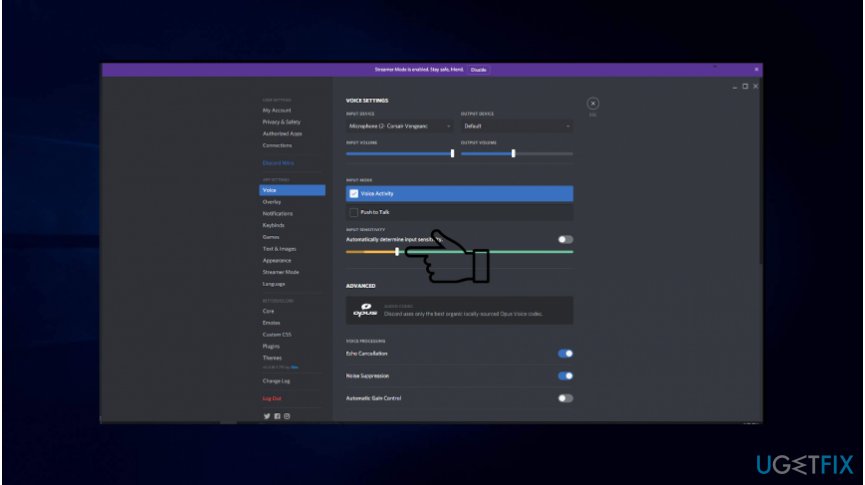
In case you have accidentally changed the Automatic Input Sensitivity Settings on Discord or these settings were automatically changed after an update, try to change the sensitivity to Automatic to fix Discord mic not working.
- Open the Discord app and navigate to User Settings in the bottom-left corner of the window.
- Select Voice & Video and scroll down until you see the Input Sensitivity option.
- If the option Automatically is disabled, turn it on.
- Set the manual slider somewhere in the middle and check if the problem has gone.
If neither of the solutions helped to fix Discord microphone problem, the check if there are no problems with Windows updates. Navigate to Updates & Security on Windows Settings and check the Update History. It may be that some of the crucial software or hardware updates are missing, so set the system to install the pending ones. In case the problem started right after the installation of the Windows update, then you can choose to roll it back.
Bottom line
To fix the Discord mic not working issue, you can change the privacy settings on Windows or uninstall the latest update. If these solutions do not resolve the problem, consider checking for further updates or seeking assistance from support services.
Frequently asked questions
Go to Settings > System > Sound, then under 'Input,' select your microphone and click 'Device properties' to adjust the volume and check if it's enabled.
Ensure that Discord has permission to access your microphone by going to User Settings > Voice & Video and checking the 'Input Device' settings.
Open Device Manager, find your audio input device, right-click it, and select 'Update driver' to search automatically for updated driver software.




Report an issue
What's wrong with this guide? We review every report and update or remove content.
Report received — thank you. We'll review and fix it.
You need a free account to submit a report.
Be the first to comment