How to fix
Disk Cleanup will not remove Windows Update Cleanup
on Windows
Resolve the Disk Cleanup issue preventing Windows Update Cleanup removal in Windows 10 or 11. Quick solutions, expert-tested for your convenience!

What causes How to fix Disk Cleanup will not remove Windows Update Cleanup?
- Third-party antivirus interference
- Windows update issues
- Corrupted Windows Update files
- Shadow copies preventing deletion
Repairs Windows system files, removes malware, and restores a clean OS state — without reinstalling.
Hello. I tried using Disk Cleanup to remove Windows Update Cleanup, but it does not work. How can I fix it?
Recently, some users encountered a new issue in Windows 11. The problem involves the Disk Cleanup feature in Windows. One user describes wanting to remove about 2 GB of Windows Update files using Disk Cleanup but failing. The user said that the process seems like it works, but it does not actually delete files, or it is a bug where the files are deleted, but Windows does not recognize it.
It is unknown why this may be happening. Some suggested that it could be caused by third-party antivirus interference or a Windows update.[ref en-1] A few people also found a couple of workarounds to get rid of the issue - deleting the shadow copies or reinstalling Windows.
In this guide, you will find 6 steps that may help you fix the Disk Cleanup will not remove Windows Update Cleanup problem. If you want to avoid a lengthy troubleshooting process, you can also use a maintenance tool like [d1] that can fix most system errors, BSODs,[ref en-2] corrupted files, and registry[ref en-3] issues. Otherwise, follow the step-by-step instructions below carefully to fix the Disk Cleanup issue.
Method 1. Uninstall Third-Party Security Software
Third-Party antivirus often conflicts with Windows processes, so try removing it to see if it resolves the issue.
- Go to your Apps & Features
- Find your antivirus program in the list
- Click on it and press Uninstall
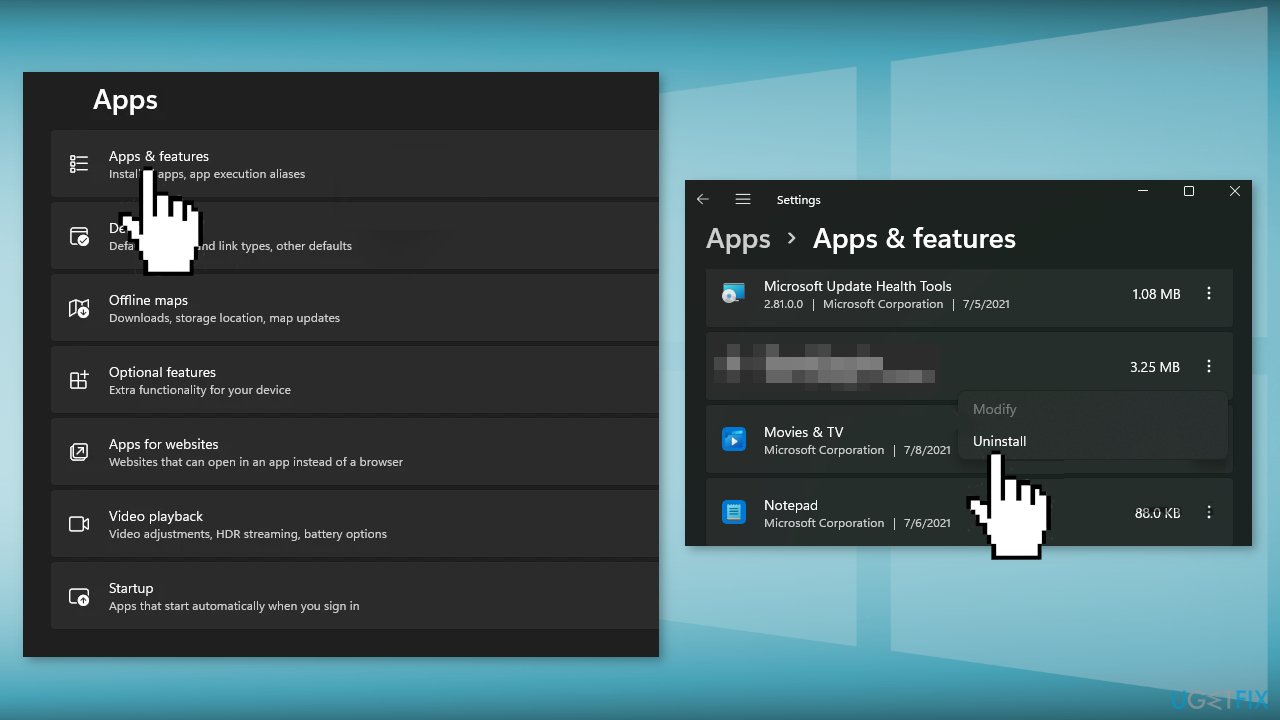
- Wait for the process to finish and try to remove Windows Update Cleanup again
Method 2. Uninstall the KB3194798 Update
- In Settings, from the left sidebar, select Windows Update
- On the Windows Update page, click Update History
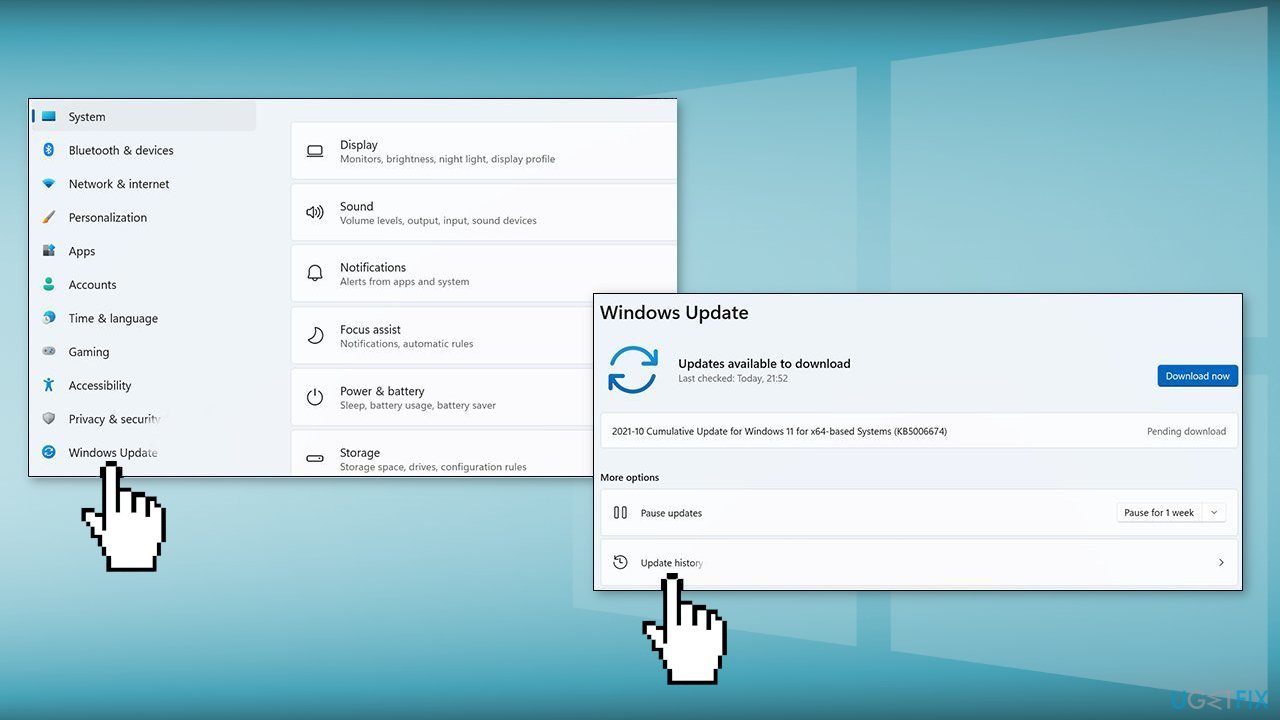
- From the Related Settings section, choose Uninstall Updates
- To remove the KB3194798 update, select it in the list and then click Uninstall
- Click Yes in the prompt to continue
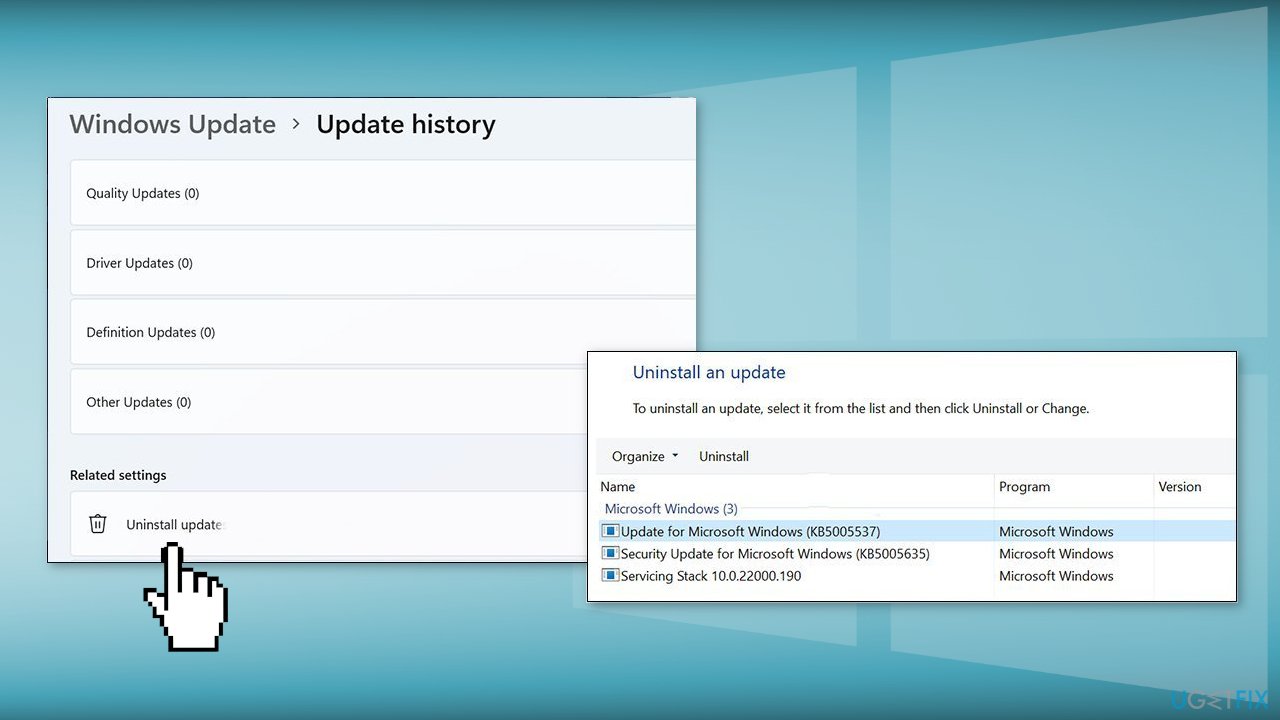
Method 3. Delete the SoftwareDistribution_1 Folder
- Type Services in the Search menu and open Windows Services
- Scroll down to find the Windows Update service
- Right-click on it and select Stop
- Now launch File Explorer
- Go to This PC, then Local Disc (C:)
- Find the Windows folder and then SoftwareDistribution
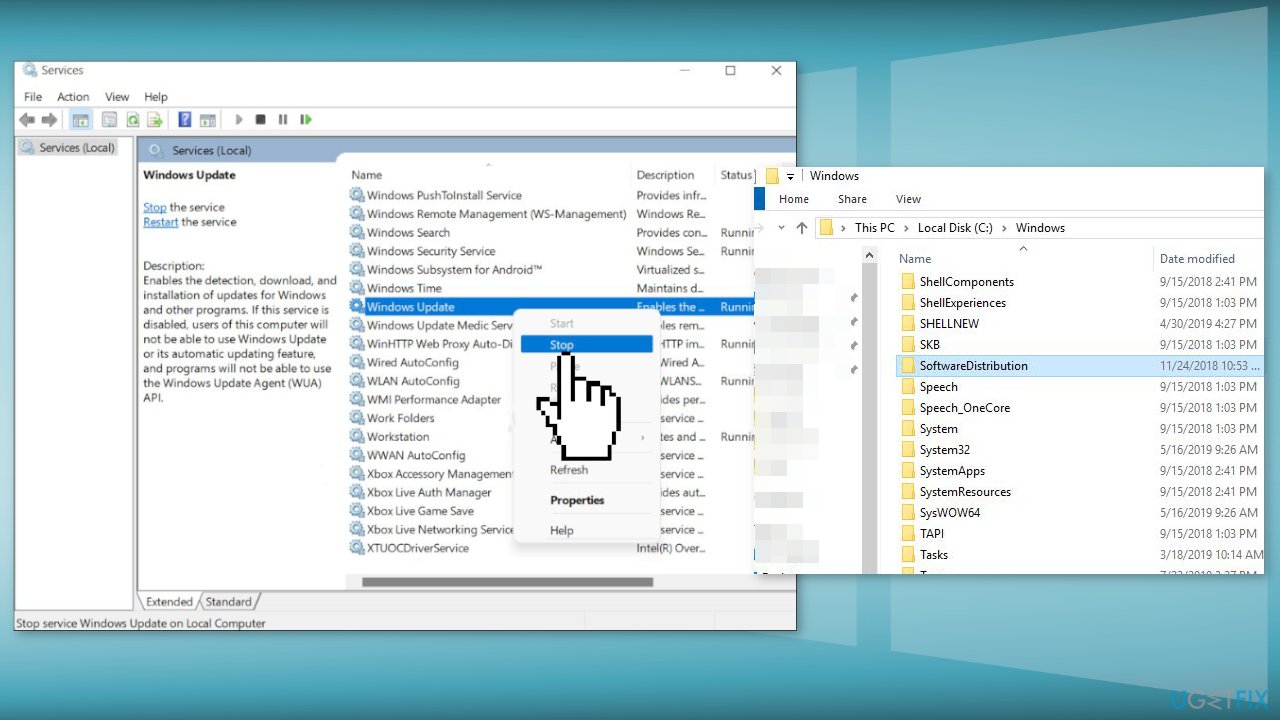
- Rename the SoftwareDistribution folder to SoftwareDistribution_1
- Restart your PC
- Go back to the Windows folder
- You will notice that there are two Software Distribution folders
- Delete the SoftwareDistribution_1 folder
- This should let you clear out the Update folder
Method 4. Delete Shadow Copies
- Find the Command Prompt in the Start menu and press Run as Administrator
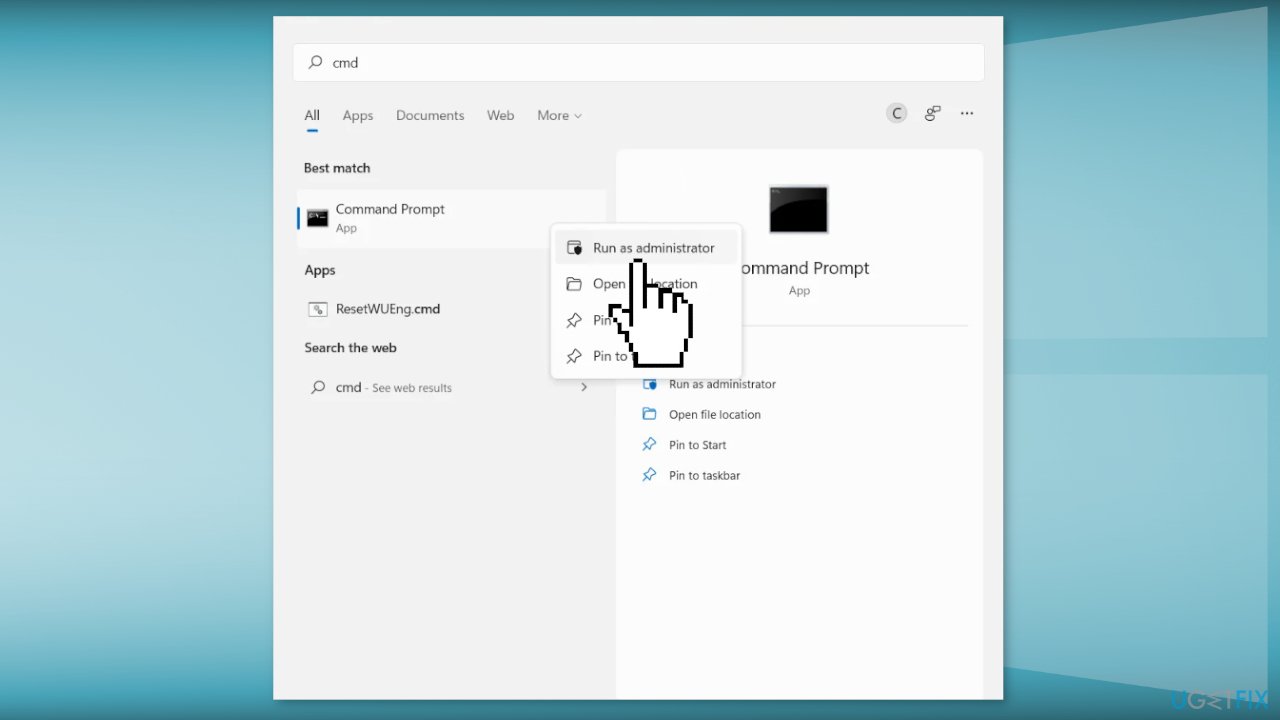
- Type vssadmin delete shadows /all and press Enter
- Type Y when prompted and follow the instructions
Method 5. Repair Install Windows
- Visit the official Microsoft website to download Windows 11 Installation Media
- Run the Media Creation Tool and select Create Installation Media for another PC
- Select your USB drive
- Let the Process complete of writing the Installation files to the USB drive
- Click Finish
- On the PC you wish to upgrade, Press Windows + E to open the File Explorer
- Open the Removable drive and click Setup.exe
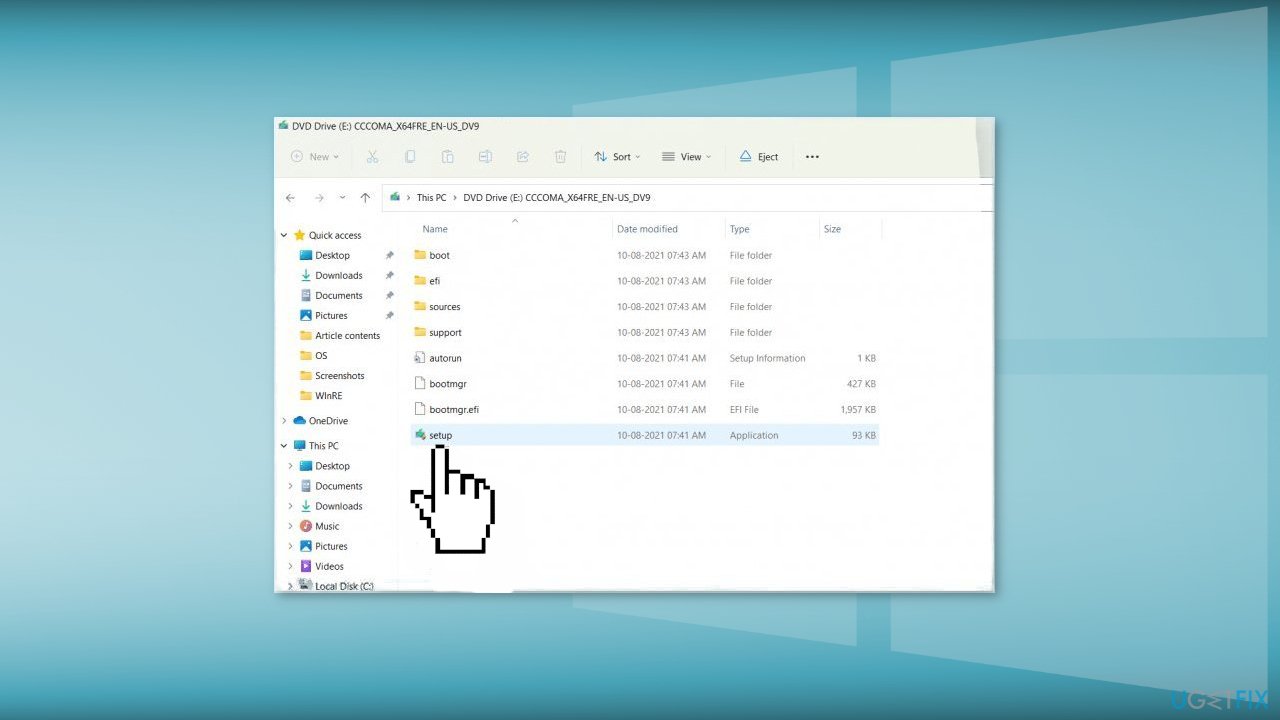
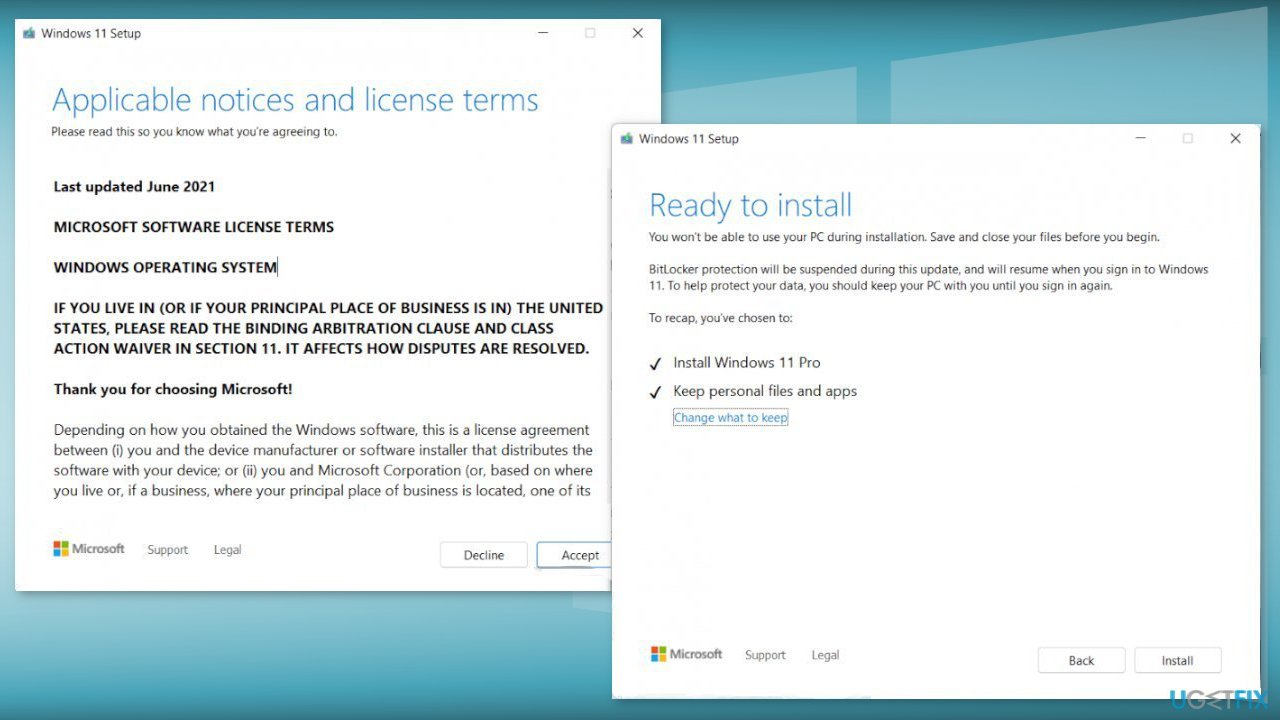
- Accept the license terms on the next screen
- Confirm the Upgrade options – Files, apps and Settings are kept
- Click Install, and the upgrade should start
Method 6. Contact Support and wait for a Fix
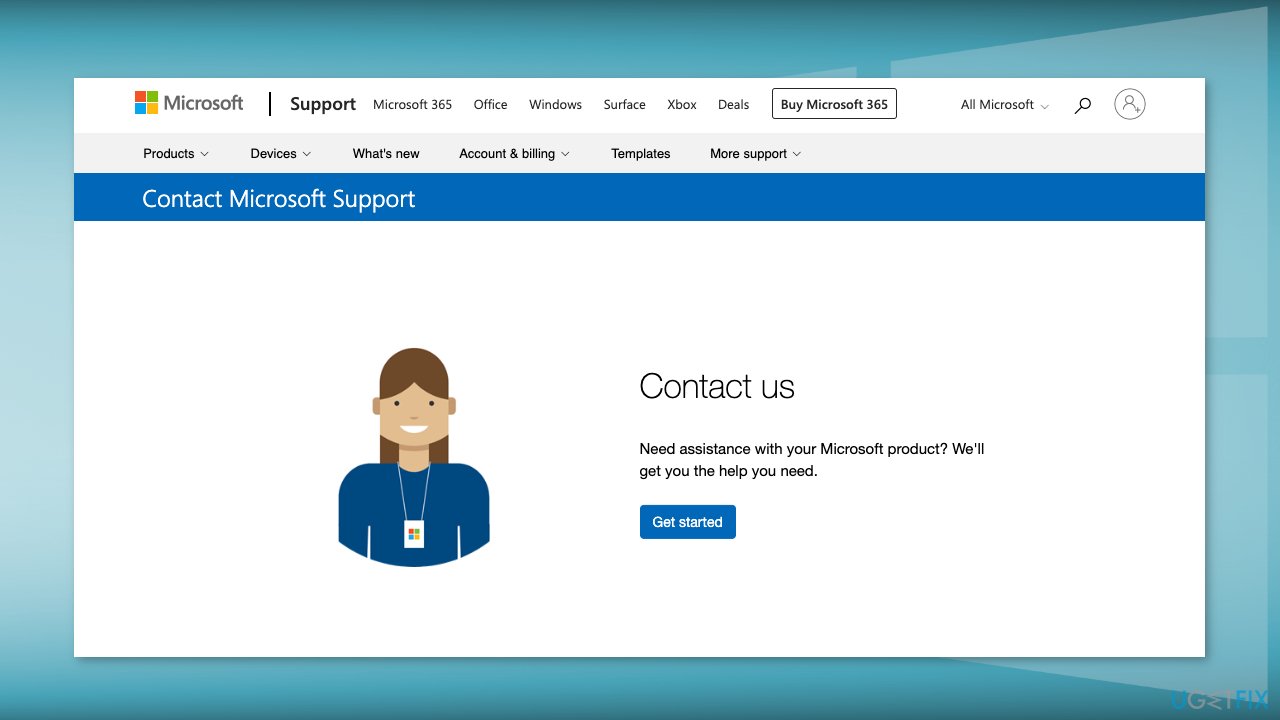
- Go to the Microsoft Support page and write about your problem
- If the issue is common, there is a big chance that Microsoft will fix it
Bottom line
To fix the Disk Cleanup issue, you can uninstall third-party security software, remove the KB3194798 update, or delete the SoftwareDistribution_1 folder. If these solutions do not resolve the problem, consider using a maintenance tool or reinstalling Windows.
Frequently asked questions
This issue may occur due to system file corruption or the Disk Cleanup utility not having the necessary permissions to delete these files. Running the Disk Cleanup as an administrator can often resolve this problem.
If running as administrator doesn't work, consider using the Command Prompt to manually delete Windows Update files or running the Windows Update Troubleshooter to fix potential underlying issues.
Yes, you can use the Storage Sense feature in Windows 10 or Windows 11 to manage and delete these files, or utilize third-party disk cleanup tools for more comprehensive cleaning options.




Report an issue
What's wrong with this guide? We review every report and update or remove content.
Report received — thank you. We'll review and fix it.
You need a free account to submit a report.
Be the first to comment