How to fix
Disk Defragmenter doesn’t work
on Windows
Resolve Disk Defragmenter issues in Windows 10 effortlessly. Follow our expert-tested solutions for a smoother experience today. Fixed in minutes!

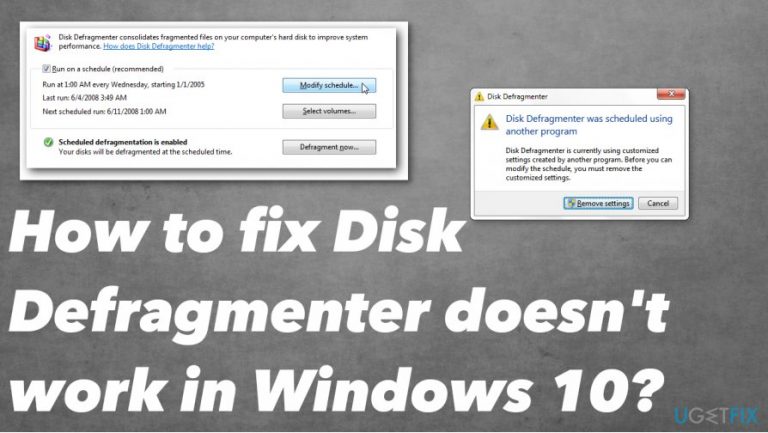
What causes How to fix Disk Defragmenter doesn’t work in Windows 10?
- Corrupted installation
- Third-party files
- Compatibility issues
- Missing service files
- Not working defragmenter
Repairs Windows system files, removes malware, and restores a clean OS state — without reinstalling.
Hello. I have the issue with my hard disk because I receive the optimization message, but the process is not staring or gets completed. Are there any reasons why Disk Defragmenter doesn't work in Windows 10? Can I do something about this myself or is it the virus message that I see?
Disk Defragmenter doesn't work in Windows might be the issue related to corrupted installation, third-party files, programs, or compatibility issues. Disk fragmented is the important feature of the Windows operating system because it allows you to rearrange memory clusters and access data on your disk faster.[ref en-1]
When Disk Defragmenter doesn't work in Windows 10[ref en-2] it creates issues and frustration because with all the new updates disk fragmentation should also help to keep the computer and hard disk in particular optimized. But the impossible process indicates that there is something not okay with one of the components.
This means that to fix Disk Defragmenter doesn't work in Windows 10 issue, you need to determine the problem first. The root of the error can suggest the solution too. We can surely determine that malware[ref en-3] is not related to this problem in any way. You shouldn't panic, scam campaigns with such messages are not known, rely on diagnostics instead.
One of the most common issues that can create the Disk Defragmenter doesn't work problem: not accessible optimization defragment on Windows OS itself, not working defragmenter, missing service files, or corrupted functions allowing to reboot in Safe Mode, for example.
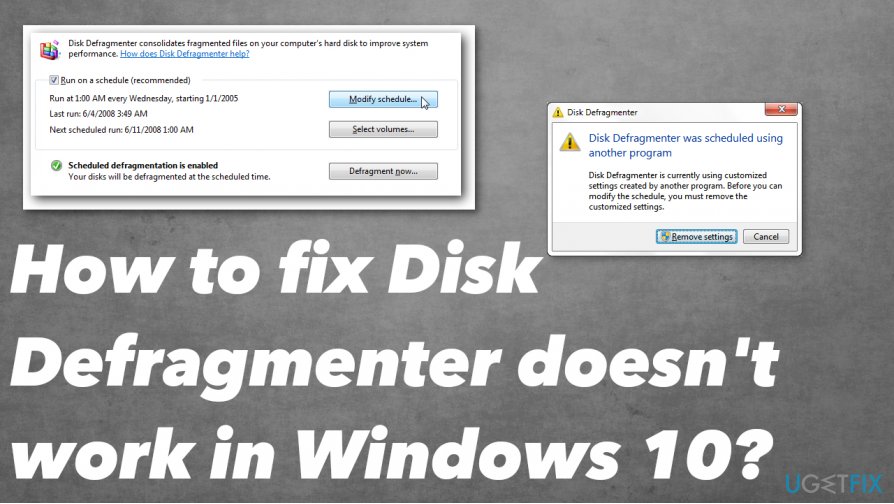
How to fix Disk Defragmenter doesn't work in Windows
The inbuilt tool in the Windows operating system provides useful functions for users, so it is frustrating when the error occurs, or the process is not possible to launch. When it comes to scammy messages or malware-related campaigns such messages are not common, it shouldn't be related to any malicious processes. You can always check the machine with an anti-malware or security tool and make sure for yourself. [d1] is the tool that can indicate affected files or even PUP traces for you, so run this application before doing anything else that could help to fix Disk Defragmenter doesn't work in Windows 10.
Then, depending on the reason and the root issue of this Disk Defragmenter doesn't work error, you need to determine what is the most believable trigger. You should troubleshoot the problem and make sure that the OS update is not buggy or outdated. Particular Windows 10 updates can sometimes have problems with files and errors that letter on getting fixed by updating the OS entirely. Check if you have the newest versions. Then, try the methods below.
Scan system files to find the issue and solution
- Click on Start and then type cmd in the Search menu.
- Select the result and run the Command Prompt as an administrator.
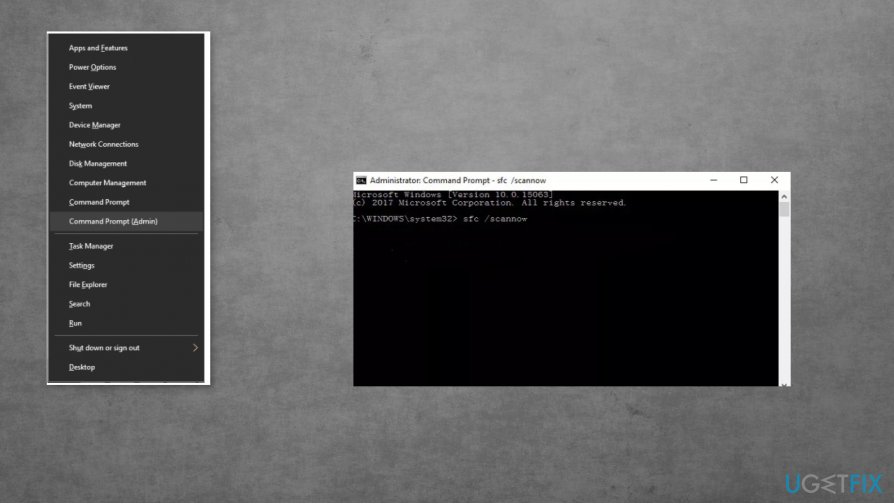
How to fix disk defragmenter doesnt work in windows 10 comand prompt - Type scannow and press Enter.
- The scan can take up to 15 minutes.
Check the service itself to fix Disk Defragmenter doesn't work in Windows
- Go to the Start menu and search for services.msc.
- Choose the Services icon and open the Services tab.
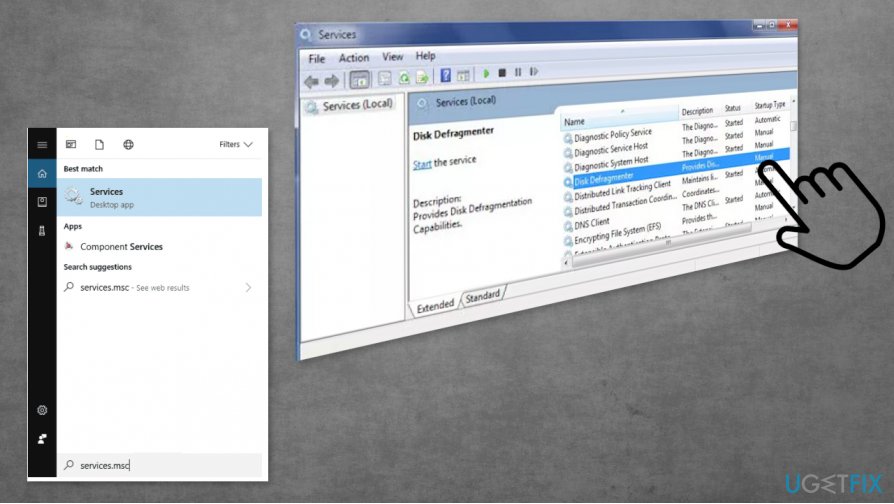
How to fix disk defragmenter doesnt work in windows 10 services - Click on any of them and type Disk Defragmenter.
- Check if the service is enabled and running. Make sure to set it to Manual mode.
- Also, check these and set them to Automatic:
Remote Procedure Call (RPC)
DCOM Server Process Launcher
RPC Endpoint Mapper
End other processes via Task Manager to fix Disk Defragmenter doesn't work in Windows 10
- Open Task Manager by pressing Ctrl + Shift + Esc.
- Check for Processes that are running.
- Righ-click on any that you want to close and End task from the menu that appears.
- Repeat with all the suspicious or unwanted processes.
Create a new user
- Press the Windows key and I at the same time.
- Choose Accounts when the Settings open.
- Select Family & other people.
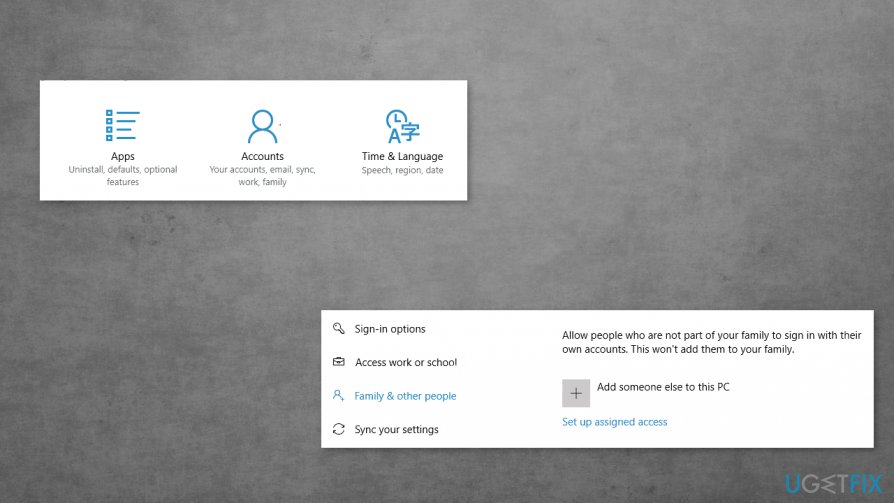
How to fix disk defragmenter doesnt work in windows 10 user - Choose to Add someone else to this PC.
- Follow the information filling procedures and create the account. Switch to the new one and check if Disk Defragmenter works.
Bottom line
To fix the issue with Disk Defragmenter not working in Windows 10, you should first determine the root of the problem. Possible solutions include checking for missing service files, ensuring compatibility, and running diagnostics. If none of these fixes work, consider using an anti-malware tool to check for affected files.
Frequently asked questions
Check if the feature is disabled by going to the Services app and ensuring the 'Optimize Drives' service is running. If it's not listed, you may need to enable it through the Control Panel.
Ensure you have administrator privileges and that the drive is not in use or locked by another process. You can also run the Disk Cleanup tool to free up space before attempting to defragment.
Long defragmentation times can be caused by a heavily fragmented drive or a large amount of data. Consider running the 'Check Disk' utility to fix any errors before defragmentation.




Report an issue
What's wrong with this guide? We review every report and update or remove content.
Report received — thank you. We'll review and fix it.
You need a free account to submit a report.
Be the first to comment