How to fix
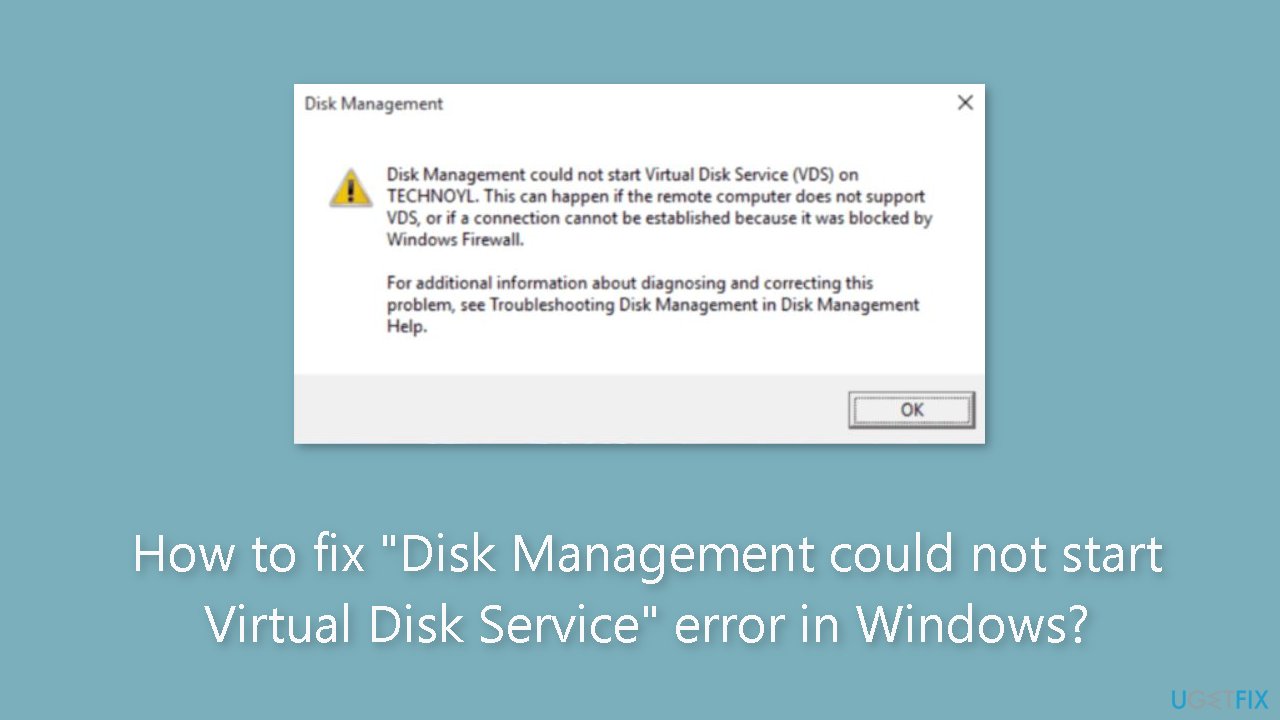
“Disk Management could not start Virtual Disk Service” error
on Windows
Resolve the "Disk Management could not start Virtual Disk Service" error in Windows 10 or 11 quickly and easily. Expert-tested solutions await!


What causes How to fix “Disk Management could not start Virtual Disk Service” error in Windows?
- Virtual Disk Service (VDS) is disabled
- Firewall intervention
- Windows Firewall blocking communication
- Third-party firewalls preventing access
- Corrupted system files
Repairs Windows system files, removes malware, and restores a clean OS state — without reinstalling.
Hello. When I try to use the Disk Management tool l receive an error "Disk Management could not start Virtual Disk Service". Is there a way to fix this?
Windows users who use Disk Management as their main tool for drive partitioning and other related tasks may find the error message "Disk Management could not start Virtual Disk Service" to be an irritating problem. Users can manage their hard drives, create partitions, format disks, and carry out a variety of disk-related operations using the built-in Disk Management software. However, running across this issue can prevent users from using these crucial capabilities, which interferes with their ability to efficiently manage their storage.
This inaccuracy may occur as a result of a number of circumstances. The Virtual Disk Service (VDS) being disabled is one frequent cause. The VDS is in charge of managing and giving applications like Disk Management information on disks, volumes, and storage subsystems. The proper operation of Disk Management may be hampered if the VDS is not active or is disabled.
Additionally, this issue may be caused by firewall intervention. The operation of the utility may be hampered if Windows Firewall or third-party firewalls prevent the essential communication between Disk Management and the Virtual Disk Service.
The effects of this problem on users may be severe. Users can find themselves unable to effectively maximize their storage space if they are unable to access Disk Management and carry out actions like making or resizing partitions, formatting drives, or assigning drive letters. Complications such as wasteful disk use, an inability to install new operating systems, or trouble juggling data between partitions can result from this.
In this guide, you will find 4 steps that should help you fix "Disk Management could not start Virtual Disk Service" error. You can also use a repair tool like [d1] that can fix most system errors, BSODs,[ref en-1] corrupted files, and registry[ref en-2] issues. Otherwise, follow the step-by-step instructions below.
Method 1. Fix Corrupted System Files
Use Command Prompt commands to repair system file corruption:
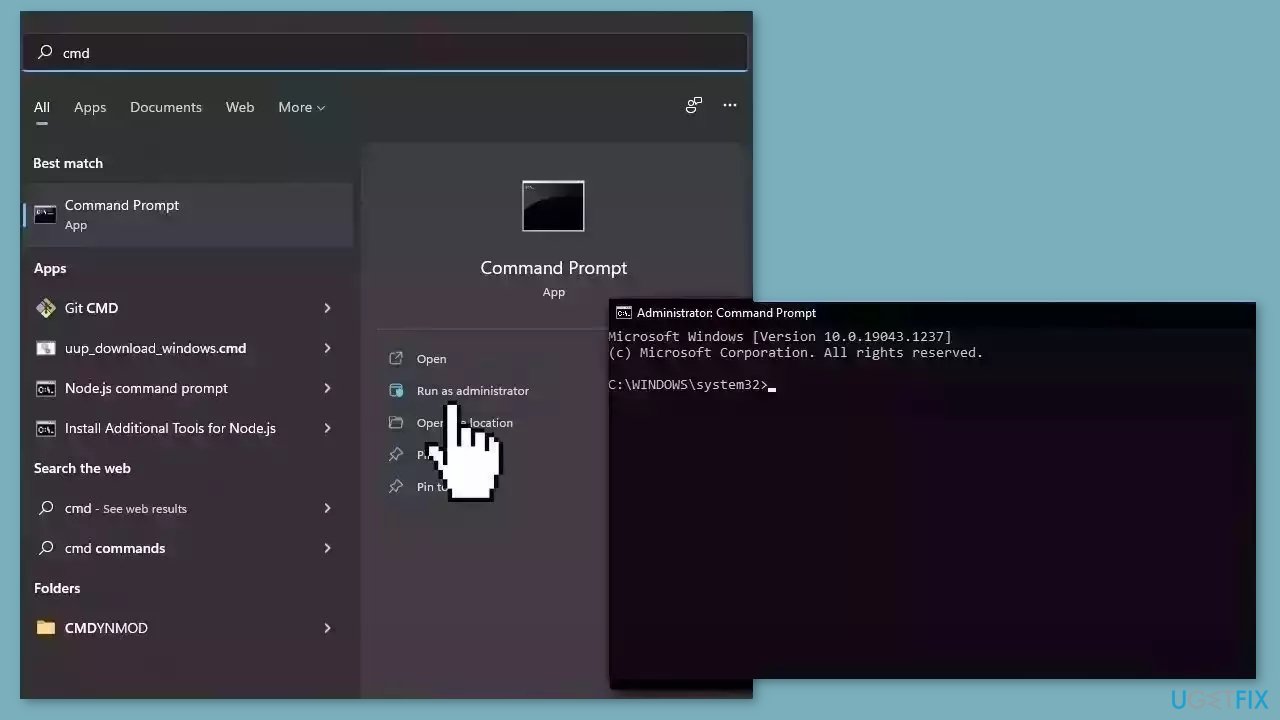
- Open Command Prompt as administrator
- Use the following command and press Enter:
sfc /scannow
- Reboot your system
- If SFC returned an error, then use the following command lines, pressing Enter after each:
DISM /Online /Cleanup-Image /CheckHealth
DISM /Online /Cleanup-Image /ScanHealth
DISM /Online /Cleanup-Image /RestoreHealth
Method 2. Enable the Virtual Disk Service
- Press the Windows key + R to open the Run dialog box.
- Type services.msc in the Run dialog box and press Enter.
- In the Services window, locate and double-click on Virtual Disk service to open its properties.
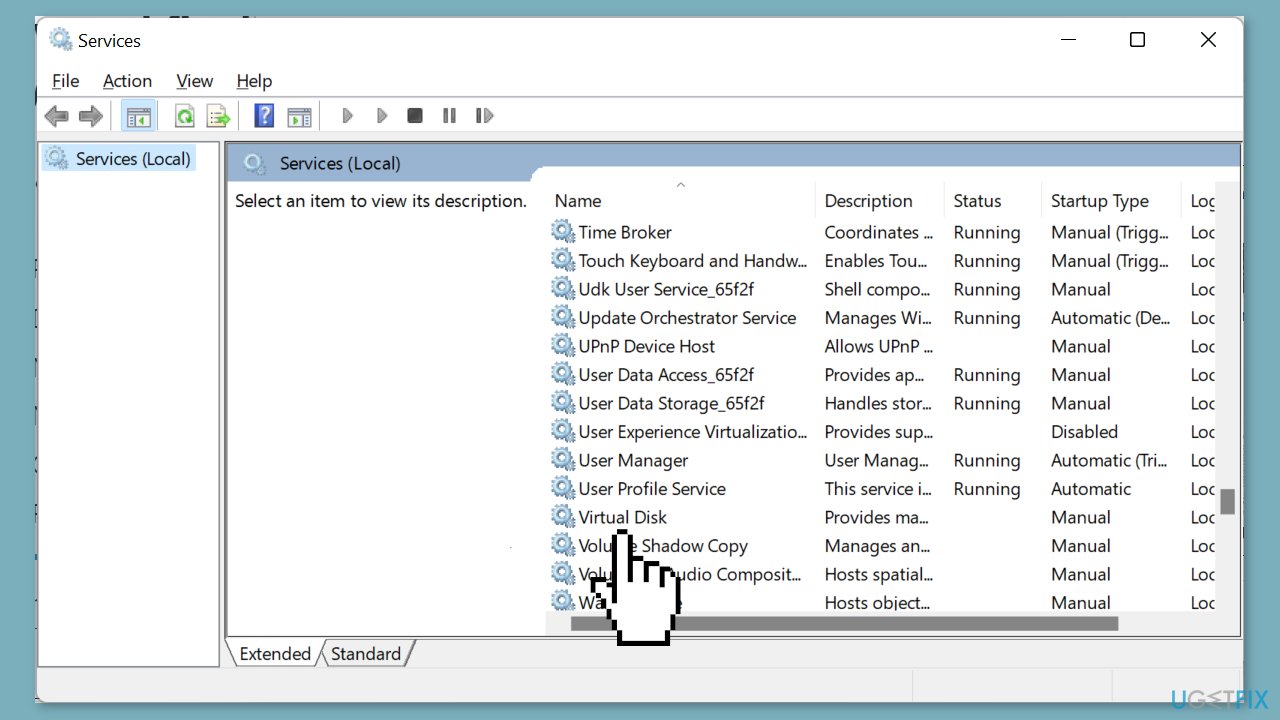
- Set the Startup type to Automatic.
- Click the Start button to initiate the service.
- Navigate to the Log On tab at the top of the Virtual Disk Properties window.
- Check the box that says Allow service to interact with desktop.
- Click the Apply button to apply the changes.
- Click the OK button to confirm and close the Virtual Disk Properties window.
Method 3. Enable the Remote Volume Management
- Press the Windows key + S to open the search box.
- Type powershell in the search box.
- Right-click on Windows PowerShell in the search results.
- Select Run as administrator from the context menu to open an elevated PowerShell window.
- Type the following command:
netsh advfirewall firewall set rule group="Remote Volume Management" new enable=yes
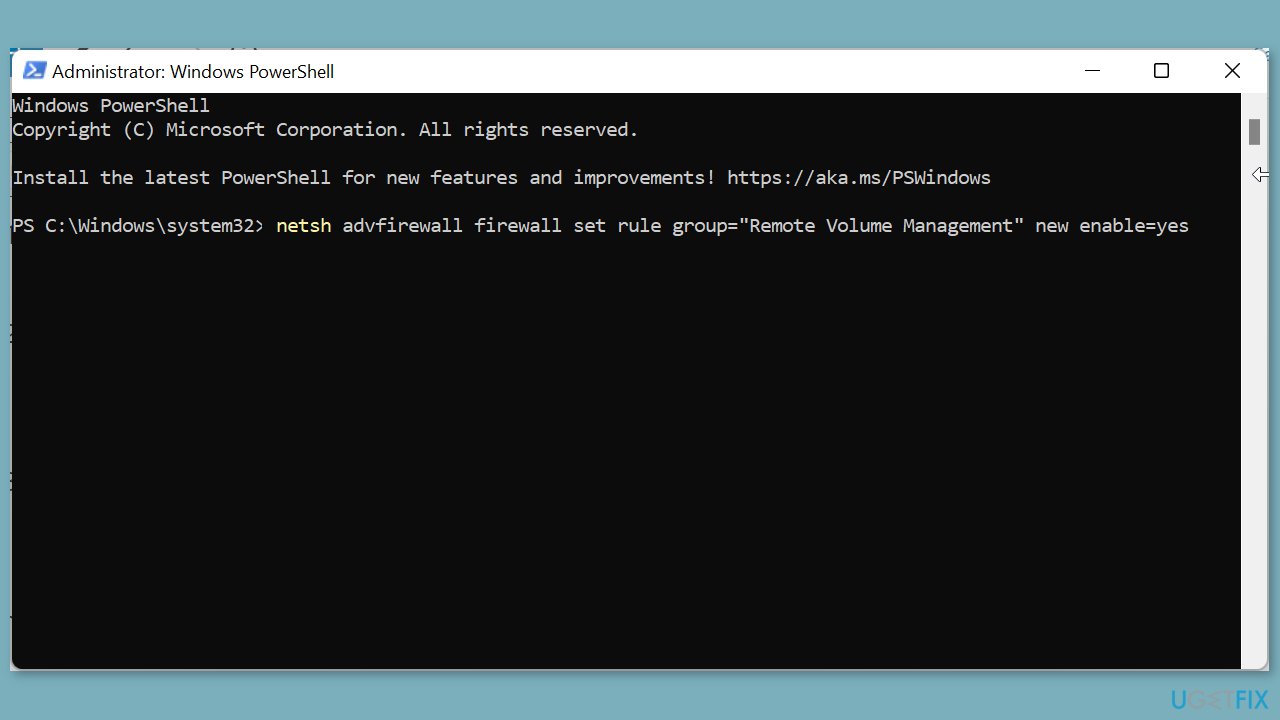
- Press Enter to execute the command on both your local and remote systems.
- Wait for the process to complete and finish running.
Method 4. Temporarily Disable Windows Defender
- Press the Windows key + R to open the Run dialog box.
- Type gpedit.msc in the Run dialog box and press Enter or click OK.
- In the Group Policy Editor window:
- Navigate in the left pane to the following path: Computer Configuration > Administrative Templates > Windows Components > Microsoft Defender Antivirus > Turn off Microsoft Defender Antivirus

- Double-click the Turn off Windows Defender Antivirus option.
- Tick the radio button labeled Enabled.
- Click the Apply button.
- Click the OK button to confirm and save the changes.
Bottom line
To fix the 'Disk Management could not start Virtual Disk Service' error, you can enable the Virtual Disk Service, check your firewall settings, and repair corrupted system files using Command Prompt. If these methods do not resolve the issue, consider using a repair tool to address system errors.
Frequently asked questions
This error typically occurs due to issues with the Virtual Disk Service, such as it being disabled, not running, or corrupted system files affecting its functionality.
You can restart the Virtual Disk Service by opening the Services app, finding 'Virtual Disk', right-clicking it, and selecting 'Restart'.
Yes, you can use the Command Prompt to run 'sc config vds start= auto' followed by 'net start vds' to ensure the Virtual Disk Service starts automatically.




Report an issue
What's wrong with this guide? We review every report and update or remove content.
Report received — thank you. We'll review and fix it.
You need a free account to submit a report.
Be the first to comment