How to fix
DISM error 50
on Windows
Resolve DISM error 50 in Windows 10 or 11 effortlessly with our expert-tested solutions. Get your system running smoothly in no time!

What causes How to fix DISM error 50 in Windows?
- Insufficient permissions
- Complications with user account configurations
- Glitches in the system's cache
- Registry settings issues
- Multiple underlying system issues
Repairs Windows system files, removes malware, and restores a clean OS state — without reinstalling.
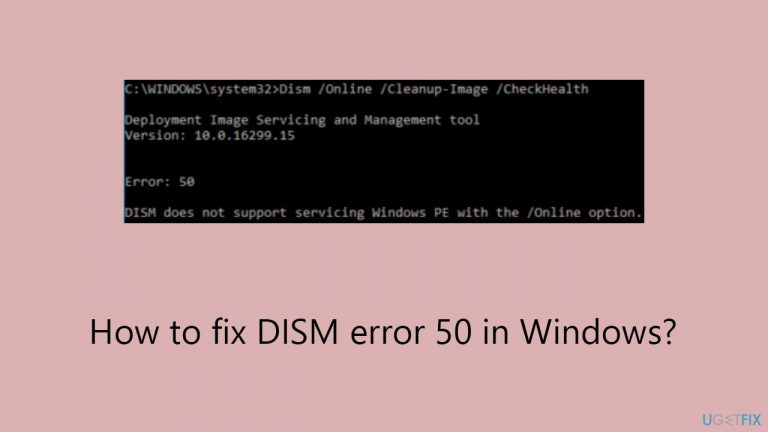
Hello, I kept having issues with my PC and one of the solutions I was recommended is to perform the "dism.exe /online /cleanup-image /restorehealth" command in Command Prompt, but it does not work and I receive an error 50.
Deployment Image Servicing and Management (DISM) is a command-line tool integral to the Windows operating system. Its primary function is to service and prepare Windows images, including those used for Windows Recovery Environment, Windows Setup, and Windows PE (Preinstallation Environment).
DISM provides vital support for configuring and repairing system files this helps to maintain the system's health and efficiency. It is often used in Windows Recovery or standard Windows environments, where it executes various commands to ensure the system's integrity and readiness.
Encountering DISM error 50 can be a frustrating experience, often rooted in several underlying issues within the Windows operating system. This error typically surfaces due to insufficient permissions, which impede the tool's ability to execute its tasks effectively. Additionally, complications with user account configurations can lead to this error, as DISM requires specific user privileges to operate optimally. Other common causes include glitches in the system's cache, which might corrupt or hinder the tool's processes.
To fix the DISM error 50, a range of solutions can be explored. As a starting point, you may consider creating a new user account with adequate permissions, ensuring that the DISM tool has the necessary access rights. Running the command prompt as an administrator can also provide the tool with the required privileges to function correctly.
In more complex scenarios, tweaking the registry settings might be necessary, though this requires careful attention due to the sensitivity of registry modifications. Resetting Windows is another approach that can work if your computer is simultaneously suffering from multiple issues.
It's important to note that while these methods can be effective, they require a careful and informed approach to avoid further system complications. As an alternative, we would recommend trying [d1] PC repair tool, which is designed to diagnose and resolve underlying Windows issues, potentially rectifying DISM error 50 without the need for manual intervention.
Fix 1. Run Command Prompt as administrator
This approach is essential because DISM requires elevated privileges to modify system files and settings. By running Command Prompt with administrator rights, you ensure that DISM has the access it needs to perform its tasks without encountering permission-related errors.
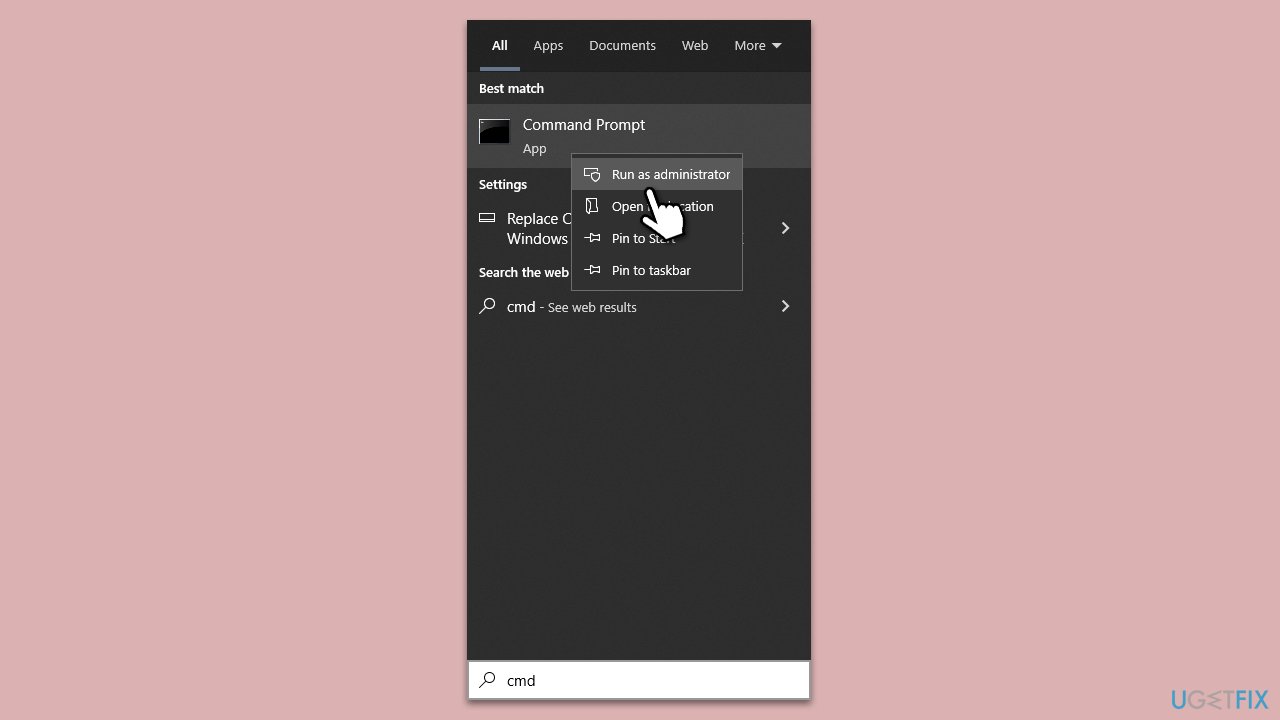
- In Windows search, type cmd.
- Right-click on Command Prompt from the search results.
- Select Run as administrator.
- If prompted by User Account Control (UAC), click Yes to proceed.
- Proceed with the DISM commands as normal.
Fix 2. Create a new user account
Sometimes, your current user account may not have the necessary permissions or might be corrupted, leading to a DISM error. A new account will have default settings and permissions, which might eliminate the issues causing DISM error 50.
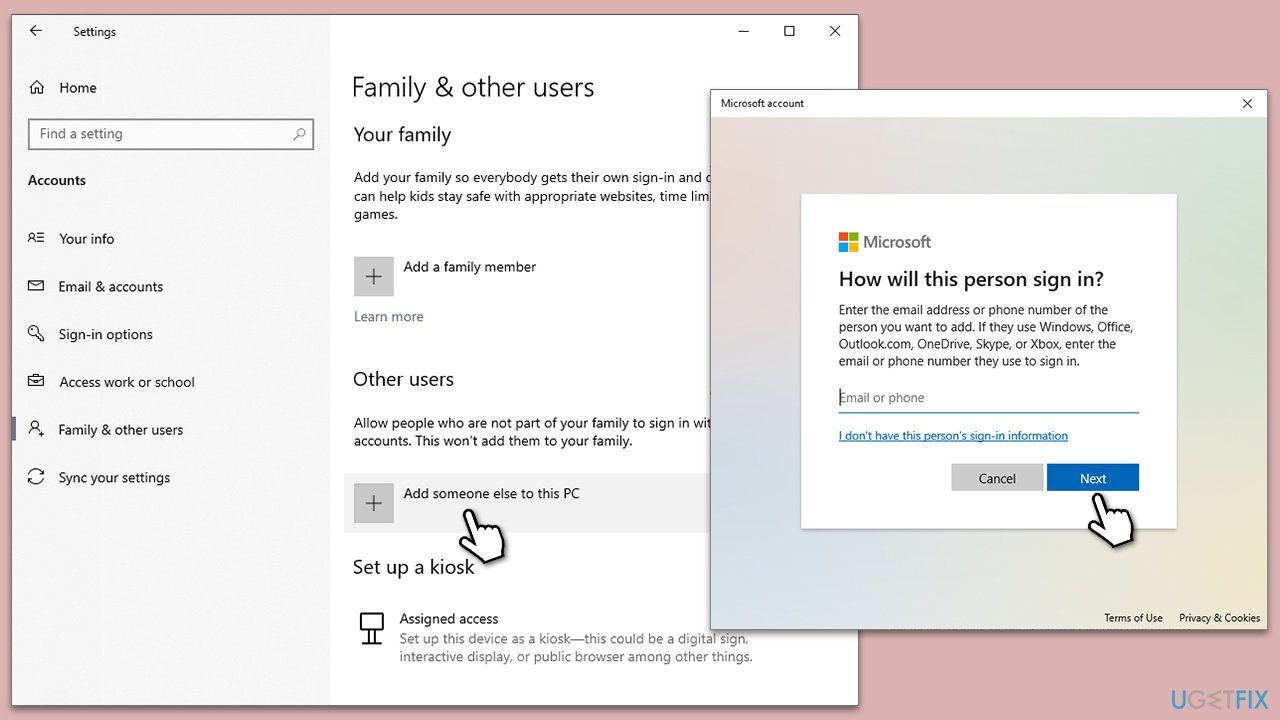
- Right-click on Start and pick Settings.
- Go to the Accounts section.
- Select Family & other users on the left.
- Under Other users, click Add someone else to this PC.
- Select I don't have this person's sign-in information > Add a user without a Microsoft account.
- Enter the required information and click Next.
- Restart your device once done.
- Log out from the current account and log into the new account.
Fix 3. Use DISM command revertpendingactions
This DISM command is designed to revert pending actions from previous unsuccessful attempts to modify or repair the Windows image. This can be useful when system changes are stuck in a pending state, causing conflicts with new DISM commands.
- Run Command Prompt as an administrator (see Fix 1).
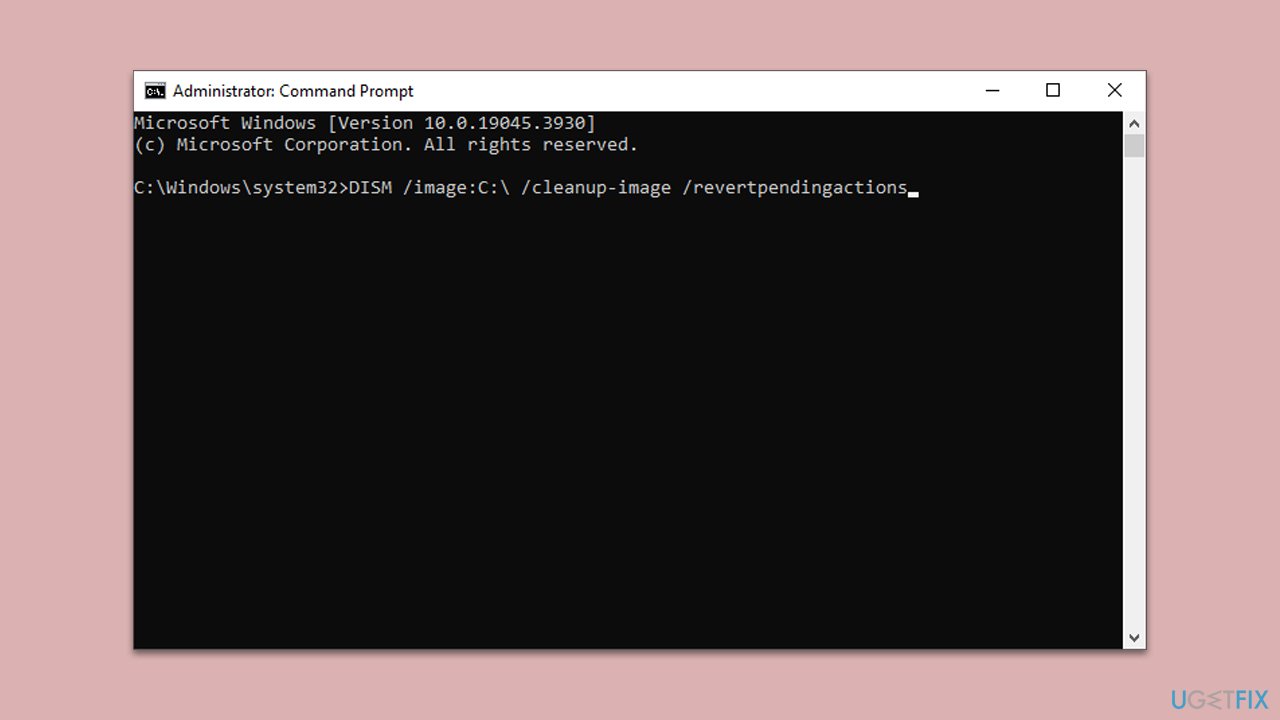
- Type the command and press Enter:
DISM /image:C:\ /cleanup-image /revertpendingactions (replace C:\ with the letter of your system drive if different). - Press Enter.
- Restart your computer after the process is completed.
Before you do anything, proceed with the next fix for optimal resolution.
Fix 4. Access Safe Mode
This method best works when combined with Fix 3.
- In the Windows sign-in screen, press and hold the Shift key, then click Power > Restart.
- After a reboot, you will be presented with several options - pick Troubleshoot.
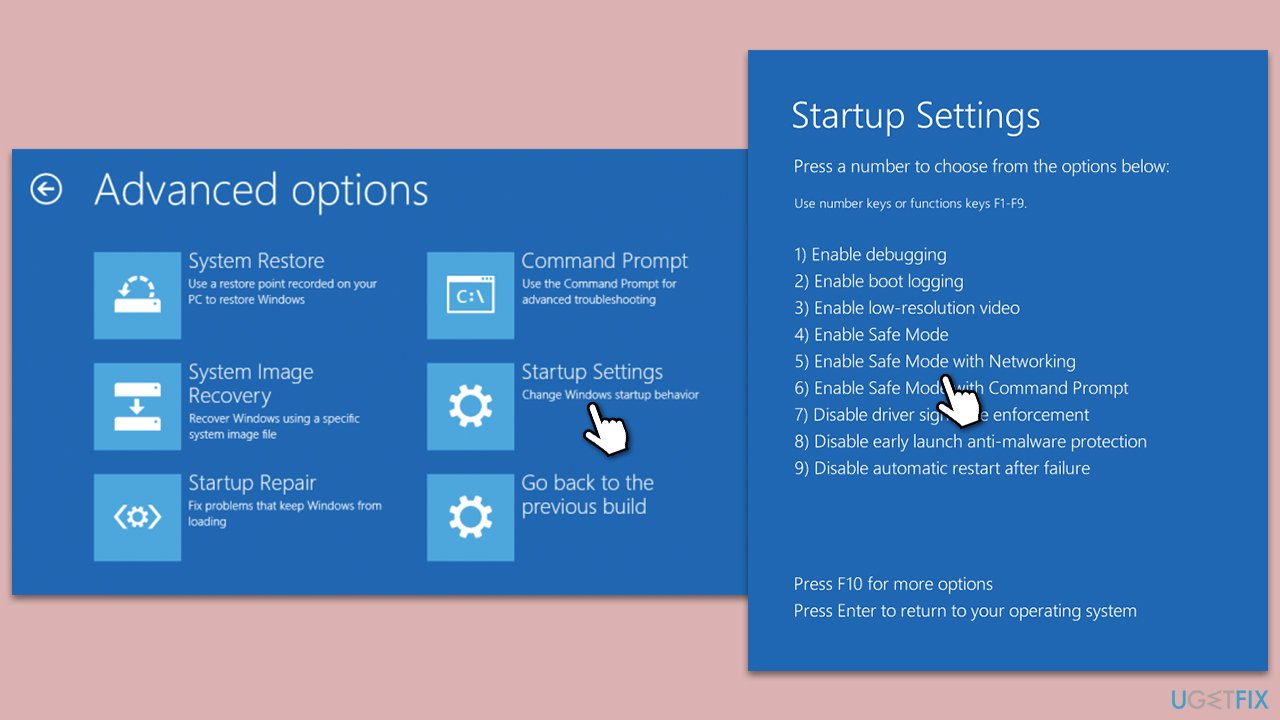
- Go to Advanced options > Startup Settings and then pick Restart.
- After a reboot, pick either 4/F4 for Safe Mode or 5/F5 for Safe Mode with Networking.
- Once in Safe Mode, open Command Prompt as administrator.
- Type in the following command and press Enter:
sfc /scannow - Exit everything and reboot.
Fix 5. Exit Windows PE Mode before proceeding with DISM commands
Windows Preinstallation PE (Environment Mode) is a lightweight version of Windows used for installation, deployment, and recovery. If your system is in Windows PE Mode, DISM commands intended for a standard environment may not work correctly.
- Restart your computer.
- If you are in Windows PE, select Turn off your PC after the restart.
- Wait for your system to boot into your regular Windows environment.
- Once in the standard Windows environment, attempt to run the DISM commands again.
Fix 6. Delete the MiniNT Windows registry key
MiniNT registry key, if present, can cause issues with DISM operations. This key is often created by third-party software and can lead Windows to behave as if it is running in a Windows PE or Recovery Environment. Removing this key can resolve conflicts that lead to DISM errors.
- Type regedit in Windows search and press Enter.
- When UAC shows up, click Yes.
- Navigate to the following location in the Registry Editor:
HKEY_LOCAL_MACHINE\SYSTEM\CurrentControlSet\Control\MiniNT - On the left, right-click on MiniNT and select Delete.
- Confirm when prompted.
- Restart your PC.
Fix 7. Try System Restore
System Restore can revert your computer's state to a previous point in time, potentially resolving issues causing DISM error 50. This feature is useful if the error started appearing after a recent change to system settings or installed software.
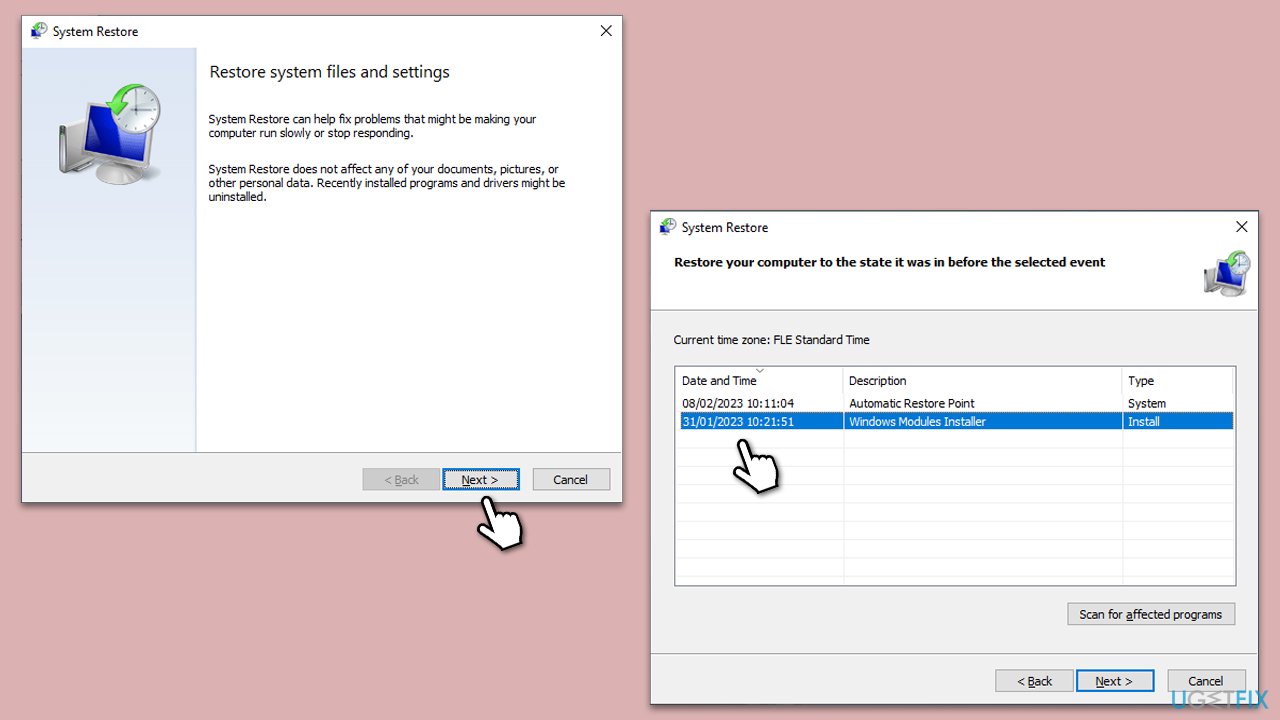
- Type in Create a Restore point in Windows search and hit Enter.
- Go to the System Protection tab and pick System Restore.
- Click Next.
- Click Show more restore points (if available).
- Pick the time before the problem occurred and click Next.
- Follow the prompts to finish the process.
Fix 8. Reset Windows
Resetting Windows reinstalls the operating system, which can resolve persistent issues. This method should be a last resort, as it can remove installed apps and change settings back to their defaults, though you can choose to keep your personal files.
- Right-click on Start and then select Settings.
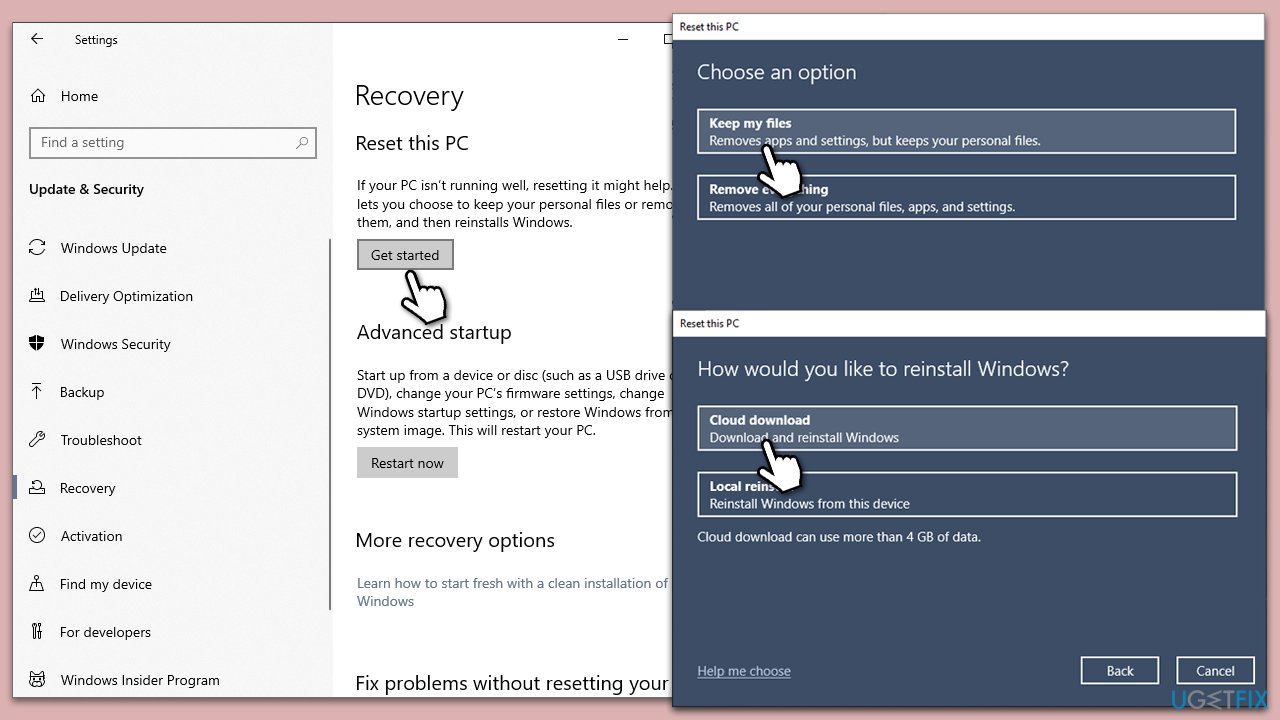
- Go to Update & Security and pick Recovery on the left side of the window.
- Find Reset this PC section and click Get Started.
- Select Keep my files and Cloud download.
- Next, pick whether you want to reinstall the apps.
- Click Reset.
- Your system will restart, and the process of Windows reset will begin.
Bottom line
To fix DISM error 50, consider creating a new user account with adequate permissions and running Command Prompt as an administrator. If issues persist, tweaking registry settings or resetting Windows may be necessary. If none of these solutions work, consider using a PC repair tool designed to diagnose and resolve underlying Windows issues.
Frequently asked questions
DISM error 50 typically occurs due to corrupted files or issues with the Windows component store. It can also arise from improper permissions or a faulty Windows update.
To fix DISM error 50 on Windows 11, you can run the 'sfc /scannow' command in Command Prompt to repair system files, or use the 'DISM /Online /Cleanup-Image /RestoreHealth' command.
Yes, resetting Windows 10 can resolve DISM error 50 by restoring system files to their original state, but it should be considered a last resort after other troubleshooting methods.




Report an issue
What's wrong with this guide? We review every report and update or remove content.
Report received — thank you. We'll review and fix it.
You need a free account to submit a report.
Be the first to comment