How to fix
DISM error 87
on Windows
Resolve DISM error 87 in Windows 10 or 11 effortlessly. Follow our expert-tested guide to fix issues swiftly and restore system performance. Updated 2025.

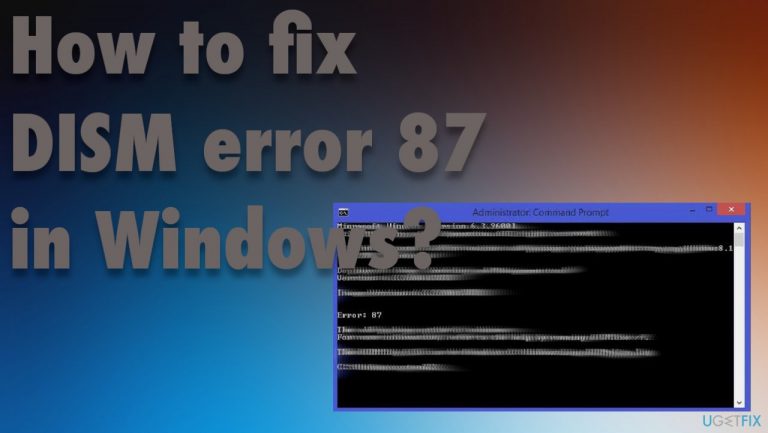
What causes How to fix DISM error 87 in Windows?
- Windows 10 version and bugs
- Faulty version of a recent update
- Incorrect command line input
- Command prompt not elevated
- Using an older DISM version
Repairs Windows system files, removes malware, and restores a clean OS state — without reinstalling.
I cannot clean up my Windows 10 image due to Error 87. Tried to scan some files and found corrupt ones, so I wanted to fix them. Fixing is impossible since the DISM.exe /Online /Cleanup-image /Restorehealth command triggered this error. Can you help debug this somehow?
Users tend to get the error 87 when trying to run the DISM command on Windows 10. Reports from people[ref en-1] show that the issue occurs more often for the newest Windows OS users than for the ones that use older versions. There can be a few particular reasons why the person encounters this DISM error 87 in Windows, one of them can be related to the Windows 10 version and bugs there.
If the machine with the latest version of the operating system encounters the error, it can be due to the faulty version of the update that was installed recently. These upgrades of the operating system can cause various issues,[ref en-2] so checking for another version can solve the problem with file restoring for you.
The DISM.exe error 87 can also occur due to the incorrect command line that is typed. Spaces between characters and slashes can fail the command altogether, so check spaces and characters to see if this is why. The command prompt should also be elevated when you run such processes. If that is not ensured, these commands fail, so the solution would be to run the command into the elevated Command Prompt with administrative rights.[ref en-3]
When the machine is using the wrong DISM version, errors can occur, and such situations are pretty common. Fix for such scenario when the command is launched using the older DISM could be correcting the version using wofadk.sys filter driver. The issue with old files or corrupted pieces can occur in many cases, so this particular issue is not the only one that can be caused when the machine has incorrect files or functions not as it is supposed to.
You can quickly fix DISM error 87 or check for additional problems by running the tool like [d1]. This application checks the system for affected files, corrupted data in system folders and can fix those problems for you pretty quickly. If there are no possible solutions from there, rely on the list of options. Pay attention to steps and thoroughly follow all steps.
1. Check the spacing of the command
The spacing before each / is important, so you should check the command line again before going for the in-depth fixes. Use one space before the / character, but not after it. Correct commands should be DISM.exe /Online /Cleanup-image /Scanhealth or DISM.exe /Online /Cleanup-image /Restorehealth.
2. Run the Command prompt with administrative rights
- Type CMD in search and choose the Command prompt.
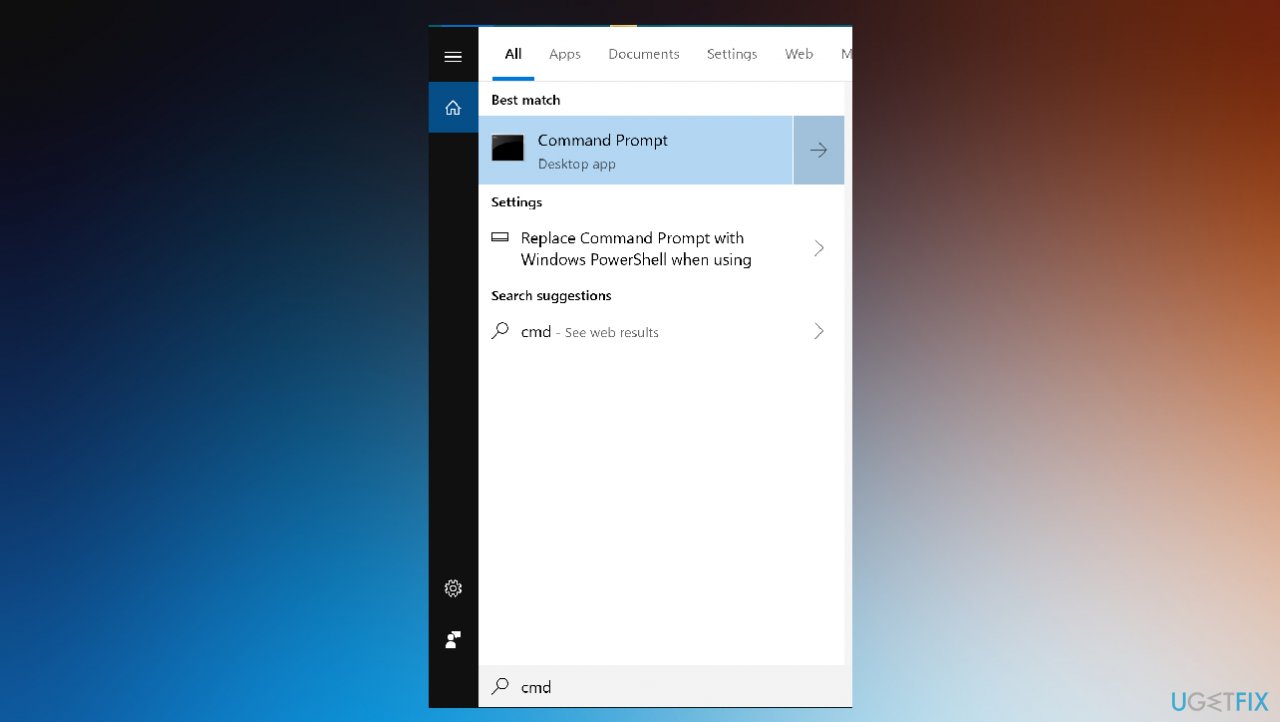
Dism error 87 command prompt - Ensure that you choose the Run as administrator option.
- You can also run the elevated Command Prompt via the Run box.
- Open the window with Win and R keys.
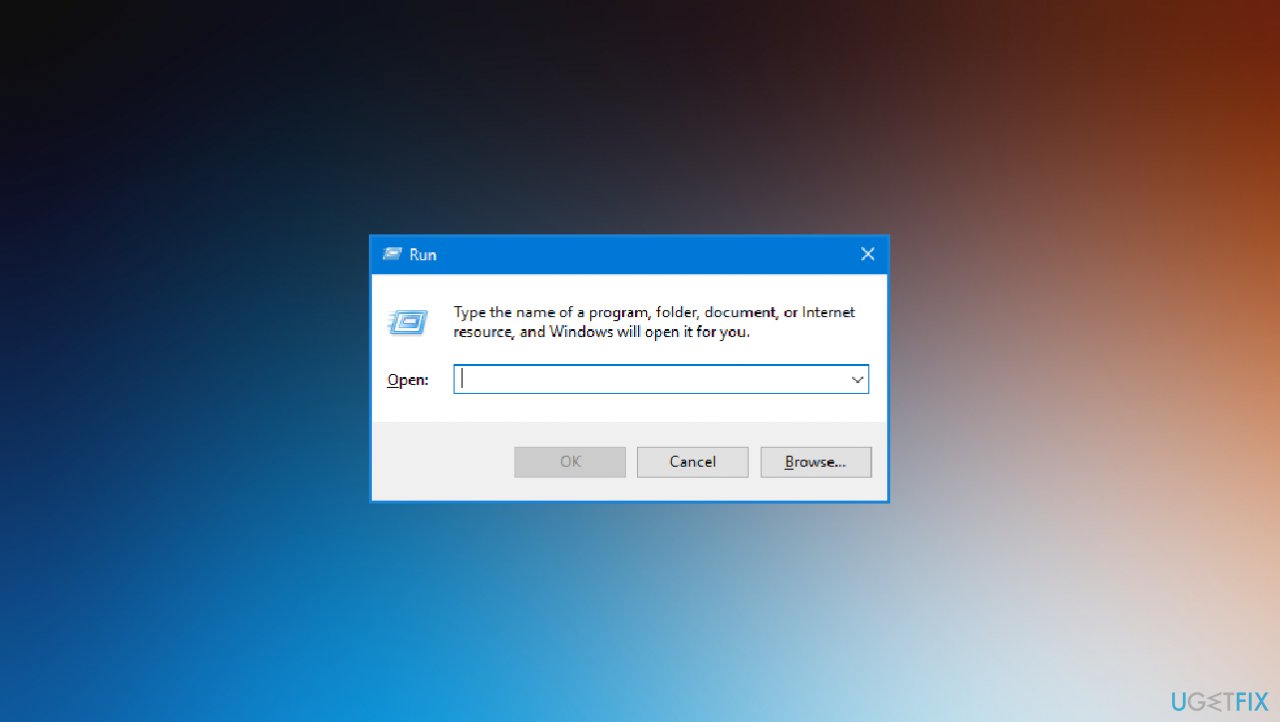
Dism error 87 run box - Type Cmd and press Ctrl + Shift + Enter.
- Confirm with Yes on the UAC window to grant administrator rights.
- Then run all the commands you want.
3. Install the latest Windows updates
- Press Win key + R to open up a Run dialog box.
- Type ms-settings:windowsupdate and press Enter.
- You can also open the Windows Update screen via Settings.
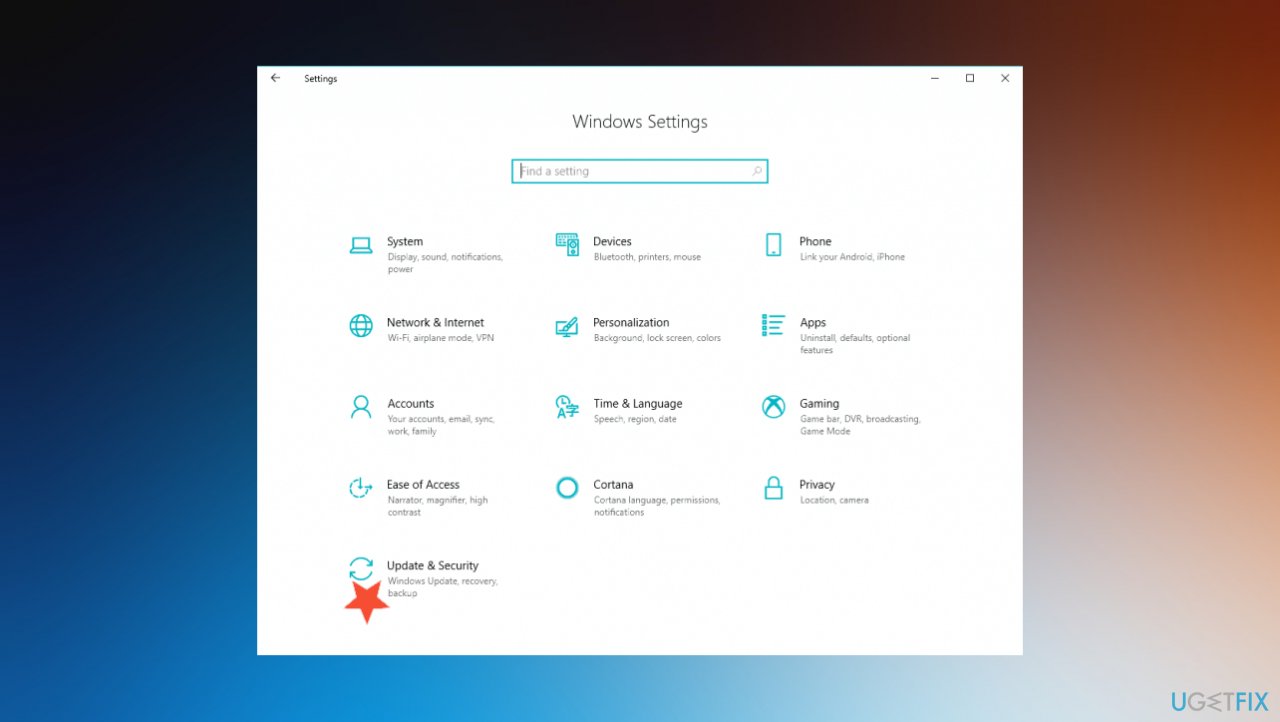
Dism error 87 settings - Hit Check for updates when the window opens and install any pending upgrades to your OS.
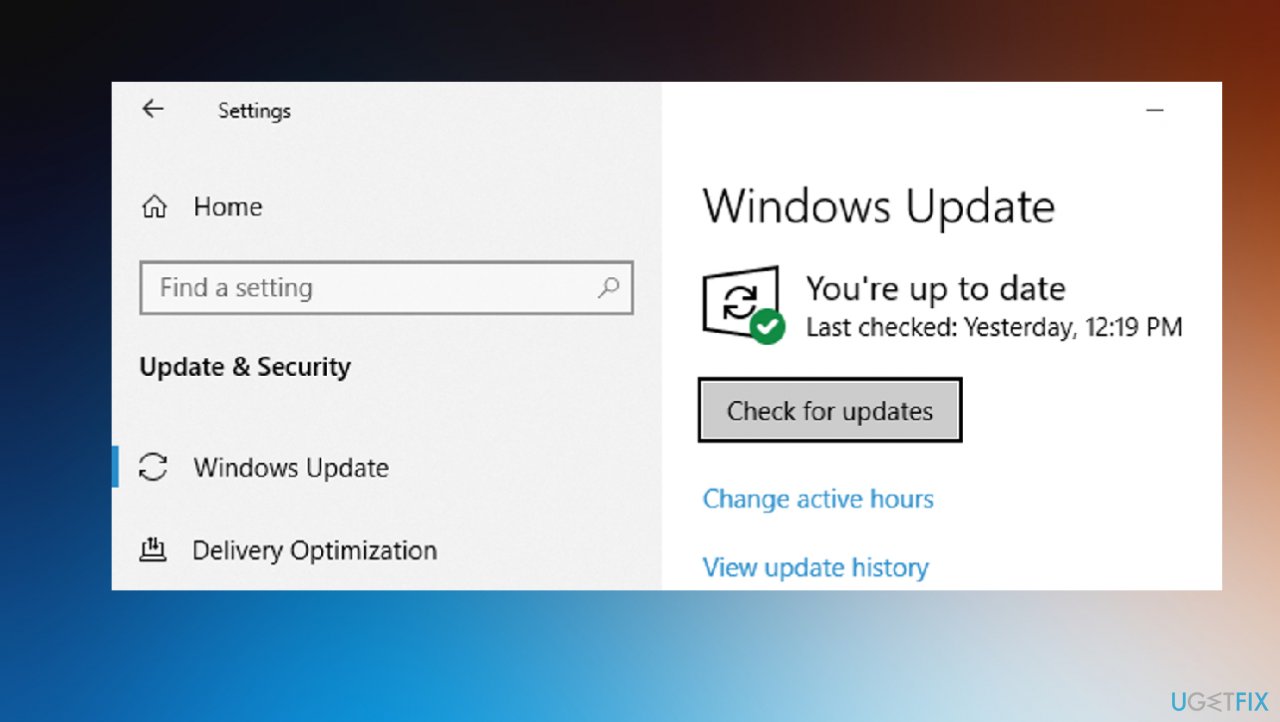
Dism error 87 windows update
4. Run Disk check
- Open CMD with admin rights.
- Type chdsk C:/r in the window and hit Enter.
- After the scan, try to run DISM again.
5. Run System Restore
- Type system restore in the search and choose the function from the list of results.
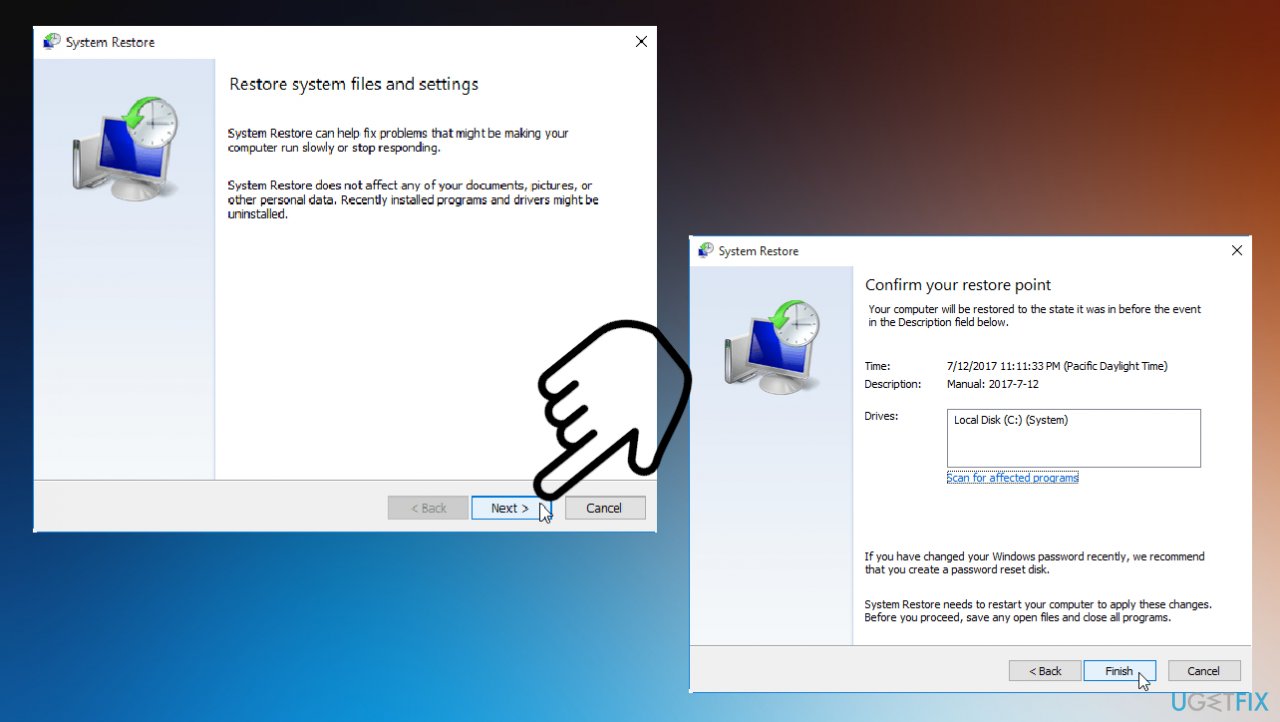
Dism error 87 system restore - Continue reading all the warnings and hit Next.
- Choose the previous point that you can restore to.
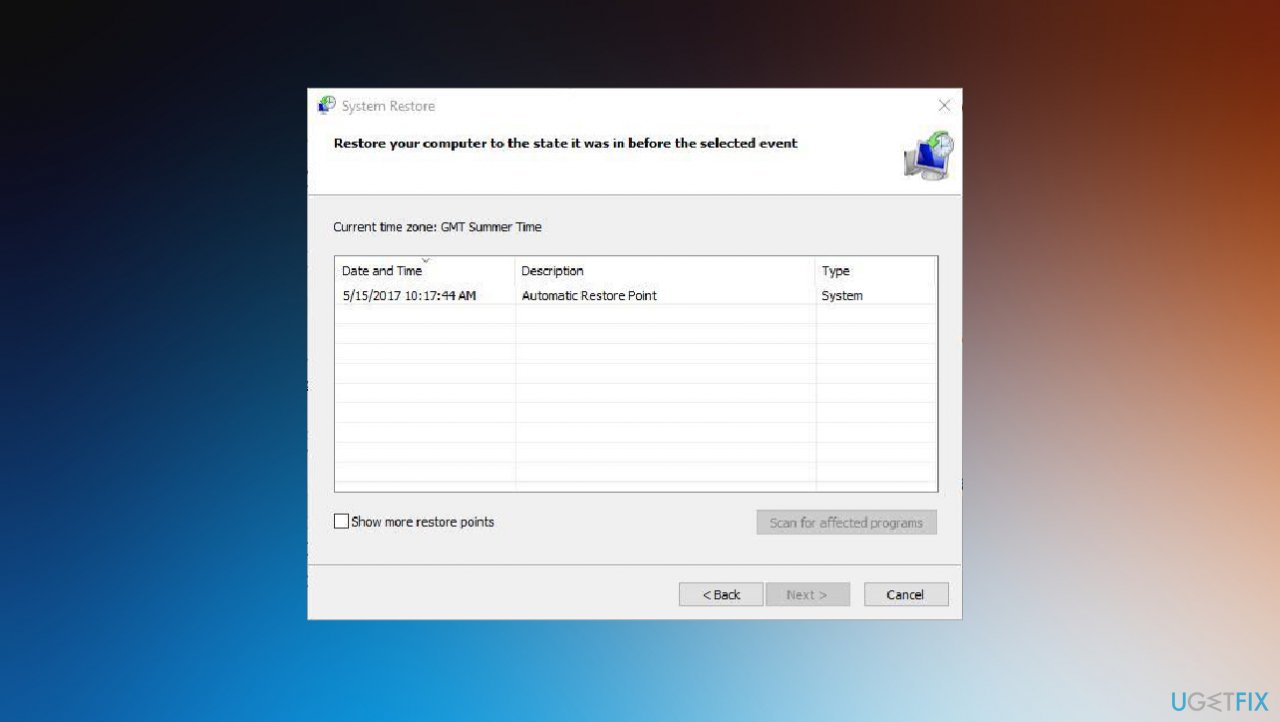
Dism error 87 restore point - Hit Next.
- Click Finish to start the restoring process.
- Wait, and once restore is done, try to run the command again.
Bottom line
To fix DISM error 87, ensure you are using the correct command line with proper spacing and slashes, and run the command in an elevated Command Prompt. Additionally, check for any recent updates that may be causing the issue and consider correcting the DISM version if necessary. If none of these solutions work, consider using a system checking tool for further diagnosis.
Frequently asked questions
DISM error 87 typically indicates that the command line parameters used are incorrect or that the DISM tool could not interpret the command properly. This can happen if the syntax is wrong or if you're trying to run a command that is not supported.
To resolve DISM error 87, ensure you are using the correct command syntax, such as 'DISM /Online /Cleanup-Image /RestoreHealth'. If the error persists, consider running the command in an elevated Command Prompt.
Yes, you can use the Windows 11 Recovery Environment to run DISM tools without directly accessing the Command Prompt. Boot into recovery mode and navigate to Troubleshoot > Advanced options > Command Prompt to run the commands correctly.




Report an issue
What's wrong with this guide? We review every report and update or remove content.
Report received — thank you. We'll review and fix it.
You need a free account to submit a report.
Be the first to comment