How to fix
Display colors changing while gaming
on Windows
Fix display color issues while gaming on Windows 10 or 11 with expert-tested solutions for vibrant visuals. Enjoy an immersive experience, fixed in minu…

What causes How to fix display colors changing while gaming in Windows?
- Display driver not optimized for gaming
- Incorrect contrast and color calibration settings
- Washed-out appearance of colors
- Display specifications not met for specific games
- Interaction issues between display drivers, graphics card, and monitor
Repairs Windows system files, removes malware, and restores a clean OS state — without reinstalling.
Hello. Sometimes when I am gaming on my Windows PC, I notice the screen changing colors. Why is this happening?
Many users enjoy playing games on Windows operating systems because they provide immersive experiences and an opportunity to unwind. However, a typical problem that can ruin this experience is the display colors shifting while you're playing a game. When the display driver[ref en-1] has not been optimized for gaming, this behavior typically happens. Users may feel that the colors on their screens are washed out or less vibrant than they should be as a result.
The interaction between display drivers, the graphics card, and the monitor is the root cause of this problem. Display drivers control how colors are displayed on the screen by serving as a middleman between the operating system and the hardware. The driver may have trouble accurately interpreting the graphics requirements of the game if it is not optimized for gaming. This may result in incorrect contrast and color calibration settings, giving the image a washed-out appearance.
Specific display specifications for each operating system are designed to improve the gaming experience for particular games. Brightness, contrast, and color accuracy requirements vary depending on the game in order to render the images as intended by the game developers. The entire gaming experience may suffer if these requirements are not met because of a display driver that has not been properly optimized. The visual complexities of the game, which are frequently a big component of the immersive experience, may be difficult for players to understand.
In this guide, you will find 4 steps that should help you fix display colors changing while gaming in Windows. You can run a repair tool like [d1] that can fix most system errors, BSODs,[ref en-2] corrupted files, and registry[ref en-3] issues. Otherwise, follow the step-by-step instructions below.
Method 1. Reset Display Color Settings
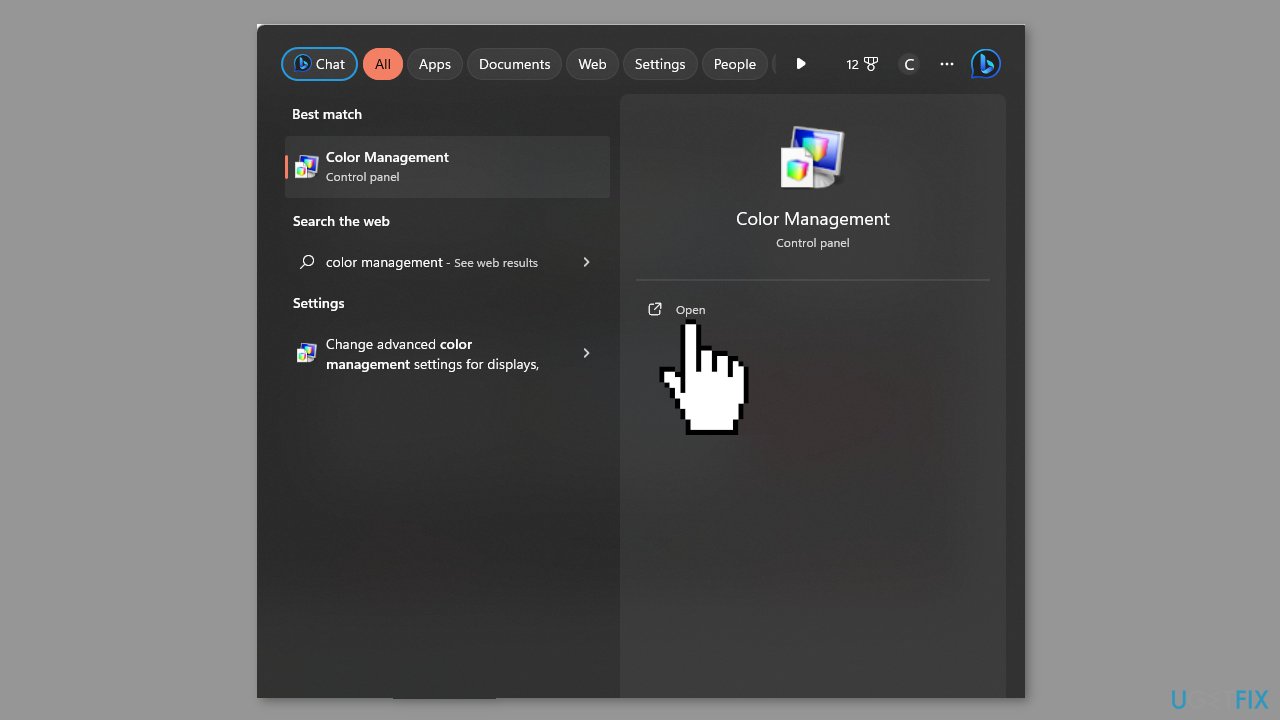
- Click on the Search bar icon.
- Type Color Management in the search bar.
- Click on the Open option related to Color Management.
- Navigate to the Advanced tab.
- Make sure it is set to System default.
Method 2. Recalibrate Display Colors
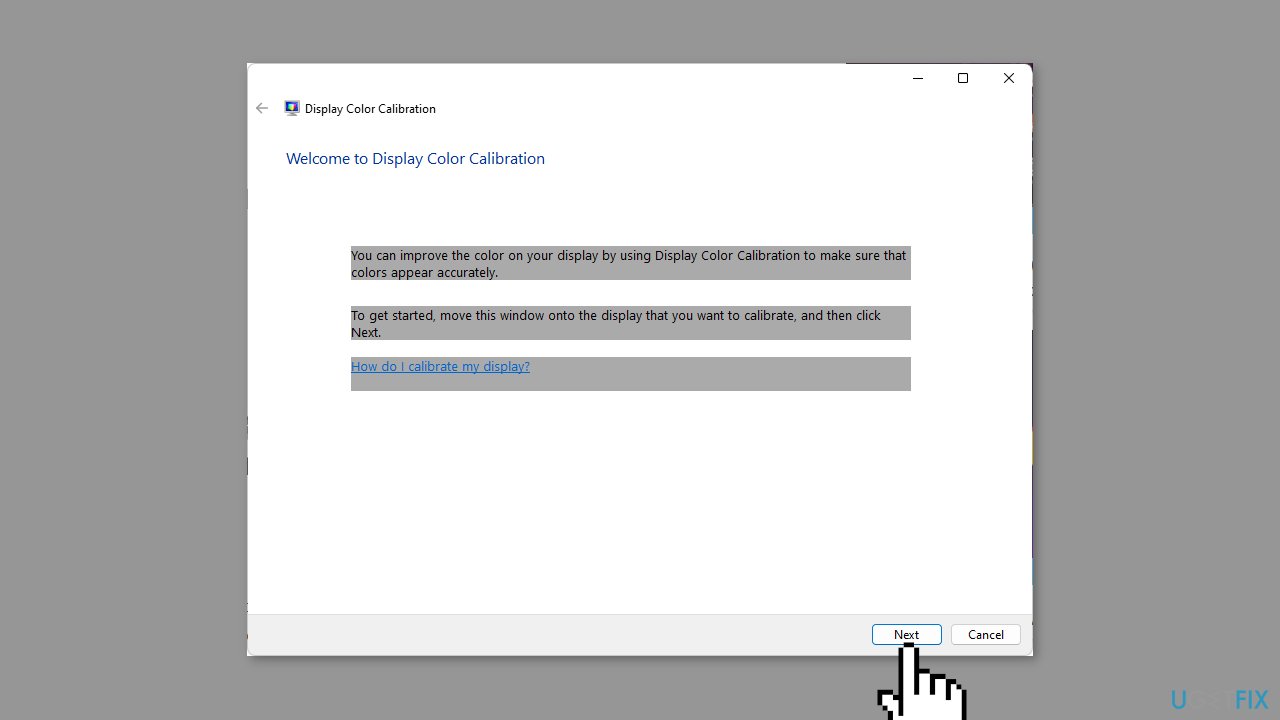
- Click on the Search bar icon.
- Type Color calibration and press Enter.
- Click on Open when the Color Calibration option appears.
- Follow the on-screen prompts and click Next.
- Click and hold the slider to adjust settings to your preferred calibration.
- Go back to the desktop.
- Click on the Search bar icon.
- Type Color management and press Enter.
- Click on Open for Color Management.
- Navigate to the Advanced tab.
- Click on Change system defaults.
- Choose the desired display profile.
- Click Set as Default profile.
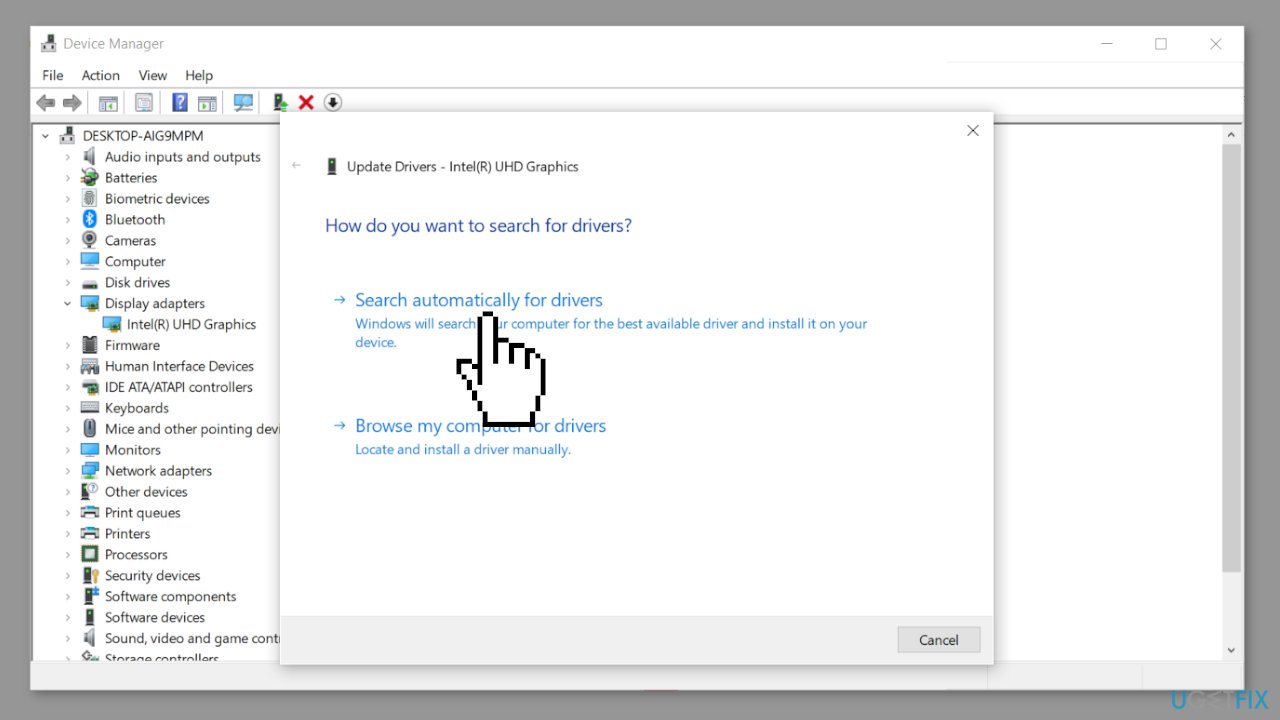
Method 3. Update Display Driver
- Click on the Search icon.
- Type Device Manager in the search bar.
- Click on Open when Device Manager appears.
- In Device Manager, find and click on Display adapters to expand the section.
- Right-click on your graphics card listed in the expanded section.
- Select Update driver from the context menu.
- Choose Search automatically for drivers.
Method 4. Disable GPU Acceleration
- Press the Windows key.
- Click on Settings from the menu.
- On the left pane, choose System.
- Click Display on the right pane.
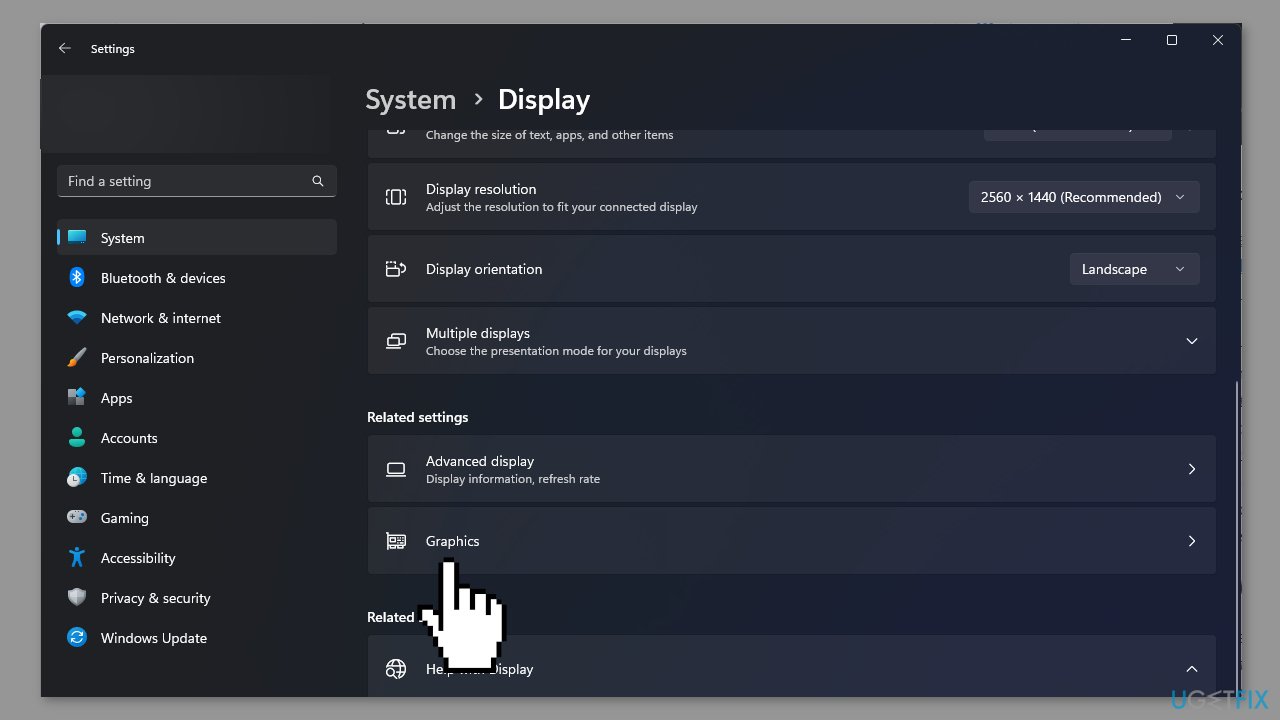
- Scroll down and locate Graphics.
- Click Change default graphics settings.
- Toggle off the Hardware-accelerated GPU scheduling option.
Bottom line
To fix display colors changing while gaming in Windows, you can reset display color settings, run a repair tool, and ensure your display driver is optimized. If these steps do not resolve the issue, consider updating your graphics drivers or checking for hardware compatibility.
Frequently asked questions
This issue can occur due to incorrect graphics driver settings or conflicts with color calibration profiles. Updating your graphics drivers or adjusting the color settings in your game's options may resolve the problem.
You can try disabling hardware acceleration in your game settings or adjusting the Windows color profile in the display settings. Additionally, ensure that your graphics drivers are up to date.
Yes, you can check the 'Game Mode' settings in Windows 10, which can optimize performance and possibly resolve color issues. Also, ensure that 'Night Light' is turned off, as it can affect color display.




Report an issue
What's wrong with this guide? We review every report and update or remove content.
Report received — thank you. We'll review and fix it.
You need a free account to submit a report.
Be the first to comment