How to fix
“Display driver stopped responding and has recovered” Error
on Windows
Resolve the "Display driver stopped responding" error on Windows 10 or 11 efficiently with proven solutions. Expert-tested and fixed in minutes!


What causes How to Fix “Display driver stopped responding and has recovered” Error on Windows?
- Outdated display driver
- Corrupted display driver
- Missing display driver
- Incompatibility with Windows OS version
- Too many background programs running
Repairs Windows system files, removes malware, and restores a clean OS state — without reinstalling.
I get the following message during a game play: “Display driver stopped responding and has recovered.” What’s the culprit of this error? How can I fix it?
"Display driver stopped responding and has recovered" is yet another Windows OS bug. Many people reported it occurring on Windows 10, but a thorough research on it revealed that it may also show up on Windows 7, 8, and 8.1. In most of the cases, "Display driver stopped responding and has recovered" error emerges when playing full-screen games. The screen gets black and the system freezes for several seconds, then the above-mentioned error occurs.
Usually, it is displayed in the lower-right corner of the screen, right above the taskbar. However, in some of the cases, "Display driver stopped responding and has recovered" error may be displayed in a form of BSOD or similar full-screen error.
"Display Driver Stopped Responding and Has Successfully Recovered"
The pop-up message explicitly indicates the culprit, which is the failure of display driver. The driver may be outdated, corrupted or missing. Besides, the current version of the driver may not be fully compatible with the version of Windows OS. The latter case is more possible for those who have recently updated to Windows 10 from earlier versions.
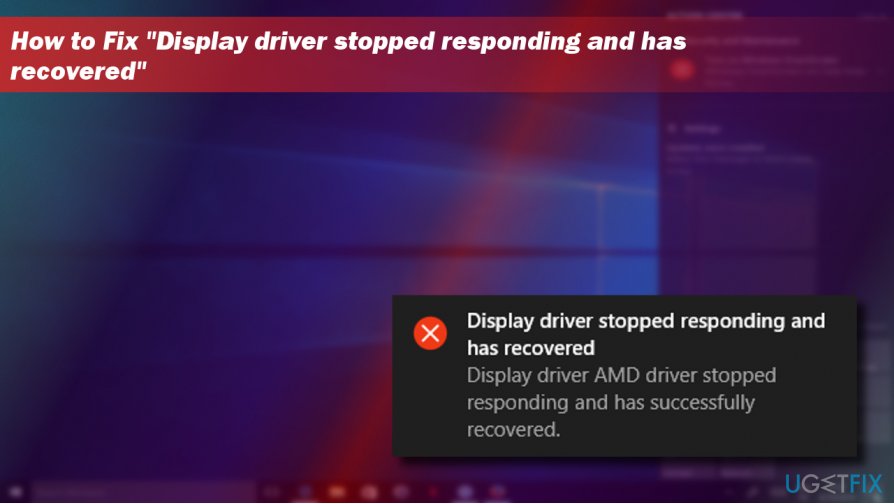
Once you encounter the "Display Driver Stopped Responding and Has Successfully Recovered" pop-up error, check how many programs are running in the background of your OS. If you found too many programs running, please disable them while you are playing or performing other tasks that consume loads of CPU. If that did not help, please try the following "Display Driver Stopped Responding and Has Successfully Recovered" fixes.
A Guide on How to Fix "Display Driver Stopped Responding and Has Successfully Recovered" Error
Method 1. Update/reinstall display drivers
- Right-click Windows key and select Device Manager.
- Expand Display Adapters section and click Intel HD Graphics driver.
- Select Update Driver Software. Do the same with the NVIDIA GeForce driver.
- After that, reboot the system.
If display driver update did not fix “Display Driver Stopped Responding and Has Successfully Recovered” error, uninstall your graphics driver and install its latest version.
- Right-click Windows key and select Device Manager.
- Expand Display Adapters section and click your display driver’s entry.
- Select Uninstall from the context menu and follow the uninstall wizard.
- After that, reboot the system.
- Open Device Manager as explained above and click Actions button at the top of it.
- Select Scan for hardware changes button. The system should automatically detect the missing driver.
- If the system failed to install the missing driver automatically, navigate to the manufacturer’s website and install the driver manually.
Method 2. Reset Visual Effects
- Right-click Windows key and select System.
- Select Advanced system settings and open System Properties.
- Open Advanced tab and click Settings button under Performance section.
- Select Adjust for best performance or Let Windows choose what’s best for my computer.
- Now click Apply and click OK to save the changes.
Solution 3. Increase GPU processing time
- Press Windows key + R, type regedit, and press Enter.
- Using the left pane and navigate to the HKEY_LOCAL_MACHINE\\SYSTEM\\CurrentControlSet\\Control\\GraphicsDrivers.
- Find the TdrDelay DWORD. If it’s not available, right-click on an empty space and select New -> DWORD.
- Name it TdrDelay.
- Double-click on TdrDelay DWORD and change its value from 2 to 8.
- Finally, reboot your PC.
Bottom line
To fix the 'Display driver stopped responding and has recovered' error, you can update or reinstall your display drivers and ensure that unnecessary background programs are disabled. If these methods do not resolve the issue, consider uninstalling your graphics driver and reinstalling it.
Frequently asked questions
This error is typically caused by graphics driver issues, overheating, or conflicts with other software. It can occur when the graphics card fails to respond to commands from the operating system for a certain period.
You can update your graphics driver by going to Device Manager, expanding the Display adapters section, right-clicking your graphics card, and selecting 'Update driver.' Alternatively, you can visit the manufacturer's website to download the latest driver.
Yes, you can modify the registry to increase the timeout setting for the graphics driver, which may help prevent this error. However, be cautious when editing the registry, as incorrect changes can cause system issues.




Report an issue
What's wrong with this guide? We review every report and update or remove content.
Report received — thank you. We'll review and fix it.
You need a free account to submit a report.
Be the first to comment