How to fix
Display Driver Stopped Responding and has Recovered
on Windows
Resolve the Display Driver Stopped Responding error on Windows 10 or 11 with expert-tested solutions. Fix it in minutes and enjoy seamless performance!

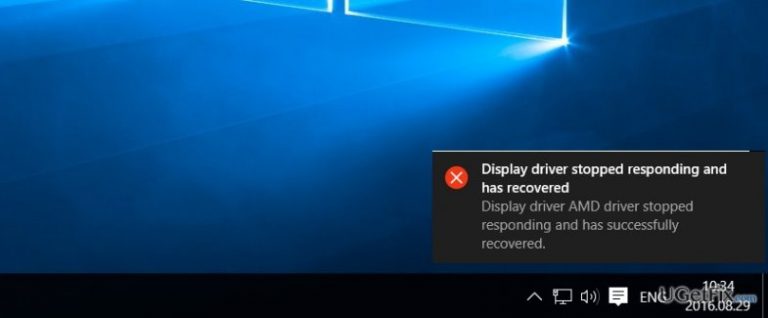
What causes How to fix Display Driver Stopped Responding and has Recovered?
- Old video card
- Incompatible video driver
- Too many background programs
- Outdated video drivers
Repairs Windows system files, removes malware, and restores a clean OS state — without reinstalling.
Occasionally, my computer screen blinks and then the message appears stating that “Display Driver Stopped Responding and has Recovered” on my Windows 10. Is it some sort of serious system error or a virus? Your help would be very appreciated as I’m afraid the PC might crash at any time.
“Display Driver Stopped Responding and has Recovered” is a common error encountered by Windows OS users. This notification might appear whether you are using the previous Windows editions or the latest Windows 10. The issue causes the computer screen to freeze temporarily and then, within seconds, you regain the full control. Consequently, the message appears informing of the malfunctioned display driver.
This issue is not of malicious origin. It may show up due to several factors. Firstly, your video card might be old. Thus, it may not be functionally compatible with a newer video driver. Secondly, several programs are running in the background and, therefore, occupying too much GPU (Graphics Processing Unit) processing speed. Another reason might be the outdated video drivers. If this notification occurs once in a while, you should not panic. In some cases, GPU does not process the allocated task on time which results in the error. Nonetheless, if this phenomenon of freezing and blinking computer screen starts to frustrate you, it is high time you searched for the solution. Luckily, no need to look much farther as we will present several options of dealing with Display Driver Stopped Responding and has Recovered error.
Option 1. Uninstall graphics drivers:
- Click the Windows Logo key + R to launch a Run
- In the dialog box, type devmgmt.msc press Enter. Device Manager will launch.
- Once Device Manager is launched, open the Display adapters.
- Right-click on the graphics drivers, press Uninstall and then follow the steps of the uninstallation guide. If you have more than one graphics drivers, repeat these steps to uninstall them all.
- Reboot the computer. After the restart, the operating system automatically reinstalls the required drivers.
Note. It is also possible to update the drivers without going through this un- and in-installation process. Simply, enter the official website of your GPU manufacturer. In the “Download” section, they should provide the links of the currently released driver updates. Downloading and installing should remove the problem. Lastly, you may install [rev id=”RegCure Pro”] to check for possible computer issues.
Option 2. Enlarge GPU processing time
TDR (Timeout Detection and Recovery) has a fixed time allocated for the GPU response. When the latter does not respond on time, the feature reloads the display drivers which causes the appearance of the issue. If this error is a frequent phenomenon, you might need to change TDR time-out settings to enlarge GPU response time. Though this option does not require any special skill or knowledge, make sure to implement the steps carefully and precisely. Ruining registry files may cause a system wreckage.
- Click on the Windows Logo key + R.
- Into the Run dialog, type regedit and click Enter to enter the Registry Editor.
- In the left pane of the Registry Editor, find the following directory:
HKEY_LOCAL_MACHINE > SYSTEM > CurrentControlSet > Control - Click on GraphicsDrivers in the left pane to expand its contents in the right pane.
- In the right pane, right-click on an empty space and hover over New to extend the context menu. In the 32-bit version of Windows, click on DWORD (32-bit) Value. In the 64-bit version of Windows, click on QWORD (64-bit) Value in the context menu.
- Entitle the new registry value TdrDelay and press Enter.
- Double-click on the TdrDelay registry value to edit it, type 8 into its Value data field and finish with clicking OK.
- Close the Registry Editor and reboot the computer.
Lastly, as we have discussed the GPU might be overstrained managing multiple programs at the same time. So you might improve its effectiveness by closing unnecessary running applications. Improving the quality of GPU might also be done by manually removing the dust from its parts: radiators and heat sinks. If you are confident enough not to damage any motherboard part, shut down and open up the computer. Remove the GPU, clean the dust from its parts and then insert it again. Cleaning your computer once in a while is essential to decrease the probability of the overheat.
Bottom line
To fix the 'Display Driver Stopped Responding and has Recovered' error, you can uninstall and reinstall graphics drivers through Device Manager. If the issue persists, consider updating the drivers or checking for hardware compatibility. If none of these solutions work, further troubleshooting may be necessary.
Frequently asked questions
You can try updating your graphics driver through Device Manager or downloading the latest version from the manufacturer's website. If the issue persists, consider adjusting the TDR settings in the registry to prevent the driver from timing out.
First, check for any Windows updates and install them, as these may include important driver updates. Additionally, rolling back to a previous driver version may resolve compatibility issues.
Yes, ensure that your GPU is properly seated in its slot and that all power connections are secure. Running a hardware diagnostic can also help identify any potential issues with your graphics card.




Report an issue
What's wrong with this guide? We review every report and update or remove content.
Report received — thank you. We'll review and fix it.
You need a free account to submit a report.
Be the first to comment