How to fix
Display option is missing
on Windows
Resolve the missing Display option in Windows 10 or 11 effortlessly. Get expert-tested solutions to restore your settings quickly, with screenshots!


What causes How to fix Display option is missing in Windows Settings?
- Outdated display drivers
- Corrupted display drivers
- System misconfigurations
- Changes made by third-party software
- Administrative restrictions or limited account type
- Connection to incompatible hardware or external monitors
Repairs Windows system files, removes malware, and restores a clean OS state — without reinstalling.
So why is Display option is missing from the Settings menu ins Windows 11? I am not really sure when it disappeared to be honest. I also didn't do anything with my PC recently.
Windows Settings is a central hub for customizing and managing your system, including display-related options such as resolution, scaling, and brightness. However, some users have reported that the Display option is missing entirely from the Settings menu. This issue can be frustrating, especially if you need to adjust your screen's visual settings or troubleshoot display-related problems.
This issue can occur due to several reasons, including outdated or corrupted display drivers, system misconfigurations, or changes made by third-party software. Users have also pointed out that system updates or missing Windows features may cause this anomaly. In some cases, administrative restrictions or a limited account type can hide the Display settings.
Another factor to consider is whether your device is connected to an external monitor or using hardware that doesn't fully support certain display features. Users with multiple displays or those using virtual machines have also reported experiencing this issue.
If you’re encountering this problem, it’s essential to troubleshoot systematically. Checking for driver updates, ensuring your Windows version is current, and verifying account permissions can often restore the missing option. For those who are unable to resolve it manually, the issue might be linked to deeper system-level corruption.
For advanced troubleshooting or if you’re dealing with file system errors, consider using the automatic [d1] repair app. This tool can address various Windows issues, including fixing corrupted system files and resolving settings-related errors, making it a convenient solution for persistent problems.
Fix 1. Make your account administrator
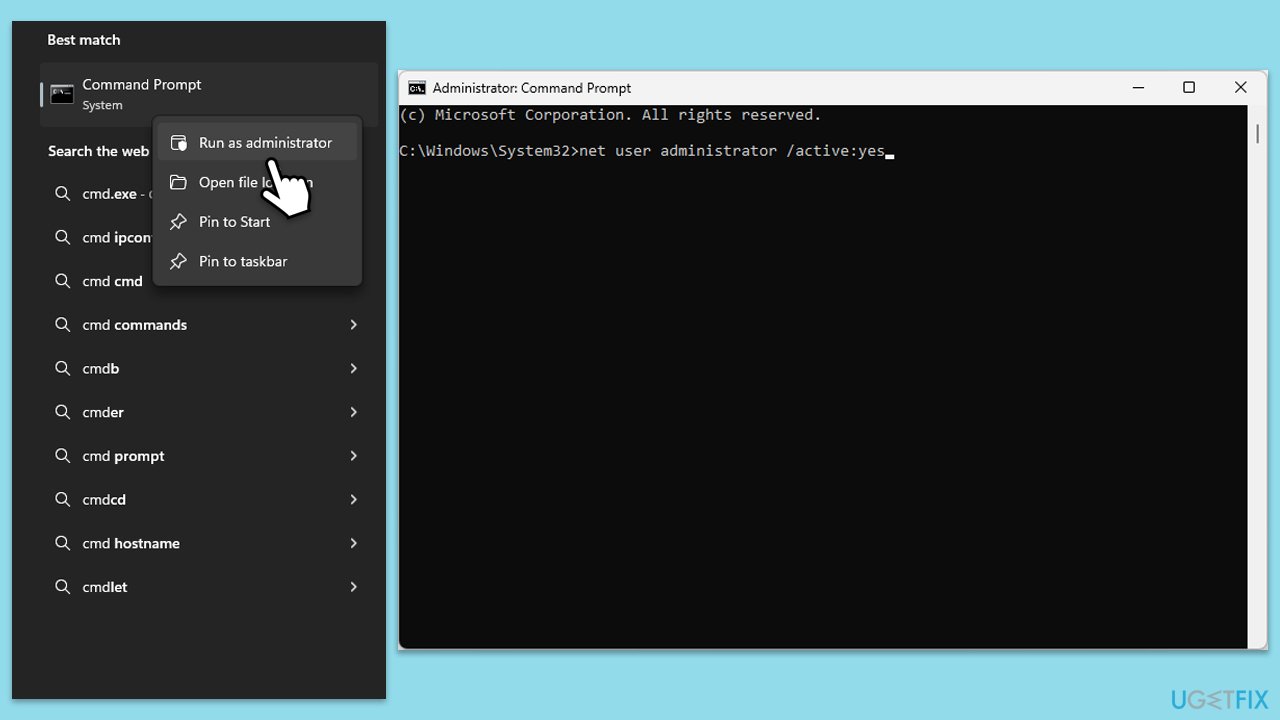
If your account lacks administrative privileges, you may not have access to all settings, including the Display option. Switching to an administrator account can restore missing features.
- Type cmd in Windows search.
- Right-click on the Command Prompt and select Run as administrator.
- The User Account Control window will ask whether you want to allow changes - click Yes.
- In Command Prompt, type in the following and press Enter:
net user administrator /active:yes - Close down the Command Prompt.
Fix 2. Update Windows
Outdated system files or missing updates can lead to functionality issues, such as missing settings. Keeping your system updated ensures compatibility and fixes known bugs.
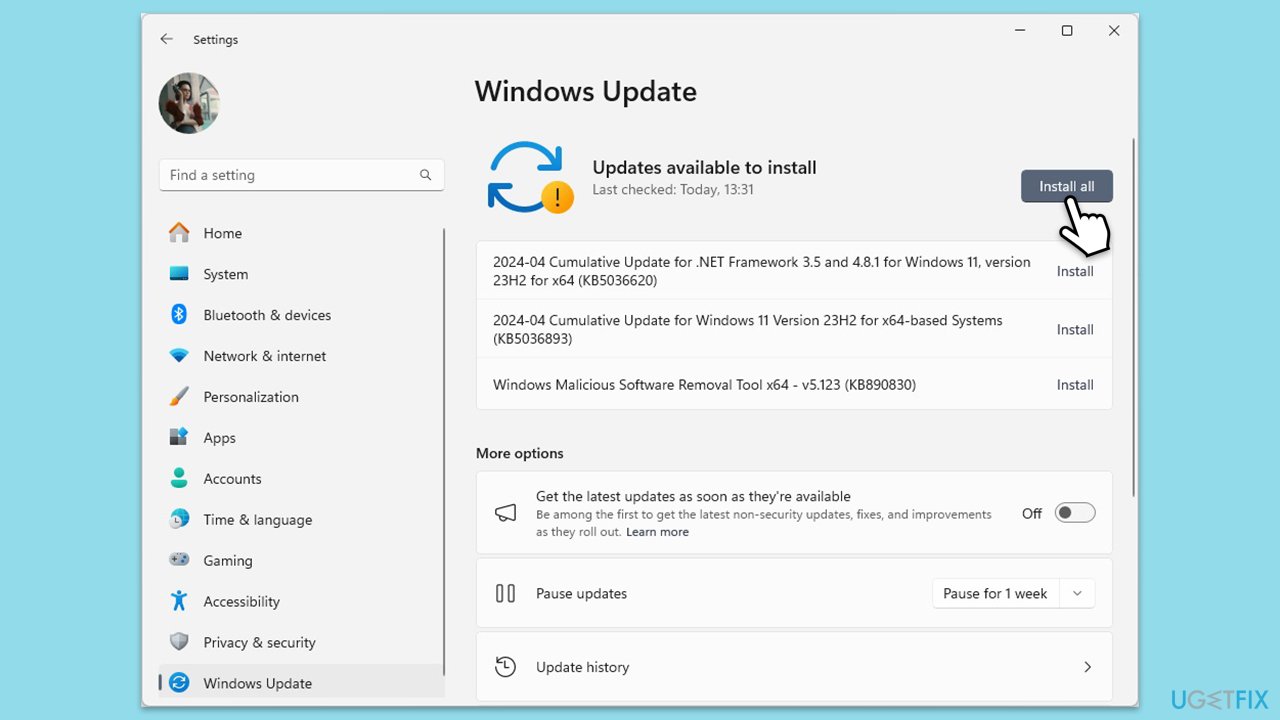
- Type Updates in Windows search and press Enter.
- The new window will open and you should be notified about available updates - click Install all.
- If none are available, click Check for updates, and they should be installed automatically.
- Don't forget to install all the available optional updates.
- When done, reboot your computer.
Fix 3. Update display drivers
Corrupted or outdated display drivers may cause missing display settings.
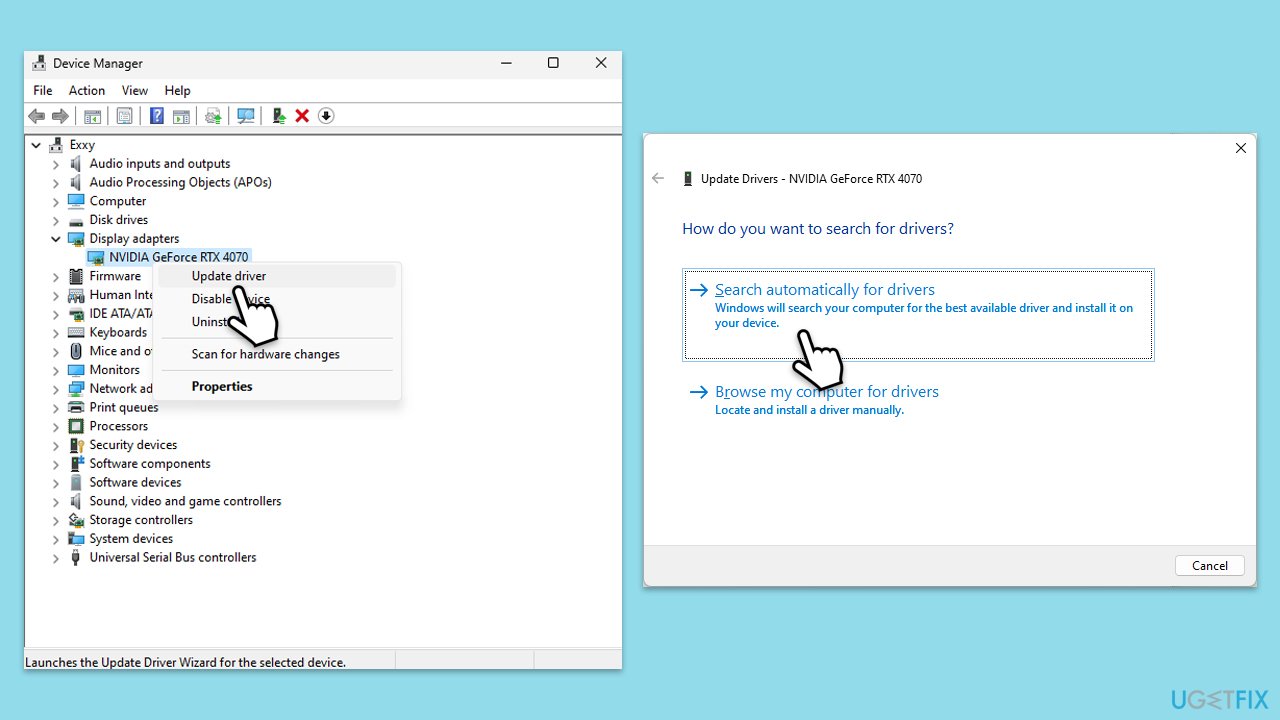
- Right-click on the Start button and select Device Manager from the menu.
- Expand the Display adapters section.
- Right-click on your device and select Update driver.
- Pick Search automatically for drivers.
- If updates are found, allow them to install.
- Restart your computer after updating all necessary drivers.
- For a quicker way to update drivers, use an automatic tool like [ref id="DriverFix"].
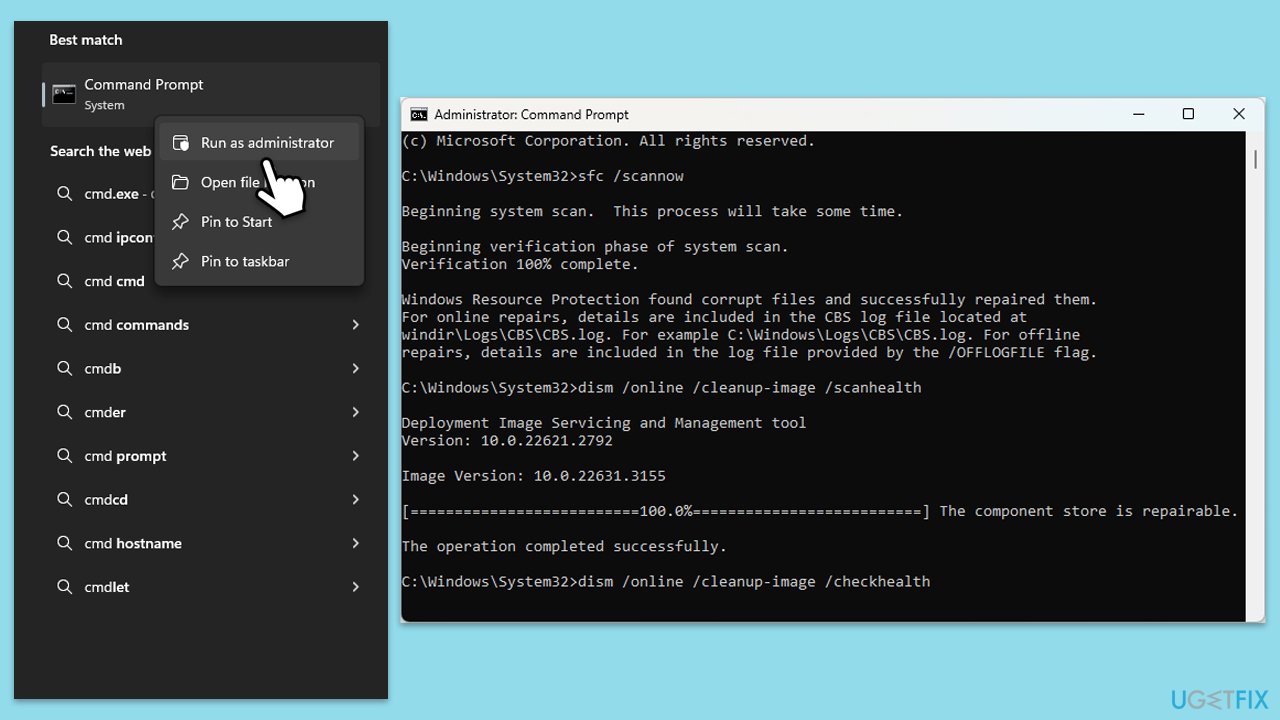
Fix 4. Run SFC and DISM scans
Corrupted system files can lead to missing settings. Running SFC and DISM scans helps repair those files.
- Open Command Prompt as administrator.
- Paste the following command into the new window:
sfc /scannow - Press Enter and wait till the scan is finished
- Once done, run this set of commands, pressing Enter every time:
DISM /Online /Cleanup-Image /CheckHealth
DISM /Online /Cleanup-Image /ScanHealth
DISM Online /Cleanup-Image /RestoreHealth
(Note: if you get an error executing this last command, add /Source:C:\RepairSource\Windows /LimitAccess to it and try again). - Restart your computer.
Fix 5. Repair or reset Settings app
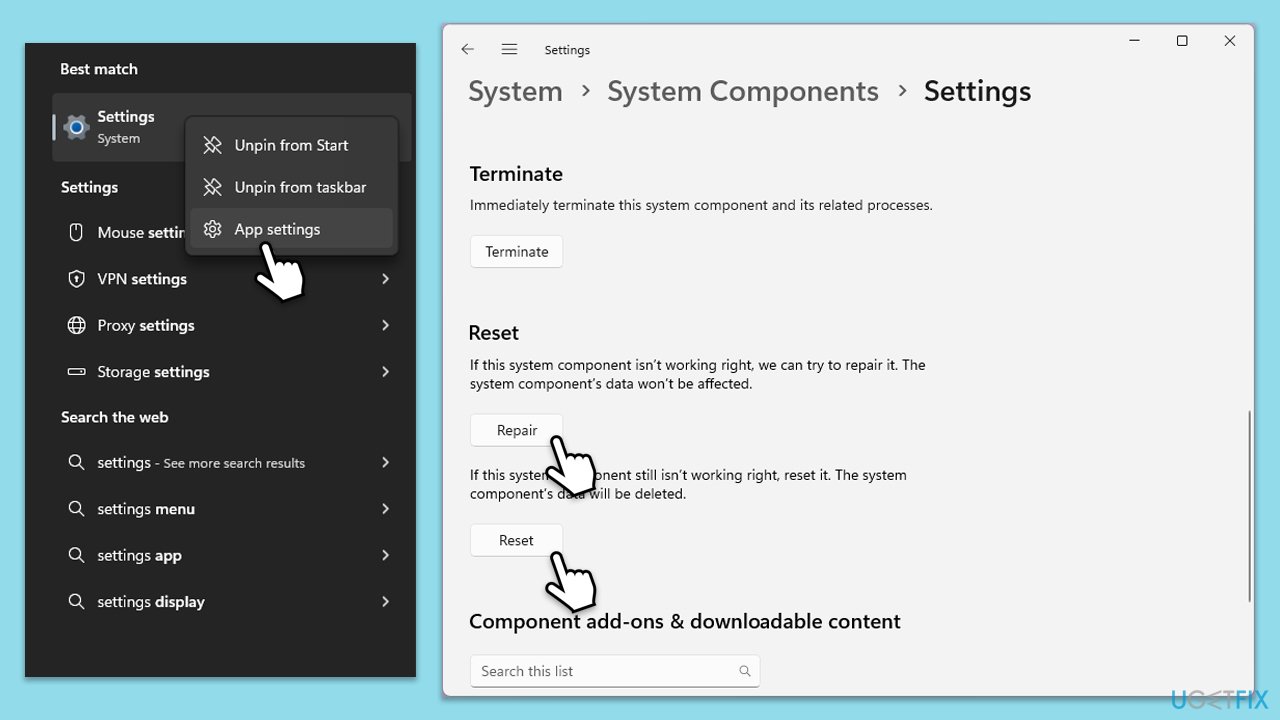
- Type Settings in Windows search.
- Right-click on the result and select App Settings.
- Scroll down and click Repair.
- If that does not work, try the Reset option.
Fix 6. Perform a system restore
If the issue started recently, rolling back your system to a previous point can undo changes causing the problem.
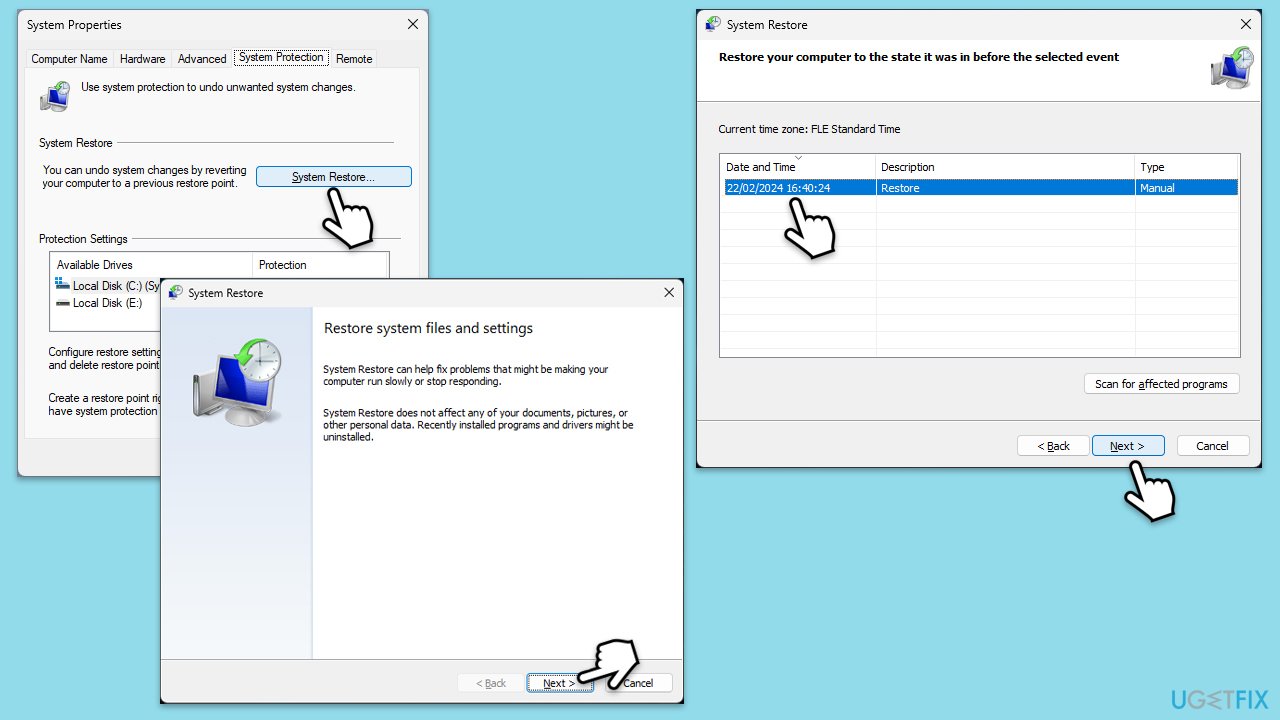
- Type System Restore in the search box and click Create a restore point.
- In the System Properties window, click System Restore.
- Click Next, choose a restore point from before the issues began, and click Next again.
- Follow the on-screen instructions to complete the restoration.
- Restart your computer after the process completes.
Fix 7. Reset Windows
Resetting Windows Settings can help if the issue is due to misconfigured preferences.
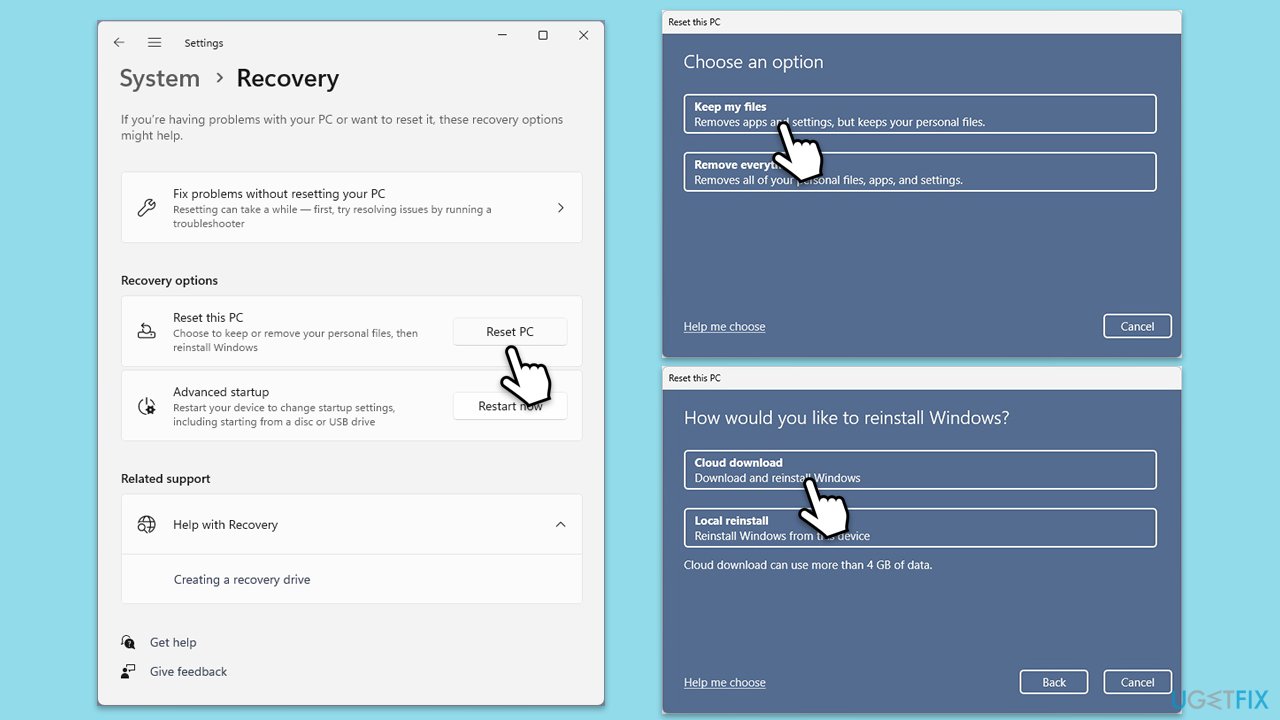
- Right-click on Start and then select Settings.
- Go to Update & Security and pick Recovery on the left side of the window.
- Find Reset this PC section and click Get Started.
- Select Keep my files and Cloud download.
- Next, pick whether you want to reinstall the apps.
- Click Reset.
- Your system will restart, and the process of Windows reset will begin.
Bottom line
To fix the missing Display option, ensure your account has administrative privileges, check for driver updates, and verify your Windows version. If these steps do not resolve the issue, consider using the automatic repair app for deeper system-level problems.
Frequently asked questions
The missing Display option may be due to outdated graphics drivers or system file corruption. Updating your drivers and running the System File Checker can often resolve this issue.
You can restore the Display settings by checking for Windows updates and ensuring your graphics drivers are up to date. Additionally, resetting the Settings app might also help retrieve the missing option.
If the Display option remains missing, consider creating a new user account, as this can sometimes resolve settings-related issues. If that doesn't work, a system restore to a previous point might be necessary.




Report an issue
What's wrong with this guide? We review every report and update or remove content.
Report received — thank you. We'll review and fix it.
You need a free account to submit a report.
Be the first to comment