How to fix
DNS_PROBE_FINISHED_NO_INTERNET error
on Windows
Resolve the DNS_PROBE_FINISHED_NO_INTERNET error on Windows 10 or 11 effortlessly. Get your internet back with expert-tested solutions and screenshots.

What causes How to fix DNS_PROBE_FINISHED_NO_INTERNET error on Windows?
- Chrome cache problems
- Misconfiguration with DNS settings
- Antivirus prevents browser from accessing the Internet
- Outdated Network Drives
- Firewall settings misconfiguration
Repairs Windows system files, removes malware, and restores a clean OS state — without reinstalling.
When I use Google Chrome, I usually receive a DNS_PROBE_FINISHED_NO_INTERNET error. However, internet works fine for all other devices. How to fix this issue?
DNS_PROBE_FINISHED_NO_INTERNET is a connectivity error that might occur on any Windows version when using Google Chrome web browser. Typically, the error informs about connectivity issues[ref en-3] or misconfiguration of firewall settings. As a result, users cannot access and use the Internet.
However, DNS_PROBE_FINISHED_NO_INTERNET error might also be caused by:
- Chrome cache problems;[ref en-1]
- Misconfiguration with DNS settings;
- Antivirus prevents browser from accessing the Internet;
- Outdated Network Drives.[ref en-2]
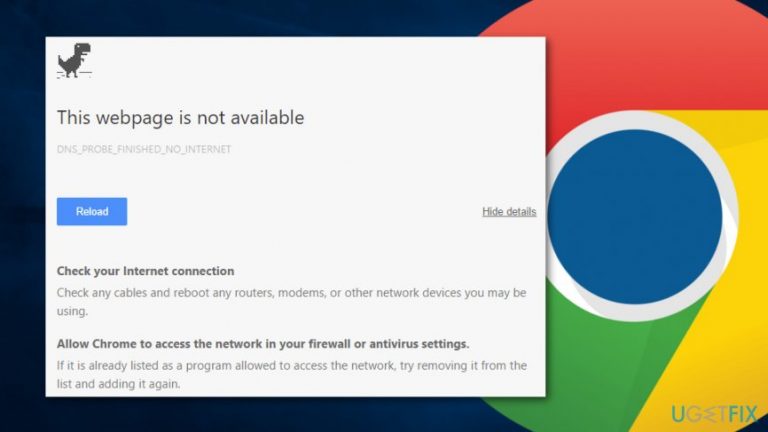
If any of the previously mentioned problems occur, the DNS PROBE FINISHED NO INTERNET error occurs and displays the following message in the grey browser’s window:
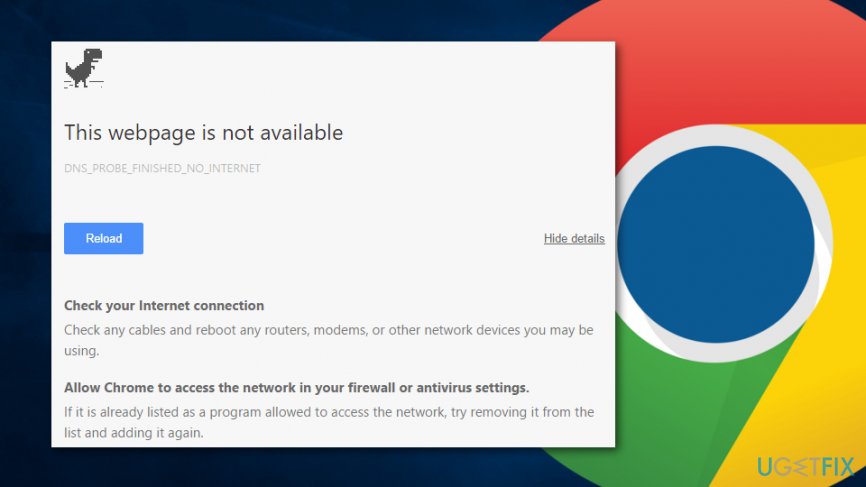
This webpage is not available
DNS_PROBE_FINISHED_NO_INTERNET
Check your Internet connection
Check any cables and reboot any routers, modems, or other network devices you may be using.Allow Chrome to access the network in your firewall or antivirus settings.
If it is already listed as a program allowed to access the network, try removing it from the list and adding it again.
Therefore, the message itself suggests how to fix DNS_PROBE_FINISHED_NO_INTERNET error. However, if your internet connection works with other devices and restarting your router did not help, you will need to try the following methods in order to get rid of the error and get access to the internet using Chrome.
Methods to fix DNS PROBE FINISHED NO INTERNET error
If there are any problems with your internet connection, you should allow Chrome to access the network in antivirus or firewall settings. However, if these settings are already correct, you should try to remove Chrome from the list and add it again. Additionally, you should try cleaning browser’s cache which often helps to solve various problems. If these simple solutions did not help, try the following options.
Method 1. Flush DNS settings and perform Winsock reset
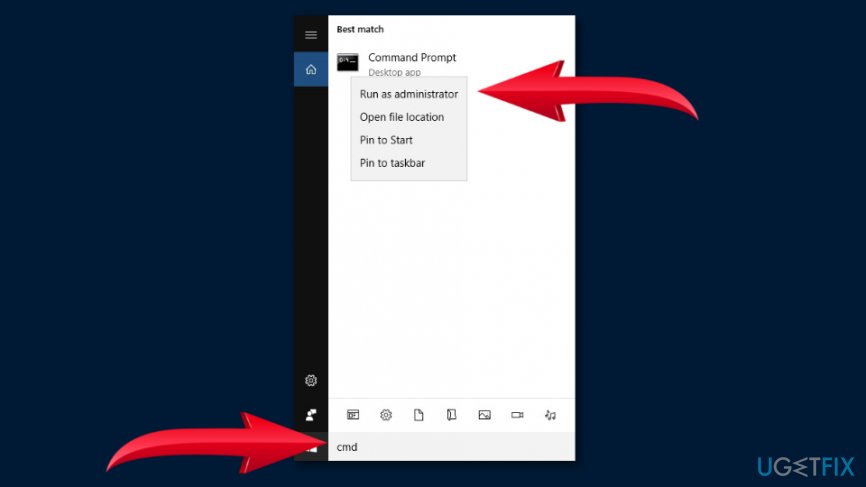
- Enter cmd in Windows search box and right-click Command Prompt in the list.
- Choose Run as administrator option.
Run command prompt as administrator - When in Command Prompt, type the following commands and click enter after each of them:
ipconfig /release
ipconfig /all
ipconfig /flushdns
ipconfig /renew
netsh int ip set dns
netsh winsock reset - Restart your computer and check if it helped to fix dns_probe_finished_no_internet error on Windows. If not, try the second option.
Method 2. Change TCP/IP4 Proxy
- Access Network Connections by right-clicking Windows logo in the right bottom corner.
- When in Network connections, right-click on your active Network connection and choose Properties.
- Choose Internet Protocol Version 4 (TCP/IPv4) and click Properties.
- Under Use the following DNS server addresses option set these values:
Preferred DNS Server: 8.8.8.8
Alternate DNS Server: 8.8.4.4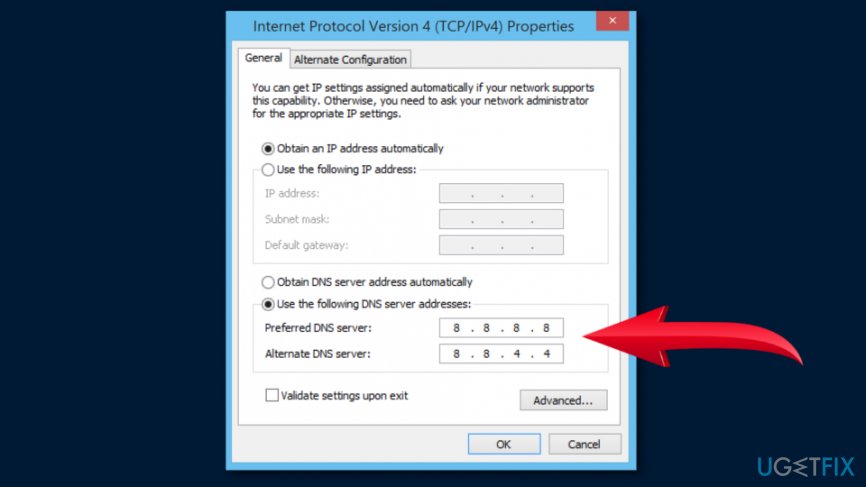
Set dns server addresses - Click OK to save the changes.
Method 3. Update Network drivers
If the previous two methods did not help to fix DNS_PROBE_FINISHED_NO_INTERNET error, the problem might be related to outdated drivers. Therefore, you have to update them by following these steps:
- Open Run window by clicking Windows key + R.
- In the Run window, type devmgmt.msc and click OK.
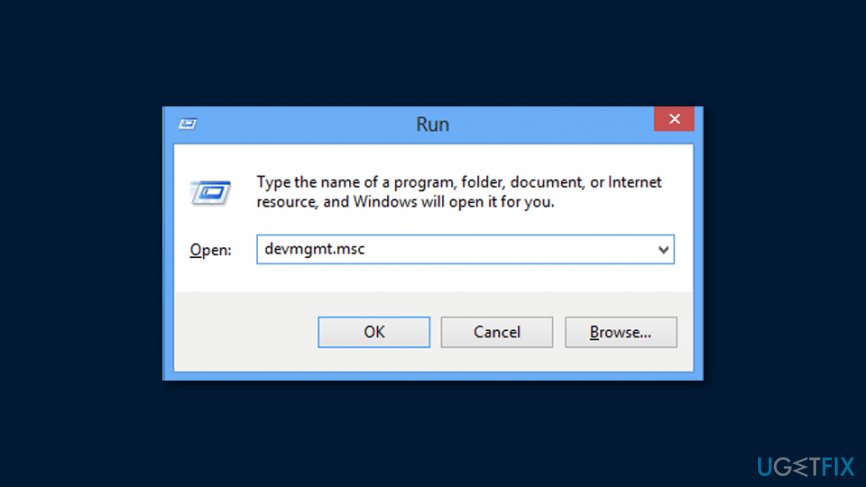
Run devmgmt msc - When in Device Manager, expand the list of Network Adapters.
- Right-click on your network adapters and choose Update Driver Software option.
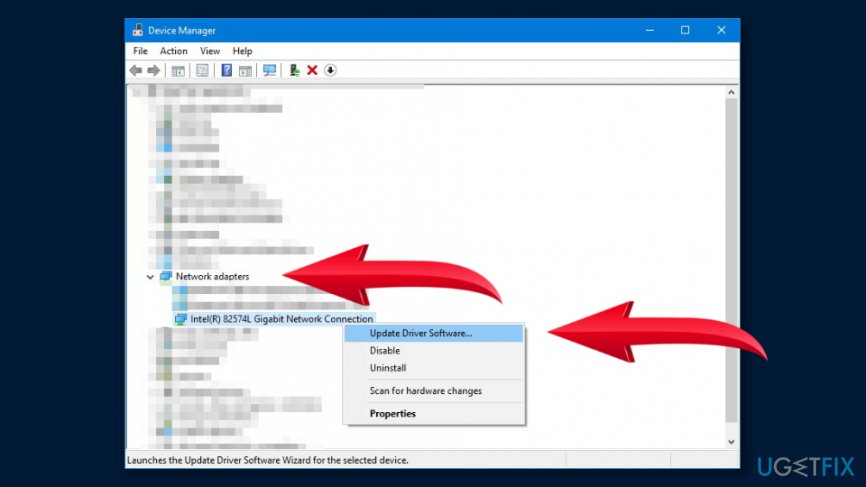
Update network drivers - Click Browse my computer for driver software option.
- Choose Let me pick from a list of device drivers on my computer.
- Select the network hardware which is compatible with your device and click Next.
- Wait until the update process is over and check if the problem is fixed.
Bottom line
To fix the DNS_PROBE_FINISHED_NO_INTERNET error, you can allow Chrome to access the network in your antivirus or firewall settings, clean the browser's cache, and flush DNS settings. If these solutions do not resolve the issue, consider trying additional methods such as resetting network settings or checking for outdated drivers.
Frequently asked questions
The DNS_PROBE_FINISHED_NO_INTERNET error indicates that your DNS server is unable to resolve the website address, leading to a lack of internet connectivity on your Windows device.
You can reset your DNS settings by opening Command Prompt as an administrator and running the commands 'ipconfig /flushdns' and 'ipconfig /registerdns' on Windows 10 or 11.
Yes, switching to a public DNS server like Google's (8.8.8.8 and 8.8.4.4) can often resolve the DNS_PROBE_FINISHED_NO_INTERNET error on Windows 10 and 11.




Report an issue
What's wrong with this guide? We review every report and update or remove content.
Report received — thank you. We'll review and fix it.
You need a free account to submit a report.
Be the first to comment