How to fix
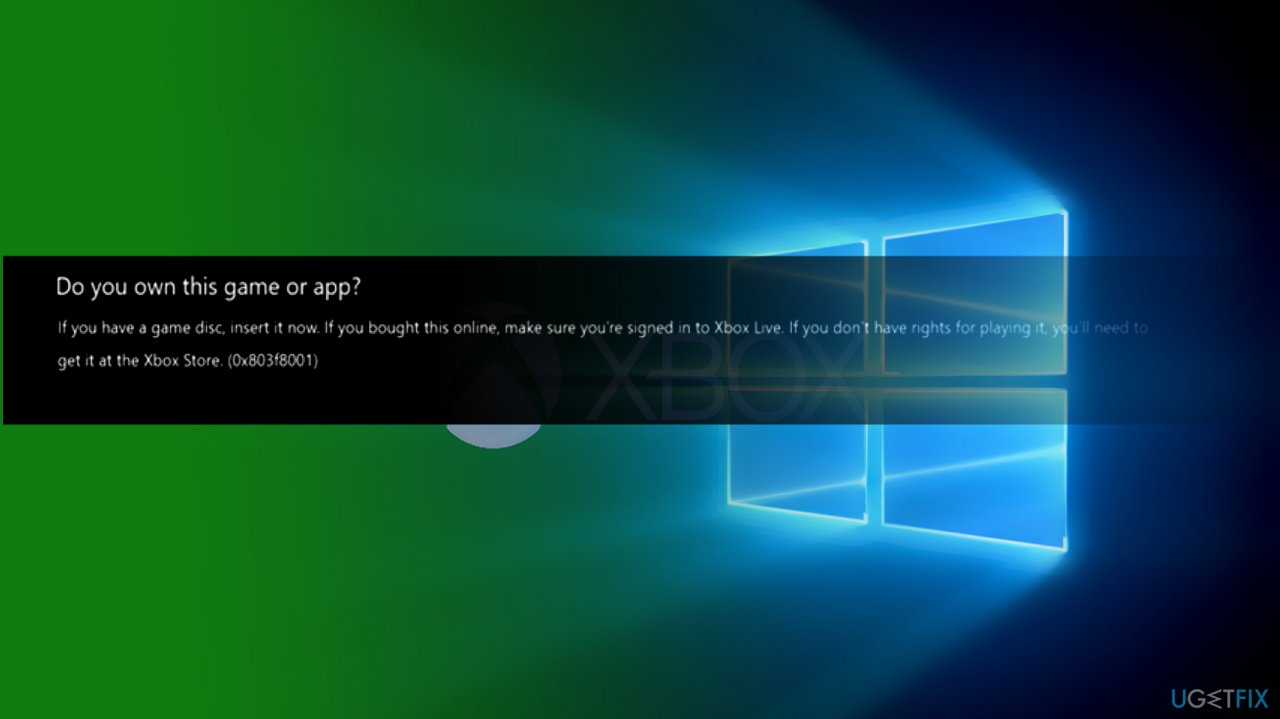
“Do you own this game or app?” (Error code 0x803f8001) on Xbox
on Windows
Resolve the 0x803f8001 error on Xbox seamlessly with our expert-tested guide. Boost your Windows 10 or 11 gaming experience—fixed in minutes!


What causes How to fix “Do you own this game or app?” (Error code 0x803f8001) on Xbox?
- A temporary problem related to the service
- The game you attempt to play was purchased and downloaded, but you are not signed in and connected to Xbox Live
- The game was purchased and downloaded by another family member, and that person is not signed in to the console
- The game disc is not in the console
- The disk has failed and is unreadable
Repairs Windows system files, removes malware, and restores a clean OS state — without reinstalling.
Hi everyone. I have had my Xbox plugged out for a while but plugged it back in yesterday. I’ve tried to play several games using a game disc but got an error message, which says: “Do you own this game or app?” (Error code 0x803f8001).” Does anyone have any idea on whether or not you can fix this? Thanks in advance.
“Do you own this game or app?” (Error code 0x803f8001)” is an error notification[ref en-1] that occurs when playing games Xbox One S or original Xbox One Console. In most cases, this happens when players leave their consoles and go away for a while only to return that their game is no longer active and the error code is displayed instead. Other users reported that they also experienced the issue when attempting to launch a game or even an app on Xbox.
Consoles are among the most common devices used for gaming - it has been the case for years. However, when something goes wrong, troubleshooting options might sometimes be limited due to lower accessibility options. Despite this, Xbox errors can be tackled and solved - some more easily than others.
According to the Xbox support team, this error may occur due to the following reasons:
- A temporary problem related to the service;
- The game you attempt to play was purchased and downloaded, but you are not signed in and connected to Xbox Live;
- The game was purchased and downloaded by another family member, and that person is not signed in to the console;
- The game disc is not in the console;
- The disk has failed and is unreadable;
First of all, check the Xbox Live service status[ref en-2] on the official Xbox website. If another family member bought the game, this could trigger the error 0x803f8001. In this case, you should ask the team to sign in to the Xbox One Console and set the Console for them.
It is also important to note that users have faced the same error code on their Windows machines as well. In this case, you could run a system repair tool [d1] - it can fix the most common Windows issues automatically for you.
4 methods to fix “Do you own this game or app?” (Error code 0x803f8001)” error on Xbox console
Before you contact Microsoft support to help you eliminate "Do you know this game or app" error, try these recovery options:
Option 1. Power cycle Xbox one
- Plug in your Xbox console.
- Press and hold a power button for 10 seconds or more until it turns off.
- After that, unplug it and wait for 10-15 seconds.
- Plug it in and turn on.
- After that, check if this helped to fix Error code 0x803f8001. If it didn’t try hard reset.
Option 2. Perform hard reset
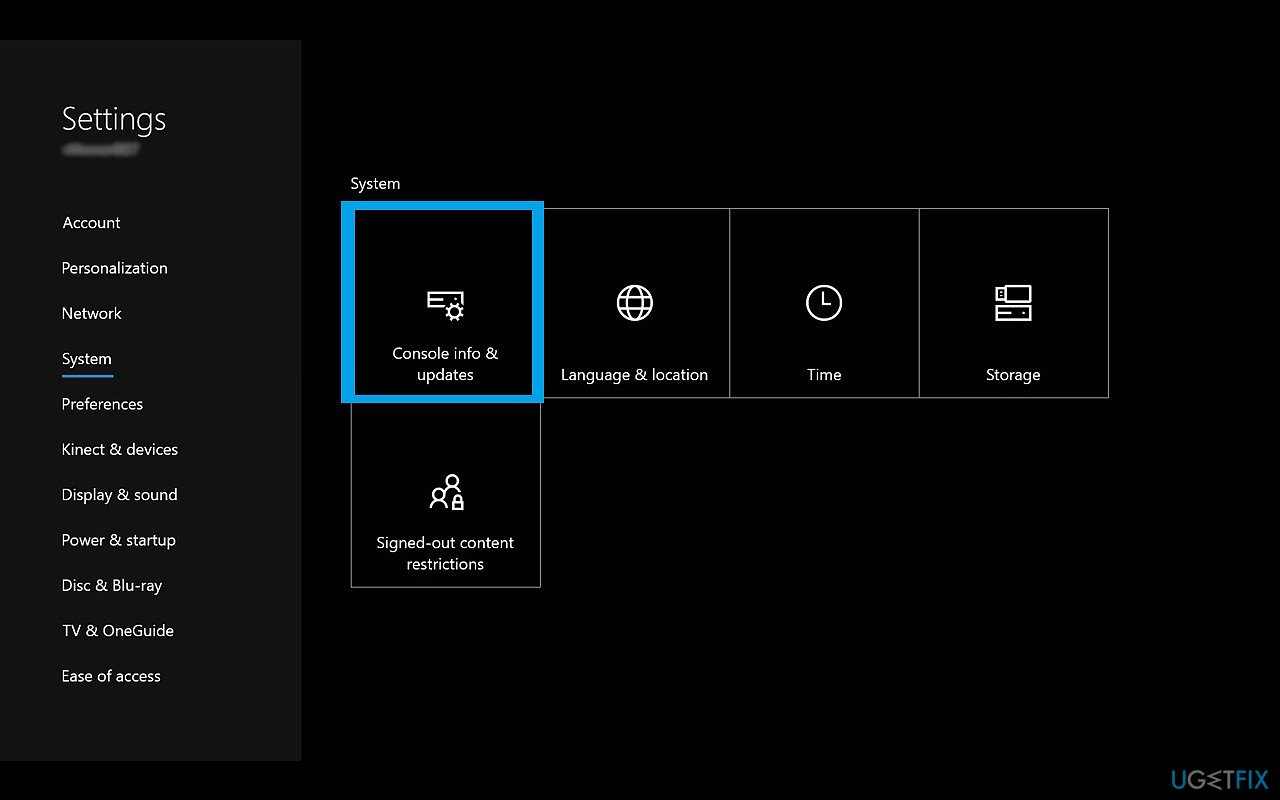
Performing hard reset will restore the default factory settings of your Xbox Console. Therefore, before doing a hard reset, you should connect to your Xbox live and sync everything. Otherwise, the data and settings that haven’t been synced with Xbox Live will be deleted. To perform a hard reset, you have to:
- Open Menu by pressing the left button on the navigation pad.
- Find All Settings and press A button to select it.
- Then navigate to System and select Console Info & Updates.
- Click Reset Console.
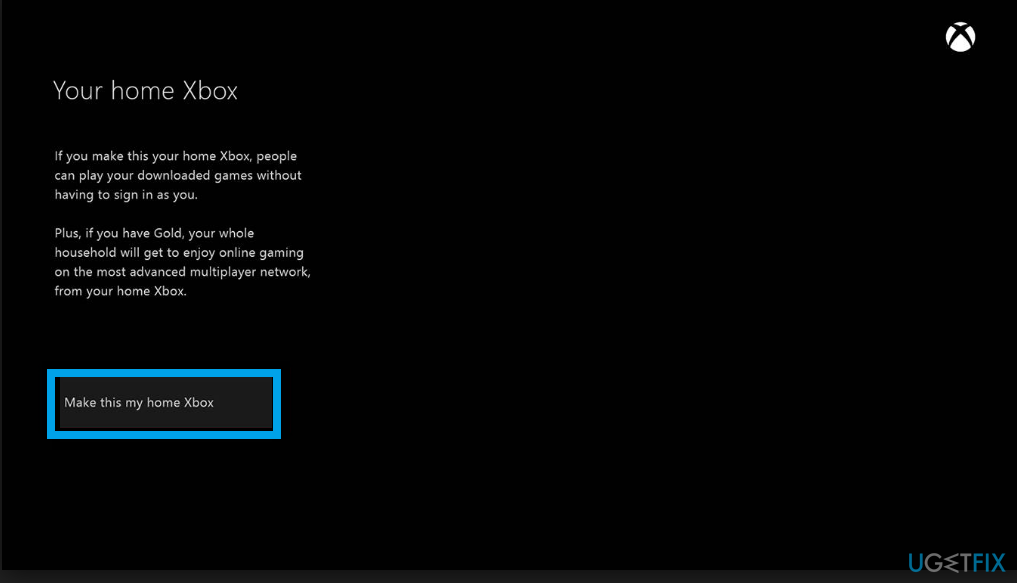
Option 3. Set home console
- Press the Xbox button to launch the guide.
- Choose System, Settings and then Personalization, and then select My home Xbox.
- Check the information and then select the following.
- Select Make this my home Xbox to set the console as your home Xbox.[ref en-3]
- Choose This is not my home Xbox to revert the change.
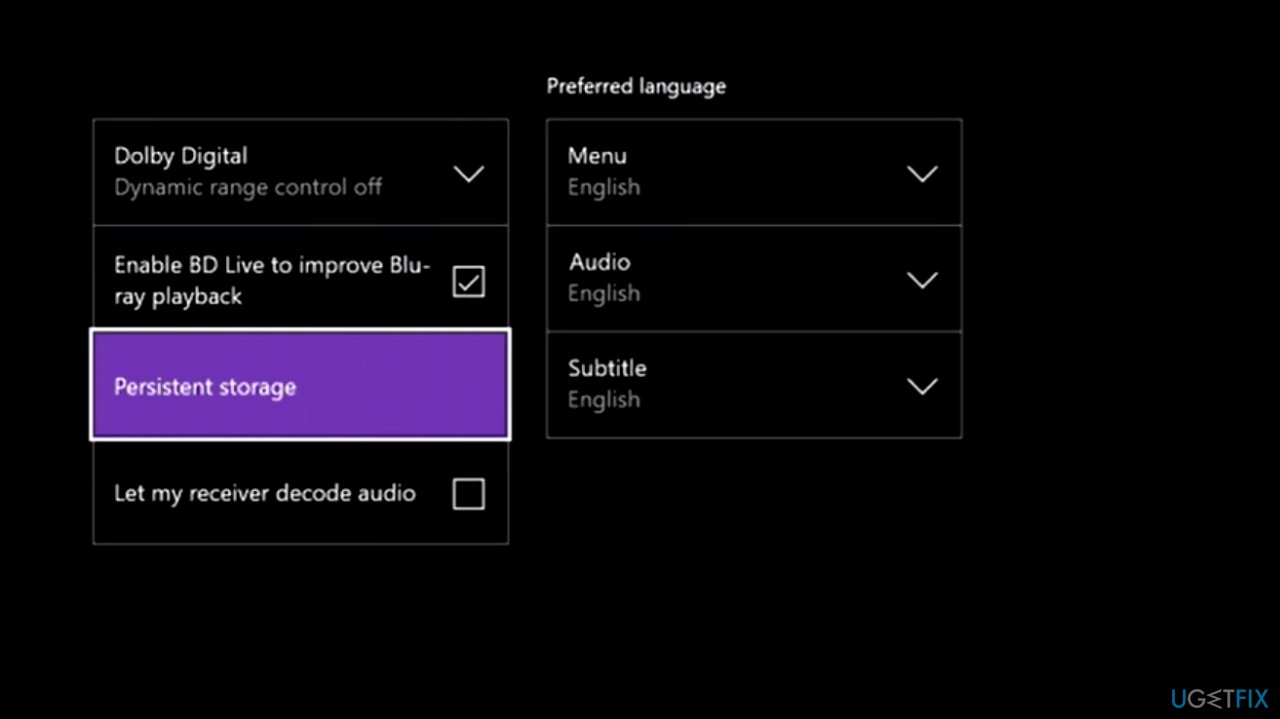
Option 4. Clear persistent storage data
- Go to Settings (Xbox).
- Choose CD/blueray, then Persistent storage, select clear persistent storage.
- Unplug and the plug the console again.
Fix the error on Windows
The error can also occur on Windows machines. If that is the case for you, proceed with the following solutions:
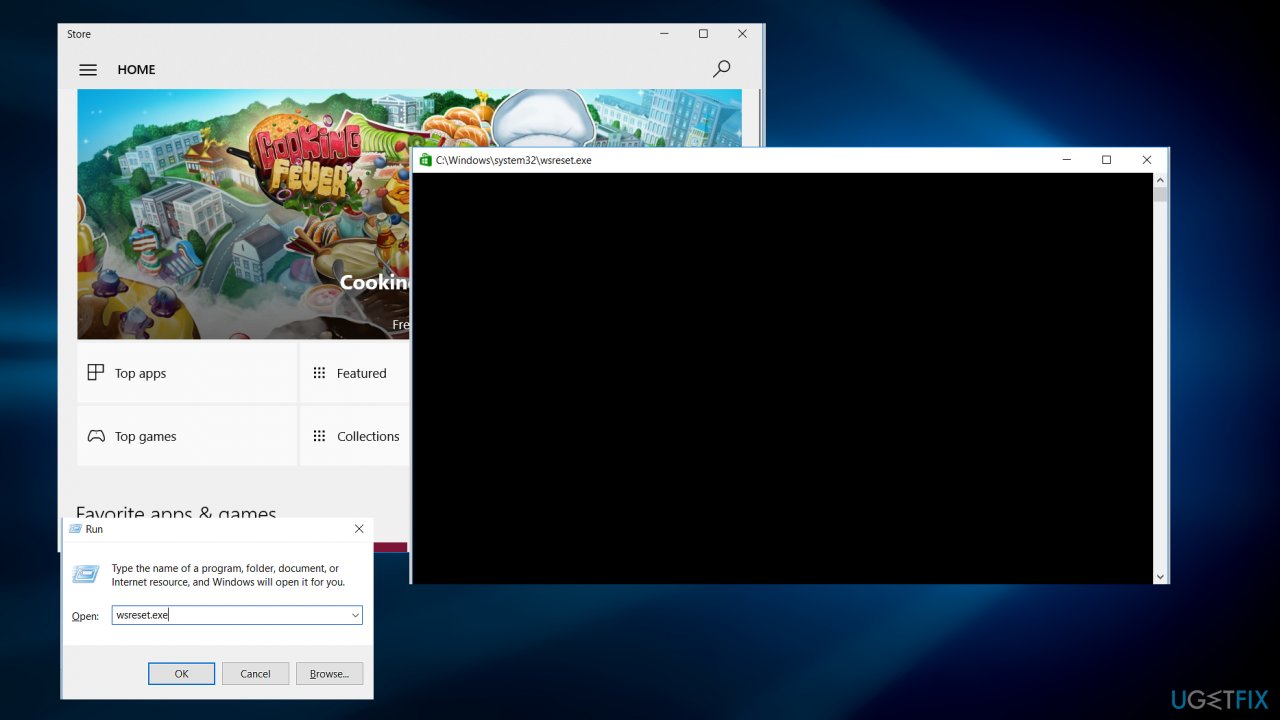
Option 1. Reset Windows Store cache
- Open the Run prompt by pressing Win + R keys.
- Type WSReset.exe in the and press Enter.
- Once you receive the confirmation that cache is cleared, restart your computer.
Option 2. Apply the latest Windows updates
In August of 2021, Microsoft has rolled out a very important patch that is meant to fix various issues related to gaming.[ref en-4] Thus, if you experience issues with games, you should make sure that that your system is patched:
- Type Update in Windows search and press Enter.
- On the right side of the window, click Check for Updates.
- Wait till all the files are downloaded and installed.
- Install all the optional updates as well.
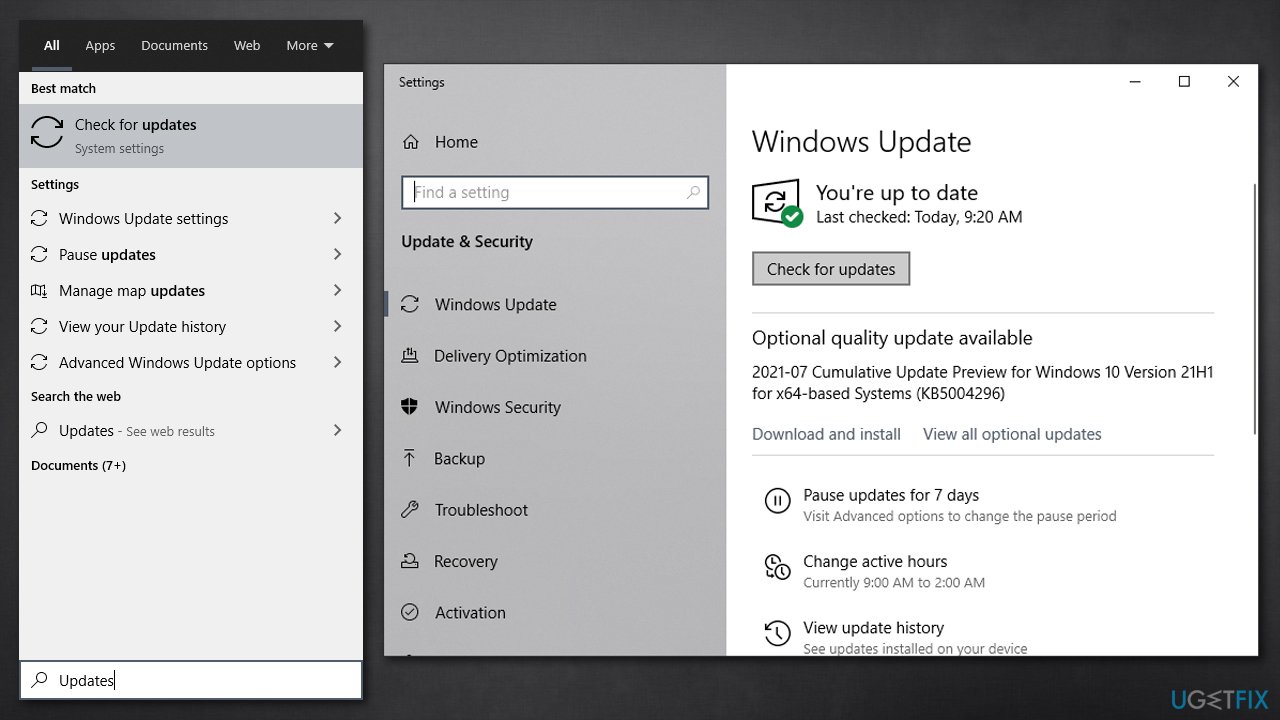
How to fix do you own this game or app 0x803f8001 error install all windows updates - Restart your device once finished.
Option 3. Re-register Store app
- Right-click on Start and pick PowerShell (Admin).
- Paste the following command and hit Enter on your keyboard:
Get-AppXPackage *Microsoft.WindowsStore* | Foreach {Add-AppxPackage -DisableDevelopmentMode -Register “$($_.InstallLocation)\\AppXManifest.xml”}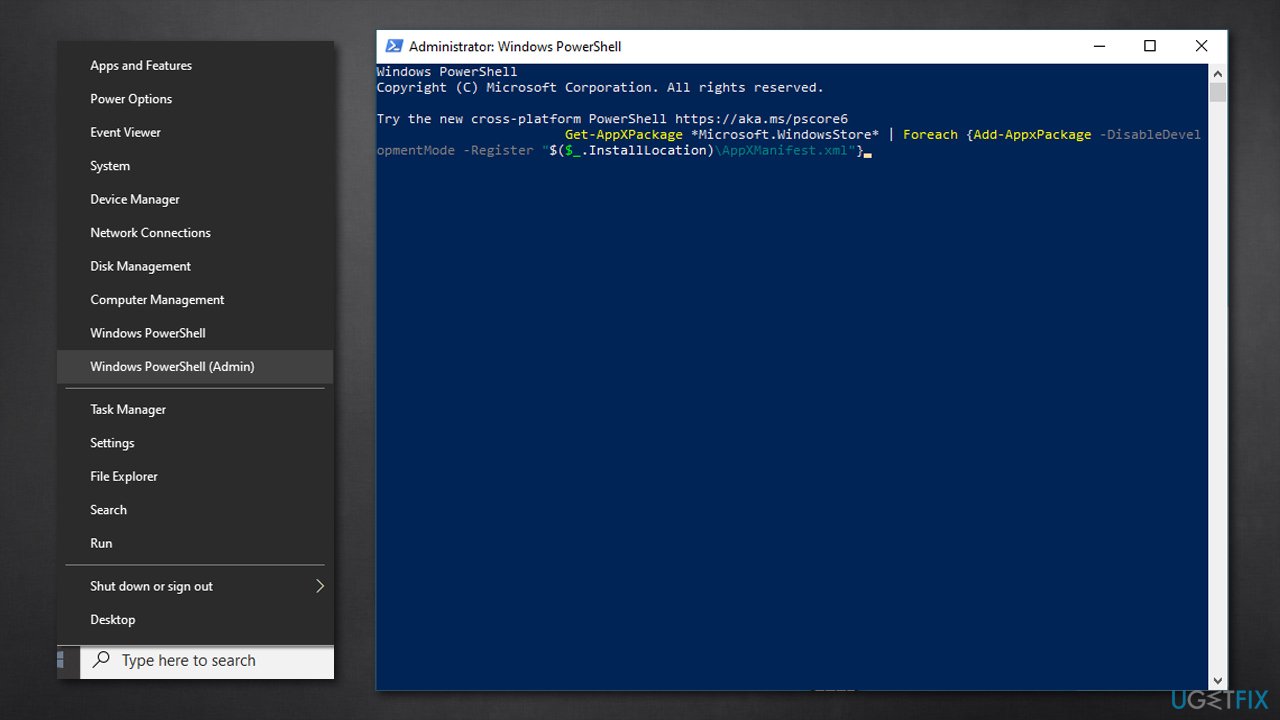
How to fix do you own this game or app 0x803f8001 error reregister store app - Close everything and restart your PC.
Option 4. Check for system file corruption
- Type cmd in Windows search.
- Right-click on the Command Prompt result and select Run as administrator.
- When UAC shows up, click Yes.
- Use the following command and press Enter:
sfc /scannow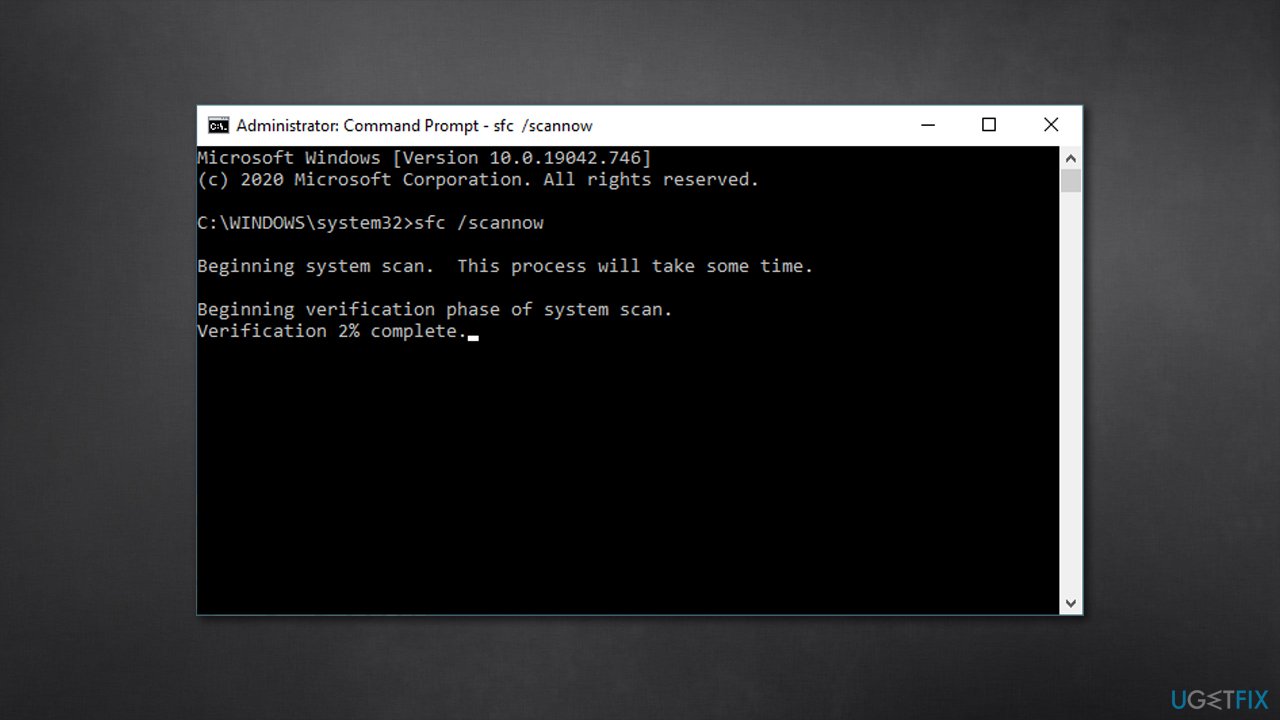
How to fix do you own this game or app 0x803f8001 error run sfc scan - Restart your PC.
Bottom line
To resolve the error code 0x803f8001, check the Xbox Live service status, ensure you are signed in to the correct account, and verify that the game disc is properly inserted and functional. If these steps do not work, consider running a system repair tool on your Windows machine.
Frequently asked questions
First, ensure that your Xbox account is properly linked to your Microsoft account and that you're logged in on both devices. Then, try resetting the Xbox app on your Windows 10 system by going to Settings > Apps > Apps & features, selecting the Xbox app, and clicking on 'Advanced options' to reset.
Yes, check your game licenses by logging into the Microsoft Store app, and ensure that your Windows 11 is updated to the latest version. If the issue persists, consider reinstalling the game or app causing the error.
You can try signing out of your Microsoft account in the Xbox app and then signing back in, as this often refreshes your licenses. Additionally, clearing the app cache can help; go to Settings > Apps > Xbox app and click on 'Advanced options' to clear the cache.




Report an issue
What's wrong with this guide? We review every report and update or remove content.
Report received — thank you. We'll review and fix it.
You need a free account to submit a report.
Be the first to comment