
How to fix "Docked in the taskbar" option grayed out in Windows?

Prefer to fix it yourself? The manual steps follow.
- 7methods
- 1 to 15 minutes
- Easy
Applies to Windows 11 and Windows 10: the Language Bar tab of Text Services and Input Languages, opened from Settings > Time & language > Typing > Advanced keyboard settings
7 methods in this guide
Hello. For some reason, the "Docked in the taskbar" option is grayed out in Windows. Is there a way to enable it?
"Docked in the taskbar" is greyed out because the legacy language bar and the taskbar's input language icon are two separate switchers, and Windows 11 often will not dock the old one. The docked switcher you want is the input language icon. Clear Use the desktop language bar when it's available in Advanced keyboard settings and it returns to the taskbar.
On Windows 11 you usually do not need that option. Open Settings > Time & language > Typing > Advanced keyboard settings and clear Use the desktop language bar when it's available (Fix 1). Microsoft says this turns the legacy language bar off and puts the input language icon back in the taskbar, which is the docked switcher. If the icon still does not show, add a second keyboard layout (Fix 2).
| Error | No message. In Language bar options, the radio button Docked in the taskbar cannot be selected, while Floating On Desktop and Hidden can. |
|---|---|
| Where it appears | The Language Bar tab of the Text Services and Input Languages window, opened with Language bar options in Settings > Time & language > Typing > Advanced keyboard settings. |
| Main cause | The legacy language bar is turned on. Microsoft documents that it then replaces the input language icon in the taskbar, and on Windows 11 the old bar often cannot be docked. |
| Fastest fix | Clear Use the desktop language bar when it's available (Fix 1). The input language icon appears next to the clock. |
| Also written as | docked in the taskbar greyed out, docked in the taskbar is disabled, language bar docked in taskbar greyed out, language bar cannot be docked in the taskbar. |
| Affects | Mostly Windows 11, often after an upgrade from Windows 10. Windows 10 22H2 too, which left support on 14 October 2025. |
| Microsoft's status | No known issue is listed. Microsoft's support page treats the input language icon as the default and the language bar as a legacy alternative. |
| Where the cause is written | Nowhere: Windows logs no event for this. The state of the checkbox in Advanced keyboard settings is the whole story in most cases. |
| Time to fix | 1 minute for Fix 1, about 5 minutes for Fix 2 to Fix 4, 10 to 15 minutes for Fix 5 and Fix 7. |
Facts checked on 15 October 2026. Steps written for Windows 11 (25H2 and 26H2) and Windows 10 22H2.
What "Docked in the taskbar" greyed out means
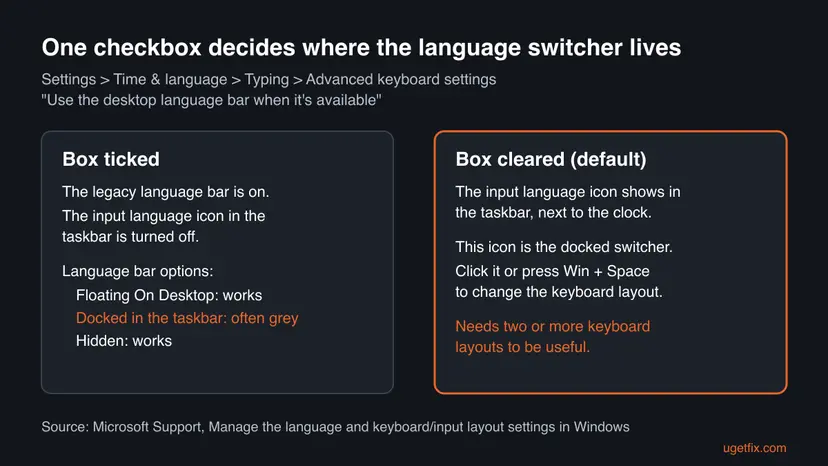
Windows has two ways to show which keyboard layout you are typing with. The default is the input language icon in the system tray area of the taskbar, for example ENG next to the clock. The other is the legacy language bar from older Windows versions, a small toolbar that can float on the desktop, sit in the taskbar or be hidden.
Microsoft's support page says plainly that the two do not run together: if the legacy language bar is enabled, the input language icon in the taskbar is disabled and no longer displays. The radio buttons Floating On Desktop, Docked in the taskbar and Hidden belong to the legacy bar only. When the docked choice is grey, Windows is telling you that the legacy bar will not go into the taskbar in this setup.
| What you see | What it means |
|---|---|
| Docked in the taskbar is grey, Floating On Desktop works | The legacy bar is on and cannot be docked here. Fix 1 gives you the taskbar icon instead. |
| All three radio buttons are grey | The desktop language bar box is cleared, so the legacy bar is off. Windows uses the taskbar icon, which is what you want. |
| The box is cleared but no language icon is in the taskbar | Only one keyboard layout is installed, or the taskbar did not redraw. Fix 2, then Fix 3 and Fix 4. |
| It worked on Windows 10 and stopped after the upgrade | The upgrade kept the legacy bar setting. Users report this most often. Fix 1, then Fix 5. |
Most readers want one thing: a language switcher in the taskbar. On Windows 11 that is the input language icon. You do not need the Docked in the taskbar radio button to get it.
Why the docked option is disabled
The causes are ordered from the most likely to the least likely. The first one comes from Microsoft's own description of the two switchers. The others come from what readers report on Microsoft Q&A and Windows forums, so treat them as reports, not as documented behaviour.
| Cause | How often | How to tell | Fix |
|---|---|---|---|
| Use the desktop language bar when it's available is ticked, so the legacy bar replaced the taskbar icon. | Most often | A floating bar on the desktop, or nothing, and no language icon next to the clock. | Fix 1 |
| Only one keyboard layout is installed, so there is nothing to switch and nothing to show. | Often | Win + Space does nothing. | Fix 2 |
| The language settings changed but the taskbar kept the old state. | Sometimes | You cleared the box and the icon did not appear. | Fix 3, Fix 4 |
| The language list was damaged by an upgrade or by removing and adding languages. | Sometimes | It started after the upgrade to Windows 11 or a display language change. | Fix 5 |
| Your user profile holds a broken input setting. | Rarely | Another account on the same PC shows the icon normally. | Fix 7 |
This is not a hardware or licence problem. The language bar is a setting of your user account, and every edition of Windows 11 and Windows 10 has it.
How to fix "Docked in the taskbar" greyed out in Windows
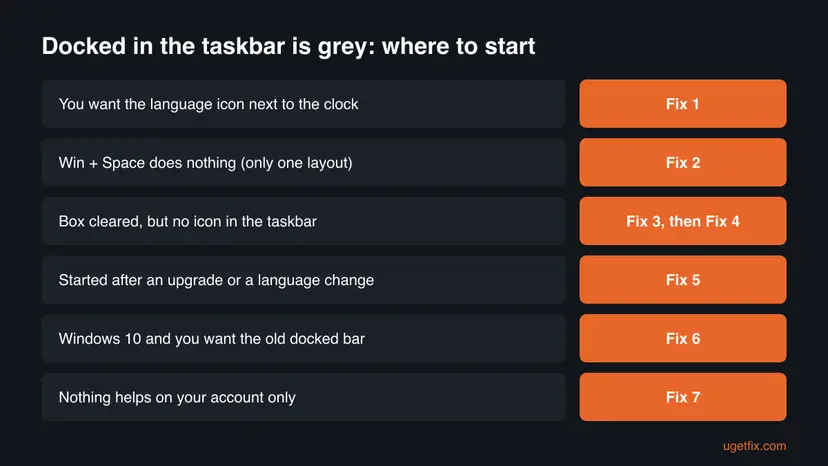
Fix 1 solves it for most readers in a minute. Fix 2 to Fix 4 are for when the icon still does not show. Fix 5 rebuilds the language list. Fix 6 is only for Windows 10 readers who want the old docked bar back, and Fix 7 tests a new user account.
| What you see or want | Start with |
|---|---|
| You want a language switcher next to the clock | Fix 1 |
| Win + Space does nothing, only one keyboard layout | Fix 2 |
| The box is cleared but no icon in the taskbar | Fix 3, then Fix 4 |
| It started after the Windows 11 upgrade or a language change | Fix 5 |
| Windows 10 22H2 and you want the legacy bar docked | Fix 6 |
| Nothing works on your account but another account is fine | Fix 7 |
Fix 1. Turn off the desktop language bar to bring the language icon back to the taskbar
1 minuteNo riskEvery reader, first. Especially if you see a floating language bar, or no language icon at all next to the clock.
Microsoft's support page says that clearing this box makes the input language icon display again in the taskbar, and that the legacy bar stops showing. The icon is the switcher that is docked in the taskbar on Windows 11.
- Press Win + I to open Settings.
- Select Time & language, then Typing.
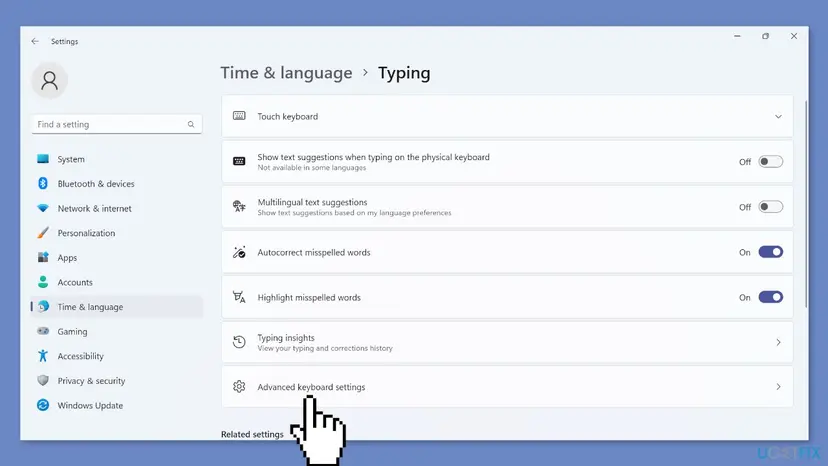
- Select Advanced keyboard settings.
- Under Switching input methods, clear the box Use the desktop language bar when it's available.
- Look at the taskbar next to the clock. The language icon, for example ENG, should appear within a few seconds.
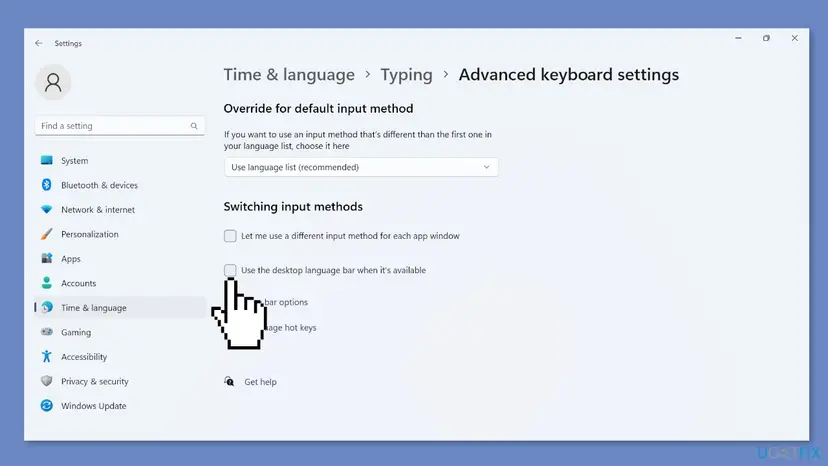
On Windows 10 22H2 the path is Settings > Time & Language > Typing > Advanced keyboard settings. The box has the same name.
It worked if: The legacy bar disappears and the input language icon sits in the taskbar. Clicking it lists your keyboard layouts.
If not: If no icon appears, go to Fix 2. If you have two or more layouts already, go to Fix 3.
Fix 2. Add a second keyboard layout so Windows has something to show
3 to 5 minutesNo riskWin + Space does nothing, or the language list has one language with one keyboard.
Microsoft says that if Win + Space does nothing, only one keyboard layout is installed. Microsoft's Office help adds that the language bar appears after you enable two or more keyboard layouts. With one layout the switcher has nothing to do.
- Open Settings > Time & language > Language & region.
- Next to your language under Preferred languages, select ... and then Language options.
- Next to Installed keyboards, select Add a keyboard and choose a layout. Any layout works for this test.
- Press Win + Space twice. A list of layouts should appear and switch.
- Go back to Typing > Advanced keyboard settings and check that Use the desktop language bar when it's available is still cleared.
It worked if: Win + Space cycles through the layouts and the language icon shows next to the clock.
If not: If Win + Space works but the icon still does not show, go to Fix 3. You can remove the test keyboard later in the same Language options page.
Fix 3. Switch the language bar on, set it to float, then switch it off again
3 minutesNo riskFix 1 did not show the icon, or the box was already cleared when you started.
Users on Microsoft Q&A report that the setting can be stuck between the two switchers. Turning the legacy bar on, giving it a valid position and turning it off again writes the setting fresh. We could not confirm the cause, but the steps change nothing you cannot change back.
- Open Settings > Time & language > Typing > Advanced keyboard settings.
- Tick Use the desktop language bar when it's available.
- Select Language bar options. On the Language Bar tab, select Floating On Desktop and then OK.
- Clear Use the desktop language bar when it's available again.
- Sign out of Windows and sign in, or restart the PC.
It worked if: After you sign in, the floating bar is gone and the input language icon is in the taskbar.
If not: Go to Fix 4 to redraw the taskbar without signing out, or to Fix 5 if nothing changed.
Fix 4. Restart Windows Explorer to redraw the taskbar
1 minuteNo riskThe settings look right but the taskbar has not changed since you changed them.
The taskbar and its system tray are drawn by Windows Explorer. Restarting it makes the taskbar read the input settings again without a full restart.
- Open Task Manager. Press Ctrl + Shift + Esc. The Processes page opens.
- Select Windows Explorer. Find Windows Explorer in the list and select it. If it is not under Apps, look under Windows processes further down.
- Restart it. Select Restart task at the top of the window. The taskbar disappears for a moment and comes back. If you do not see Restart task, right-click Windows Explorer and select Restart.
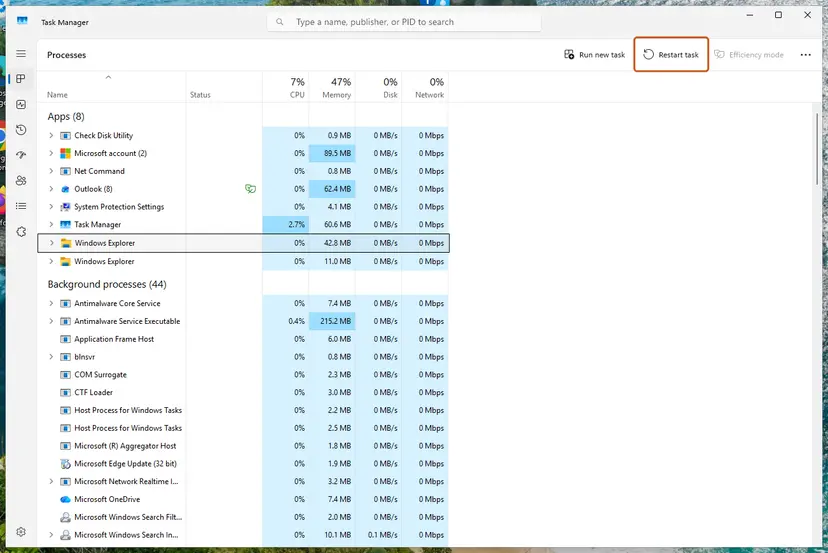
Select Windows Explorer, then Restart task. Screenshot: Windows 11 26H2.
These steps were written for Windows 11 26H2 (build 26300). The full page with the other versions and what each result means: Restart File Explorer
It worked if: The taskbar disappears for a moment and comes back with the language icon.
If not: If the icon is still missing, go to Fix 5.
Fix 5. Remove and add the language again
10 to 15 minutesLow riskThe problem started after the upgrade to Windows 11, or after you added or removed a display language.
Readers on Microsoft Q&A and Windows forums report that removing their input languages and adding them again, or adding English (United States) and removing it, cleared the grey option. This rebuilds the language list that the switcher reads. We could not confirm why it works.
- Open Settings > Time & language > Language & region.
- Select Add a language, choose English (United States) or the language you type in, then Next and Install.
- Wait until the language shows no progress text under Preferred languages, then restart the PC.
- If you added the language only for this test, select ... next to it and Remove.
- Restart again and check the taskbar. Apply Fix 1 once more if the legacy bar came back.
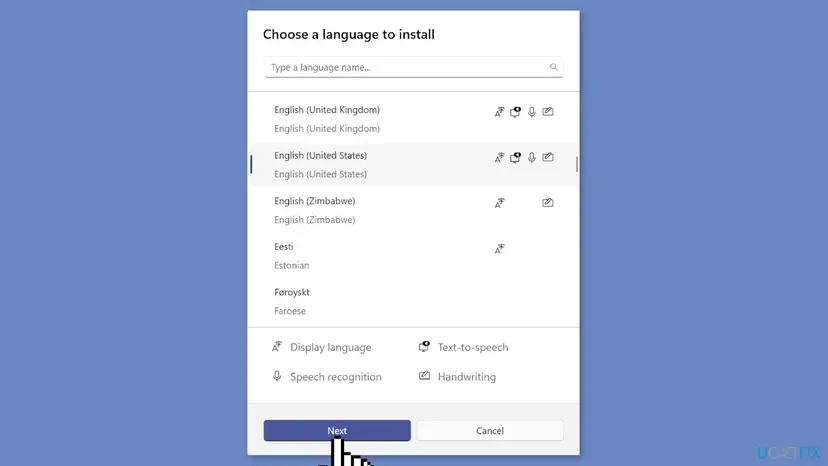
Microsoft notes that the Remove button is greyed out for the current Windows display language. Remove only a language you added for this test, and keep at least one keyboard you can type your password with. If the display language download hangs, read our guide to a stuck language pack download.
It worked if: After the restart, the input language icon shows in the taskbar, or the Docked in the taskbar option can be selected.
If not: On Windows 10, try Fix 6. On Windows 11, go to Fix 7.
Fix 6. Windows 10: dock the legacy language bar from Language bar options
2 minutesNo riskYou use Windows 10 22H2 and want the old language bar, not the icon, in the taskbar.
Microsoft's Office help still describes this path: tick the desktop language bar box, open the Language Bar tab and choose Floating On Desktop or Docked in the taskbar. On Windows 10 the docked choice is available once the box is ticked. On Windows 11 it often stays grey, and Fix 1 is the answer.
- Open Settings > Time & Language > Typing > Advanced keyboard settings.
- Under Switching input methods, tick Use the desktop language bar when it's available.
- Select Language bar options. The Text Services and Input Languages window opens on the Language Bar tab.
- Select Docked in the taskbar, then Apply and OK.
Windows 10 left support on 14 October 2025. The docked legacy bar is a Windows 10 habit; on Windows 11 the input language icon does the same job.
It worked if: The language bar sits in the taskbar next to the clock.
If not: If the option is grey on Windows 10 too, clear the box again (Fix 1) and use the input language icon instead.
Fix 7. Test a new local user account
10 minutesLow riskNothing above helped, and you want to know if the problem is in your profile or in Windows.
Input settings are stored per user. If a new account shows the language icon normally, the problem is your profile's settings, not Windows.
- Open Other users. Open Settings > Accounts > Other users. You can also press Windows key + R and run the command below.
ms-settings:otherusers - Add an account. Next to Add other user, select Add account.
- Skip the Microsoft account. Select I don't have this person's sign-in information.
- Choose a local account. Select Add a user without a Microsoft account.
- Name the account. Type a user name and, if you want one, a password. If you set a password, Windows also asks for answers to security questions. Select Next.
- Make it an administrator (optional). Back in Other users, select the new account, then Change account type next to Account options. Choose Administrator and select OK. For testing a problem, a standard account is usually enough.
- Sign in to the new account. Open Start, select your account picture and choose the new account. The first sign-in takes a few minutes while Windows sets up the profile.
These steps were written for Windows 11 24H2, 25H2 and 26H2. The full page with the other versions and what each result means: Create a new user account to test a problem
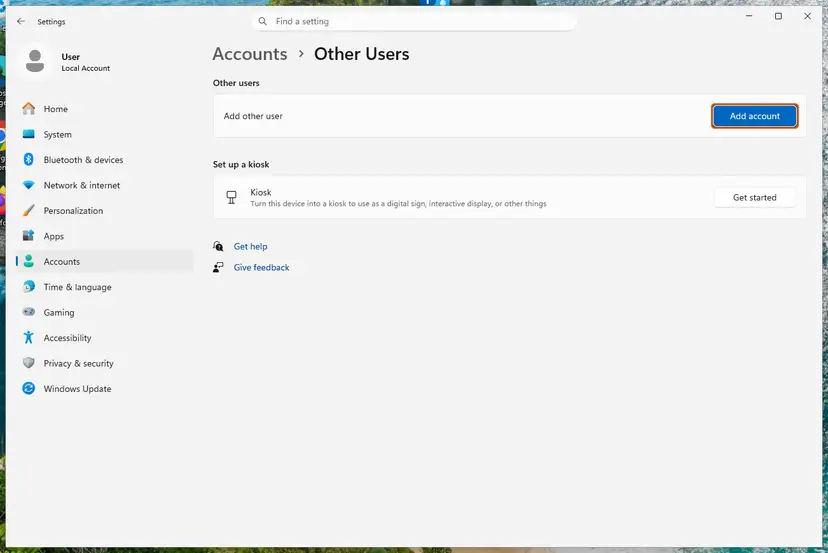
It worked if: In the new account, after you add a second keyboard, the input language icon appears in the taskbar.
If not: If the new account behaves the same, read the next section.
If "Docked in the taskbar" is still greyed out
First decide what you really need. If the goal is to switch layouts from the taskbar, the input language icon from Fix 1 does it, and the grey radio button no longer matters. If the icon itself never shows, the checks below narrow it down.
| Situation | What to do |
|---|---|
| The new account from Fix 7 works | Move to the new account, or copy your files and settings to it. The old profile keeps the broken input setting. |
| No account shows the icon, even with two layouts | Run a system file check: Run DISM and SFC to repair Windows system files. Then repeat Fix 1 and Fix 4. |
| A work or school PC | Ask the administrator. Language and input settings can be set by the organization. |
| You only need a quick switch, not the icon | Use Win + Space or Alt + Shift. Both work without the language bar or the icon. |
There is no error log for this. Windows writes no Event Viewer entry when the language bar cannot dock, so the only checks are the ones in this guide.
How to keep the language icon in the taskbar
- Leave Use the desktop language bar when it's available cleared on Windows 11. Ticking it removes the taskbar icon by design.
- Keep at least two keyboard layouts if you switch between languages, so the icon has a reason to show.
- After a feature update, check Advanced keyboard settings once. Upgrades can carry the old language bar setting over.
- When you change the display language, add the new language first and remove the old one only after a restart.
Frequently asked questions
Why is Docked in the taskbar greyed out?
Because the legacy language bar and the taskbar's input language icon are two different switchers, and Windows shows only one at a time. Microsoft documents that turning on the legacy bar turns off the taskbar icon. On Windows 11 the legacy bar often cannot be docked, so the radio button stays grey. To get a switcher in the taskbar, clear Use the desktop language bar when it's available in Settings > Time & language > Typing > Advanced keyboard settings. The input language icon then appears next to the clock.
How do I dock the language bar in the taskbar in Windows 11?
You dock it by turning the legacy bar off. Open Settings > Time & language > Typing > Advanced keyboard settings and clear Use the desktop language bar when it's available. Microsoft says this makes the input language icon display again in the taskbar. That icon is Windows 11's docked language switcher. If you do not see it, add a second keyboard layout in Language & region > Language options, because with one layout there is nothing to switch.
Why does the language bar say Docked in the taskbar is disabled?
Docked in the taskbar is disabled when Windows will not put the legacy bar in the taskbar, usually because the input language icon is meant to be there instead. When all three options are grey, the desktop language bar box is cleared and the legacy bar is off completely, which is fine. Look next to the clock for the language icon, for example ENG. If it is missing, follow Fix 2 to Fix 4 of this guide.
Why can the language bar not be docked in the taskbar after upgrading to Windows 11?
The upgrade keeps your Windows 10 choice of the legacy language bar, but Windows 11 handles the taskbar differently and often will not dock that bar. Users who upgraded report exactly this. Clear the desktop language bar box (Fix 1) and Windows 11 shows its own input language icon in the taskbar instead. If the upgrade also damaged the language list, removing and adding the language again (Fix 5) is what readers report as the fix.
Is there a registry fix for the docked language bar?
Older guides change the ShowStatus value under HKEY_CURRENT_USER\Software\Microsoft\CTF\LangBar. We could not confirm from Microsoft what each value does on Windows 11, so this guide does not use it. The settings in Fix 1 to Fix 3 write the same user setting through Settings, which is safer. If you still try the registry, back it up first: Back up the registry before editing it.
I cleared the box but it is still not working. What now?
Check three things in order. First, press Win + Space: if nothing happens, only one keyboard layout is installed, so add one (Fix 2). Second, restart Windows Explorer in Task Manager so the taskbar redraws (Fix 4). Third, tick the box, set the bar to Floating On Desktop, clear the box again and sign out (Fix 3). If none of this works, test a new user account (Fix 7).
How do I switch the keyboard language without the language bar?
Press Win + Space. Each press while you hold the Windows key moves to the next installed layout, as Microsoft's support page describes. Microsoft's Office help also names Alt + Shift for switching keyboard layouts. Both work whether the language bar is floating, hidden or off, so you can type in another language even while you fix the taskbar icon.
Does Floating On Desktop work instead?
Yes. If Floating On Desktop can be selected, the legacy bar works as a small toolbar you can drag anywhere on the screen. Some readers prefer it on purpose. The catch is that while the legacy bar is on, Microsoft says the taskbar icon is turned off. Choose one: the floating bar, or the taskbar icon with the desktop language bar box cleared.
The page or the answer did not help (не помогло). Is there anything else?
This page is in English and covers Windows 11 and Windows 10. If the fixes did not help, the most useful next step is Fix 7: a new local account shows whether the problem is your profile or Windows itself. The pictures in each fix show the screens to look for. If the new account fails too, run the system file check linked in the section above, then try Fix 1 again.
Sources
- Microsoft Support: Manage the language and keyboard/input layout settings in Windows (support.microsoft.com)
- Microsoft Support: Switch between languages using the Language bar (support.microsoft.com)
- Microsoft Q&A: Windows 11 language bar "docked in the taskbar" greyed out (learn.microsoft.com)
Did this fix work?
One click, no account. It tells the next reader which guides are worth their time.
Questions and experiences: fix "Docked in the taskbar" option grayed out in Windows
Still broken, or found a fix we did not cover? Ask here: members and our editors answer. Reading is open; writing needs a free account.
…